How to read your monthly report and act on it in 5 minutes
The monthly report shows you, on one page, how many people find your website, what they search for and how many contact you. This guide helps you read it from top to bottom and do the few things it asks of you, in 5 minutes.
You need Visibility, from the Medium tier, and your Google account connected (see the guide How to connect your Google account and see where your clients come from). You get the first report on the 5th of the month after you connect it.
Where to find the report
- By email: it comes from rapoarte@webid.ro, with the subject "Your Google report for" followed by your website's address and the period. If you have a question about it, reply to the email: we read it.
- In the admin panel: the Account & Settings menu, then SEO & Google, the "② Your report" block.
- From "Today": the "Latest Google report" card, the See the Report button.
When you get it and who gets it
The report covers a whole month, from the 1st to the last day, and you get it on the 5th of the following month, or on the 7th at the latest, if Google hasn't finished counting the last day yet. The first report covers the month you connected your Google account in, from the day you connected it, and says the date we're measuring from.
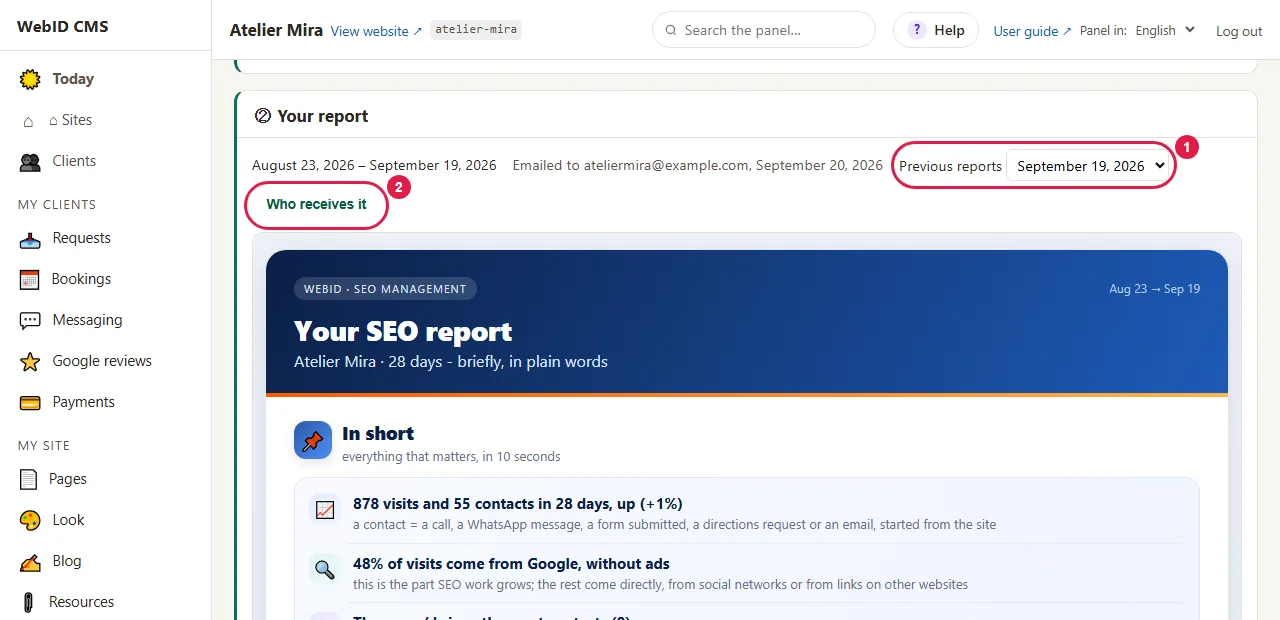
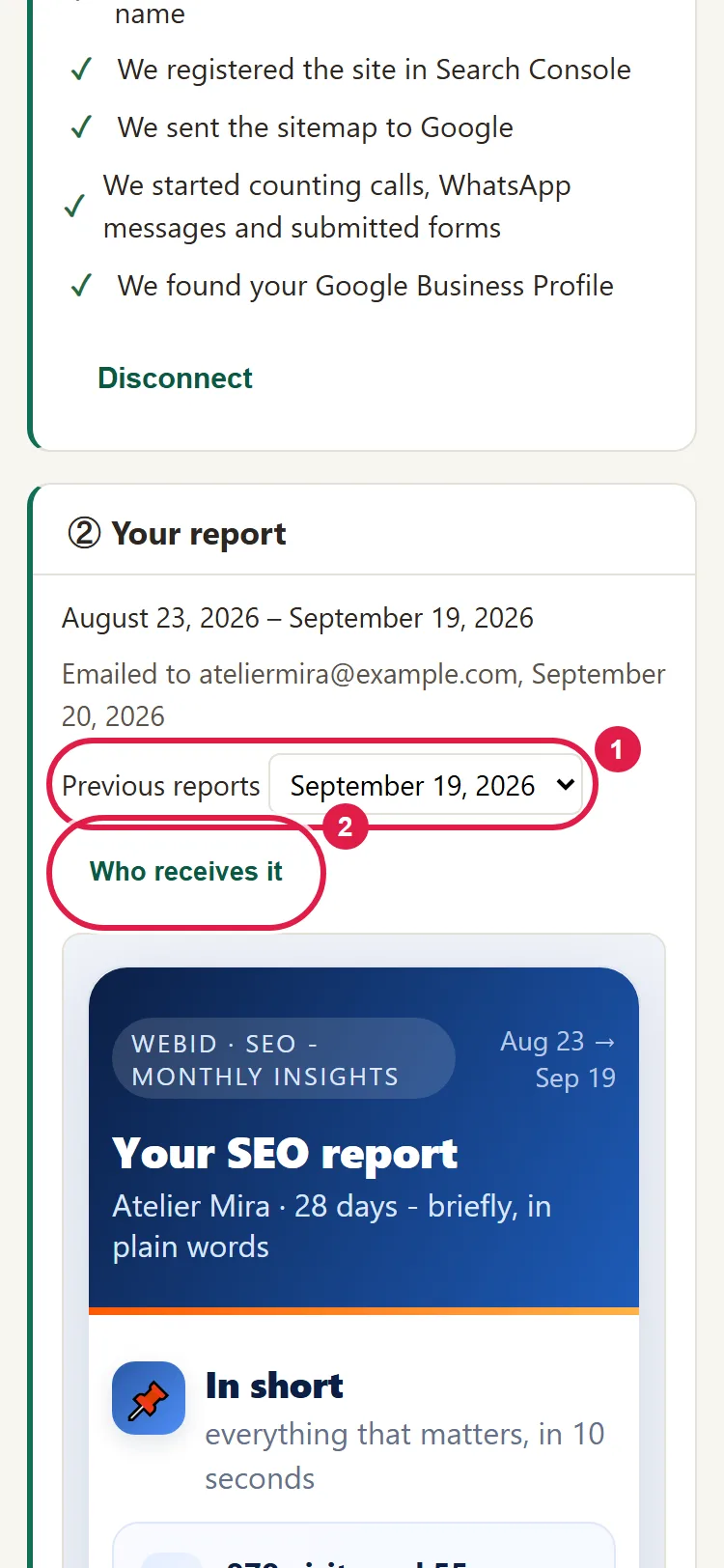
Above the report there's a bar with the period, the date it was sent and the date of the next one.
- Click Who receives it.
- To change the address it goes to, click Change in Settings › Notifications.
You'll find the reports from the last 12 months under Previous reports.
How to read the report, from top to bottom
"The month" in the report is the month in the top bar. The percentages next to the numbers show the difference from the month before, when that month was measured in full; if this month is shorter, under a number that went down you see how many days longer the month before was. If a part is missing, this period has no data for it. It's not a mistake: it appears when there's data.
- 📌 "In short": at most 5 conclusions. At first you may see "Not enough data for conclusions yet".
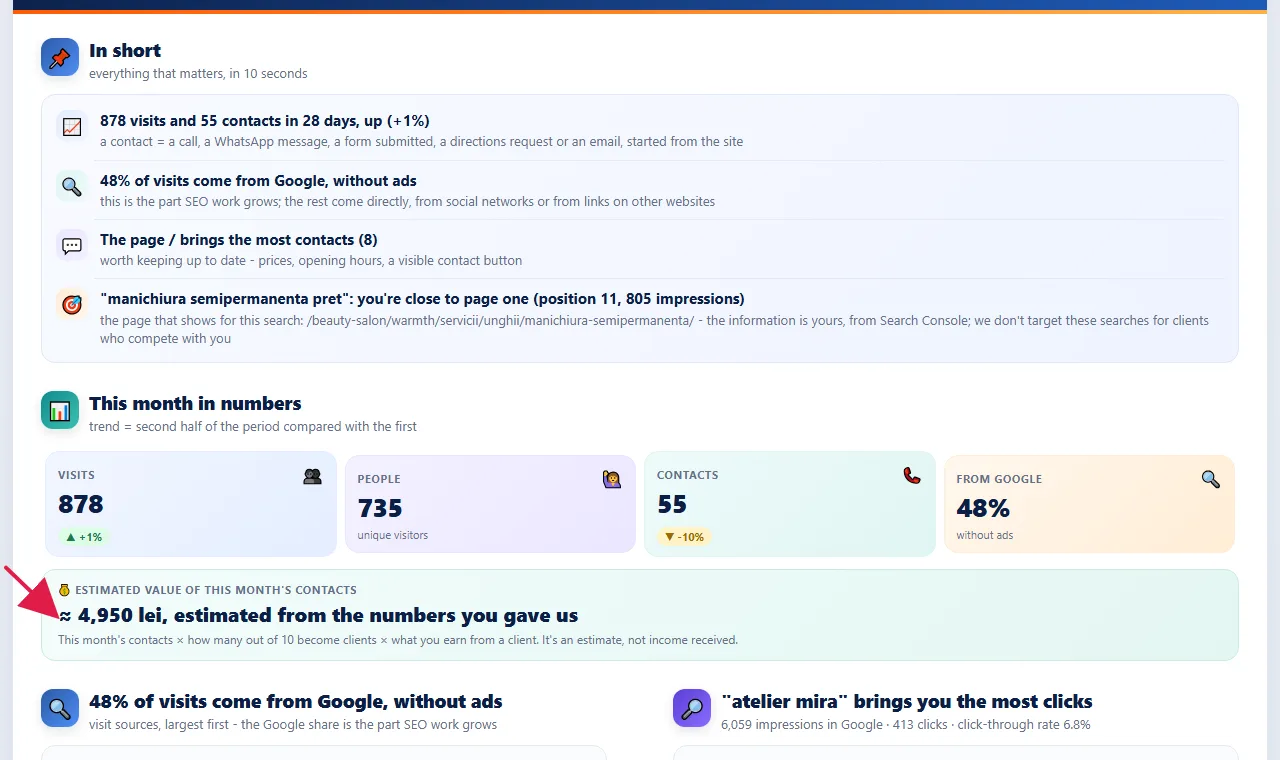
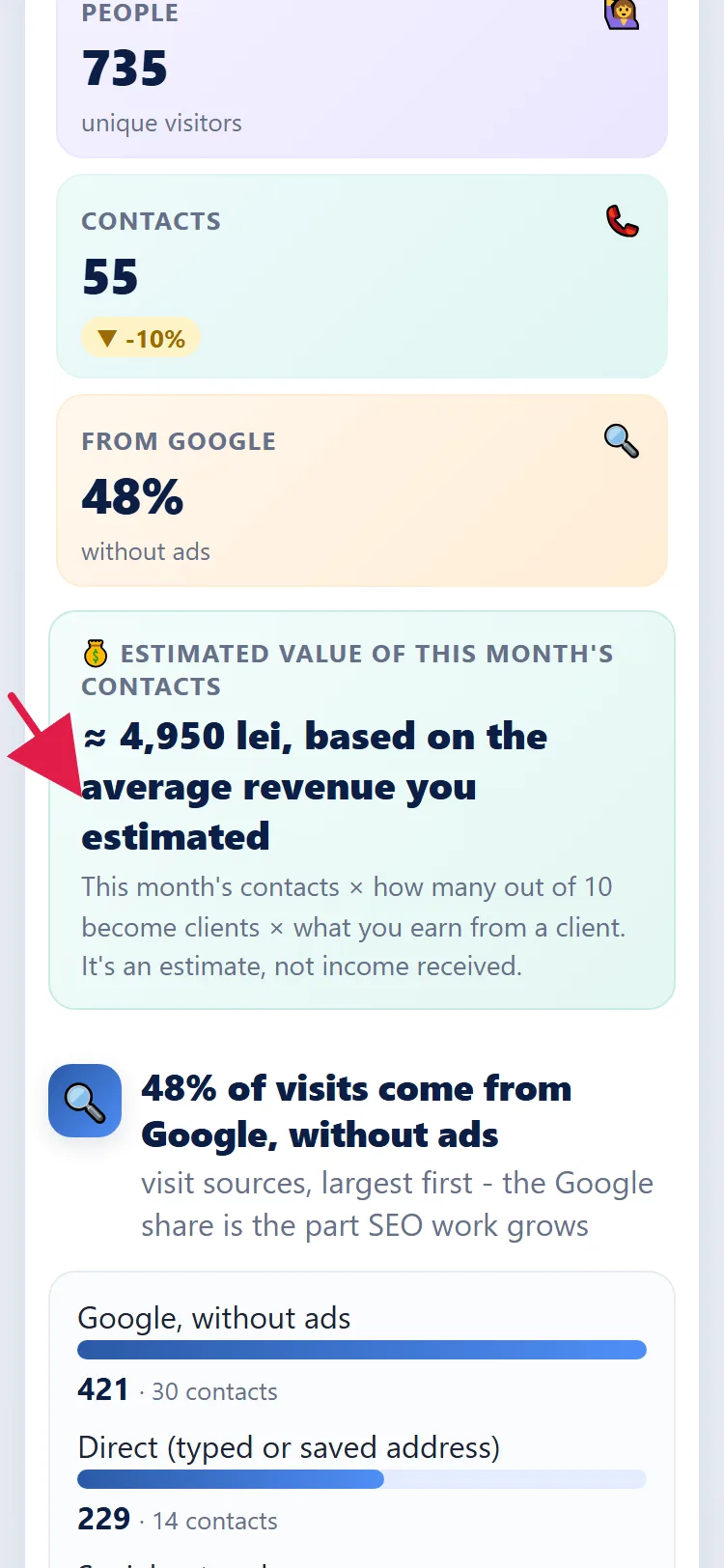
- 📊 "This month in numbers": the visits, people and contacts across your whole website, from all sources, plus what percentage of visits come from Google, not from ads.
- 💰 "Estimated value of this month's contacts": an amount in lei, "based on the average revenue you estimated". We calculate it like this: the month's contacts × how many out of 10 become clients ÷ 10 × how much you earn from one client. For example, 20 contacts, 3 out of 10 and 300 lei: 20 × 3 ÷ 10 × 300 = 1,800 lei (see below how to fill in the numbers).
- 🧠 "What happened this month": a written summary, when we have something to say.
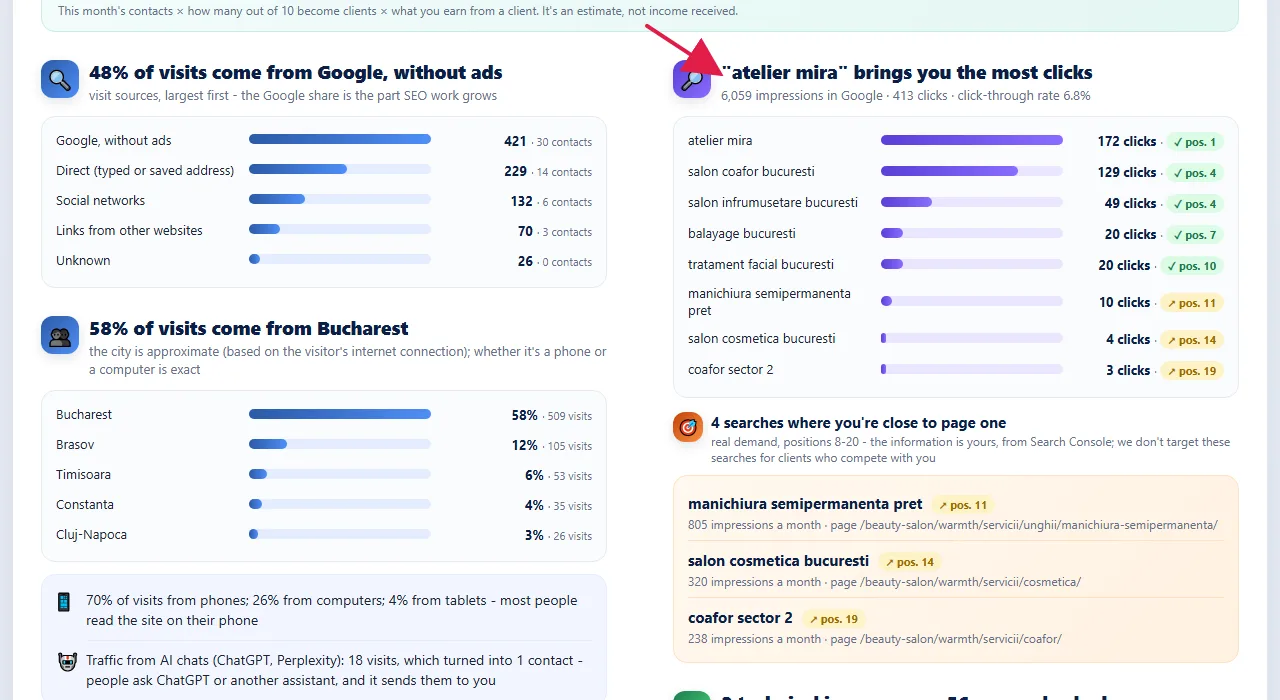
- 🔍 The share of visits that come from Google, without ads.
- 👥 "Who your visitors are": the cities, how many visits come from phones and how many from desktop, visits from AI chats (ChatGPT and others) and the ones from your Google profile on the map.
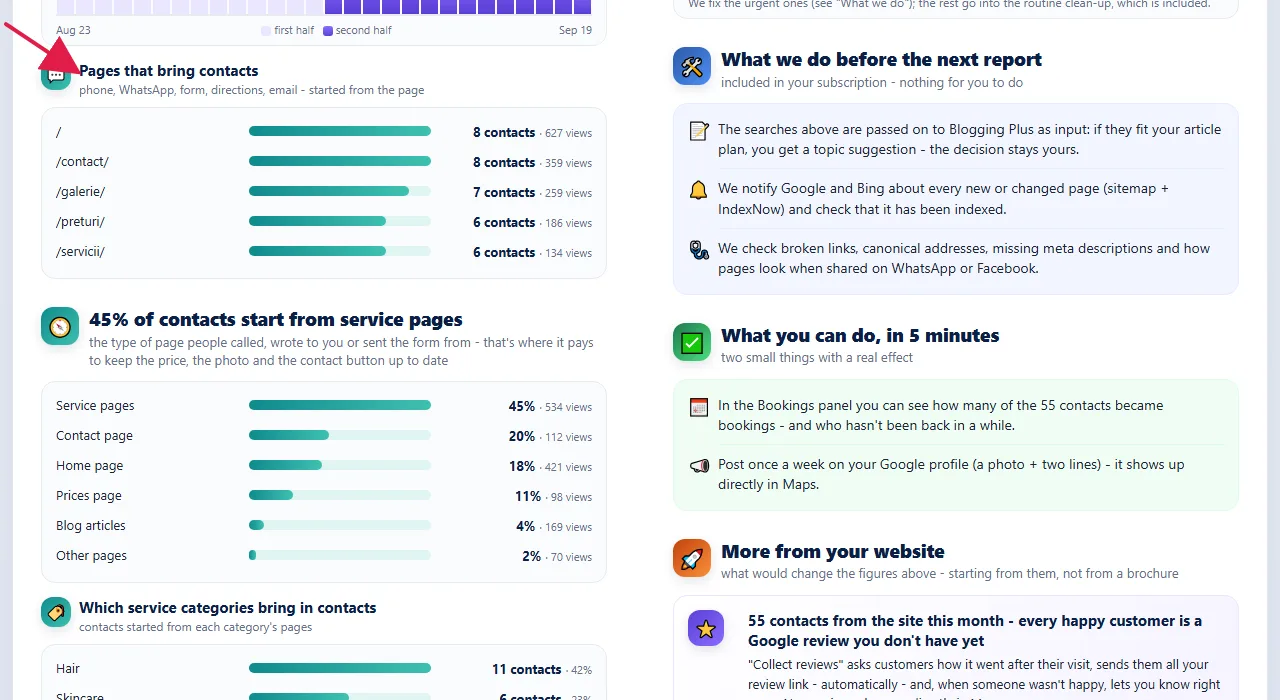
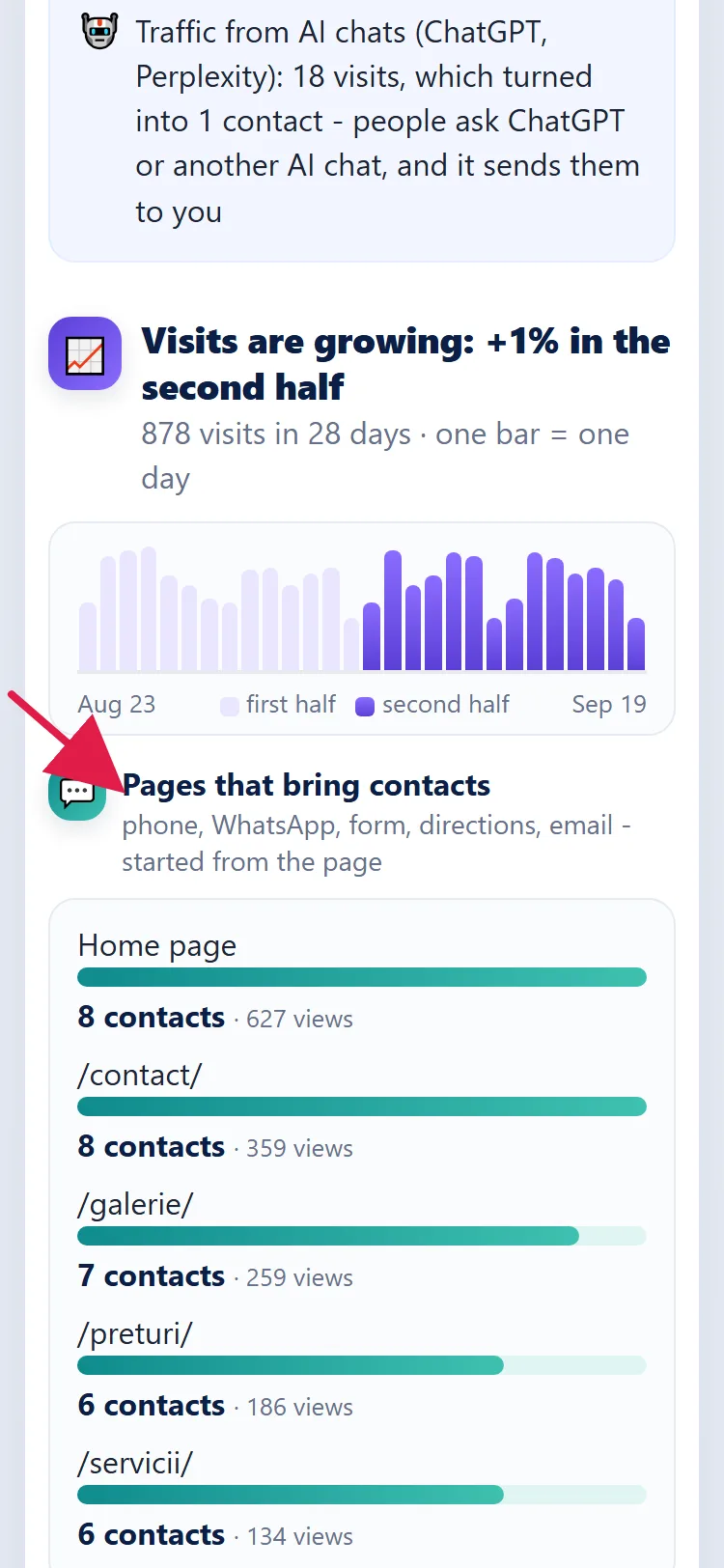
- 📈 Visits day by day and 💬 "Pages that bring contacts".
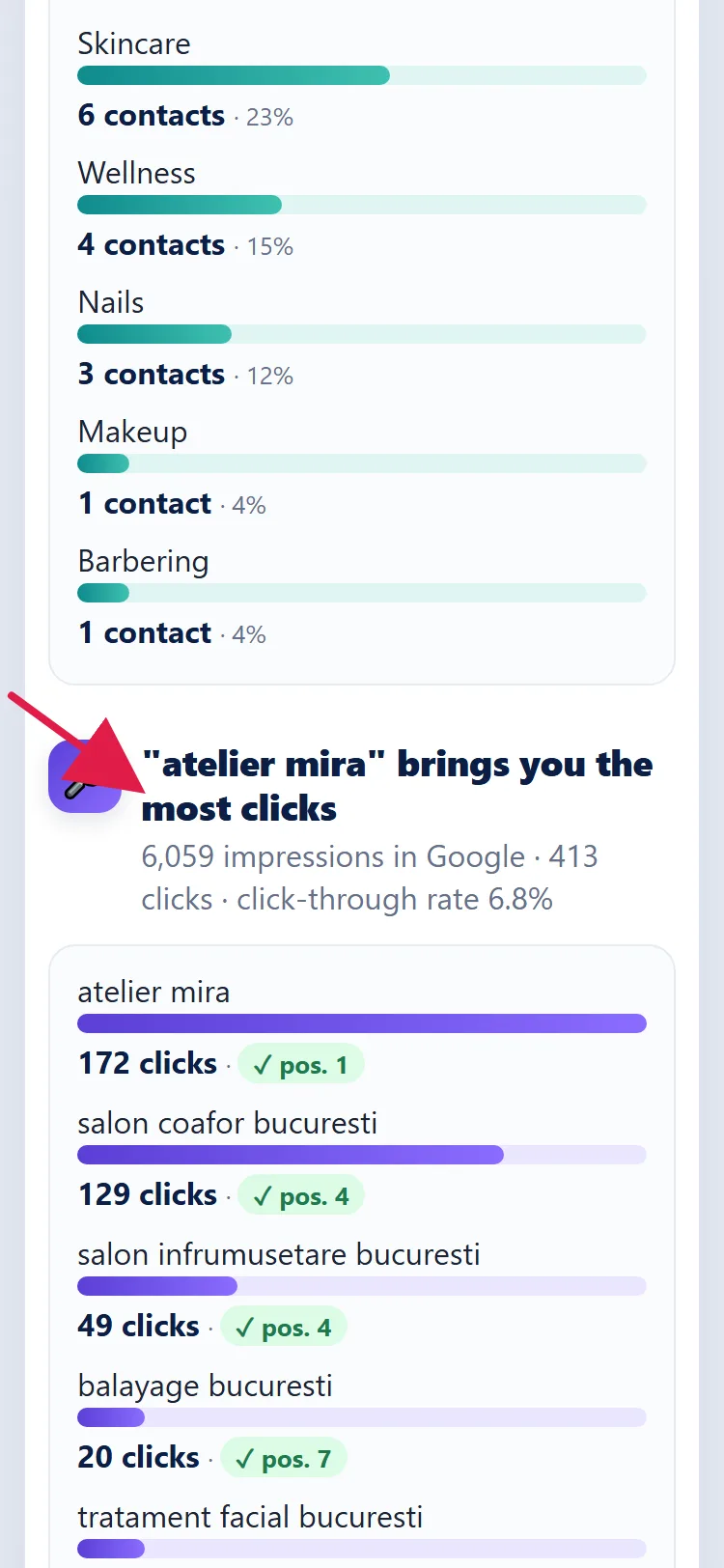
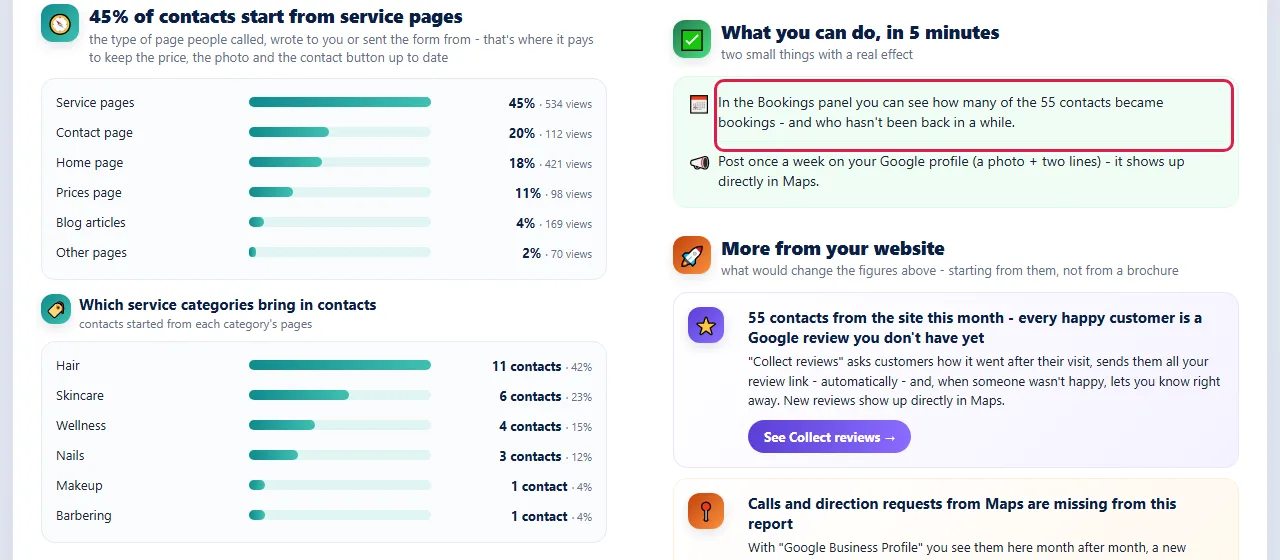
- 🧭 What kind of page contacts start from and 🏷️ "Which service categories bring in contacts".
- 🔎 the Google searches that brought people to your website (the section has the first of them in its title) and 🎯 the searches where you're close to the first page. If you have Blogging Plus, these searches also go into your article plan: when they fit, you get a topic suggestion, and the decision stays yours.
- "What people search for on Bing": the month's Bing searches, with impressions, clicks and average position. ChatGPT, Copilot and other AI chats also read from Bing, but here you see the searches on Bing, not the questions asked in chats. Until Bing finishes verifying your website, it says "Bing is verifying your website.".
- 📍 Calls and direction requests from your Google profile. If your profile says something different from your website (for example, a different phone number or different hours), below them you see how many fields differ. You'll find them in the admin panel, under Google Business Profile, with Check Profile: How to link your Google profile to your website.
- 🩺 The technical health of your website: "Technically, the site is clean…" or how many issues we found and on how many pages.
- 🛠️ "What we do before the next report": what gets done without you (we notify Google and Bing about new or changed pages and we check the technical side) and, sometimes, a redirect that you confirm in the admin panel. The analysis doesn't rewrite your pages.
- ✅ "What you can do, in 5 minutes": your part. Take the actions one by one, from top to bottom.
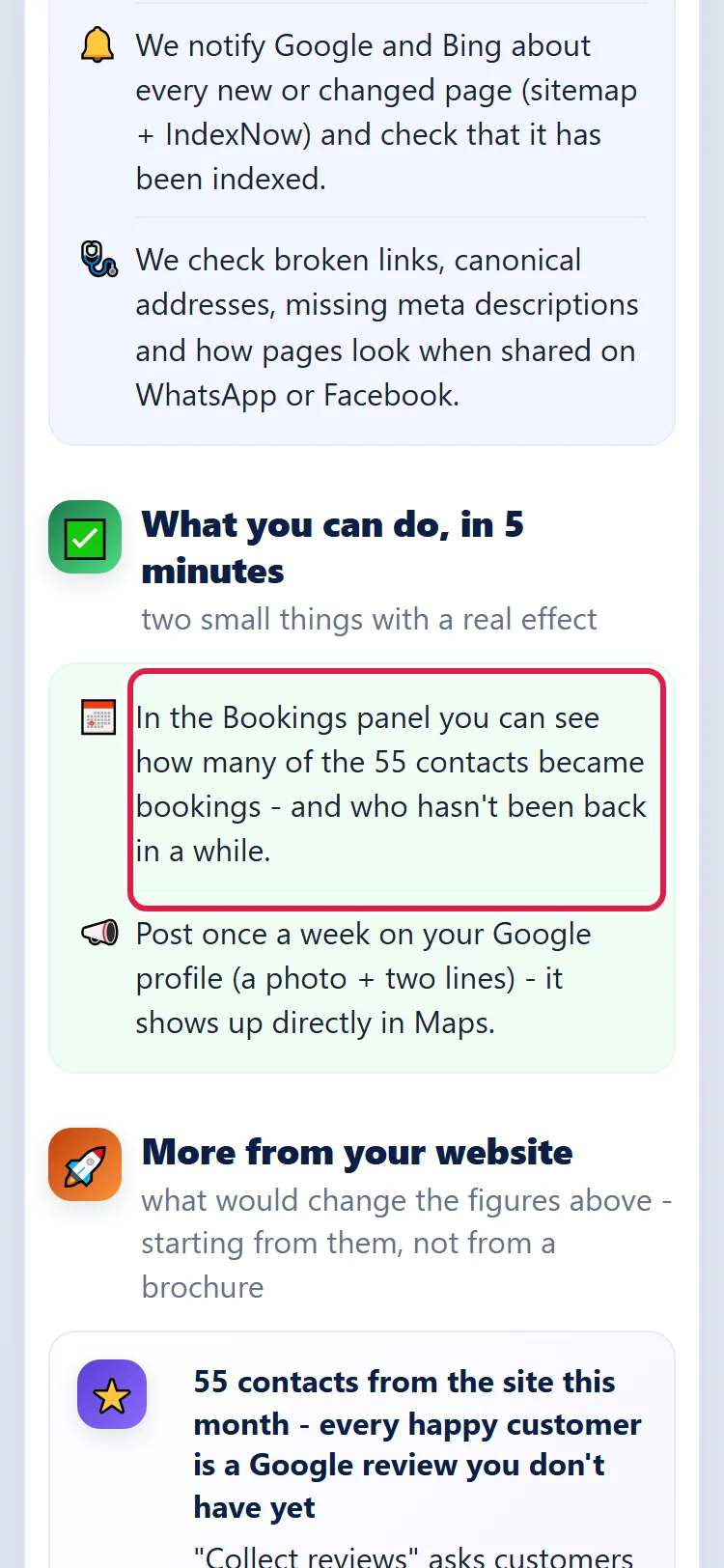
- 🚀 "More from your website": what other features would help you.
Contacts are the contact actions taken on your website: a call, a WhatsApp message (if you have the button on your website), an email, a direction request (if your address is public), a submitted request form and an appointment (if you have Bookings). We count the tap or click (for example, on your phone number), not whether the call actually happened. The same person can make several contacts. They don't mean paying clients.
How to make the amount in lei appear
The amount is an estimate based on two numbers you give us, once.
- In the admin panel, open My Business, then Services & Prices.
- Go to the "What a client is worth" section.
- At "On average, how much do you earn from a new client?", type the amount in lei. If you don't know, check I don't know.
- At "Out of 10 inquiries, roughly how many become clients?", choose a number from 1 to 10 or I don't know.
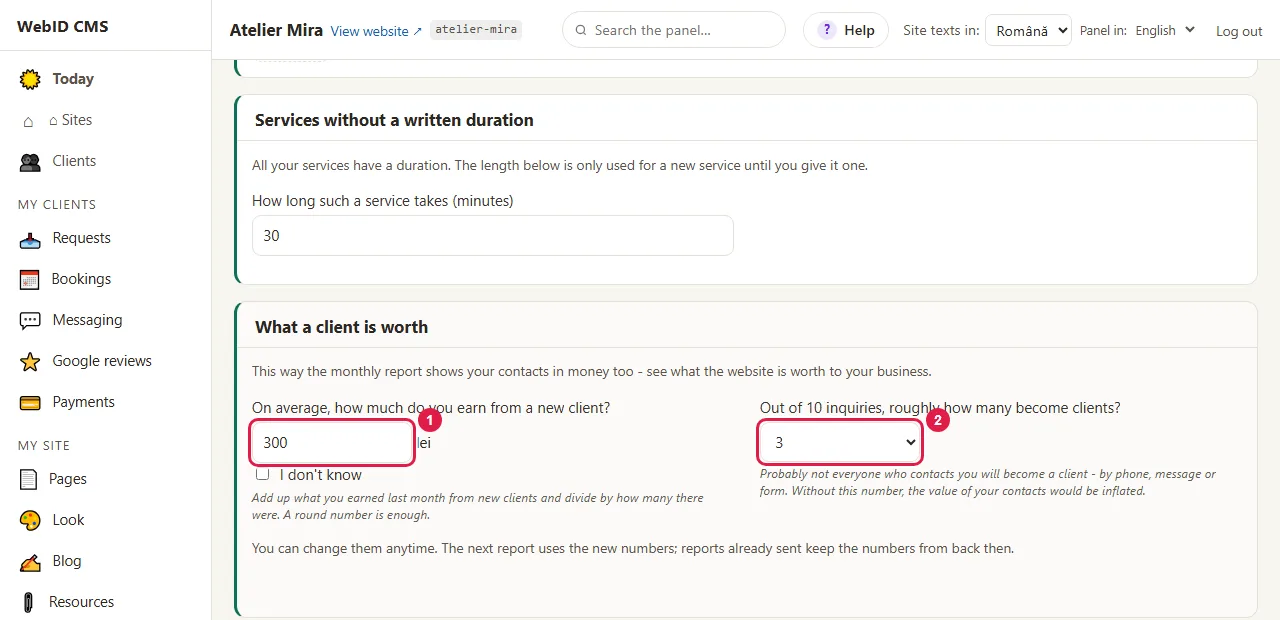
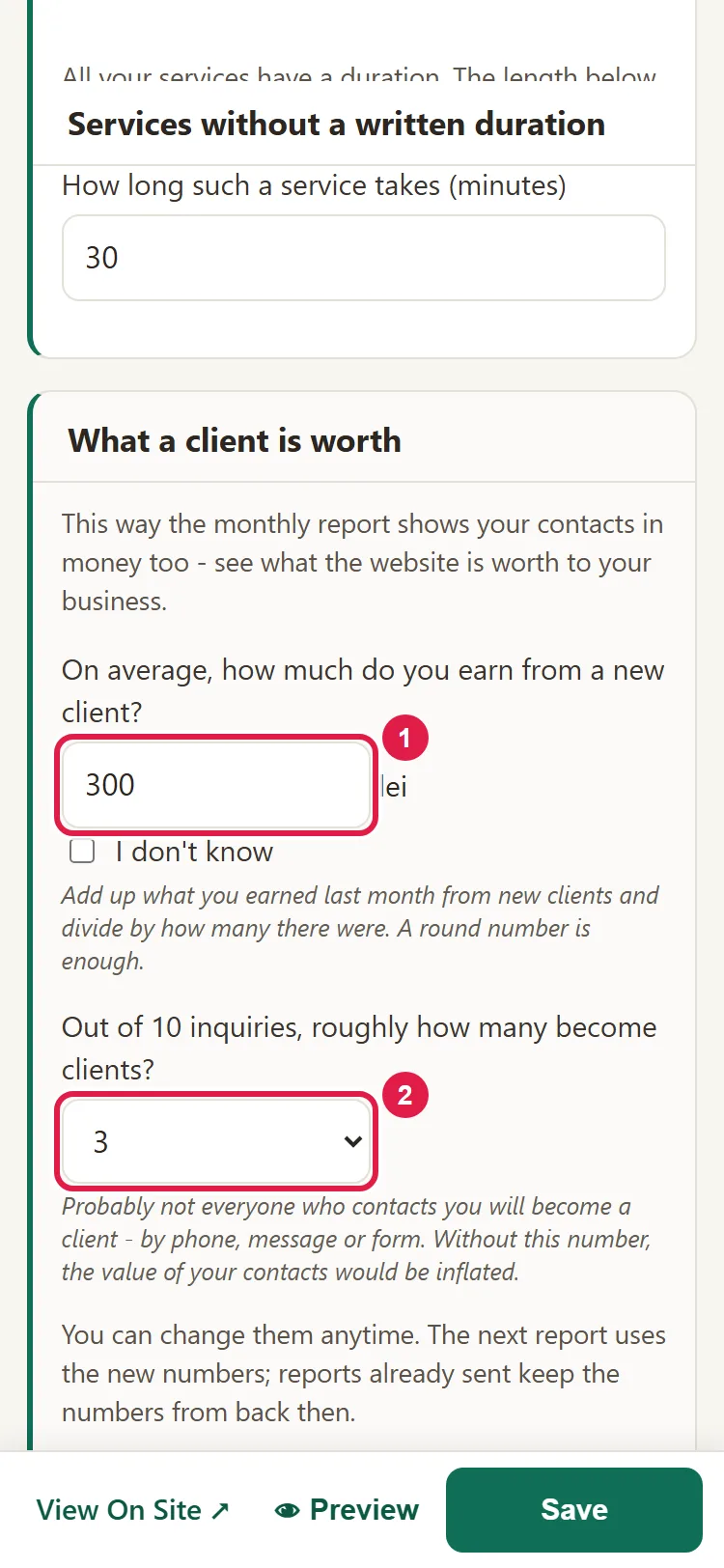
The numbers save right away and go into the next report. The amount only appears when you have at least 10 contacts in the period; if you choose I don't know for either of the two questions, it doesn't appear at all. If you have Bookings and at least 10 appointments with a price, the admin panel suggests their average: click Yes, Use It or Keep My Number.
Common problems
- "I didn't get the report." The report goes out on the 5th of the month, or on the 7th at the latest, for the month that has ended. Check the address in Settings › Notifications and your Spam folder. The report is in the admin panel anyway, in block ②.
- "The amount in lei is missing." You haven't filled in "What a client is worth" or you had fewer than 10 contacts this month. Fill in the numbers; the amount appears when there are enough contacts.
- "Part of the report is missing." This month has no data for it (for example, you have no Google profile or there aren't enough searches yet). It appears on its own when there's data.
- "The numbers don't match Google Analytics." The report counts the whole month, from the 1st to the last day, and for contacts it only takes contact actions, not everything Analytics measures. Compare the same month in Analytics; if the difference remains, write to us at contact@webid.ro.
- "The report in the admin panel is in English, but the email is in Romanian." In the admin panel, the report appears in the panel's language. You choose the email's language under "Who receives it" (the choice appears when the admin panel has more than one language).
- "Something else isn't working." Write to us at contact@webid.ro with what you see on the screen and we'll take a look.
What it doesn't do
- We don't promise rankings in Google. The report says so too.
- The amount in lei is an estimate based on your numbers, not money you've received.
- Without statistics from Google (account not connected, or a business with no Google Analytics and no "SEO - setup and optimization"), we have nothing to build the report from. Block ② tells you what's missing.
- If your website's email settings aren't done, the report isn't sent by email: you'll only find it in the admin panel.
What data it uses
The report is built from aggregated numbers from Google Analytics and Search Console (visits, cities, phone or desktop, searches, pages) and, if the website is listed in Bing, from Bing searches, with no visitors you could identify, plus the numbers you enter at "What a client is worth". We build it on our server: an AI provider writes the summary only from this data, then the report reaches your admin panel and our copy is deleted. It stays in the admin panel as long as you keep the website, and by email it only goes to the addresses you chose - details in the Privacy Notice, under "You connect your Google account".
See also
- How to connect your Google account and see where your clients come from
- How to link your Google profile to your website and reply to reviews