How to connect your Google account and see where your clients come from
To know how many people find you on Google and what they search for, your website needs access to your business's Google statistics. You connect it once, in 5 minutes. We turn on the measurement, with "SEO - setup and optimization", and from then on it and the reports run without you.
This guide is for anyone who has "SEO - setup and optimization" or Visibility. You can see what each one does on SEO and Visibility.
What you need first
- SEO - setup or Visibility, active on your website. If you don't have it yet, add it from the admin panel: "My Account › What else you can add", with Add to Cart on its card. The steps are in How to add a new add-on to your website.
- A Google account for the business: for example, a Gmail address made for the business, not a personal one you might close. If you have your business profile on Google Maps, choose the account you manage it with. If the business already has Google Analytics (set up, perhaps, by an agency), choose the account that has access to it: otherwise we won't find it. If you don't have a business account yet, create one for free at Google before you start.
- 5 minutes. It also works from a phone, but it's easier on desktop.
How to connect your Google account
- In the admin panel, open the Account & Settings menu, then SEO & Google. The screen has four blocks, numbered ① to ④ (④ is your Google profile, with its own guide).
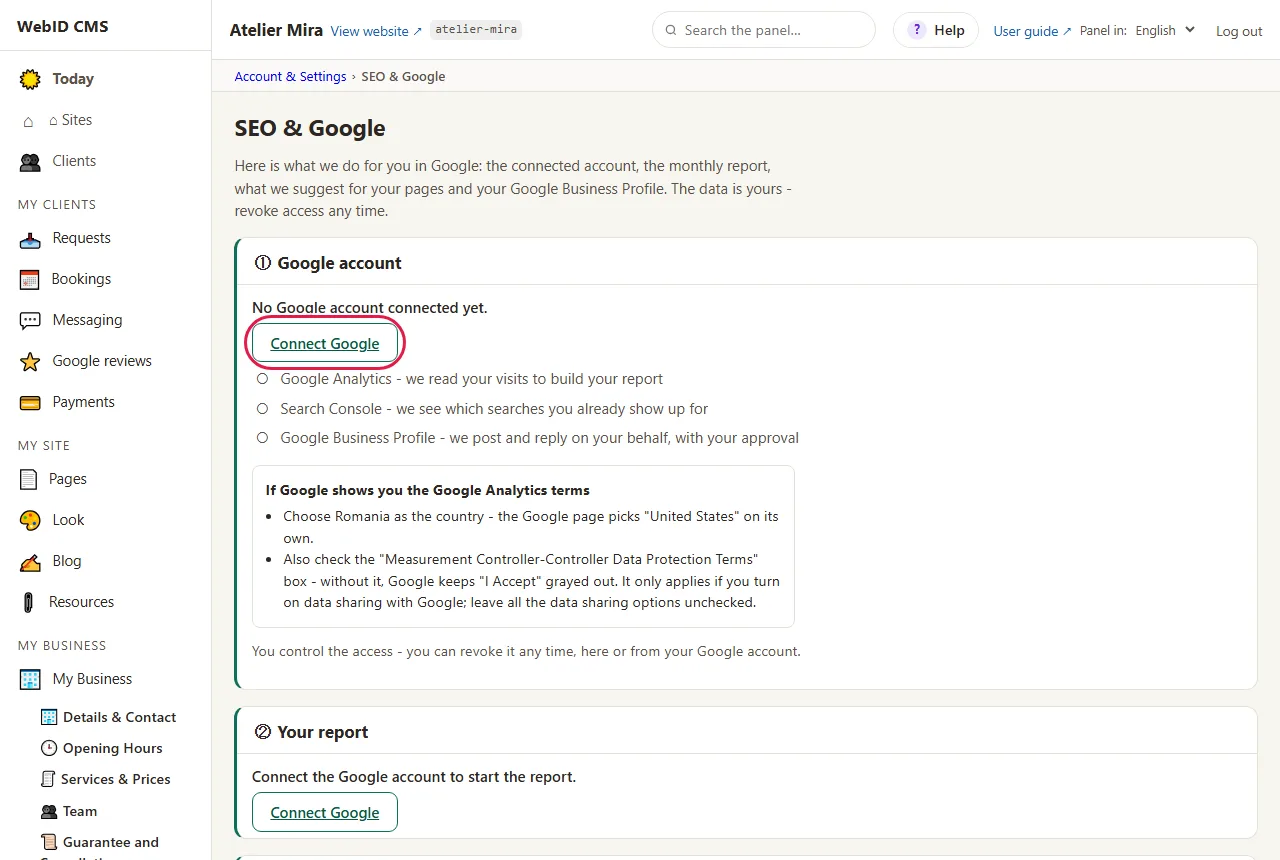
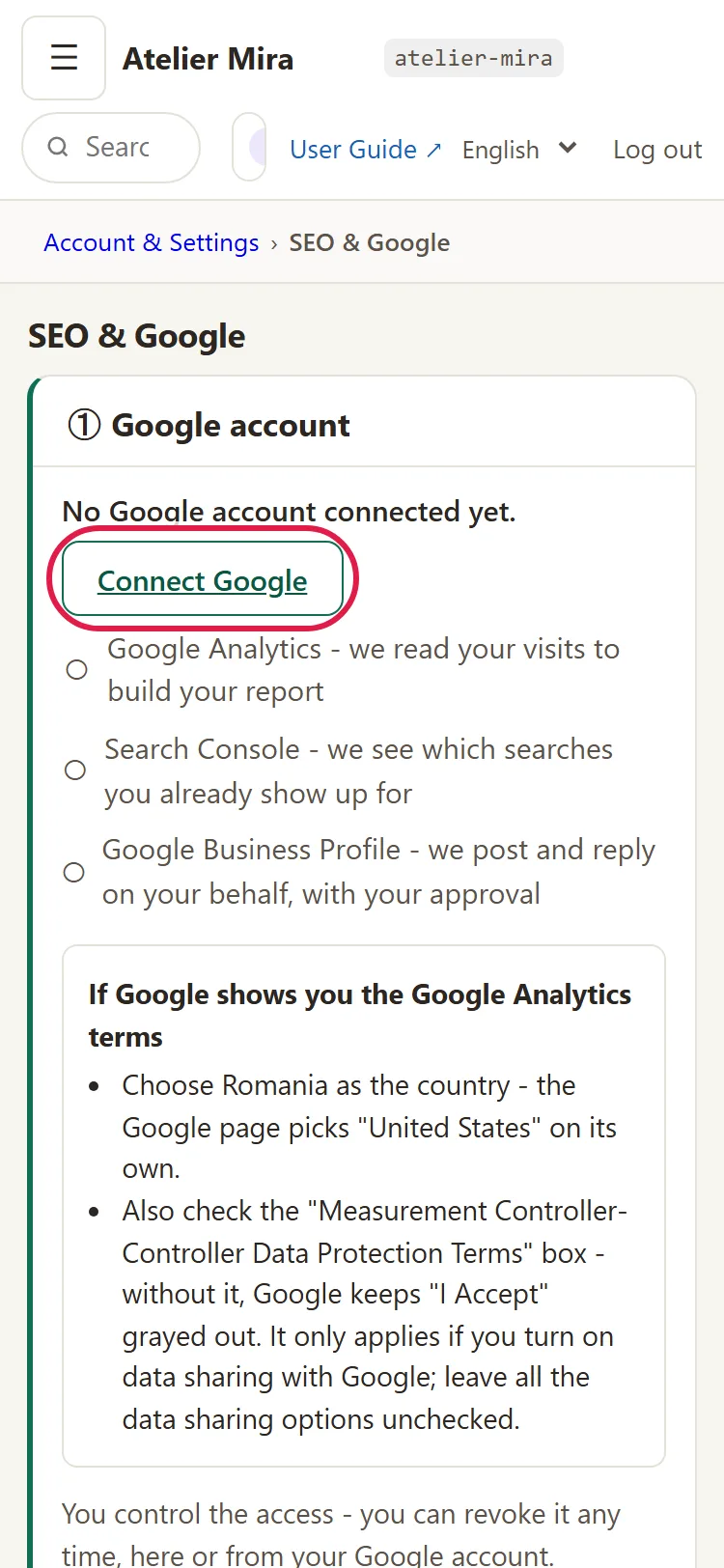
- The "① Google account" block says "No Google account connected yet.". Click Connect Google.
- The Google window opens. On desktop, on the left you see our guide, "Connecting Google, step by step", and on the right the Google window. On a phone, first tap Got it, open Google.
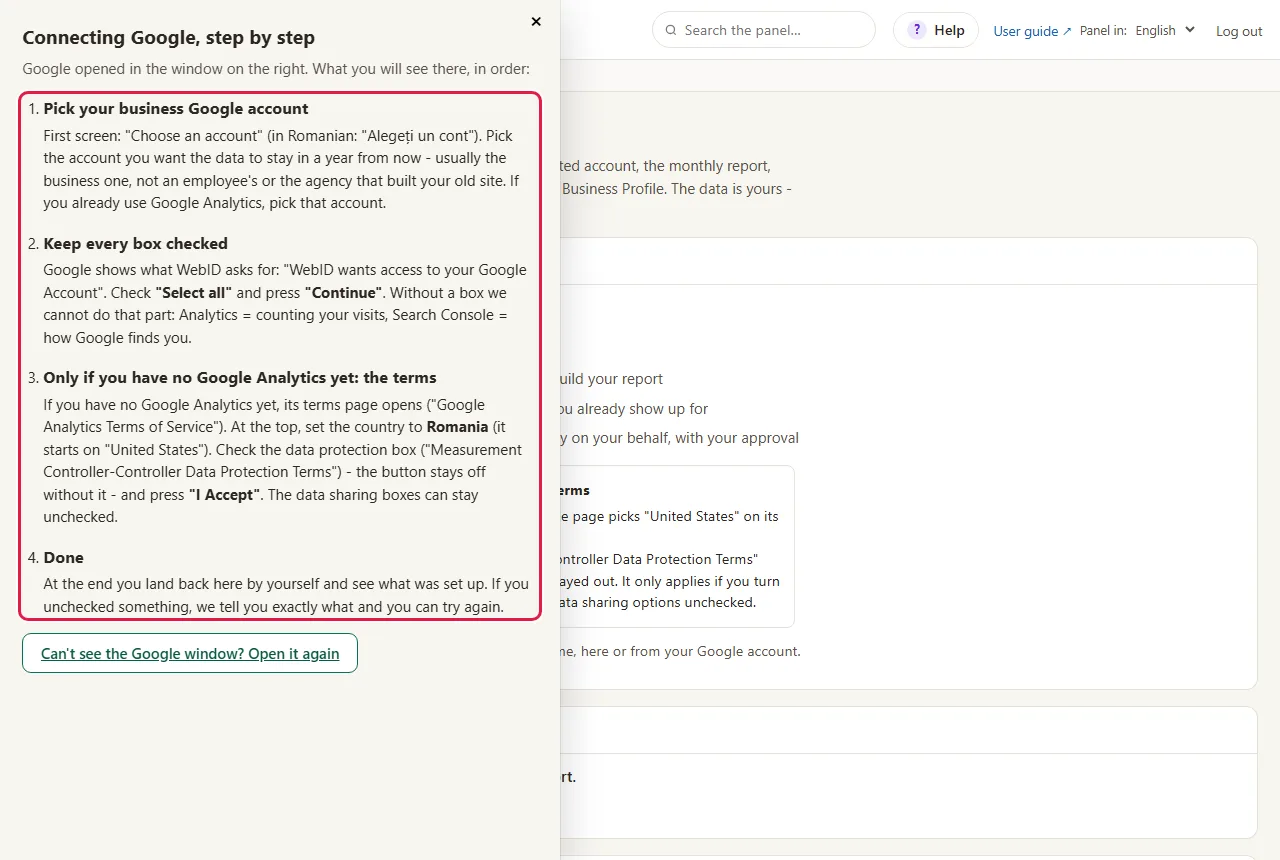
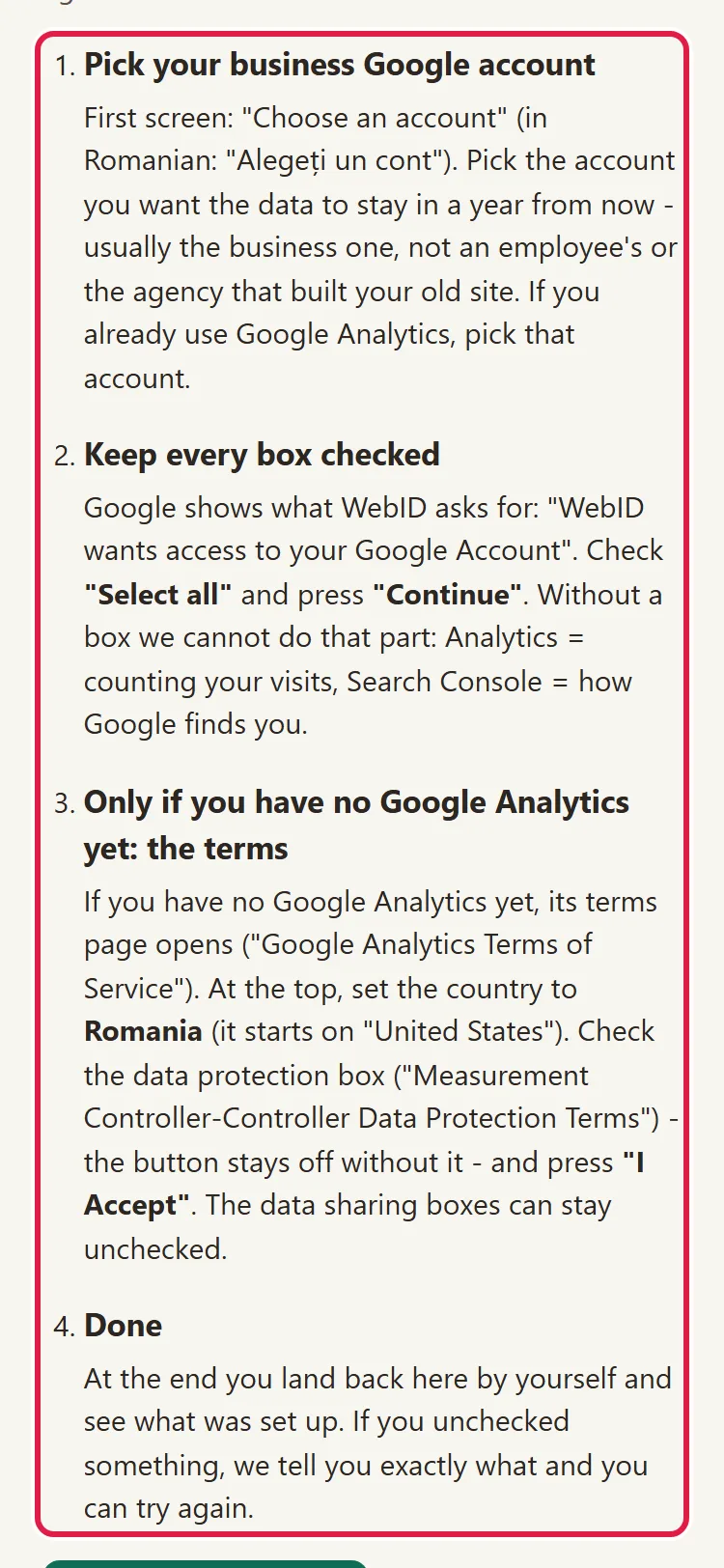
- Choose your business's Google account.
- Leave checked all the boxes Google shows you: Analytics is for measuring visits, Search Console for the searches you appear in. If you uncheck one, we can't do its part.
- If the business doesn't have Google Analytics yet, you land on the page with its terms. Accept them: check the box for the data protection terms, without which the button doesn't work.
- Back in the admin panel you see "Google is connected ✓". Block ① now shows "Connected to Google with the account" and your address, then the list of what we use from the account: Analytics, Search Console and, if you have Visibility, your Google profile.
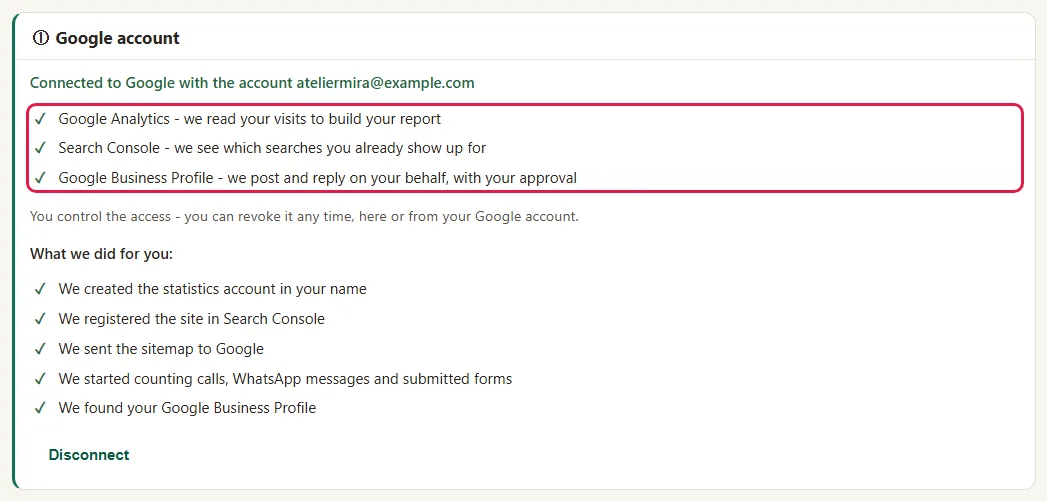
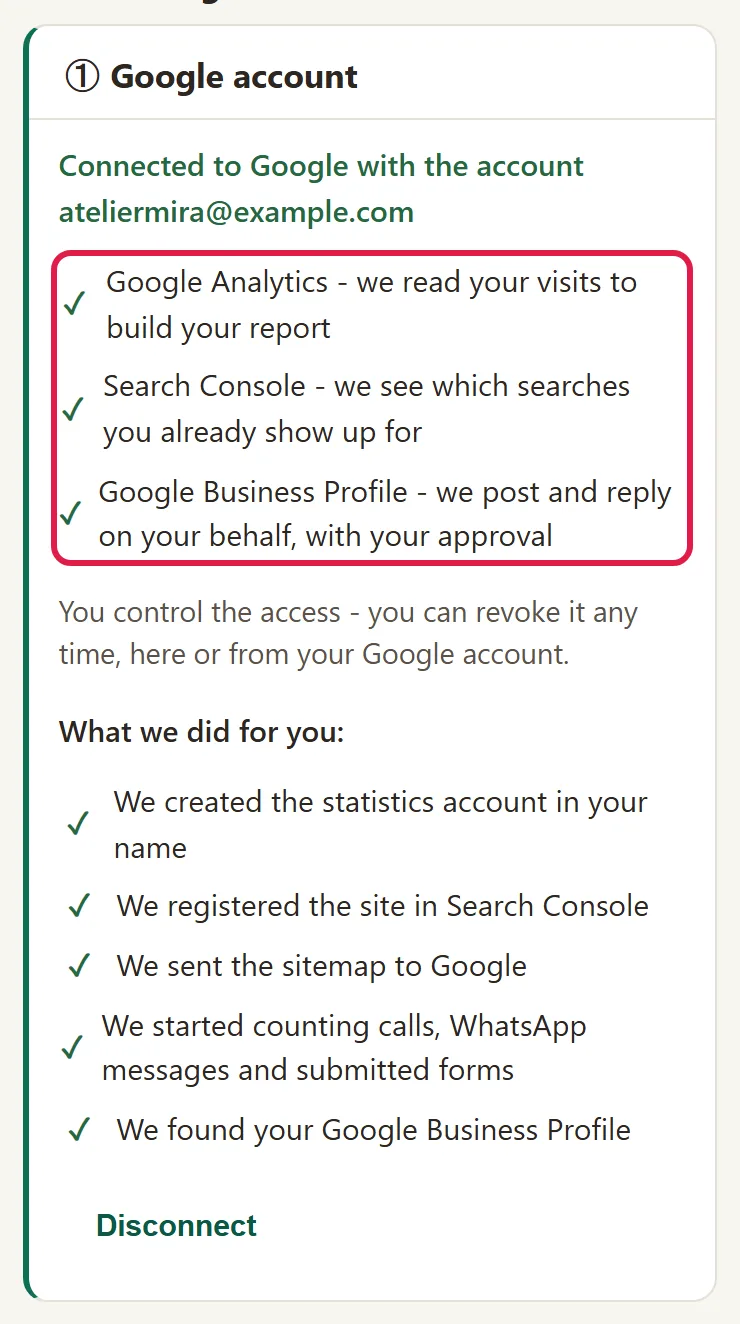
If you can no longer see the Google window, click Can't see the Google window? Open it again.
What to do if the business already has Google Analytics
The admin panel asks you, only in this case: "You already have Google Analytics for your website".
- Select your website's existing Google Analytics property. If you don't want to use it, choose No, create a new one and read the warning under that option.
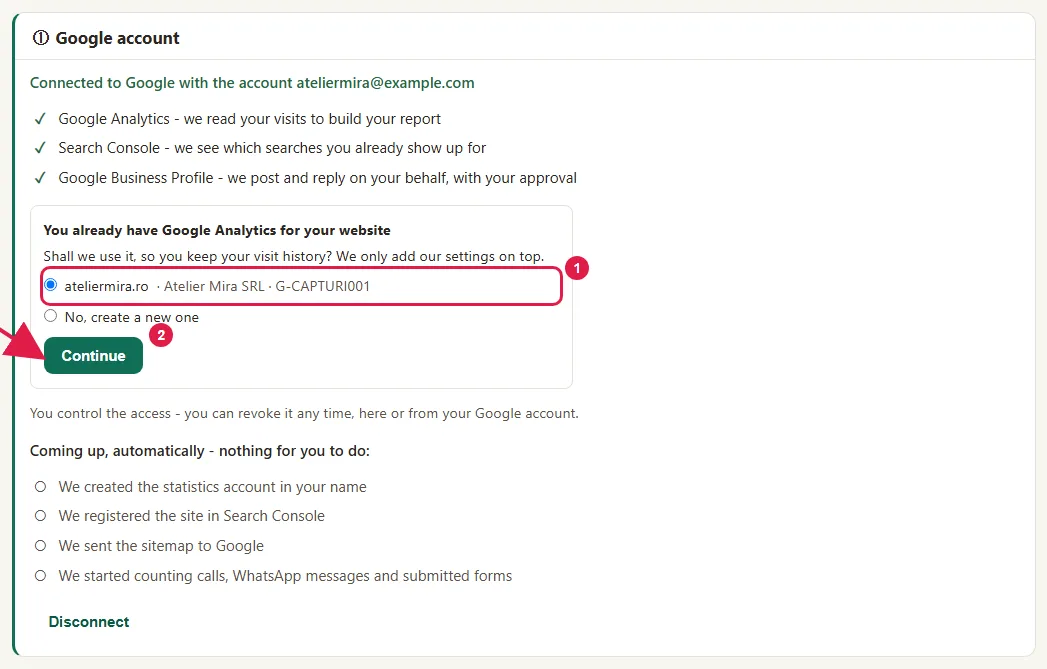
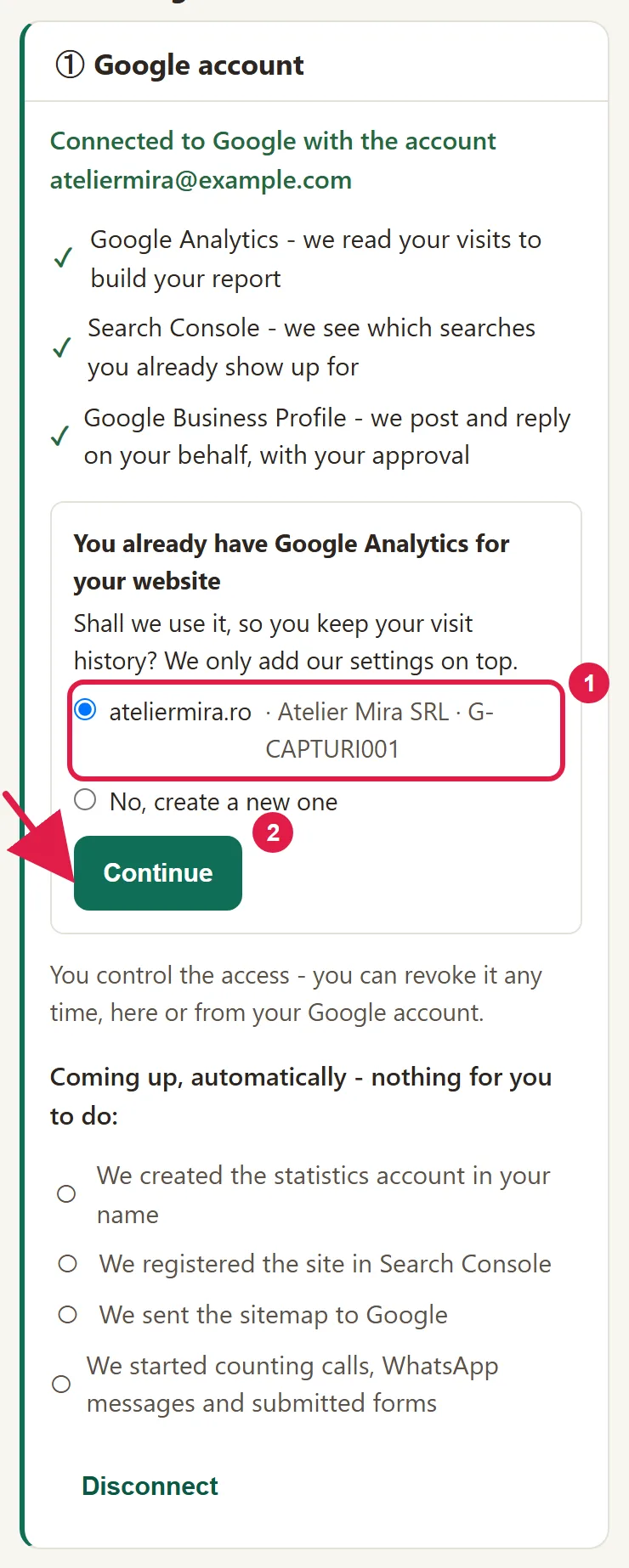
- Click Continue.
- If the business has several Google Analytics accounts, the admin panel asks "Which Google Analytics account should we set up measurement in?". Choose the account. If you choose In a new account, just mine (Google shows you its terms), you land on the Google terms page, where you accept them.
We only use the measurement you chose. We don't touch the business's other websites or Analytics accounts.
What to keep an eye on after connecting
How to see what we've set up for you
This part only exists with "SEO - setup and optimization". Under block ① there are two lists:
- "What we did for you:", with a check mark ✓;
- "Coming up, automatically - nothing for you to do:", with a circle ○.
There you see, one by one: Google Analytics, Search Console, the list of your pages sent to Google, the measurement of contacts on your website and your Google profile.
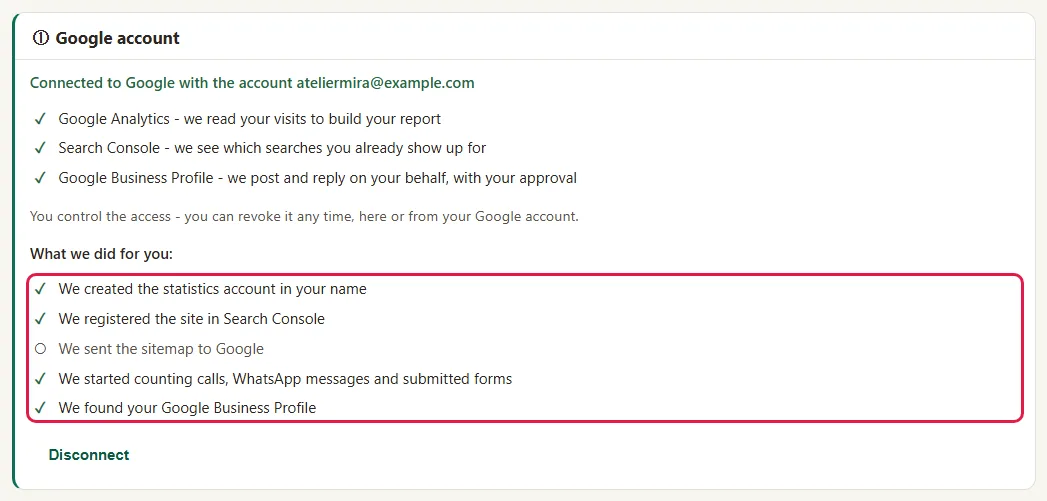
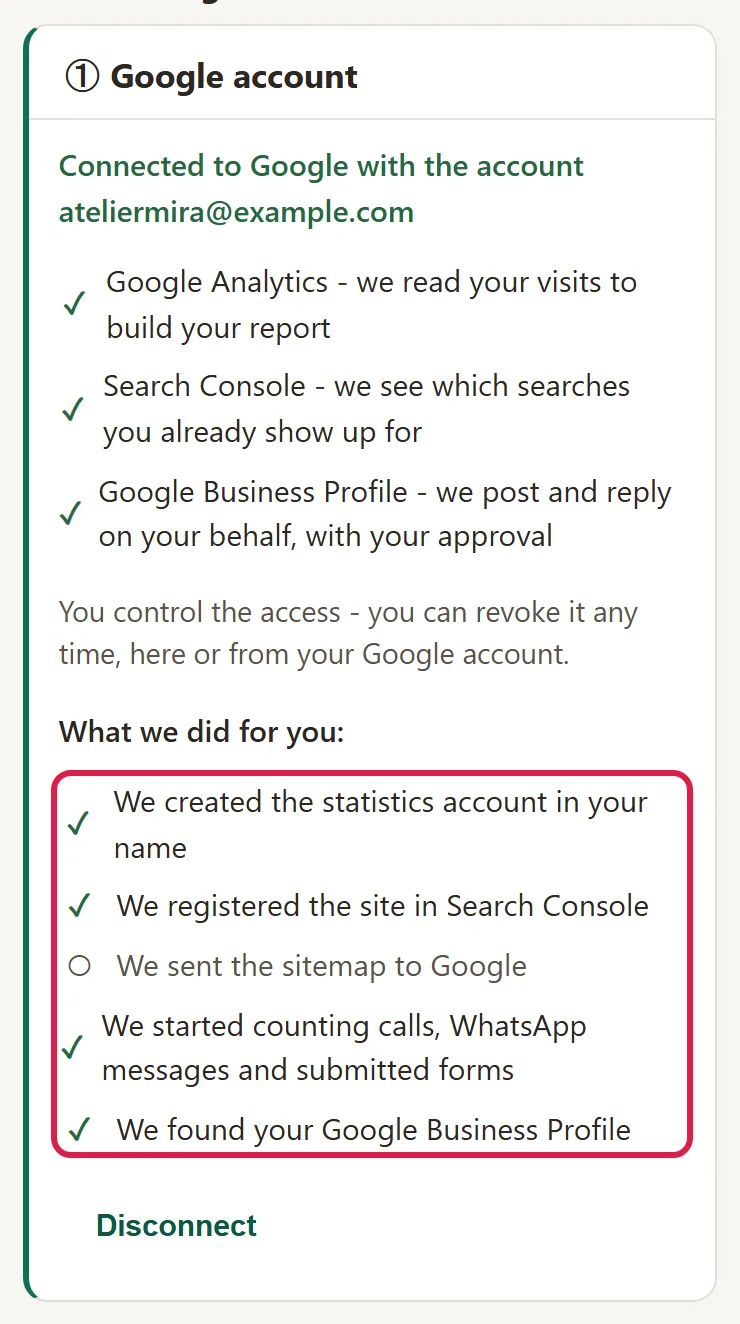
- If a row says "one click from you is needed: accept the Google Analytics terms", click it.
- On the Google page that opens, accept the terms. The setup continues on its own.
If a step doesn't succeed, you see "We finish this step ourselves…". There's nothing for you to do: we look into the problem and run the step again, and when it's done, the row gets a ✓.
How to choose your pages' titles and descriptions in Google
The title and description each page shows in Google are adjusted in three ways, depending on what you have:
- You got "SEO - setup and optimization" together with your website: we adjust them, on all pages, at delivery. You have nothing to approve. You can see what we changed in block ③, under See what we changed: on each row, "Before" and "Now", and if you want the old version, you click Go back to the old version.
- You got the setup after delivery: in the "③ Our suggestions for your pages" block you get one card for each page, only once, and you choose what changes.
- You have Visibility from the Medium tier: at most 3 suggestions every 30 days, for your information; you change these yourself, in the page editor.
The card compares the "title in Google" or the "description in Google": on the left "Now", on the right "Suggested", with the reason underneath.
- Read the suggestion and the reason.
- For the setup suggestions (when you got the setup after delivery), click Use it on the page, if you like it, or Keep mine, if you don't. For the monthly ones, click Change it yourself, in the editor: the page opens, and you change the title and description there.
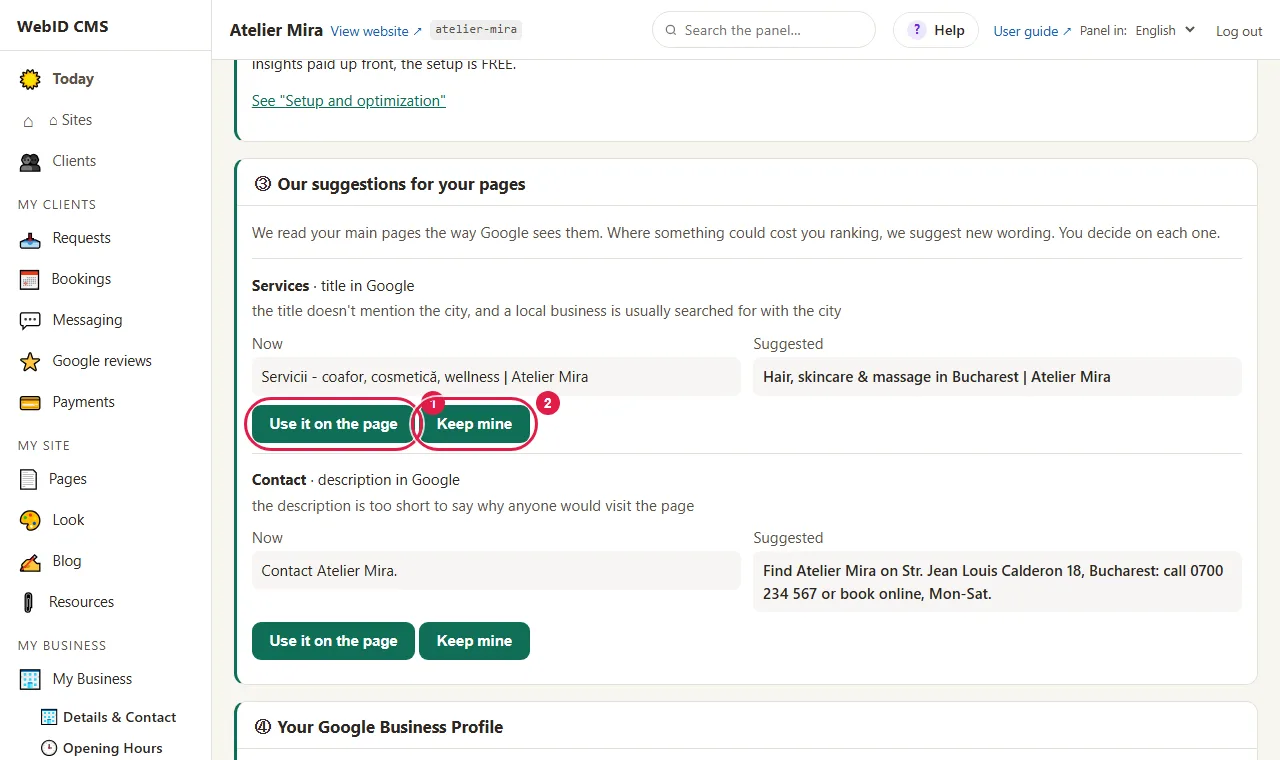
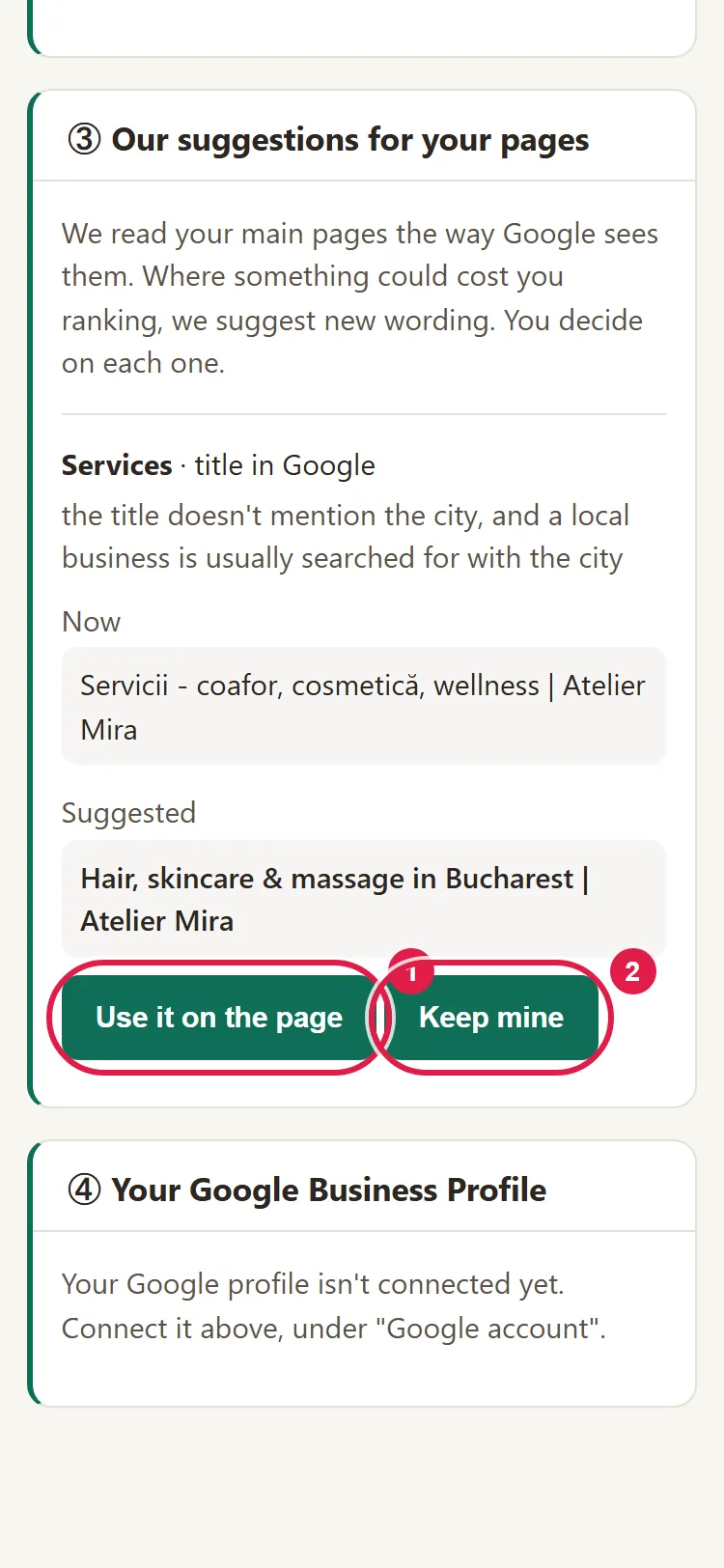
The suggestions only touch the title and description the page gives Google, not the texts on the page. Google usually uses them, but sometimes it shows different wording, chosen by Google. For Blog and Resources articles, suggestions come separately, through Blogging Plus (refreshing an article).
How to read the report
The report is part of Visibility, from the Medium tier. It's in the "② Your report" block and you also get it by email. You see the date of the first report in the bar above it, and under Who receives it you choose which addresses it goes to. You get it on the 5th of each month (on the 7th at the latest), for the month that has ended. What each part means is in the guide How to read your monthly report and act on it in 5 minutes. From "Today" you go straight to it, from the "Latest Google report" card, with See the Report.
How to change your Google account
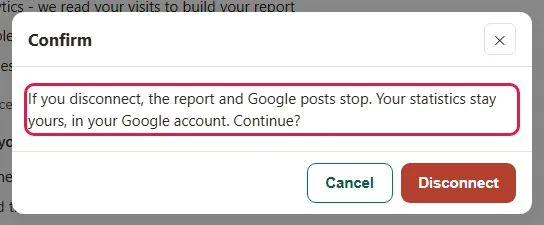
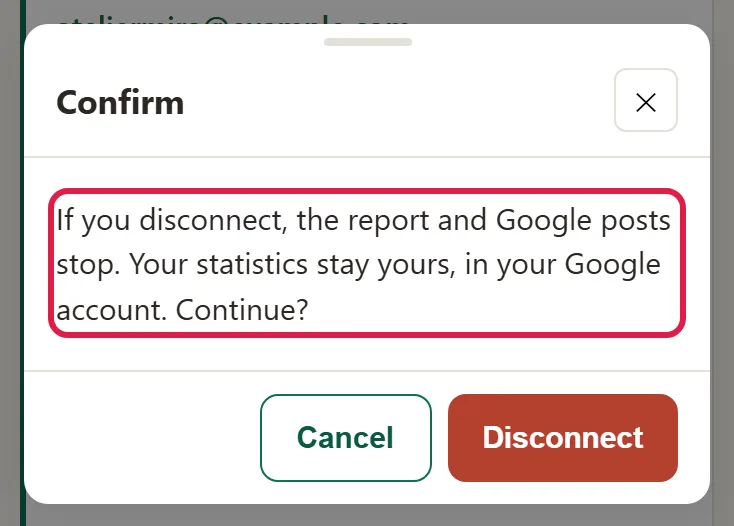
- In block ①, click Disconnect.
- Confirm. You see "Google disconnected.". Our access also stops at Google, and the report stops coming until you connect again. The statistics remain yours, in your Google account.
- Click Connect Google again and choose the business account.
Common problems
- "It told me I unchecked something." In the Google window you removed a check mark, and the admin panel tells you "In the Google window you unchecked access to …". Click Connect again or Connect Google and leave all the boxes checked.
- "I can't see the Google window." Your browser blocked it or hid it behind the admin panel. Click Can't see the Google window? Open it again.
- "It stays at 'one click from you is needed'." The Google Analytics terms haven't been accepted yet. Click that row and accept them on the Google page.
- "I connected with my personal account." Click Disconnect, then connect again with the business account.
- "The report is empty." The first report arrives on the date in the bar above it ("The first report arrives on …"). Until then, the block has no numbers to show yet.
- "Block ② says: We found no Google statistics for your site." Google statistics aren't linked to your website yet, so the report has nowhere to get the numbers from. "SEO - setup and optimization" links them: if the business already has Google Analytics, you can keep the existing Analytics property; if not, we create it, on your account. Details on the SEO services page.
- "Something else isn't working." Write to us at contact@webid.ro with what appears on the screen and we'll help you finish connecting.
What it doesn't do
- We don't promise rankings in Google. The report says so too, at the end.
- We don't run Google ads and we don't buy links.
- Without "SEO - setup and optimization", we don't turn on or link the measurement: block ② tells you "We found no Google statistics for your site…" and shows you the setup offer.
- The suggestions in ③ only change the title and description in Google, not the page texts.
What data it uses
When you connect your Google account, you give us access only to Google Analytics, Search Console and, if you have Visibility, your Google profile. We also see the email address of the connected account. The connection goes through our server (webid.ro, in Romania), where the access is stored encrypted. From Google we only bring aggregated numbers (visits, cities, searches, pages), with no visitors you could identify, and what we send to Google on your behalf (for example, the Analytics setup) is logged and kept for 12 months. You click "Disconnect" and we withdraw our access right away - details in the Privacy Notice, under "You connect your Google account", and in the DPA.
See also
- How to read your monthly report and act on it in 5 minutes
- How to link your Google profile to your website and reply to reviews