How to add a new add-on to your website
Want online booking, SMS confirmations or your website in another language too? You add add-ons yourself, from your website's admin panel: you choose, pay by card, and the feature turns on by itself, without writing to us. Ordering takes a few minutes; turning on sometimes takes a few hours.
What you need first
- Your website delivered and linked to your WebID account. If it isn't, the admin panel tells you "This site is not linked to your WebID account yet. Write to us and we will link it."
- The owner or Administrator role in the admin panel. Only the owner and administrators see the subscription part.
- A card to pay with.
- The billing details of your company or sole proprietorship (PFA), with the CUI (tax ID): the cart asks for them.
- For some add-ons, the add-on they depend on. For example, the extra credits for Blogging Plus only work with an active subscription. The cart tells you if that's the case.
How to put an add-on in the cart
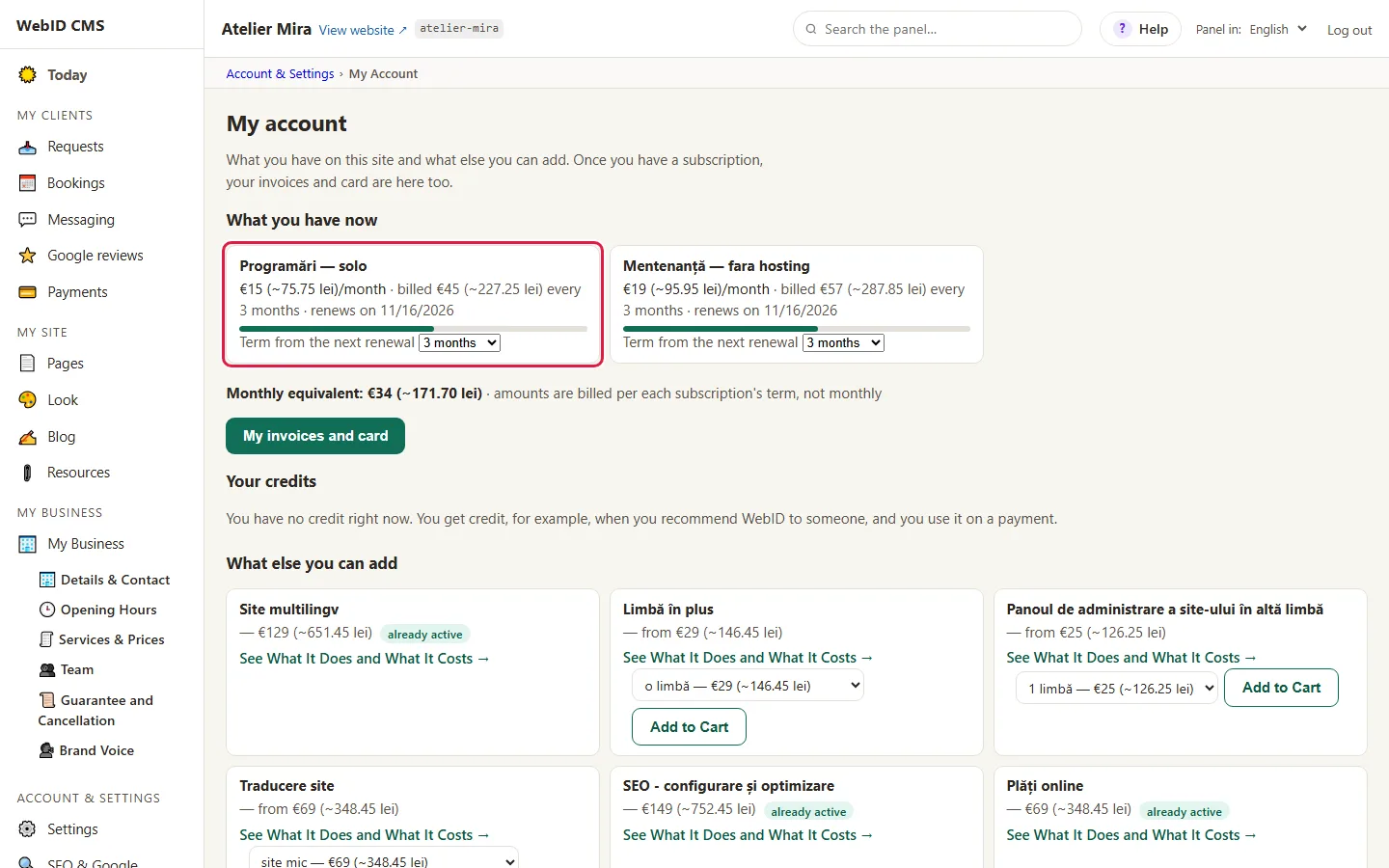
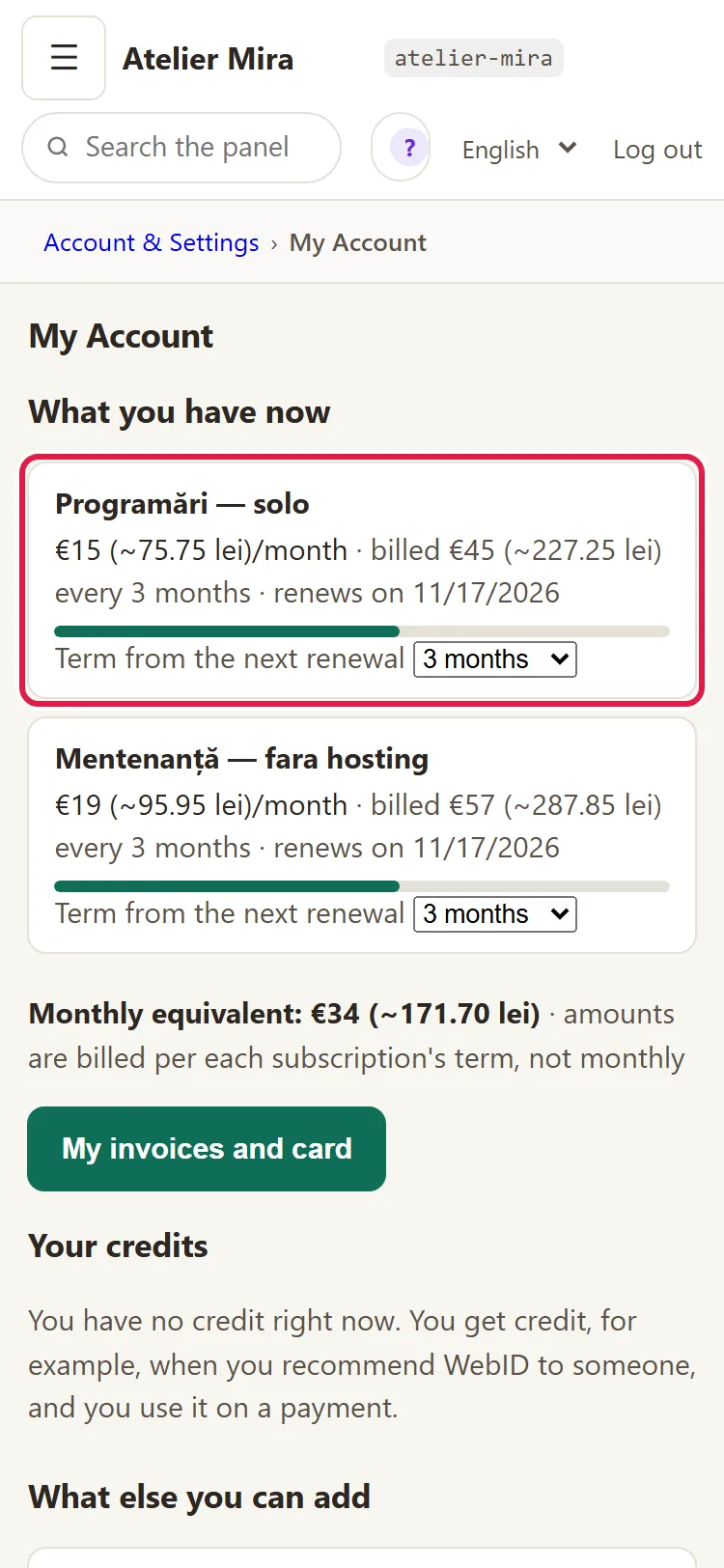
- In the admin panel, open Account & Settings, then My Account.
- Go to What else you can add. Each add-on has a card, with its name and its "from" price. What you already have carries the "already active" tag.
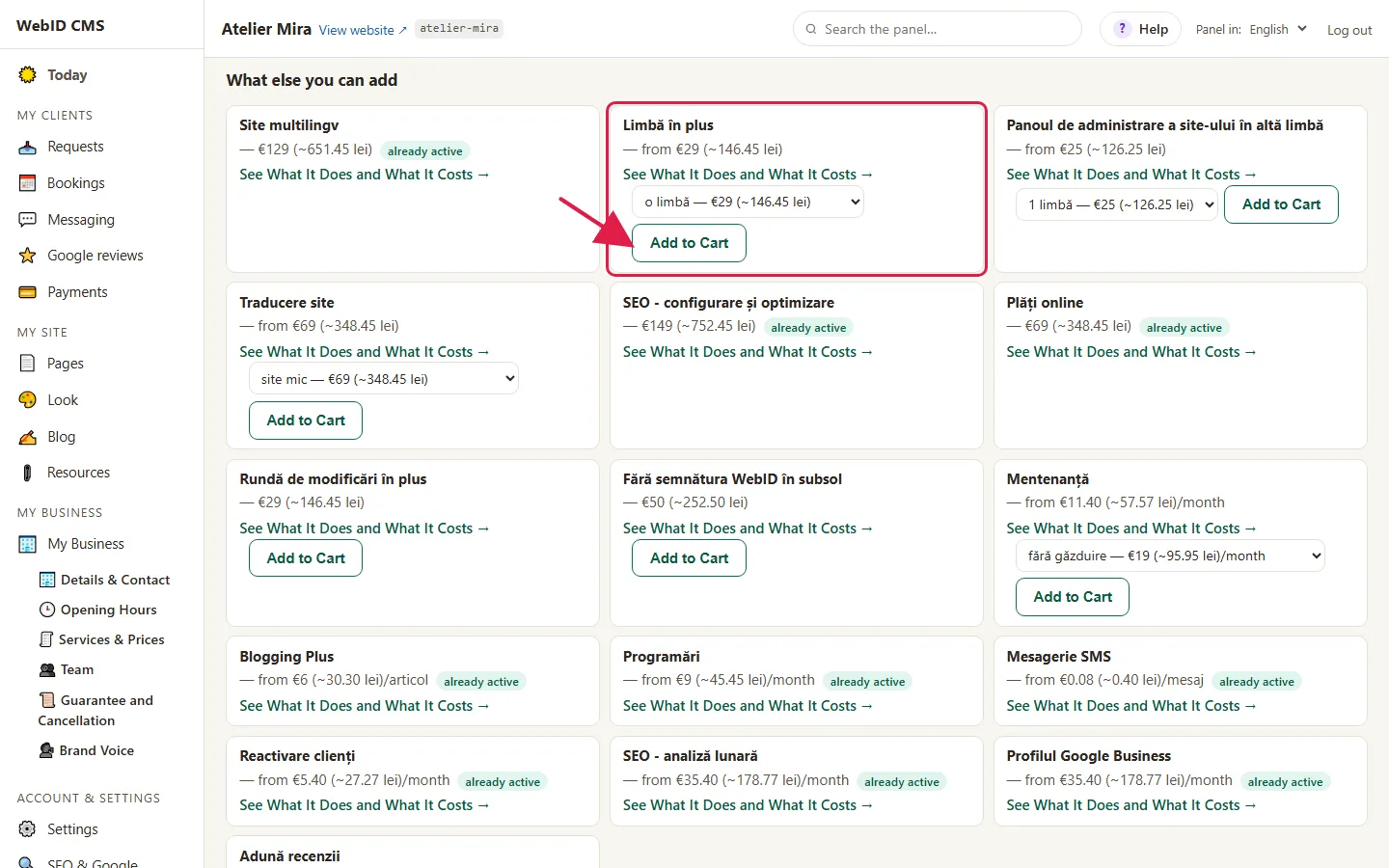
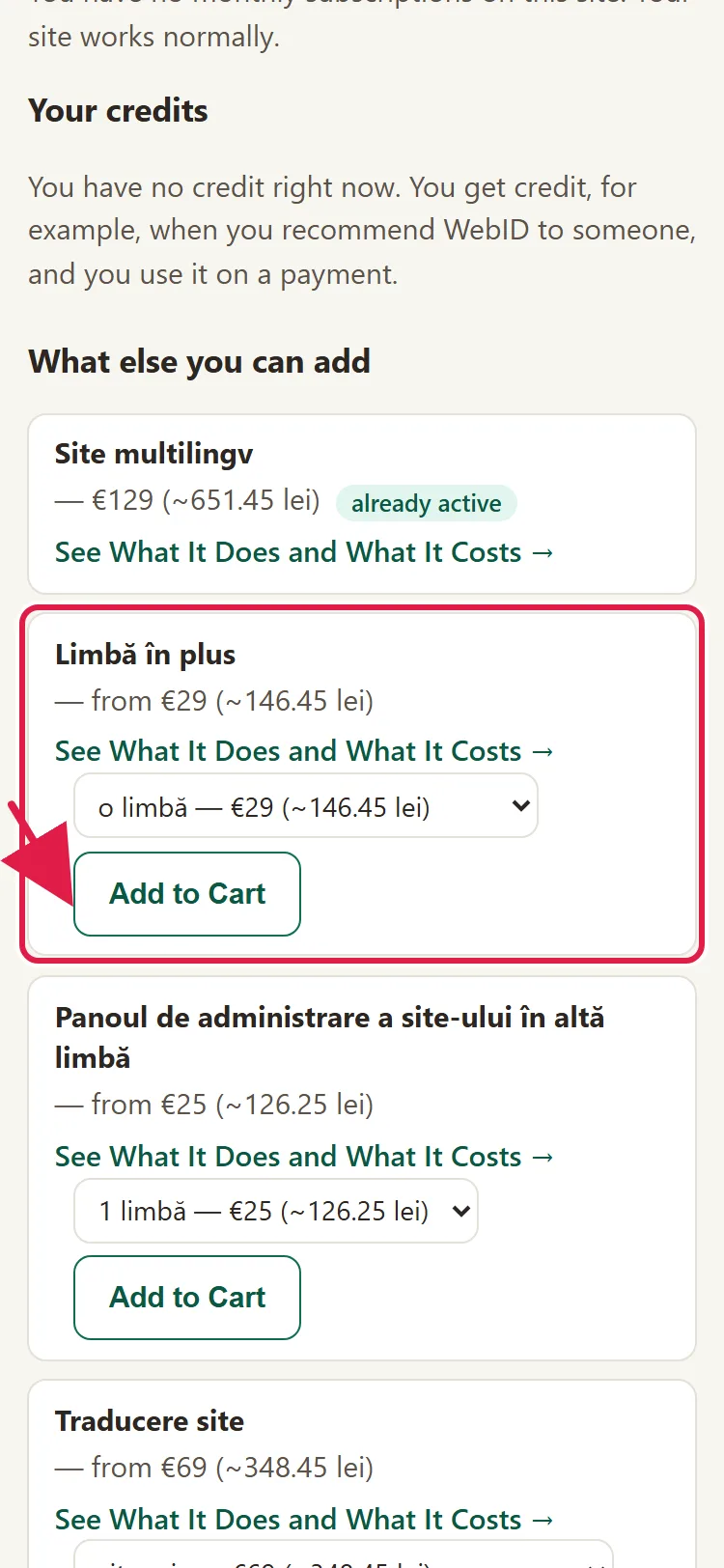
- If the add-on has several options, choose the one you want right on the card.
- Click Add to Cart on the add-on's card.
- The webid.ro cart opens, with the add-on you chose and your website recognized. You see the price in the cart, before you pay.
What each add-on includes and what it costs for each term is on Pricing.
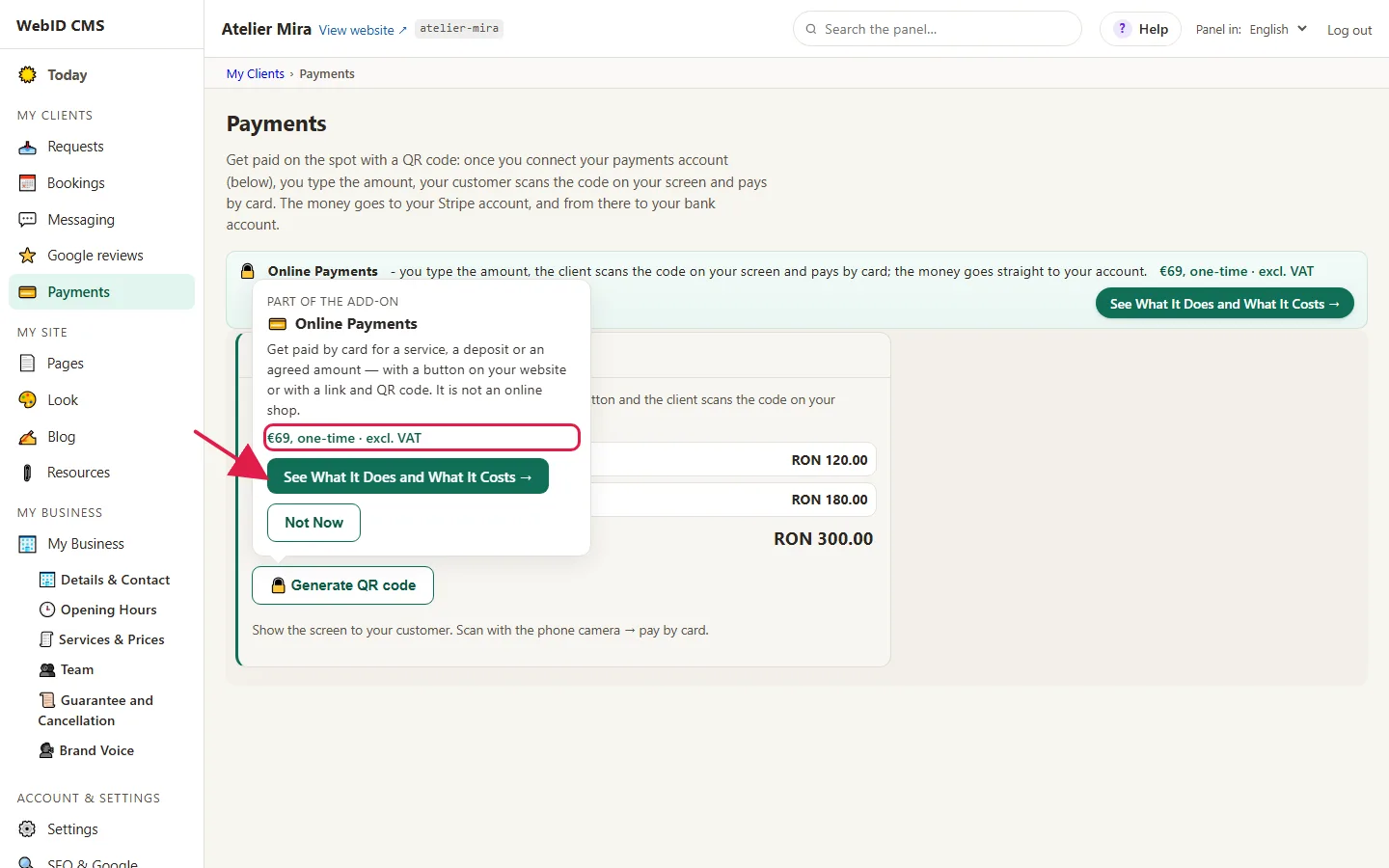
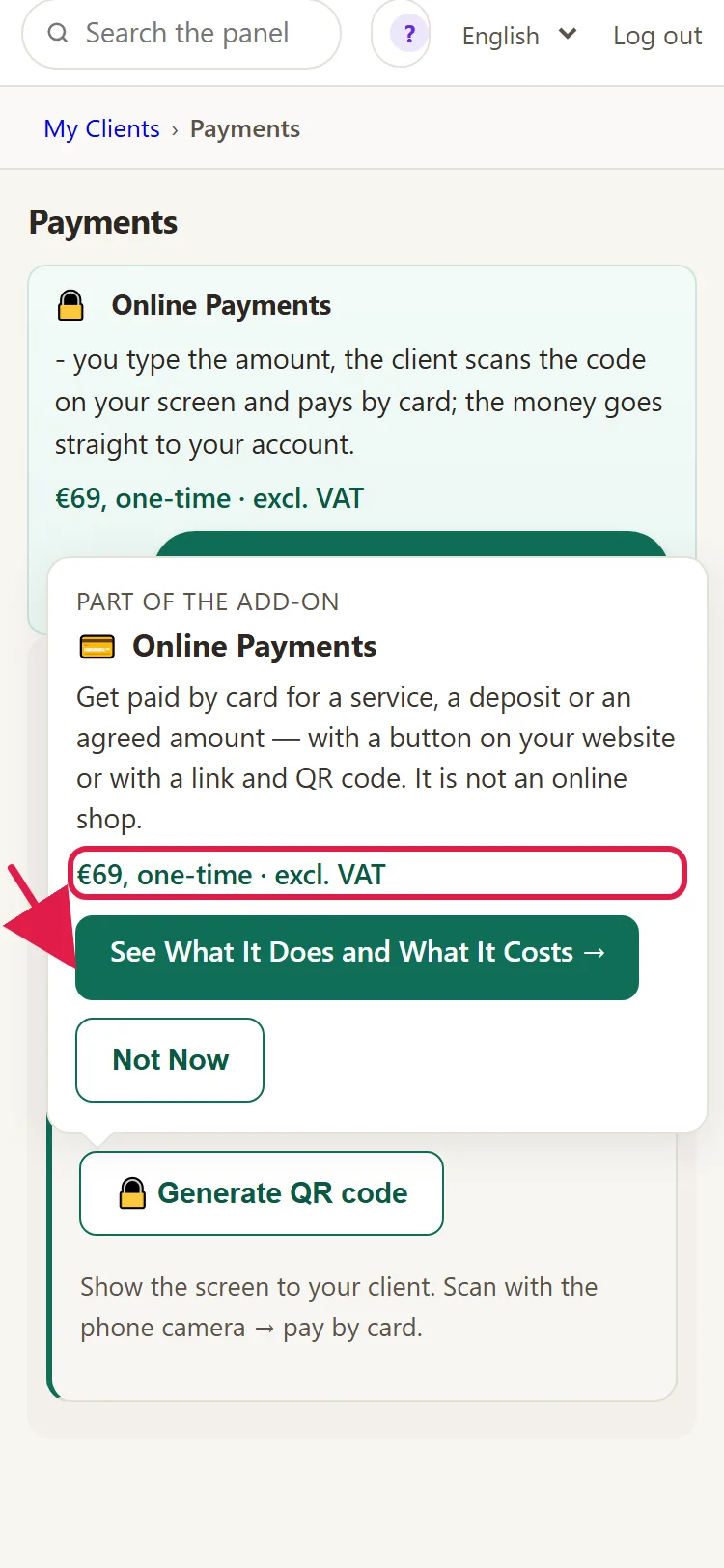
You also see an add-on you don't have in its place in the admin panel: its screen or button stays visible. When you click it, the "Part of the add-on" window opens, with the name, one sentence, the price, See What It Does and What It Costs and Not Now. When you hover over it, you see "Click for details". For example, "Bookings" in the menu. See What It Does and What It Costs opens the add-on's page on webid.ro in a new tab; there you only read about it. To buy it for your website, go back to "My Account › What else you can add".
How to pay in the cart
- Choose monthly or yearly payment (paying yearly, you pay for 10 months out of 12). The term is only for subscriptions: you pay for the whole term you choose now. At the end of it, the subscription renews for the same term, from your card, and we write to you beforehand. Anything paid once (for example a pack of SMS messages) has no term. If you later want a different term or want to cancel, see How to change your term or cancel a subscription.
- If the add-on is a subscription, the cart adds Maintenance by itself, with the note "added automatically", for the same term (monthly or yearly). Click Why? to see the reason. What you get with it is in What maintenance does for you and when you need it.
- Fill in "Billing details": type the CUI, and we get the company and address from ANAF; check them. The email, the company or PFA, the CUI, the address and the city are required.
- Under "The documents you accept", read the documents and check them. The boxes aren't checked in advance.
- Click Continue to payment and pay by card, on the Stripe page.
What happens after you pay
- You get the email "We've received your payment - here's what happens next…", with what you bought, the amount and, for subscriptions, the term and the date of the next payment. You'll find the invoice on the billing page: How to find your invoices and change your card.
- The admin panel turns the feature on by itself. You usually see it the first time you open the admin panel after paying. The admin panel checks payments at most once every 6 hours and once a night, so it sometimes takes a few hours.
- In "My Account", the add-on moves to What you have now, with "renews on" and the date. Its screens are no longer locked.
- Some add-ons ask you for one more step after they turn on:
- SEO and Visibility: How to connect your Google account;
- Card payments (free with Maintenance): How to connect your Stripe account;
- Bookings: How to start taking online bookings and keep your day in order.
How to get an extra pack (SMS messages or articles)
A pack isn't a new add-on, but an extra for one you already have. It's paid once and doesn't change your subscription. You buy it directly, and the cart knows which website is yours:
- SMS messages: from the link in the email we send you when you've used 80% or 100% of the month's SMS messages. The link puts the pack in the cart. Details in How to send confirmations and reminders via SMS.
- Blog articles: from the "Blog" screen. When you don't have enough credits, the "Not enough credits" window offers you 2 extra credits for €15 and opens the cart, where you choose how many to get.
Then you pay in the cart, as above.
Common problems
- "I paid, but the feature is still locked." First check whether you got the email "We've received your payment - here's what happens next…". If you did, the admin panel usually hasn't checked the payment yet: it does so at most once every 6 hours. Reload the admin panel later. If it's still locked after a day, write to us at contact@webid.ro.
- "The cart says an add-on can't be bought on its own." You put the add-on in the cart from the offer page, and the cart doesn't know which website is yours. Add it from the admin panel: "My Account › What else you can add", with Add to Cart.
- "The cart added Maintenance." Subscription add-ons need maintenance for the same term. That's normal; Why?, next to the line, tells you the reason.
- "The cart says the add-on only works together with another one." The add-on you chose depends on another one. Add that one to the cart too, if you don't have it already.
- "The cart says I already have the add-on active." You already have it on your website, and it can't be bought twice. The message tells you where to change the tier; if that doesn't work, write to us at contact@webid.ro.
- "The admin panel says the website isn't linked to the WebID account yet." The link between your website and your account is missing. Write to us at contact@webid.ro and we'll set it up.
- "I don't see What else you can add." Only the owner and colleagues with the Administrator role see the subscription part. Ask the owner to add the add-on themselves or to give you the role.
- "Something else isn't working." Write to us at contact@webid.ro with what you see on the screen and we'll take a look.
What it doesn't do
- You can't turn an add-on on or off yourself from "Settings": an add-on only turns on after payment. How to stop one is in How to change your term or cancel a subscription.
- It doesn't turn on the moment you pay: the admin panel finds out about the payment at the next check, within a few hours or overnight.
- You can't buy an add-on you already have a second time.
- There's no free trial period.
- The cart has a single term for everything in it.
- From the offer page, you can't buy a new add-on for a website you already have: you add it from the admin panel.
What data it uses
When you buy, we use your billing details and keep proof that you accepted the documents (who, when, which version, the IP address and the browser) - see the Privacy Notice §3.c. From the moment an add-on that works with your clients' data turns on, it follows the DPA, which you accept when you order; what data each add-on touches is listed in §3.