How to send confirmations and reminders via SMS
With the SMS messages included in Bookings, clients whose appointment you've confirmed can get a confirmation SMS message the day before and a reminder on the day of the appointment. You check the boxes just once. After that, there's nothing to click day to day: you only check, every now and then, how many SMS messages you've used. This guide is for the owner with an administrator account in the Bookings panel.
What the SMS confirmation solves
Clients who forget their appointment don't show up, and the time slot sits empty. An SMS message sent the day before has a link where the client confirms or lets you know they can't make it. When they reply, you know early which times you can count on. What you get and what it costs is on the Bookings page: the SMS messages are included.
What you need first
- Bookings on your plan: the SMS messages are included, 50, 150 or 300 a month, depending on the tier. If you don't have Bookings, add it from your website's admin panel: "My Account › What else you can add", with Add to Cart on its card (How to add a new add-on to your website).
- An administrator account. With a front desk account you can see the page, but you can't change anything.
- Clients with a Romanian phone number on the appointment.
- Appointments you've confirmed. Appointments that are still pending don't get SMS messages.
Where to find the settings
- In the Bookings panel, click MENU.
- In the "Client communication" section, click SMS messaging. The "Messages & Reminders" page opens at the SMS section.
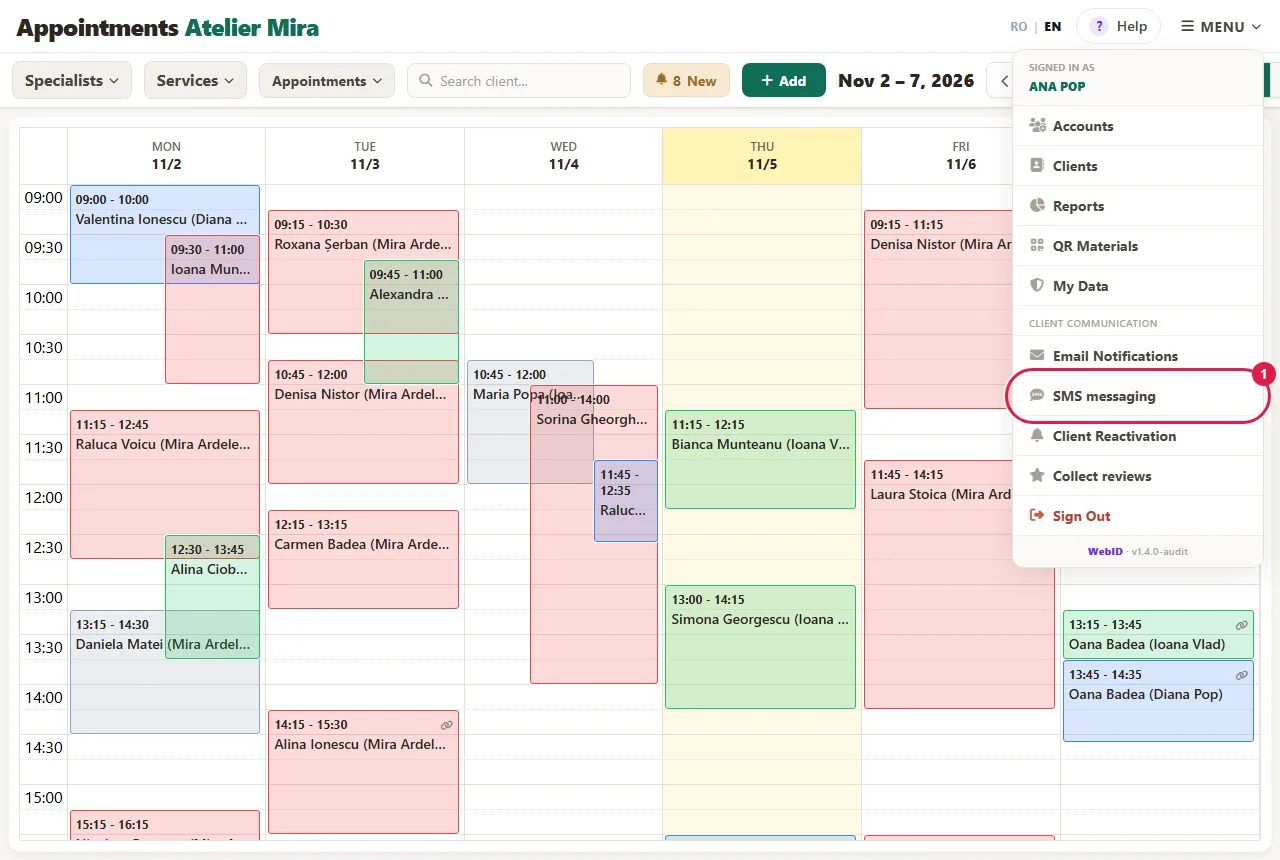
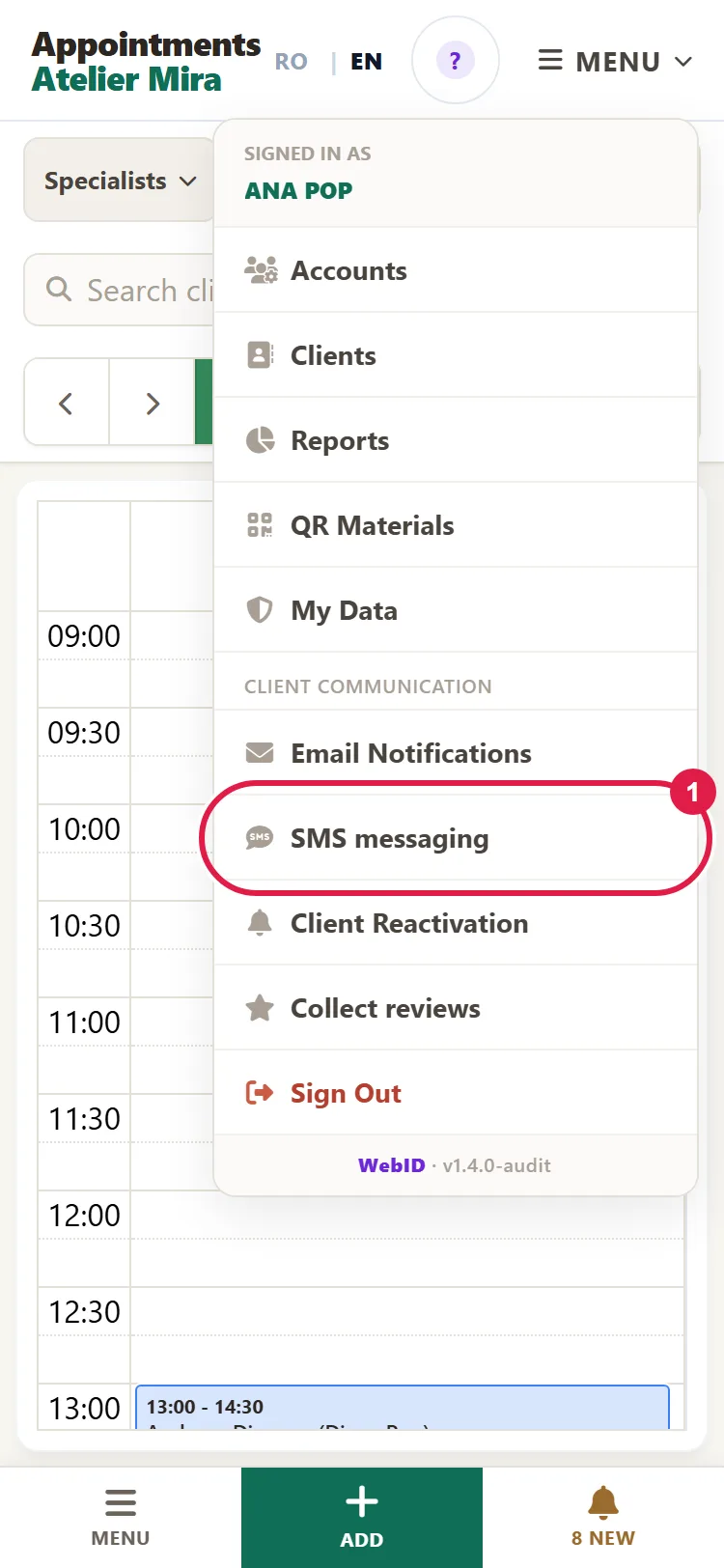
- Read the top line. If it says "Active", with the number of SMS messages a month, everything is fine. If the line says you have no SMS messages, the SMS checkboxes are grayed out, and you turn on Bookings from your website's admin panel.
How to choose which messages the client gets
You choose the messages sent before the appointment with checkboxes, in the "Messages to the client before the appointment" section on the same page. They go out only for appointments you've confirmed, and only if you check at least one channel (SMS or email).
- Under Confirmation the day before, check SMS (and, if you like, Email). From the link, the client confirms they're coming or lets you know they can't make it.
- Under Reminder on the day of the appointment, check SMS, Email or both.
- Choose when the reminder goes out: in the morning, at 7, 8, 9 or 10, for all the appointments that day, or 1, 2, 3 or 4 hours before each appointment. If an appointment starts before the time you chose, its reminder goes out earlier, from 8:00 AM, at least an hour ahead. If you choose 7, the email goes out at 7:00 AM and the SMS message at 8:00 AM, after the night-time quiet hours.
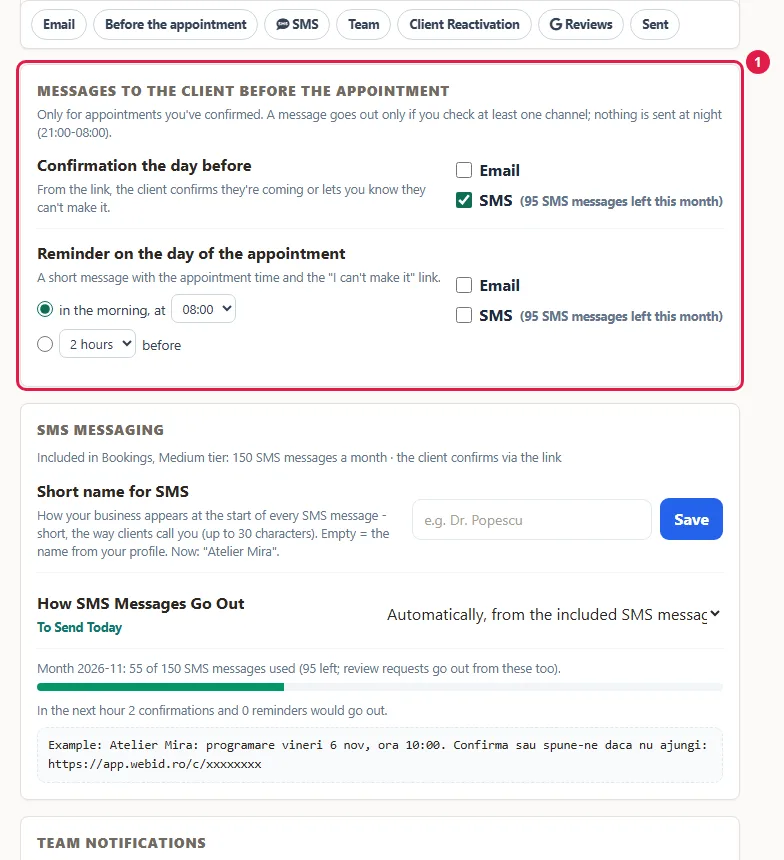
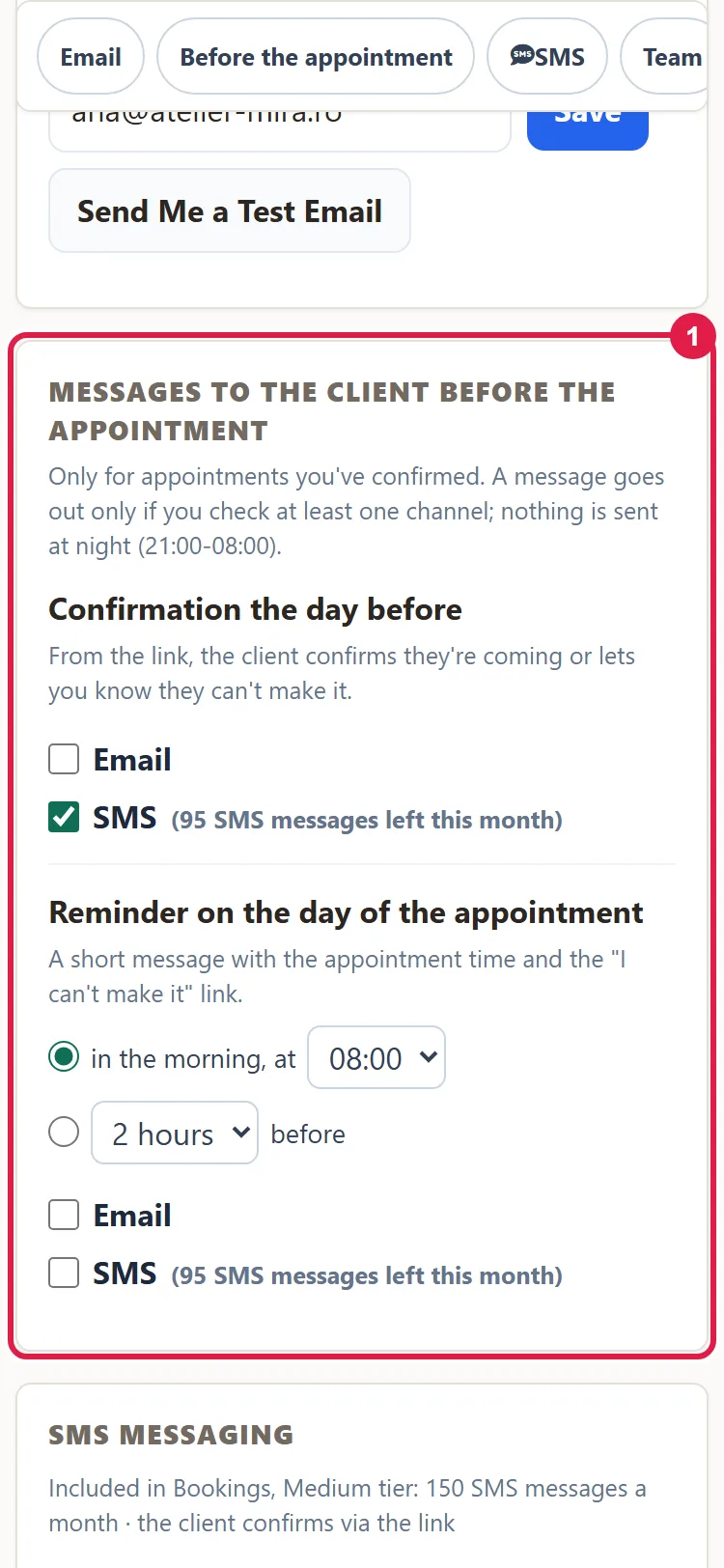
- Each checkbox and each time is saved as soon as you choose it: "Saved." appears.
How to choose the name your SMS messages start with
- In Short name for SMS, type the name all your SMS messages start with (up to 30 characters), for example "Salon Ana".
- Click Save. The "Example:" box shows you the text right away, exactly as the client will get it.
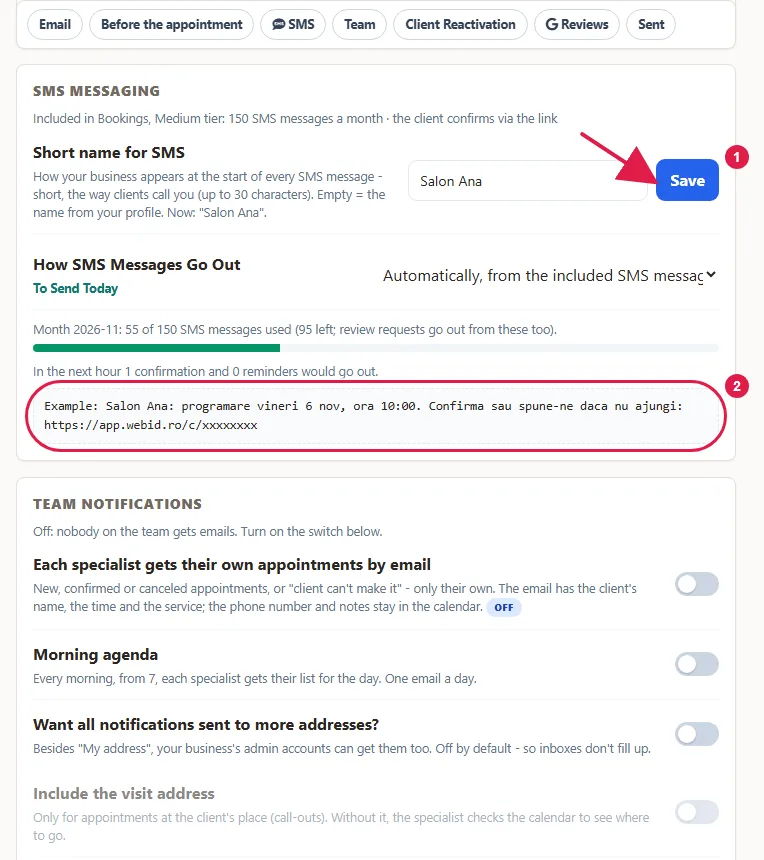
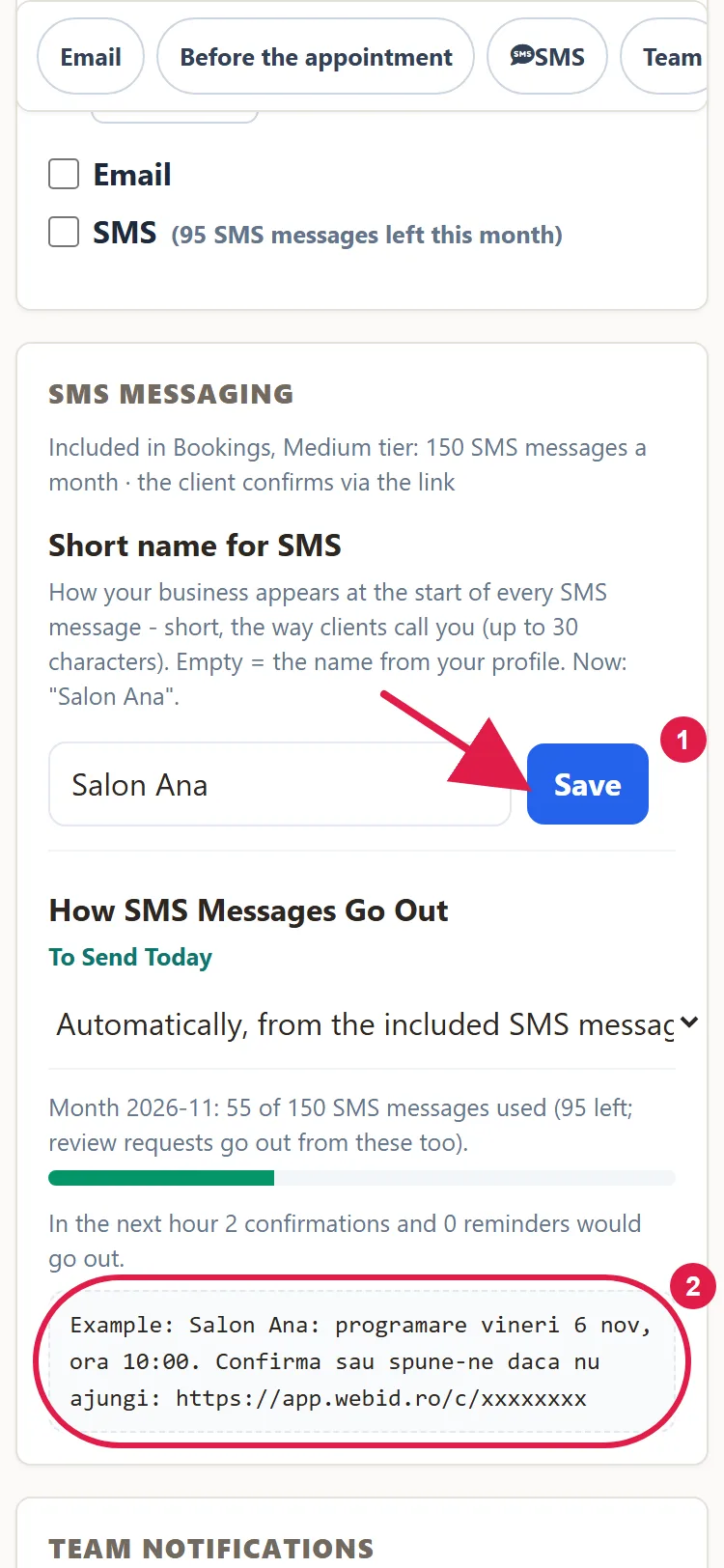
If you leave the name empty, we use your business name, shortened to at most 40 characters. For psychotherapy practices, the name taken automatically drops the words that say what kind of practice it is, so an SMS message seen by someone else doesn't reveal the therapy. A name you type yourself stays exactly as you wrote it.
What clients get
- The confirmation, the day before. It goes out for every confirmed appointment, if you've checked it. Example: "Salon Ana: appointment Mon Oct 5, 10:00. Confirm, or tell us if you can't make it:" followed by the link. From the link, the client clicks I'll be there or I can't make it, and you see the reply on the appointment.
- The reminder, on the day of the appointment. It goes out at the time you chose (in the morning or a few hours before), if the client hasn't said they're not coming. Example: "Salon Ana: we're expecting you today at 10:00." For appointments at the client's home, the address is added too.
- The SMS messages address clients formally or informally, the same way your website does. Clients who booked in English get them in English.
- SMS messages are written without Romanian diacritics, so they usually fit in a single SMS message. Each message counts as one SMS message against your allowance.
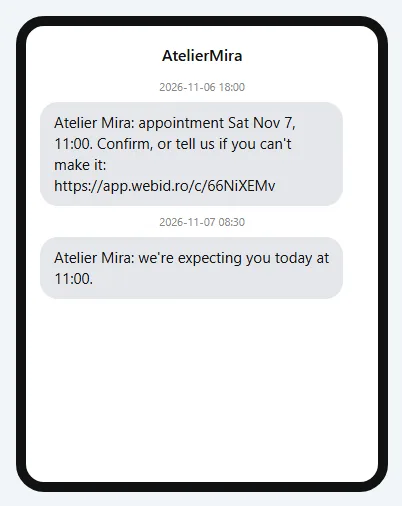
Rules that apply automatically:
- No SMS messages go out between 9:00 PM and 8:00 AM. Anything that falls during the night goes out at 8:00 AM.
- Each appointment gets just one confirmation and one reminder. The same client, at the same time, with several specialists, gets a single SMS message.
- On the page, the line "In the next hour... would go out" shows you what's about to go out.
How to send the messages from your phone
If you send just a few messages a day, you can send them from your own number: the day's messages show up already written, and you tap Send in your phone's messaging app. They don't use up the included SMS messages.
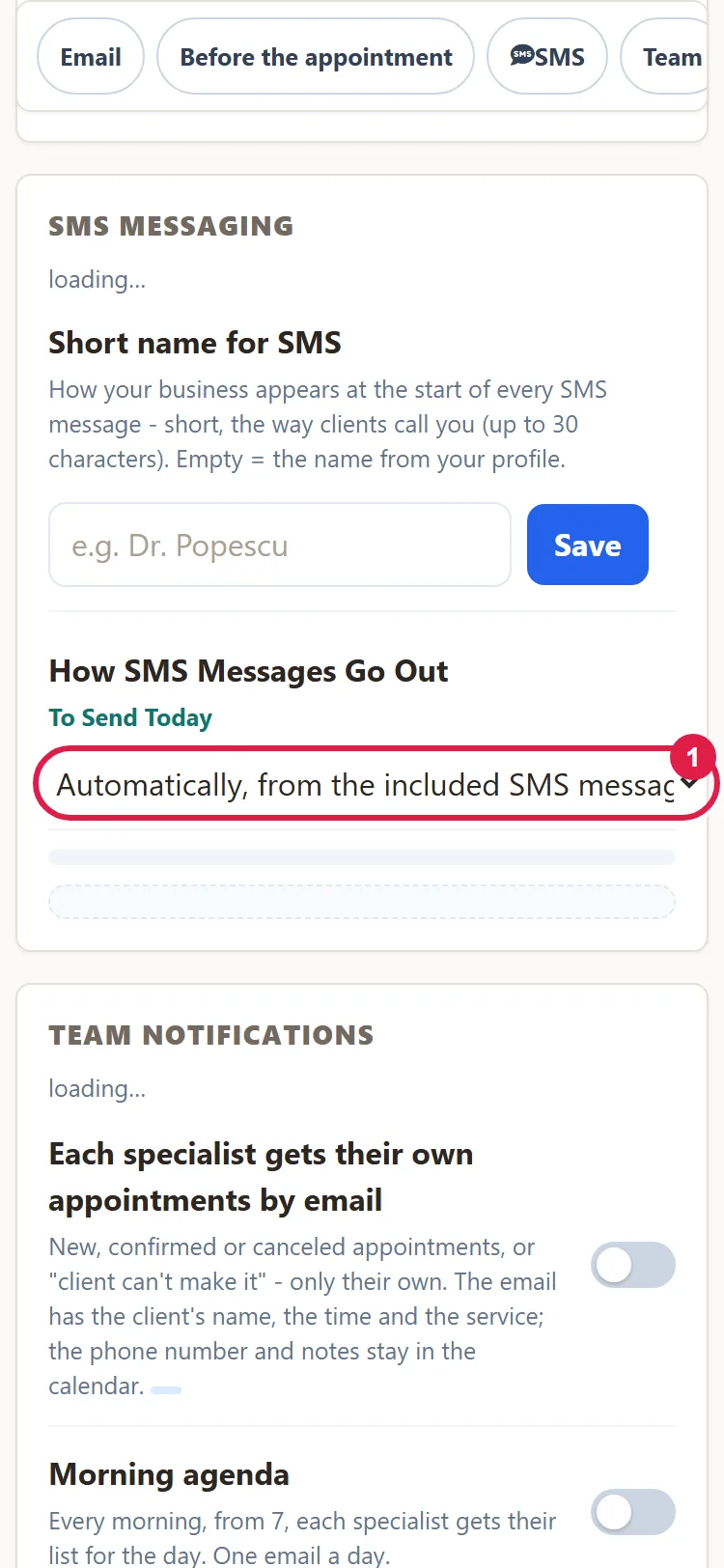
- In the SMS messaging section, under How SMS Messages Go Out, choose From my phone, I tap Send.
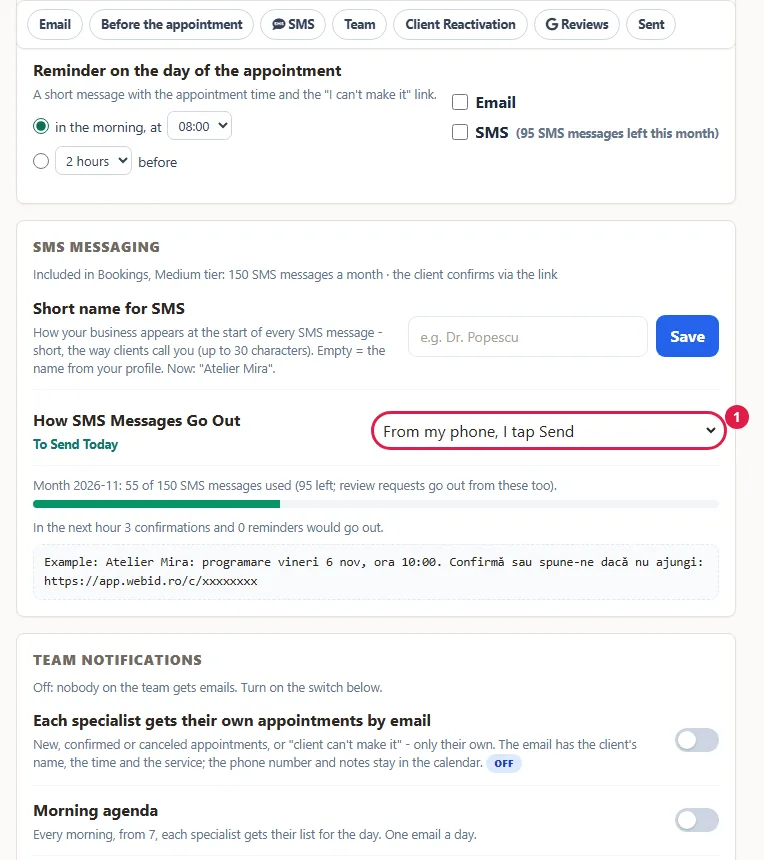
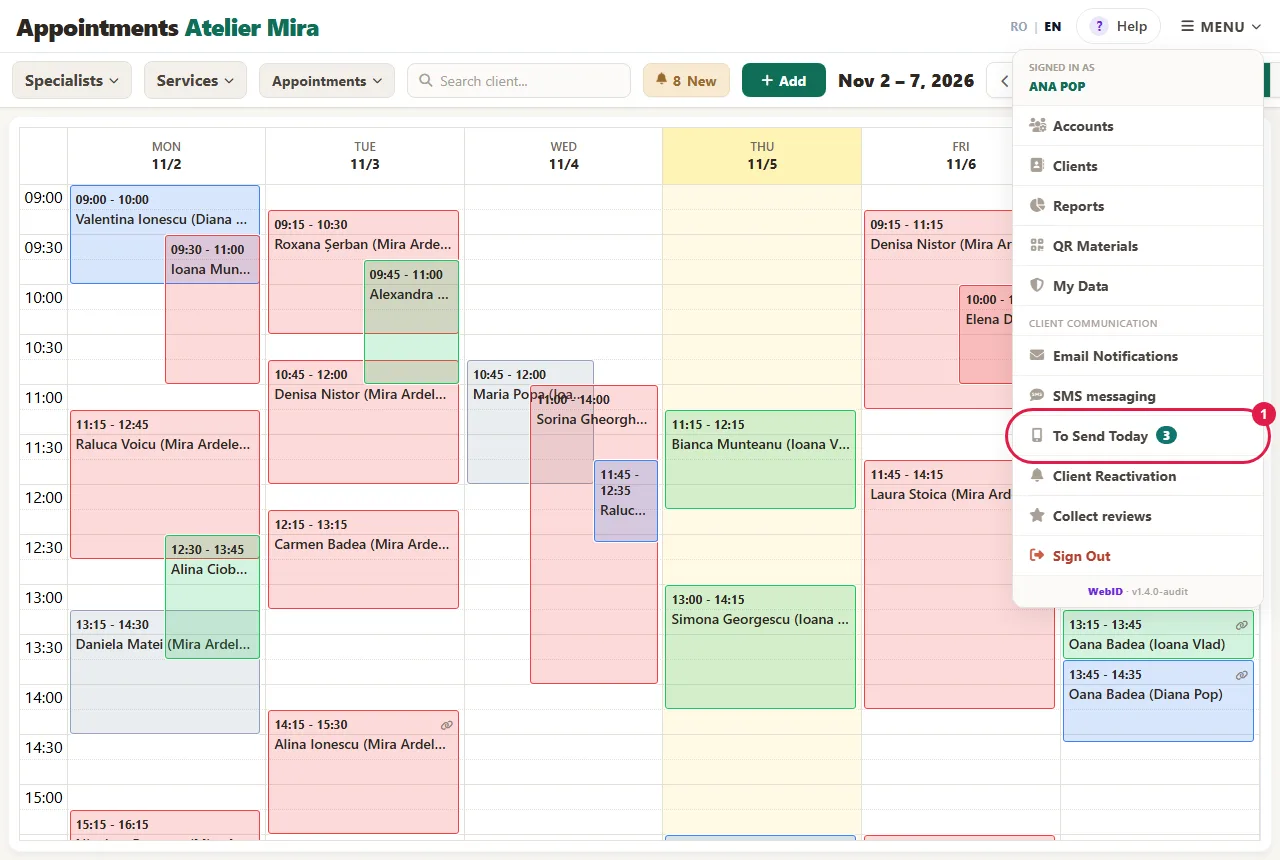
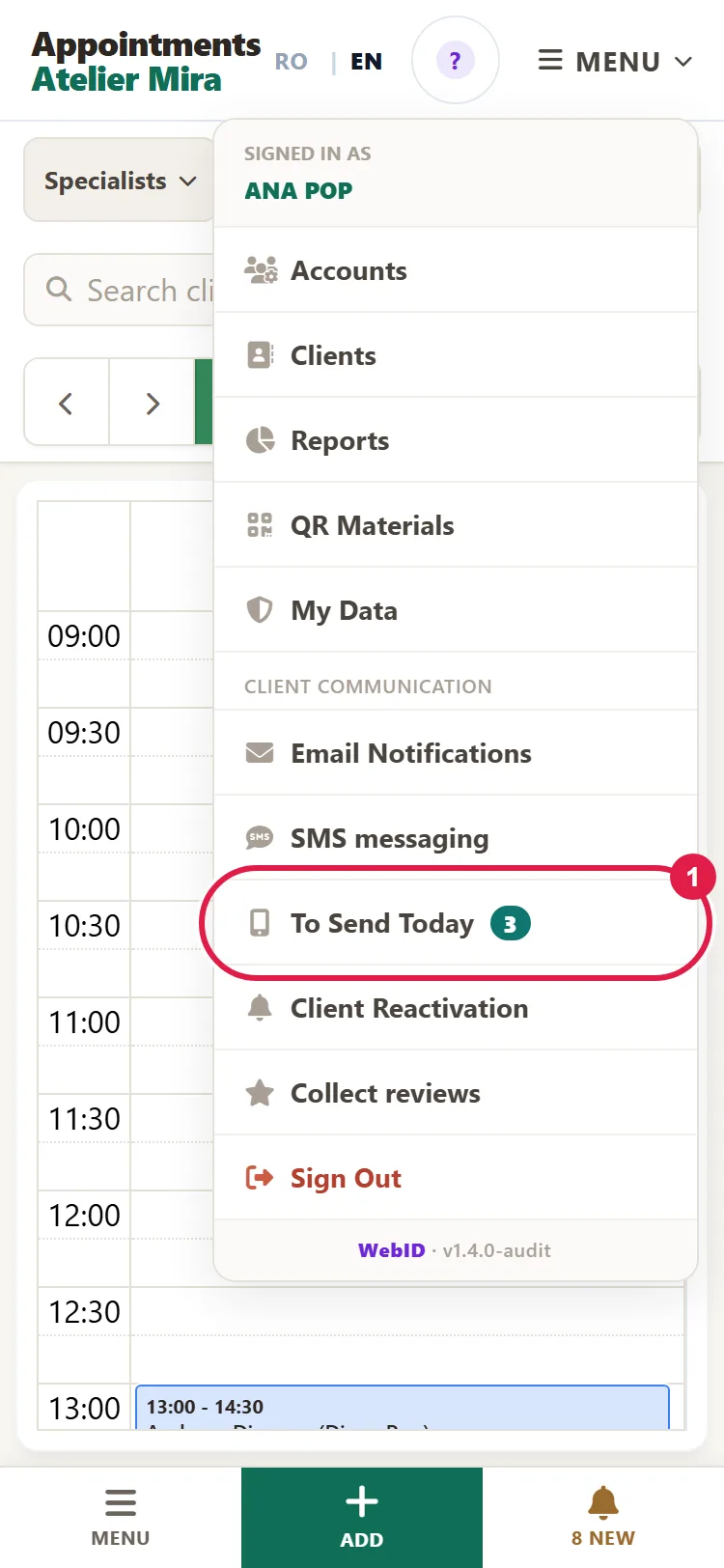
- On your phone, open To Send Today: from the link under the choice or from MENU, where you also see how many messages are waiting for you, for example "To Send Today (3)".
- For each message you see the client, their phone number, the type of message (confirmation, reminder, win-back) and the text, already written. Tap Send from Phone: your phone's messaging app opens, with the text filled in. Tap Send there.
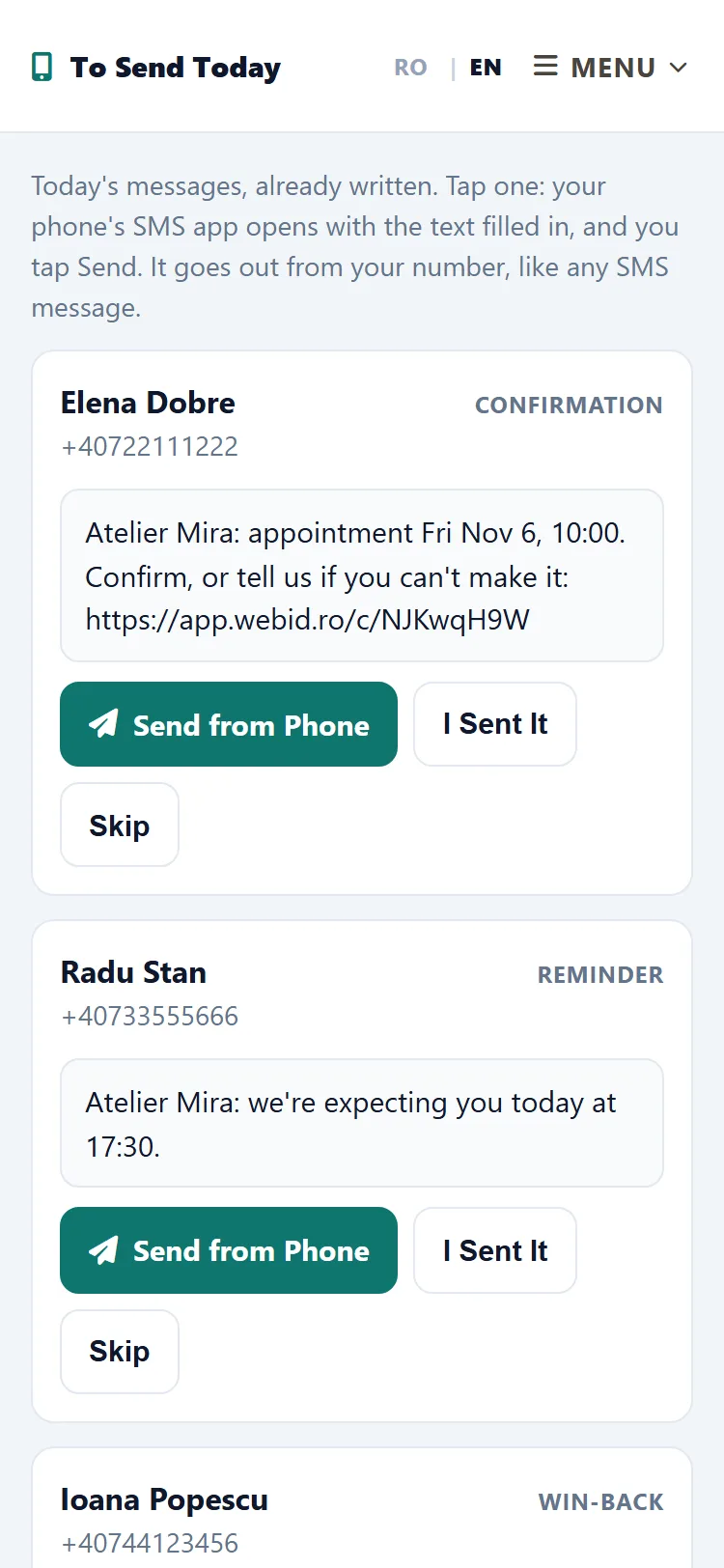
- Back in the list, tap I Sent It. If you don't want to send a message, tap Skip: the message doesn't go out at all. Changed your mind? Tap Cancel right away and it goes back into the list. A message not sent by the time of the appointment leaves the list on its own.
On this route:
- The messages go out from your number, like any SMS message, and you pay for them with your carrier, under your phone plan. They have diacritics.
- The client confirms from the link. If they reply to the SMS message, the reply reaches you on your phone, not in the admin panel.
- On a computer, the button doesn't open anything: open the list on your phone.
- For many messages a day, switch back to Automatically, from the included SMS messages: they go out on their own.
How to see how many SMS messages you've used
- In the SMS messaging section, read the line for the month, for example "Month 2026-10: 55 of 150 SMS messages used (95 left)." The bar is green. The bar and the "left" number count everything you have: the month's allowance, the SMS messages left over from past months, and packs.
- From 80%, the bar turns orange and "Close to the limit." appears.
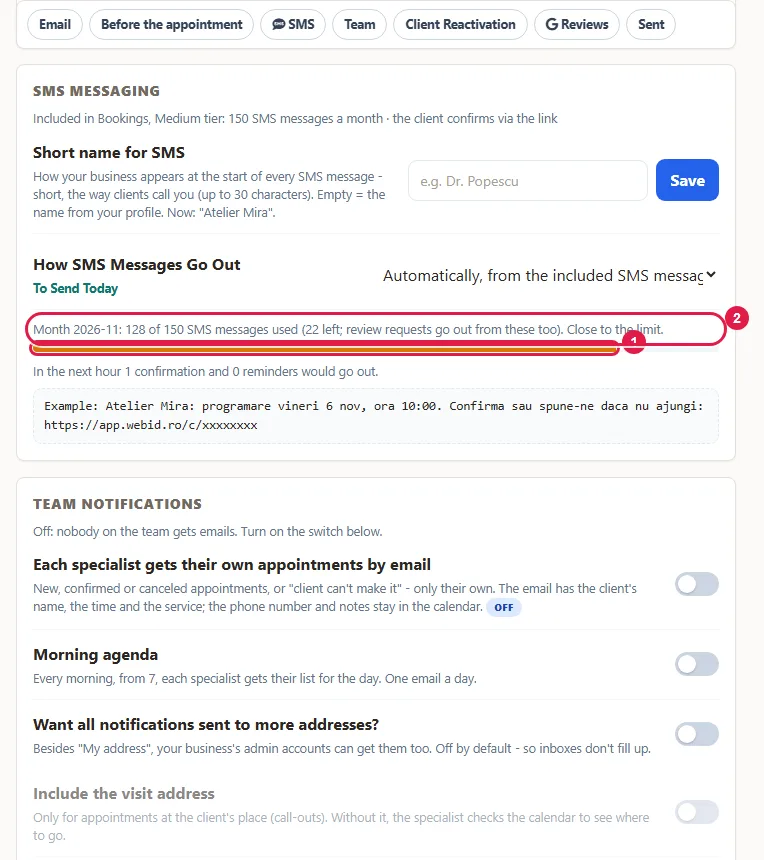
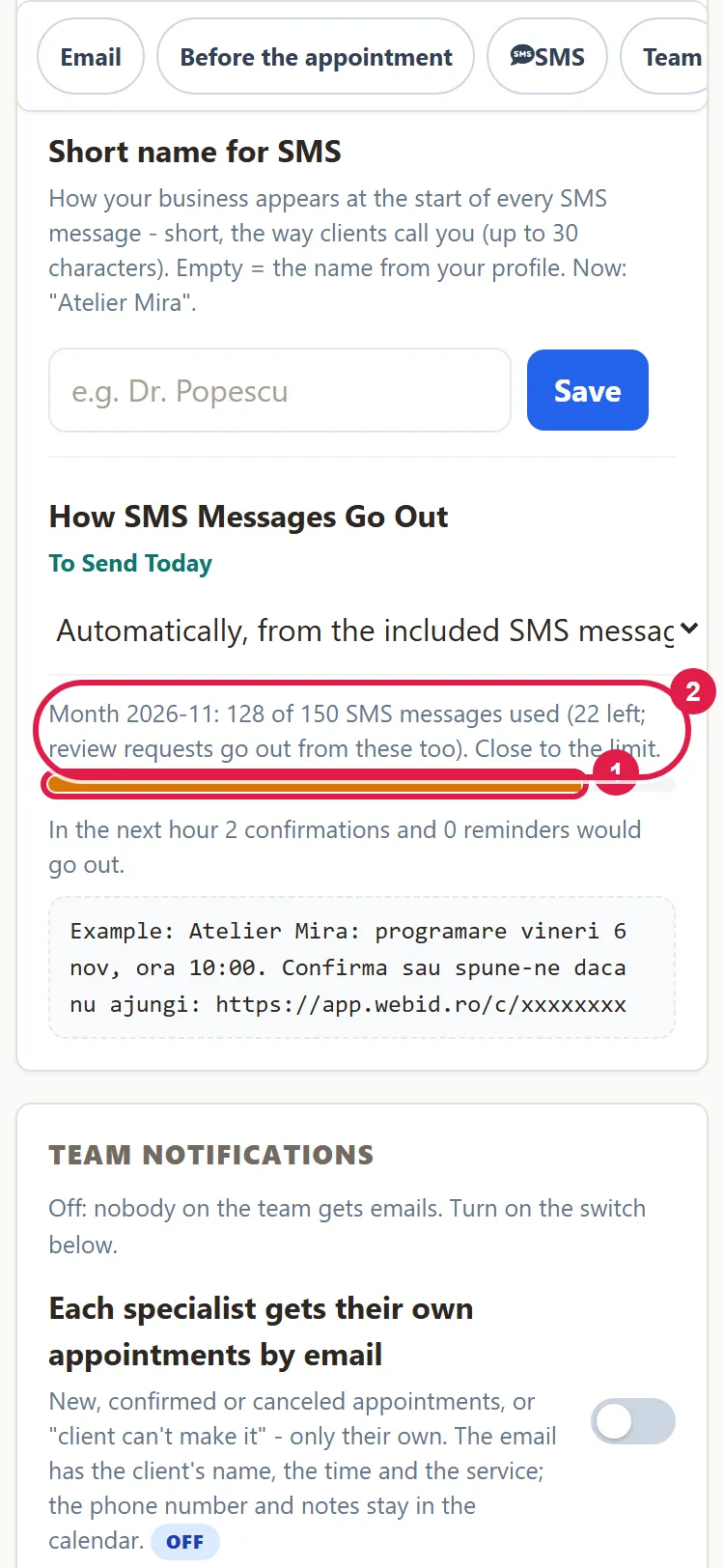
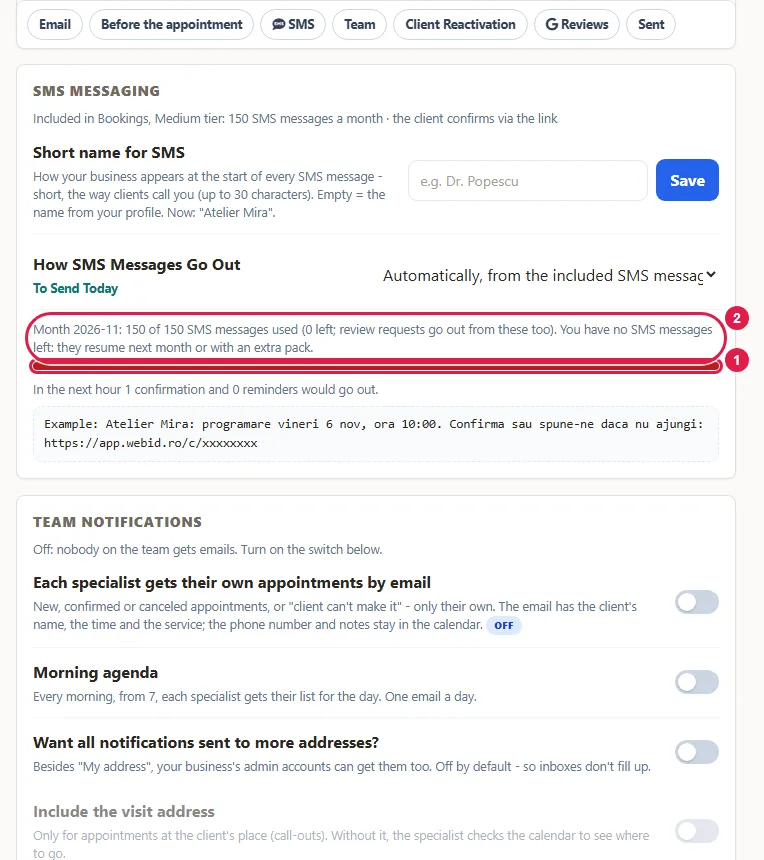
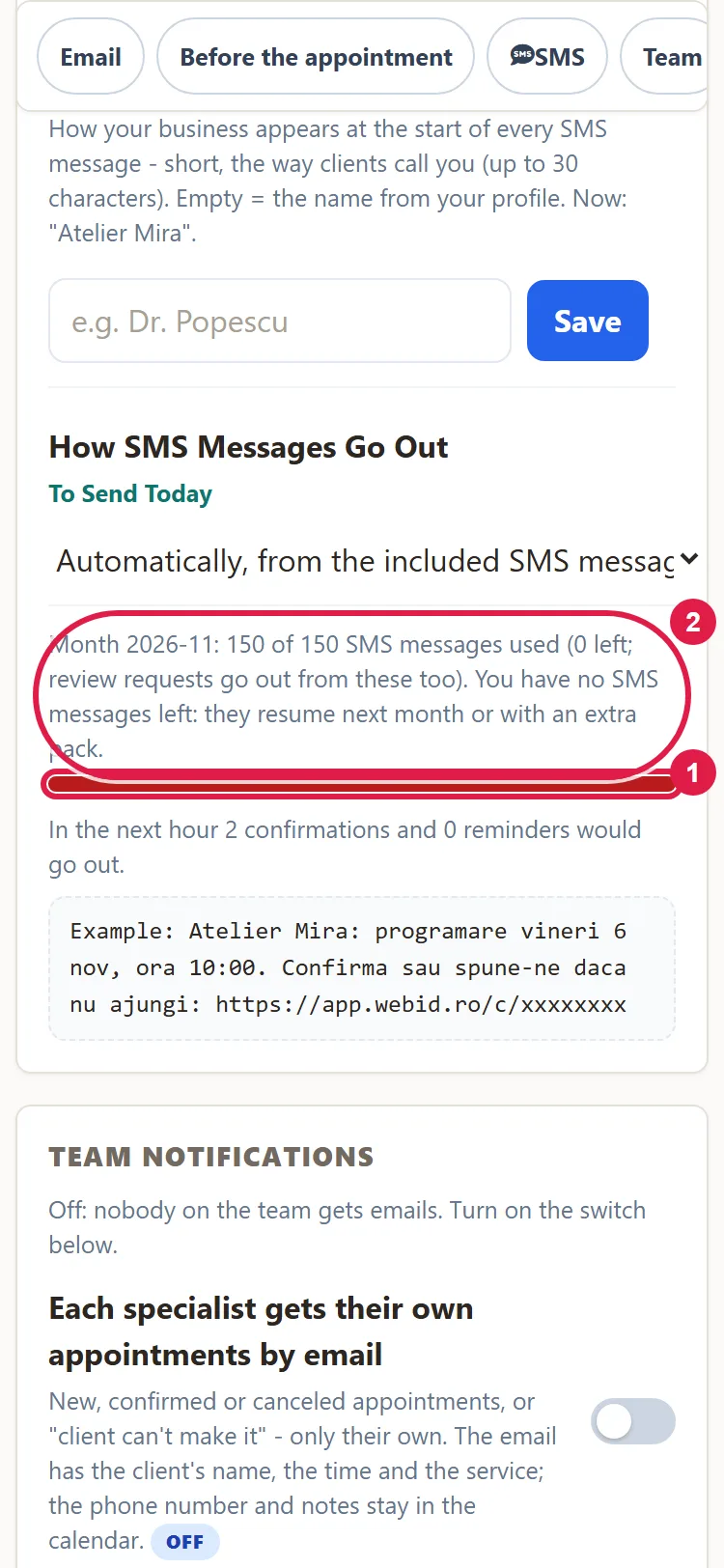
- At 100%, the bar turns red: you have no SMS messages left, not from the month's allowance, past months or packs. SMS messages resume next month or with an extra pack.
- To see each message, click Sent in the page's table of contents. The "Recent Messages" table shows the last 20 messages. Under Status you see "sent", "queued", "failed" or "skipped", with the reason in parentheses.
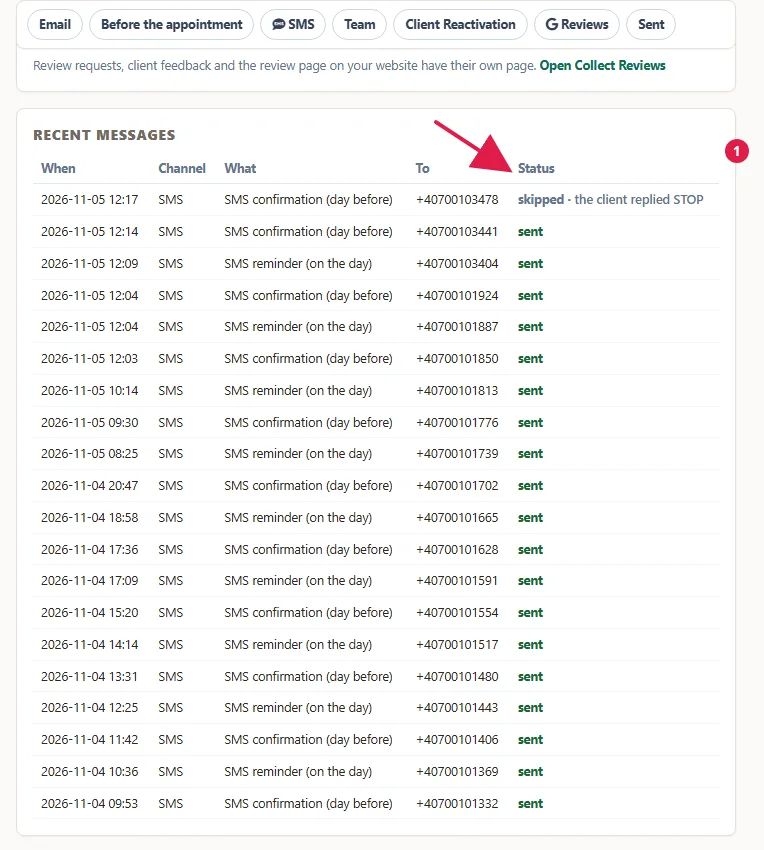
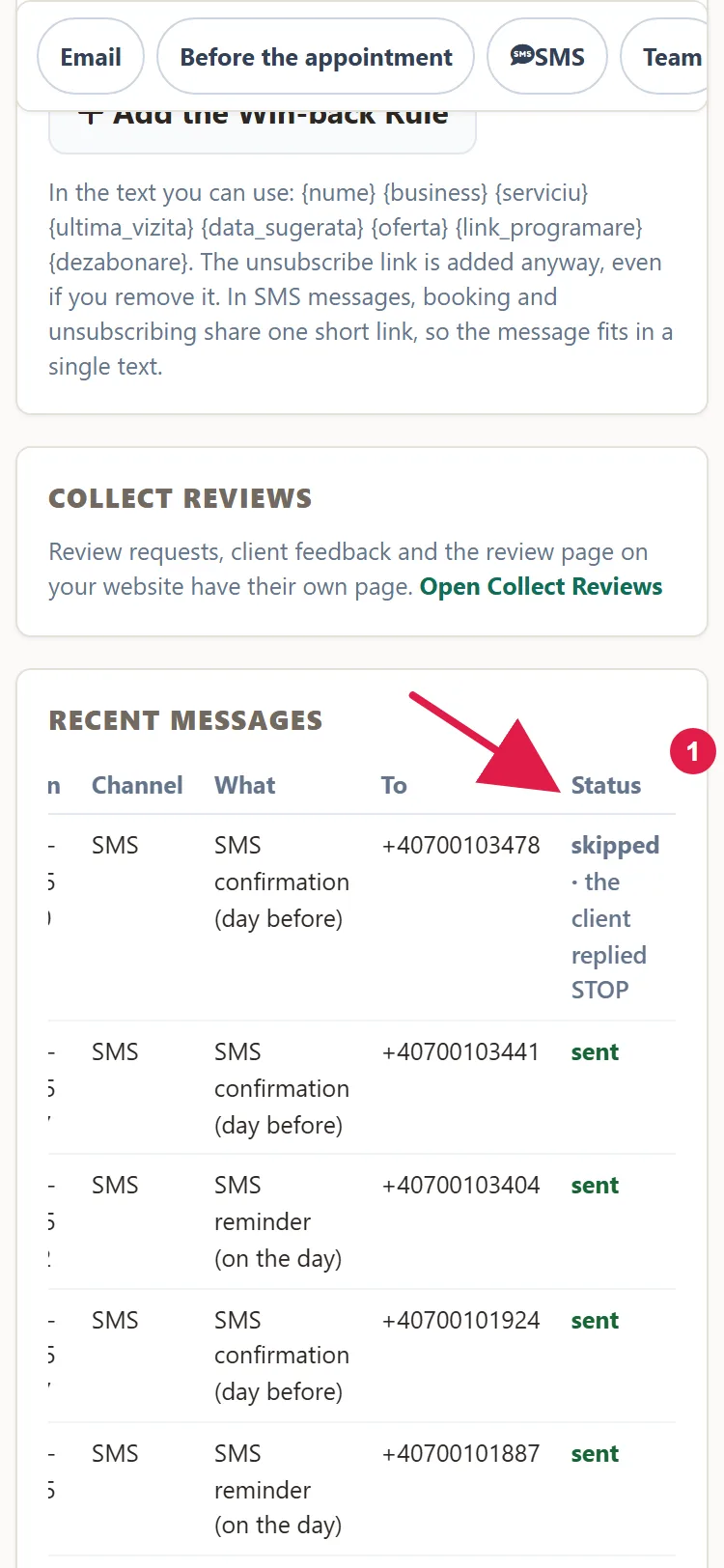
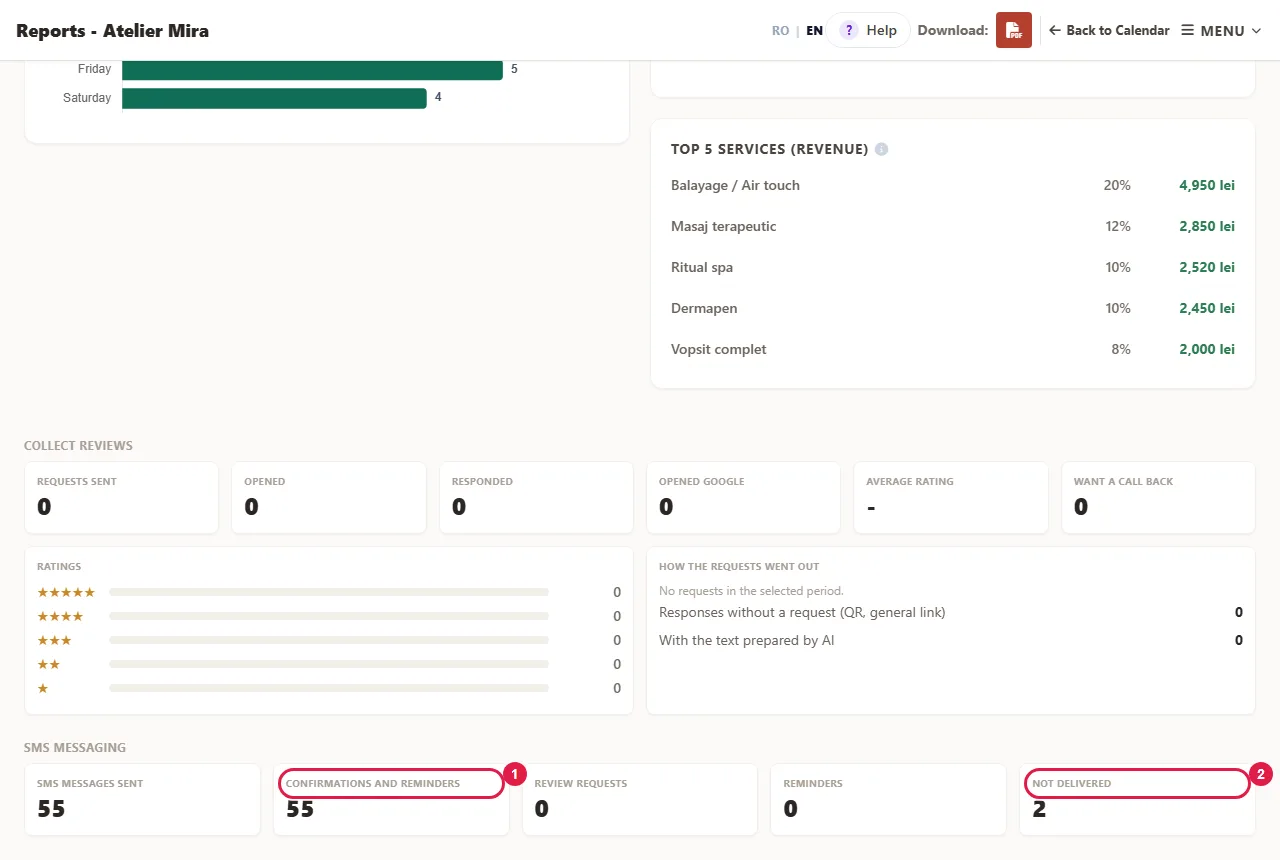
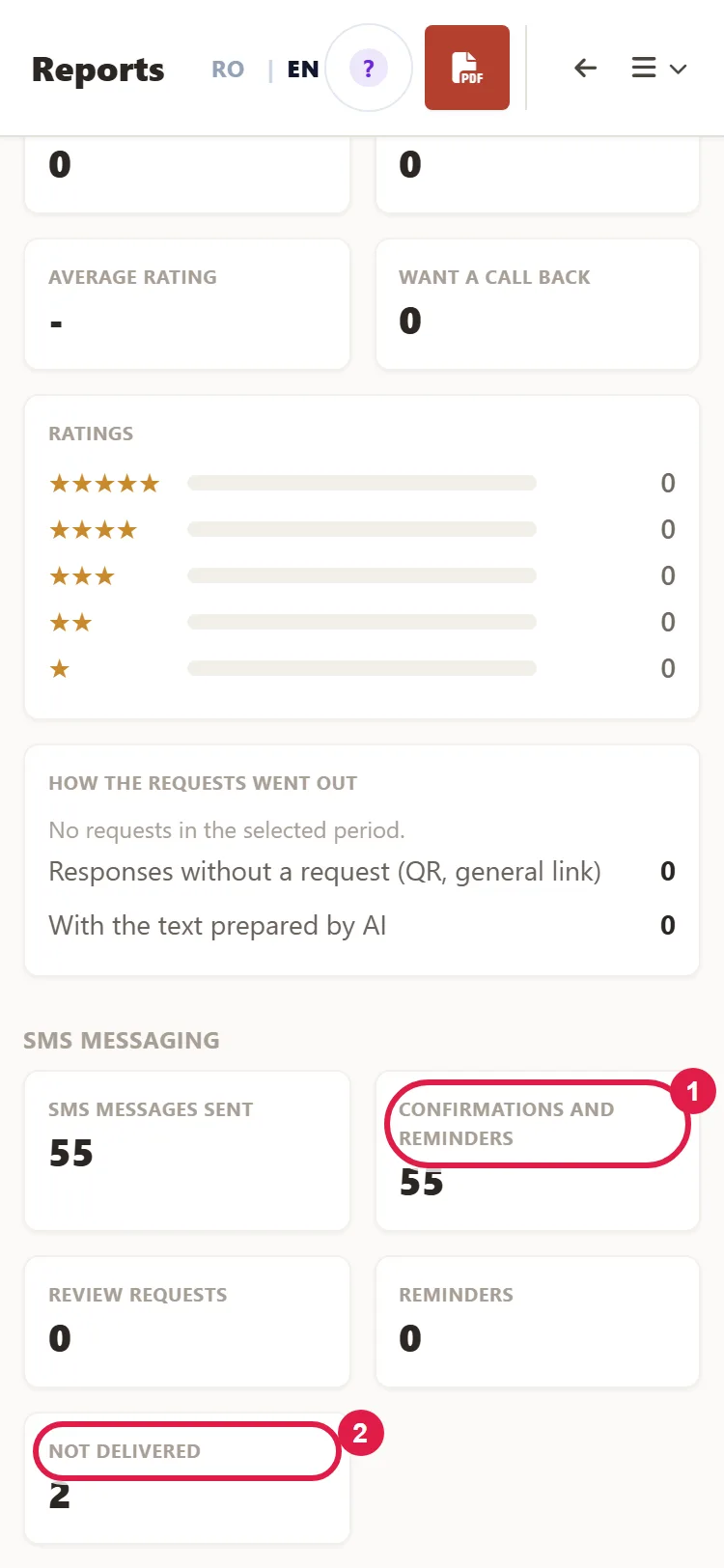
- For figures over a period, click MENU › Reports and go to the SMS messaging section: how many SMS messages went out, how many were for appointments, how many weren't delivered.
- Under the month's allowance you also see the SMS messages left over from past months and from packs, for example "You have 40 SMS messages left over from past months and extra packs." If you've stopped the subscription, the top line tells you the date it stopped: the remaining SMS messages keep going out, each until its own expiry, with no new monthly allowance.
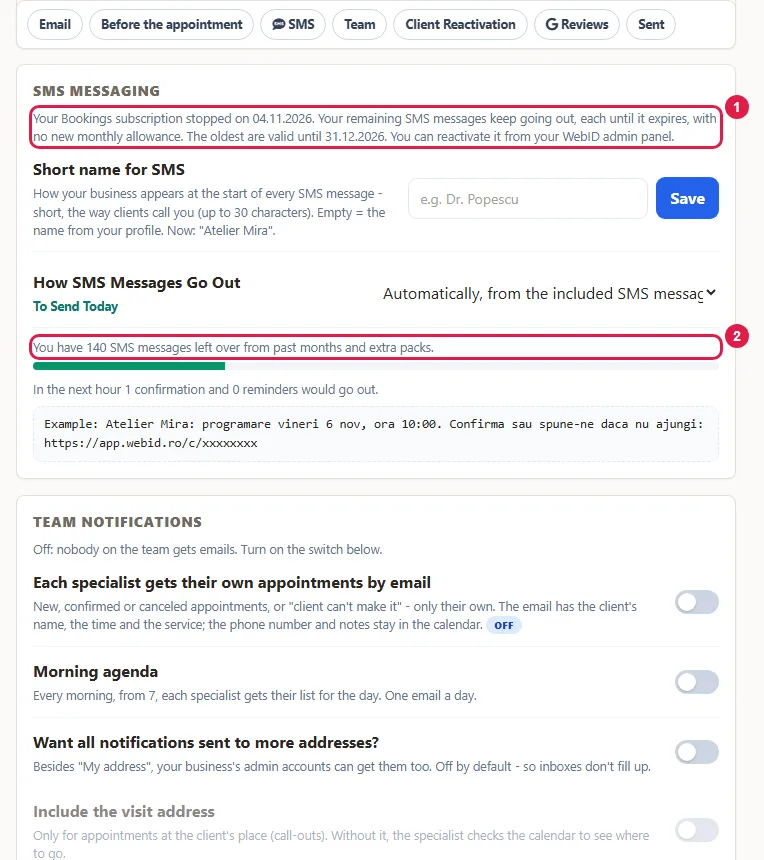
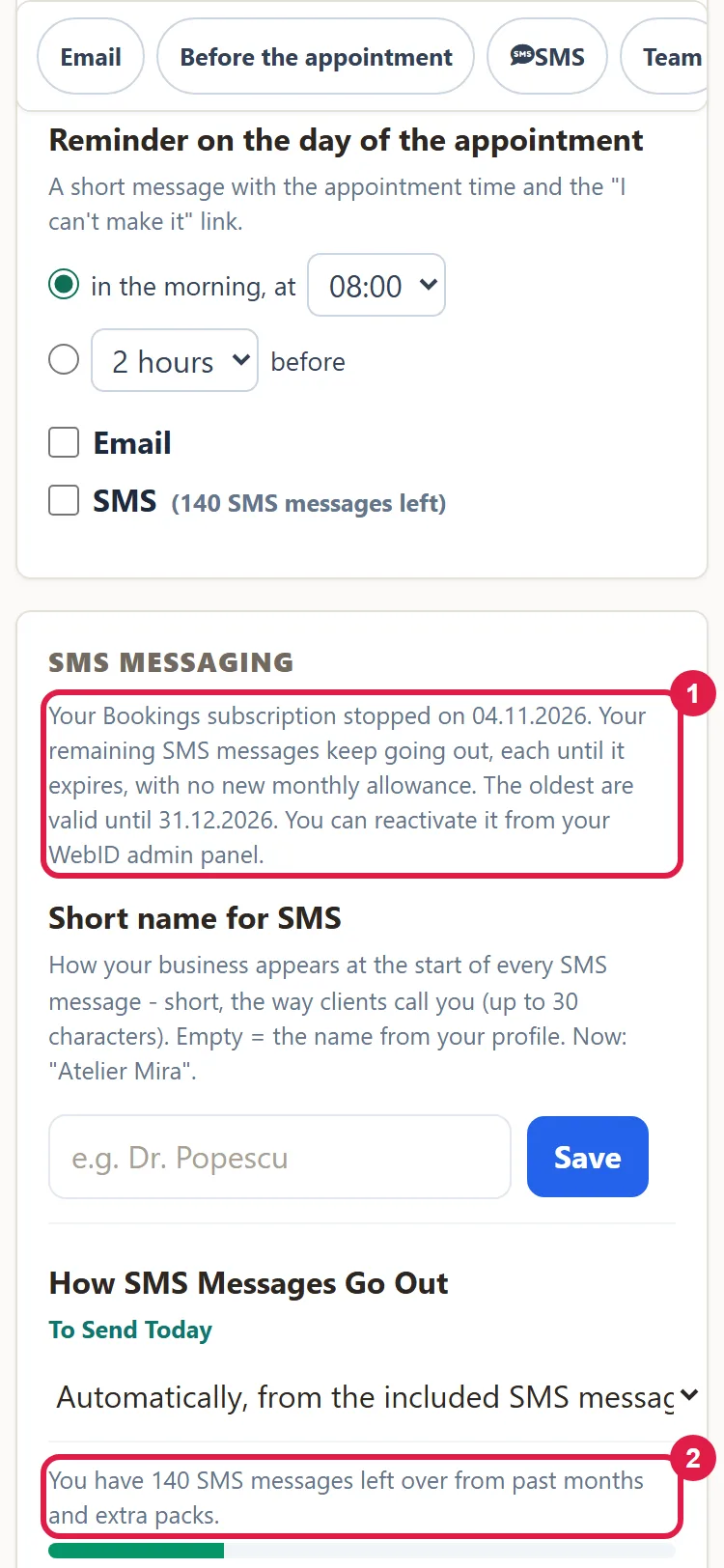
All of your business's SMS messages come out of the same monthly allowance: confirmations, reminders, review requests and reactivation messages. If you also have Collect reviews, the allowance is shared. The month starts on the 1st. Unused SMS messages aren't lost: they carry over to the following months, and you can use them in the month you receive them and the following two (those left over from October, until December 31).
What to do when the month's SMS messages run out
- At 80% of everything you have, you get an email once a month, at the address in Email Notifications › My address.
- At 100%, you get a second email. From that point on, SMS confirmations and reminders stop until next month. Bookings carry on as usual, and confirmation emails keep going out.
- If you don't want the SMS messages to stop, get an extra pack: from the link in the email (it puts the pack straight into your cart) or from your website's admin panel, in "My Account › What else you can add", on the "Extra SMS message pack" card, with Add to Cart.
- After you pay, the pack shows up in the panel by itself. You see it in the "left" number.
How a pack is used:
- It's used only after the month's allowance runs out.
- It's valid in the month you buy it and the following two (one bought on October 15 is valid until December 31).
- If you have several packs, the one that expires first is used first.
- Extra packs come with 100 or 500 SMS messages. Prices are on the Bookings page.
What happens if a client replies to an SMS message
- The client confirms from the link, not by replying to the SMS message. A "YES" or "NO" sent as a reply changes nothing, and you don't see it in the panel.
- If a client replies "STOP", they no longer get SMS messages from your business: no confirmations, reminders, review requests or reactivation messages.
Common problems
- "The SMS checkboxes are grayed out and can't be clicked." Bookings isn't active; the top line says so. Add it from your website's admin panel: "My Account › What else you can add", with Add to Cart.
- "It says the add-on is on, but SMS isn't set up." Sending SMS messages isn't set up on our side for your website. There's nothing for you to do in the panel: write to us at contact@webid.ro.
- "I check SMS and 'Only an administrator can do this.' appears." You're signed in with a front desk account. An administrator has to make the change.
- "A client didn't get the confirmation." The appointment was still pending, it was made less than 12 hours ahead, the number is missing, wrong or foreign, the client sent STOP, the allowance ran out, or the SMS checkbox for the confirmation wasn't checked. Look in "Recent Messages", under Status: the reason is in parentheses. If the message doesn't show up at all, check whether the appointment is confirmed.
- "The client replied YES via SMS and it doesn't show they're coming." "YES" / "NO" replies via SMS aren't read; only "STOP" is honored. The client confirms they're coming from the link in the SMS message, with I'll be there.
- "I bought a pack, but this morning's confirmations didn't go out." Texts skipped while the allowance was used up aren't sent later. New ones go out normally; let the clients who missed theirs know yourself.
- "The alert email didn't arrive." It goes out only once a month for each threshold, to "My address". Check the address in Email Notifications and your Spam folder.
- "The business name is cut off in the SMS message." The name taken automatically gets shortened. Type your own Short name for SMS.
- "An 8:30 appointment didn't get a reminder." With the morning reminder at 8, 9 or 10, the SMS message goes out at 8:00 AM at the earliest and at least an hour ahead. So appointments before 9:00 AM don't get it. The confirmation the day before still goes out, if you've checked it.
- "Something else isn't working." Write to us at contact@webid.ro with what you see under Status in "Recent Messages", and we'll take a look.
What it doesn't do
- It doesn't send SMS messages for appointments that are still unconfirmed or have been declined.
- It doesn't send the confirmation if the appointment starts in less than 12 hours; in that case only the reminder goes out.
- It doesn't send at night (9:00 PM - 8:00 AM), and you can't choose other sending times.
- You can't change the wording of the SMS messages; you only change the name at the start.
- It sends only to Romanian numbers (07... or +40...). Foreign numbers are skipped.
- Replies to SMS messages ("YES", "NO") have no effect; confirming is done only from the link.
- A skipped SMS message (allowance used up, wrong phone number, STOP, checkbox unchecked) isn't sent later, even if you buy a pack in the meantime.
- Unused SMS messages, from the monthly allowance or from packs, don't pile up forever: they expire after the month you receive or buy them and the following two. The oldest are used first. If you stop your subscription, the remaining ones keep going out until they expire, with no new monthly allowance; after that, the SMS messages stop.
- The panel doesn't show separately how many SMS messages you have left in packs and when they expire. Packs aren't bought in the Bookings panel, but from the alert email or from your website's admin panel.
What data it uses
For SMS messages, we use the client's phone number and the message text (business name, date and time, confirmation link and, for home visits, the address), which we pass to an SMS provider in the EU. A copy of the message stays in the app for 90 days; after that, only the fact that it was sent remains. If the client replies STOP, their record is marked and they get no more SMS messages. Details are in the data processing agreement, §3.