How to bring back clients who stopped coming
With Client reactivation, included in Bookings, the Bookings panel writes on its own to clients who haven't been back in 8 weeks and have no upcoming appointment, with a link to your booking page. You turn the messages on just once, from the administrator account, then check every now and then what went out.
What Client reactivation solves
Clients who haven't been in for a while often forget to book again. You bring them back with a message you wrote yourself, which goes out by itself at the right time, without you keeping track of who's been missing and for how long. If you don't have Bookings yet (Client reactivation is included), add it from your website's admin panel, in "My Account › What else you can add", where you also see what it costs: How to add an add-on.
What you need first
- An administrator account. With a front desk account you can see the screen, but any change shows "Only an administrator can do this."
- The Bookings add-on (Client reactivation is included).
- Clients with an email address in their record. For SMS messages, the messages use the SMS messages included in Bookings.
- Your website linked to the Bookings panel, so the link in the message leads to your booking page.
How to turn on reactivation messages
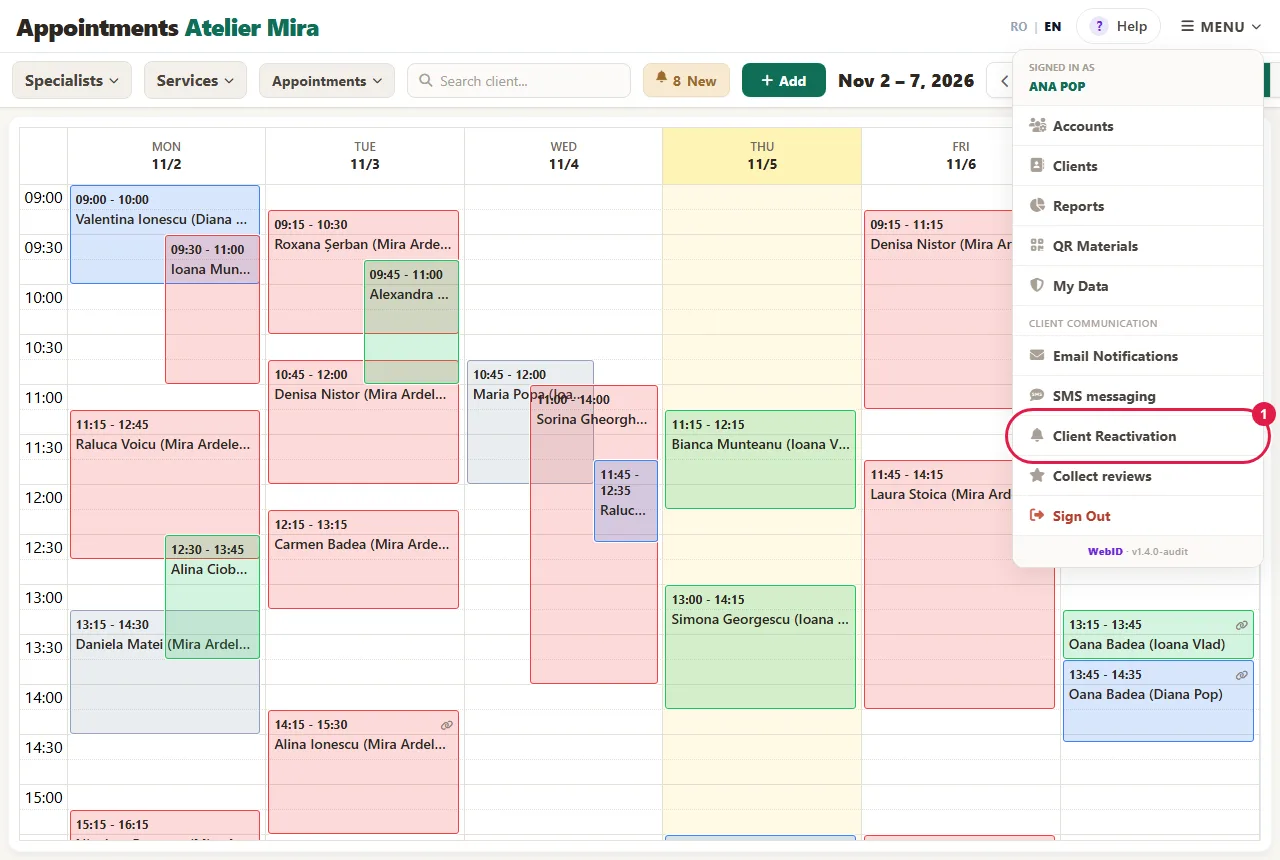
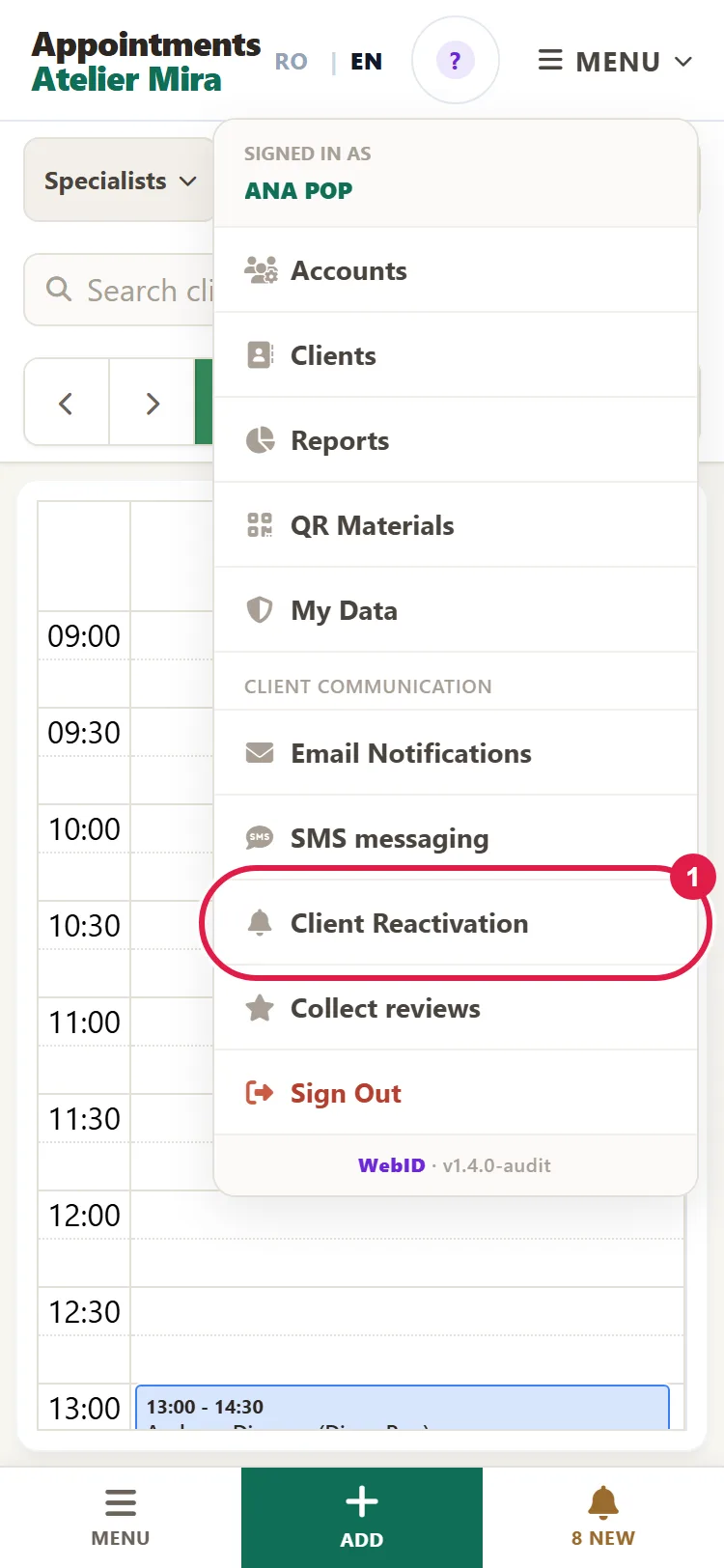
- In the Bookings panel, click MENU, then, under "Client communication", Client Reactivation. "Messages & Reminders" opens at the Client Reactivation section.
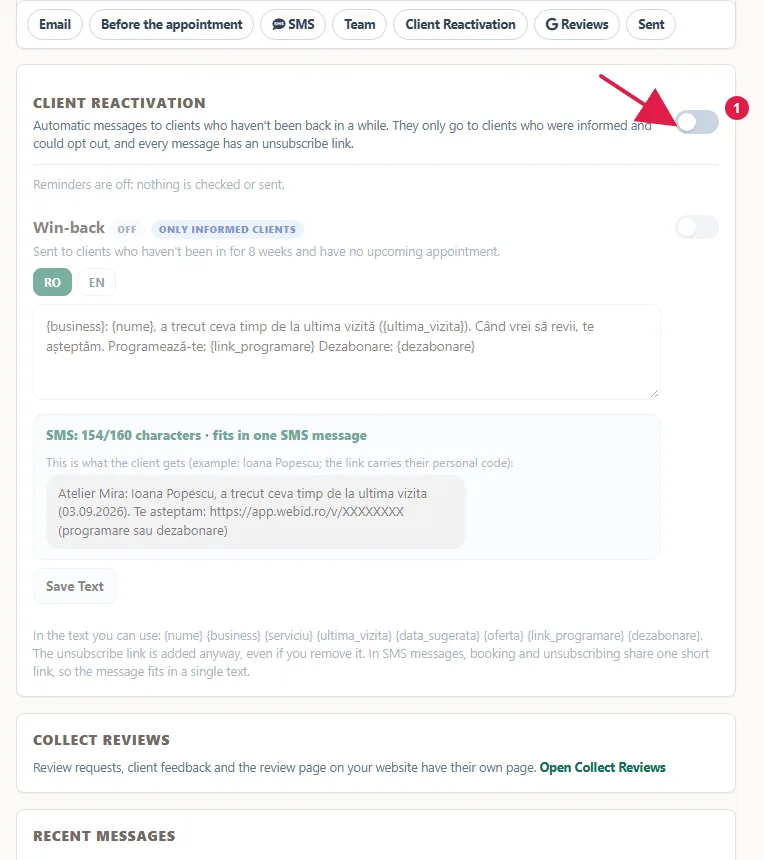
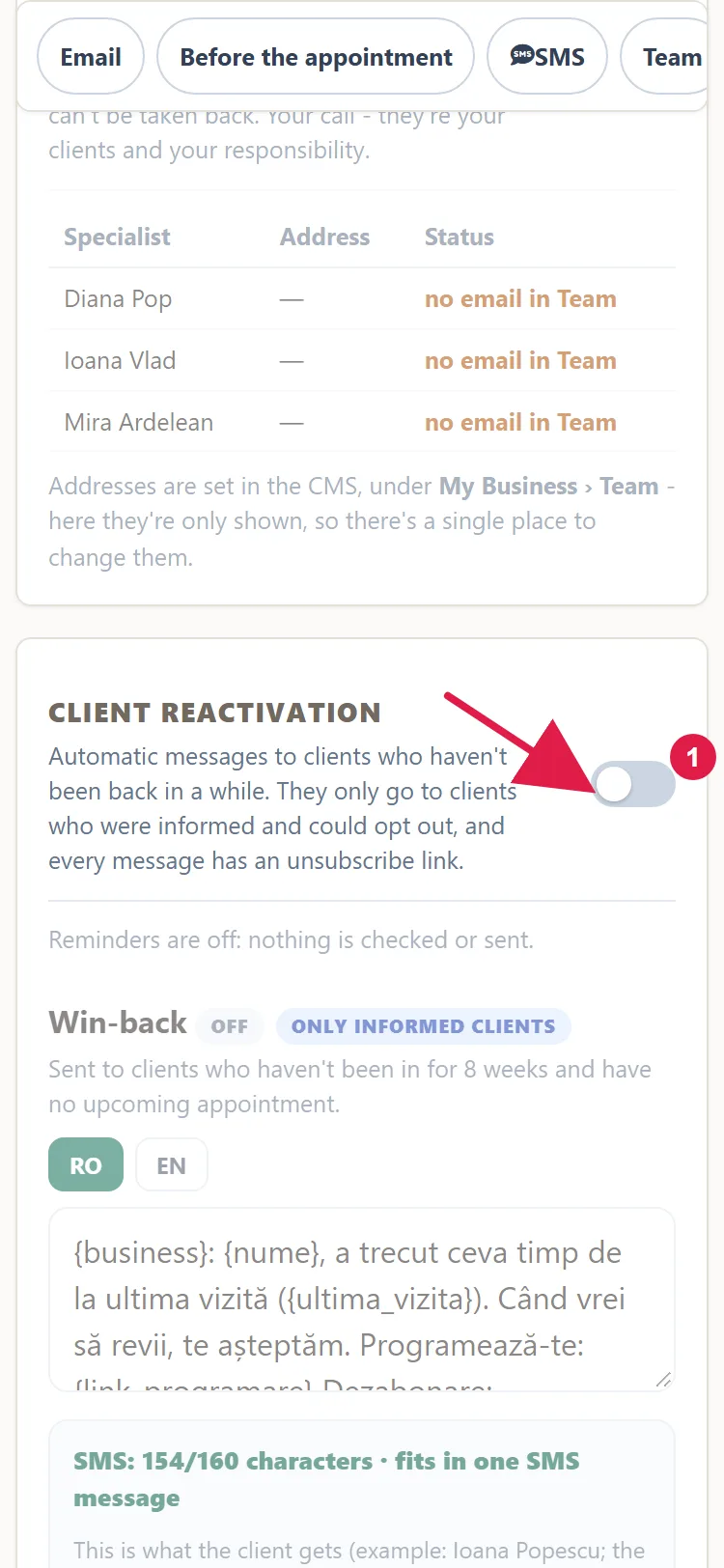
- At first, the section is faded and says "Reminders are off: nothing is checked or sent."
- Turn on the switch to the right of the "Client Reactivation" title. "Saved." appears at the top.
- If it says "No rules yet", click Add Default Rules.
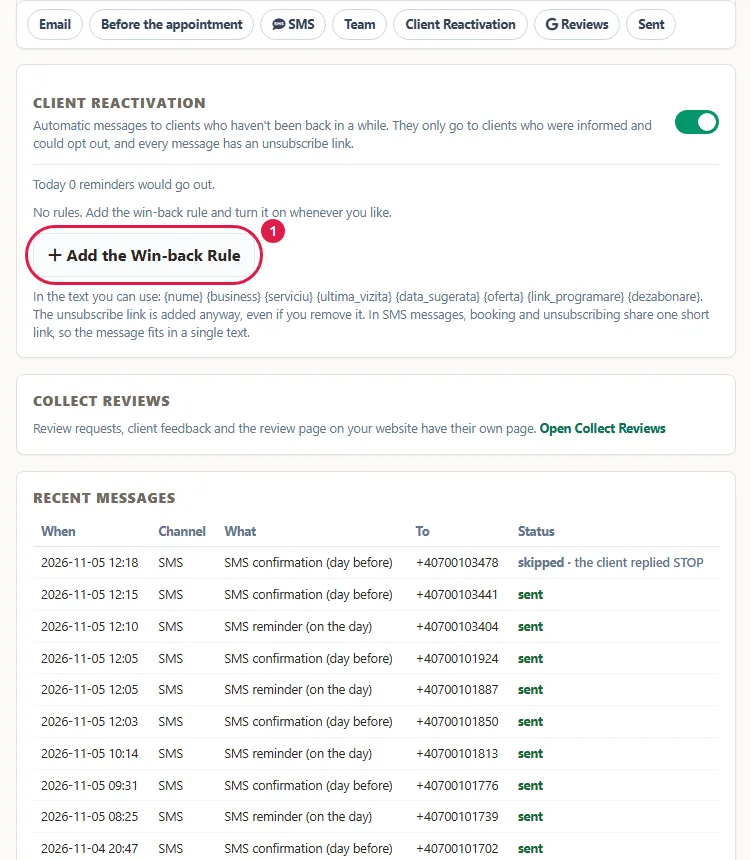
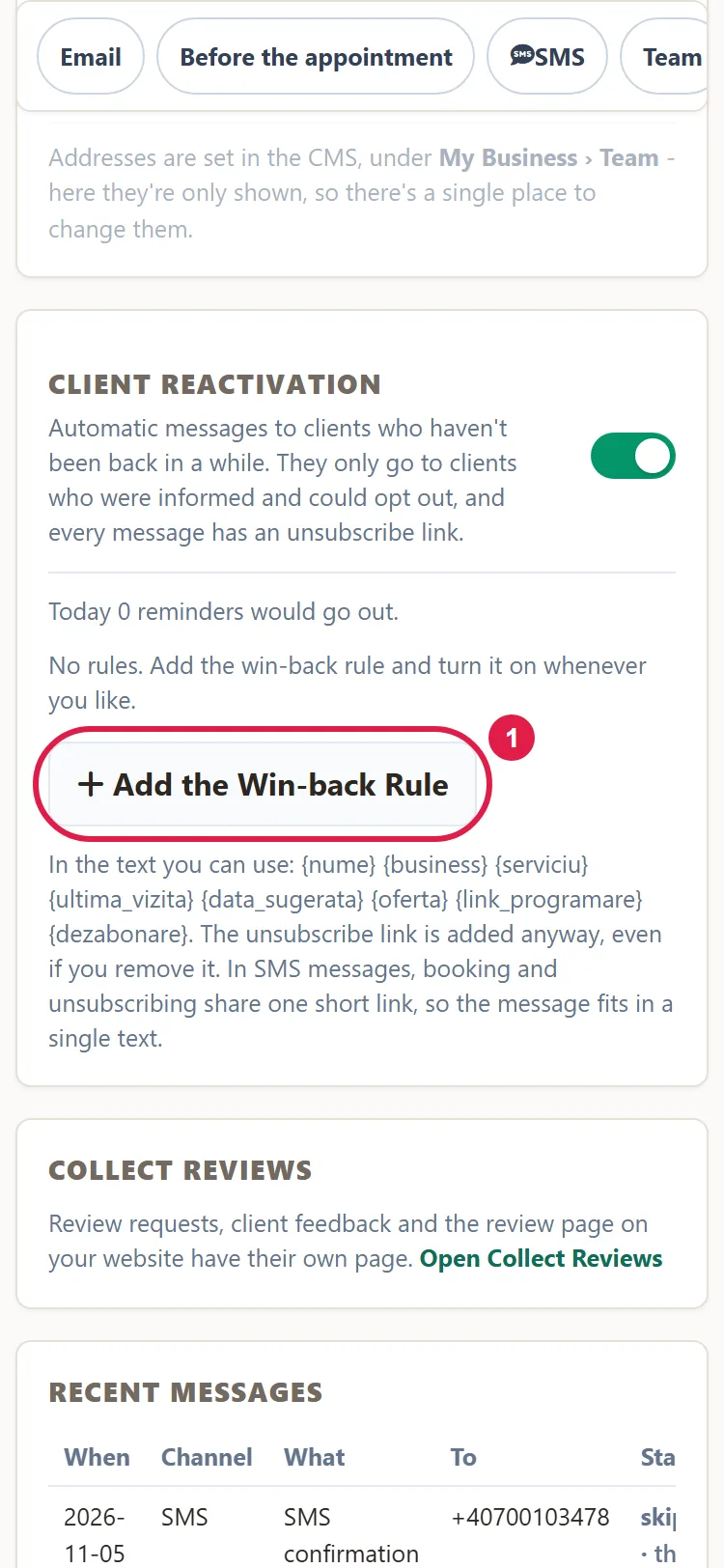
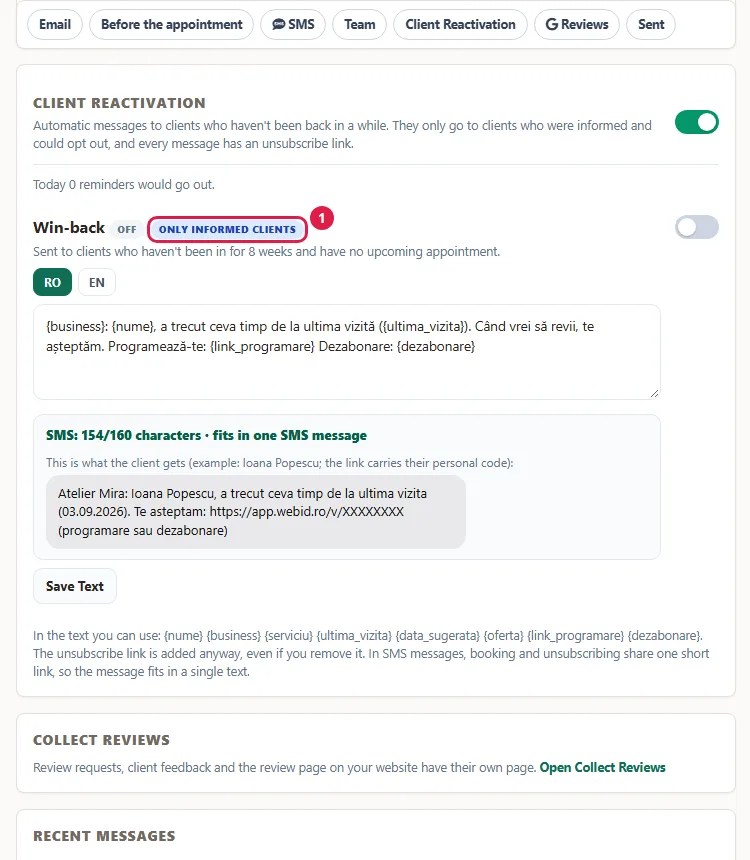
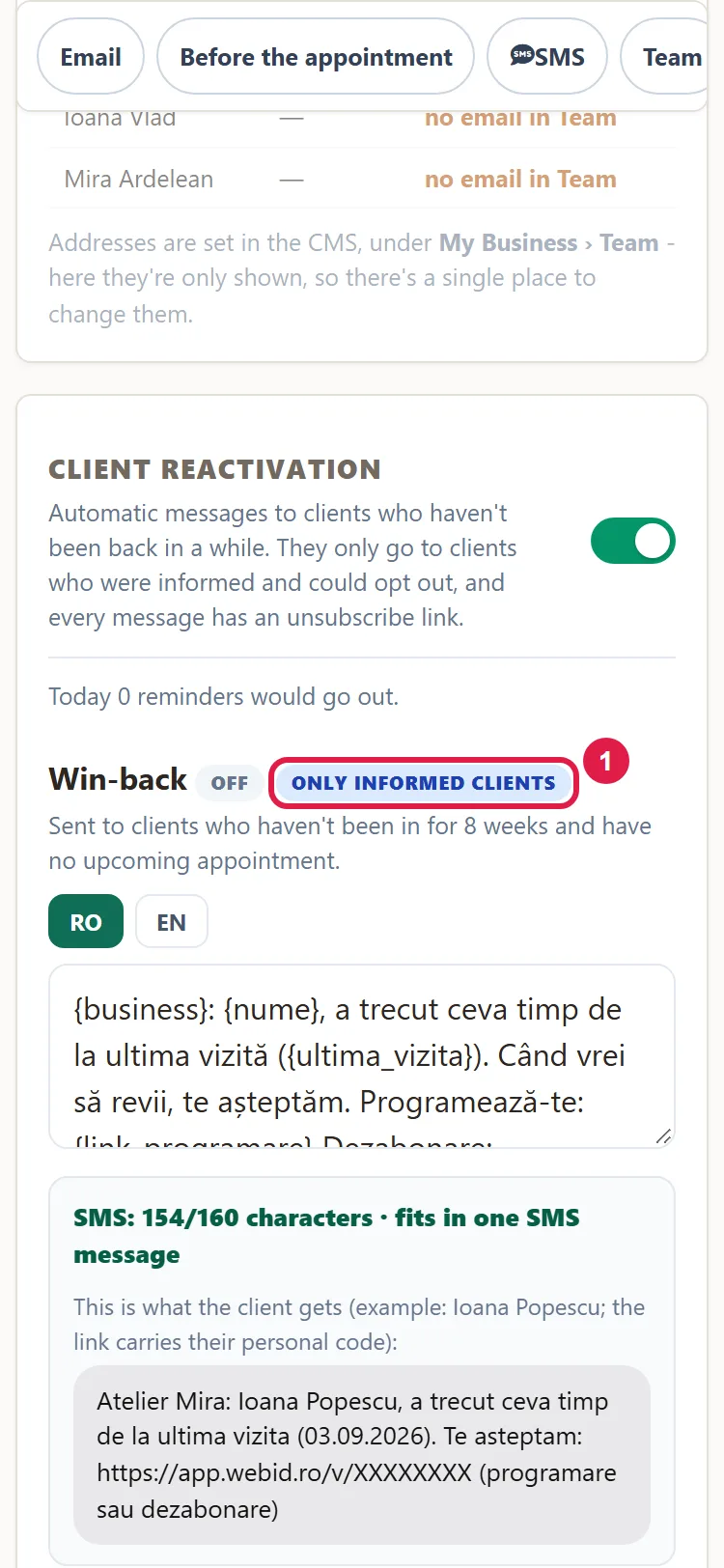
- The "Win-back" rule appears, turned off: it goes to clients who haven't been back in 8 weeks and have no upcoming appointment.
How to write your message
- On the Win-back card, read the text in the box and change it so it sounds the way you talk to your clients.
- Click Save Text. The text must be between 10 and 2,000 characters. You write only the body of the message: the email subject is always your business name plus the rule name.
- In the text you can use fields that fill in automatically for each client: {nume} (the client's name), {business} (your business name), {ultima_vizita} (the date of the last visit), {link_programare} (your booking page), {dezabonare} (the link the client uses to stop getting messages).
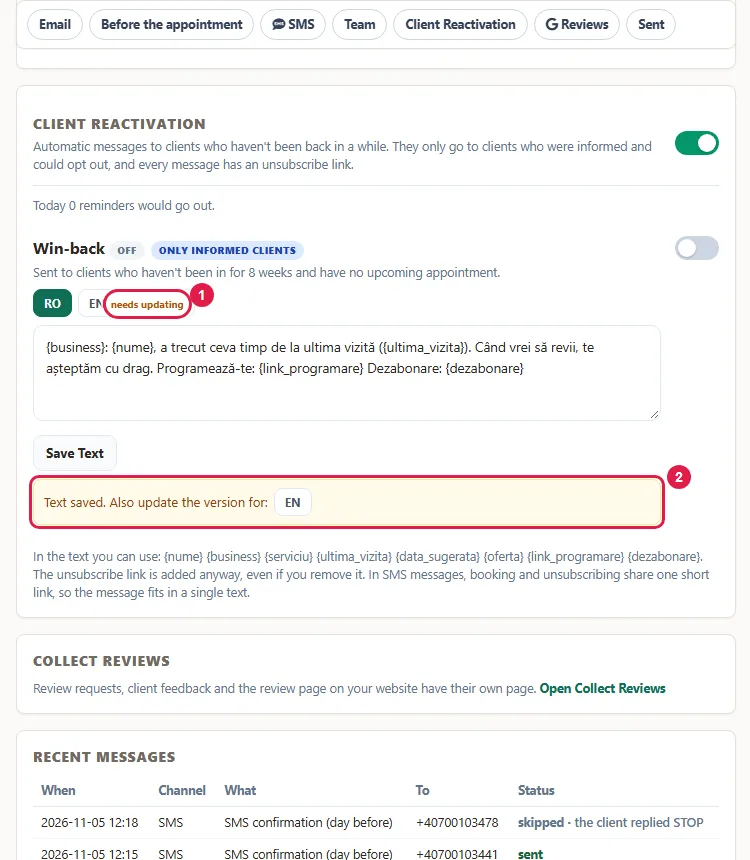
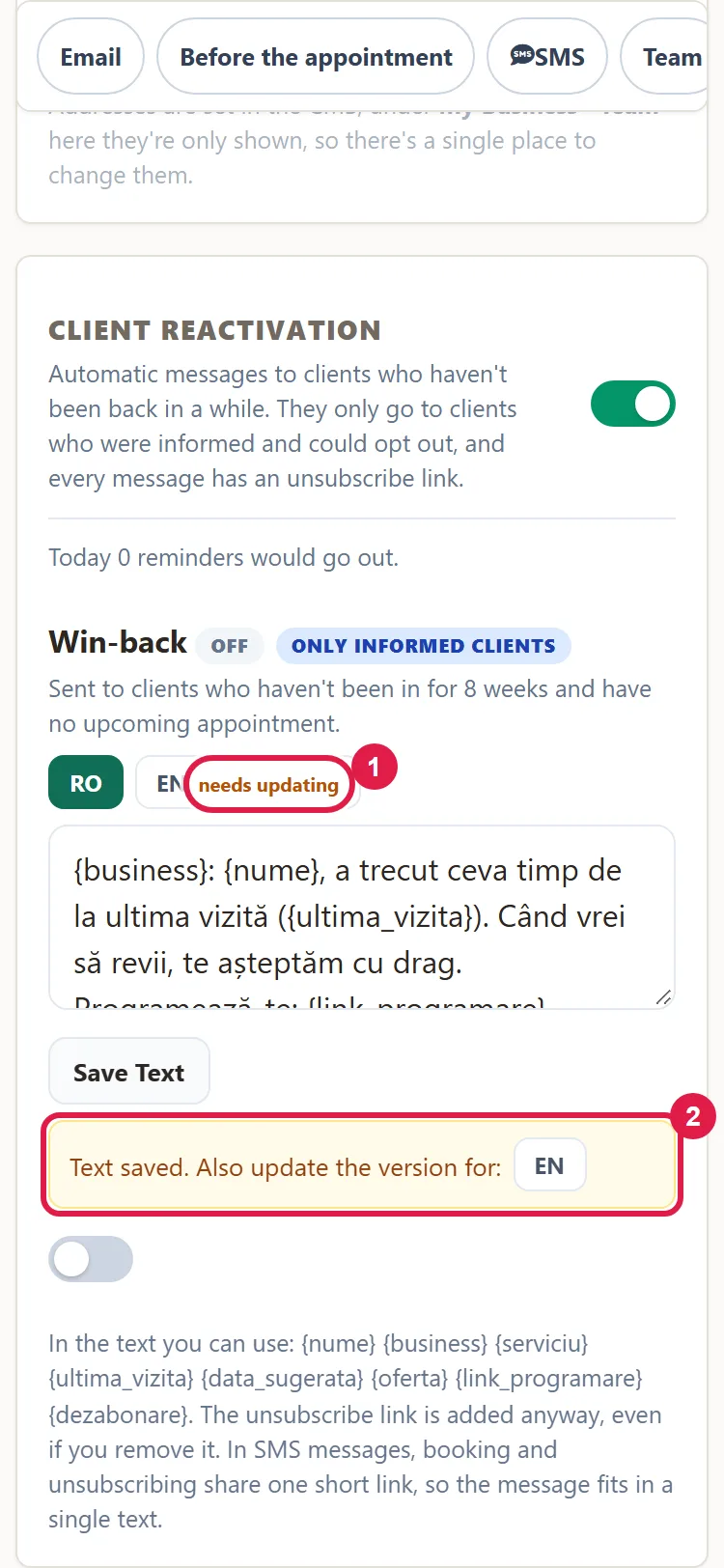
- If your website has several languages, there's a tab for each language above the box. After you save the text in one language, click the other language's button in the "Text saved. Also update the version for:" box, then adapt that text too.
Write about what you've already offered them or about similar services. For anything else, the law requires their consent, given in advance (Legea 506/2004, art. 12).
The unsubscribe link is added at the end anyway, even if you remove {dezabonare} from the text. Added this way, it's labeled "Dezabonare:" in Romanian, even for clients who booked in English. Clients who booked in a language you haven't adapted the text for get that language's standard text.
How to turn on a rule and check what will go out
- Messages go out once a day, not the moment you turn the rule on, so you have time to check. Turn on the switch to the right of the Win-back card. The label changes to "on", and "Saved." appears at the top.
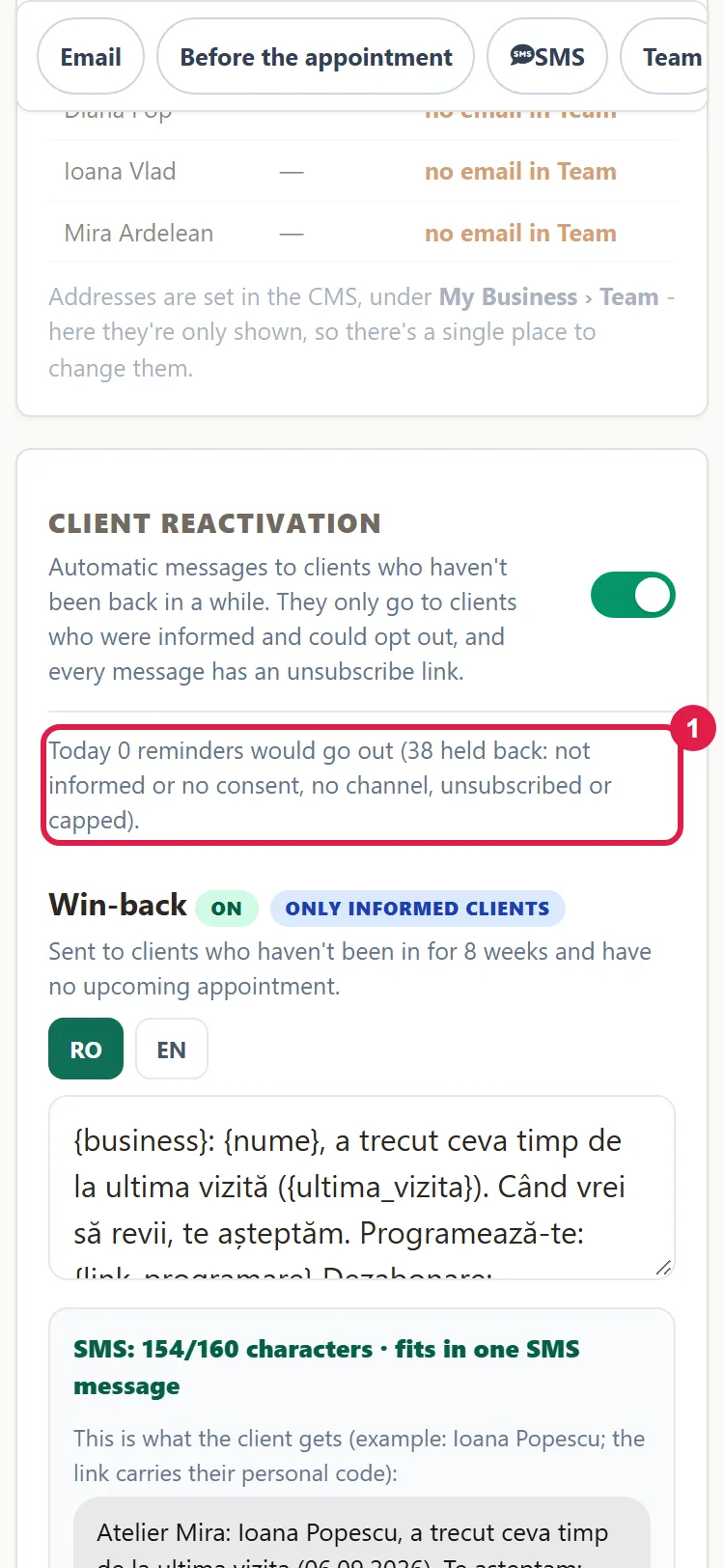
- Read the line above the rules, for example "Today 3 reminders would go out (2 held back: not informed or no consent, no channel, unsubscribed or capped)." That means 3 messages would go out today, and another 2 wouldn't, for the reasons in parentheses. It's only a count: it doesn't send anything. If it isn't what you wanted, turn the rule back off the same day.
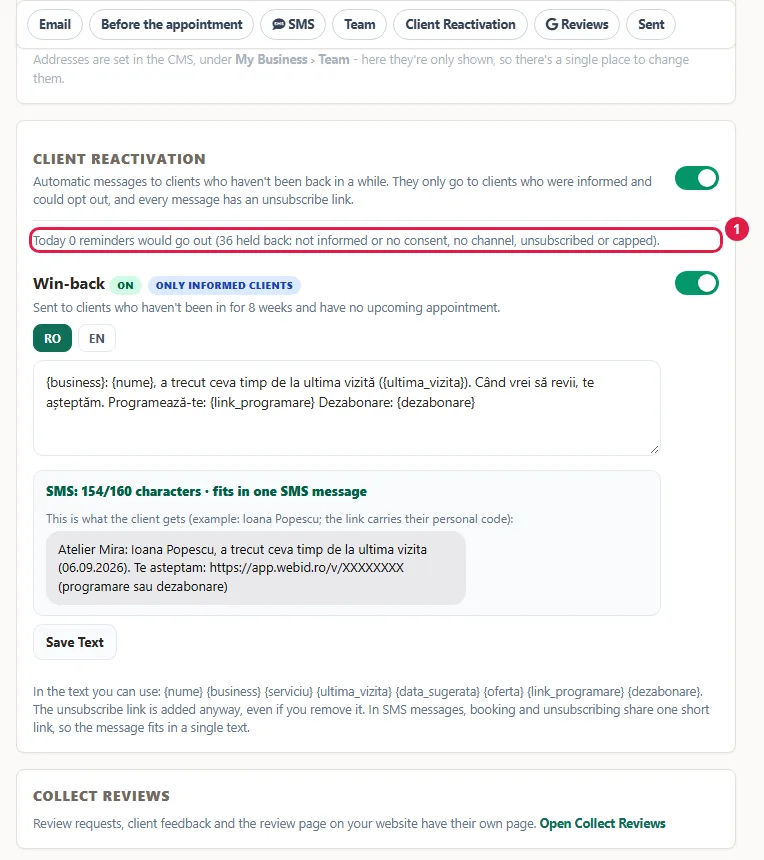
The 8 weeks are counted from the last "Confirmed" appointment that has passed; "Canceled", "No-show" or still "Pending" appointments don't count. Messages go out once a day, not the moment you turn on the rule. The rule switches are grayed out while the switch next to the title is off.
How to check what went out
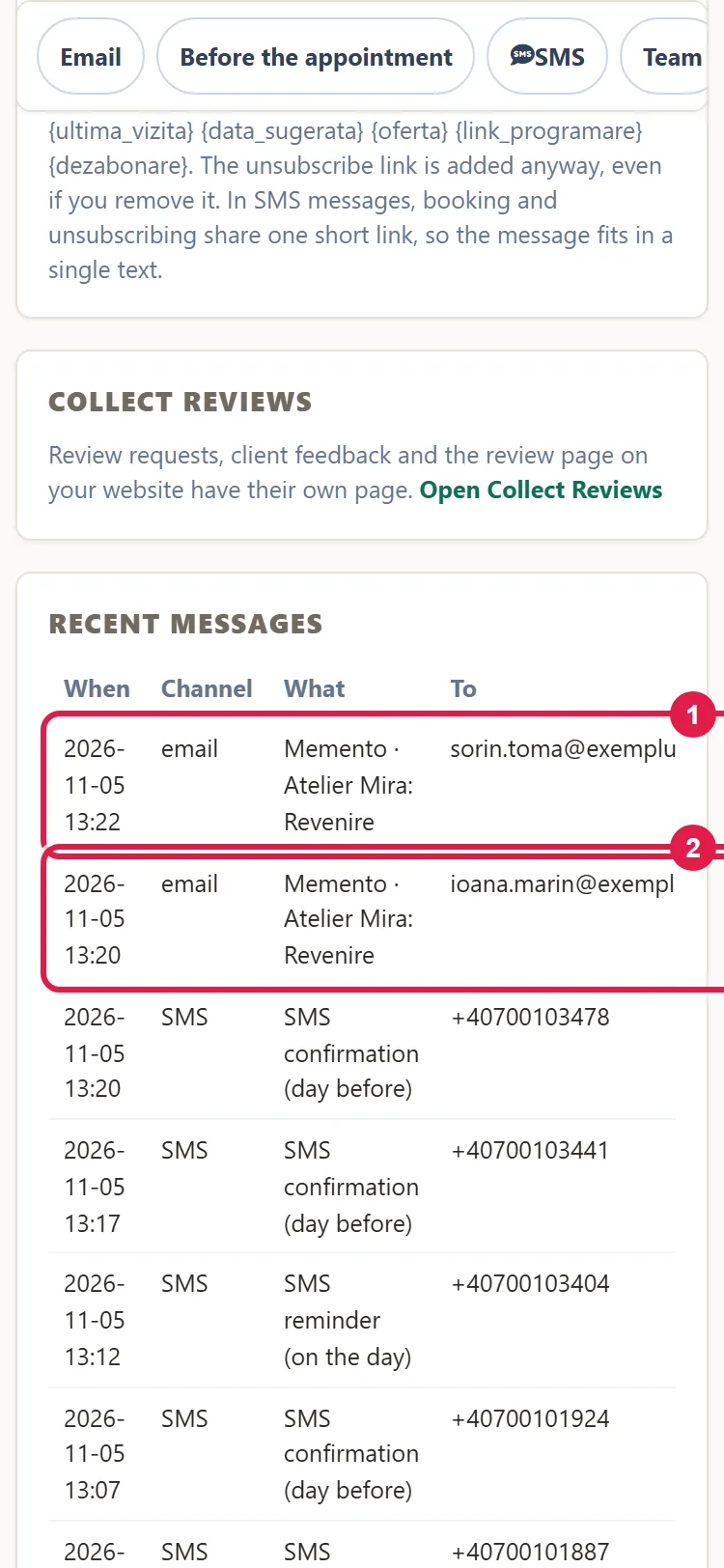
- The next day, click Sent in the top bar of the "Messages & Reminders" screen.
- In the "Recent Messages" table, reactivation messages show up under What as "Reminder" (for email, with the subject, for example "Atelier Mira: Win-back"). Under Status you see "sent", "failed", "queued" or "skipped".
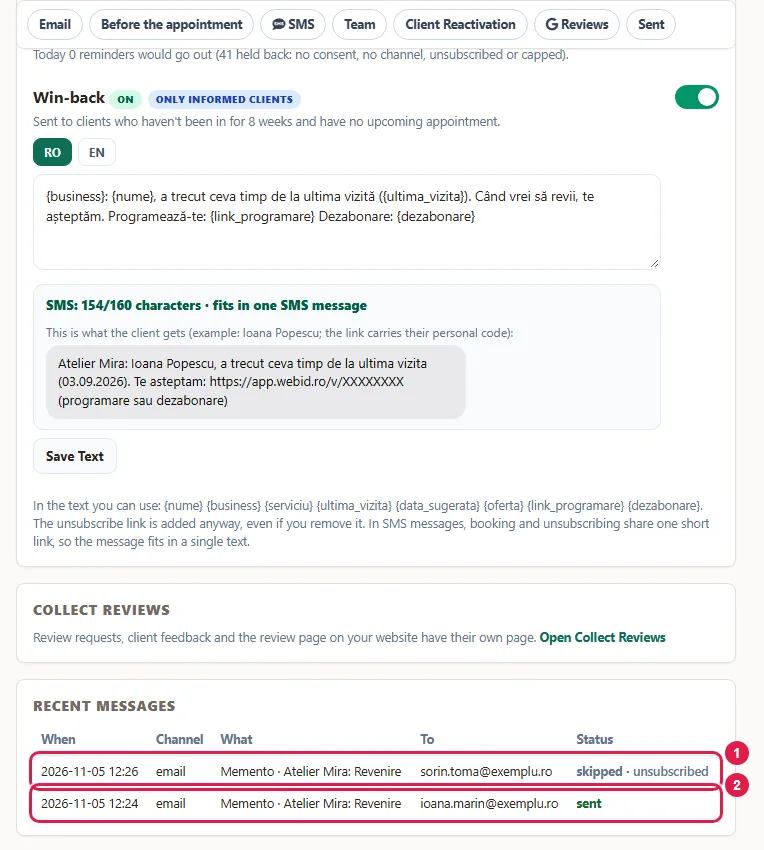
- Go to MENU › Reports: in the SMS messaging section, the Reminders card shows how many reactivation SMS messages went out in the period you chose. You see the email messages only in "Sent".
What the client gets
- A single message for the same last visit, via SMS (if you send SMS messages and the client has a phone number) or by email. If the month's SMS messages have run out, the message is skipped; it doesn't switch to email.
- At most 2 reactivation messages in a calendar month.
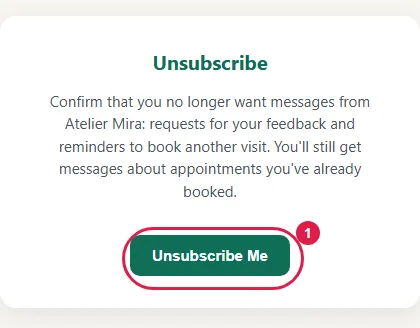
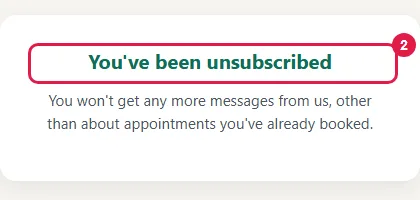
- At the end, an unsubscribe link. On the page that opens from the link, the client clicks Unsubscribe Me and sees "You've been unsubscribed". They keep getting messages about appointments they've already made.
Common problems
- "It says The reminder engine couldn't run today." Bookings isn't on your plan (Client reactivation comes with it), or an error occurred. If you don't have it, add it from your website's admin panel, in "My Account › What else you can add" (How to add an add-on); if you already have it, write to us at contact@webid.ro.
- "The rule switches are grayed out and won't move." The switch next to the "Client Reactivation" title is off. Turn it on.
- "I see Only an administrator can do this." You're signed in with a front desk account. Changes are made by the owner or an administrator.
- "It says Today 0 reminders would go out, even though the rule is on." No one has reached 8 weeks without a visit and without an upcoming appointment yet, or today's messages have already been counted. That's normal; check "Sent" tomorrow.
- "I see held back: not informed or no consent, no channel, unsubscribed or capped." The client has unsubscribed, wasn't informed that you may write to them (the panel calls this "not informed or no consent"), has neither an email address nor a phone number, or has already had 2 messages this month. You can fix two things from the client's record: fill in the email address or phone number and, if the person wasn't informed, show them the code on their record, and they choose whether you may write to them. Unsubscribing and the cap can't be changed from the panel.
- "A client who booked in English gets the standard text, not mine." The EN tab says "needs updating". Adapt the text on the EN tab and save.
- "The booking link in the message doesn't lead to my website." Your website isn't linked to the Bookings panel. Write to us at contact@webid.ro and we'll link it.
- "In Sent, the status is failed or skipped." The reason shows next to the status. If the email address or phone number is wrong, correct the client's record; if the month's SMS messages have run out, get an SMS message pack; if sending isn't set up, write to us at contact@webid.ro.
- "Something else isn't working." Write to us at contact@webid.ro with what you see on screen, and we'll take a look.
What it doesn't do
- It starts off: nothing goes out until you turn on both the switch next to the title and the rule.
- It sends once a day, not the moment you click.
- From the panel you only change on / off and the text in each language. You can't change when the message goes out (8 weeks), the channel, or the maximum number of messages a month.
- It has a single rule: "Win-back".
- Clients' consent to messages can't be changed from the panel.
- A client who has unsubscribed can't be resubscribed from the panel.
- We choose the channel: SMS, if you send SMS messages, the client has a phone number and hasn't sent STOP; otherwise, email. Exception: if you send SMS messages and the month's have run out, the message is skipped; it doesn't switch to email. Nothing goes out on WhatsApp.
- The email subject is your business name plus the rule name (for example "Atelier Mira: Win-back") and can't be changed.
- The automatically added unsubscribe link has its label in Romanian, even for clients who booked in English.
What data it uses
Reactivation messages use the client's record: name, email address or phone number, the date of the last visit, plus how they were informed and any refusal. Messages go out only to people who gave you their contact details when you booked them in or sold them something, were informed that you may write to them and didn't refuse. They can be informed, for example, through the line in the booking form on your website, or through your checkbox on their record or at import, which you only check if it's true (the responsibility is yours). The checkbox doesn't create consent: it only says the person was informed. They go out like this: emails through our email server, SMS messages through the SMS provider. The text of each message is cleared after 90 days, and the rest of the data follows the record's retention period (at most 5 years). Details are in the data processing agreement, §3.