How to collect Google reviews after every visit
With Collect reviews, after the visit the client gets a message (at most once every 90 days and, if you want, one reminder), with a link to a page on your website. There they give a rating, check what they liked or what didn't work and get the text for Google already written, so they can post it in a few seconds. You set everything up once; then, if you also have Bookings, it runs on its own, and you read the feedback. Without Bookings, you send the request yourself, to one client or to a group.
What Collect reviews solves
Happy clients rarely write a review on their own, even if they'd like to. You ask for the review at the right moment, only once, and we prepare the text for them, so they don't have to compose it. What you get and what it costs is on the Visibility page: Collect reviews comes with it.
What you need first
- Visibility active, in the version with Collect reviews.
- Your website linked to the Bookings panel. If it isn't, the top of the screen says "Your website isn't linked to the app yet" and no request goes out. In that case, write to us at contact@webid.ro.
- The link clients use to write you a review on Google. You copy it from your Google profile, from "Ask for reviews", and put it in your website's admin panel: My Business › Details & Contact, under "Your Google Business Profile", in the The "Write a review" link (Google) field. The button to Google on the review page uses it.
- For the request that goes out on its own after the visit: the Bookings add-on. Without it, you send the request yourself, to one client or to a group.
- For SMS messages: the SMS messages included in Bookings or a pack of extra SMS messages. Without it, the request goes out by email.
- An administrator account. With a front desk account you can see the page, mark feedback as resolved and send the link to a client; the rest is grayed out.
How to turn on review requests
- In the Bookings panel, click MENU, then, under "Client communication", Collect reviews.
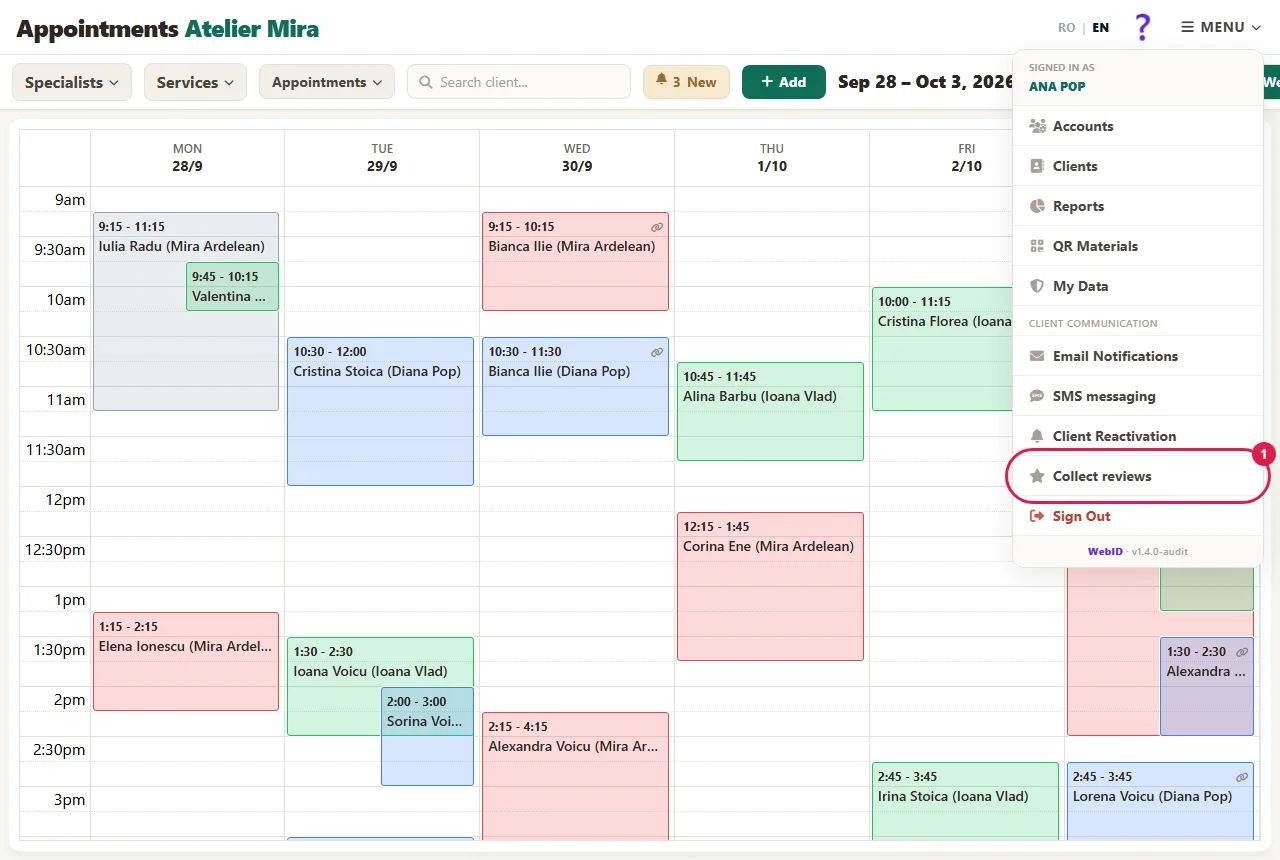
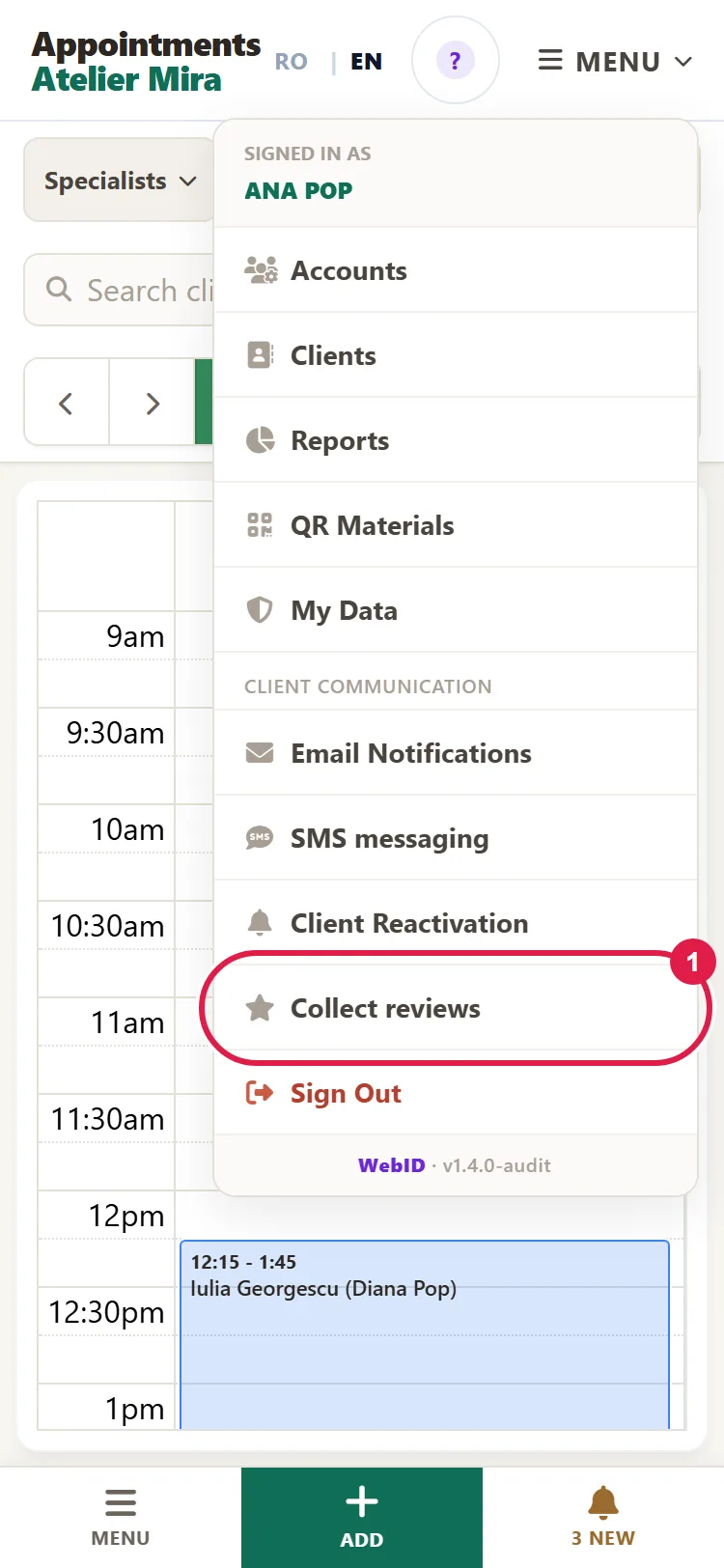
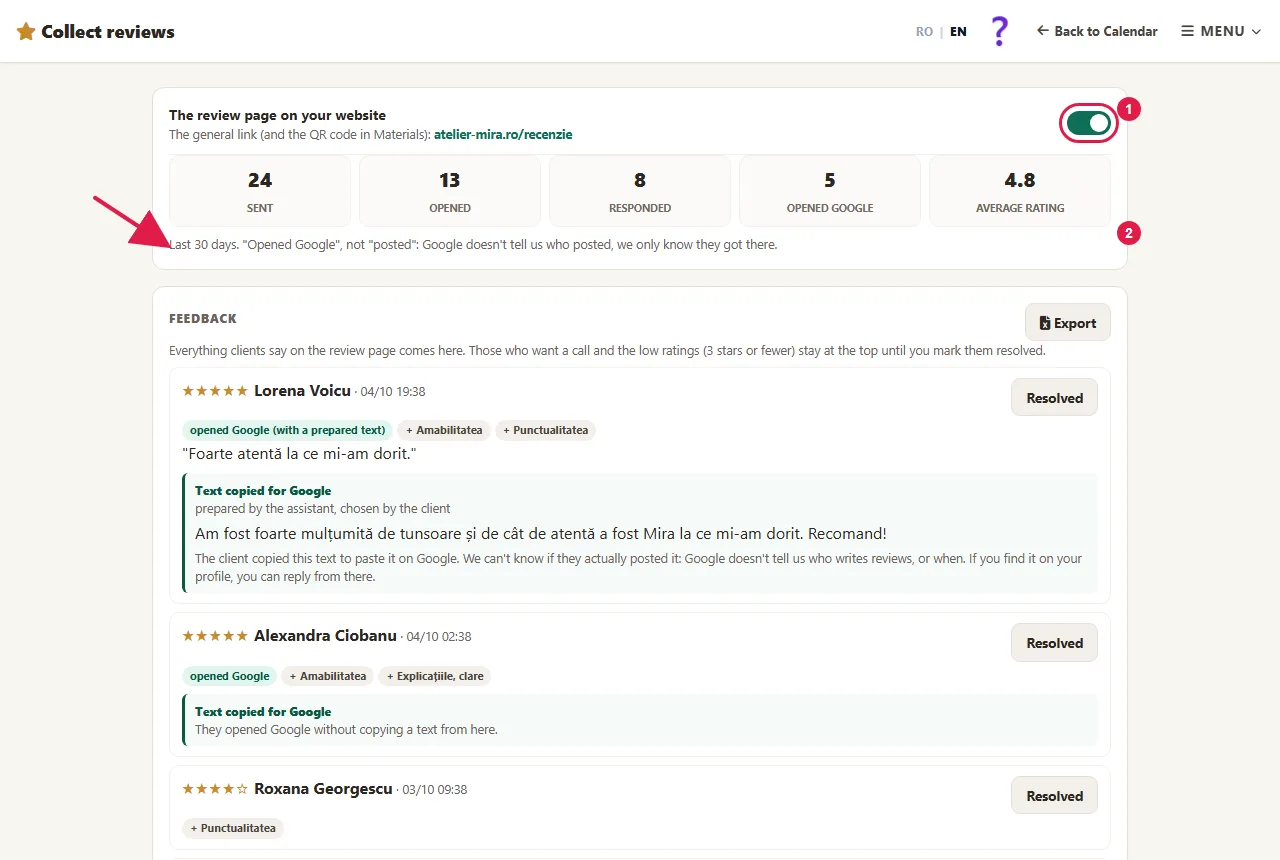
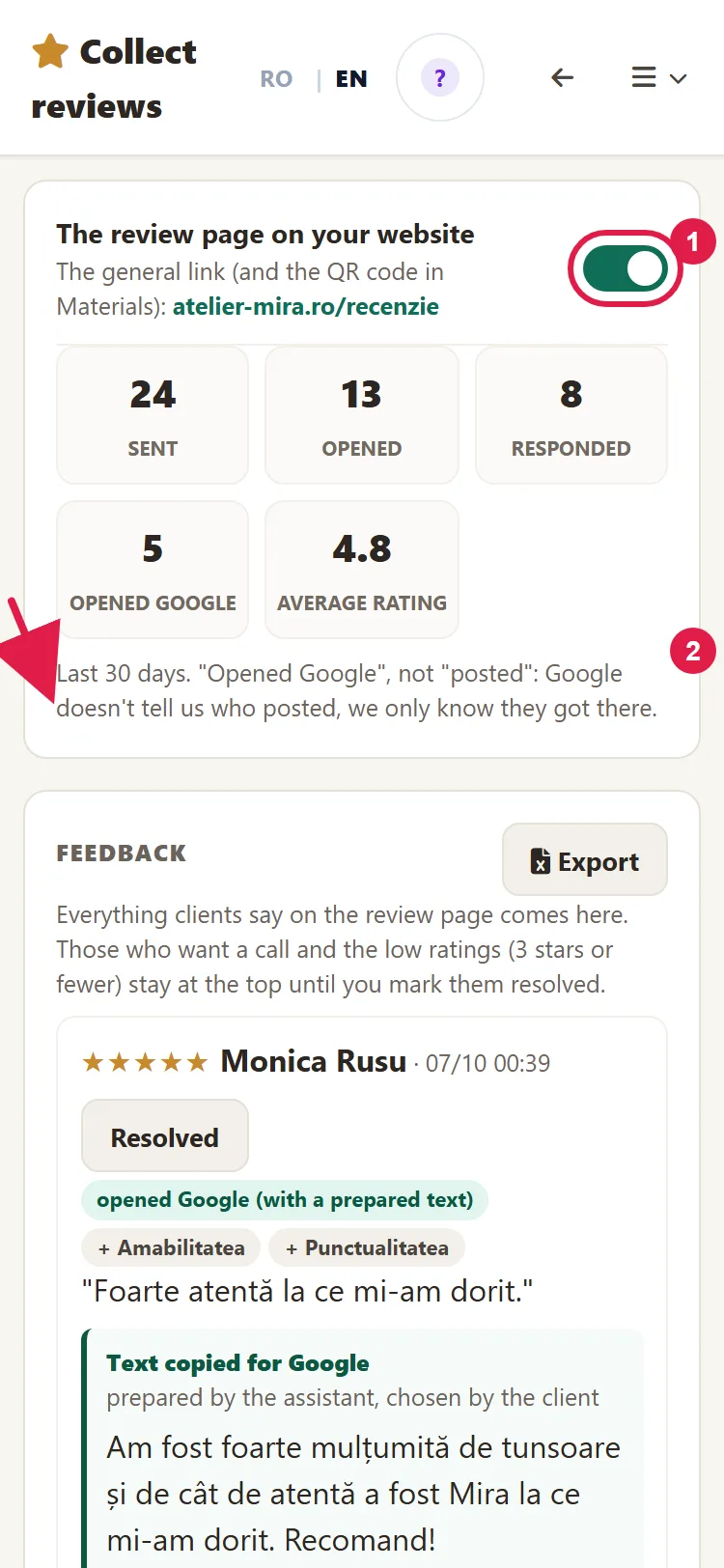
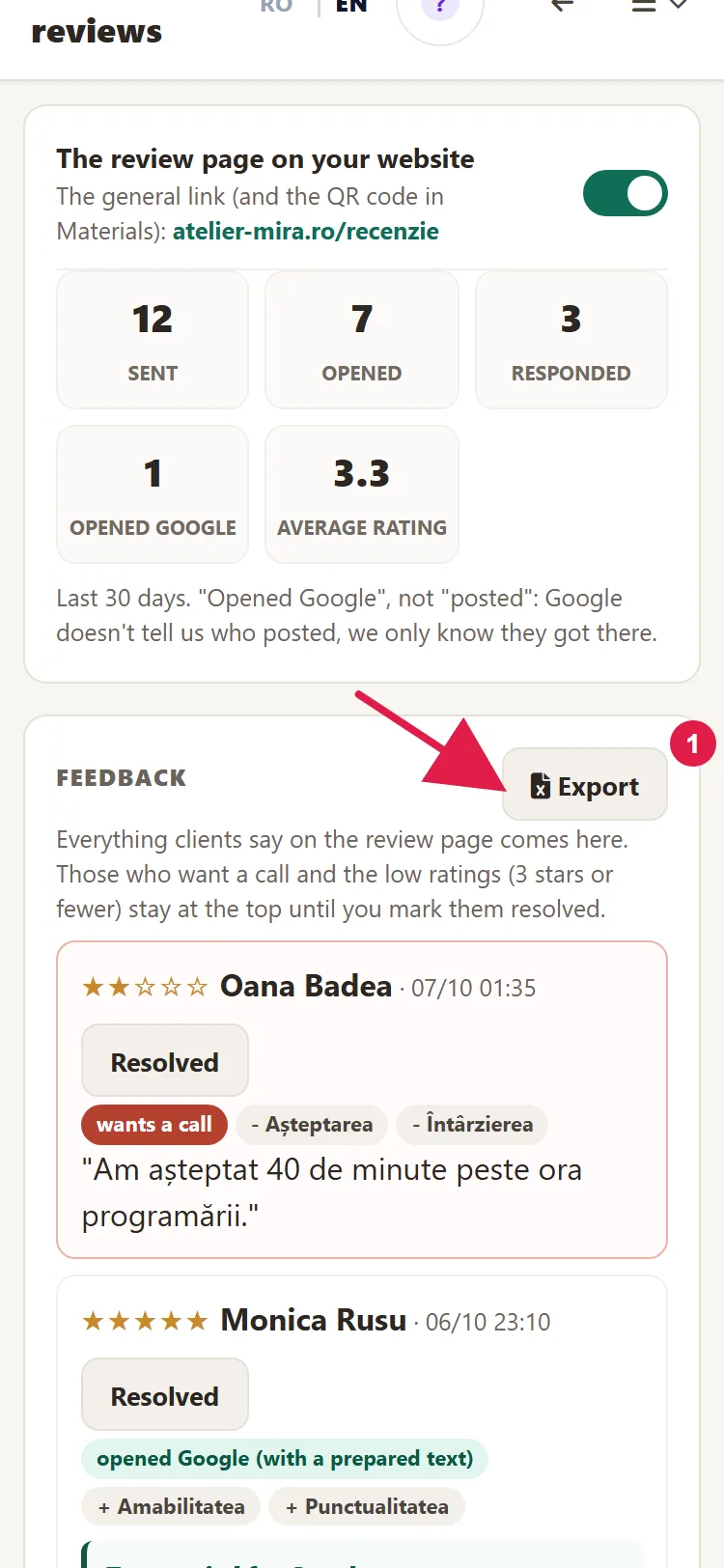
- The first card, "The review page on your website", shows the page's general link and its switch. You'll find the poster with the page's QR code, to put on your door or at the counter, in "QR Materials", under "The Code Opens": Review Page. It's on from the start. Below it you see the numbers for the last 30 days: sent, opened, responded, opened Google, average rating.
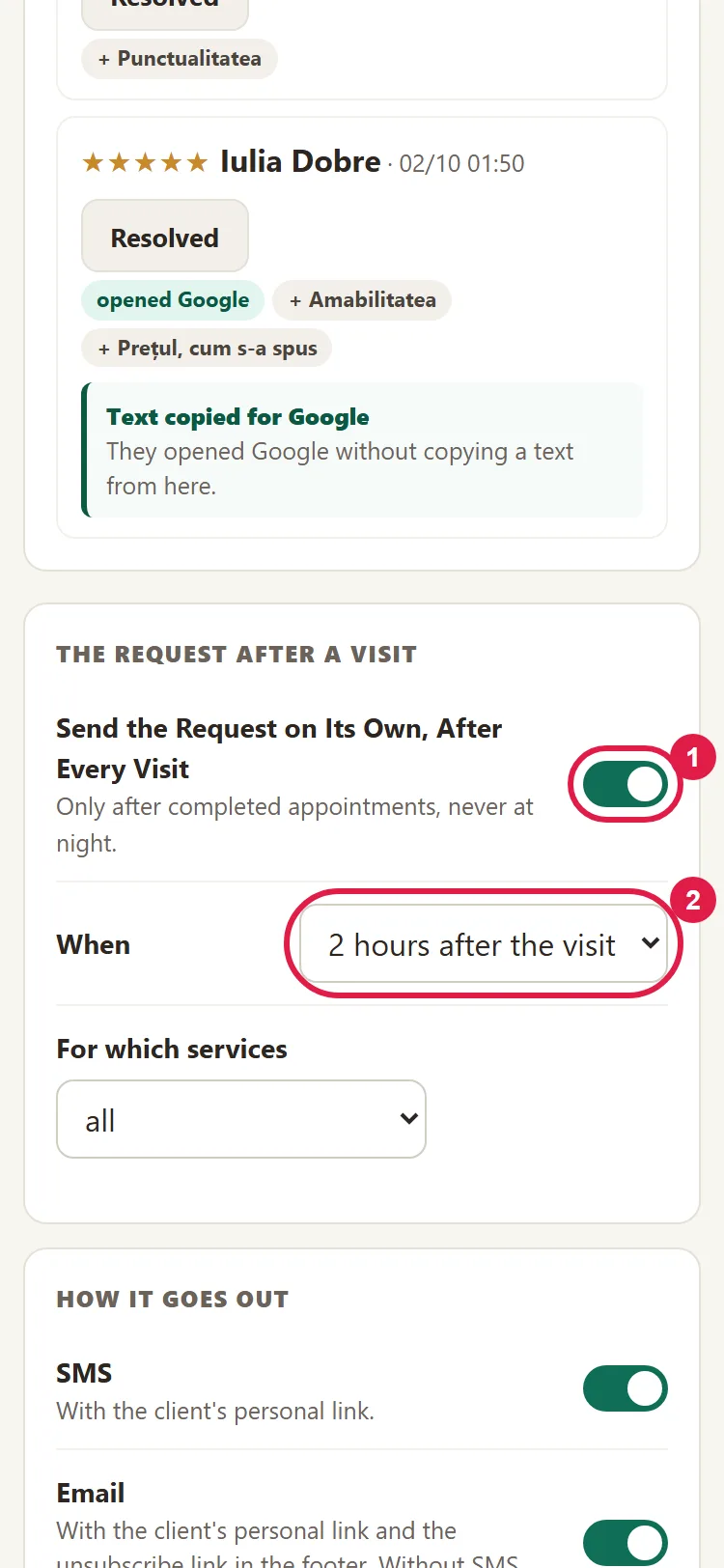
- In the "The request after a visit" card, leave Send the Request on Its Own, After Every Visit on. The request only goes out for confirmed appointments, after their end time, never at night. From the moment you turn it on, it can also go out for confirmed visits from the last 5 days; if you want to check the steps below first, turn it off until you're done. The panel doesn't know on its own who didn't show up: if a client doesn't come, click No-show on the appointment before the moment you chose under When. Otherwise, they get the request too (see How to find out early who isn't coming and free up the time).
- Under When, choose: 2 hours after the visit, the next morning or after 3 days.
- Under For which services, leave "all" or choose certain categories or services and check them.
- In the "How it goes out" card, turn on SMS, Email or both. With both on, the SMS message goes out, and email is the backup.
- Under At most SMS messages a day, type how many review SMS messages can go out in a day (30 by default). Over the limit, the request goes out by email, if the client has an address; otherwise, it goes out over the next few days. If it doesn't fit within 3 days, it doesn't go out at all.
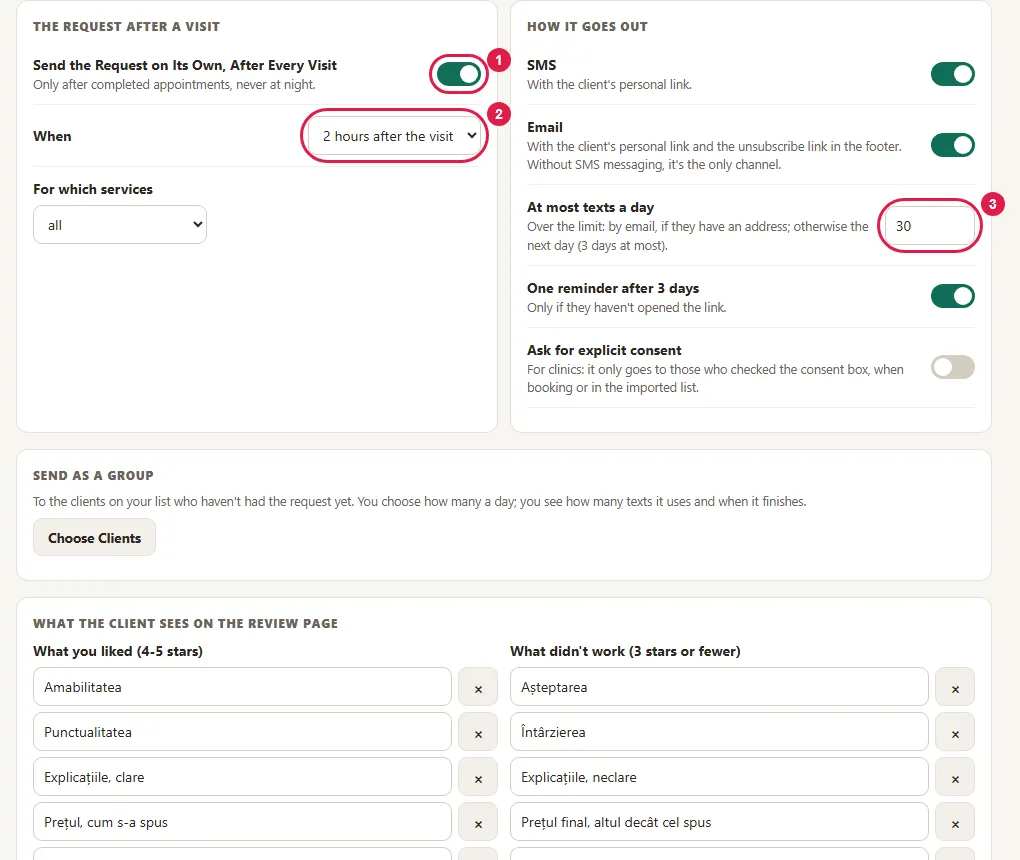
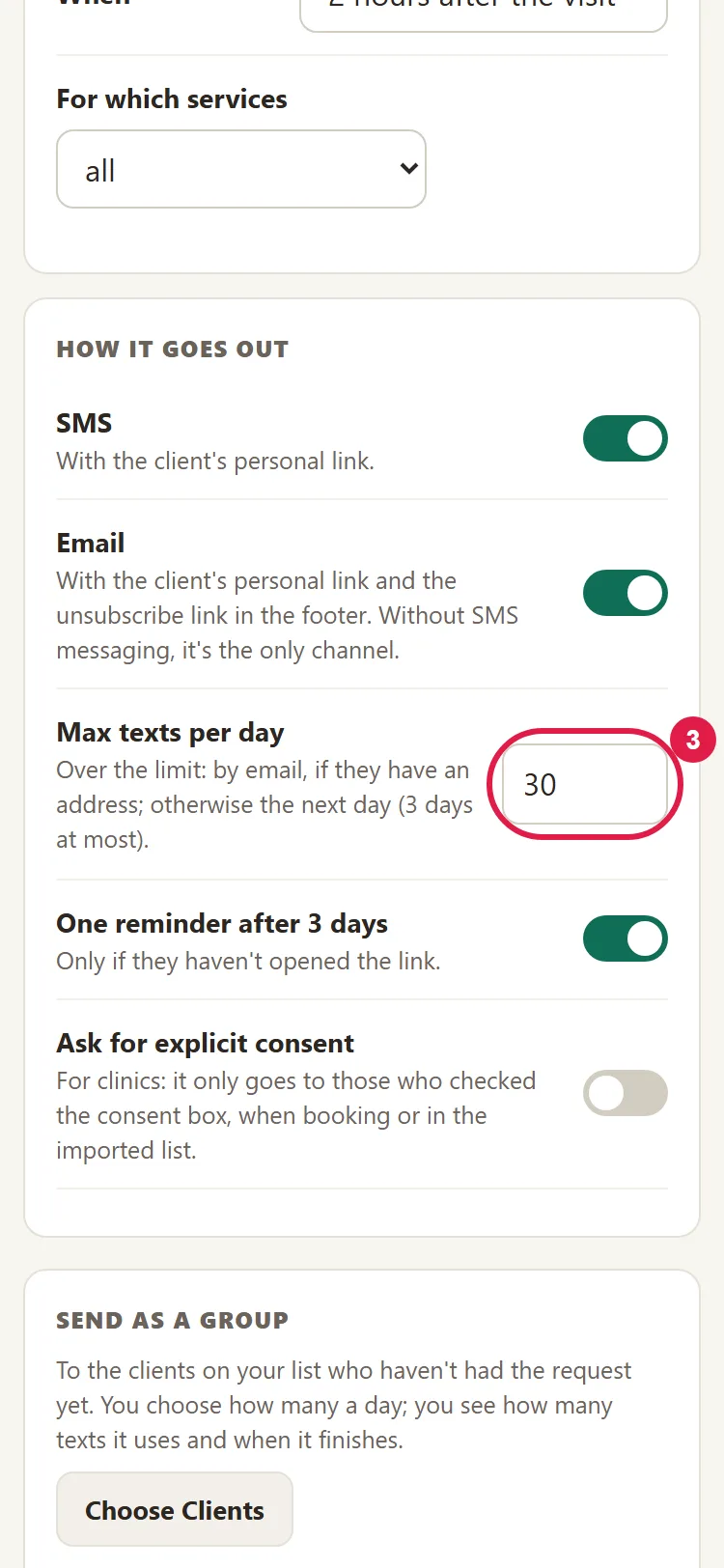
- Leave One reminder after 3 days on if you want those who haven't opened the link to get one more message, just one. Those who opened the link don't get the reminder.
- Turn on Ask for explicit consent if your profession requires it (for example, at clinics) or if you're importing clients who didn't have the chance to refuse such messages when they gave you their details. Then the request only goes to those who checked the consent box when booking or in the imported list. Left off, the request goes to your clients: those who refused in the form or unsubscribed don't get it, and every message has an unsubscribe option. What you send remains your decision and your responsibility (Law 506/2004, Art. 12).
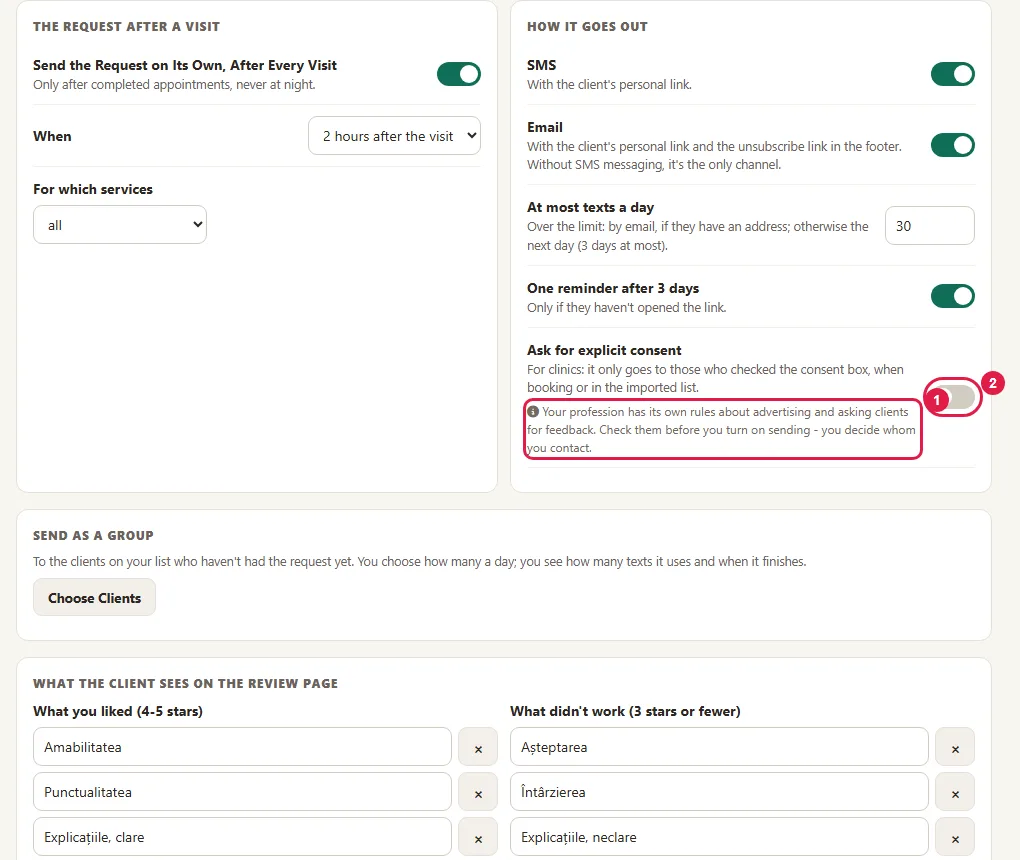
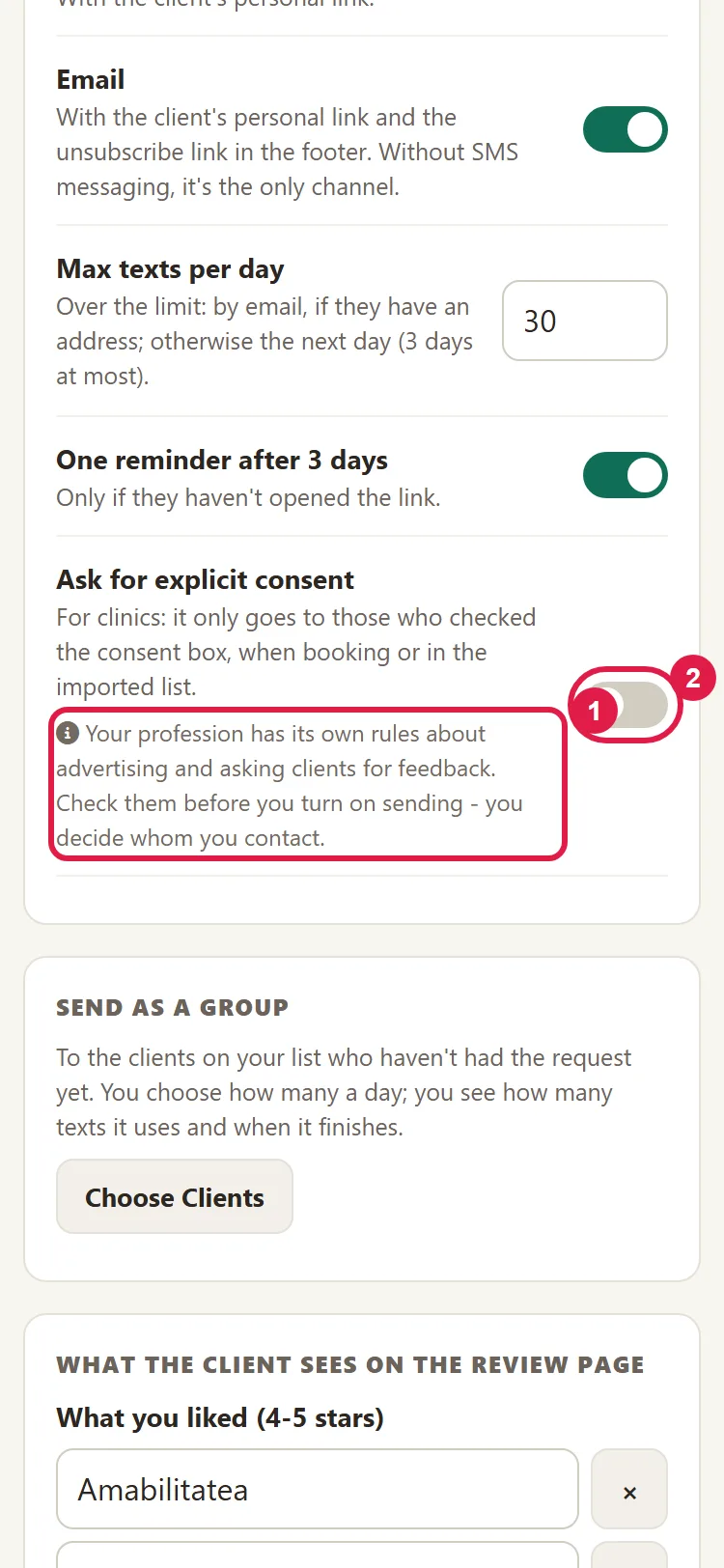
The settings in these cards save on their own, with every change: you see "Saved.".
If your profession has its own rules about advertising and asking for feedback (law, psychotherapy, dentistry and others), a note appears under the switch. Read it before you turn on sending: you decide who you contact.
How to choose what the client sees on the review page
- In the "What the client sees on the review page" card, read the two lists: "What you liked (4–5 stars)" and "What didn't work (3 stars or fewer)". You already have a few common options, for example "Punctuality".
- Add options with + Add or remove them with ×. Keep them short (2–5 words), about the business, without superlatives. At most 12 per list.
- Want ideas? Click Suggest with AI. The suggestion goes into the lists; change whatever you want.
- Under Who took care of the client, choose how we ask the question: automatically, based on the team on your website (as it is from the start), with photos, with names only or not at all.
- Under Which service, choose how we ask which service they had.
- Under When you'll call, if they ask to be called, choose the time frame you promise them. By default we don't promise a time frame.
- Leave Texts prepared by the AI assistant on, so the client gets three text options for Google.
- Click Save.
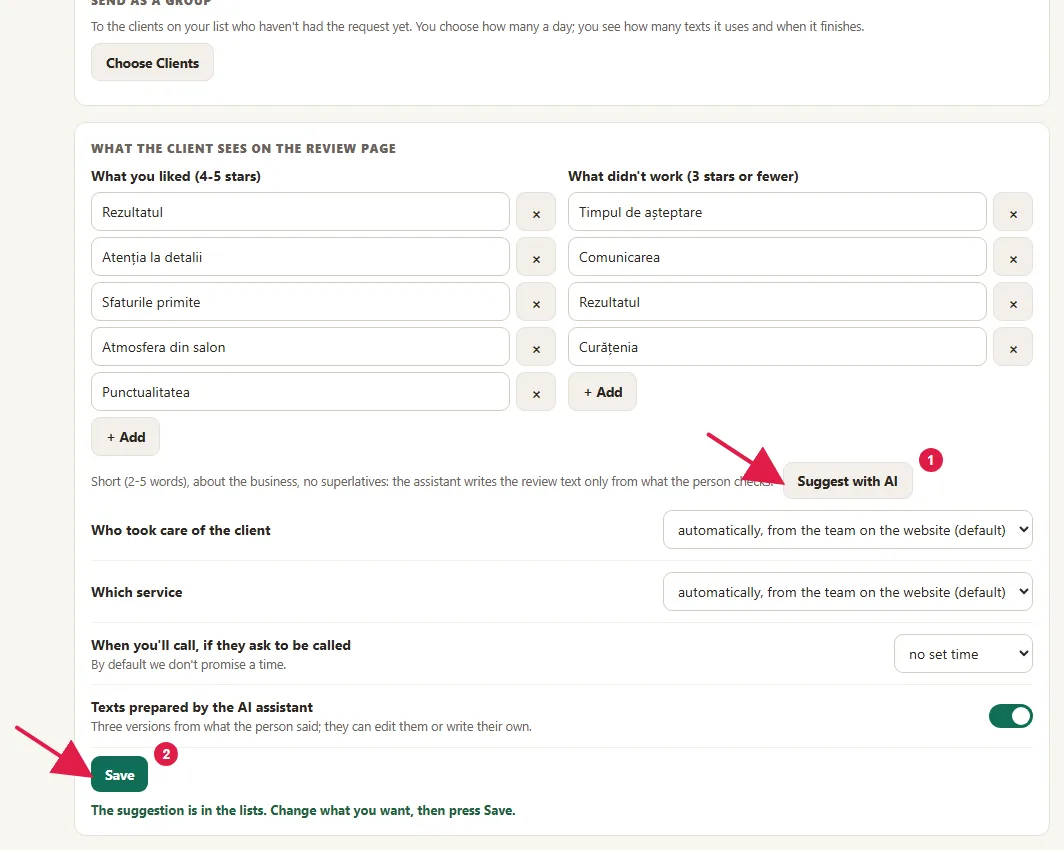
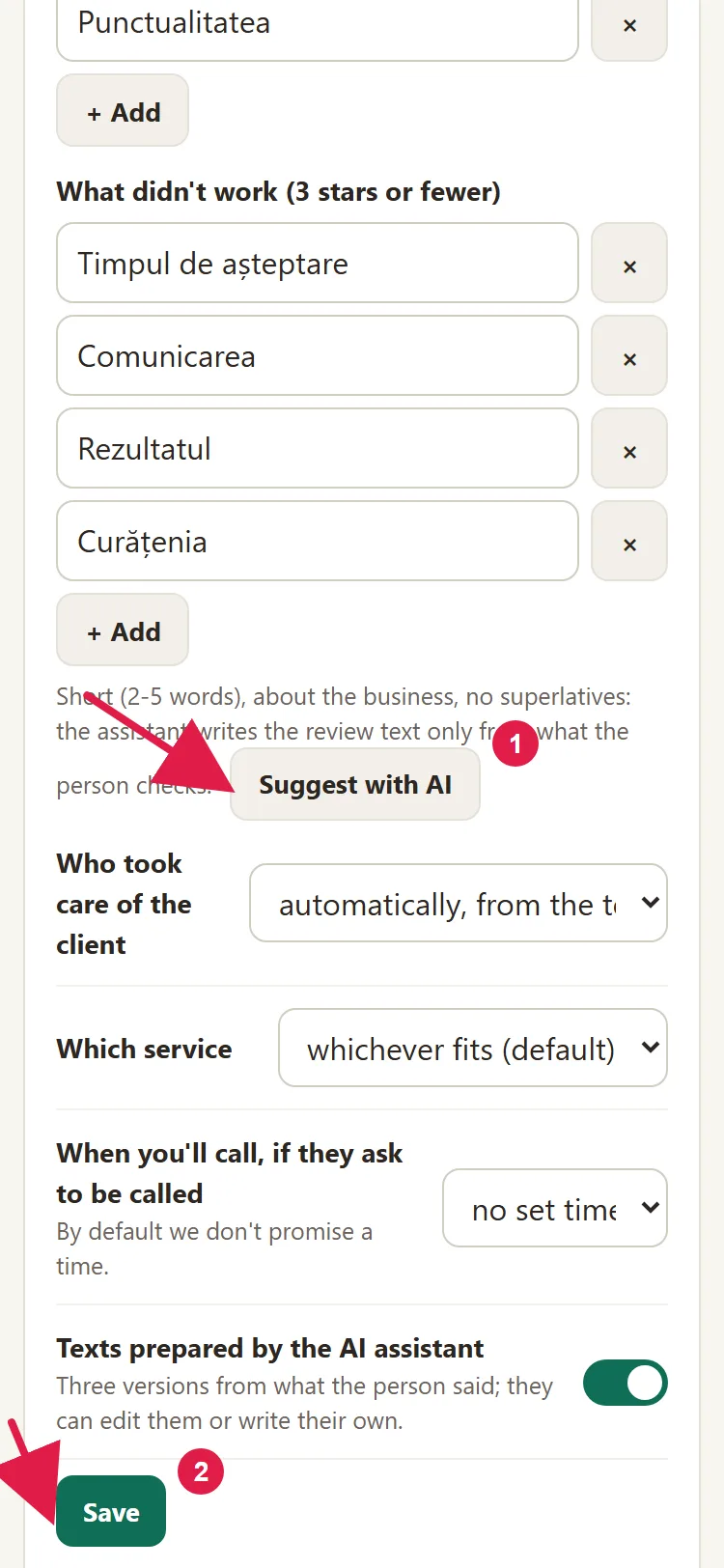
If your website has several languages, the options are translated when you save.
What the client gets
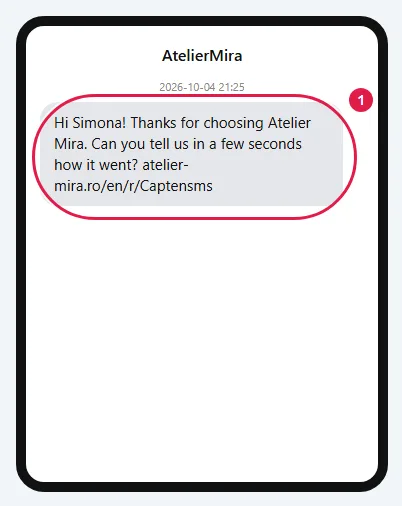
- After the visit, the client gets a message with their personal link, valid for 30 days (and, if you left it on, a single reminder after 3 days, only if they haven't opened the link). Via SMS message, for example: "Hi Ana! Thanks for choosing Example Salon. Can you tell us in a few seconds how it went?" followed by the link. (SMS messages are written without diacritics: that way, one SMS message fits 160 characters, not just 70, and the message usually fits in a single one.)
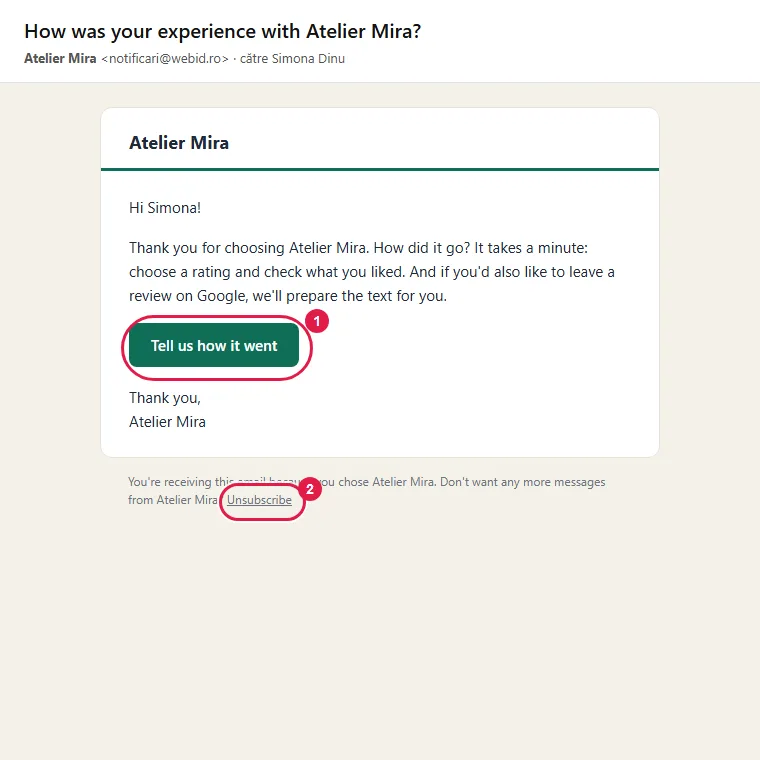
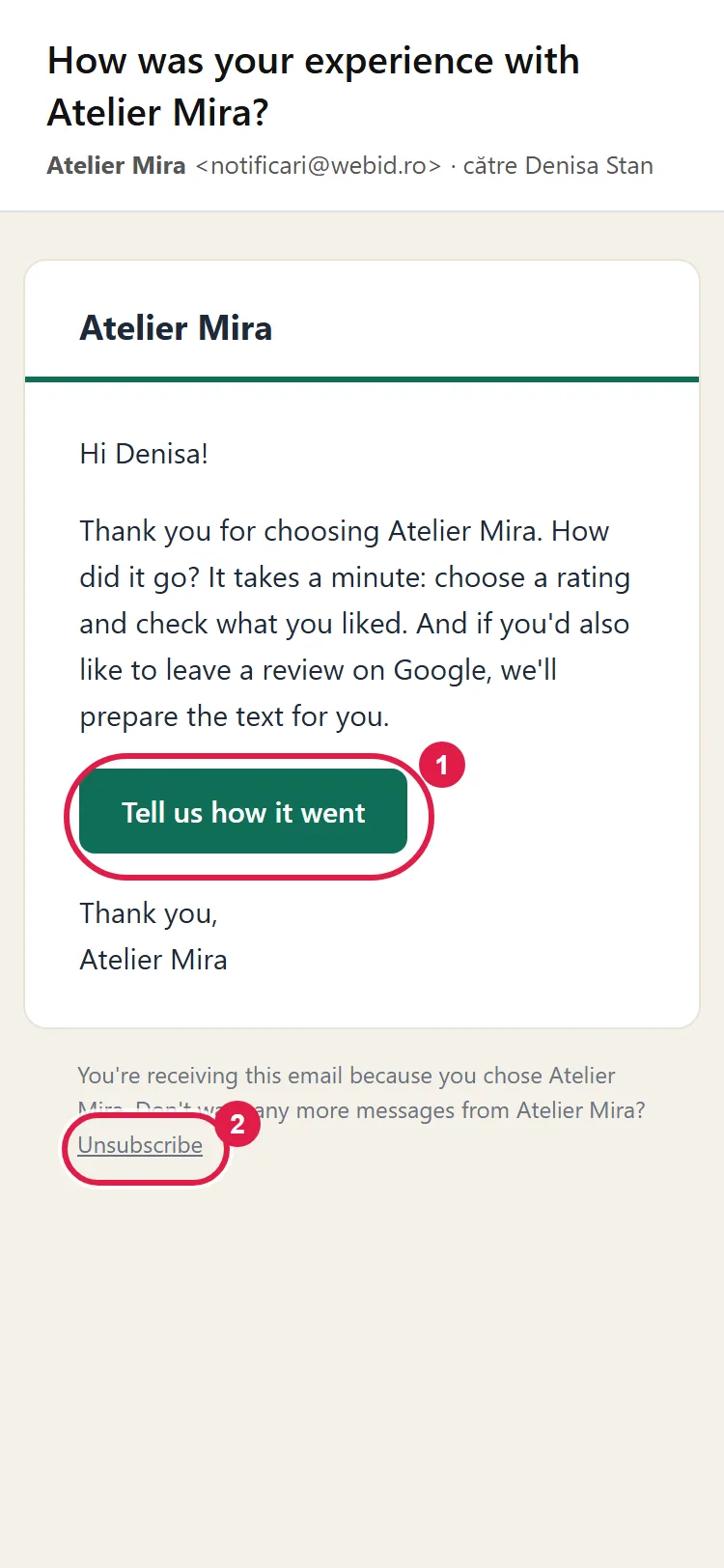
- By email, the subject is "How was your experience with" and the business name. At the bottom, the email has the unsubscribe link.
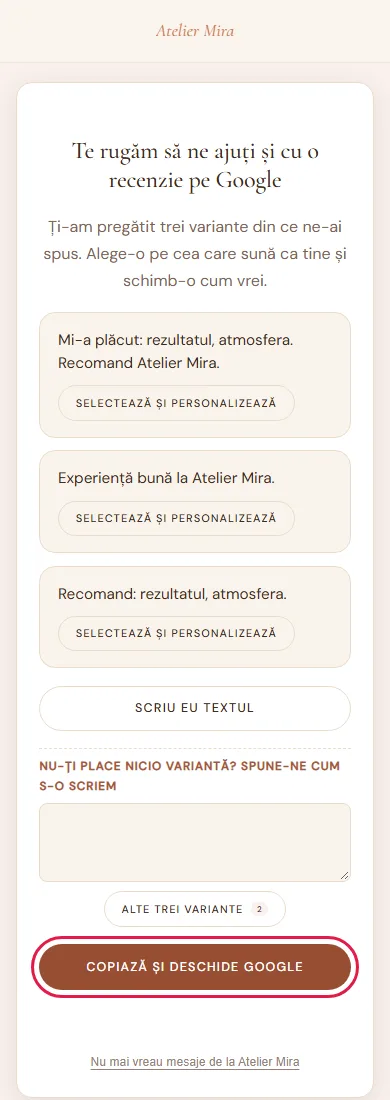
- On the review page, the client chooses the rating, checks what they liked or what didn't work and can write a few words. With a rating of 3 stars or fewer, they can ask to be called.
- With any rating, they see the same button to Google. Copy and Open Google copies the chosen text and opens Google, where the client gives the rating, pastes the text and posts it themselves.
The messages address the client informally or formally, like your website. For funeral businesses, the messages have a different tone, without the sentence about Google, and no reminder goes out.
How the AI assistant helps you (AI visits)
- From the client's rating, options and words, the assistant prepares three text options for Google. The client picks one, changes it or writes their own.
- The assistant writes from what the client gives it, and the options it chooses from are yours: that's why they have to be about the business and without superlatives.
- The assistant is included for 300 visits a month on the review page; unused visits stay valid in the month you receive them and the following two. If you need more, the Large tier of Visibility has 600. Over the limit, the page keeps working, just without the suggested wordings.
- If you turn off Texts prepared by the AI assistant, the client writes their own text.
How to read your clients' feedback
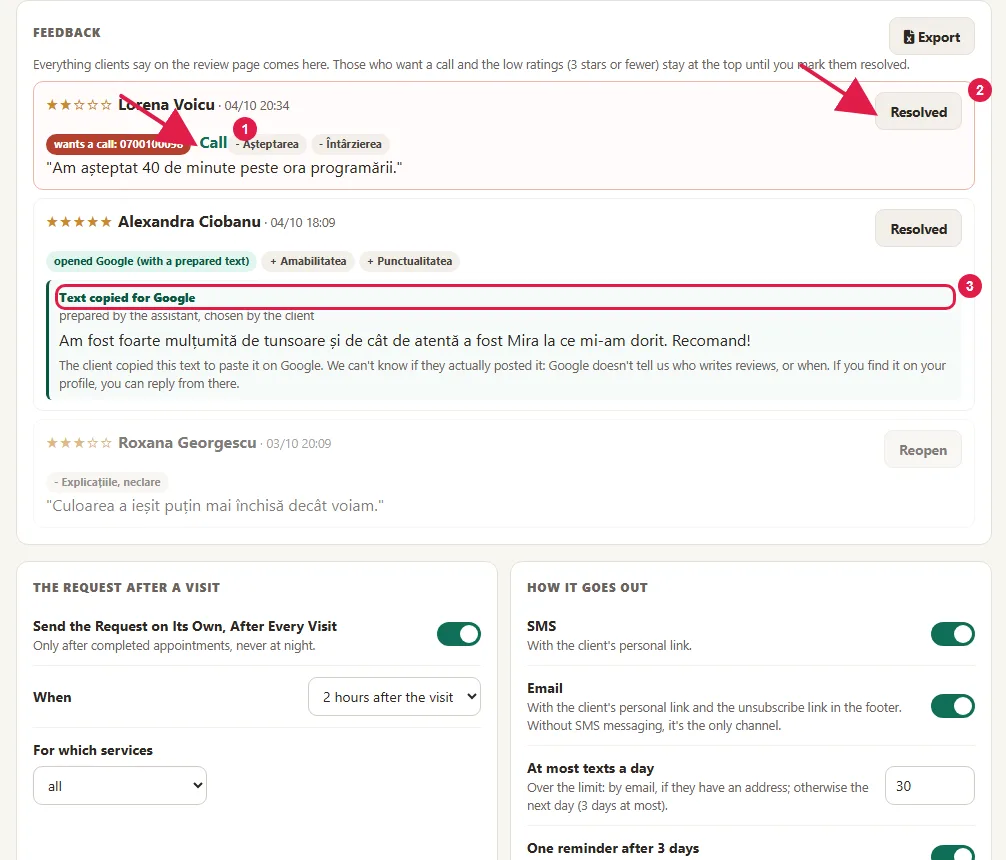
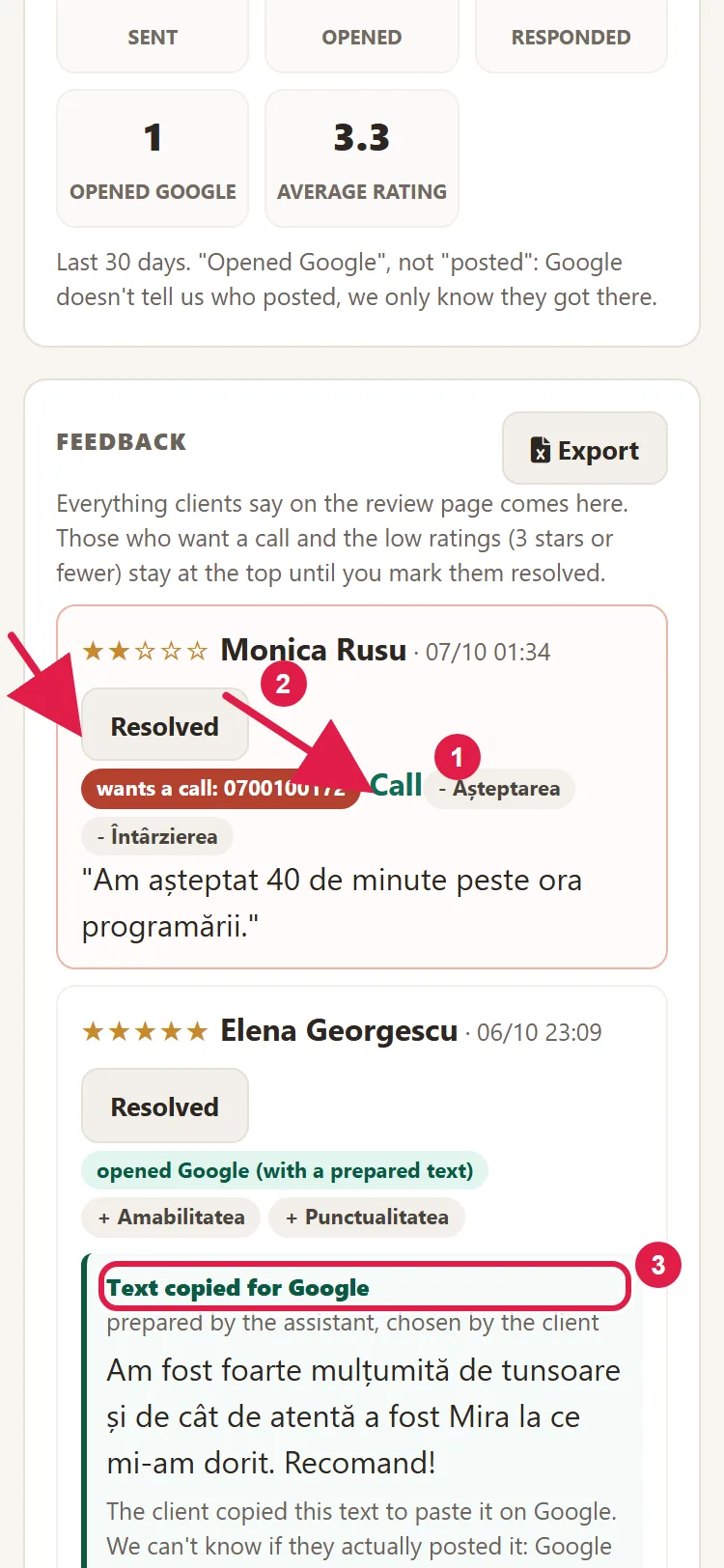
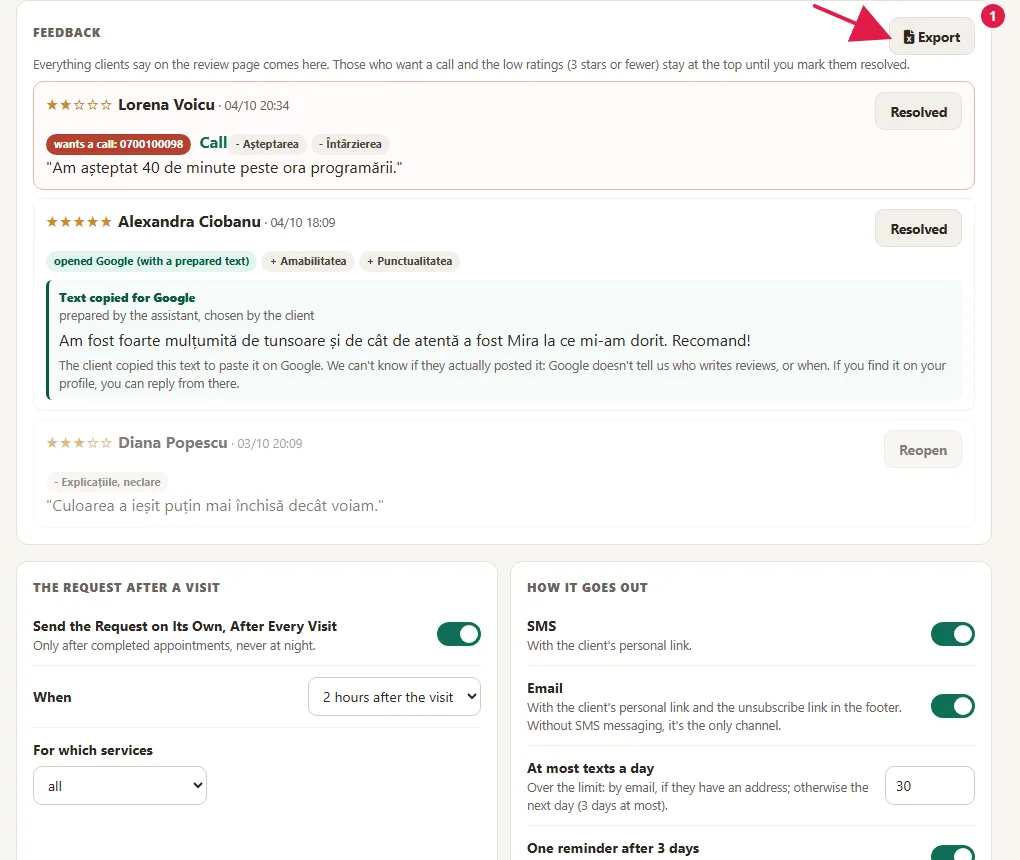
- In "Collect reviews", go to the Feedback card. You see the last 60 pieces of feedback. The ones from clients who want to be called and the ones with 3 stars or fewer come first.
- For a client who wants to be called, click Call.
- Once you've sorted it out, click Resolved. The feedback fades and moves down the list. Reopen brings it back.
- For those who clicked the button to Google, you see "Text copied for Google" and who wrote it. We can't know whether they actually posted it; if you find it on your Google profile, you can reply to it there.
You don't have to keep the panel open: you get an email alert when a client wasn't happy, when they ask to be called and when they leave good feedback. Each alert has a direct link to the feedback. The "wants you to call" alert goes to you and to all administrators and can't be turned off. For good feedback, you choose in your website's admin panel whether you get it straight away, in a digest or not at all.
How to send the request to a single client
- In MENU › Clients, click the client. Their record opens.
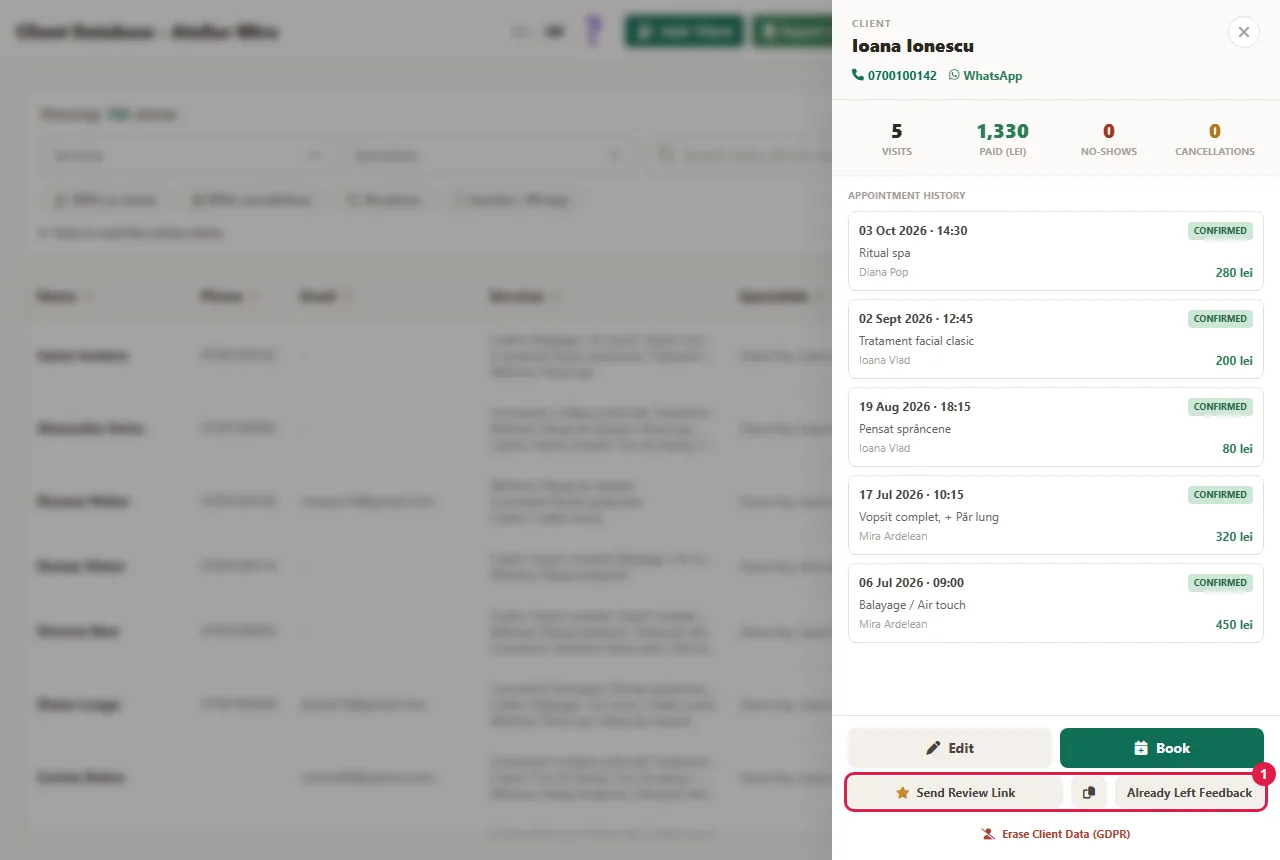
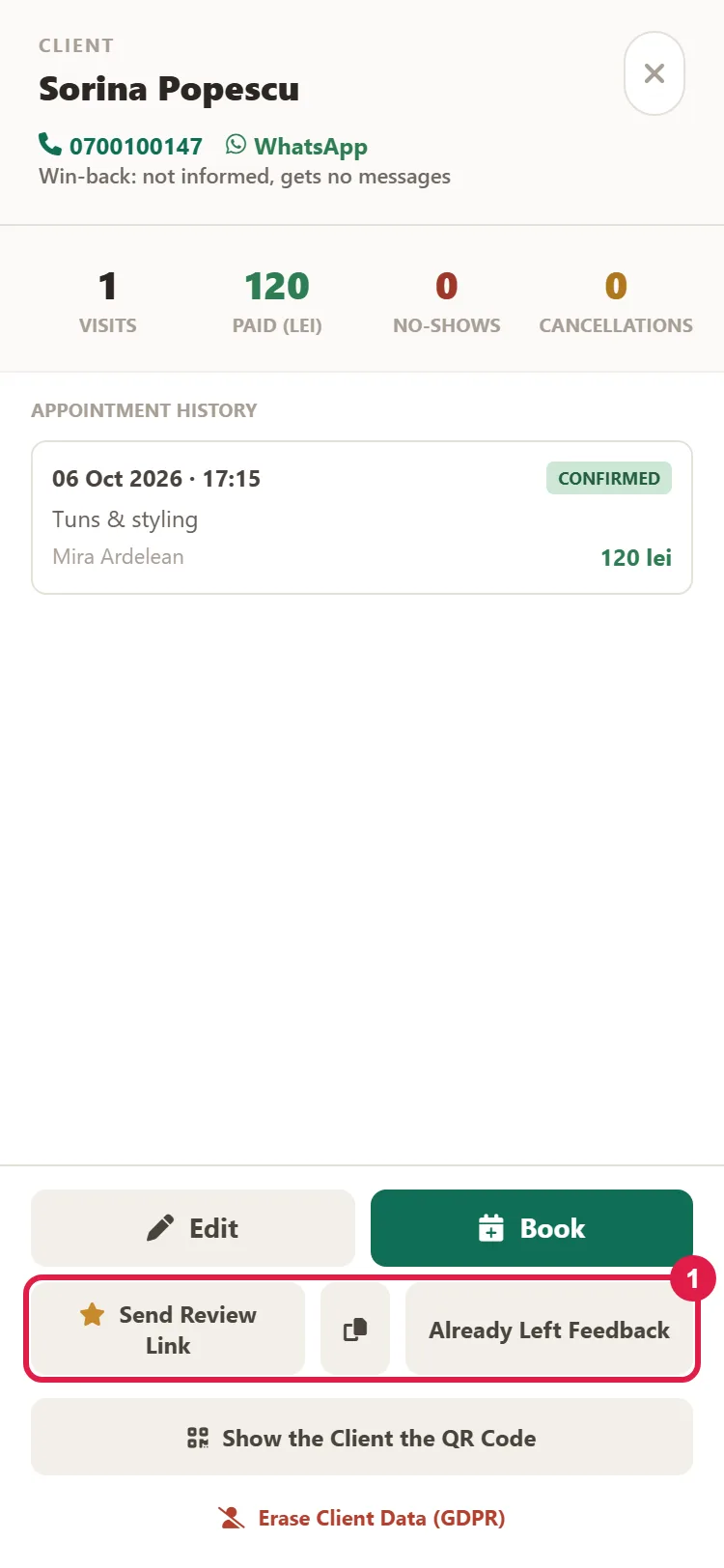
- At the bottom, click Send Review Link. You see "The request went out", with the channel, or the reason it didn't go out.
- Want to send them the link yourself on WhatsApp? Click the copy icon next to the button.
- If they told you they've already left feedback, click Already Left Feedback. They won't get the request after this visit.
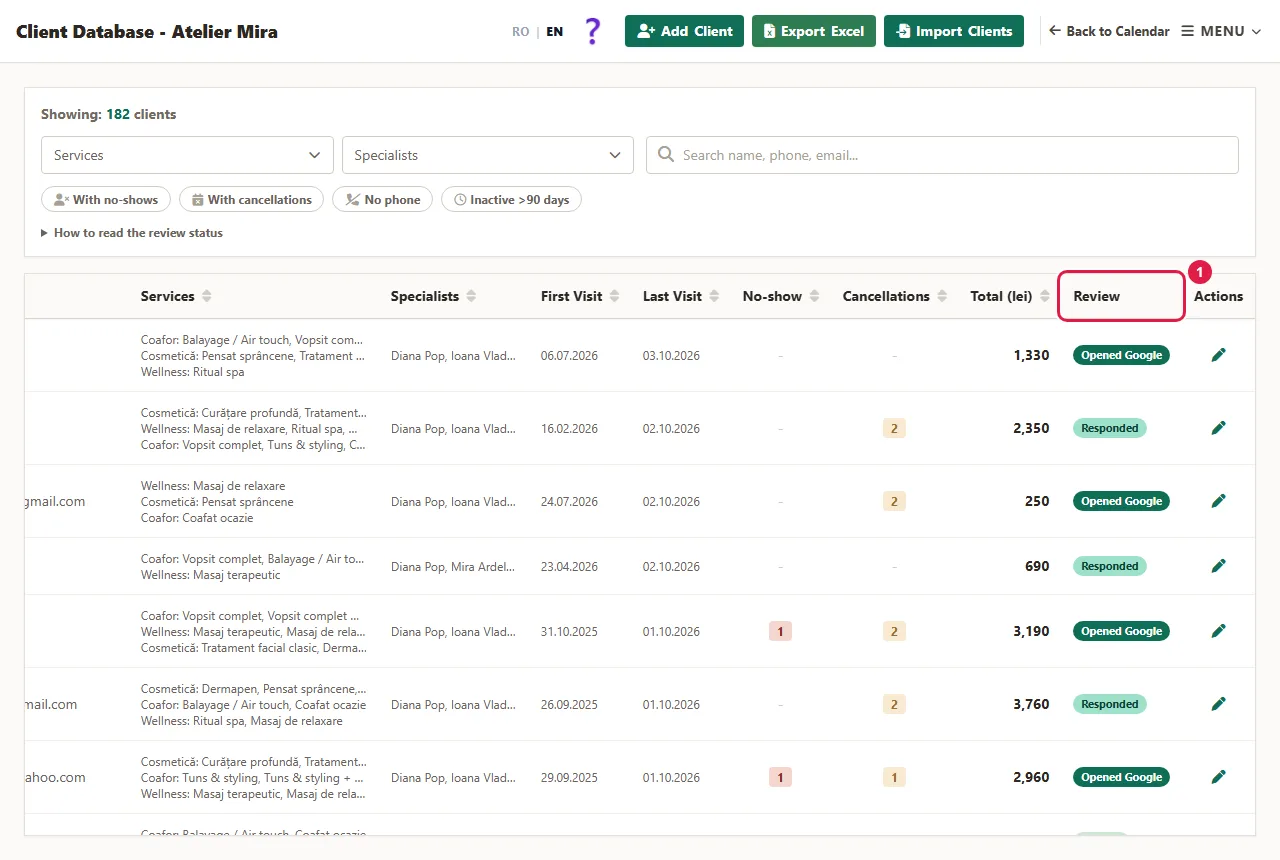
In the Clients list, the Review column shows where each one is: Not requested, Queued, Sent, Opened, Responded, Opened Google, Unsubscribed. Hover over the status to see the explanation.
How to ask past clients for reviews, as a group
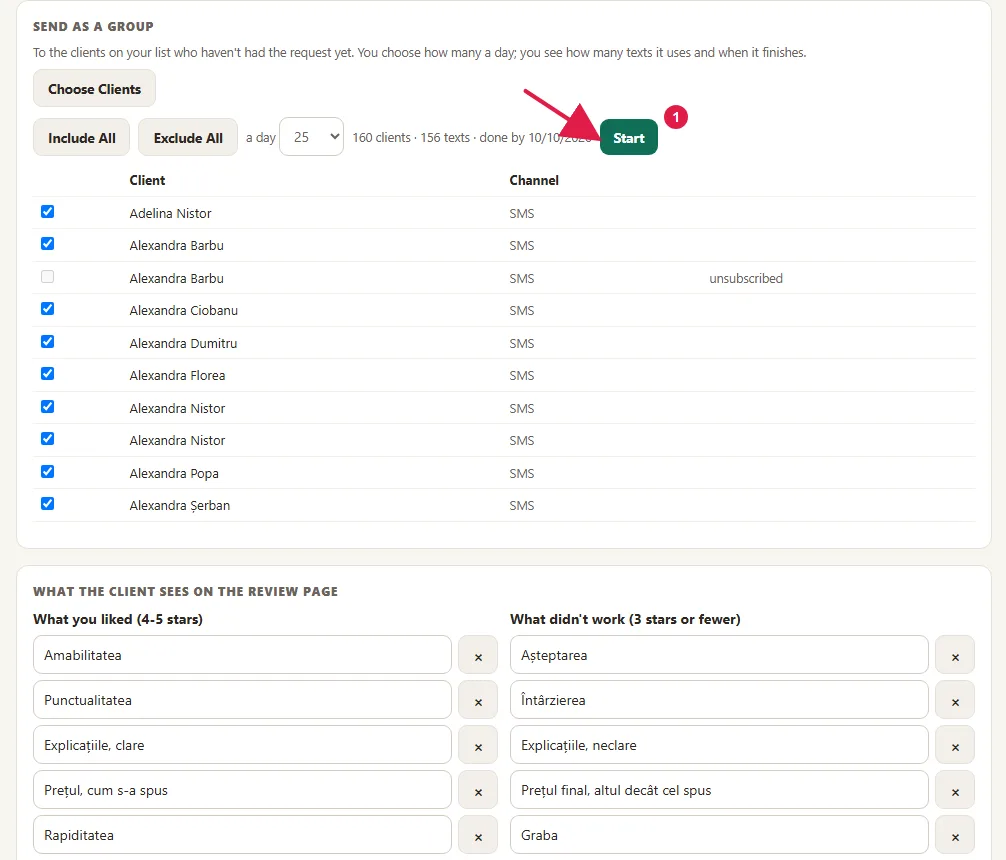
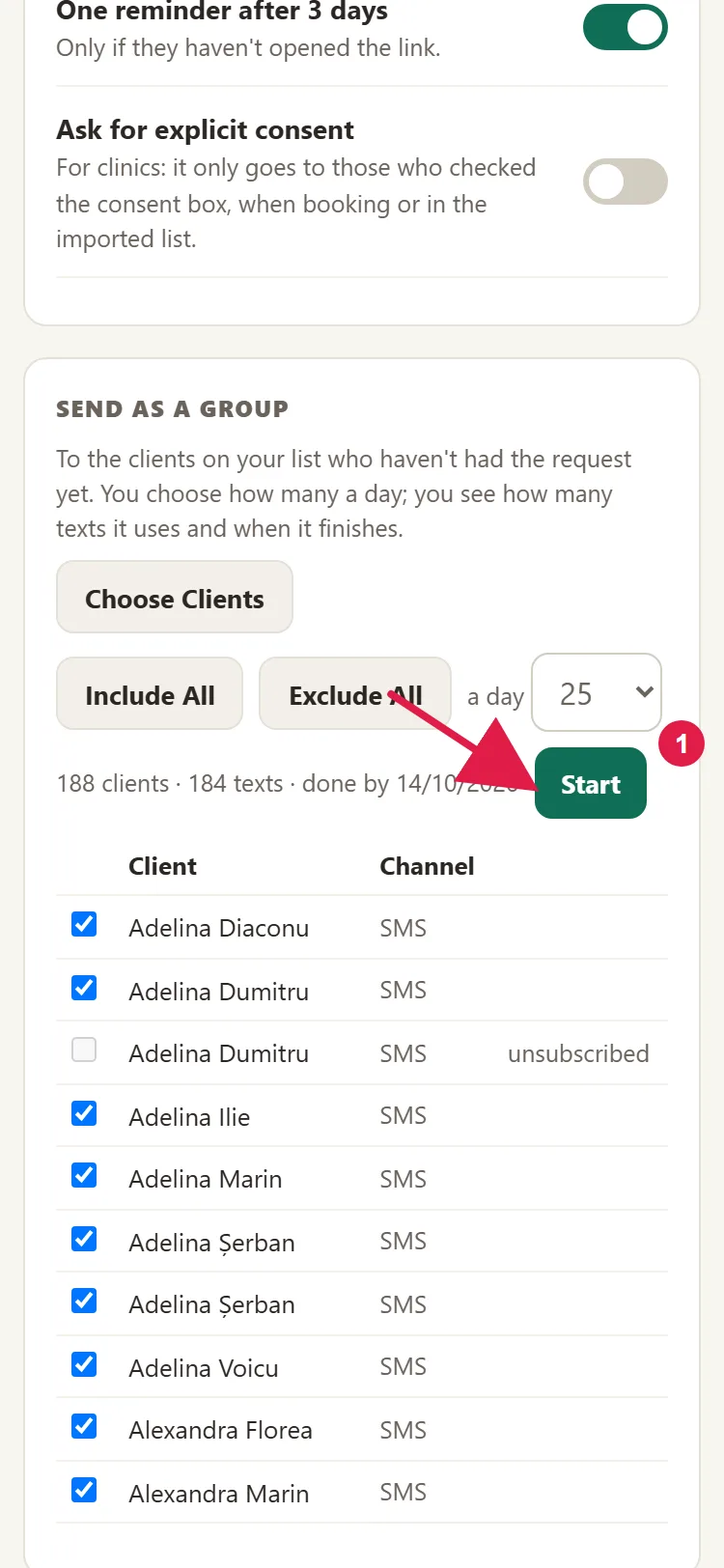
- In "Collect reviews", in the Send as a group card, click Choose Clients.
- Check the clients or use Include All / Exclude All. Those who can't get the request have a grayed-out box, with the reason.
- Under a day, choose how many requests go out per day: 10, 25, 50 or 100. You see right away how many clients there are, how many SMS messages go out and on what day the sending ends.
- Click Start. The pace you chose doesn't go over At most SMS messages a day: when the day's limit is reached, the group continues the next day. So if you choose more requests a day than SMS messages, the sending takes longer.
- Changed your mind? Click Stop Sending. What has already gone out can't be pulled back.
You can download all the feedback in an Excel file, with Export, from the Feedback card (administrator only).
Common problems
- "No request goes out." The website isn't linked, the page is paused, Send the Request on Its Own is off, the appointment wasn't confirmed or had no client record, or the service isn't checked under For which services. Check the first card and the "The request after a visit" card.
- "Client X didn't get the request." In Clients, look at the Review column or at the reason shown by Send Review Link: they got one less than 90 days ago, they unsubscribed, they declined in the form, they didn't give consent or they have no phone or email. It can't be forced.
- "They went out by email, not via SMS." At most SMS messages a day was reached, the month's SMS messages ran out or the client replied STOP. Raise the limit or get an SMS message pack; email is the backup, on purpose.
- "The client says the link has expired." The personal link is valid for 30 days. Send them the page's general link (from the first card) or, if 90 days have passed since the previous request, a new one from their record.
- "I see 'Opened Google', but the review isn't on Google." The panel only sees that they clicked the button. Maybe they didn't post it or posted a different text; we can't know. Search your Google profile.
- "I don't get alerts for good feedback." For good feedback, you choose in your website's admin panel whether you get it straight away, in a digest or not at all. Check the notifications there.
- "Suggest with AI doesn't work." You see "The suggestion couldn't be generated right now." Try again in a few minutes; your options stay.
- "I can't change the settings." You're signed in with a front desk account. An administrator changes the settings.
- "Something else isn't working." Write to us at contact@webid.ro with what you see on the screen and we'll take a look.
What it doesn't do
- It doesn't treat clients differently by rating: everyone gets the same message and, on the page, the same button to Google, with any rating. That's what Google's rules require: they don't let you send only happy clients to Google. And a profile with only 5-star ratings doesn't convince anyone. With a low rating you also get an alert, so you can call the client.
- It doesn't post anything on Google and doesn't know whether the client posted. It only sees that they clicked the button and what text they copied. The rating on Google is given by the client there.
- It doesn't read or reply to reviews on Google.
- Requests sent on their own or as a group only go out between 9:00 AM and 9:00 PM; anything that falls at night goes out at 10:00 AM.
- The request after a visit only goes out after confirmed, completed appointments. Cancellations and no-shows get nothing, and visits older than 5 days no longer get the request (for example, when you've just turned on the add-on).
- A client gets at most one request every 90 days, by any route, and a single reminder.
- It doesn't send to those who unsubscribed, those who declined in the form or, with Ask for explicit consent, those without consent.
- Without Bookings there's no request after a visit; without SMS messages (from Bookings or from a pack) there are no SMS messages.
- You don't choose requests by colleague, only by services or categories.
What data it uses
The review request uses the client's phone number or email. On the review page they leave you their rating, the options, a text and, if they want to be called, their name and phone number. We don't keep the IP address, only a hash of it, deleted after 24 hours, and the assistant that suggests the text only receives the client's rating, options and words, without a name or phone number. Only you and your team see the feedback, and it follows the retention period you chose for records (at most 5 years), while unsubscribes are kept as proof of the refusal. The details are in the data processing agreement, §3.