How to find out early who isn't coming and free up the time
An empty time slot you could have given to someone else costs you money. After you confirm an appointment, the client gets an email with two buttons: "I'll be there" or "I can't make it". You see the reply in the calendar and decide what to do with the time. You set this up just once; the rest you handle on the spot, when a reply comes in.
How it works, in short
- The client gets nothing while the appointment is only requested. The email goes out only once the appointment is confirmed: by you, from the calendar, or automatically, if you chose instant confirmation. This confirmation only means you accept the appointment. It's the person's reply, the "Client confirmed" badge, that tells you they're coming.
- The client's reply is just a badge on the appointment. "I can't make it" doesn't cancel the appointment: the time stays booked until you free it up.
- You mark "No-show" and cancellations yourself. The client can't mark them.
How to turn on confirmation emails
- In the Bookings panel, click MENU, then Email Notifications.
- Turn on Confirmations to clients.
- Turn on Notifications to me, so you find out when a client says they're not coming.
- Type your address in My address. If you leave it empty, alerts go to the panel's administrator accounts.
- Click Save.
- Click Send Me a Test Email and check that it arrived.
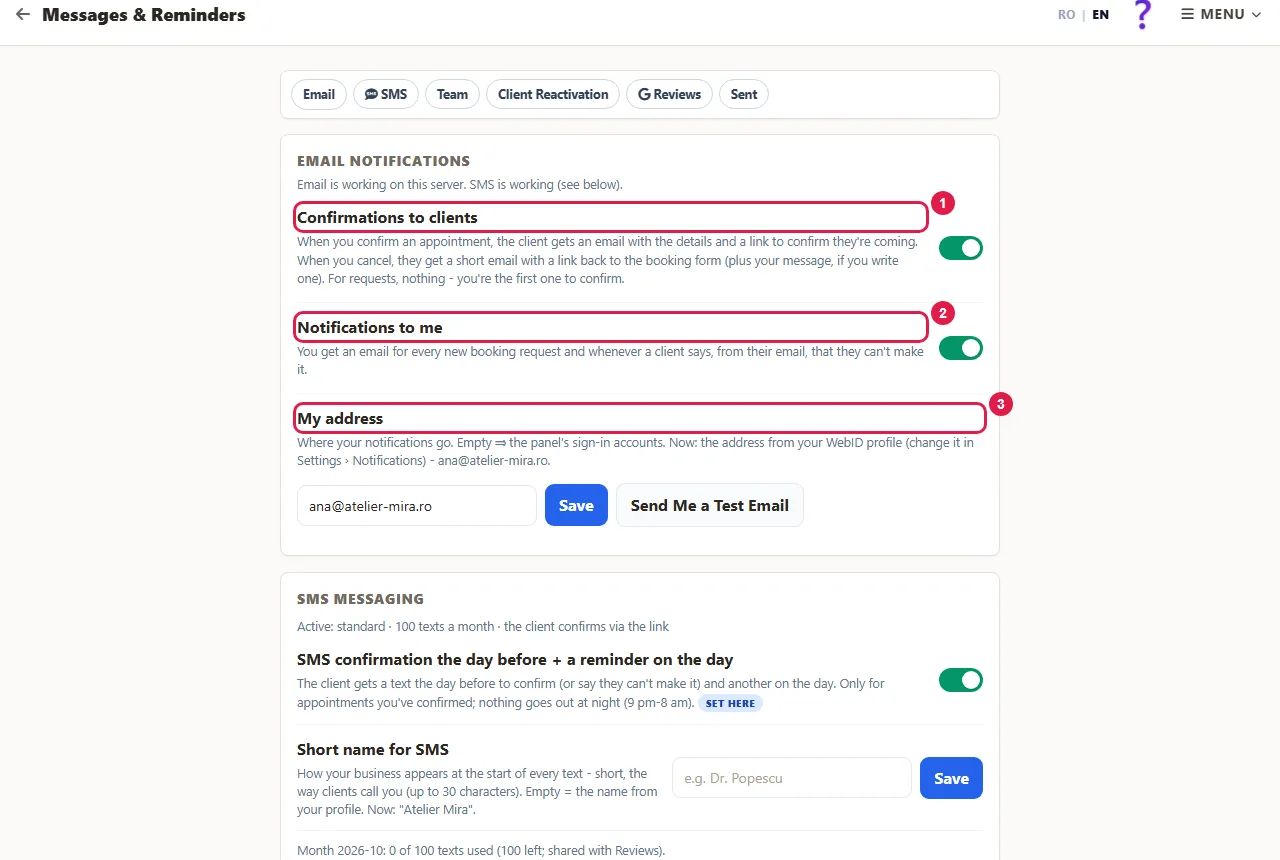
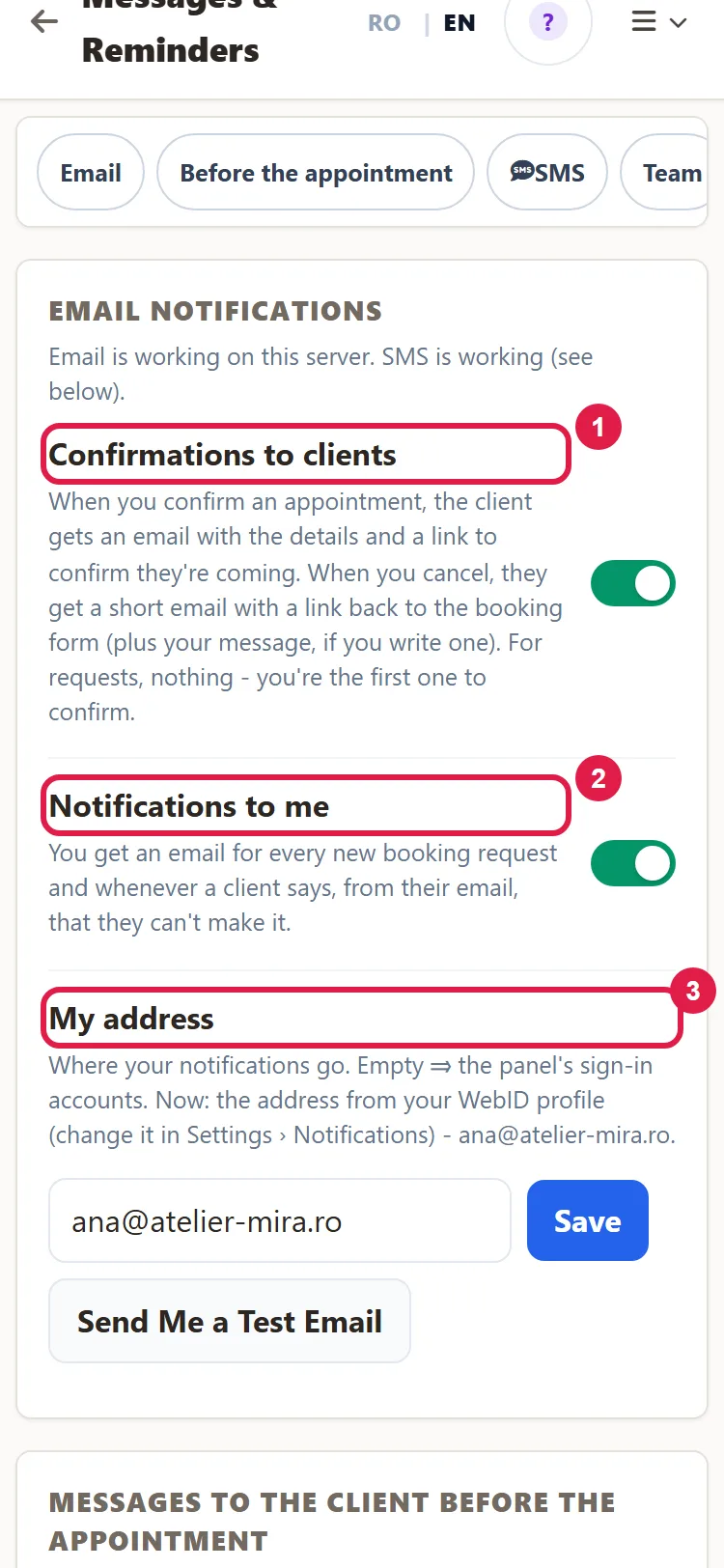
The client gets the email only if they left an email address when booking. For clients without an email address, or who don't read their email, there are the SMS messages included in Bookings: the day before, the client gets an SMS message on their phone with a link where they confirm or say they can't make it. See How to send confirmations and reminders via SMS.
What the client gets
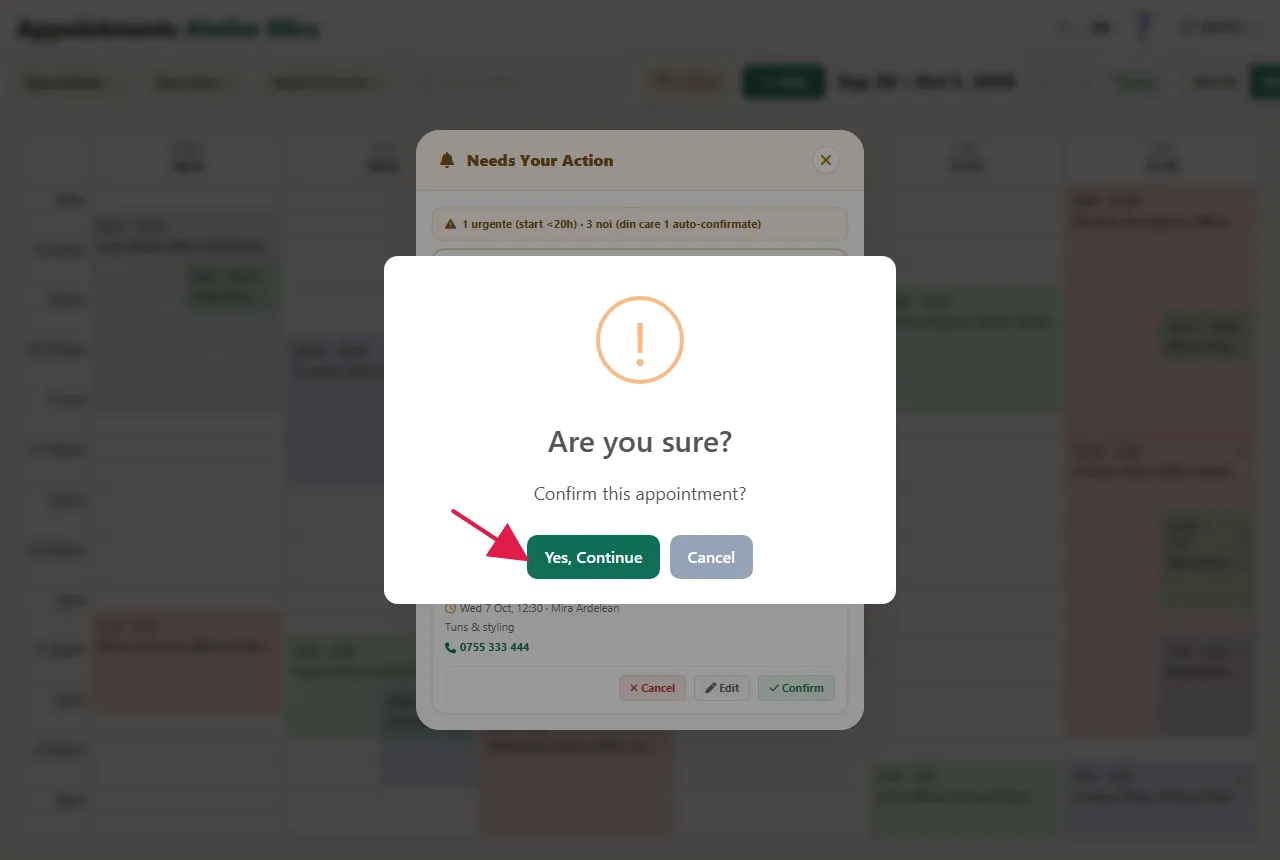
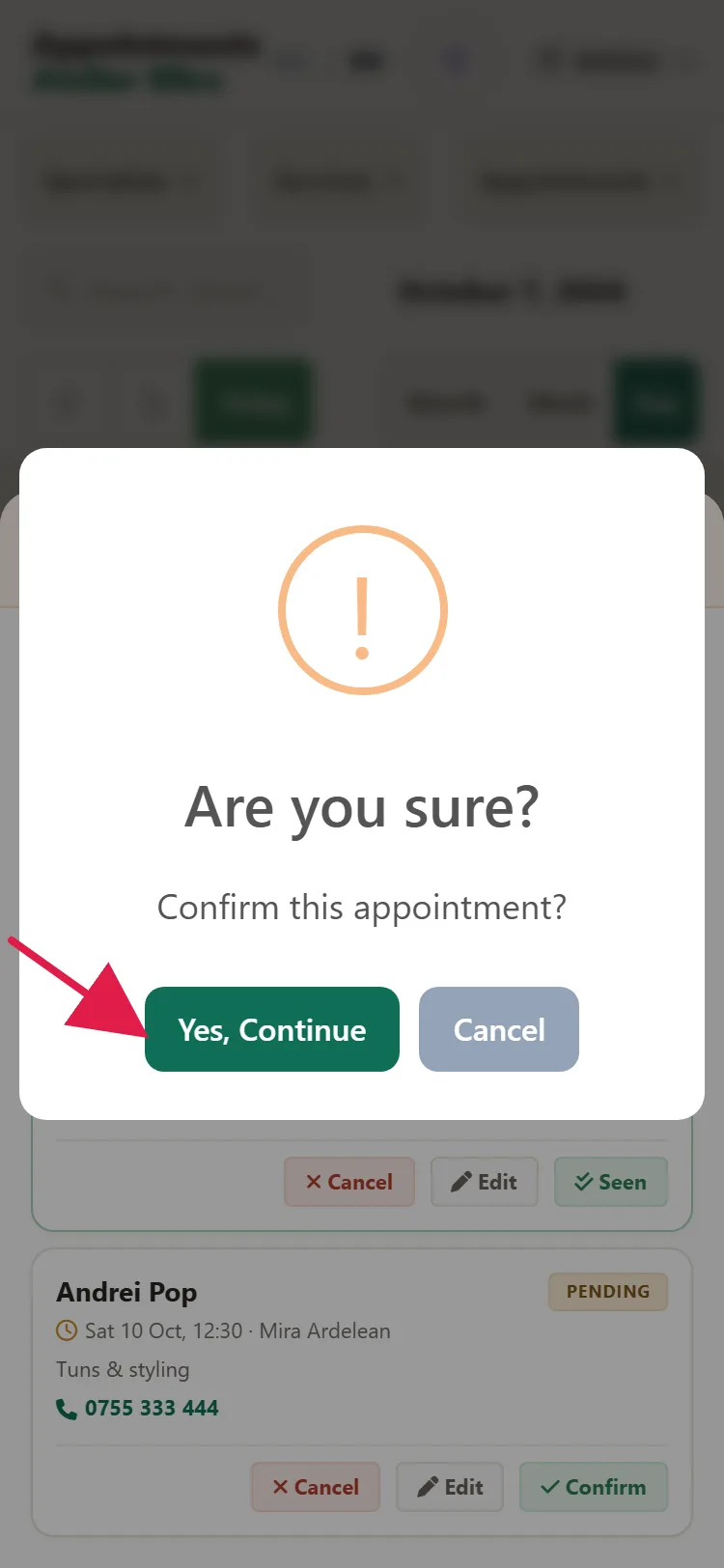
- Confirm the appointment from the calendar: click it, then Confirm and Yes, Continue. If the email went out, you see "The client gets an email with the appointment and a link to confirm they're coming."
- The client gets the email "Your appointment is confirmed", with the day, time and services, plus a request to confirm they're coming. The sender is your business name, and if the client replies to the email, the reply comes to you.
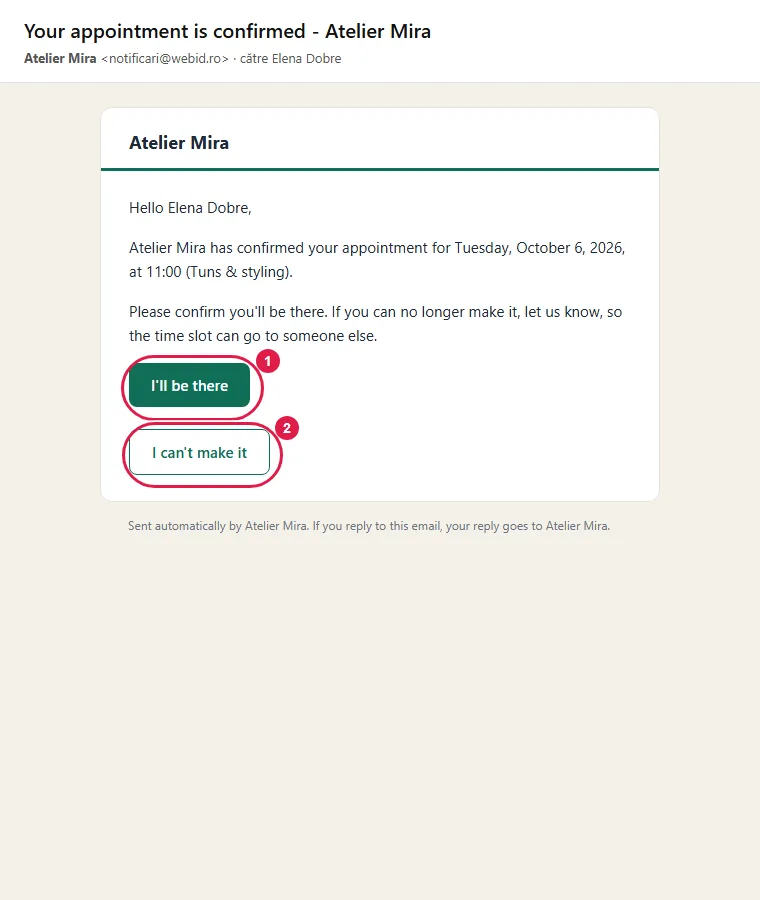
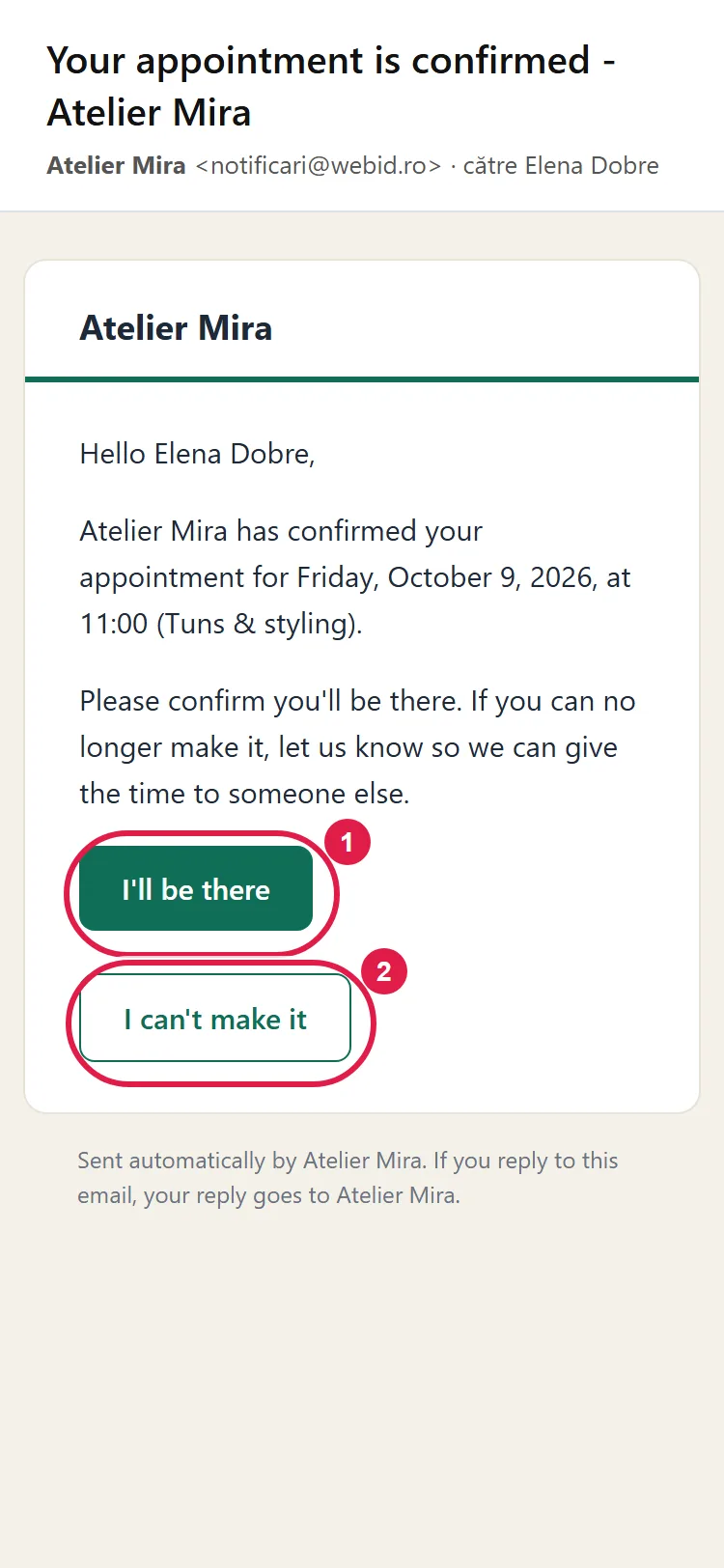
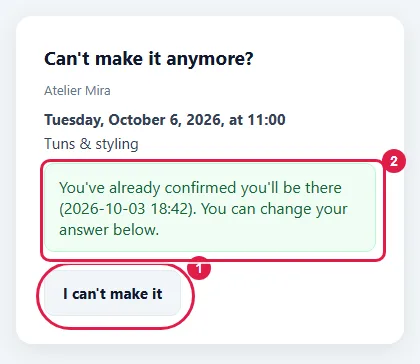
- The email has two buttons: I'll be there and I can't make it. The client sees the same thing on the page that opens from the link.
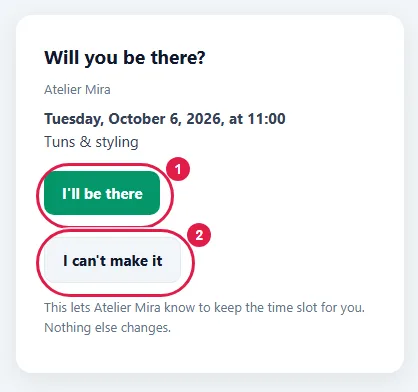
The email addresses the client the way you do on your website, informally or formally. If they booked on the English page, they get it in English.
What you see when the client replies
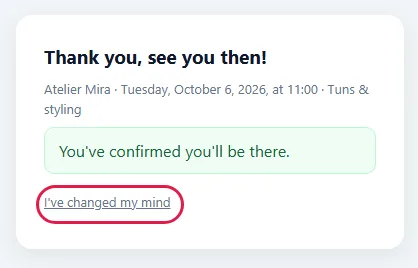
- Confirms they're coming: the client sees "Thank you, see you then!", and the "Client confirmed" badge appears on the appointment. You don't get an email for this.
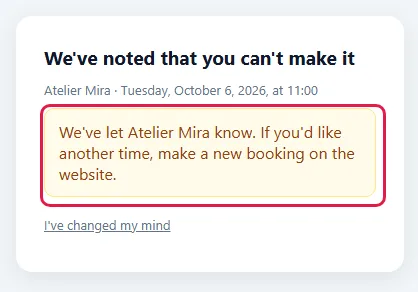
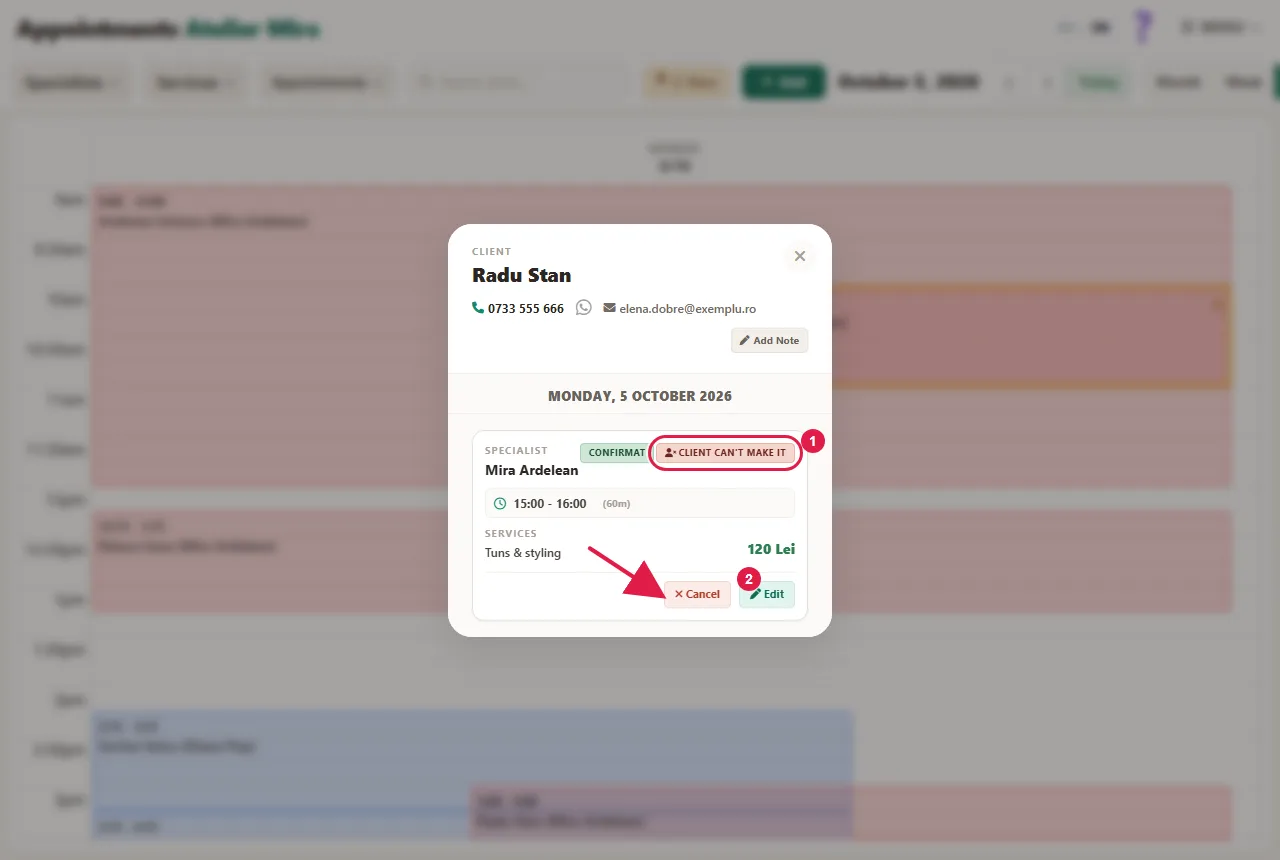
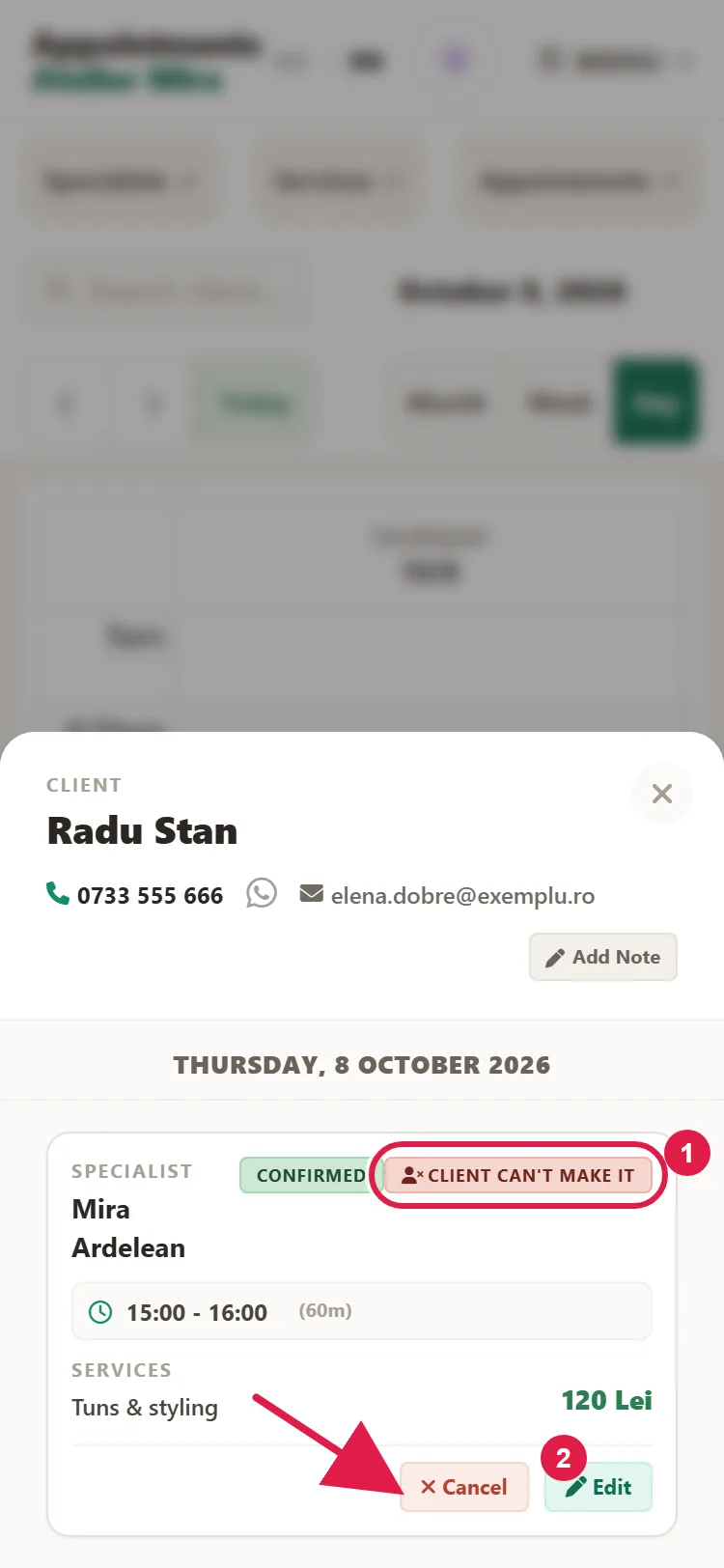
- Says they can't make it: the client sees "We've noted that you can't make it", and the "Client can't make it" badge appears on the appointment. The appointment stays in the calendar.
- If you've turned on Notifications to me, you get a "Client can't make it" email with their name and phone number. The specialist gets an alert too, if they have team notifications turned on.
- You see the badge in the appointment window and in "Needs Your Action" (the bell button, New on desktop), not on the appointment card in the calendar.
- The client can change their mind up until the time of the appointment, from the I've changed my mind link. The new reply replaces the old one, and the badge in the panel changes. The email alert for "I can't make it" comes only once per appointment, even if the client switches back to that reply. After you cancel the appointment, the link shows them "The appointment has been canceled".
How to free up the time of a client who isn't coming
- In the calendar, click the appointment.
- Click Cancel.
- If you like, write a message in Message for the client (up to 1,000 characters). When the client has told you themselves they're not coming, write something only if you have something to add.
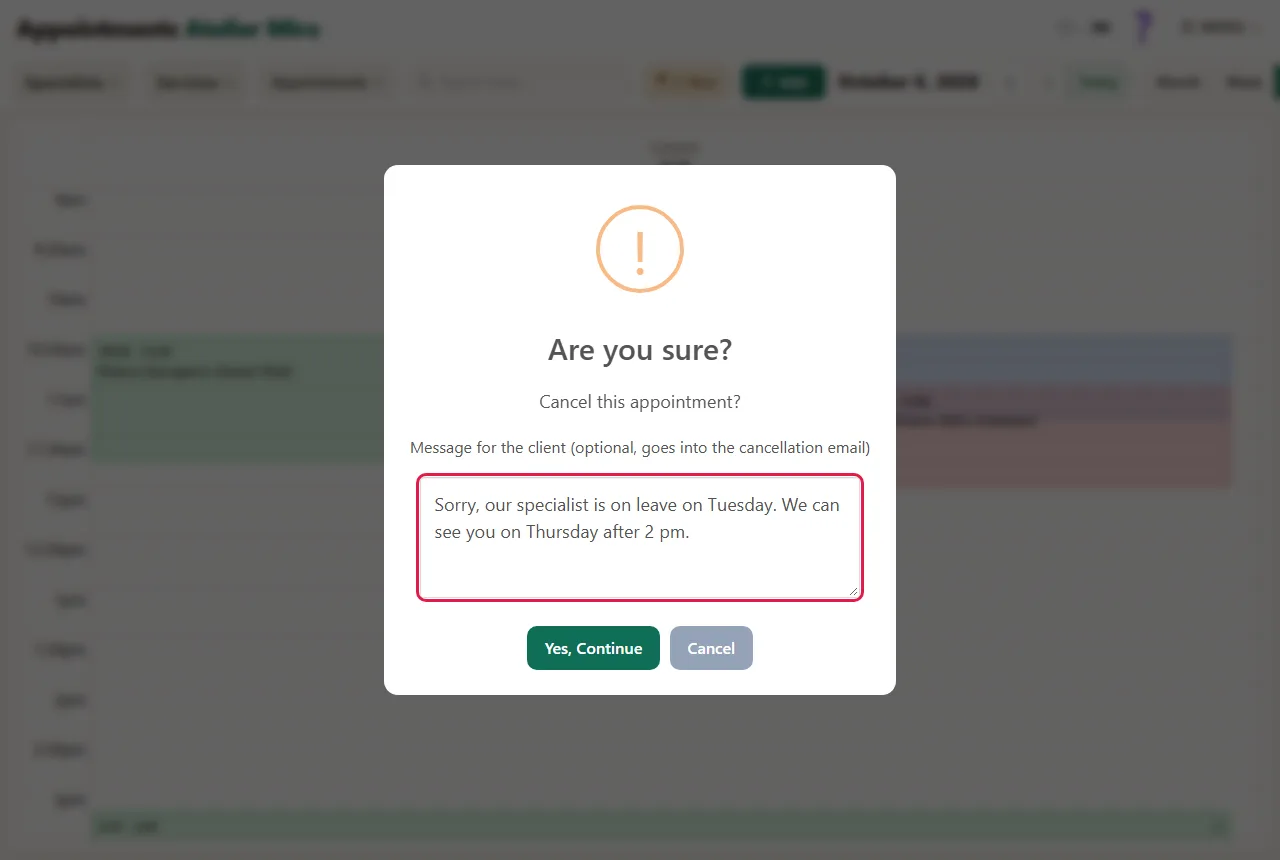
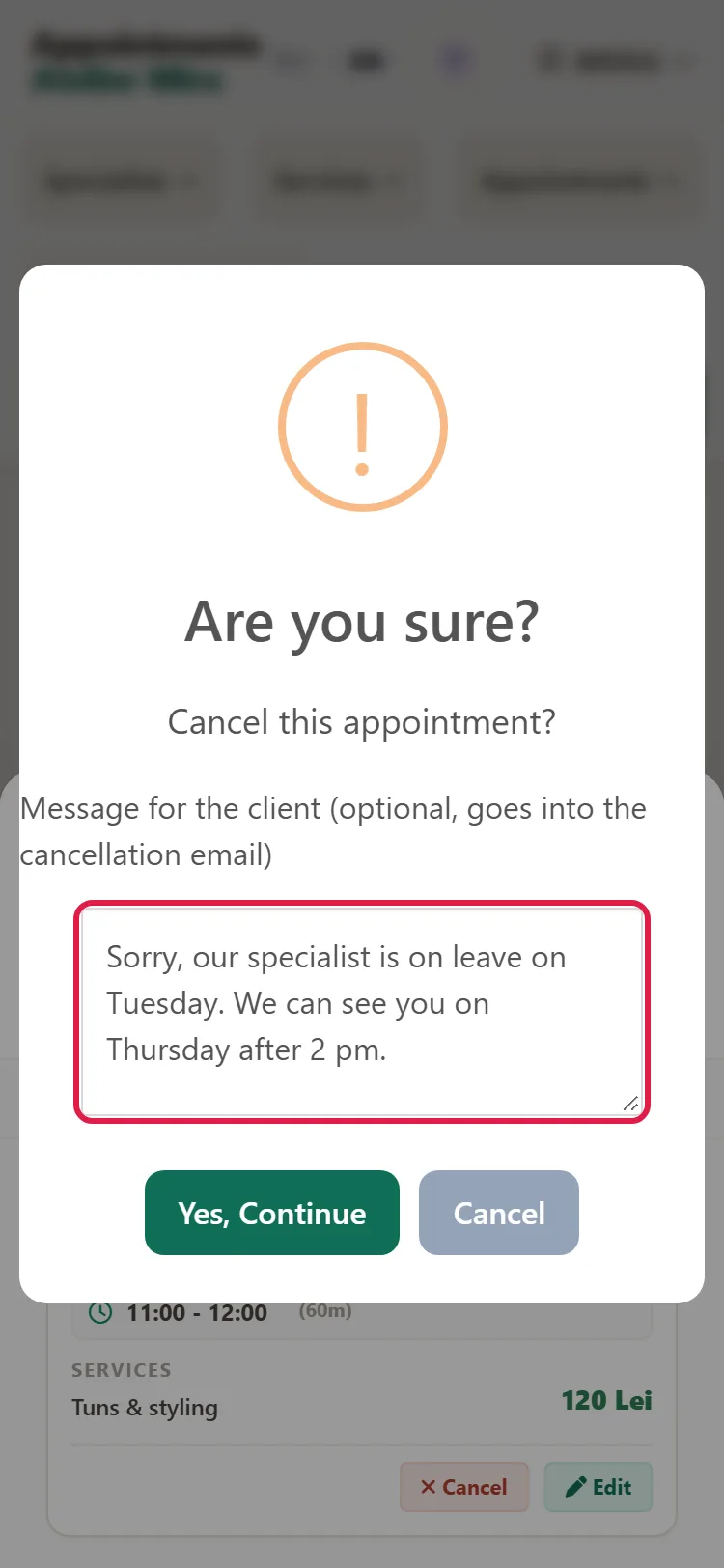
- Click Yes, Continue. The appointment disappears from the calendar, and the time is free for another booking.
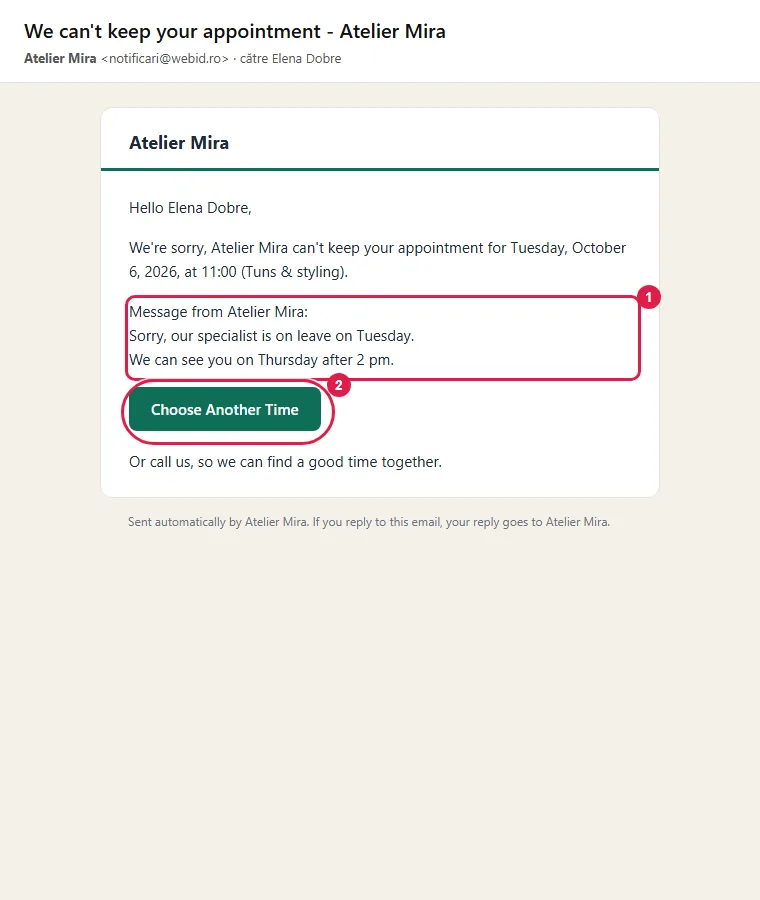
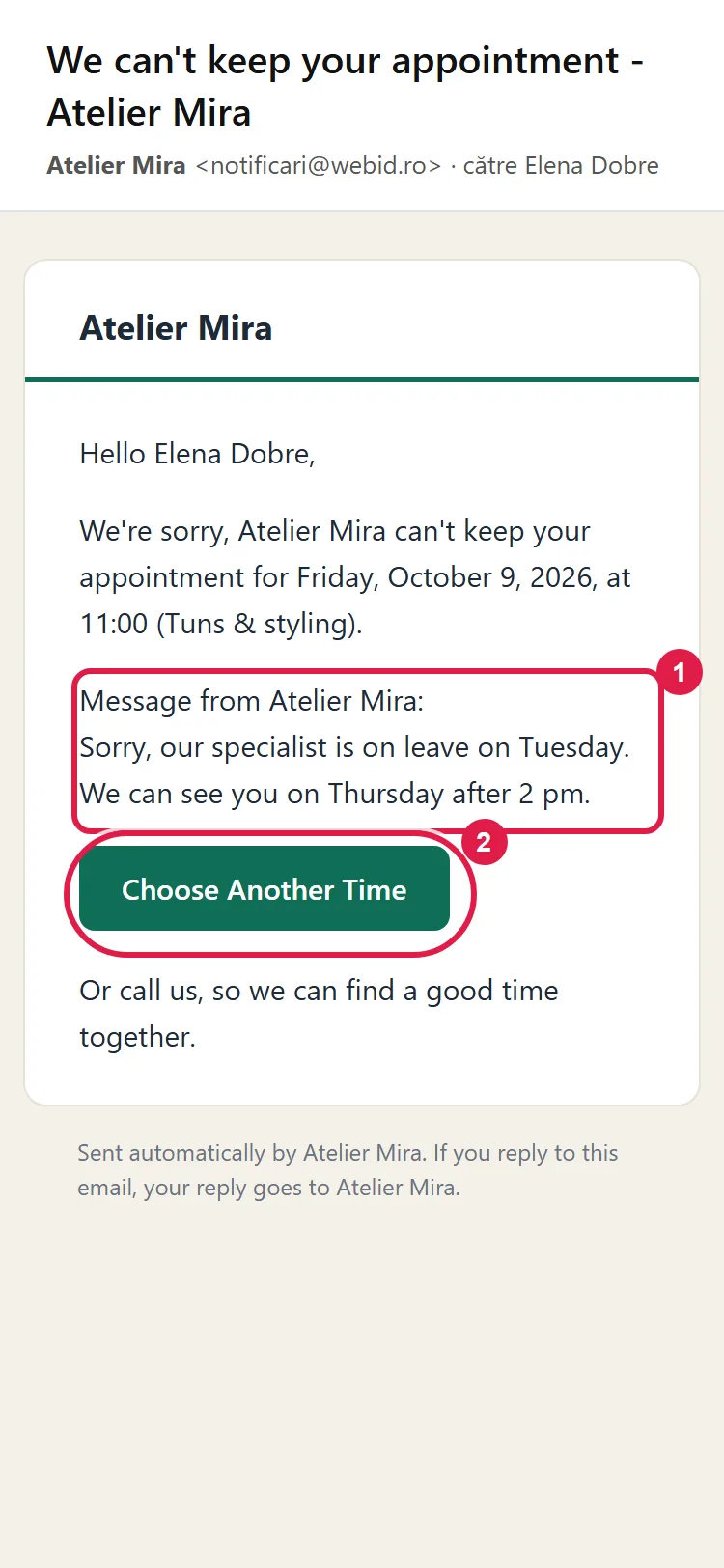
- If the decision is yours, the client gets the email "We can't keep your appointment", with your message and the Choose Another Time button, which leads to the booking form on your website. If they told you themselves they're not coming, they get nothing; if you wrote them a message, they get the email "Your appointment has been canceled", with your message.
You can also free up the time by moving the appointment to another day, from Edit. If you check the notice option, the client gets the new time by email (or via SMS, if you have SMS messages left) and confirms again.
How to mark a client who didn't show up
- After the appointment time, click the appointment in the calendar.
- Click No-show. The button appears only on appointments that have already passed.
- Click Yes, Continue. The appointment turns gray, with the status "No-show". The client doesn't get any message.
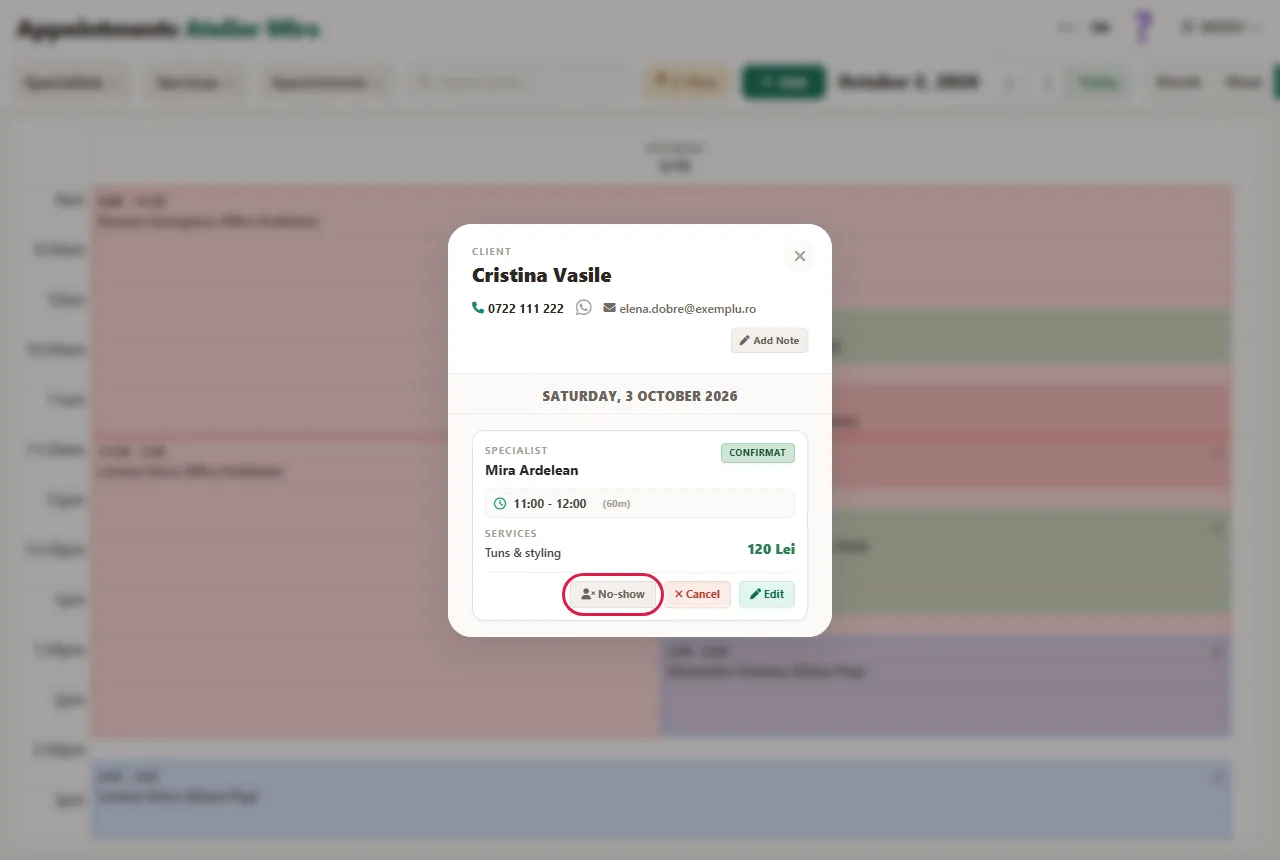
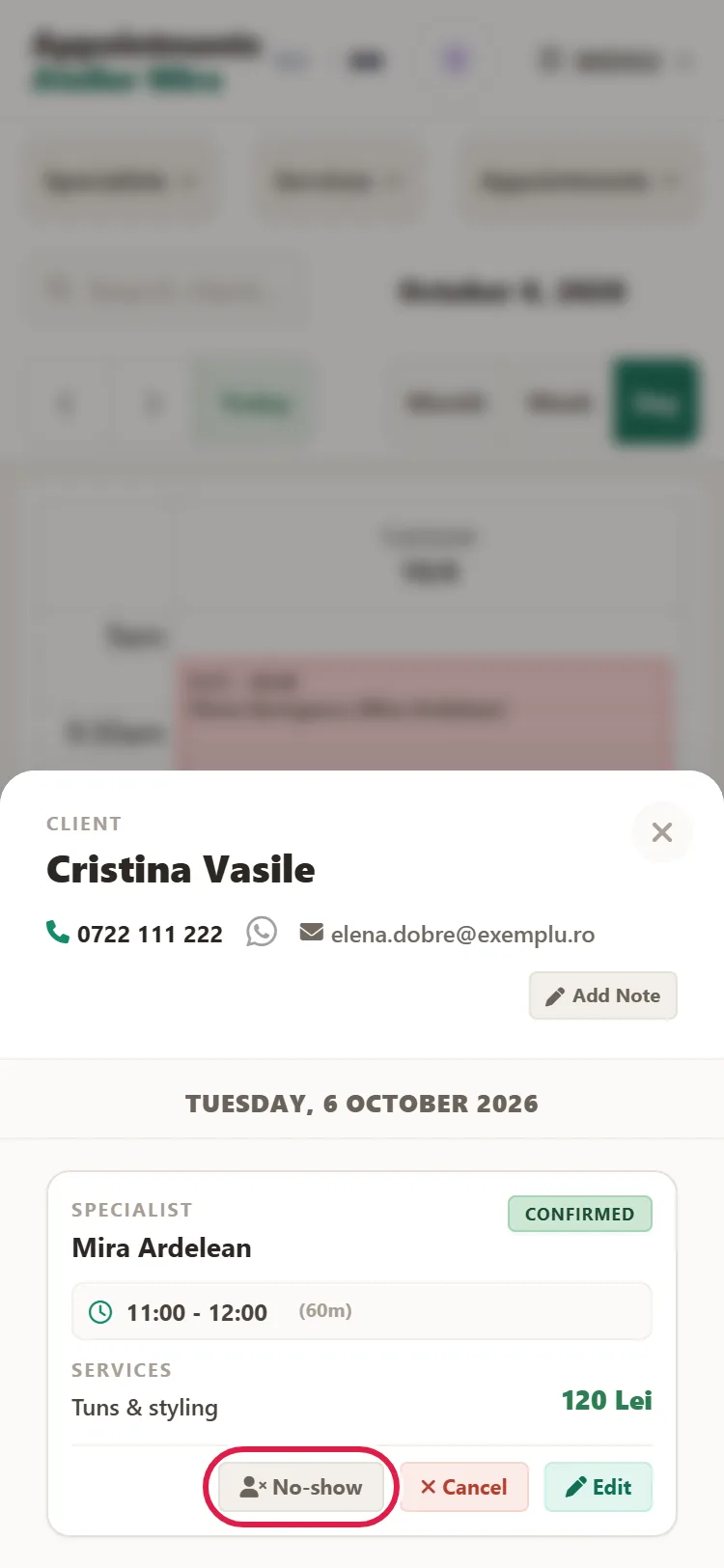
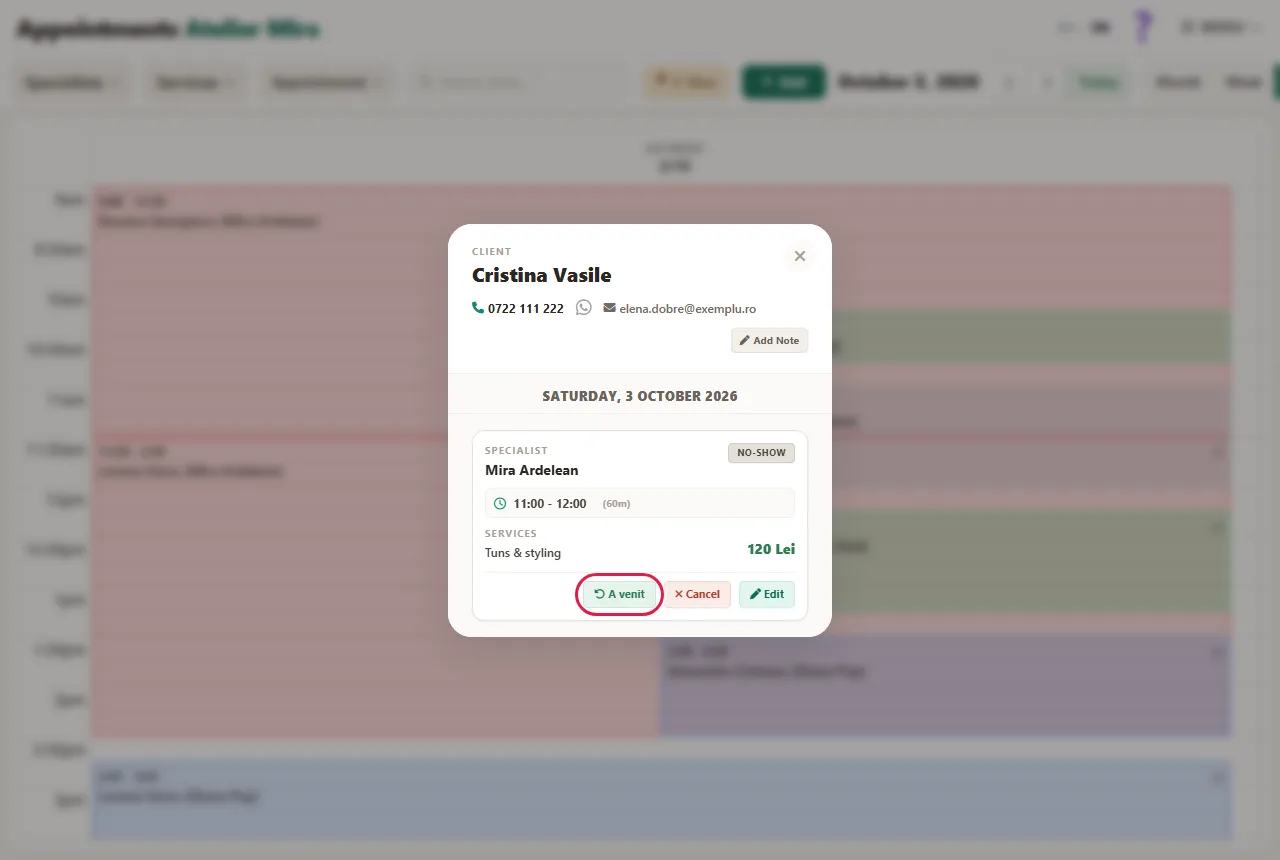
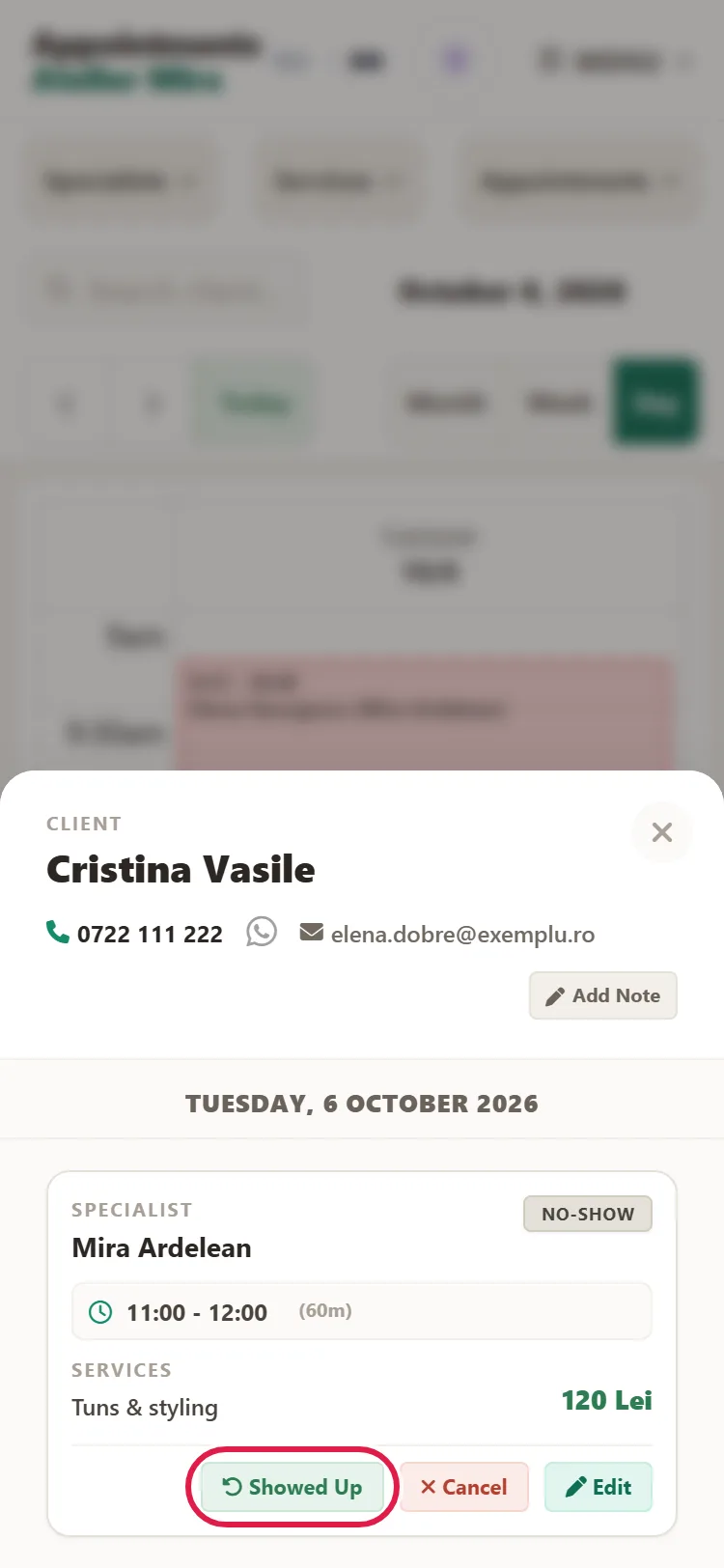
- Clicked too soon? Click Showed Up. The appointment goes back to confirmed, with no message to anyone.
You can also choose the same status from Edit, under Status › No-show.
How to see how often clients miss appointments
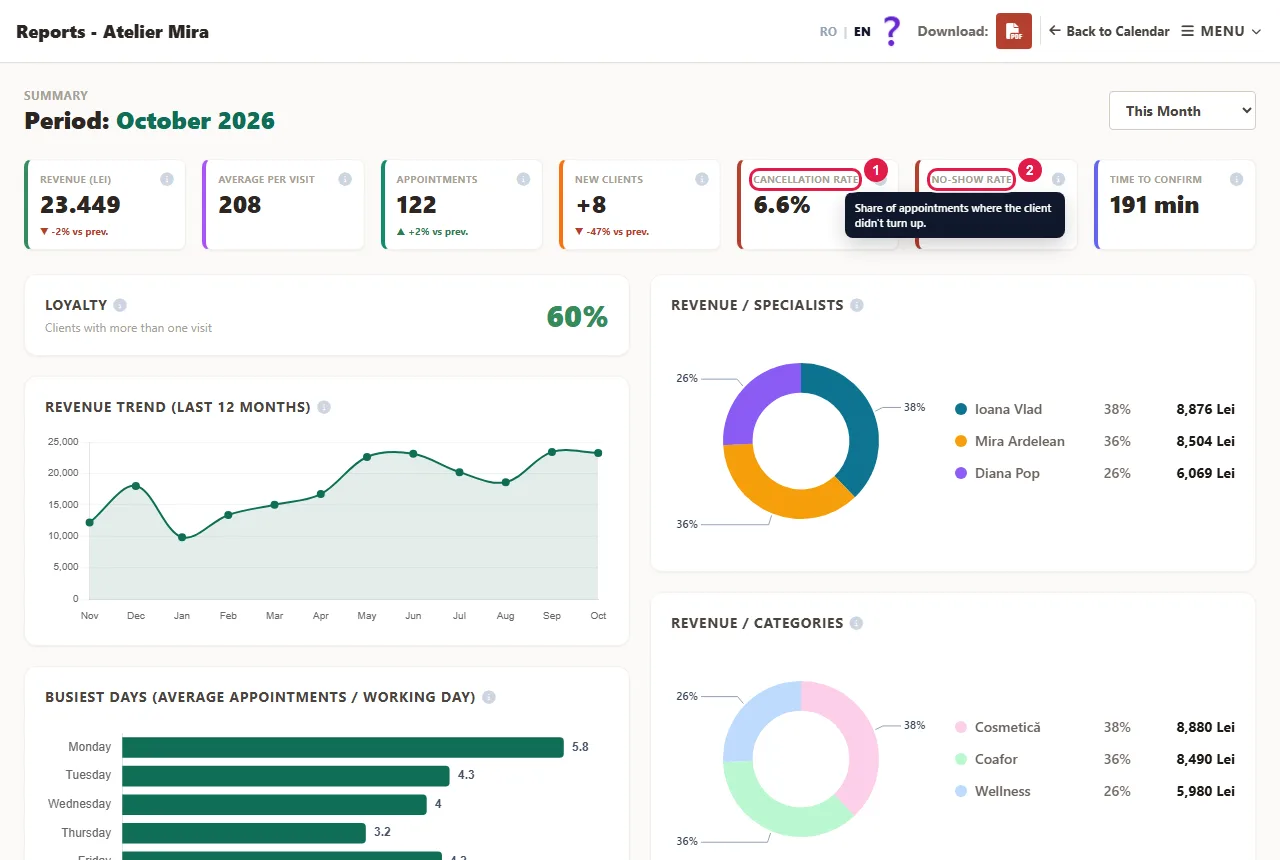
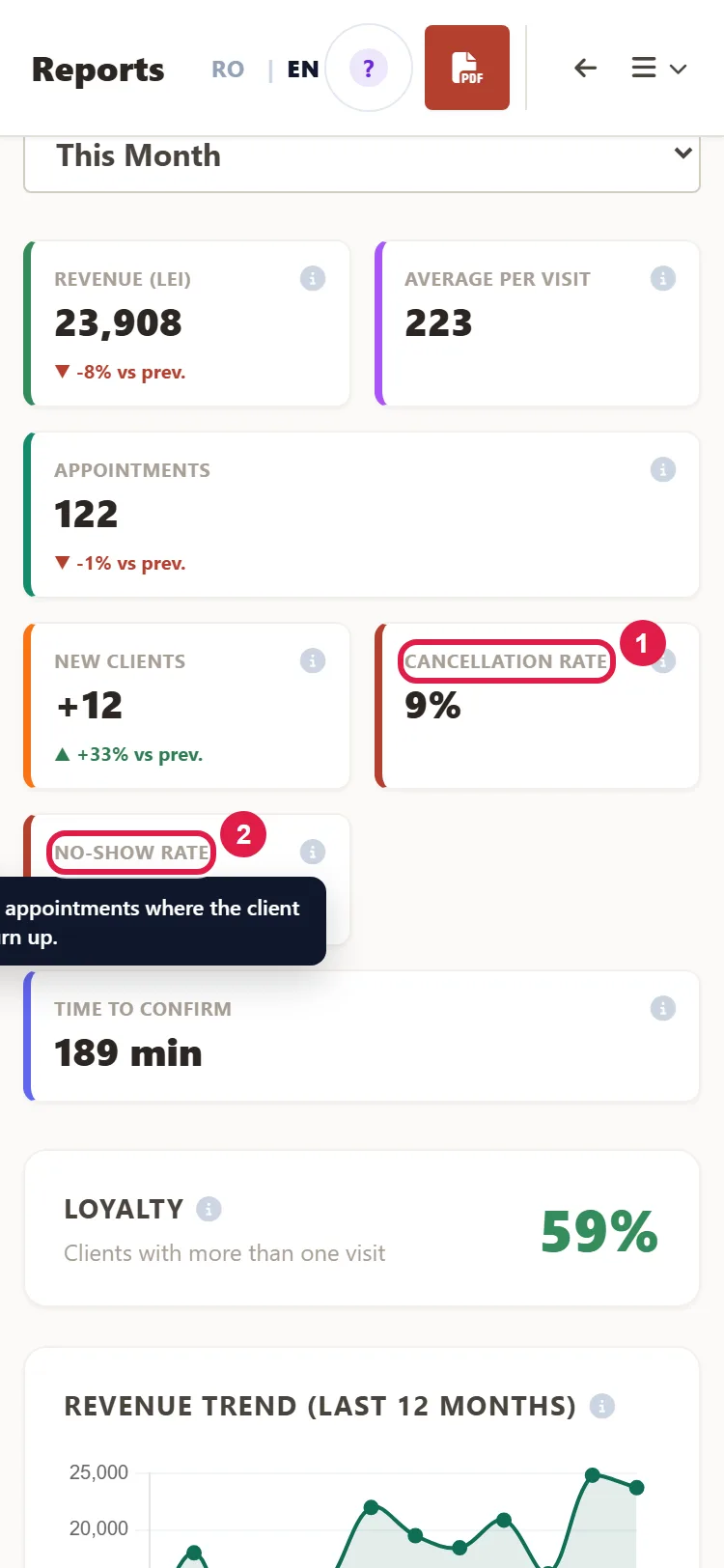
- Click MENU › Reports and choose the period.
- Read the Cancellation Rate and No-show Rate cards. Each rate is worked out from all the appointments in the period, including canceled ones and those still to come.
- In the calendar, the Appointments › No-show filter shows you only the appointments the client didn't show up for.
- In Clients, the No-show column shows how many times each client missed; click its heading to sort the list by it. The With no-shows button shows who missed at least once, and With cancellations shows clients with canceled appointments (including the ones you canceled, not just those canceled at the client's request).
No-shows and cancellations aren't counted in the revenue in "Reports".
What you tell clients on your website about cancellations
Under the time picker, the booking form on your website can show a sentence about cancellations: one worked out from your history (for example "~1 in 8 appointments gets canceled.") or a text you write yourself. By default, nothing appears. You choose it in your website's admin panel, not in the Bookings panel. The worked-out sentence appears only after at least 20 appointments in the last 12 months, and your own text doesn't appear on the English page.
Common problems
- "The client says they didn't get the email." The "Confirmations to clients" switch is off, the client didn't leave an email address, the appointment is still pending (the email goes out only on confirmation), or the message landed in Spam. Turn on the switch, check the email address from Edit, confirm the appointment if it's still pending, and ask the client to look in their Spam folder.
- "The client clicked I can't make it, but the time still shows as taken on the website." That's by design: the decision is yours. Click Cancel on the appointment.
- "The client said they weren't coming. Do they get anything when I cancel?" Only if you write in Message for the client: then they get the email "Your appointment has been canceled", with your message.
- "I clicked No-show by mistake." Click Showed Up. The appointment goes back to confirmed and no message goes out.
- "I can't find No-show Rate in Reports." For some businesses (lodging, events, construction), clients don't fail to show up, they cancel, so you only see Cancellation Rate. That's intentional.
- "The client opens the link after the appointment time and says it doesn't work." After the appointment time, the page only shows "This appointment has passed". That's normal.
- "I don't get the alert when a client can't make it." The "Notifications to me" switch is off, or the alert is turned off in your website's settings. If "My address" is empty, the alert goes to the panel's administrator accounts: look for it there, or type in your address. Check these settings, then click Send Me a Test Email.
- "Something else isn't working." Write to us at contact@webid.ro with what you see on screen, plus the day and time of the appointment, and we'll take a look.
What it doesn't do
- "I can't make it" doesn't cancel the appointment or free up the time. You free it up.
- The client can't cancel or reschedule from the link by themselves. They can only say they're coming or not coming; for another time, they make a new booking on the website, and you cancel the old one, otherwise its time stays booked.
- If the client didn't leave an email address, or the "Confirmations to clients" switch is off, the confirmation email doesn't go out. The client can reply only from the link in the SMS message, if they get one; otherwise, you get no signal from them. There's no resend: if you turn on the emails or correct the address, an appointment that's already confirmed gets a message only when you change its status or move it.
- When the client confirms, you don't get an email; you only see the badge in the panel. The email alert comes only for "I can't make it", once per appointment.
- "No-show" doesn't send anything to the client. There are no penalties or blocks for people who miss appointments.
- For an appointment with several specialists (same client, same time), a single reply from the client applies to all of them.
- Canceled appointments no longer show in the calendar. You'll find them counted in Clients and Reports.
- The link's error pages ("Linkul nu e bun", "Nu găsim programarea") are only in Romanian, in the informal form of address.
What data it uses
The link in the confirmation message contains only a random code, without the client's name or phone number. Their reply ("I'll be there" or "I can't make it") is saved on the appointment, with the time, and only you and your team see it, in the panel. For "I can't make it", you get an email with their name and phone number. The confirmation page doesn't require an account, doesn't set cookies and doesn't store the IP address in the app, and the reply is kept for as long as the appointment is, up to the retention period you chose for client records. Details are in the data processing agreement, §3.