How to connect your Stripe account, so the money goes straight to you
Stripe is the company that handles card payments. You connect your business's Stripe account just once, at the start, and your clients' money goes straight into your Stripe account, not through us. From there, Stripe sends it to your bank account, on its own schedule. The Stripe form takes you about 10–15 minutes. Stripe activates the account after checking your documents; only then do you get the key.
What you need first
- Maintenance active: card payments come free with it. Without it, the "Payments" screen shows you the Maintenance offer. Details on Pricing.
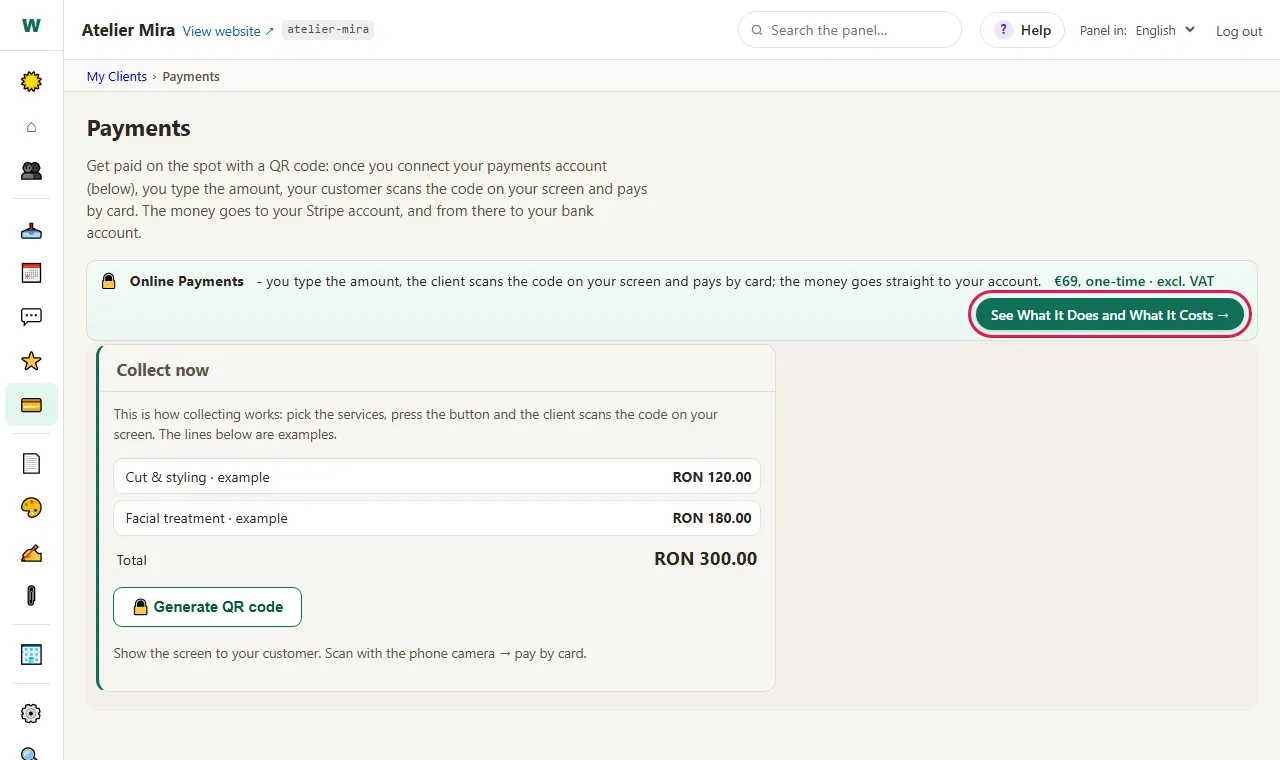
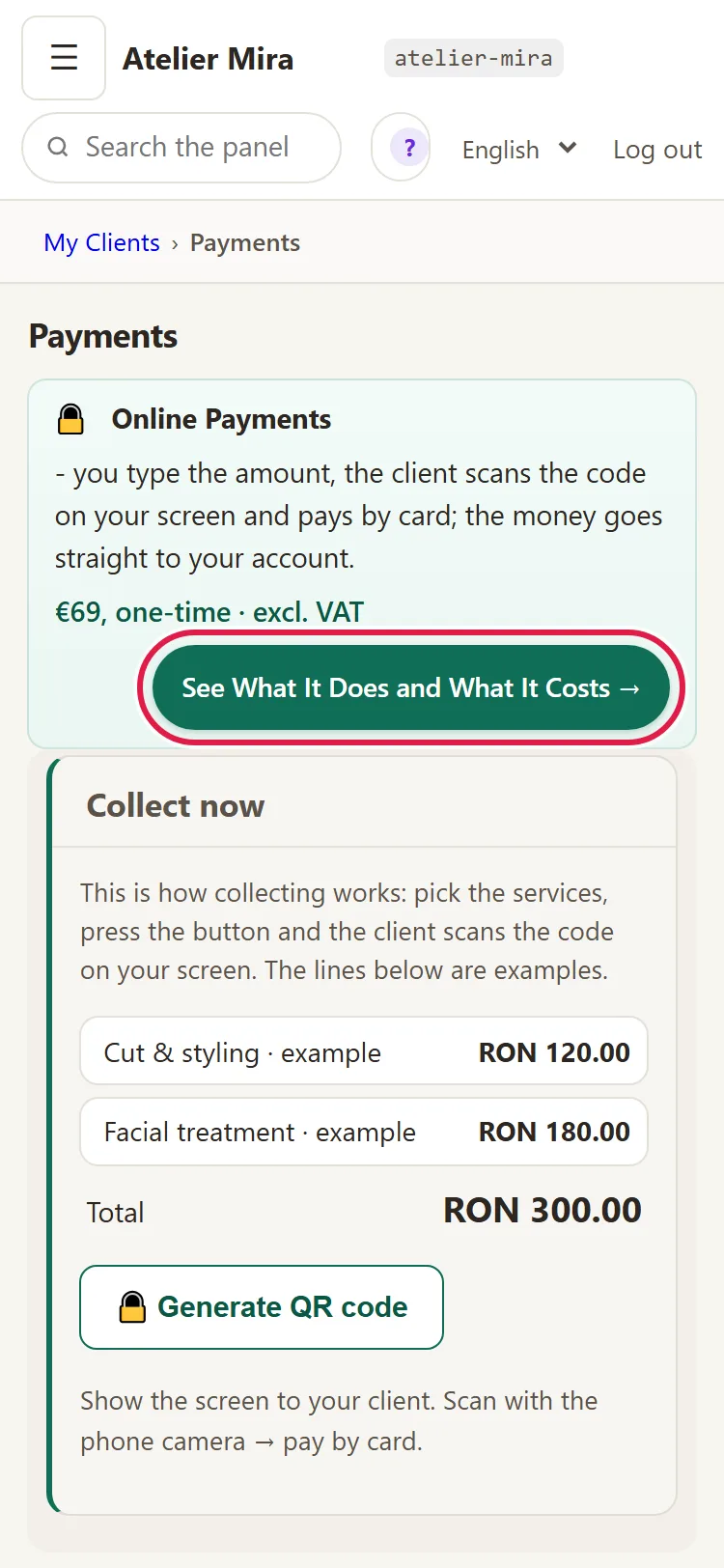
- A Stripe account in your business's name. Stripe asks for your business documents and your bank account.
- The Owner or Administrator role in the admin panel.
How to create your Stripe account and get the key
- In the admin panel, open My Clients, then Payments. At the top it says "One step left: connect your Stripe account."
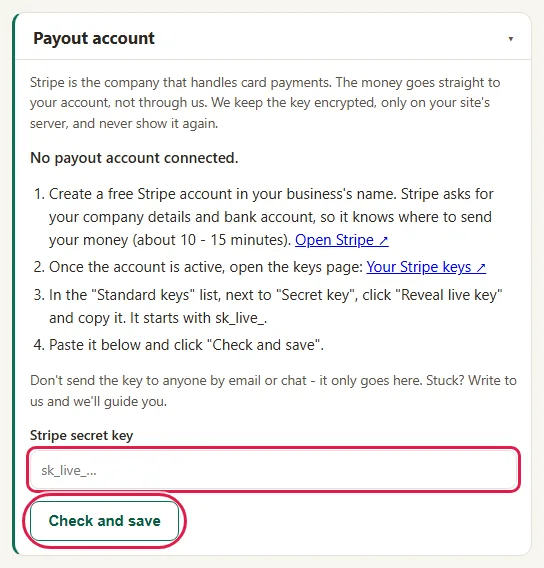
- Further down, the Payout account card is open and says "No payout account connected." It has the steps to follow.
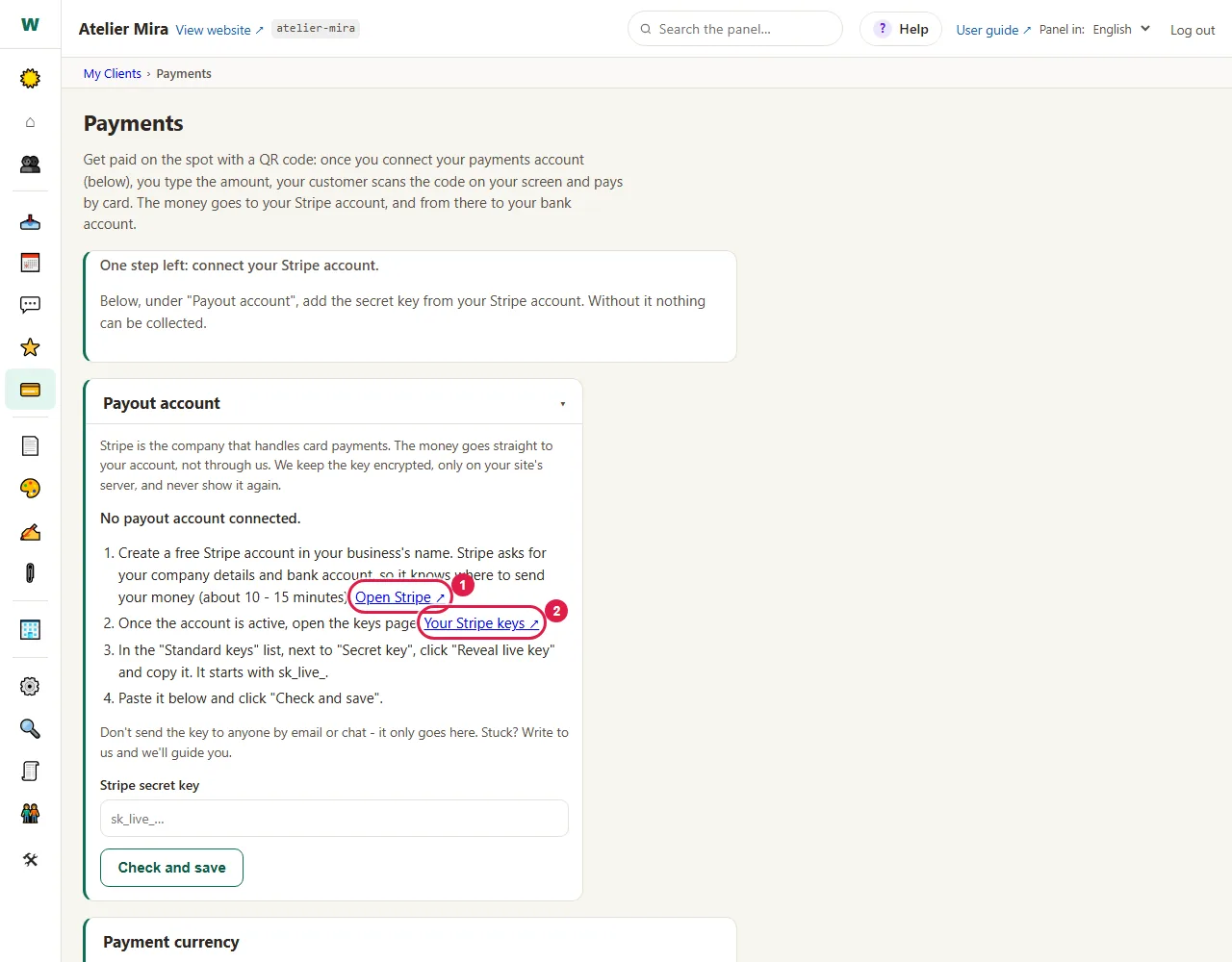
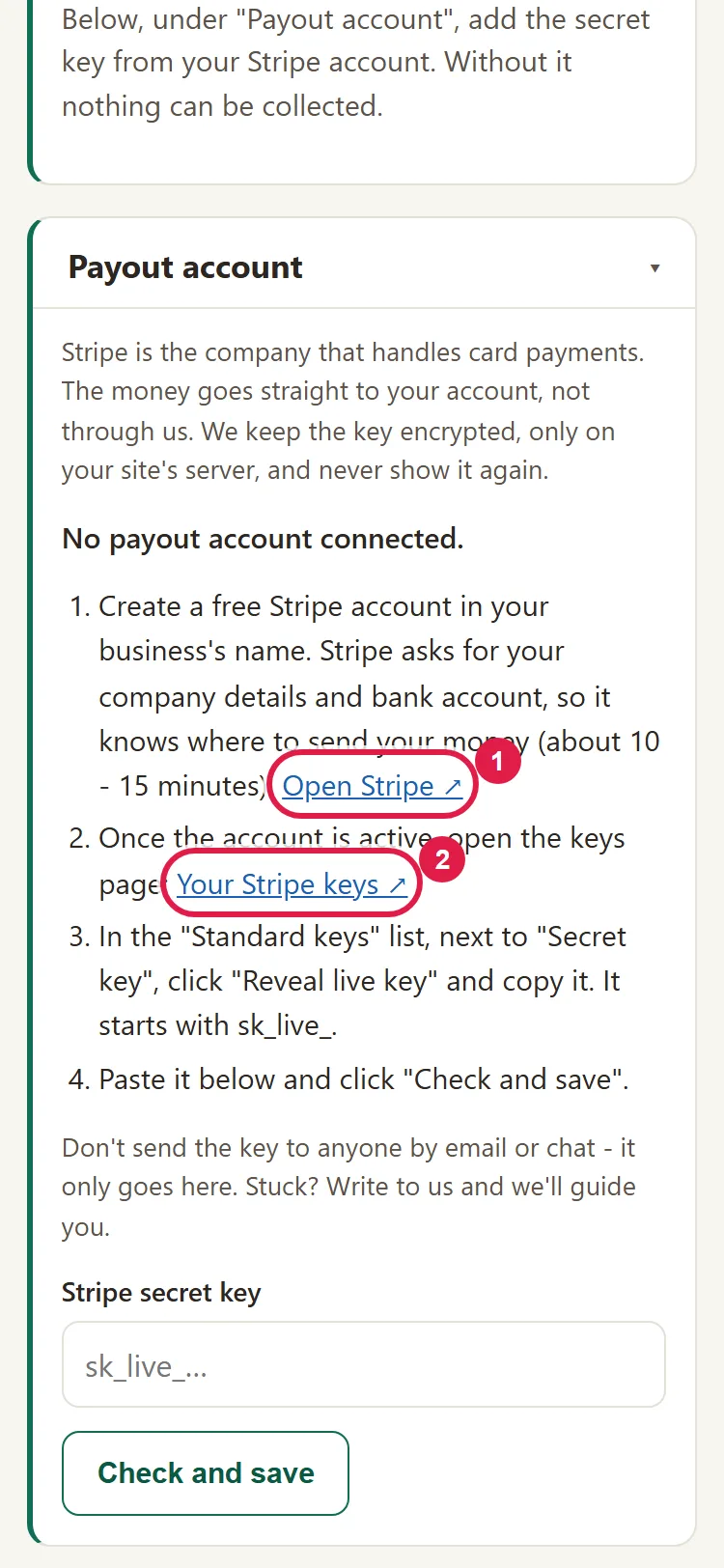
- Click Open Stripe ↗ and create a free Stripe account, in your business's name. If your business already has a Stripe account, don't create another one: sign in to the existing one.
- Once the account is active, come back to the admin panel and click Your Stripe keys ↗. The page with the keys of your Stripe account opens.
- Just as the card says: in the "Standard keys" list, next to "Secret key", click "Reveal live key" and copy the key. It starts with sk_live_.
Don't send the key to anyone by email or chat, not even to us: it only goes into the admin panel.
How to put the key into the admin panel
- Paste the key into the Stripe secret key field of the Payout account card.
- Click Check and save. First we ask Stripe whether the key works, then we save it.
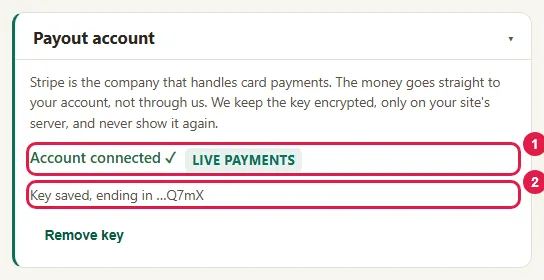
- If the key is good, Account connected ✓ appears, with live payments, plus "Key saved, ending in" and the last 4 characters. The full key never appears again. If Stripe didn't respond at that moment, the message is "Key saved, but we could not verify it with Stripe." The card still shows Account connected ✓, but the key isn't verified, so run the test payment.
- The Collect now card appears above. If Stripe has activated your account and you've added your bank account, you can now take payments; the test payment below tells you for sure whether it works.
How to choose the currency
- On the same screen, under Payment currency, choose RON (lei) or EUR: the same one your prices are written in under "Services & Prices".
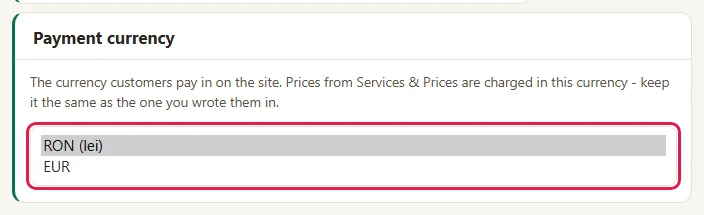
- The currency is saved as soon as you choose it: "Currency saved." appears.
The currency you choose applies to the codes you create from now on. A code created earlier is still collected in its own currency; if you want it in the new currency, delete it and create it again.
How to run a test payment
- Under Collect now, click Something else (new line), type "Test" and 5 lei (or 1 euro, if you collect in euros), then Add.
- Click Generate QR code, scan the code with your phone's camera (or click Open) and pay yourself, with your own card.
- Look in Stripe: the payment should show up there.
- Refund your test payment from Stripe. The Stripe fee for it isn't returned with the refund.
- Delete the code from Active codes, with ✕.
How to change the key or the Stripe account
- In Payout account, click Remove key.
- Confirm: "Remove the key? Payments stop immediately."
- Get the new key and put it into the admin panel, following the steps above ("How to create your Stripe account and get the key" and "How to put the key into the admin panel").
There's no "replace": first you remove the old key, then you put in the new one. As long as there's no key, payment links and active codes don't work. Earlier payments and their refunds stay in the old Stripe account; if you put in another account's key, active codes are paid into the new account from then on.
Common problems
- "It says: Stripe rejected the key." The key has the right format, but Stripe doesn't recognize it: usually it was only half copied or it's no longer valid. Copy "Secret key" again, in full. If it still doesn't work, write to us at contact@webid.ro (without the key!).
- "It says: The key doesn't look like a Stripe secret key." You pasted something else (spaces, a pk_ key, an account code). Copy the key again.
- "It says: Key saved, but we could not verify it with Stripe." Stripe didn't respond at the moment of saving. The key is saved: run a small test payment.
- "It says: test mode." You put in the test key: payments are only for testing, the money isn't real. Click Remove key and put in the key that starts with sk_live_.
- "The client paid, but the money isn't in my bank." The payment is in Stripe; Stripe sends the money to your bank on its own schedule: How to see the money you've collected, what fee you pay and how to refund a payment.
- "I removed the key by mistake." Payments have stopped. Get the key from Stripe again (or a new one, if Stripe no longer shows it to you) and put it into the admin panel.
- "I sent the key to someone by mistake." In Stripe, create a new key to replace it, so the old one stops working. Then, in the admin panel, click Remove key and put in the new key.
- "I don't see the Payments screen." Your role is Editor. You need the Administrator or Owner role: ask the website's owner for it.
- "Something else isn't working." Write to us at contact@webid.ro with what appears on the screen (without the key!) and we'll guide you.
What it doesn't do
- It doesn't create your Stripe account and doesn't verify it for you: the documents, the bank account and the activation are handled by Stripe.
- It doesn't route the money through us: you collect into your Stripe account, with your key.
- It doesn't show you the key again after saving. If you lose it, you get it from Stripe again (or a new one, if Stripe no longer shows it to you).
- When saving, we only ask Stripe whether it accepts the key, not whether you can already take payments (account activated, bank account added). That's why the test payment is worth doing.
- Until you connect your Stripe account, you can't create payment codes and links. That's why you should connect the account as soon as you have Maintenance active.
What data it uses
We keep the Stripe secret key encrypted, only on your website's server, and we never display it again after saving. We use it only to talk to Stripe: when you save it, to check that it works, and then for every payment you collect. "Remove key" deletes it from the file immediately. The key isn't personal data, but access to your Stripe account: don't send it to anyone, and we protect it with the measures in the DPA, §6.