How to take card payments for a service or a deposit
With Card payments, you collect from the admin panel for a service from your list, a deposit or an amount agreed with the client, without a card terminal. The money goes straight into your Stripe account, doesn't pass through us and we don't keep anything from it. Only the Stripe fee is deducted from each payment (how much it is). It isn't an online store (no cart, stock or shipping), but payment for a service or for an amount you ask for. Tax documents remain your responsibility, as with any payment you receive (see below).
Card payments come free with Maintenance (details on Pricing).
What you need first
- Maintenance active. If you stop it, card payments keep working, just without updates.
- Your business's Stripe account connected in the admin panel: How to connect your Stripe account.
- The Owner or Administrator role in the admin panel. Anyone with the Editor or Article editor role doesn't see the "Payments" screen.
What to choose before your first payment
In the admin panel, open "My Clients › Payments" and, under Payment currency, choose RON (lei) or EUR: the same one your prices are written in.
How to request an amount (deposit, final payment, an installment)
- In the admin panel, open My Clients, then Payments. Use the Collect now card.
- For a service on your list, choose it from Choose a service… and click Add. If you add it twice, the quantity goes up.
- For an amount that isn't on the list, click Something else (new line), type under Name what you're collecting (for example "Deposit for appointment Tuesday, 2:30 PM") and the amount, then Add.
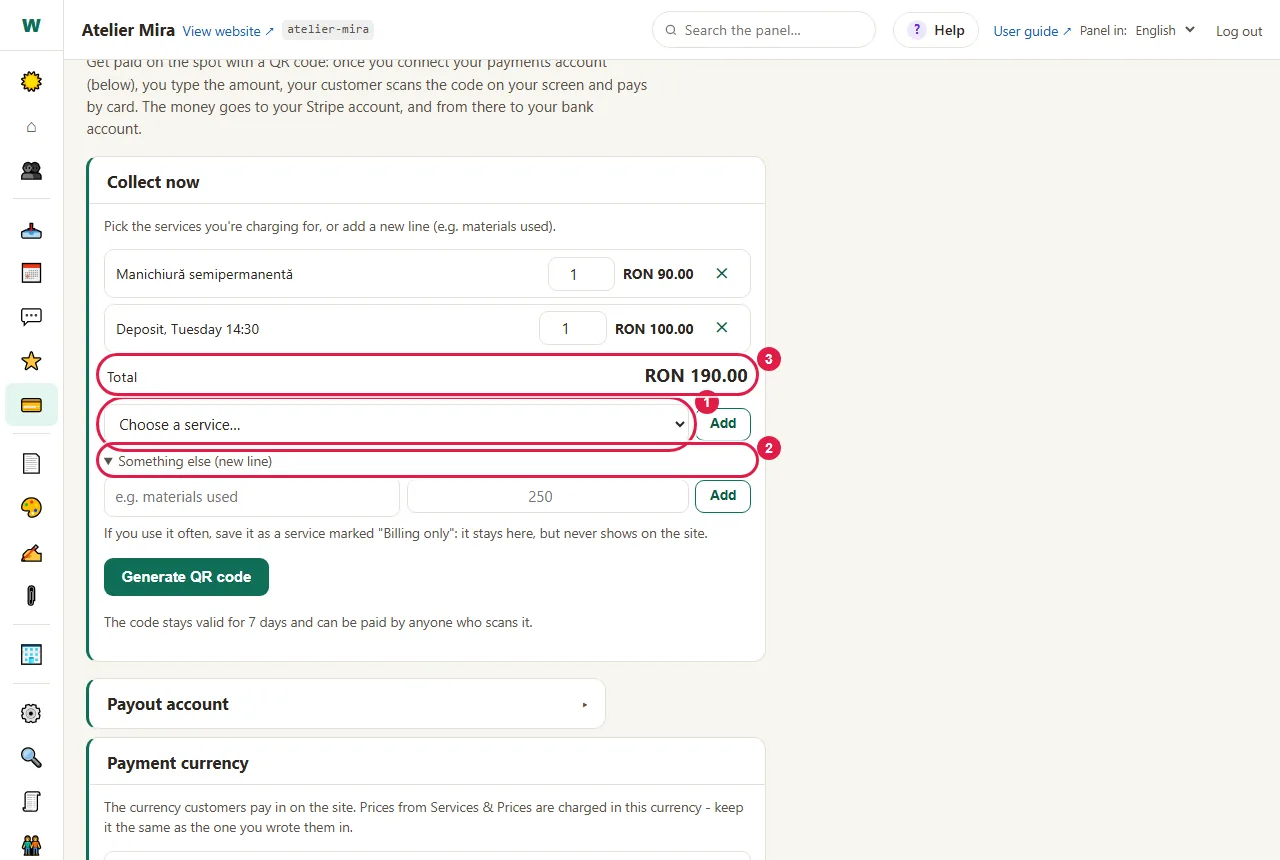
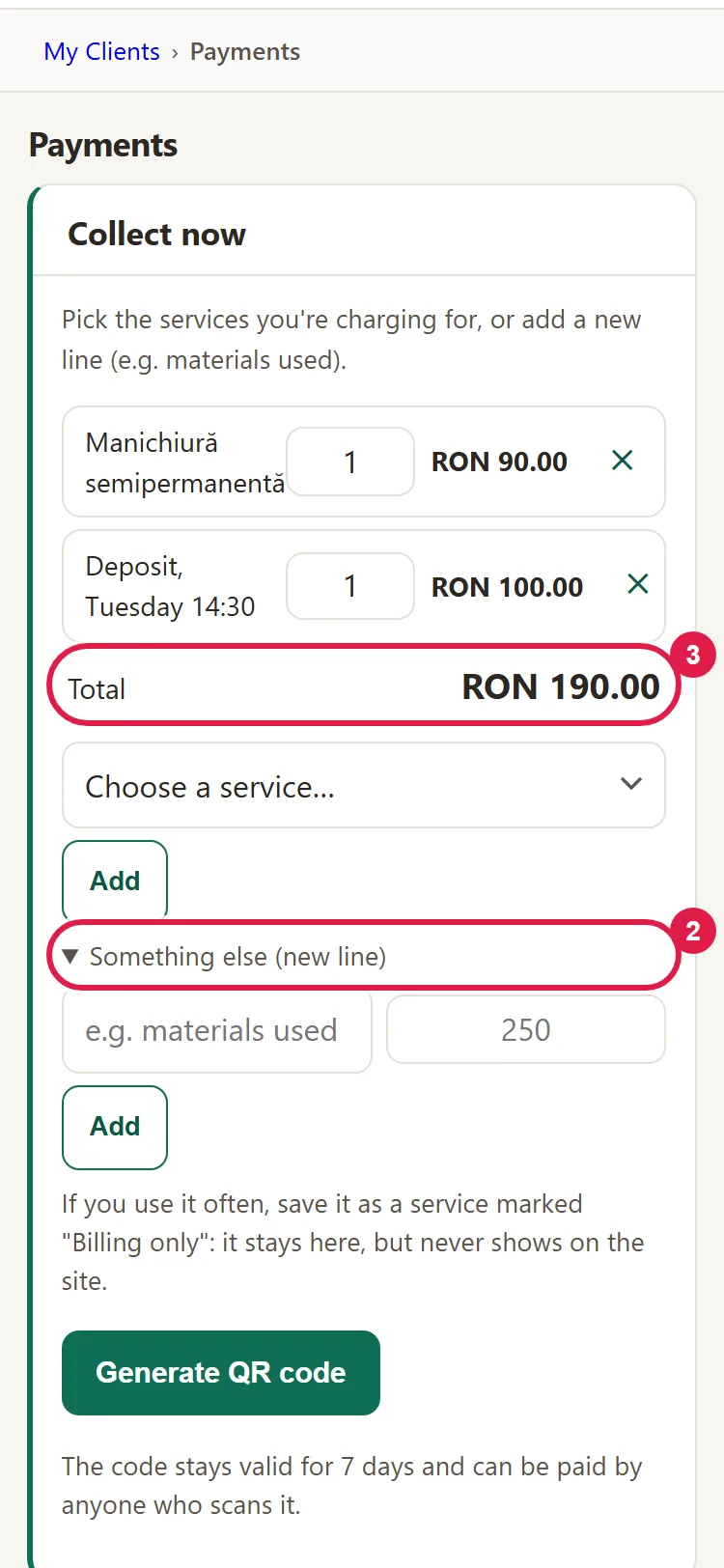
- Check Total and click Generate QR code. The code is valid for 7 days and anyone who scans it can pay it, any number of times, until you delete it. Once the payment shows up in Stripe, delete it (see "How to find out whether they paid").
- If the client is next to you, show them the screen: they scan the code with their phone's camera and pay. The steps are in How to take payments with a QR code at the counter.
- If they're not next to you, under Send to the client choose Copy link, Email, WhatsApp or, on a phone, Other app. The message is already written, with the amount and the link.
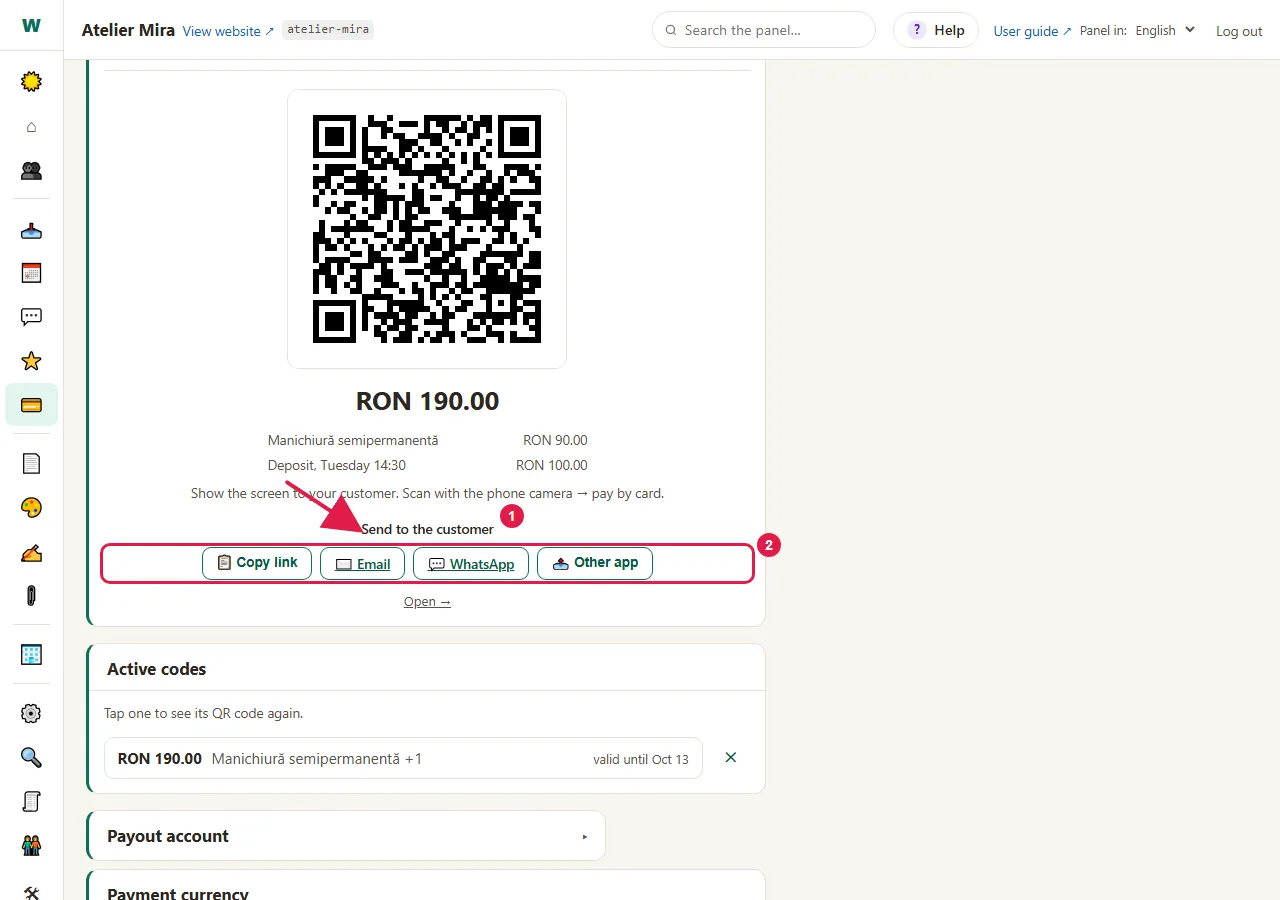
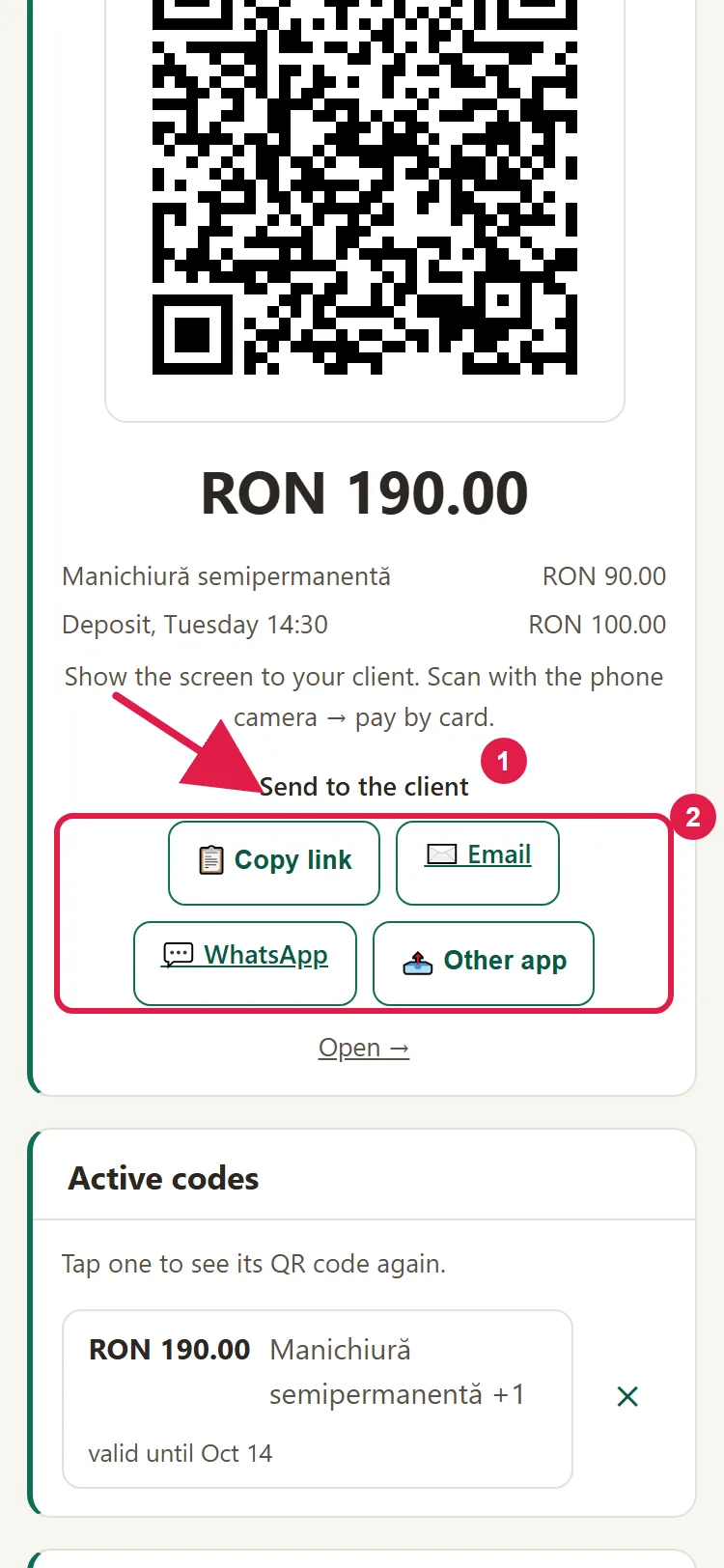
- You press "send" yourself in your app. We don't send anything on your behalf.
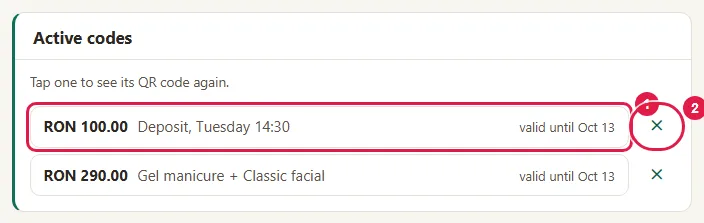
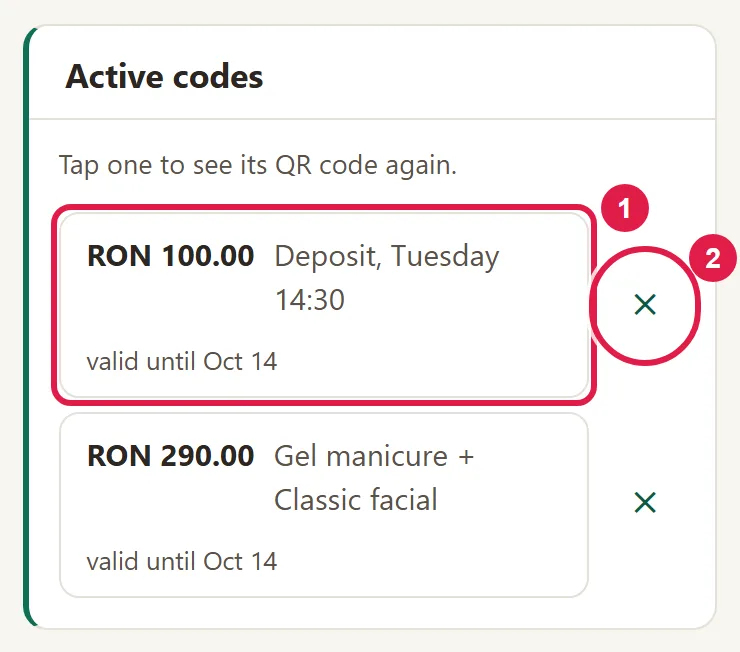
- The code appears under Active codes, with the amount, the description and the date it's valid until. Click it to see the QR code and the sharing buttons again.
If you often request the same amount, you can save it as a service marked Billing only: it appears in the list in "Payments", but not on the website.
How to request a deposit for an appointment
The appointment and the payment aren't linked: the admin panel doesn't request the deposit by itself and doesn't mark the appointment as "paid". You request the deposit like this:
- Confirm the appointment, as usual: How to find out early who isn't coming and free up the time.
- In "Payments", under Collect now, click Something else (new line), then type the name (for example "Deposit cut and color, Tuesday 2:30 PM") and the amount.
- Click Generate QR code, then WhatsApp or Copy link (to send it via SMS).
- You collect the rest at the end, with a new code, on a card terminal or in cash.
If the client doesn't pay the deposit, the appointment stays as it is. You decide what to do with it.
How to collect the final payment or an installment
- At the end of the service: add the services you did from the list, plus, if needed, a new line (for example "Materials used"), and show the client the QR code. If you took a deposit, don't add the service from the list, because you'd collect the full price: create a new line with the remaining amount (for example "Balance cut and color").
- An installment or an amount agreed over the phone: add a new line with the amount, then send the link. The link expires after 7 days; for the next installment, you create a new code.
How to find out whether they paid and what to do next
- Look in your Stripe account or in the Stripe app: that's where you see the payment. The admin panel doesn't show you whether it was paid. The name of the lines reaches Stripe along with the payment, so a clear one (for example, with the day and time) helps you tell apart two payments of the same amount.
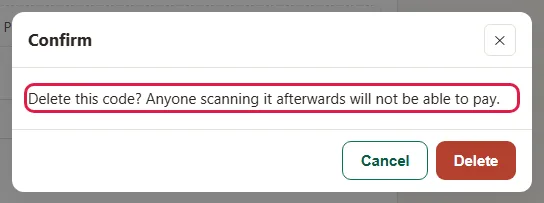
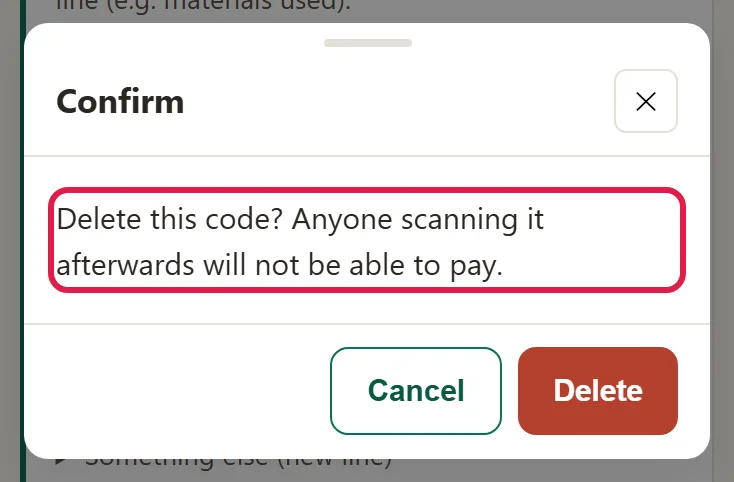
- Once you've been paid, delete the code: under Active codes, click ✕ and confirm. Until you delete it, the code can be paid again.
- If you need to refund a payment, you do it from Stripe: How to see the money you've collected, what fee you pay and how to refund a payment.
- Neither WebID nor Stripe issues the invoice: the money goes into your Stripe account, and you issue the tax documents yourself, from your own invoicing software, as with any payment you receive. Every invoice, including one to an individual, you also send to RO e-Factura (SPV), Romania's national e-invoicing system, within the legal deadline (today, 5 business days); ask your accountant. If the client doesn't give you their CNP (personal identification number), the code field gets 13 zeros. If you also need a cash register (fiscal receipt) for card payments, especially at the counter, with the QR code, ask your accountant: it depends on your line of business.
What your client sees when paying
The client lands on the Stripe payment page, where they see each line, with the name, quantity and price, plus the total, in the currency you chose. After paying, they see a page that tells them, in their language, whether the payment went through or was canceled. It's a one-time payment, not a subscription. They enter their card details on the Stripe page: they don't pass through your website. The details are in How to see the money you've collected, what fee you pay and how to refund a payment.
Common problems
- "I don't see Collect now." Your Stripe account isn't connected. Connect it from the Payout account card: How to connect your Stripe account.
- "The client says the link doesn't work." 7 days have passed or you deleted the code, and the client sees "Payment link expired or doesn't exist." Create a new code.
- "The client sees: Too many attempts. Try again in a few minutes." Too many payment links were opened from the same phone or the same network in a short time. Tell the client to try again in a few minutes.
- "The client sees: We couldn't start the payment. Try again." Stripe didn't start the payment, for example because the key was deleted or disabled in Stripe, or the account isn't activated yet. The client's card isn't to blame. Check your Stripe account and your key: How to connect your Stripe account.
- "They paid twice." The code or link was paid twice: until you delete it, it can be paid again. Refund one of the payments from Stripe and delete the code.
- "I changed the currency and the code still shows lei." A code is collected in the currency you created it in. If you want it in the new currency, delete it and create it again.
- "I don't see the Payments screen." Only the Owner and Administrator roles have access. Ask the owner for the Administrator role.
- "Something else isn't working." Write to us at contact@webid.ro with what you see on the screen (or what the client sees) and we'll help.
What it doesn't do
- It doesn't link the payment to an appointment and doesn't mark the appointment as "paid".
- It doesn't tell you in the admin panel that it was paid: you check in Stripe. A code can be paid more than once, until it expires or until you delete it.
- After paying, the client sees "Payment complete. Thank you!" and a link back to the website. You see the payment only in Stripe.
- It doesn't put a payment button on your website: you collect from the admin panel, with a link or a QR code.
- It doesn't issue an invoice or a receipt.
- It doesn't do refunds from the admin panel: you do them from Stripe.
- It isn't a store: no cart, stock or shipping.
- There's no fixed QR code to stick on the counter or on a poster: each code expires after 7 days.
- The amount on a new line and the total of a code can be between 1 and 100,000; a code has at most 50 lines, and a name at most 120 characters.
What data it uses
Your client's card details don't pass through us: the payment is made on the Stripe page, straight into your Stripe account, and for these payments you are the controller, with Stripe as the provider you chose. The website's server only keeps the payment codes you create (the amount, the currency, the lines and what you type under "Name" - so also a client's name, if you type it there) and, to limit attempts, a hash of the IP address, not the address itself. Details in the DPA.