Card payments
How to take payments with a QR code at the counter, without a card terminal
When the client is in front of you (at the salon, at the repair shop or at their home), you can let them pay by card from their own phone, without a card terminal. You create the QR code in the admin panel, on your phone, and the client scans it with the camera, with no app needed. It takes as long as adding what was done. You then see the payment in Stripe, not in the admin panel.
What you need first
- Card payments (free with Maintenance) and your Stripe account connected: How to connect your Stripe account. Separately, the Stripe fee is deducted from each payment (how much it is).
- Your phone or tablet, with internet and the admin panel open, and the Owner or Administrator role.
- The client's phone, with a camera and internet.
How to take a payment with the QR code
- On your phone, in the admin panel, open My Clients, then Payments. Use the Collect now card.
- Add what was done: choose the service from Choose a service… and tap Add. Repeat for each service.
- For anything that isn't on the list (materials, a tip the client asked to add), tap Something else (new line), fill in Name and the amount, then tap Add. Did you give a discount? Don't choose the service from the list: enter it as a new line, with the reduced price (for example "Haircut, reduced price"). Check Total.
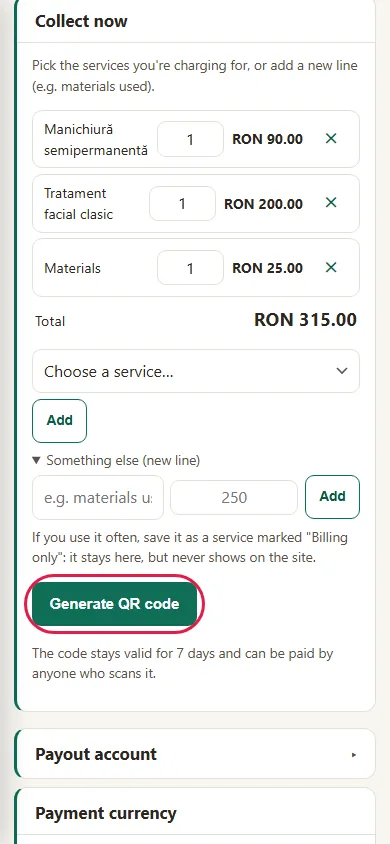
- Tap Generate QR code. The large code appears on the screen, with the total and the lines, and "Show the screen to your client. Scan with the phone camera → pay by card."
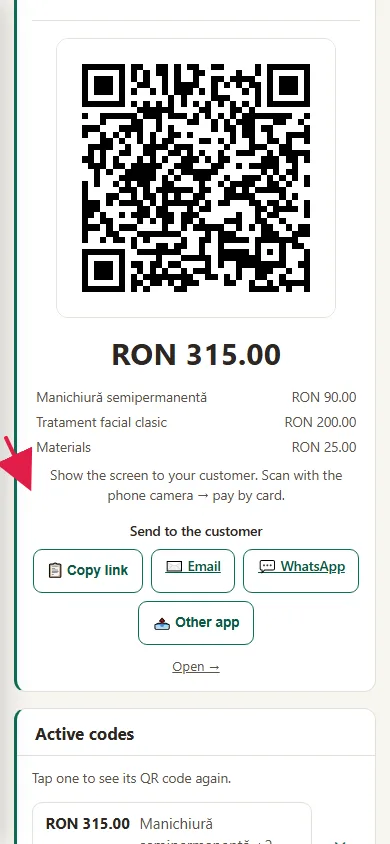
- Turn the phone toward the client. They scan the code and pay on the Stripe page, where they see the lines and the total. They can't change the amount.
- Check the payment in the Stripe app, in the notifications or in the list of payments: look for a successful payment with the code's total. The admin panel doesn't tell you it was paid.
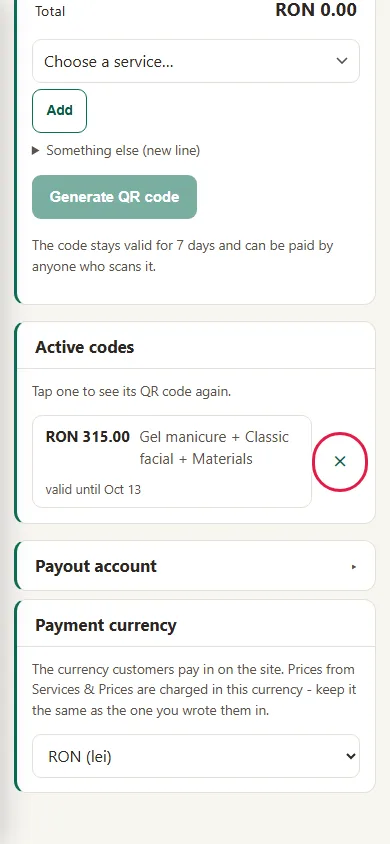
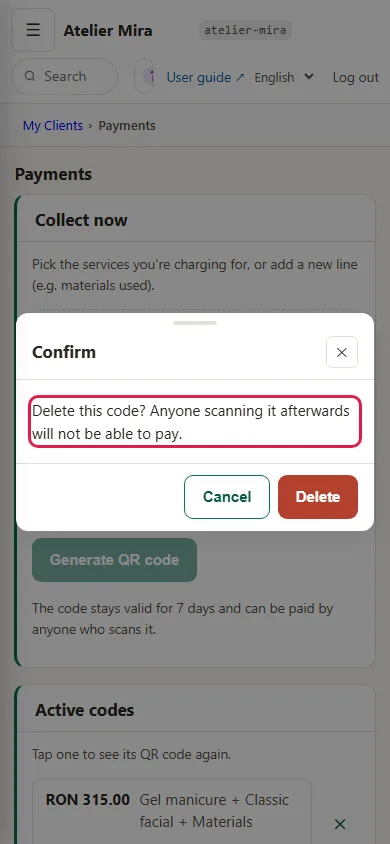
- Once you've seen the payment, delete the code: under Active codes, tap ✕, then confirm at "Delete this code? Anyone scanning it afterwards will not be able to pay." Otherwise the code can be paid again, by anyone who scans it, for up to 7 days from when you created it.
What to do if the client can't pay right now
- Under the code, under Send to the client, choose WhatsApp, Email, Copy link (to send it via SMS) or, on a phone, Other app.
- Send them the link from your app. They can pay it later, within 7 days at most from when you created the code. This time, don't delete the code until you see the payment.
What to do if you closed the screen with the code
- Go to Active codes.
- Tap the code: the QR code appears again, and the client can scan it.
Common problems
- "The client's camera can't read the code." First try turning up your phone's brightness. If it still doesn't work, send them the link (see "What to do if the client can't pay right now").
- "The client sees: Too many attempts." Too many payment links were opened from the same network in a short time, for example when many clients use the salon's Wi-Fi. Tell the client to switch to mobile data or wait a few minutes.
- "I got the amount wrong." Delete the code with ✕ and create another one.
- "The client paid twice." Refund one of the payments from Stripe: How to see the money you've collected, what fee you pay and how to refund a payment.
- "I don't see Collect now." Your Stripe account isn't connected: How to connect your Stripe account.
- "Something else isn't working." Write to us at contact@webid.ro with what you see on the screen and we'll help.
What it doesn't do
- It isn't a card terminal: your phone doesn't read cards and doesn't take contactless payments.
- It doesn't confirm the payment on screen: you see it in Stripe. The client sees "Payment complete. Thank you!" on their phone.
- A code can be paid more than once, until you delete it or until it expires, after 7 days.
- There's no fixed QR code to stick on the counter for a service: each code is created for one specific payment and expires after 7 days.
- It doesn't issue an invoice or a fiscal receipt. You issue the invoice yourself, from your own invoicing software (and in RO e-Factura, Romania's national e-invoicing system). If at the counter you also need a fiscal receipt from a cash register, ask your accountant: it depends on your line of business. The receipt Stripe sends by email doesn't replace an invoice.
- The Open → button under the code shows you the payment page on your own phone, without anyone paying anything.
What data it uses
The QR code only contains your website's address and a random code, with no personal data. What you type under "Name" is kept on the website's server, along with the code, and appears on the Stripe payment page, so don't type more there than you need (for example, the client's full name). The rest is the same as for card payments - details in the DPA.