How to change your term or cancel a subscription
Got the email saying your subscription is renewing and want a different term? Or want to stop an add-on, maintenance or hosting with us? Here you'll find out how to do it, in a few minutes, and what stays yours if you leave.
What to know before you change anything
- Subscriptions are paid in advance, for one month or for one year (12 months, with 10 paid). At the end, they renew for the same term, unless you change the term or stop them before then.
- 7 days before each renewal we send you an email: "Your subscription for ... renews on ...".
- Stopping takes effect at the end of the period already paid. You pay no penalties, and a message from you is enough.
- As long as you have subscription add-ons, maintenance can't be stopped before them.
- What you've paid for the current period isn't refunded if you stop the subscription early.
- What you've paid once (the website, Multilingual website and its languages, SEO - setup) doesn't stop: it stays yours.
How to change the term from the next renewal
Only the website owner or a colleague with the Administrator role sees the subscription part.
- In the admin panel, open Account & Settings, then My Account.
- Under What you have now, below the subscription, you'll find Term from the next renewal.
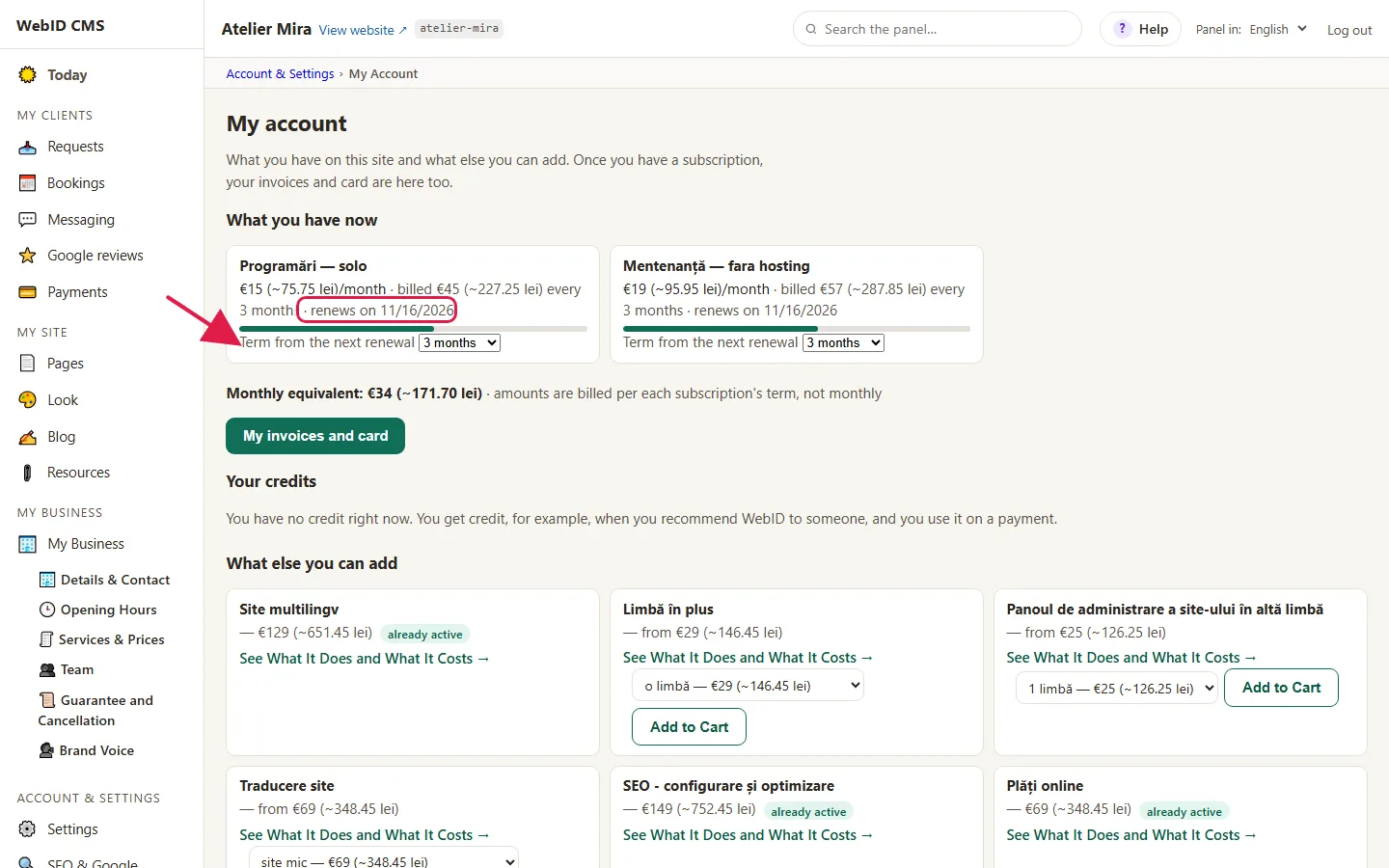
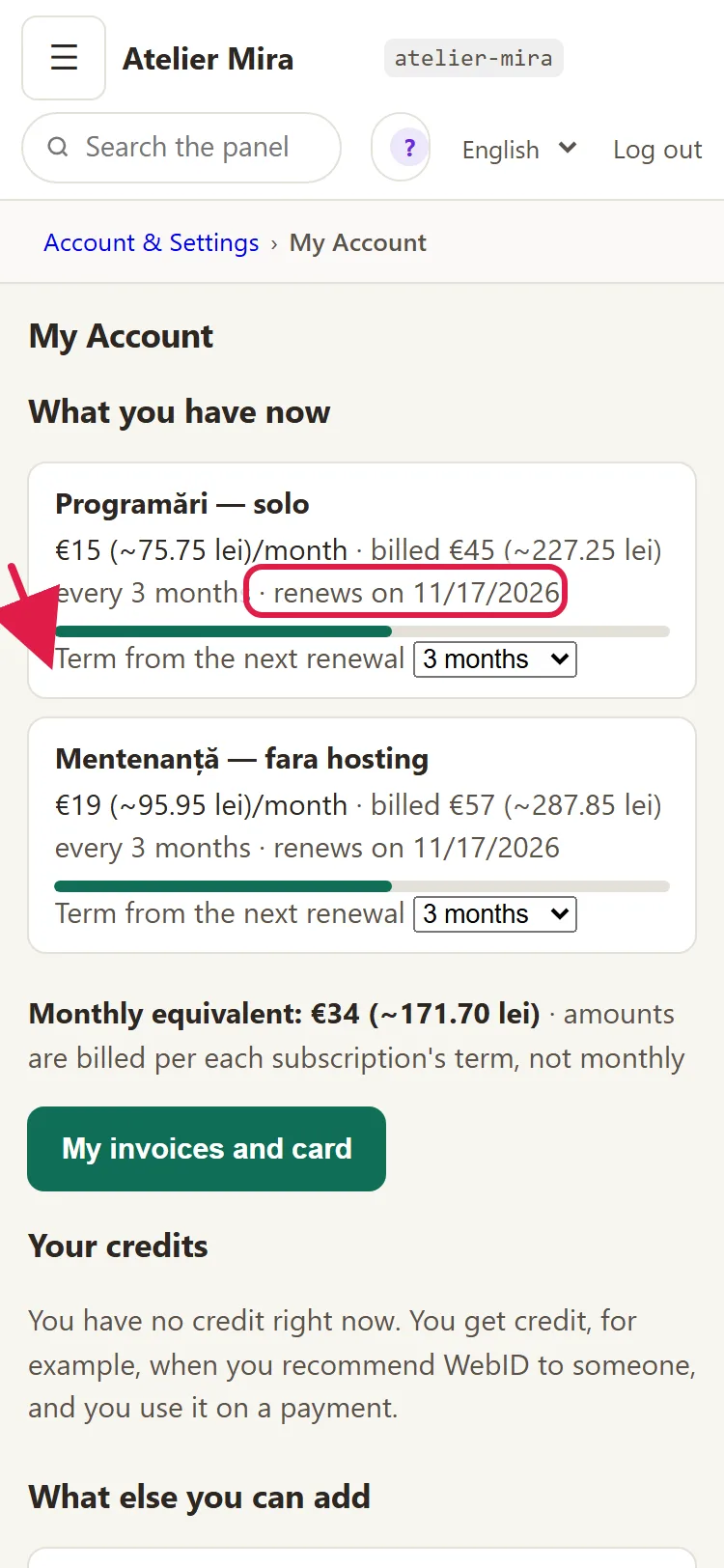
- Choose monthly or yearly payment.
- Your choice saves by itself. You see "applies at renewal", with the date, or "stays as it is", if you chose the term you already have.
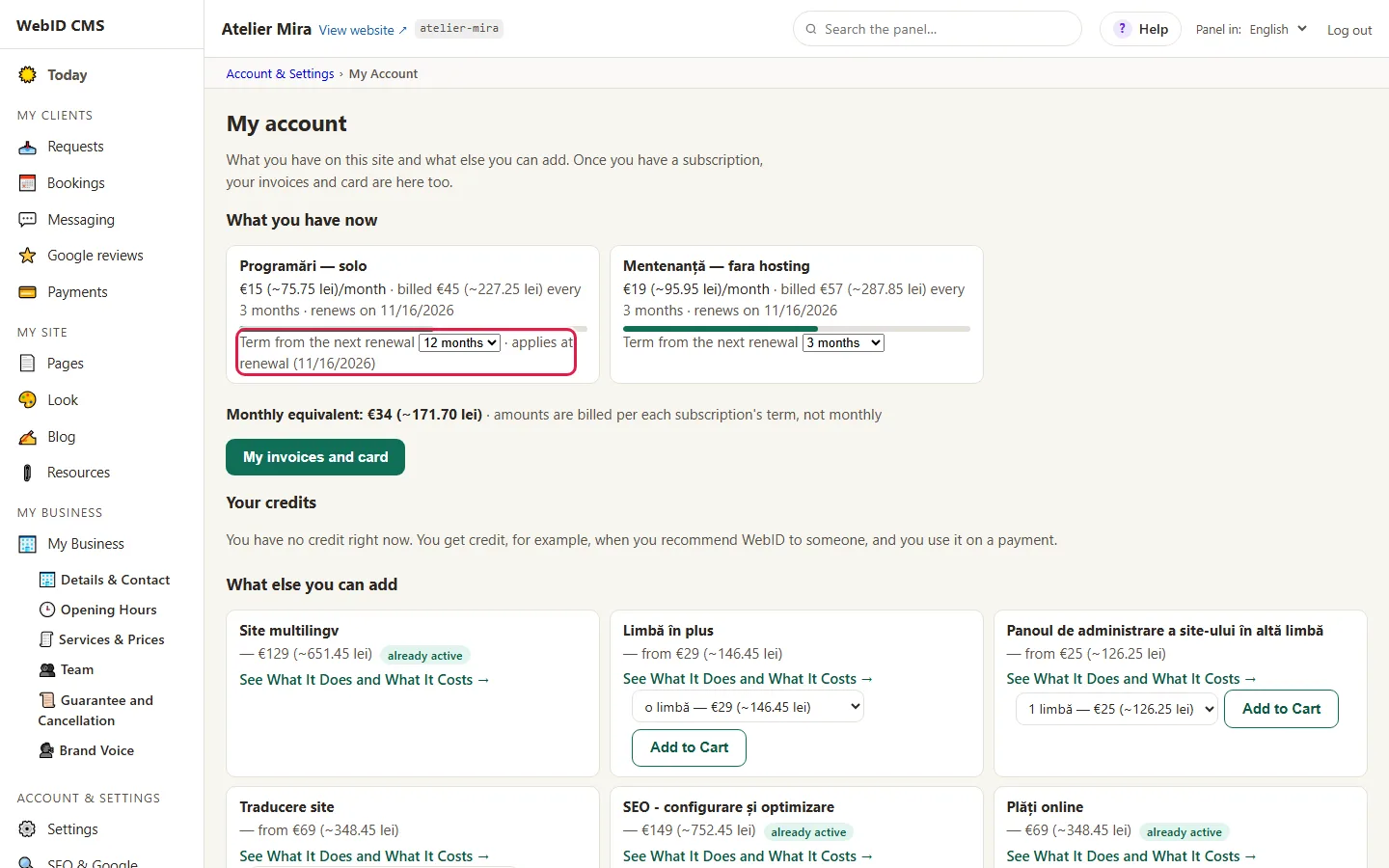
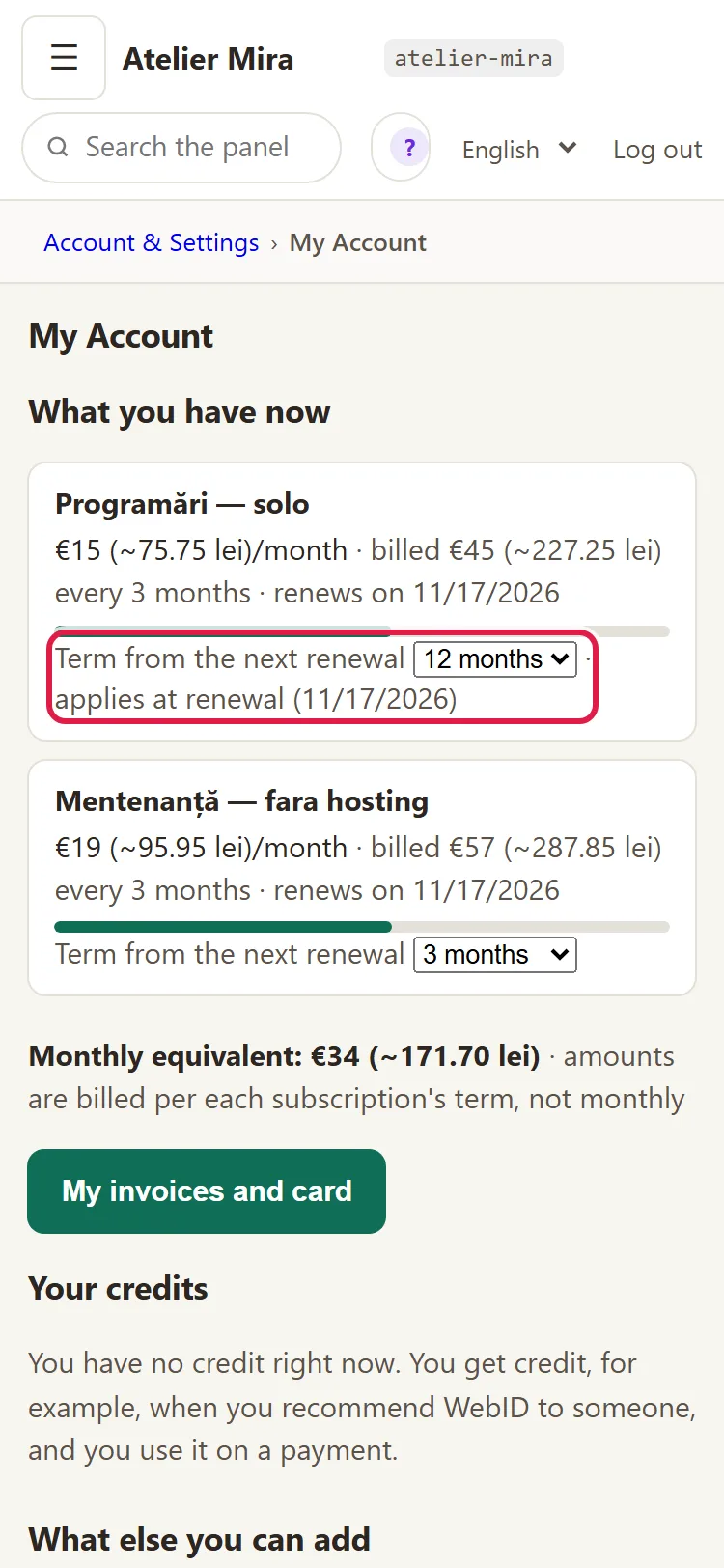
Nothing changes now: the paid period stays, and the new term, with its price, starts at renewal. Paying yearly, you pay for 10 months out of 12. You can switch from monthly to yearly payment (or back); the change applies from the next renewal. Changed your mind after the renewal email arrived? Reply to the email and we'll take care of it.
How to stop a subscription
The simplest way is by email:
- Reply to the renewal email by the date in it and tell us what you want to stop. We stop it for you, at no cost.
- Don't have the email at hand? Write to us at contact@webid.ro.
Or yourself, from the Stripe billing page:
- In the admin panel, open Account & Settings › My Account and click My invoices and card. Without the admin panel, you reach the same page from webid.ro, through Invoices, card and subscriptions (at Stripe) (the steps are in the guide How to find your invoices and change your card).
- On the billing page, choose the subscription and stop it. It stops at the end of the paid term.
Until the end of the term, everything works as before.
What happens at the end of the term
- The stopped feature: it no longer works on your website, a few hours after the end date. Its screens stay in the admin panel, with the offer, just like before you bought it.
- Your Google account: if you no longer have Visibility, we give up access to your Google account the same day. We delete the data brought in from Google within 30 days; the reports you've received stay in your admin panel.
- Maintenance: if you stop it, we no longer monitor your website and you no longer get updates and repairs.
- A website hosted elsewhere: it stays online, unchanged. Only the services you stopped end.
- A website hosted by us: hosting is part of maintenance. When you stop maintenance, we hand your website over to you, so you can put it wherever you want. Write to us at contact@webid.ro before the end of the term and we'll agree on the handover day together, so your website isn't offline.
What happens to your data
- The website, its texts, photos and structure stay yours. We don't hold your website "hostage" and we don't lock your domain.
- On request, we hand over the website files and the content from the admin panel.
- You can download your services, categories and specialists yourself, anytime, in an Excel file: My Business › Services & Prices › From Excel › Download the file with your data.
- Your clients' data from add-ons (for example, appointments): you tell us whether you want us to hand it over, delete it or both. You have 30 days from the end of the contract to ask for the export.
- We keep invoices for as long as the law requires.
What happens if a payment fails
- You get the email "The payment for ... didn't go through - we'll retry it".
- Change your card on the billing page (How to find your invoices and change your card).
- The payment is retried over the next 15 days and nothing stops until then. After 15 days, add-ons are paused, but their data isn't deleted: when the payment goes through, they start again with everything they had.
Common problems
- "I changed the term, but the renewal email shows the old term." Reply to the renewal email and we'll correct it.
- "I stopped the subscription, but the feature still works." Stopping takes effect at the end of the paid term. That's normal; it stops after the renewal date.
- "The feature stopped only today, not on the end date." The admin panel finds out about the stop at the next check, within a few hours or overnight.
- "Have I lost my appointments?" No, if a payment just didn't go through: the data stays. If you leave for good, you have 30 days from the end of the contract to ask for the export.
- "Something else isn't working." Write to us at contact@webid.ro with what you see on the screen and we'll take a look.
What it doesn't do
- You can't stop a subscription from "My Account": there you only change the term. You stop it by email or from the billing page.
- The unused part of a subscription paid for the current period isn't refunded.
- The term can only be one month or one year.
- A subscription that has already ended has no term left to change.
What data it uses
When you leave, we hand over your clients' data from add-ons (for example, appointments), delete it or both. Unless you ask otherwise, we delete it from our active systems 30 days after the end of the contract, and it disappears from backups after 182 days at the latest - see DPA §10. If you connected your Google account and you no longer have Visibility, we withdraw access to it the same day, and we keep invoices and proof that you accepted the contract for as long as the law requires - see the Privacy Notice §6 and T&C §16.