How to update your services and prices
You keep your services and prices in a single list in the admin panel. What you change there shows on each service's page, in the price list and, if you take online bookings, in the booking form. You change a price in a minute. On a website in several languages, each language has its own list, so you make the change in each of them.
How to change the price of a service
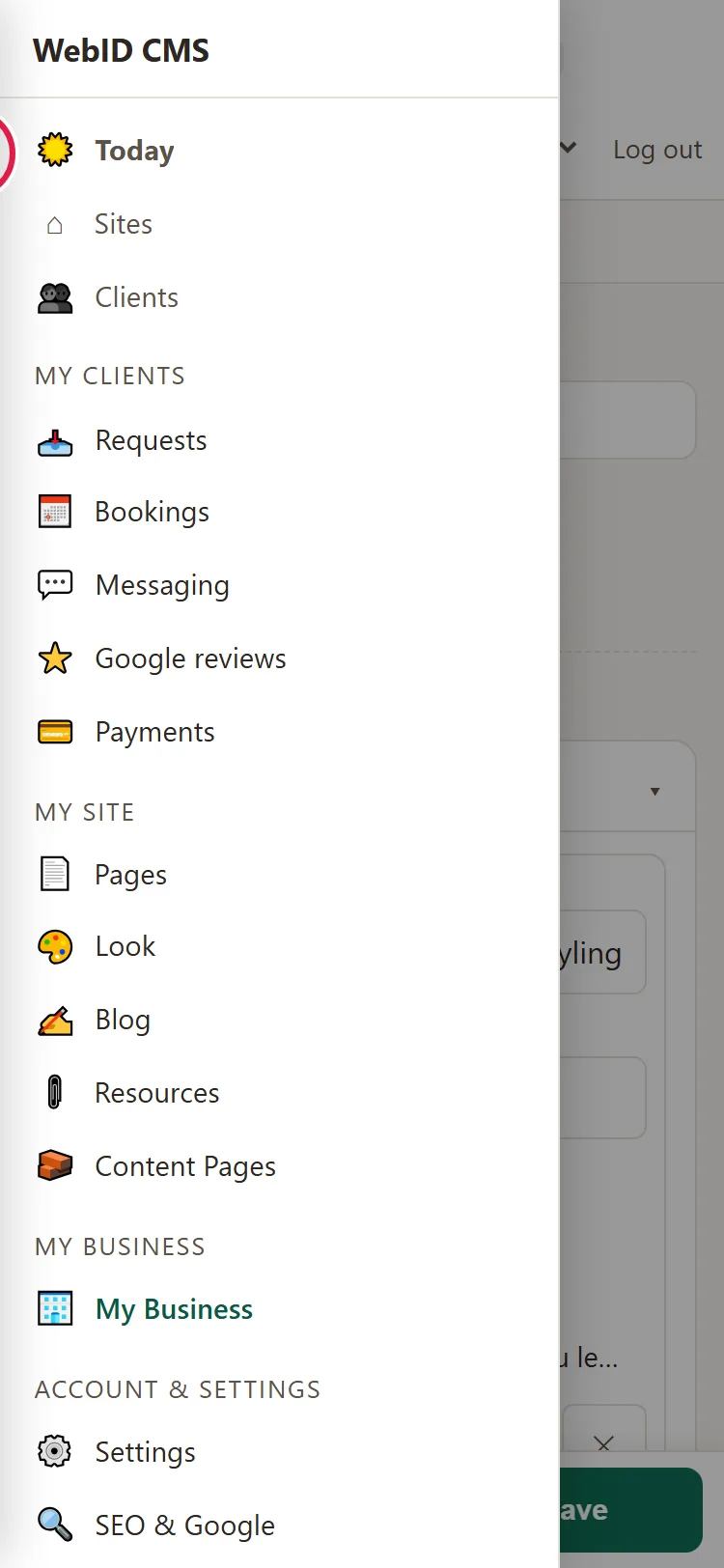
- In the admin panel, open My Business, then 🧾 Services & Prices. The list may have a different name, depending on your business: "Menu", "Rooms", "Products" or "Classes".
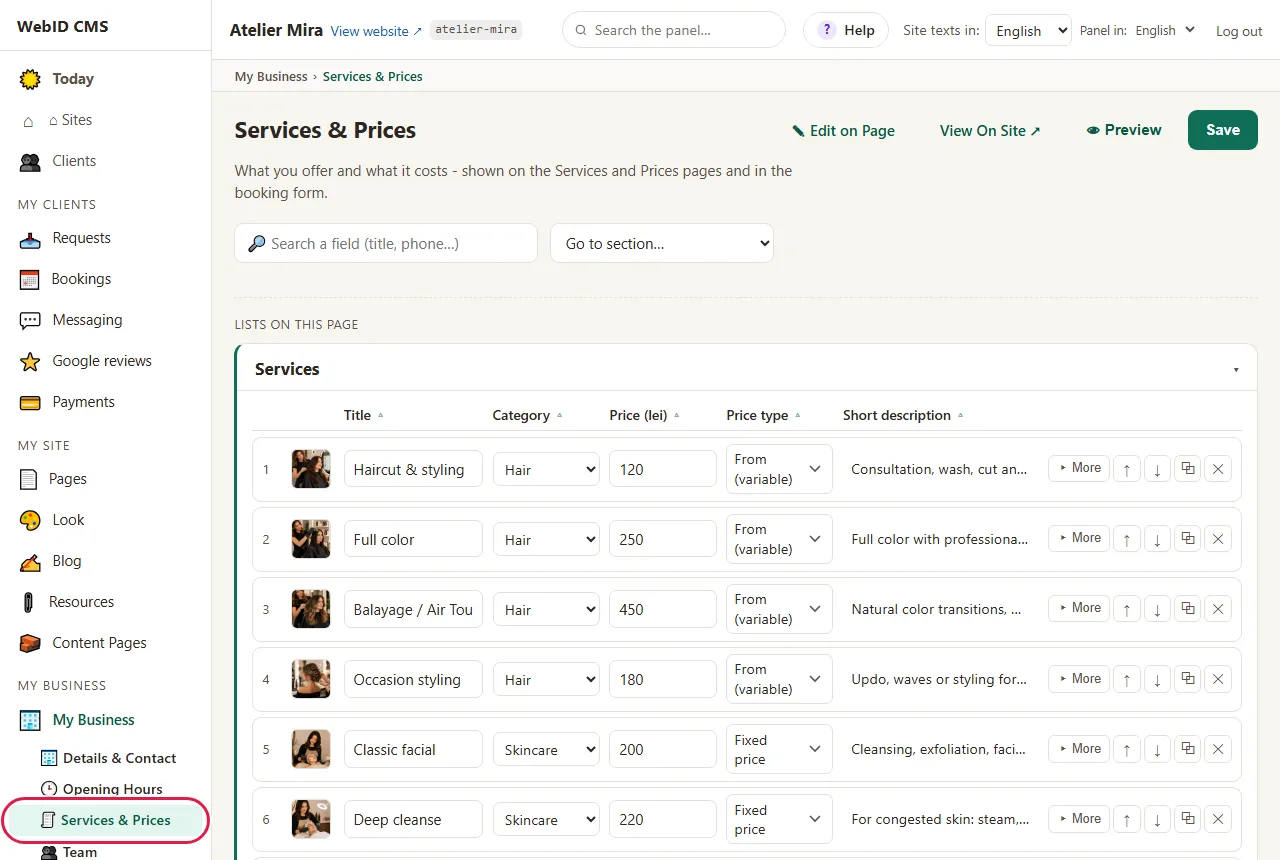
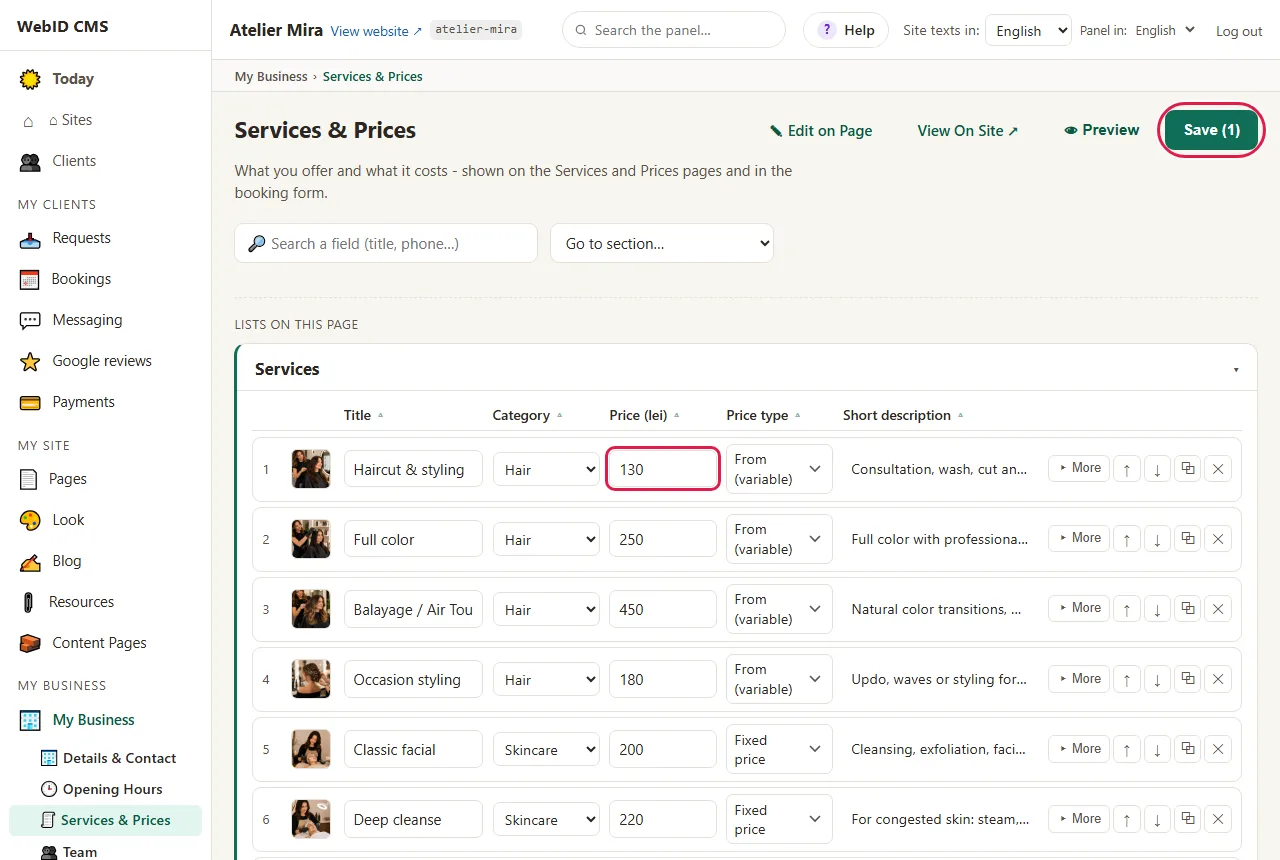
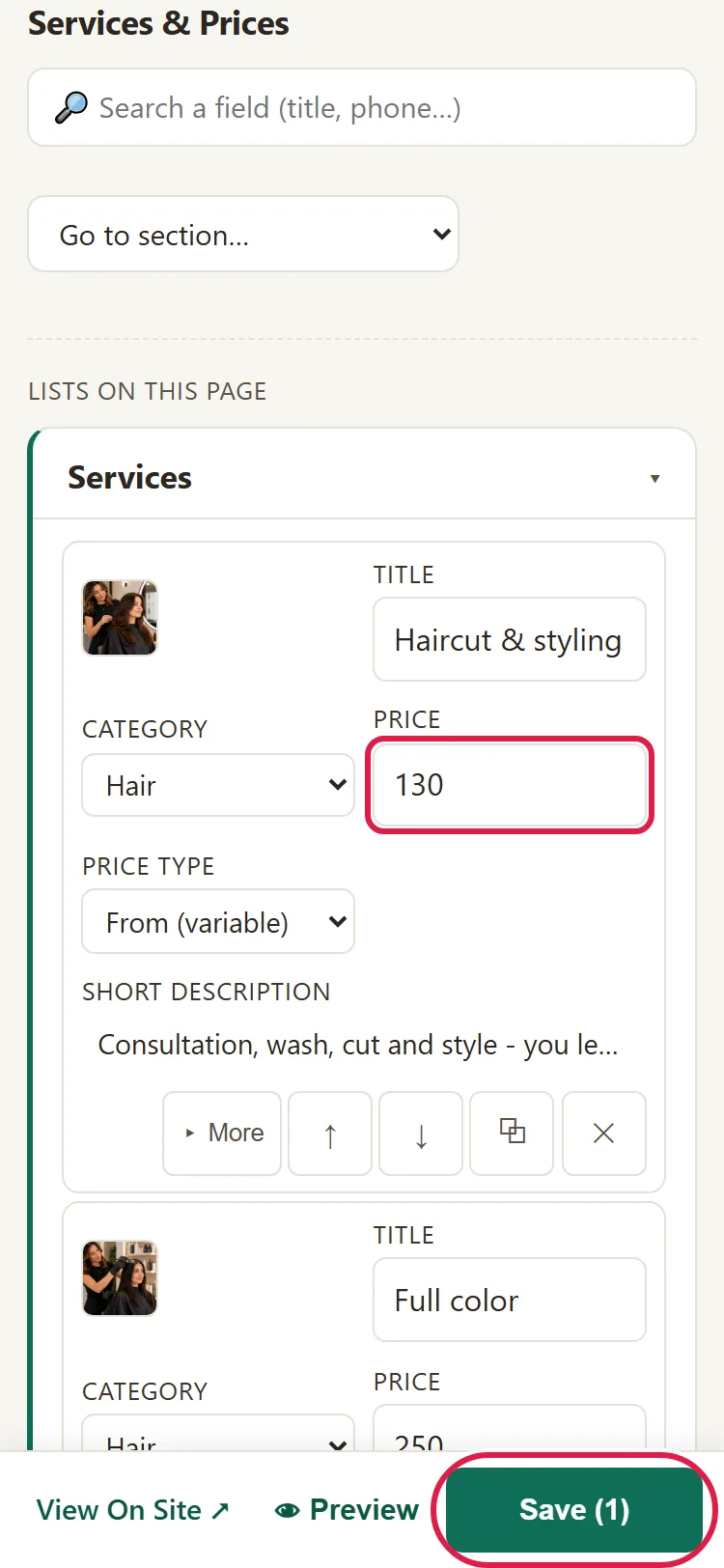
- You see a table with one row per service. Find the service and type the new price straight into the Price column. Type only the number, for example 120.
- Click Save, at the top. "Saved ✓" appears, and the new price shows on your website. Changed your mind? Click Undo, next to the message.
For a price that varies, pick From (variable) under Price type (see below): your website automatically shows "from" in front of the price.
How to change the description, the photo or the price type
- Click ▸ More, at the end of the service's row.
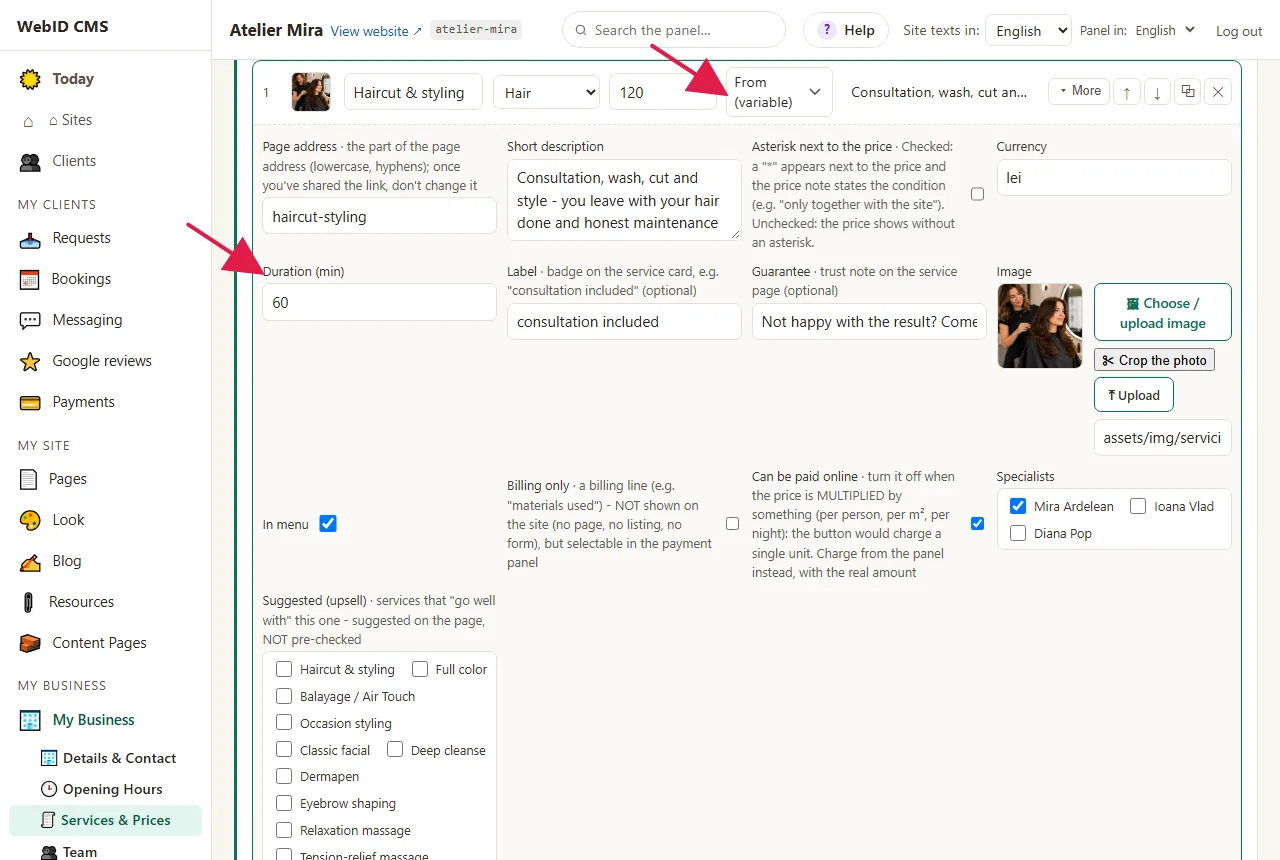
- Here you'll find Category, Short description, Full description (the text on the service's page), Price type (Fixed price or From (variable)), Currency, Label (a badge on the service card), Guarantee and Image.
- If you take online bookings, also fill in Duration (min) and, under Specialists, check the colleagues who do the service.
- Click Save.
How to add a new service
- Click + Add, under the list. A new row appears at the end.
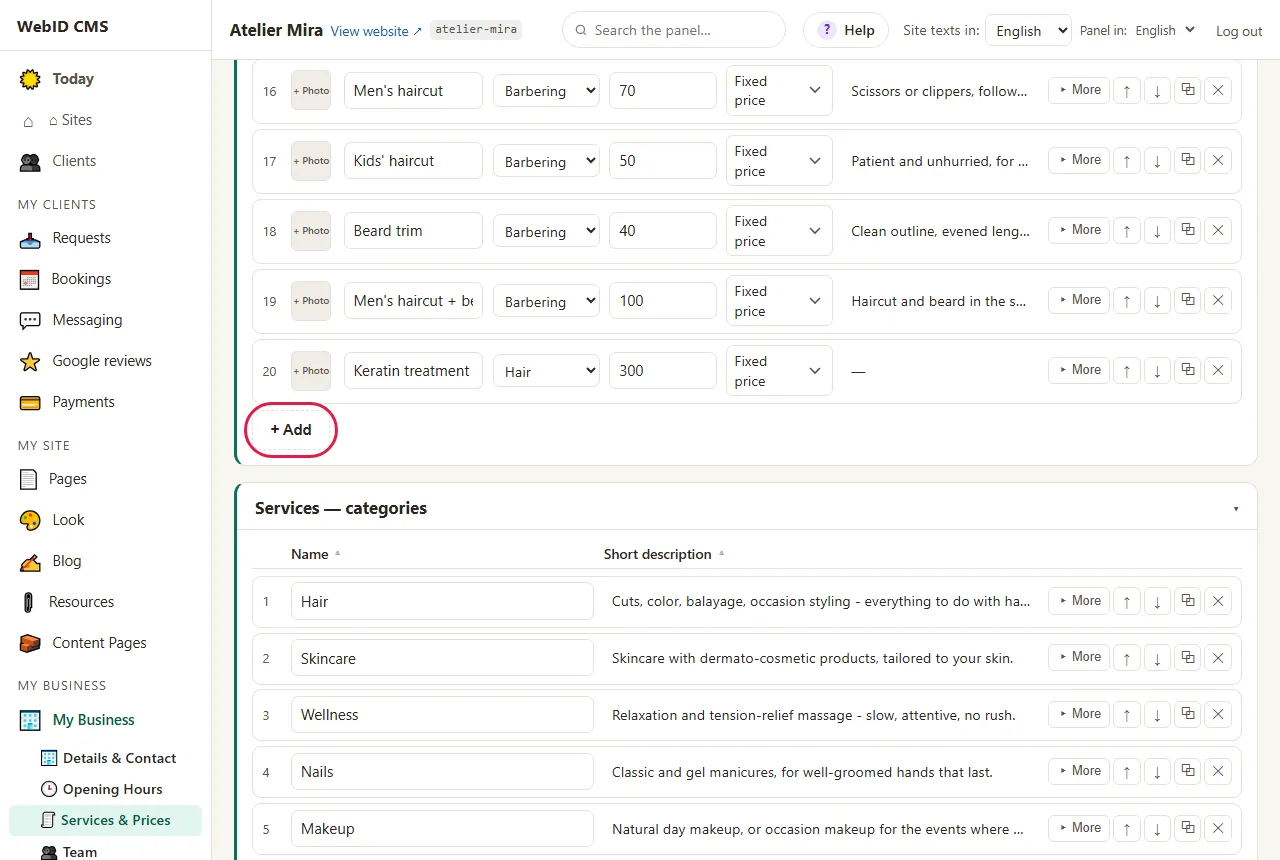
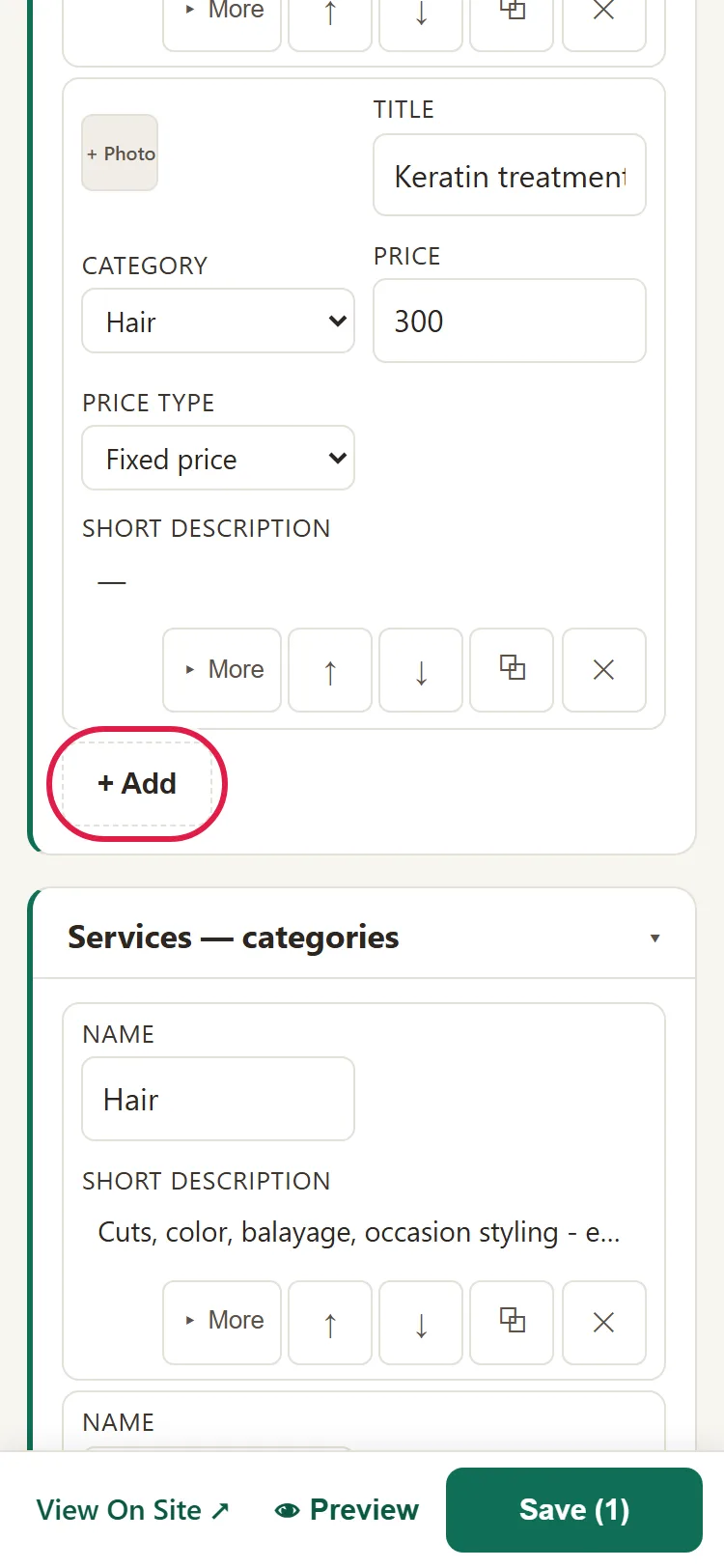
- Type the title and the price, then fill in the rest under ▸ More. To start from a similar service, click ⧉ on its row: it makes a copy that you change.
- You change the order of the services with ↑ ↓.
- Click Save. The message also tells you which new pages were made.
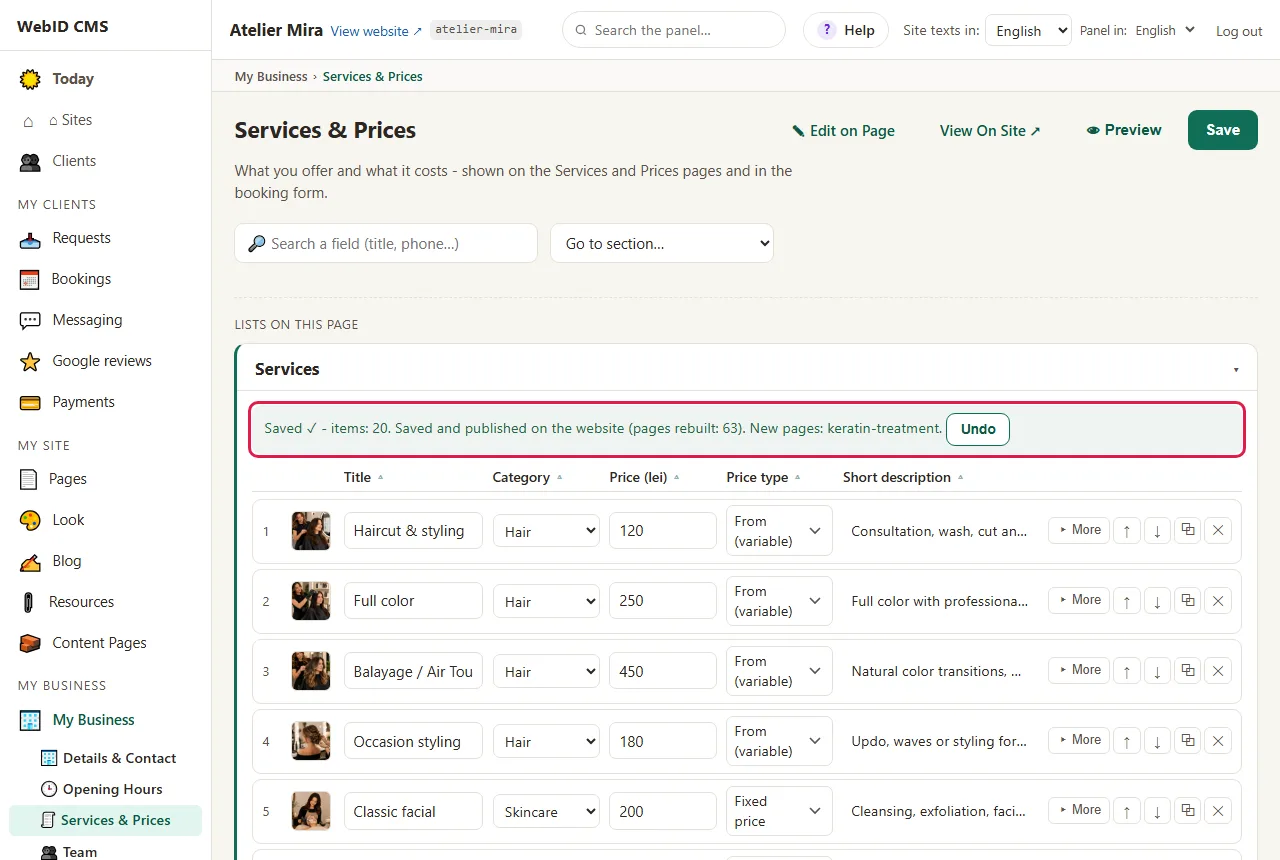
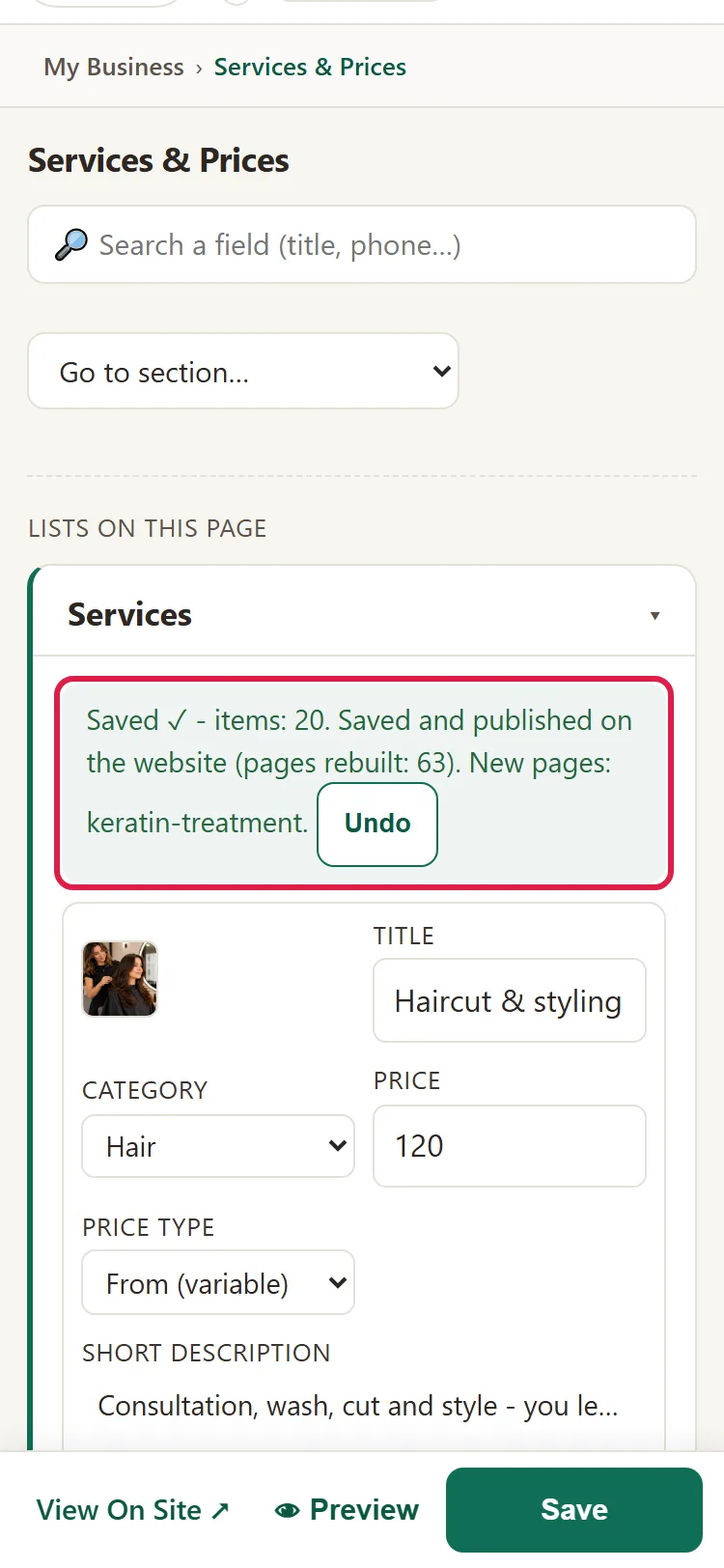
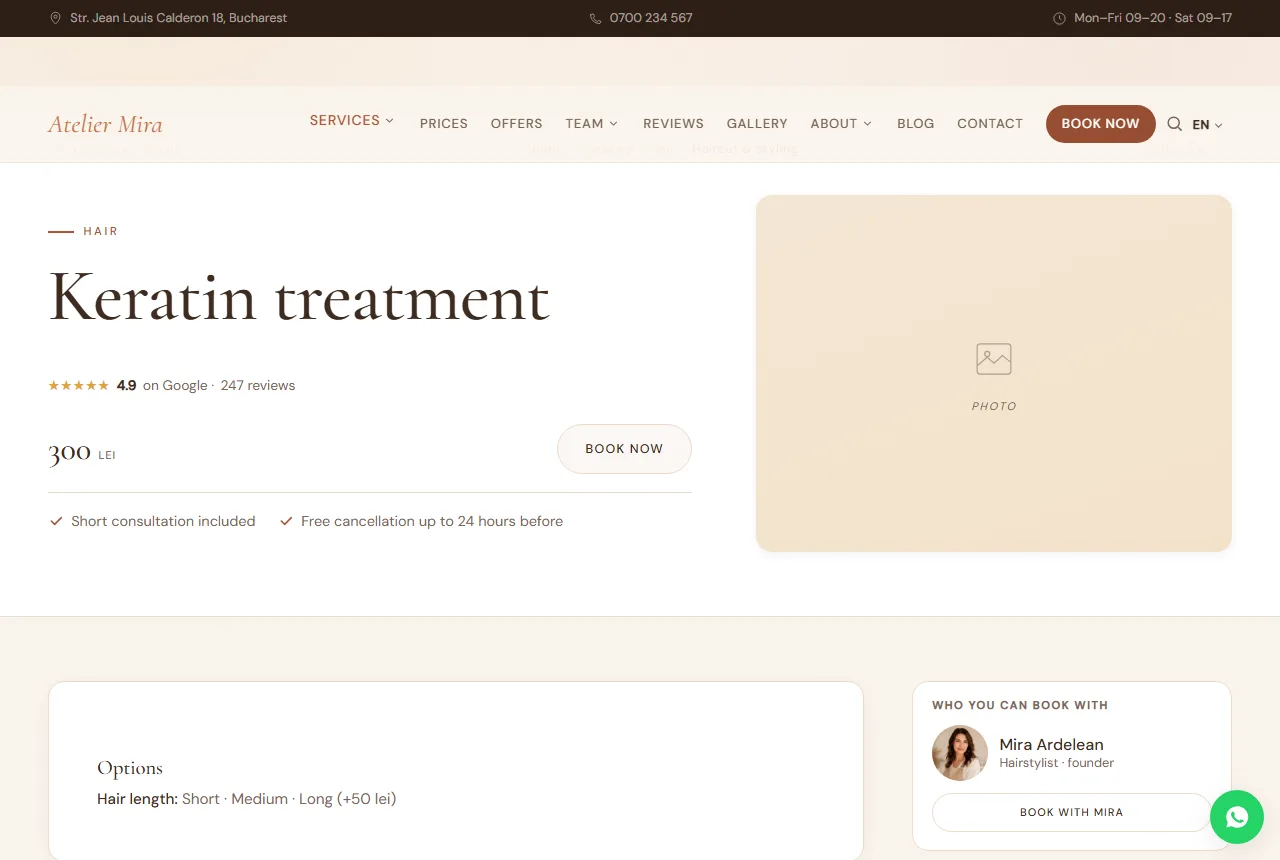
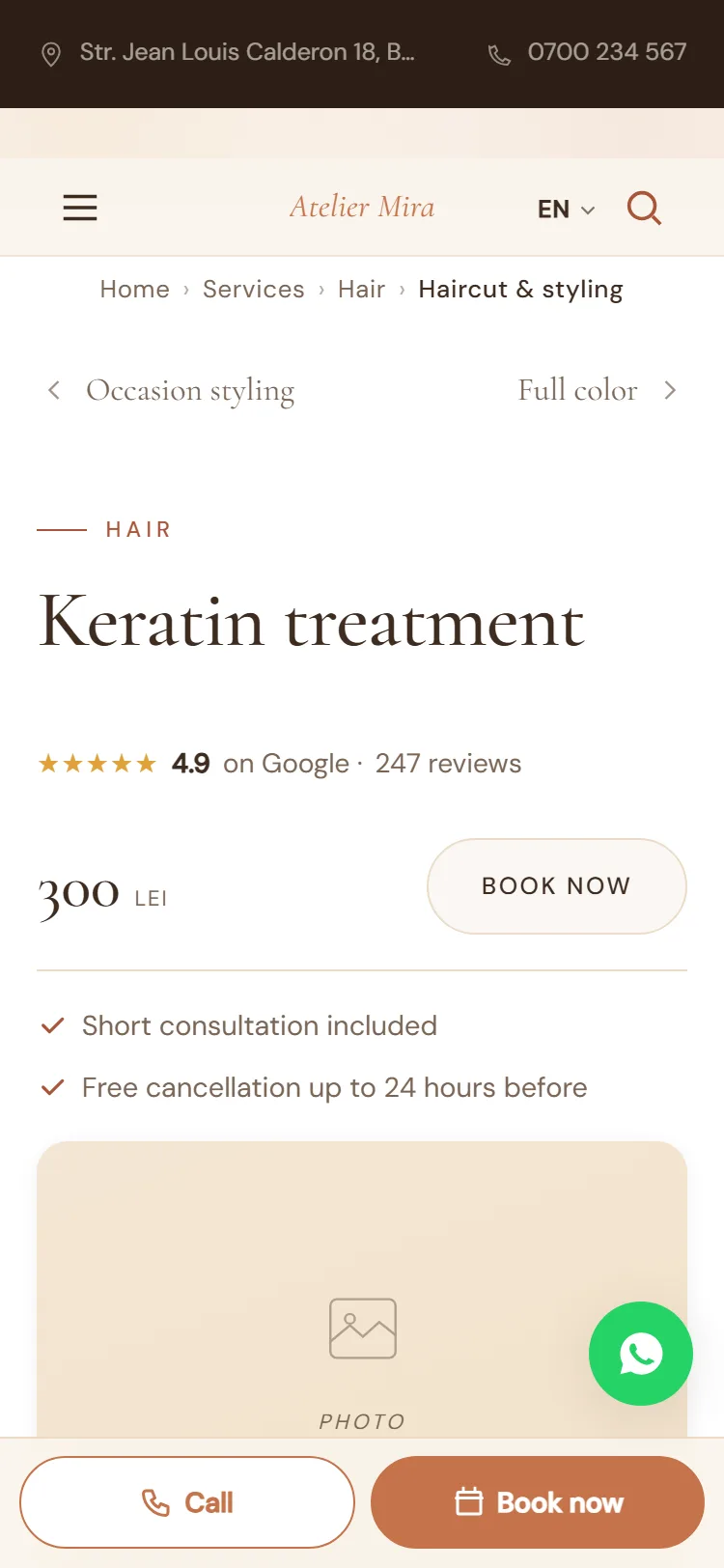
- The new service gets its own page on your website right away, public from that moment, and appears in the lists, in the booking form (if you take online bookings) and, if the menu is set up that way, in the menu.
How to remove a service you no longer offer
- Click ✕ on the service's row.
- Click Save.
- The "You removed ... from the list" window opens: choose what happens to the service's page, as in the guide What to do with a page you no longer want.
How to change categories and packages
On the same screen, under the services, you have the list of categories and the Packages list (the name, the services included, the package price, the "was" price, a note and whether it's highlighted). You change them the same way: type in the table, click + Add for a new one or ✕ to remove one, then Save. You type Package price and "Was" price yourself: they don't change by themselves when you change the price of a service in the package.
How to change all your services from an Excel file
Careful: the import replaces all the lists: specialists, services and categories. Anything missing from the file disappears from the list.
- At the bottom of the screen, open From Excel.
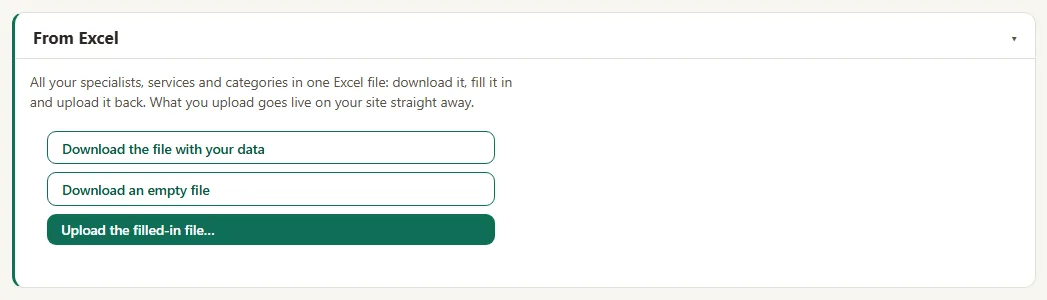
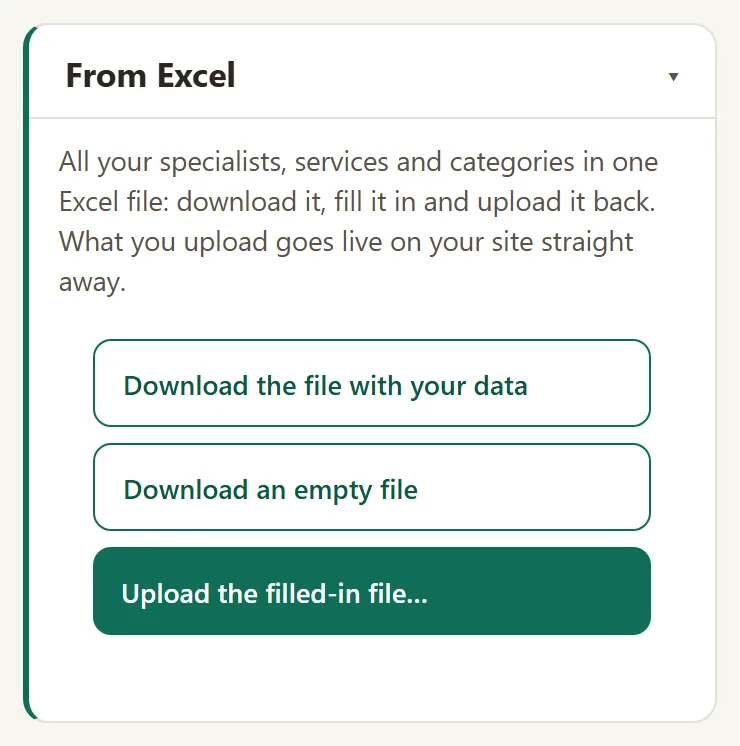
- Click Download the file with your data. You get the specialists, the services and the categories in a single Excel file. Always work on this file: when you upload it, the lists in the admin panel become exactly what's in the file. A service, a category or a colleague missing from the file disappears from the list, but its page stays on your website. After the import, the admin panel doesn't ask you what to do with it. Download an empty file is only for a website with no services yet.
- Change what you want in the file and save it.
- Click Upload the filled-in file… and choose the file. "Imported ✓" appears, with how many services, categories and specialists came in, and your website updates.
To remove a service, use ✕ in the list, not deleting it from the file: only then does the admin panel ask you what happens to its page.
How to change the prices on the "Prices" page
The "Prices" page has no prices of its own: it takes them from the list above. You change the price in Services & Prices and it shows up there by itself too. In Pages › Prices you only change the page's texts.
Common problems
- "Something is still missing before saving." A required field is empty, usually the title. Fill it in and save again.
- "The Prices page still shows the old price." Reload the page of your website. If you didn't click Save, the new price didn't reach your website.
- "I can't change the service's address." The address of an existing page can only be changed with SEO - setup, because a changed address can lose the place it has earned in Google.
- "The new service also showed up in the menu." In Header & Menu, the "Services" row puts the services in the submenu by itself. If you don't want that, pick Nothing there under Listed under it automatically.
- "Something else isn't working." Write to us at contact@webid.ro and we'll take a look.
What it doesn't do
- It's not an online store: it has no shopping cart, stock or delivery.
- When you remove a service with ✕, its page doesn't disappear by itself: the admin panel asks you what happens to it. With the Excel import, it doesn't ask.
- On a website in several languages, each language has its own list of services. A price changed or a new service added in Romanian doesn't appear in English by itself: you repeat the change there too, from Site texts in:.
- The Duration (min) and Specialists fields always show, but they only matter if you take online bookings.
What data it uses
This guide doesn't touch personal data. What you publish on your website is your content; if you add people's names or photos, you need their consent. The "Specialists" field only links services to the people in "Team", and the downloaded Excel file contains their name and role, without their email.