How to change your website menu
You change your website menu from a single screen in the admin panel: the order, the names on the buttons, what shows at the top and what shows in the footer. From the same place you can add a link to your Facebook page or to another website. A change takes a minute and shows on every page at once (the exception is below, under "Common problems").
How to open the menu in the admin panel
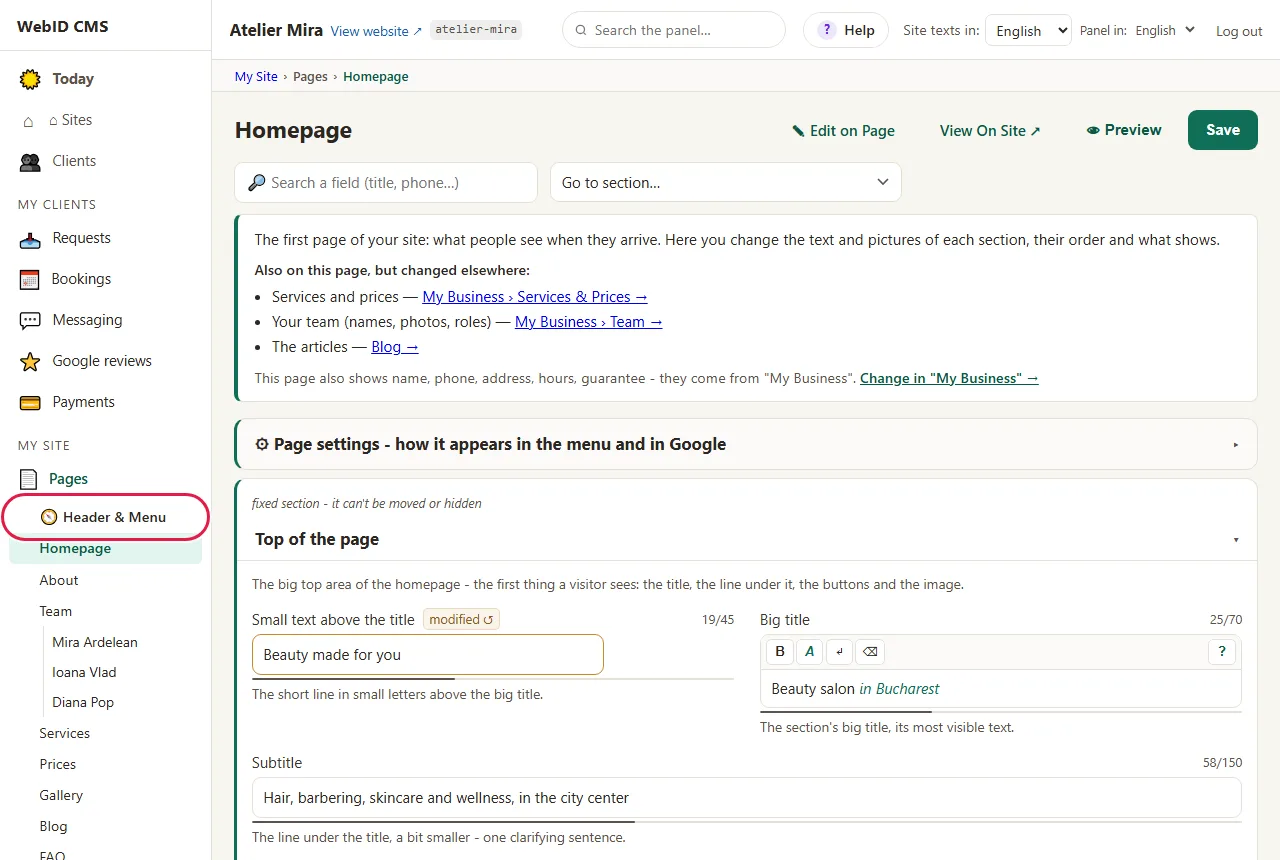
- In the admin panel, open My Site, then Pages.
- Click the first row in the list, 🧭 Header & Menu.
- You see the menu list, one row for each button in the menu. Pages you placed by hand in a submenu don't appear here (see "What it doesn't do"). At the top, the business name and the phone number in the header come from "My Business"; you change them there, using the link next to them.
How to change the order and the names in the menu
Careful: a click on a column heading sorts the rows by that column, and the new order reaches the menu when you save. A page's address changes if you move it under another button, not if you move it up or down on the same level.
- To move a button up or down, click the ↑ or ↓ arrow at the end of its row.
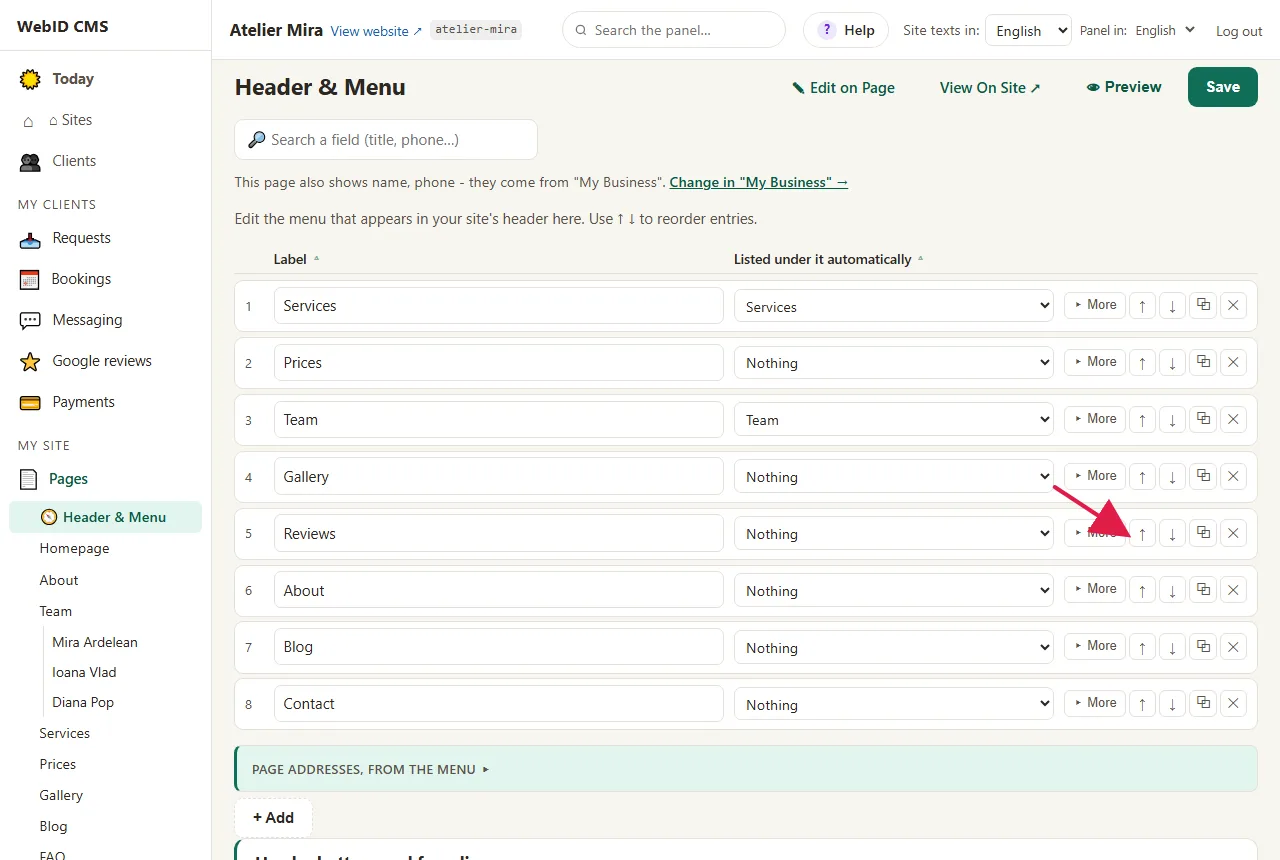
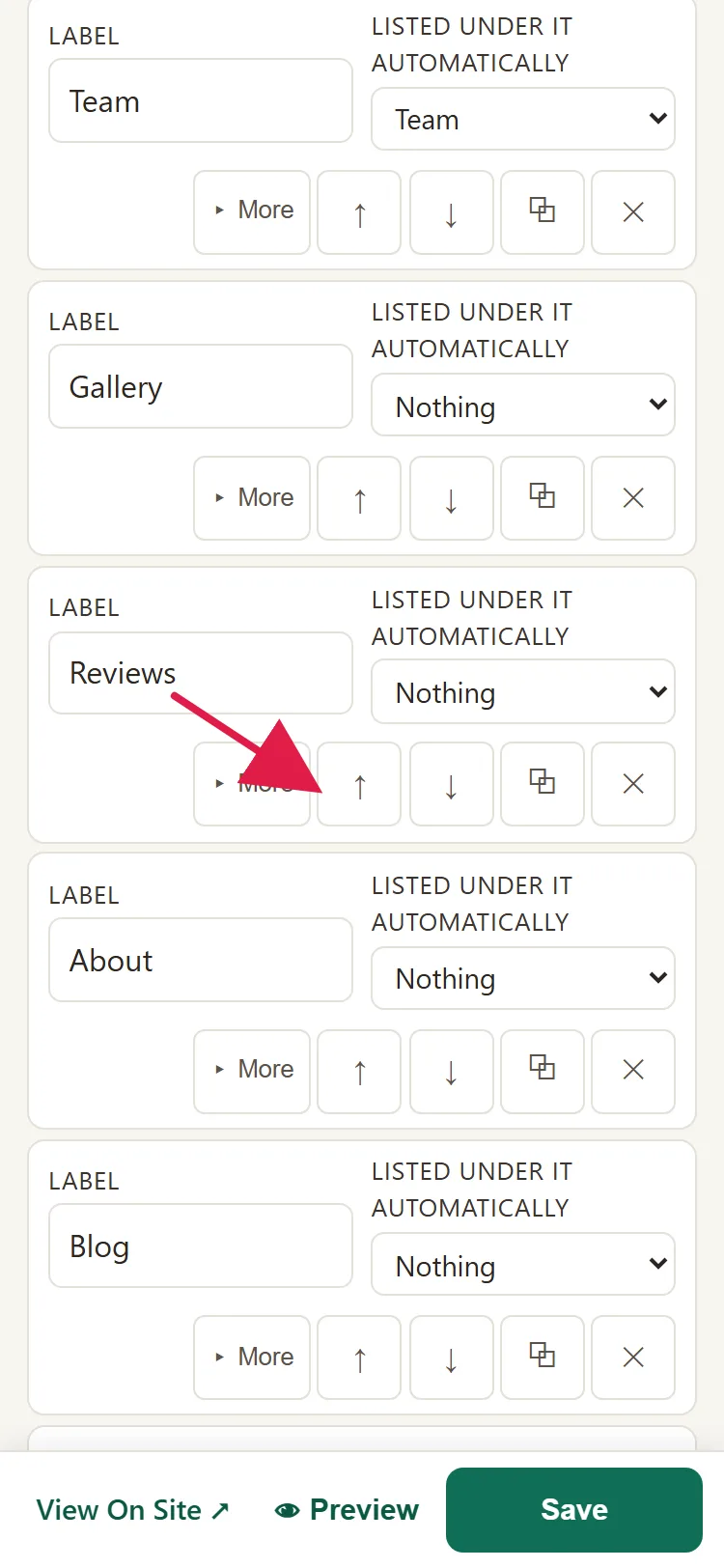
- To change its name, type straight into the Label field. On a website in several languages, each language has its own menu: first pick the language under Site texts in:.
- Click Save, at the top. "Saved ✓" appears, and the menu changes on every page of your website.
- Changed your mind? Click Undo, next to the message: the menu goes back to how it was before you saved.
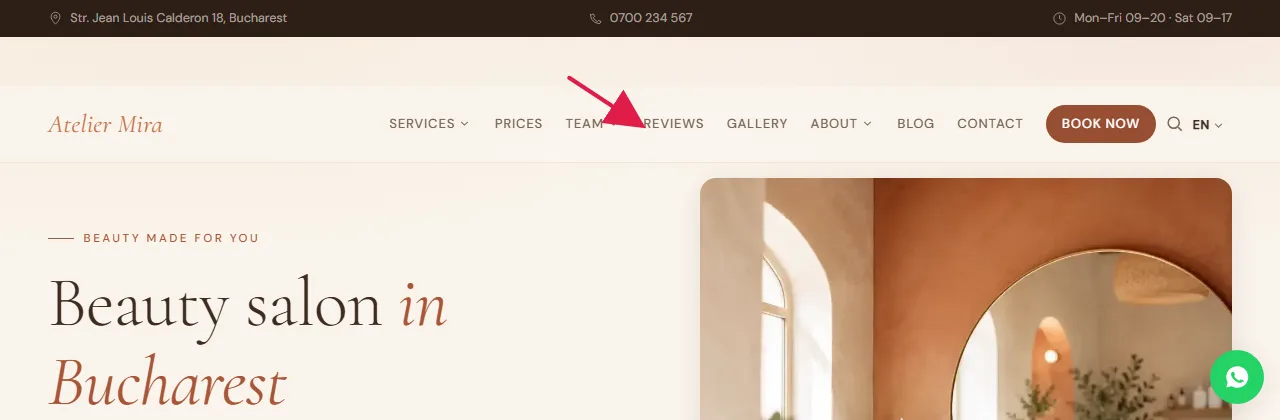
- Open your website and check the menu.
How to take a page out of the menu or move it to the footer
- Click ▸ More at the end of the row.
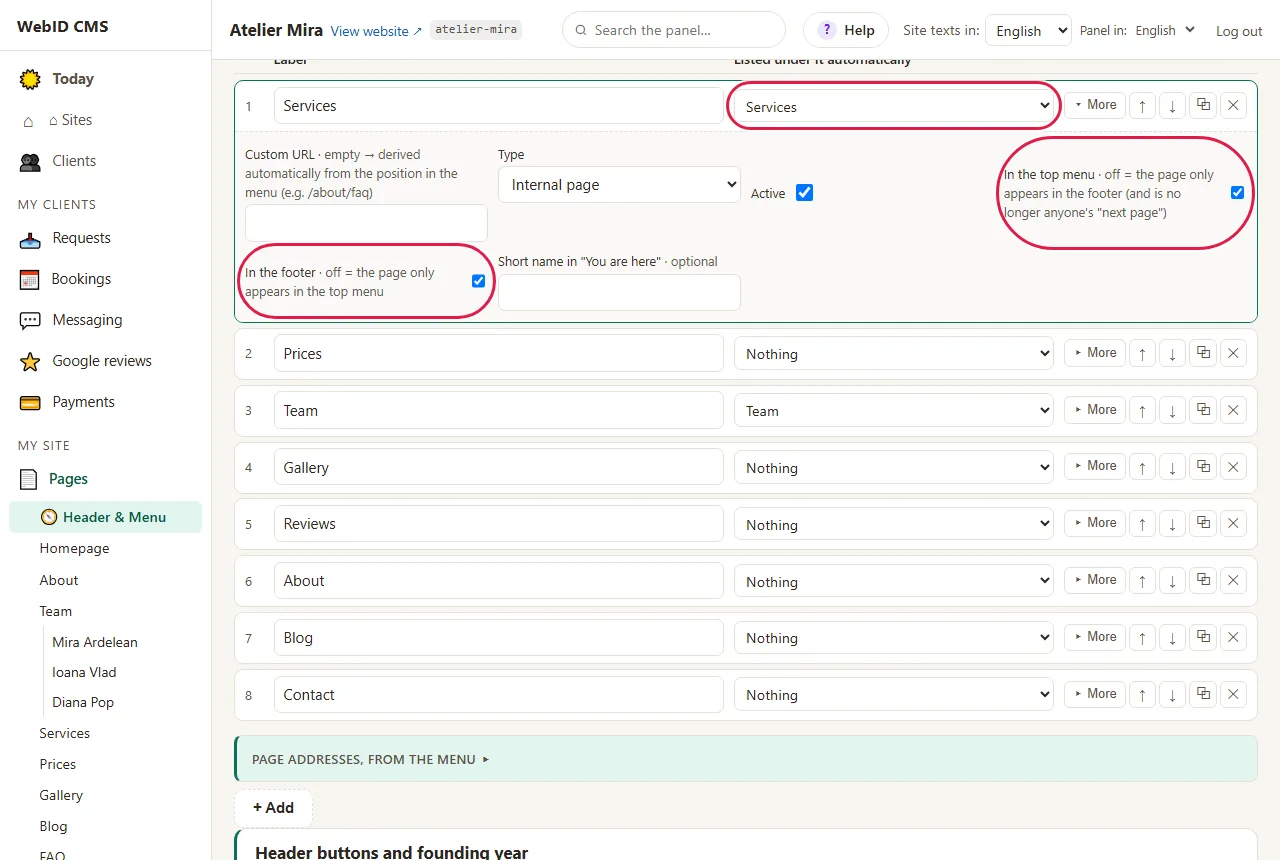
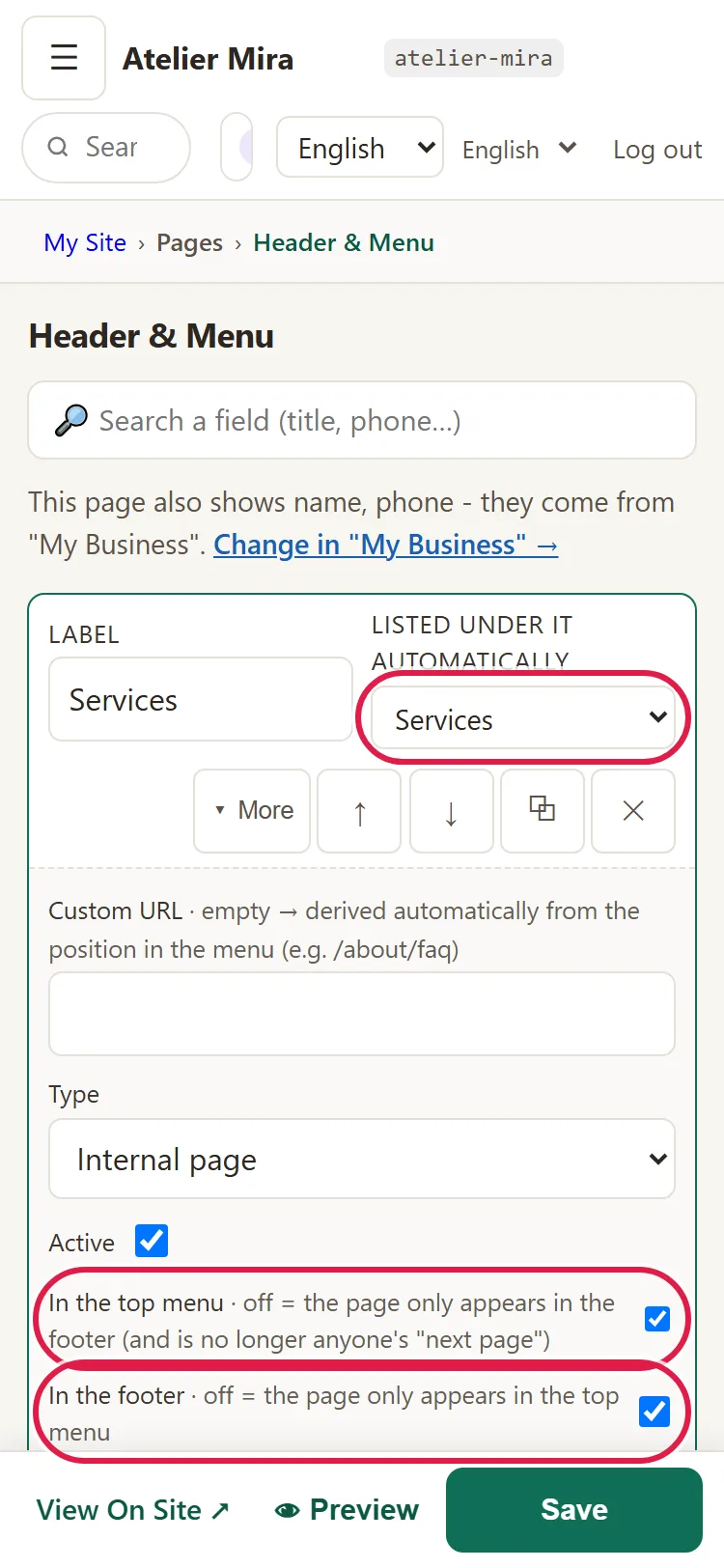
- To take it out of the menu, uncheck Active. The page stays on your website; only the button disappears from the menu. You bring it back by checking Active again. To remove it completely, see What to do with a page you no longer want.
- To have it only at the top or only at the bottom, use the In the top menu and In the footer checkboxes. They're independent: you can keep one, both or neither.
- Click Save.
How to add a link to Facebook or to another website
- Click + Add, under the list.
- Under Label, type the name of the button, for example "Facebook".
- Click ▸ More and, under Type, pick External link.
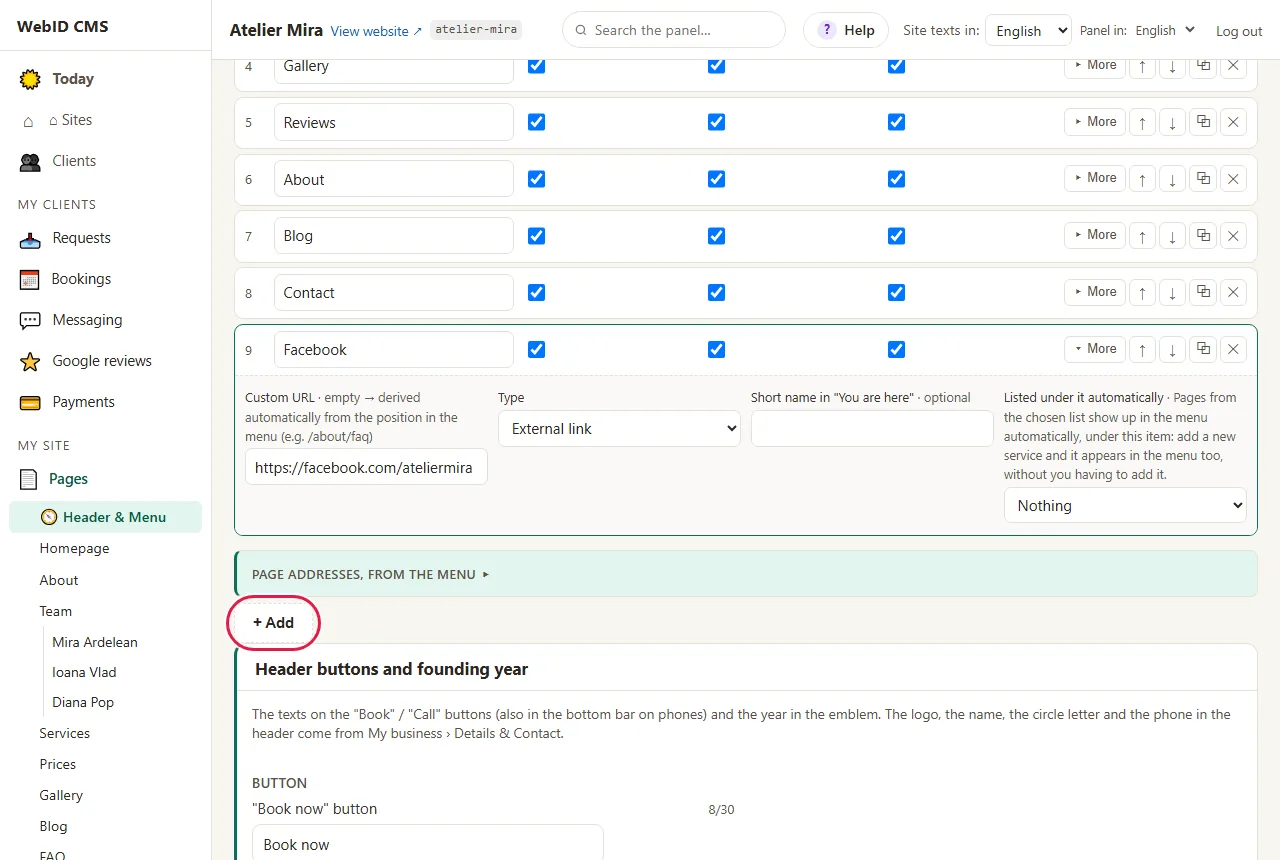
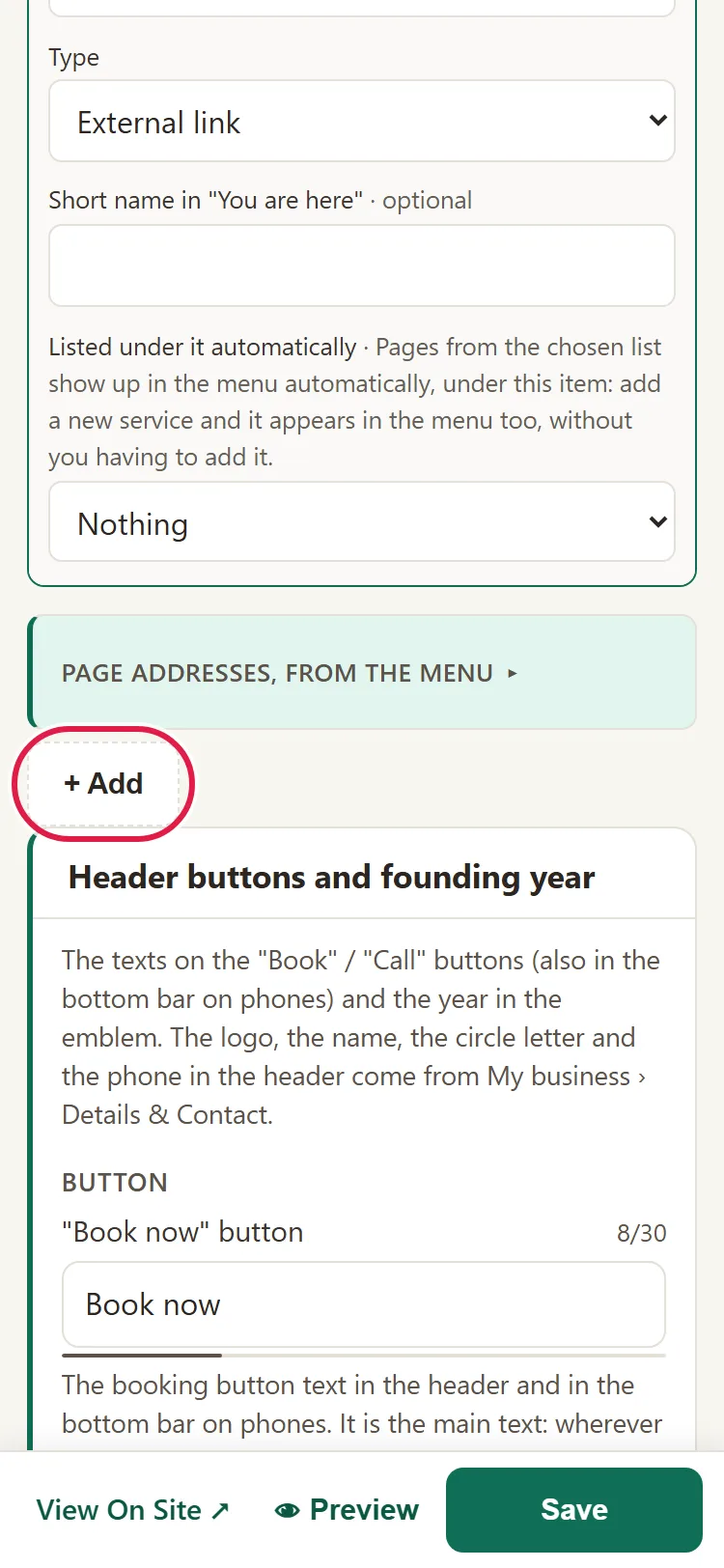
- Under Custom URL, which opens when you pick External link, type the page address, for example https://www.facebook.com/your-business.
- Click Save.
To remove a button from the menu completely, click ✕ on its row and save. The page stays on your website; only the button disappears.
How to choose what's listed automatically under "Services" or "Team"
- Click ▸ More on the "Services" row (or "Team").
- Under Listed under it automatically, pick the list that fills the submenu. With "Services", every new service appears in the menu by itself, without you adding it.
- If you don't want the submenu, pick Nothing.
- Click Save.
What else you'll find on the same screen
Under the menu list you also have Header buttons and founding year (the texts of the header buttons and the year next to the logo), Site search (the search box; your choice is saved right away) and, if you have a team on your website, Team in the menu.
Common problems
- "I took the page out of the menu, but Google still shows it." Taking it out of the menu doesn't take the page off your website. For that, see the guide What to do with a page you no longer want.
- "I moved the page and its address changed." A page's address follows its place in the menu: it changes when you move it under another button or another column. The old address sends visitors to the new one on its own. If you want the old address, move it back. With SEO - setup, you can fix its address under Custom URL.
- "A new service showed up in the menu by itself." The "Services" row has Listed under it automatically set to "Services". Pick Nothing if you don't want that.
- "I clicked a column heading and the order changed." The new order reaches the menu when you save. Don't save or, if you already saved, click Undo.
- "After saving, it says the menu is rebuilt when WebID republishes the website." Your website is on a model where the menu isn't rebuilt from the admin panel. Your change is kept and shows on your website at the next update we make. If you want to see it sooner, write to us at contact@webid.ro.
- "I can't type in Custom URL." Without SEO - setup, the field only opens for the External link type. Pick it under Type, in ▸ More, then type the address.
- "Something else isn't working." Write to us at contact@webid.ro with what you see on the screen and we'll take a look.
What it doesn't do
- It doesn't create new pages: a menu button leads to a page that already exists (for a new one, see the guide How to add a new page to your website).
- Taking a page out of the menu doesn't take it off your website: its address still opens.
- Pages you placed in another page's submenu don't appear in the list on this screen, so you can't move or rename them from here. Write to us at contact@webid.ro if you want to change something about them.
- On a website in several languages, each language has its own menu. You change the menu names in each language, from Site texts in:.
What data it uses
This guide doesn't touch personal data. What you publish on your website is your content; if you add people's names or photos, you need their consent.