How to change your website's colors, font and emblem
Want your website in your company colors, a different font for headings or less motion on the pages? You choose them yourself, from the "Look" screen (if you have it in the menu), and see the result before you save. It all takes a few minutes, and the change reaches every page and every language of your website. Only a page for which you chose its photo or emblem separately keeps it.
How to open the Look screen
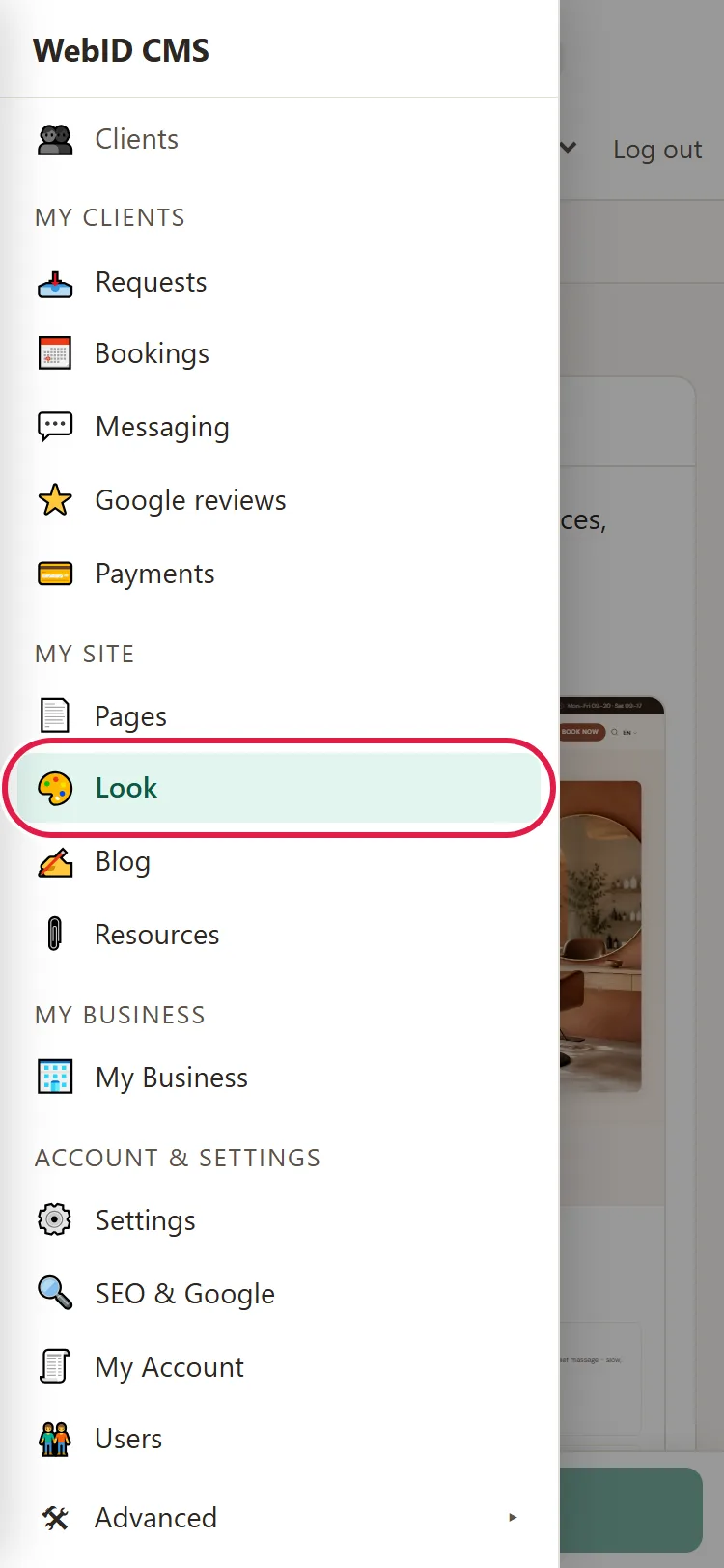
- In the left menu, under My Site, click Look.
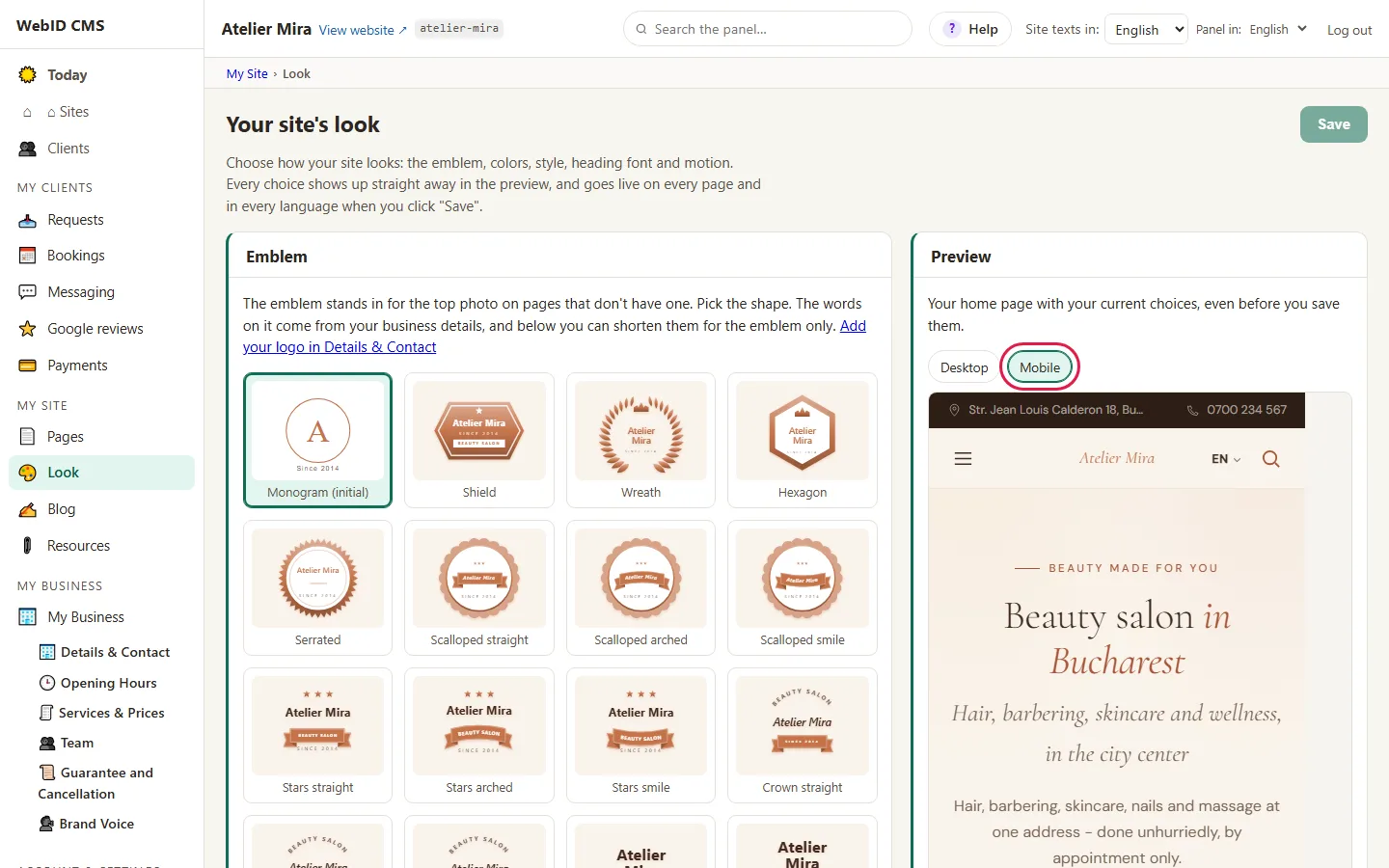
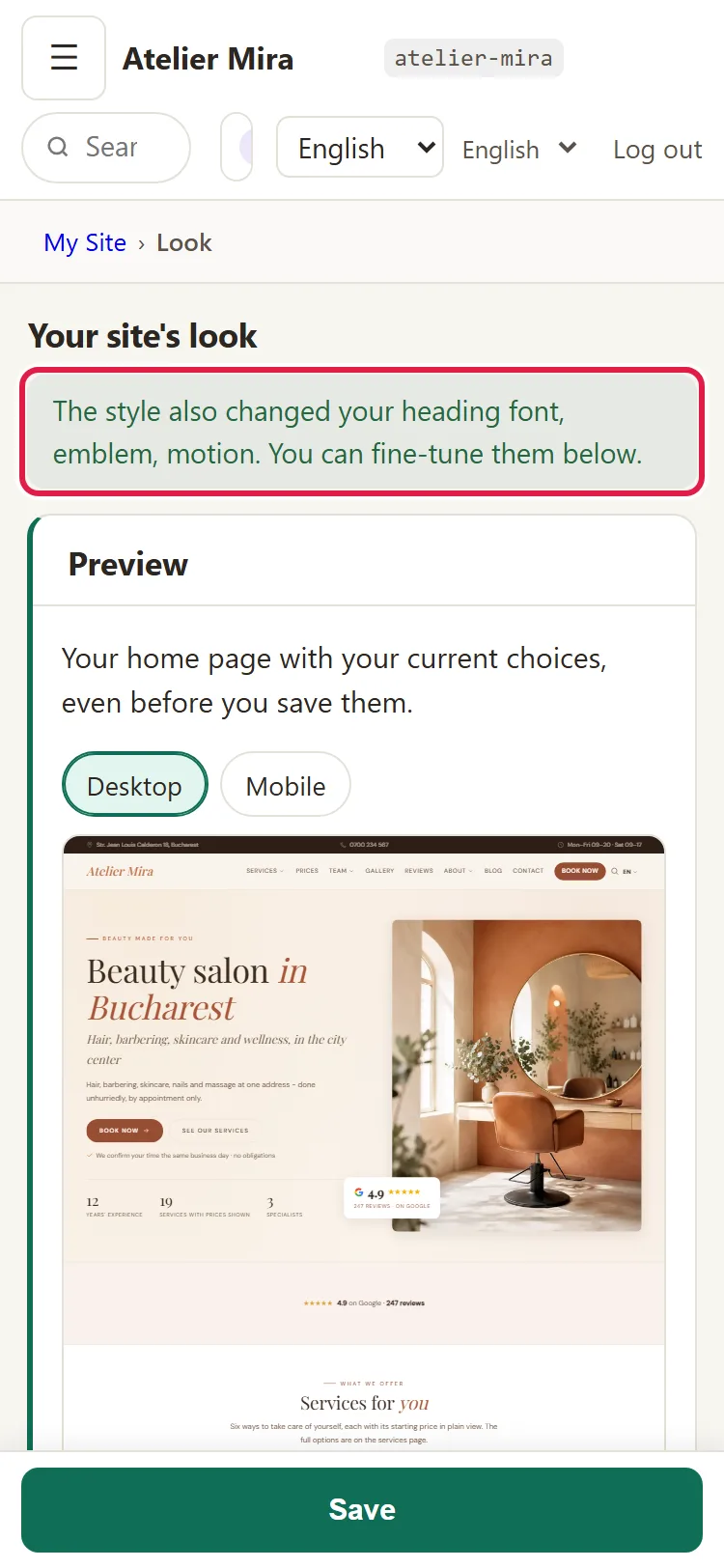
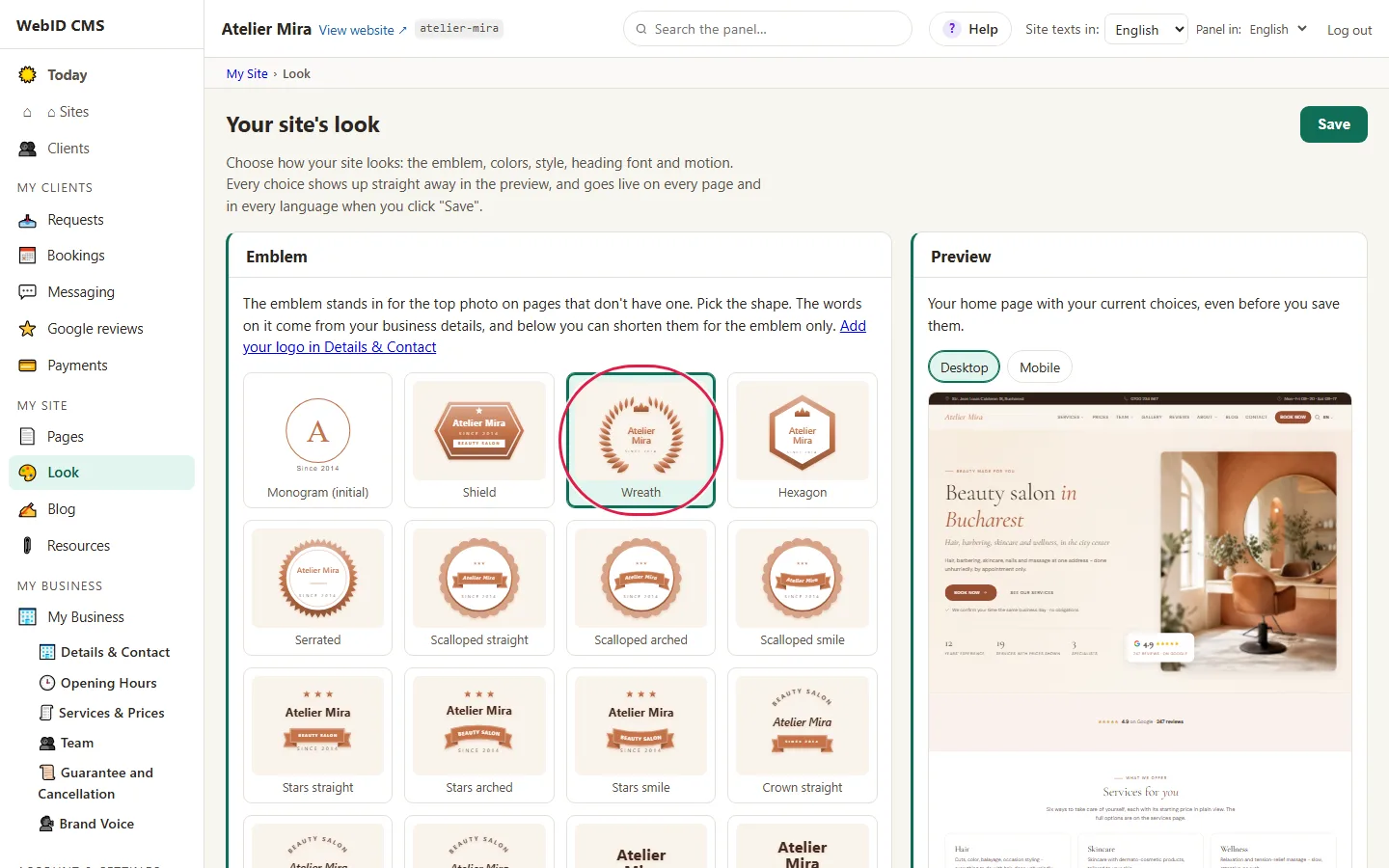
- The choices are on the left, and "Preview" is on the right: your homepage as it would look. Every click shows right away in the preview, but doesn't reach the website until you save.
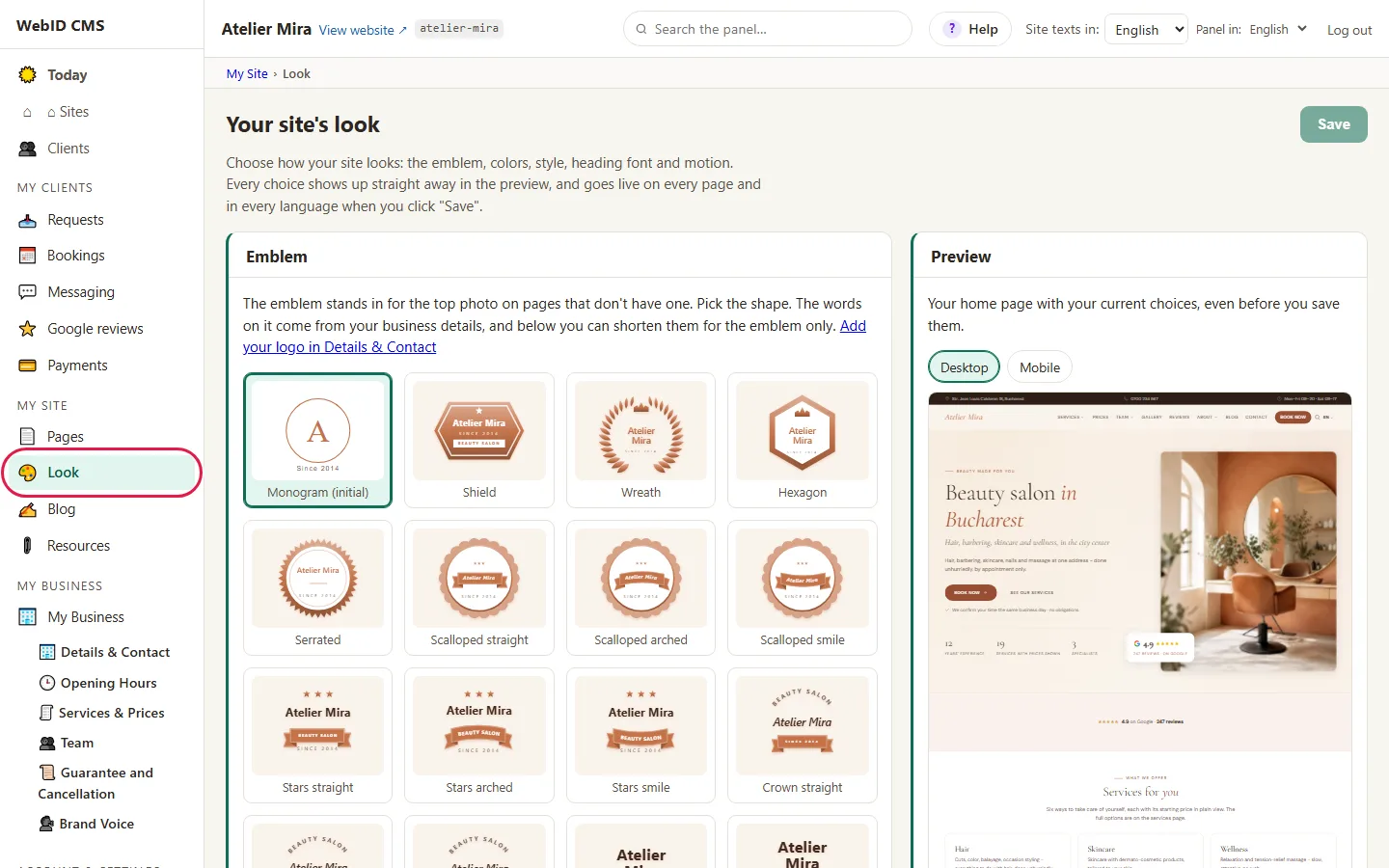
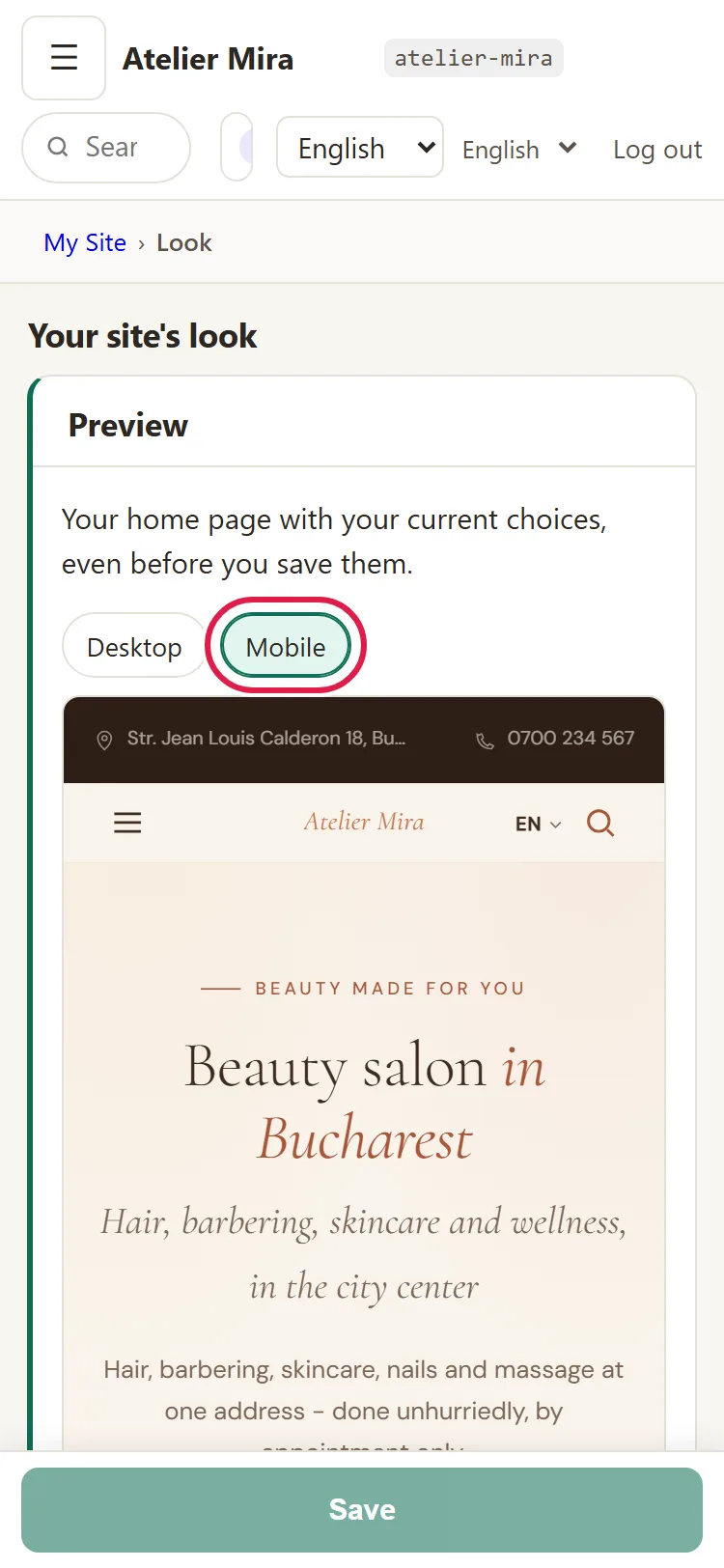
- With the preview's Desktop / Mobile switch, you see how the website looks on a big screen and on a phone.
If you don't see "Look" in the menu, your website is built on a template where we change the look for you. Write to us at contact@webid.ro with what you'd like to look different.
How to change the colors
- Under Colors, choose a ready-made palette. Palettes are grouped into families (for example "Cool" or "Green"), and each one changes all of the website's colors at once, matched to each other.
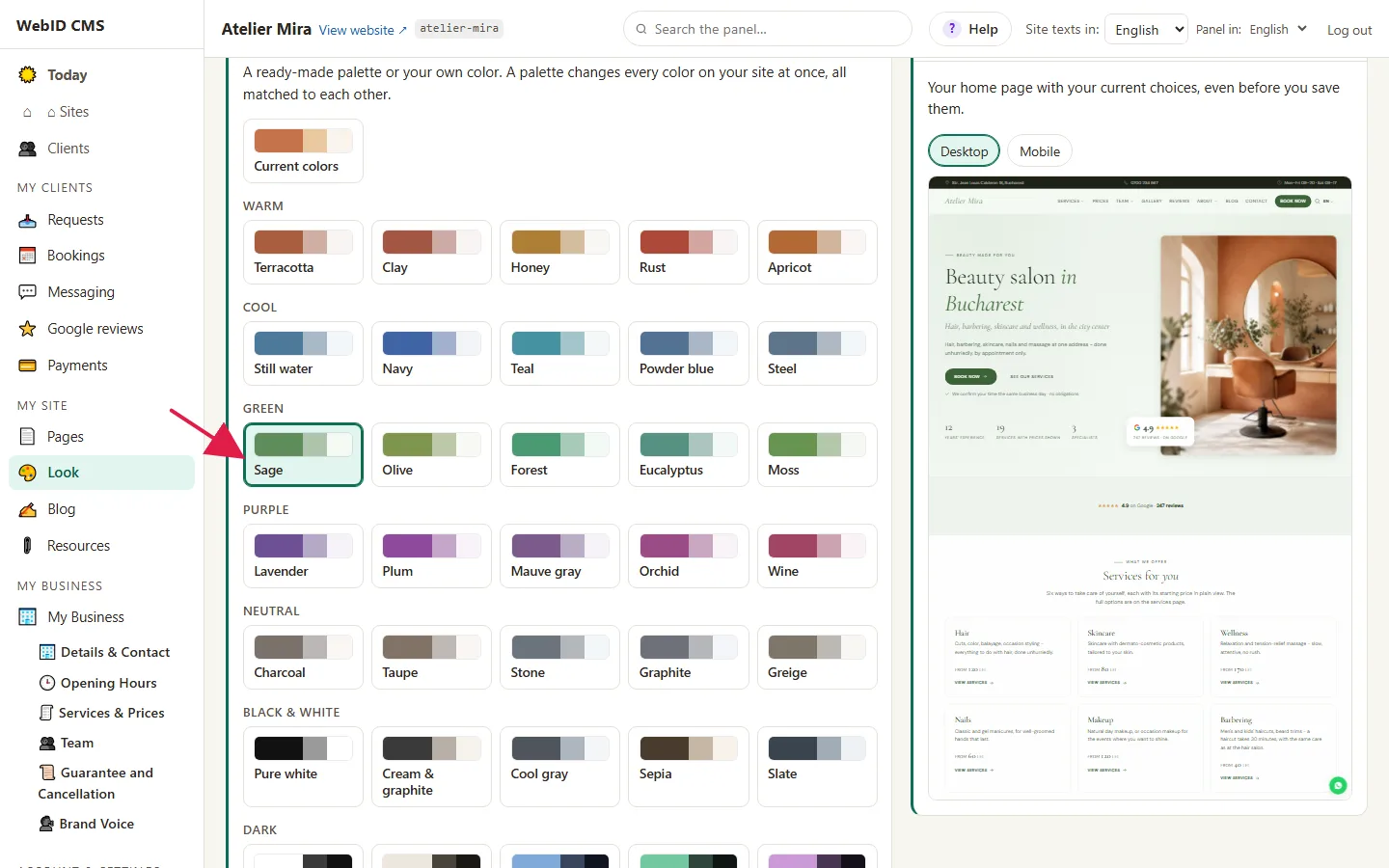
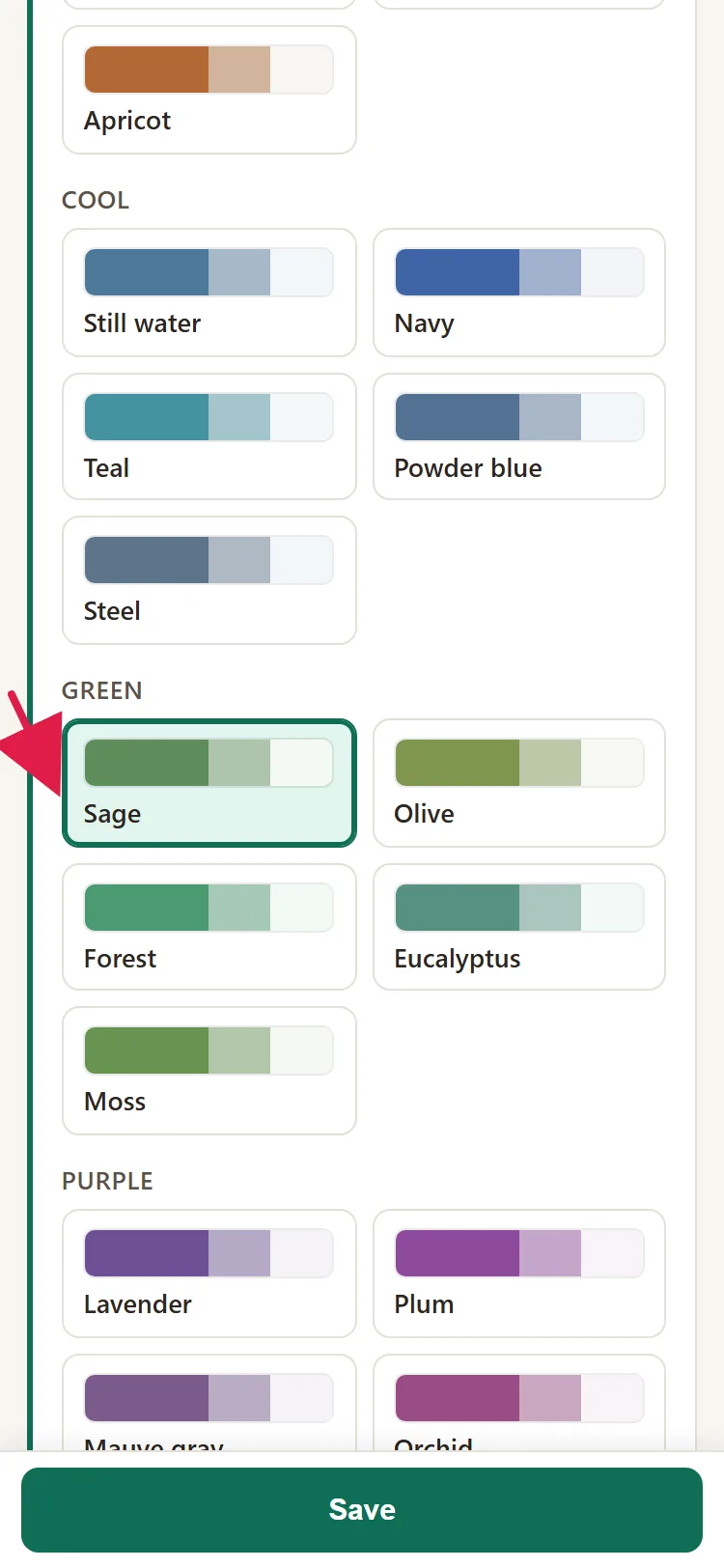
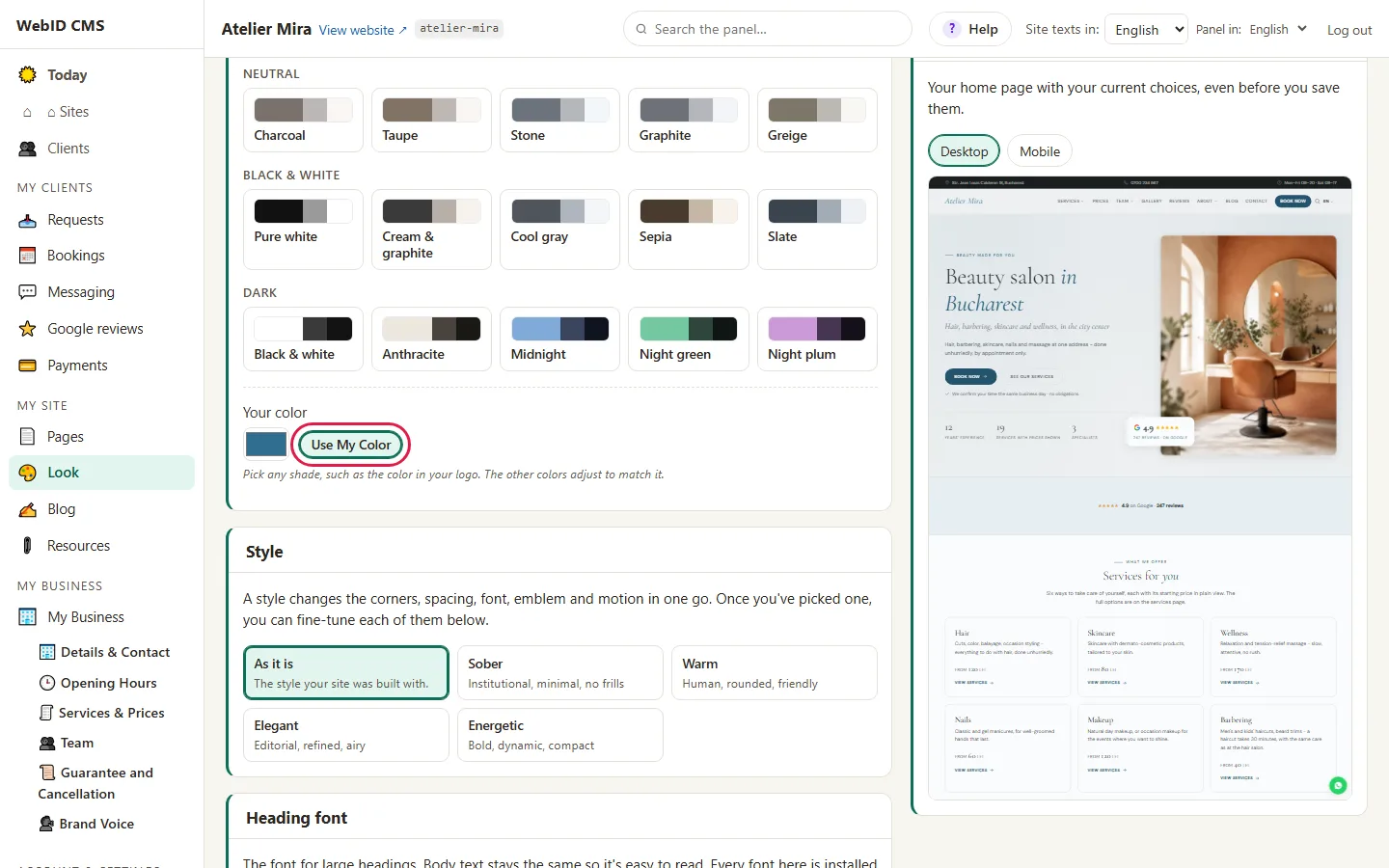
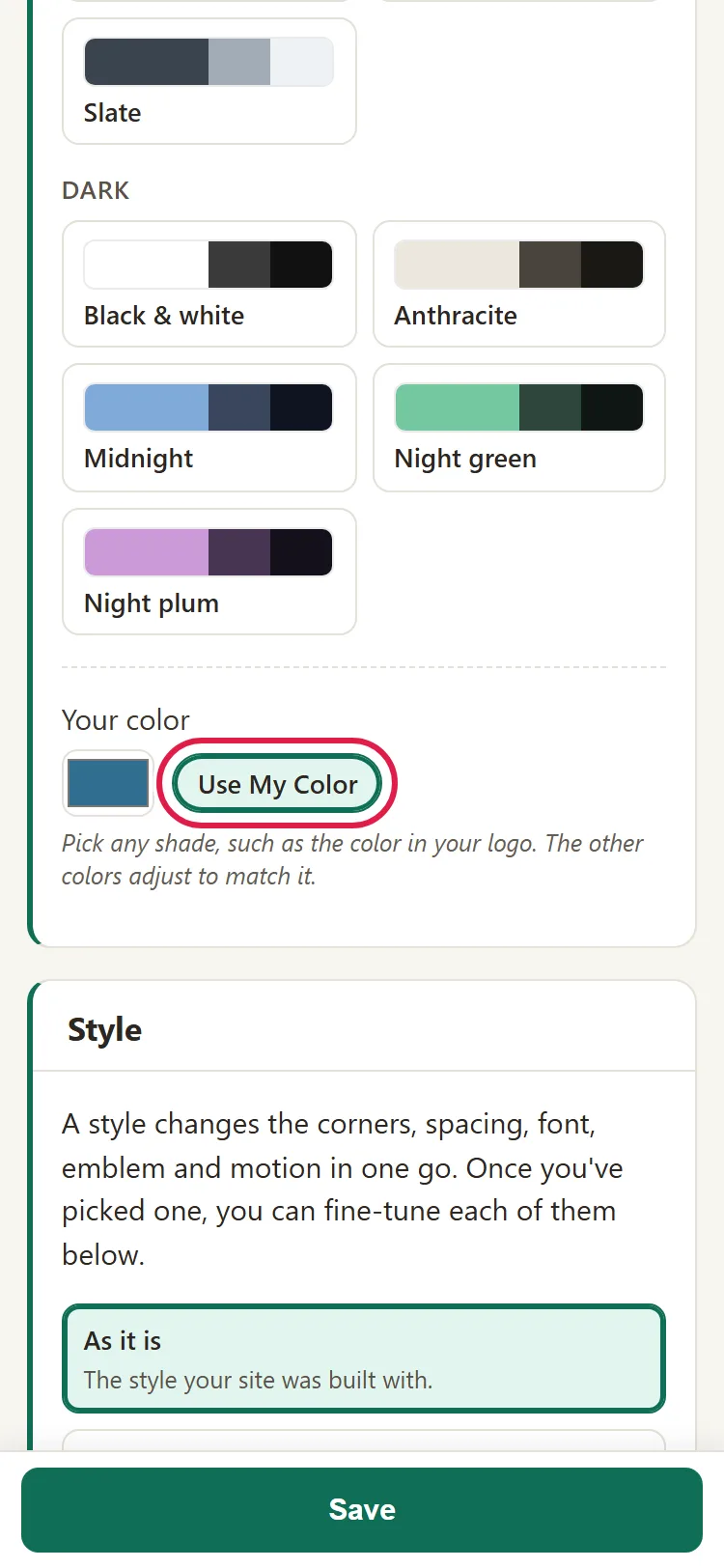
- Or, under Your color, pick the shade you want, for example the color in your logo.
- Click Use My Color. The other colors adjust to match it.
- If you want the previous colors back, choose Current colors.
How to choose a style
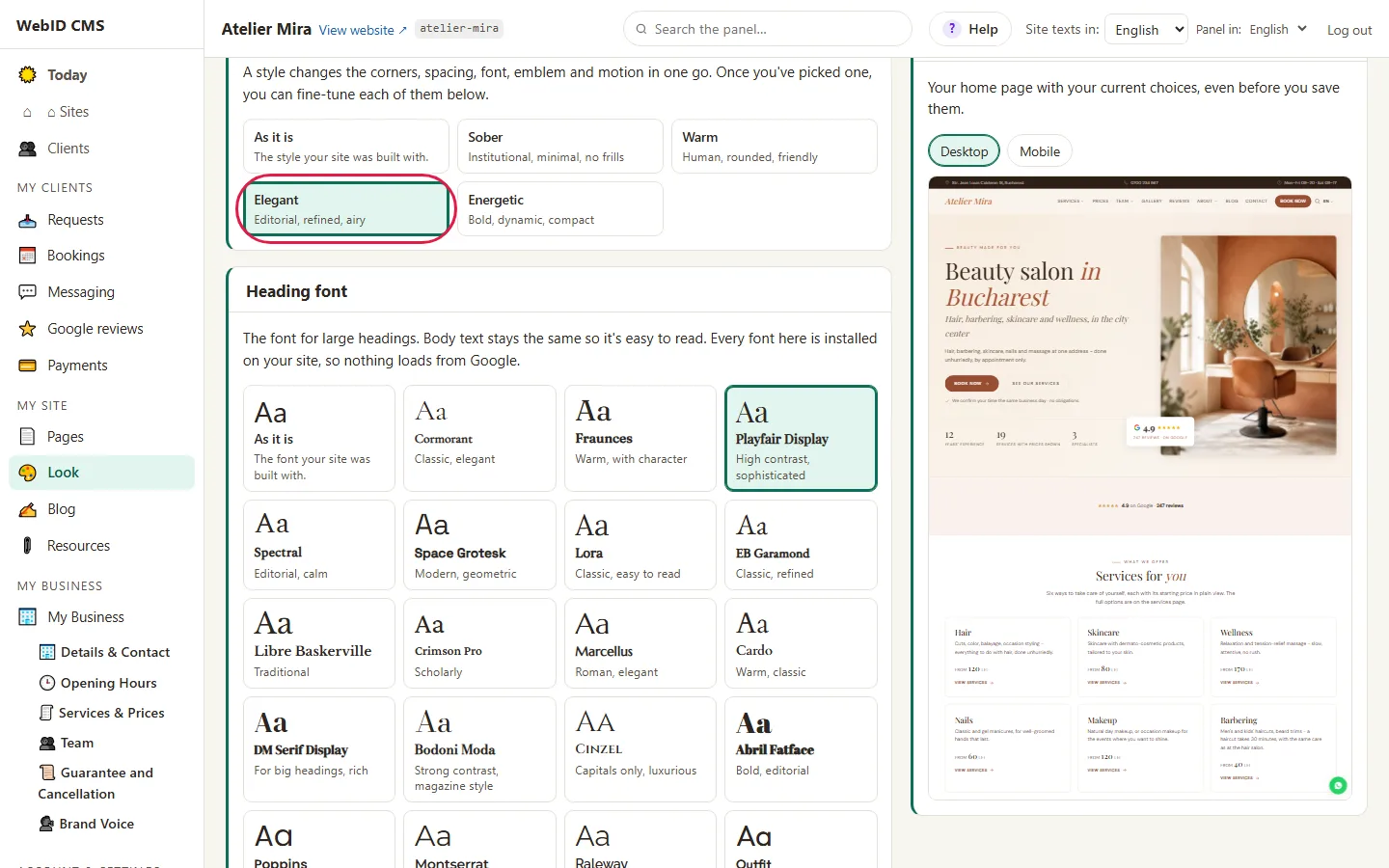
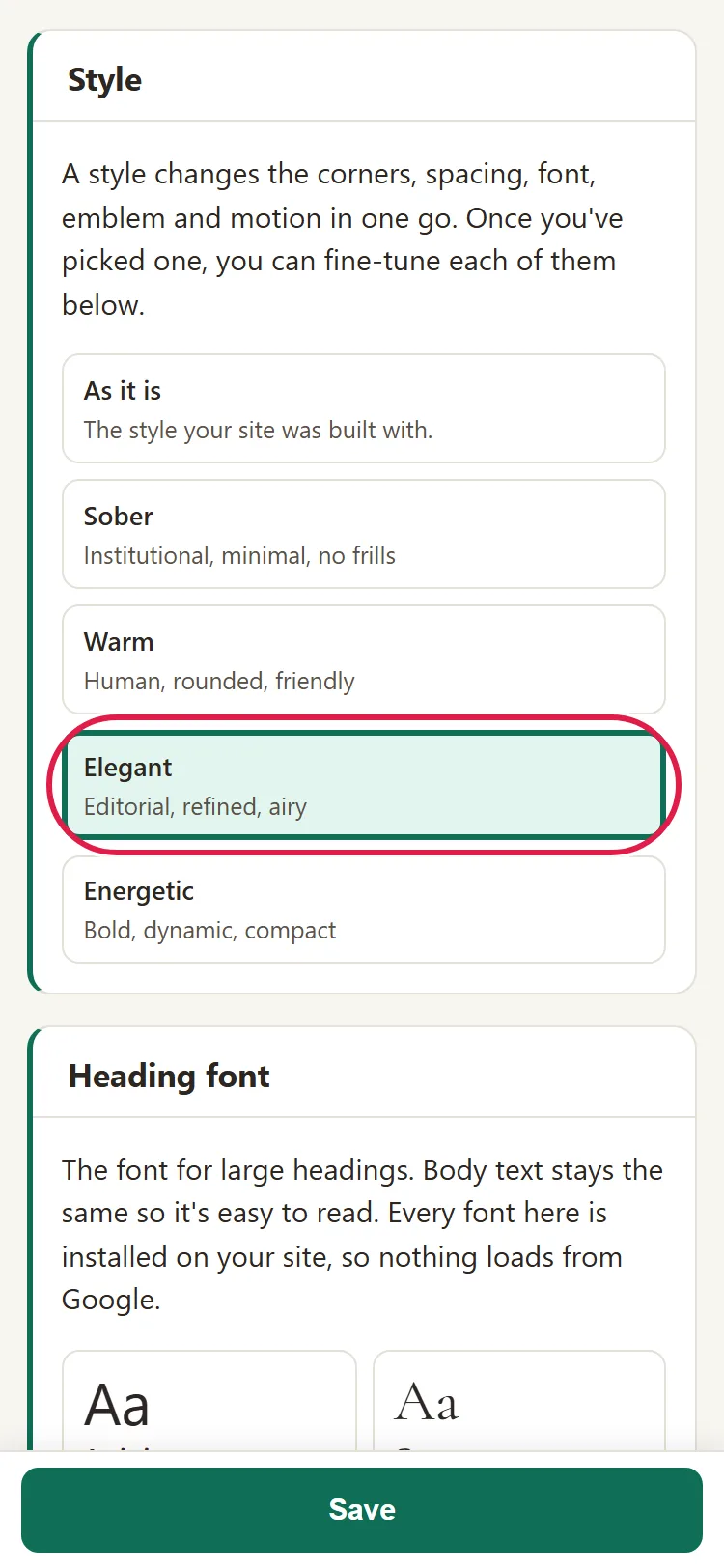
- Under Style, choose Sober, Warm, Elegant or Energetic. As it is leaves everything as it is.
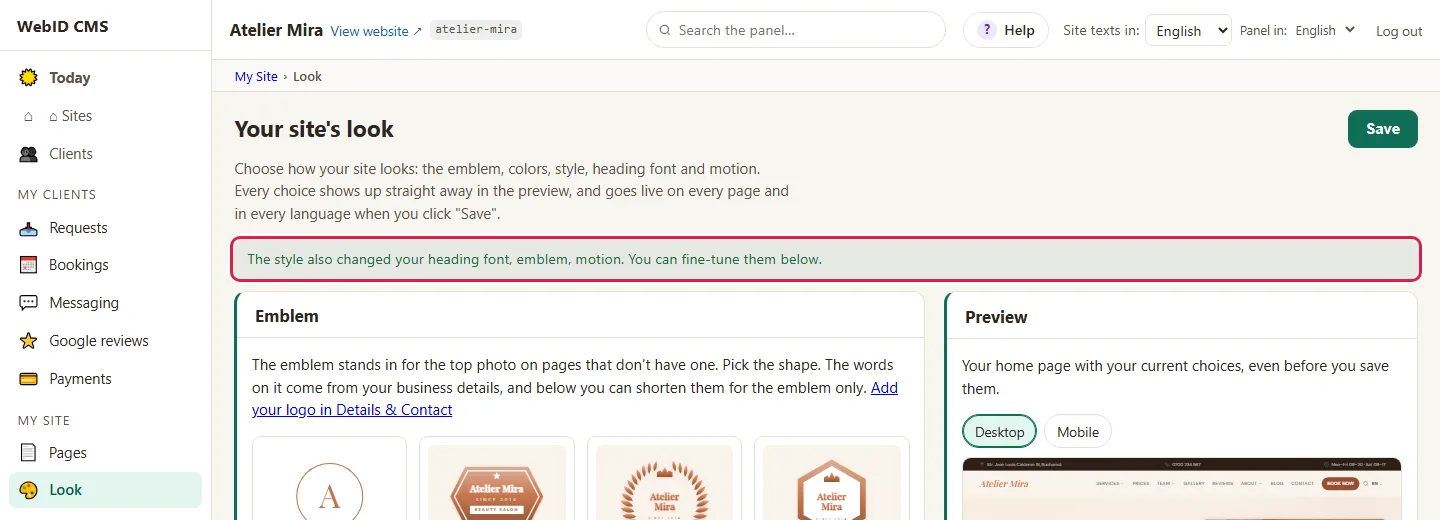
- A style changes the corners, spacing, font, emblem and motion all at once. Below it, at "The style also changed your …", you see everything else it changed.
- If you like the style but not its font or emblem, change them separately, further down the screen.
How to change the heading font
- Under Heading font, choose a font from the list. Each one has a sample "Aa" and a few words about it, for example "Classic, elegant".
- As it is keeps the previous font.
Only the heading font changes, not the font of regular text. The fonts in the list are stored on your website: they don't load from Google.
How to choose a font from the full Google catalog
If you can't find a font you like in the list, you can browse the full Google Fonts catalog. While you browse it, the previews load from Google.
- Click Browse the Full Google Fonts Catalog. A window opens that explains what happens.
- If you agree, check I understand and want to see the Google Fonts catalog and click Open the Catalog. If not, click Stay with Our List.
- Type the font's name in Search for a font. Each font in the list is written in its own letters.
- On the row of the font you chose, click Install on My Site. The font is copied to your website, appears in the list above and is selected for headings.
- Click Save so it appears on your pages. Until then, the font is only installed, not used on the website.
You can withdraw your consent anytime with I No Longer Want to See the Google Fonts Catalog.
How to change the emblem
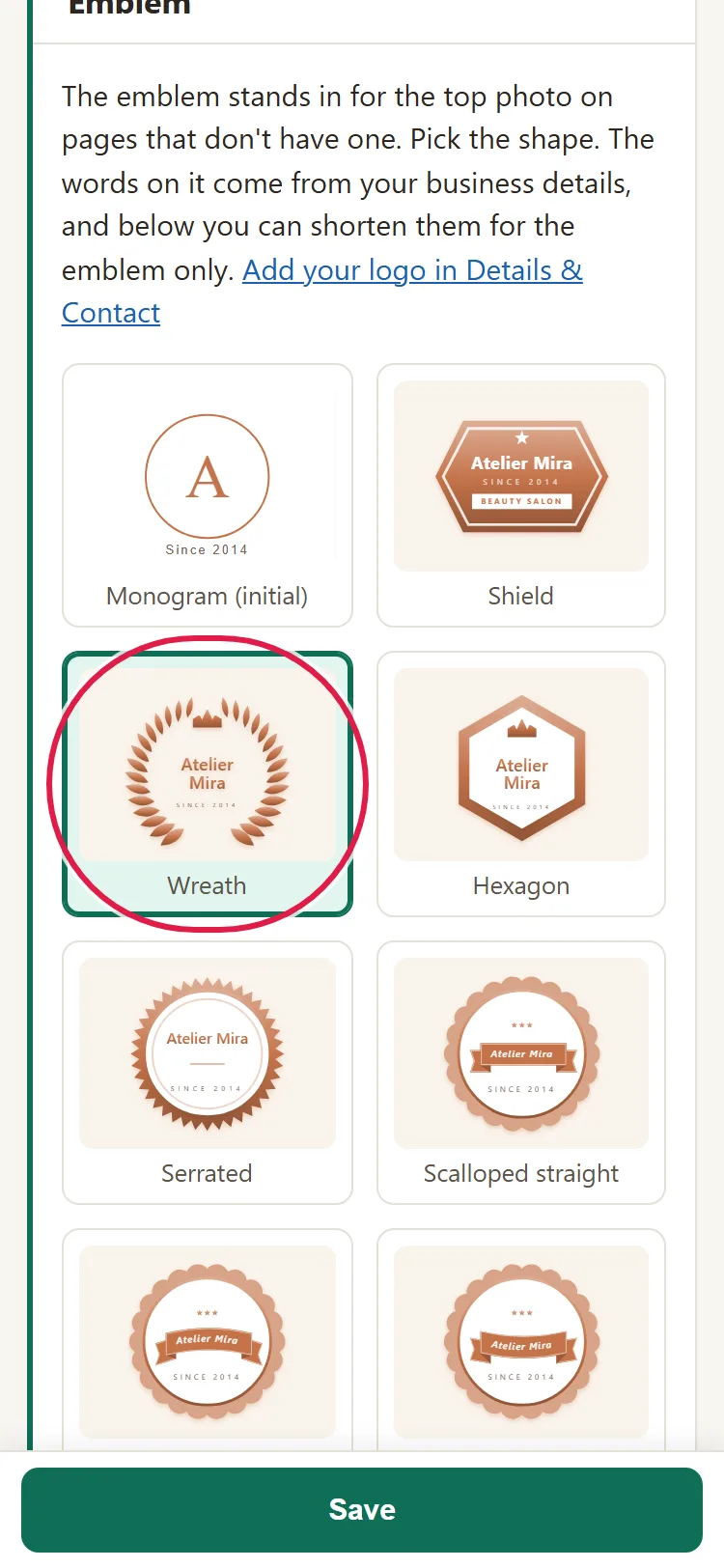
The emblem is the sign that takes the place of the top photo on pages without a photo.
- Under Emblem, choose a shape from the grid, for example Monogram (initial).
- Below it, if you like, type Name on the emblem, Trade on the emblem (your line of business) or Word before the year. Here you type only a short form, just for the emblem. For the first two, over 20 characters makes the text come out small, and the admin panel warns you.
Your business name, line of business, year and logo are changed in "My Business", under Details & Contact.
How to choose the top photo, decoration and motion
- Under Top of pages, choose Photo, Emblem or Nothing.
- Under Decoration, choose Light or Rich.
- Under Motion, choose None, Subtle or Lively. Motion is the way sections appear as the visitor scrolls down the page.
A page for which you chose its photo or emblem separately stays the way you left it.
How to save
- Click Save, at the top. The button is grayed out until you choose something.
- You see the message "Your new look is live - pages updated: 12." (the number differs from website to website). Reload your website to see it.
If you try to leave the screen with unsaved choices, the browser stops you and asks.
Common problems
- "I don't have Look in the menu." Your website is on a template where we change the look for you. Write to us at contact@webid.ro with what you'd like to look different.
- "I chose the colors, but the website looks the same." The preview doesn't save. Click Save, then reload the website page.
- "I chose a style and my font changed too." A style changes several things at once. Choose the font or emblem you want again, further down the screen.
- "The text on the emblem is too small." Type a shorter form, 20 characters at most, in Name on the emblem.
- "Something else isn't working." Write to us at contact@webid.ro with what you see on the screen and we'll take a look.
What it doesn't do
- It doesn't change the font of regular text, only of headings.
- It doesn't move sections or change their order on pages.
- It doesn't upload your logo: you add that in "My Business", under Details & Contact.
- It has no Undo after saving. As it is and Current colors keep what's already saved, so they only clear unsaved choices. To go back to the look from before a save, go to Advanced › History.
- You can't have a different look in another language: the choices are the same in all of your website's languages.
What data it uses
This guide doesn't touch your clients' data. There's one exception, only if you check the box yourself: while you browse the full Google Fonts catalog, your IP address and browser data reach Google - see Privacy Notice §3.c. The font you choose is installed on your website, and your visitors don't connect to Google.