How to present your team on your website
Hired someone, want new team photos, or work on your own and don't want a "Team" page at all? You handle it yourself, from "My Business". A new colleague gets their own page on the website as soon as you save.
How to add a new colleague
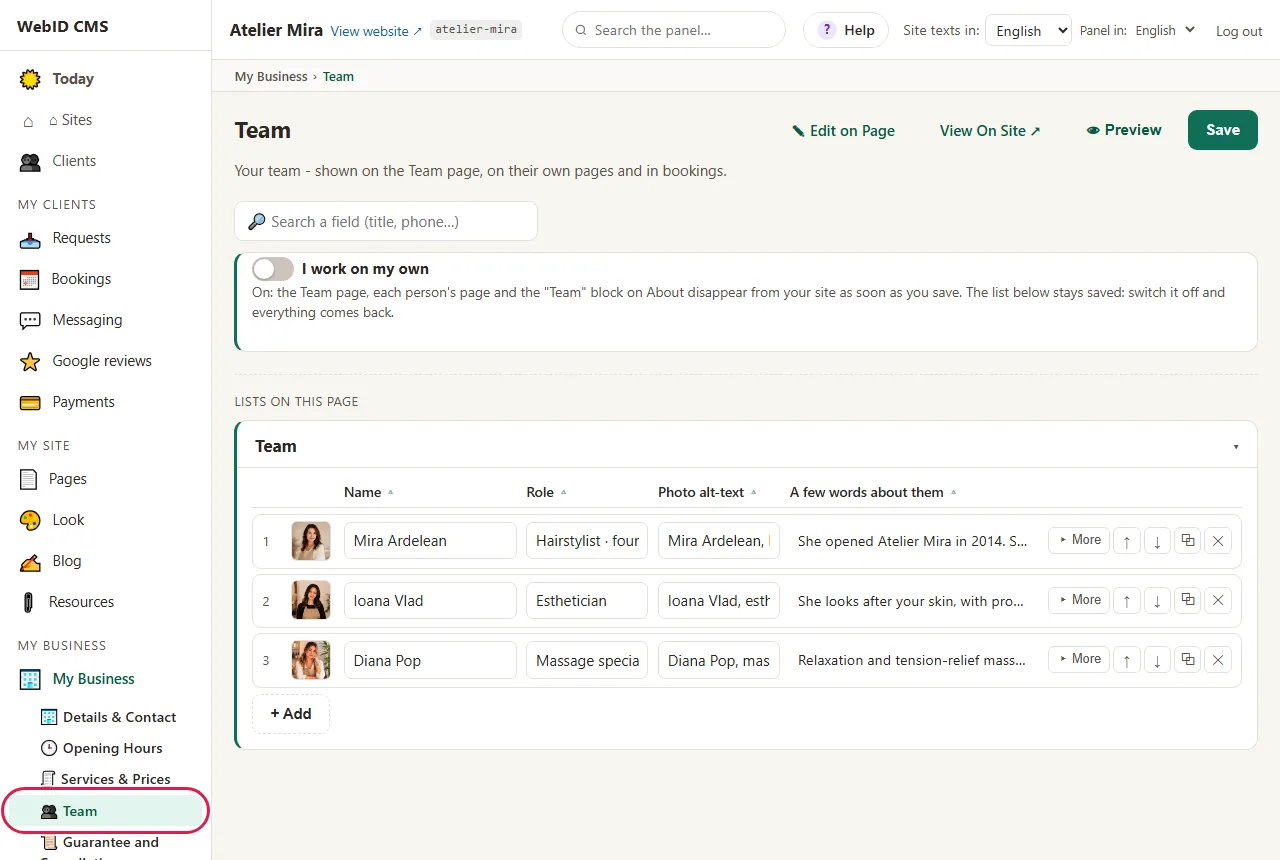
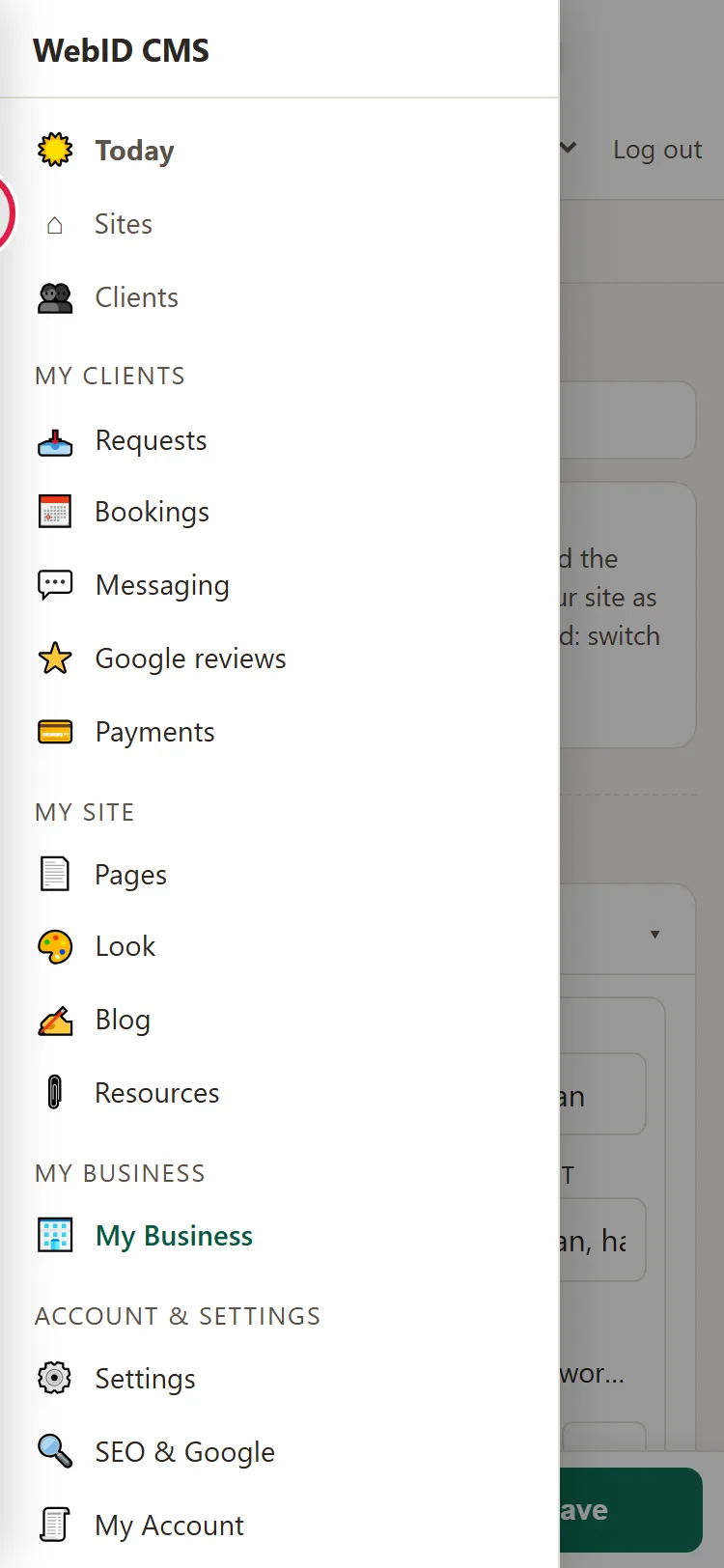
- In the left menu, under My Business, click Team. You see the team list: one row for each person, with their photo, name, role and the start of their description.
- Click + Add. A new row appears.
- Type the Name and Role (for example "Hairdresser · founder").
- If they don't have a photo, click + Photo and choose one.
- Click ▸ More to fill in the rest (see below what each field means).
- Click Save.
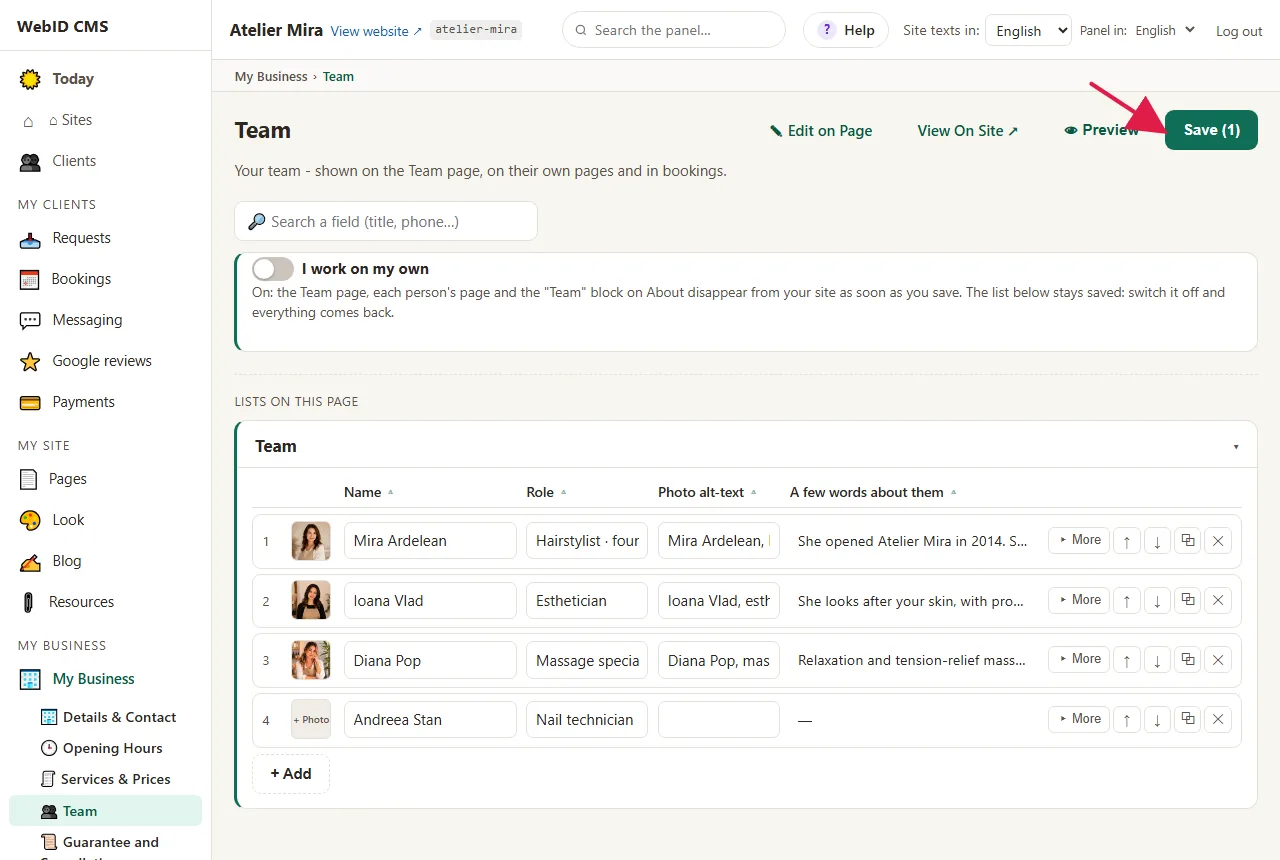
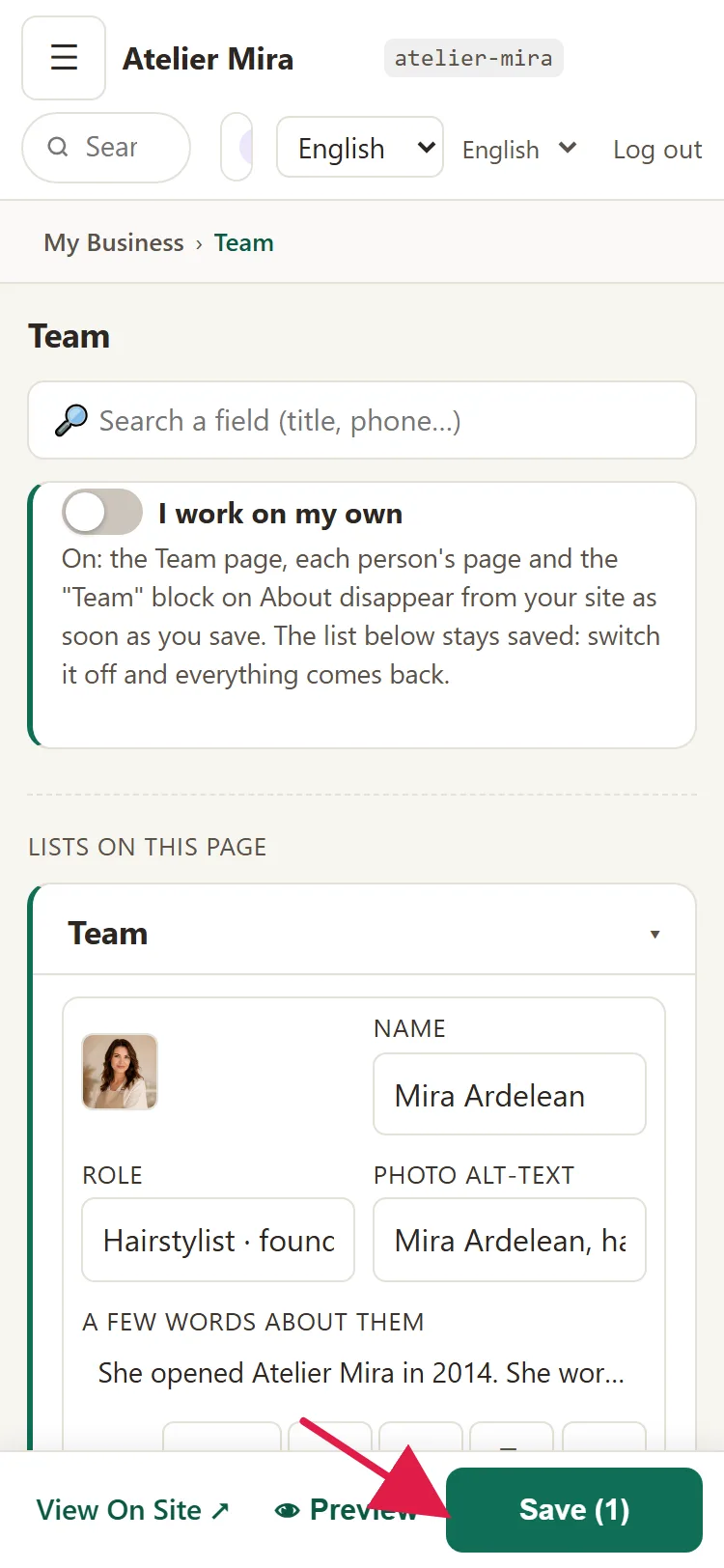
- You see "Saved ✓", with the colleague's new page. Their page is already on the website, and they appear in the team list.
If your website has several languages, each language has its own list: choose the language in Site texts in: and add the colleague there too.
What to fill in under More
- Photo and Photo alt text (a few words about the photo, for people who can't see it).
- Face focus: drag the dot over the face, so the photo isn't cropped wrong.
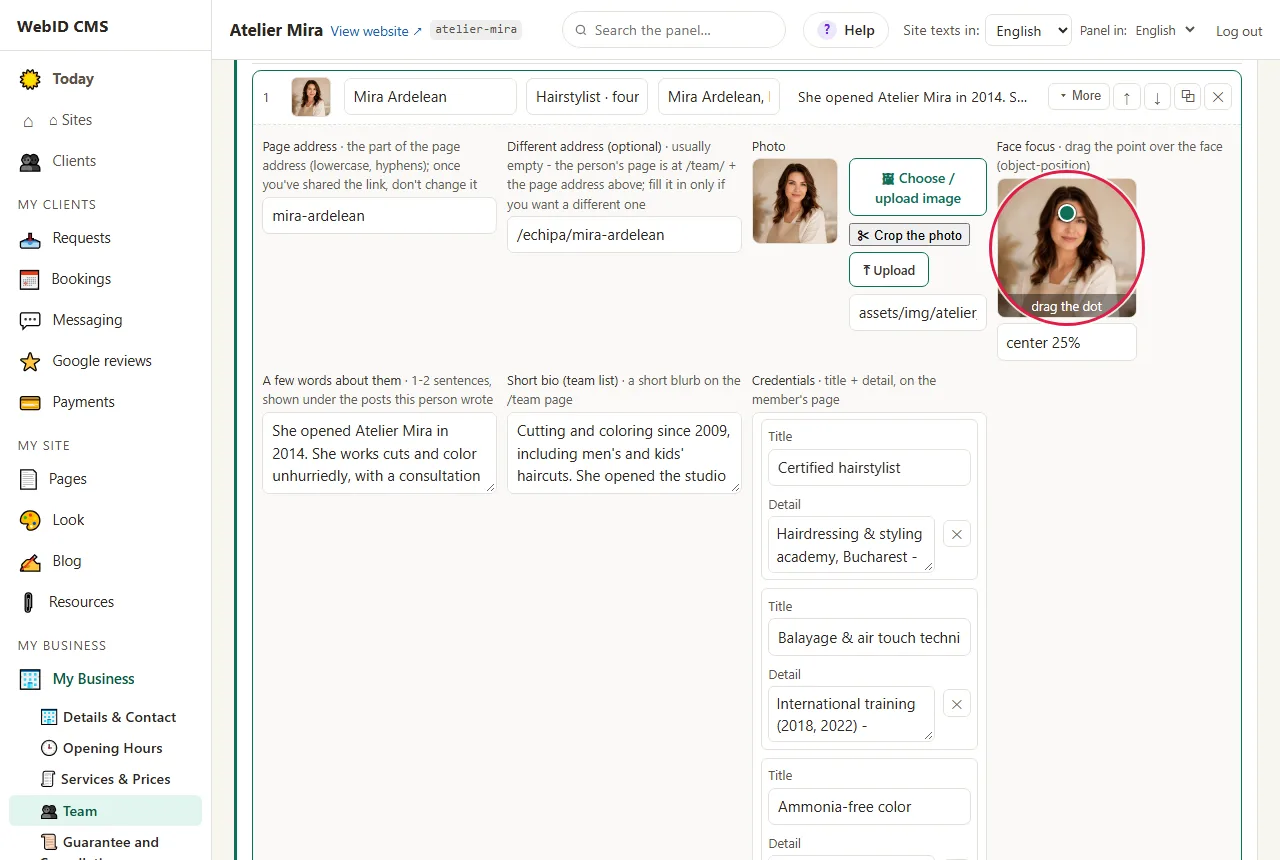
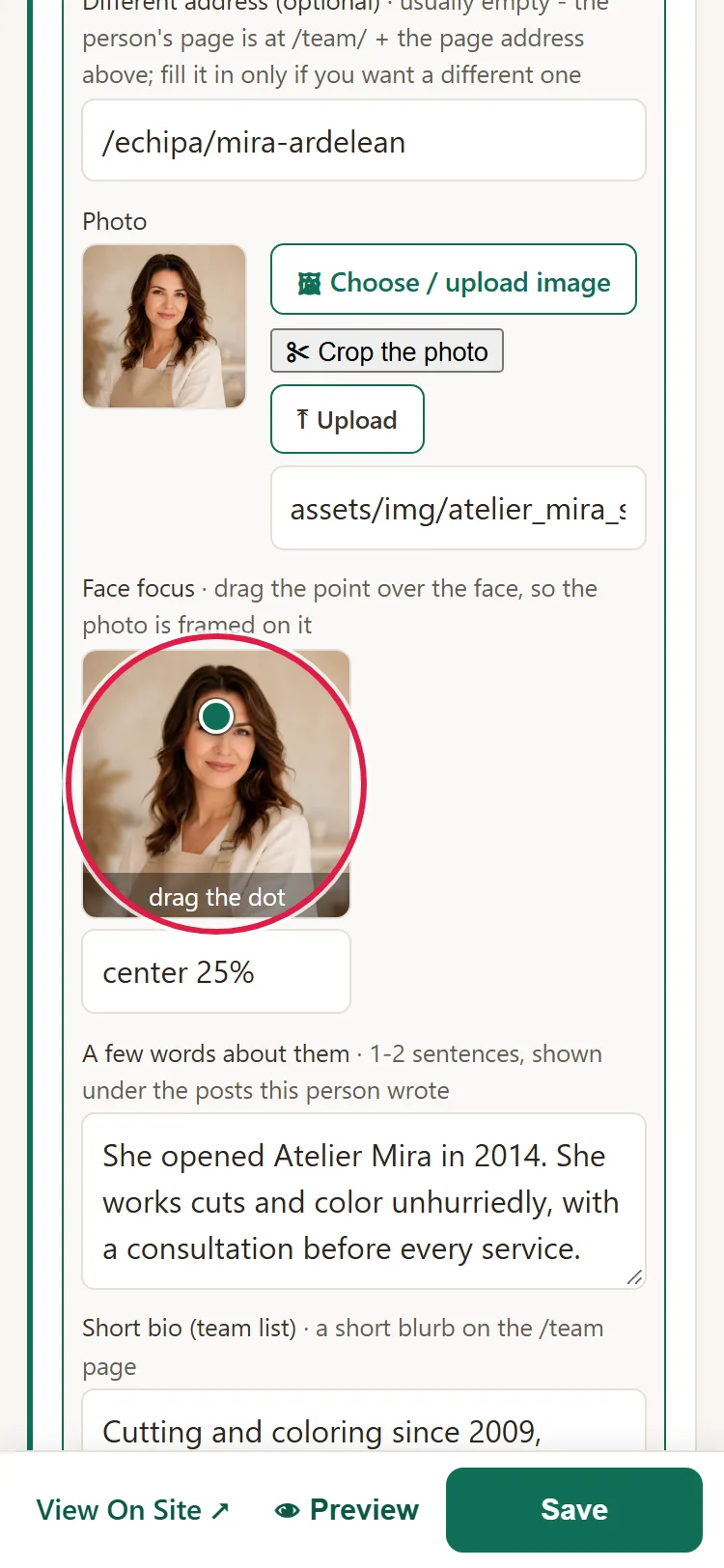
- A few words about them: appears under the articles they write.
- Short bio (team list): appears on the team page.
- Credentials: each one has a title and a detail and appears on their page. For another one, click + row.
- Email (only for their appointments): doesn't appear on the website. With Bookings, each colleague can get their own appointments by email. For that, in the Bookings panel, under Email Notifications, turn on the Each specialist gets their own appointments by email switch. Without Bookings, the field does nothing.
How to change the team's order
The order on the website is the order in the list. Use the ↑ and ↓ arrows on the row, then click Save.
What to do when someone leaves
- Click ✕ on their row.
- Click Save.
- The "You removed … from the list" window opens. Their page stays on the website until you choose what happens to it: Delete permanently, Pause or Keep the page live. The steps are in the guide What to do with a page you no longer want. If you choose Pause, the page comes back when you add them to the list again, with the same name. It comes back with the texts written on it in Pages, but you add the photo, the role and what was under ▸ More again in their row.
- If they were listed under "Specialists" on your services, remove them from there too, in Services & Prices.
- If your website has several languages, choose each language in Site texts in: and repeat the steps: each language has its own list.
How to hide the team if you work alone
- In "Team", at the top, turn on the I work on my own switch.

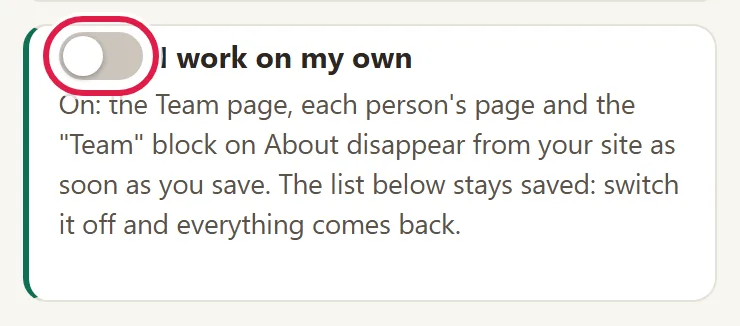
- It applies right away, without Save: the "Team" page, the people's pages and the "Team" block on the "About" page disappear from the website. Anyone who opens a direct link to them lands on the homepage.
- The list stays saved. When you turn the switch off, everything comes back on the website.
How to change the other texts on a colleague's page
- Under My Site, click Pages.
- Under Team, click the colleague's name.
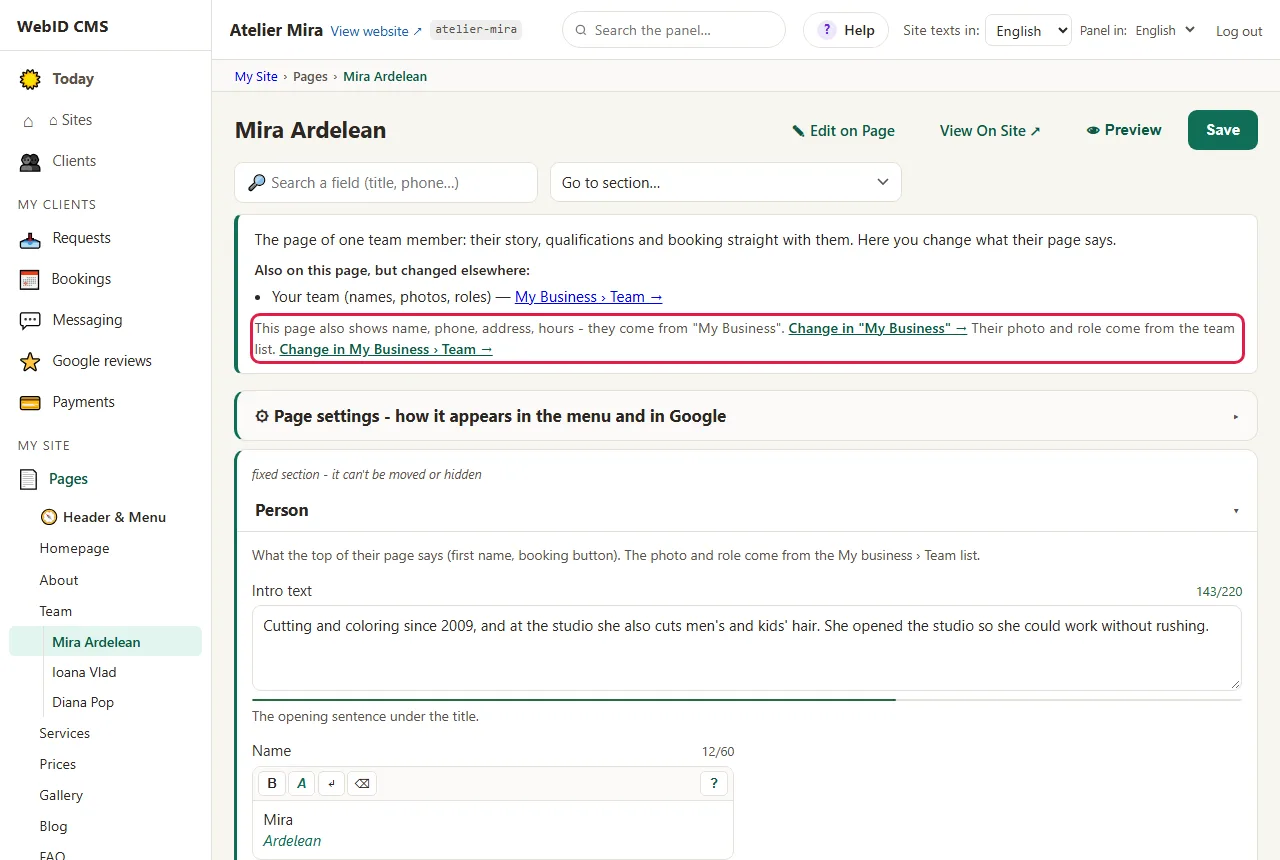
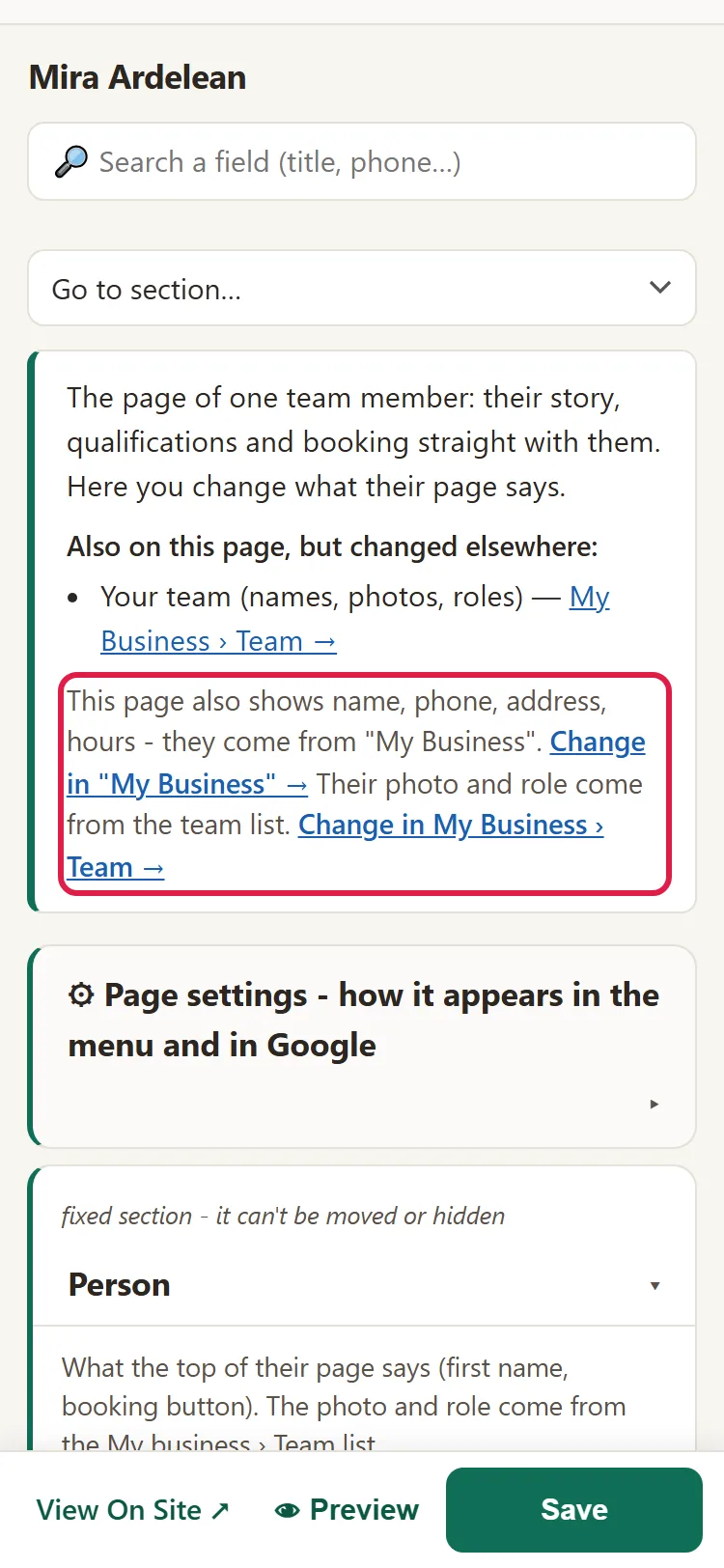
- Change the texts and click Save. The photo and role aren't changed here: for them, click Change in My Business › Team.
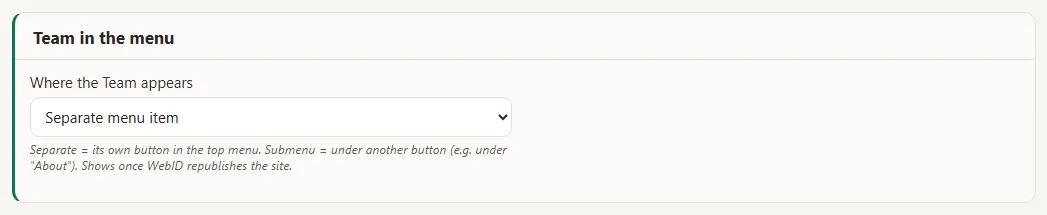
How to choose where Team appears in the menu
- In Pages, click Header & Menu.
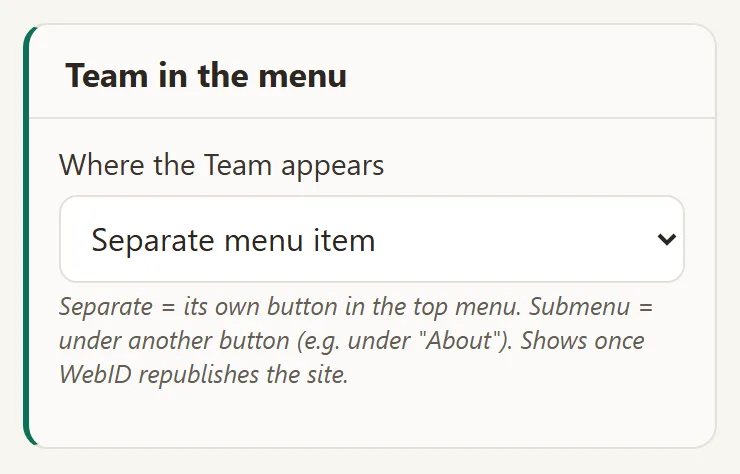
- Under Team in the menu, at Where the Team appears, choose Separate menu item or Submenu (under another heading).
- The choice is saved, but it appears on the website only after we rebuild your website. If you want to see it sooner, write to us at contact@webid.ro.
Common problems
- "I added a colleague, but they don't show up in appointments." The team list doesn't add them to appointments automatically. Check them under "Specialists" on their services, in Services & Prices, and check their schedule in the Bookings panel.
- "The colleague's face is cropped in the photo." Open ▸ More and move the Face focus dot over the face.
- "I turned on I work on my own by mistake." Turn the switch off: the team comes back on the website.
- "I moved Team in the menu and it doesn't show." The menu change appears on the website after we rebuild your website. If you want to see it sooner, write to us at contact@webid.ro.
- "I added a colleague in Romanian, but they don't appear in English." Each language has its own list. Choose the language in Site texts in: and add them there too.
- "Something else isn't working." Write to us at contact@webid.ro with the colleague's name and what you see on the website.
What it doesn't do
- It doesn't create admin panel accounts for colleagues: that's what the "Users" screen is for.
- It doesn't send your colleagues anything, not even when you add them. Their email is used only by Bookings, for their appointments, and only with the switch above turned on.
- It doesn't translate: you write the role and description in each of your website's languages. The colleague's email is entered only once, in the main language.
- The Team's place in the menu doesn't change right away: it appears after we rebuild your website.
- A colleague's page address is made automatically from their name. You can change it only with SEO - setup, because a changed address can lose the place it has earned in Google.
What data it uses
Your colleagues' names, roles, photos, descriptions and credentials appear on the website. Their email isn't published and serves only their appointments. You ask each of them for consent to use their photo and description, and we process them on your behalf - see DPA §3, the "Website + hosting" row. When you remove someone from the list, their data stays in "History" (the last 40 saves) and in the backups for up to 182 days (DPA §10).