How to undo a mistake on your website
Deleted some text by mistake, broke a list or set the wrong price? You can go back to the earlier version: right away, with one click, or later, from "History". It takes a minute and you don't need any add-on.
How to undo right away, just after saving
Undoing right away works in "Pages", in "My Business" (Details & Contact, Services, Team, Opening Hours) and in the lists in the admin panel. It doesn't work in "Content Pages".
- After you click Save, the Undo button appears next to the green "Saved ✓" message.
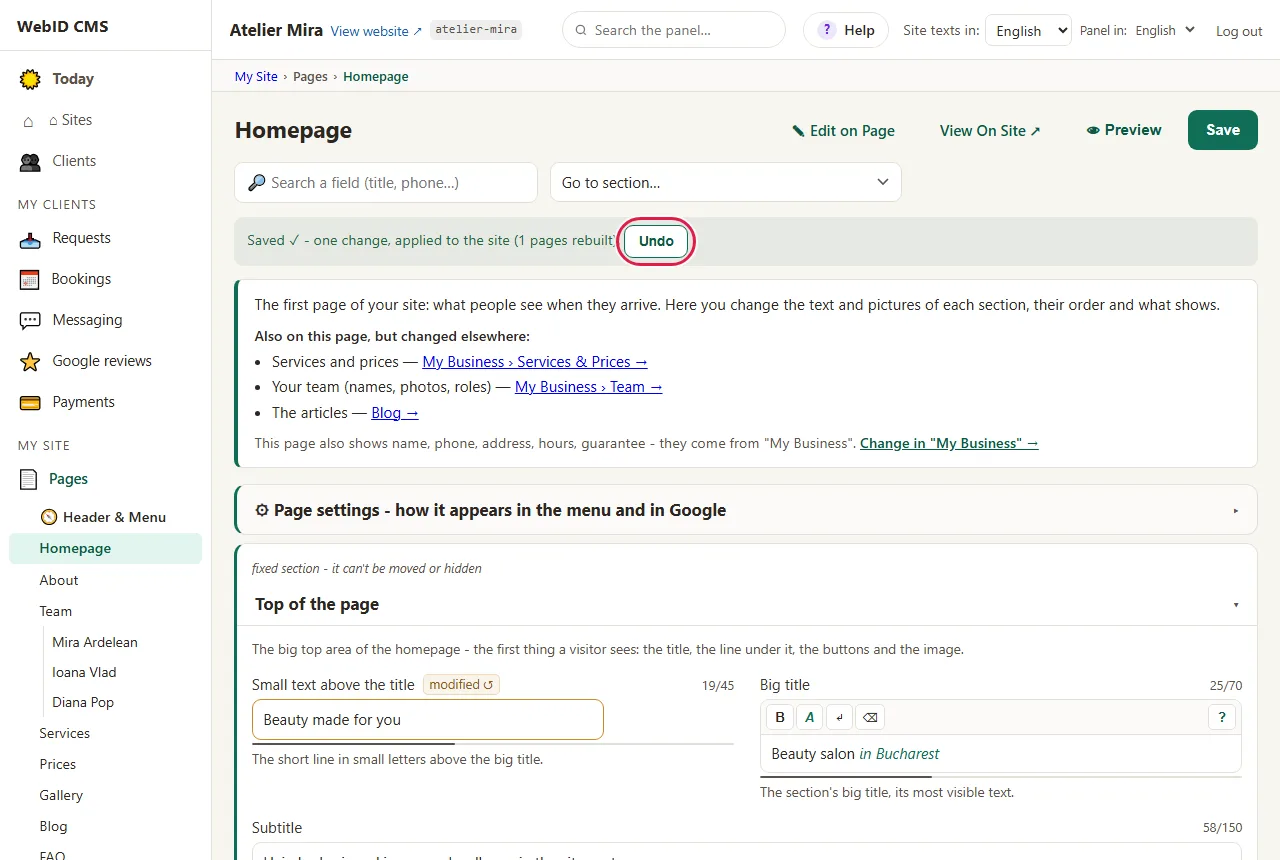
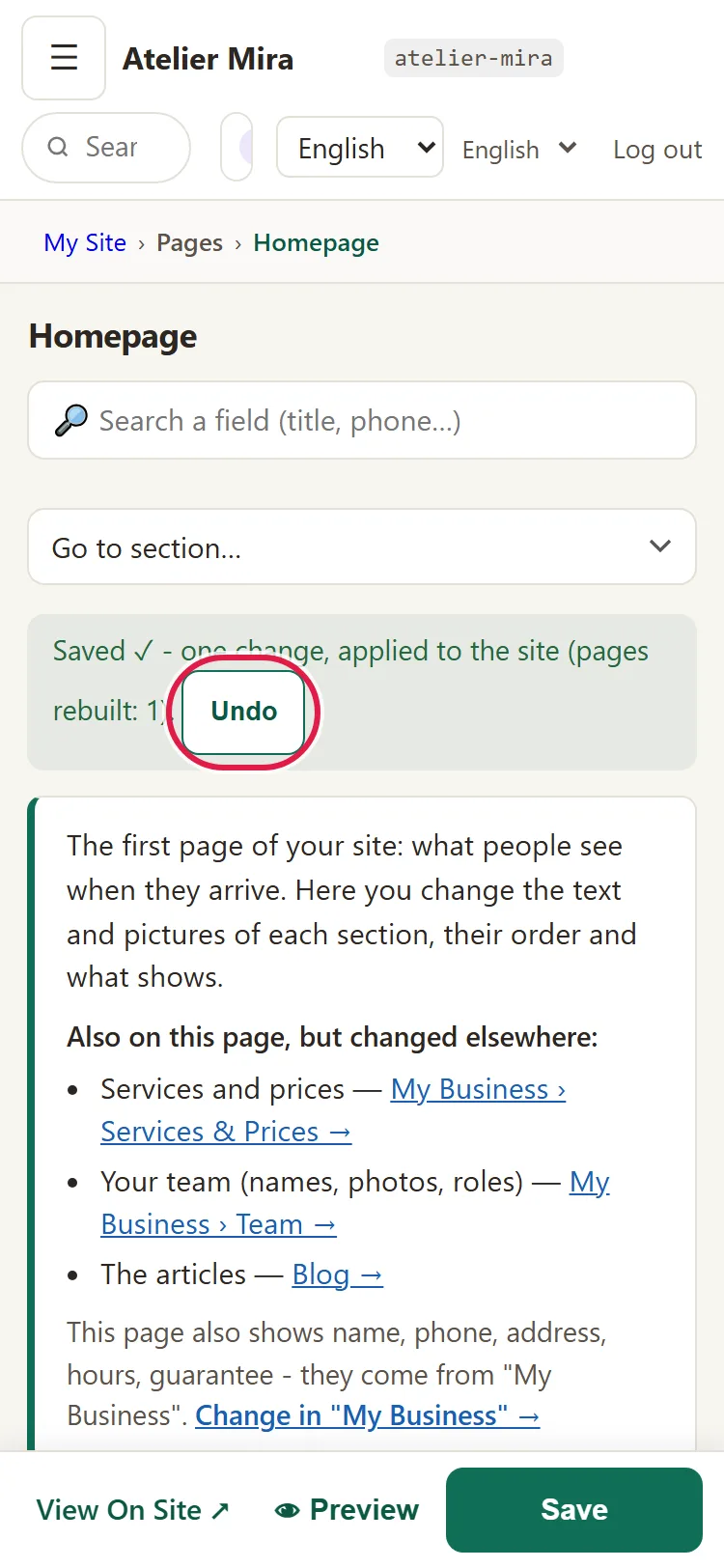
- Click Undo. You see "Undoing…", then "Undone ✓ - everything is back to how it was before you saved".
- The screen reloads by itself, and your website is back to how it was.
The button disappears when you leave the screen. After that, use "History".
How to go back later to an old version, from History
Before every save, we keep a copy of your website's texts, lists and settings. Saves made quickly, one after another (less than 45 seconds apart), share the same copy. Each copy is a row in "History".
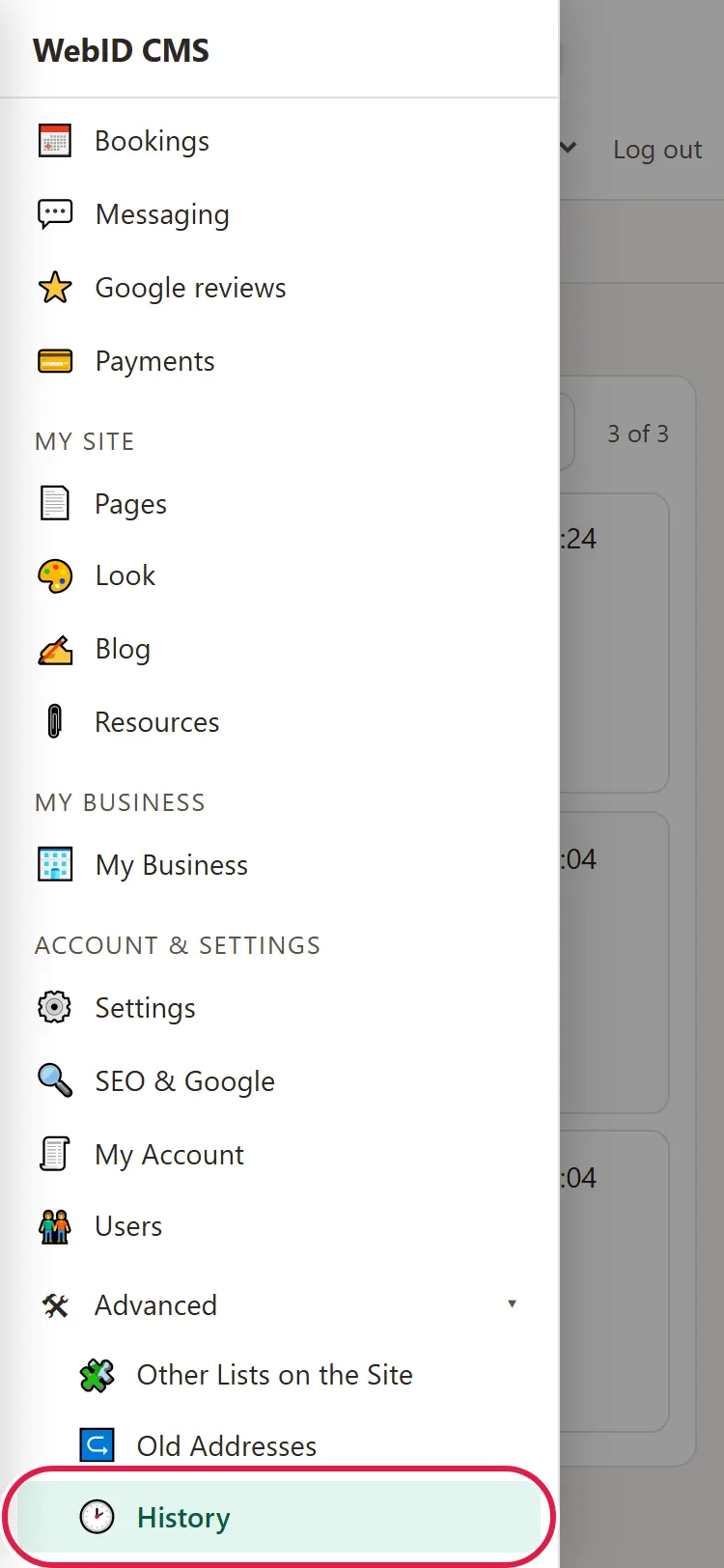
- In the menu (on a phone, open it with ☰), click Advanced, then History.
- Read the "What changed next" column: it shows what was changed after each point (for example "Text: Homepage" or "Look"). If you have many rows, type a word in Search history….
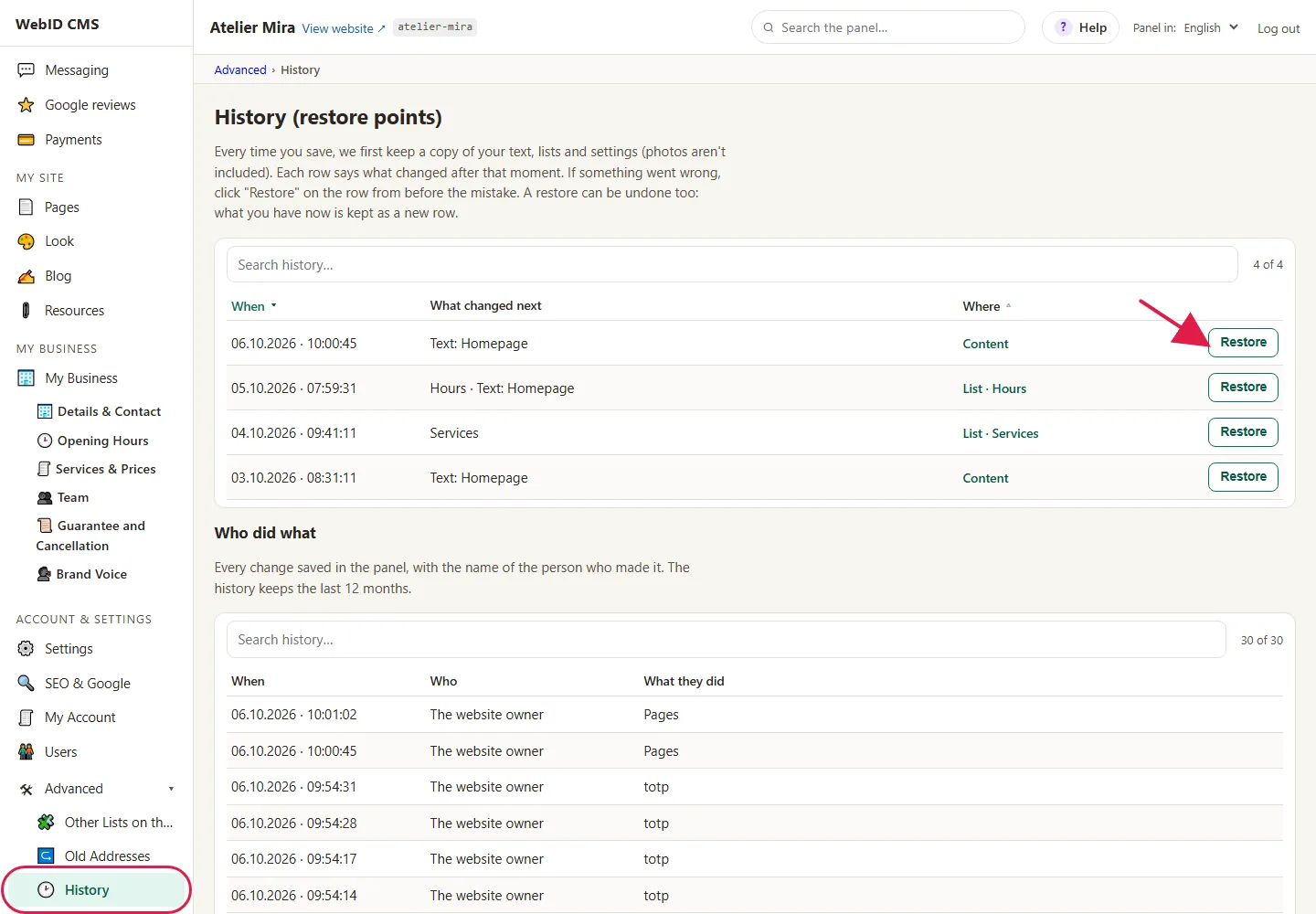
- Find the row from before the mistake and click Restore on it. Restoring brings back all the texts, lists and settings as they were at that point, not just what you got wrong. The good changes made after it are lost too, so redo those afterwards.
- We ask you: "Restore the data to this point? The website will be republished." Confirm with Restore.
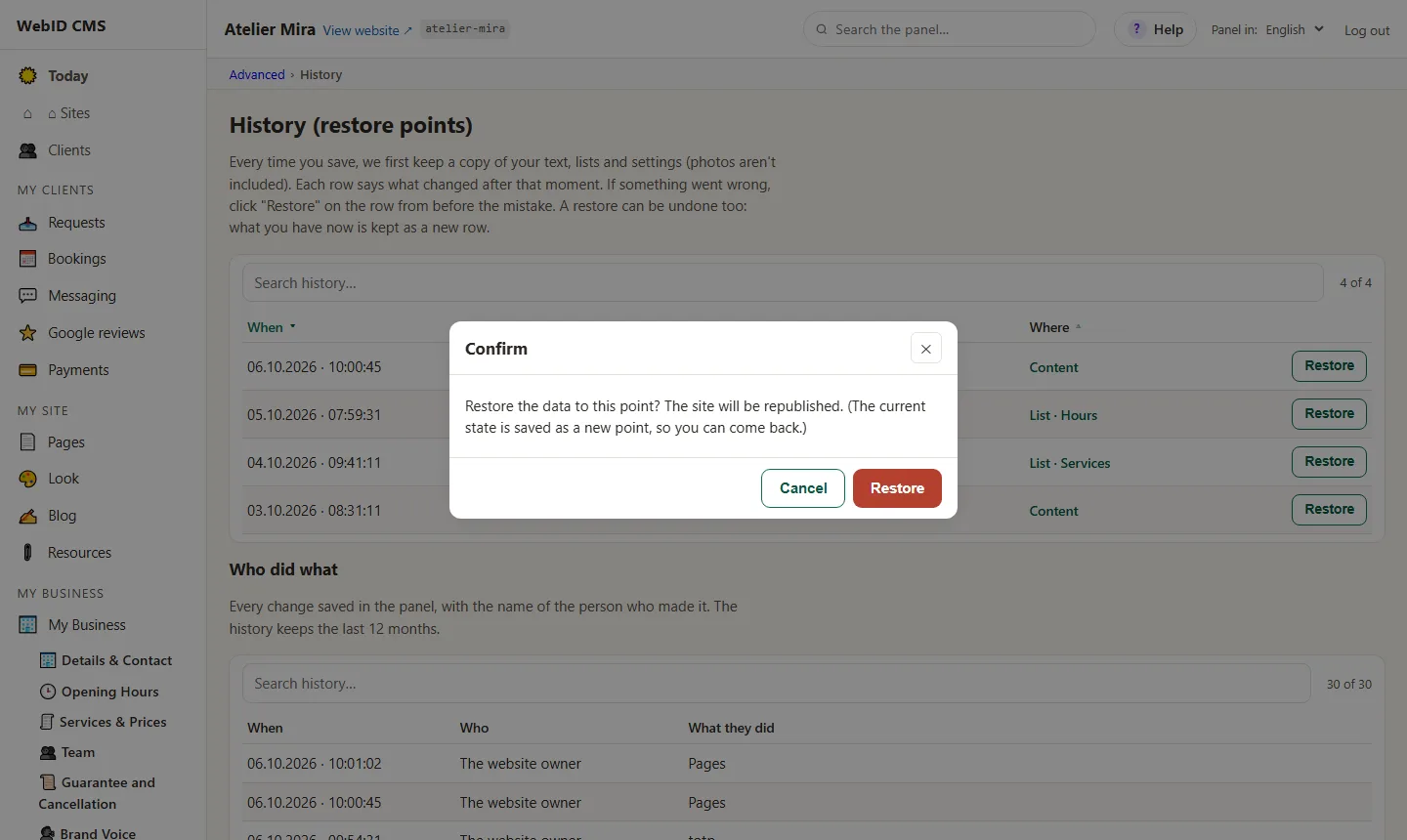
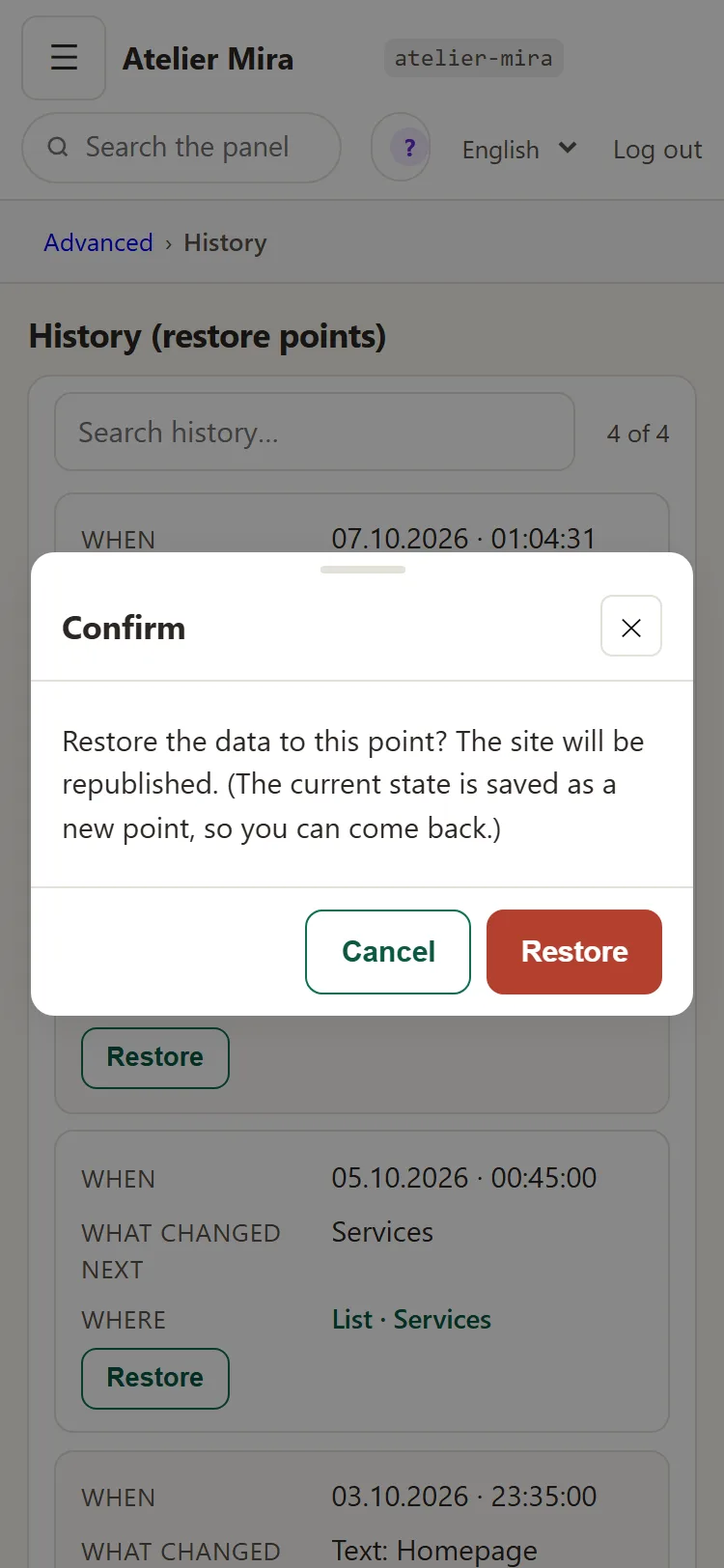
- Wait a few seconds. You see "Restored ✓", and the screen reloads by itself.
Restoring can be undone too: what you had on the website before it is kept as a new row, at the top of the list.
How to find out who changed something
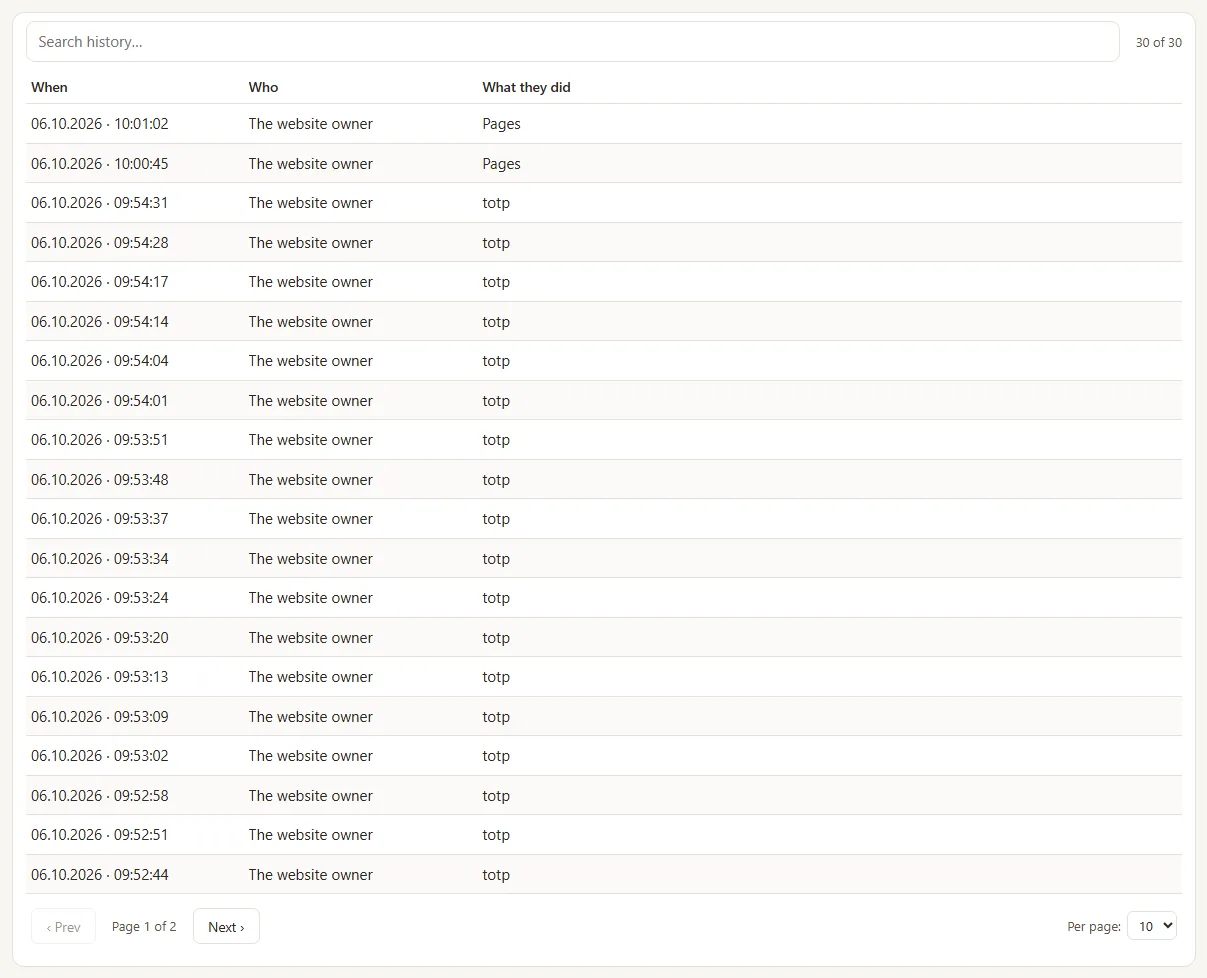
If several people work in the admin panel, under "History" you'll find the "Who did what" table: every saved change, with the date, the name of the person who made it and what they did. We keep the last 12 months.

Common problems
- "I can't see the Undo button anymore." You left the screen after saving, and the button disappeared. Go to Advanced › History and restore the row from before the mistake.
- "I restored a different point than I wanted." Before the restore, what you had on the website was kept as a new row, at the top of the list. Click Restore on it and you're back where you were.
- "I don't know who changed the text." Look in "Who did what", under "History".
- "I changed something directly on the page and I don't see Undo." The on-page editor doesn't have the button. Use "History".
- "Something else isn't working." Write to us at contact@webid.ro with what you see on the screen and we'll take a look.
What it doesn't do
- Photo files aren't kept in the history, which only remembers which photo is placed where. If you replaced a photo and you restore, the page shows the old photo again, and the new one stays in the photo library. A photo deleted from the library doesn't come back from "History".
- We keep only the last 40 restore points.
- The Undo button doesn't appear after changes made directly on the page (✎ Edit on Page), in "Look", in "Content Pages" or after moving or hiding sections. For those, use "History".
- The backups we make every night (photos included) aren't visible in the admin panel, and we only make them for websites we host. If you need one, write to us at contact@webid.ro. If your website is with your hosting company, that company backs up the whole folder (The website folder), and you still have "History" in the admin panel.
- It doesn't bring back a page you retired: for that, see the guide What to do with a page you no longer want.
What data it uses
With every save we keep a copy of the texts, lists and settings (the last 40 points), including the published names and contact details. The "Who did what" log shows who changed what for 12 months - see DPA §6. What you delete from the website stays in these points until they drop off the list, and in the backups for up to 182 days (DPA §10).