How to change a text on your website
Spotted a wrong sentence on your website, a heading to change or a button that should say something else? You change them yourself, from the admin panel, in a few minutes. You have two ways with the same result: right on the page, for a quick fix, or from the page's form, when you change several texts at once.
You need an admin panel account with the Owner, Administrator or Editor role. What you save shows on your website right away: there's nothing else to publish afterward.
How to change a text right on the page
The on-page editor works in your website's main language. You change the texts in the other languages from the page's form (below).
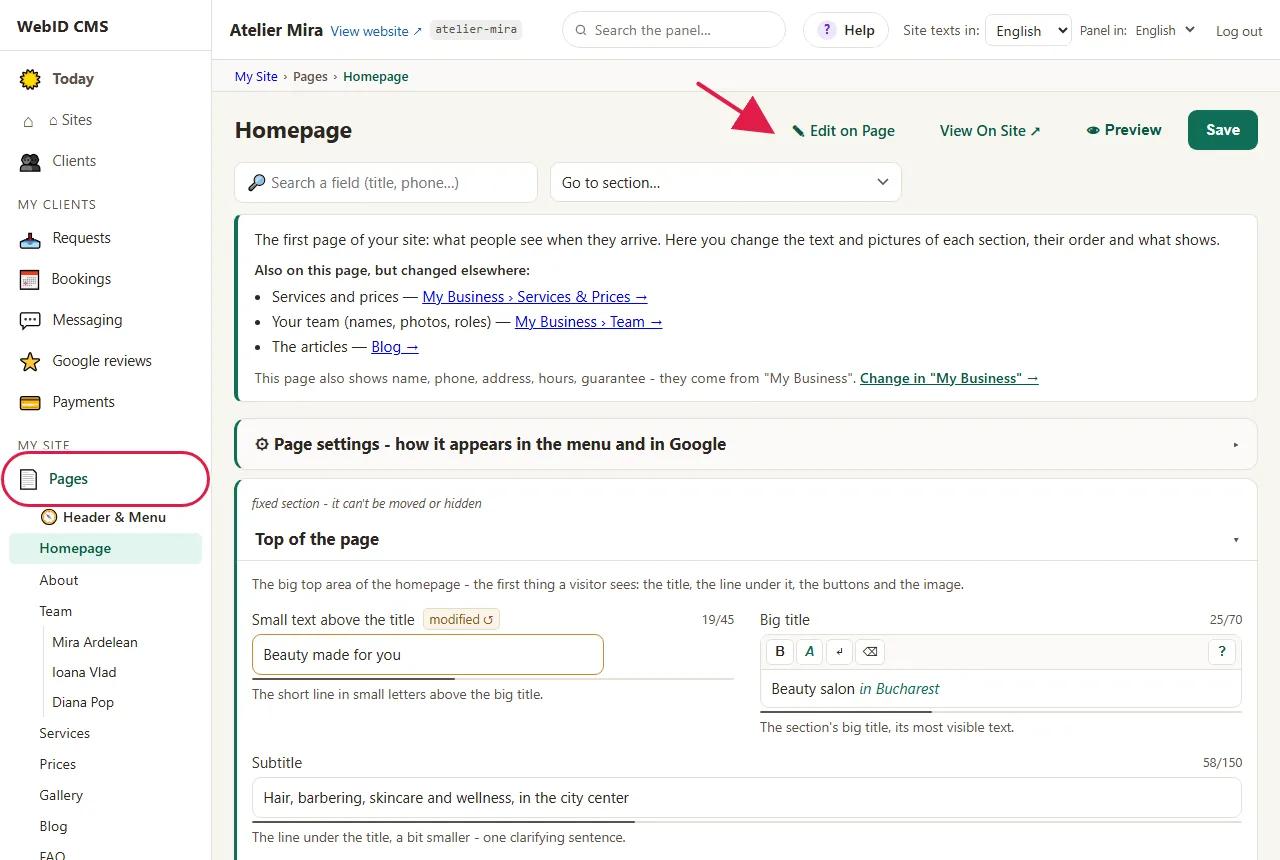
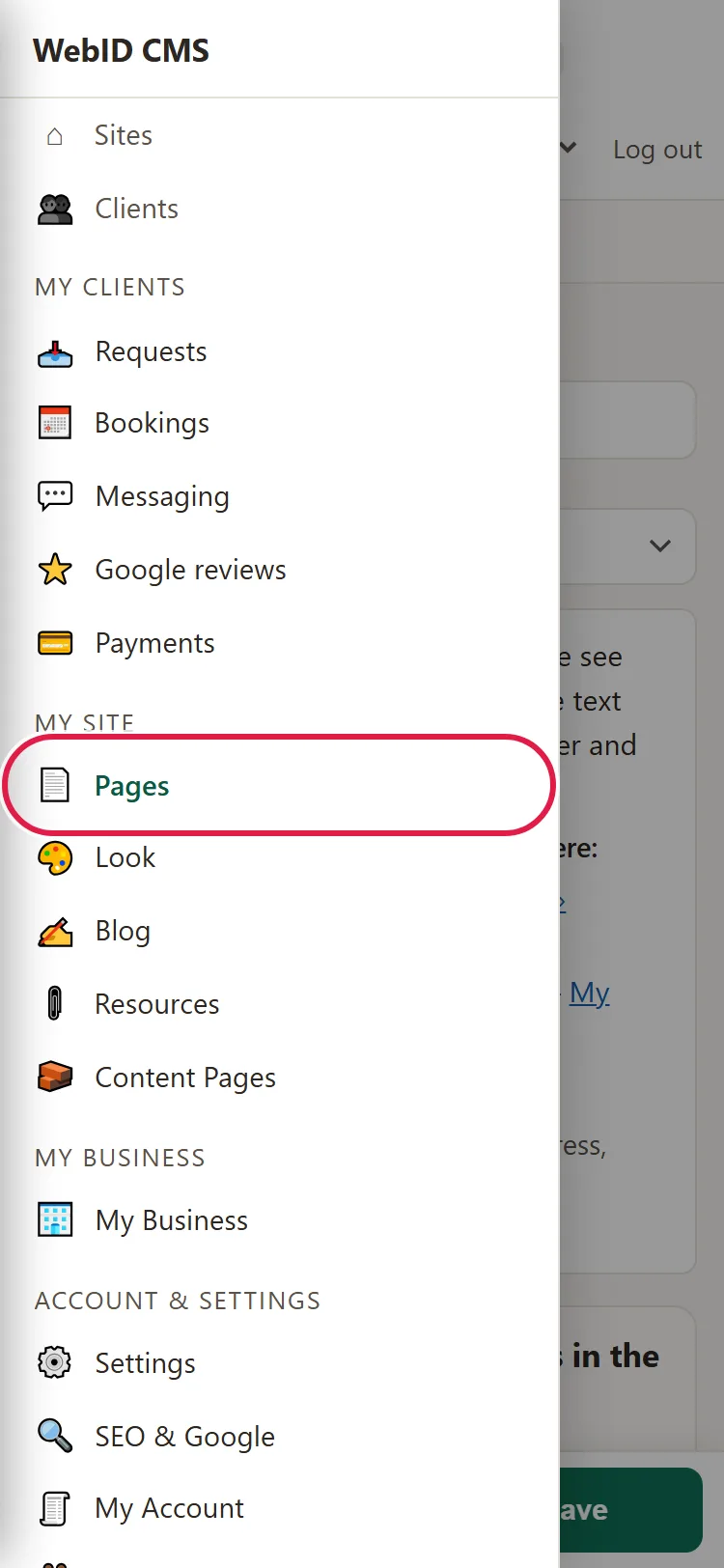
- In the left menu, under My Site, click Pages.
- Pick the page from the list, for example Homepage.
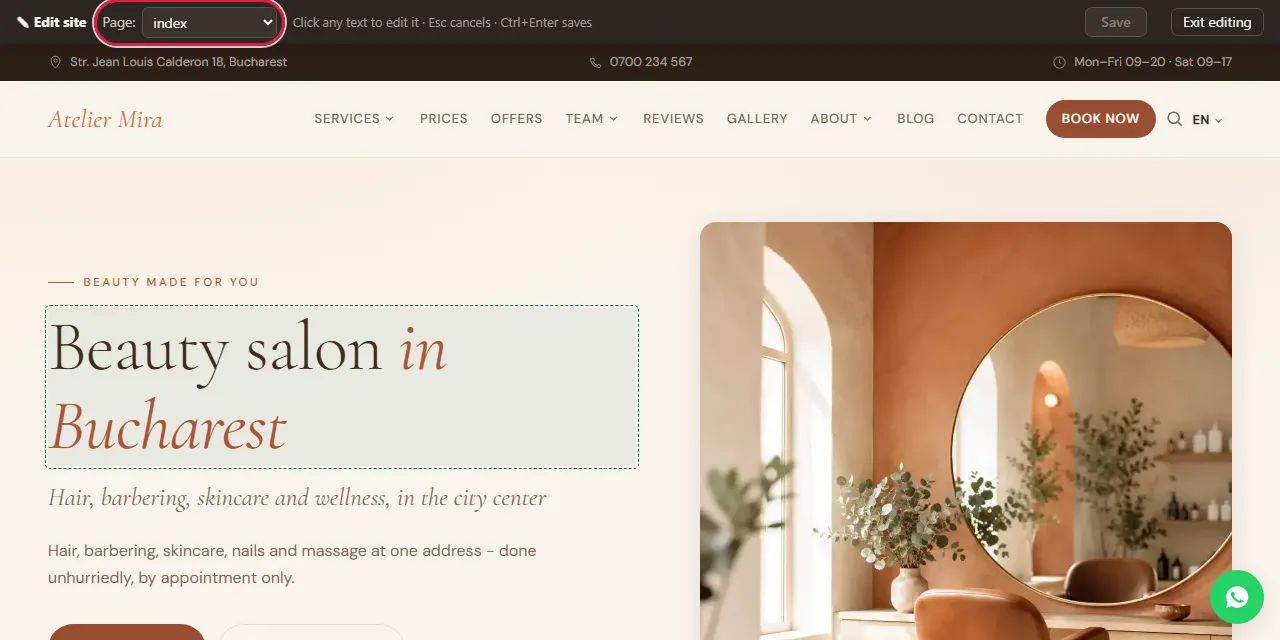
- At the top right, click ✎ Edit on Page. Your website's page opens in a new tab, with the editor bar at the top.
- Move the mouse over the page: the texts you can change are highlighted when you hover over them. On a phone, they're highlighted from the start.
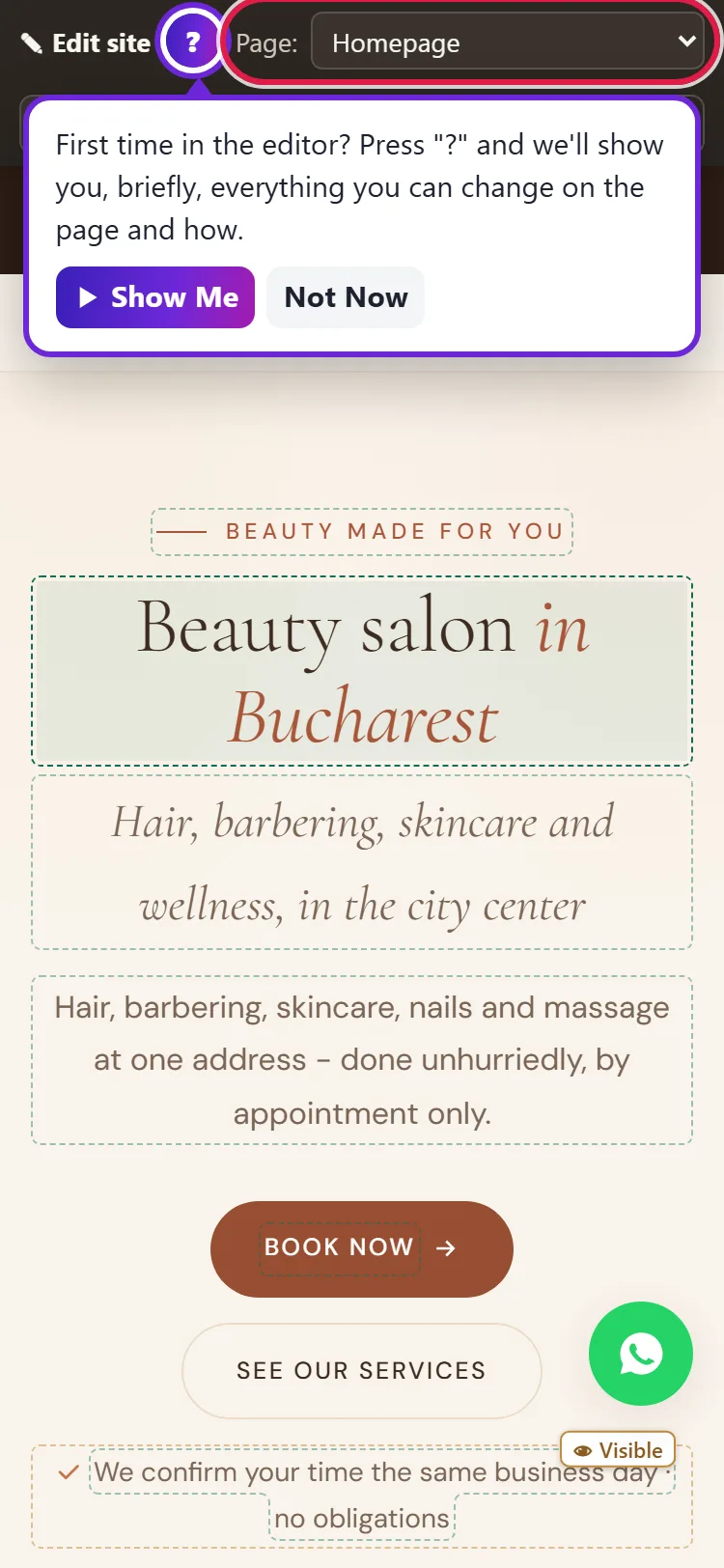
- Click the text (on a phone, tap it) and type straight into it.
- Click outside the text (on a phone, tap outside it; on a keyboard, press Ctrl+Enter) to keep what you typed. If you changed your mind, press Esc: the text goes back to how it was.
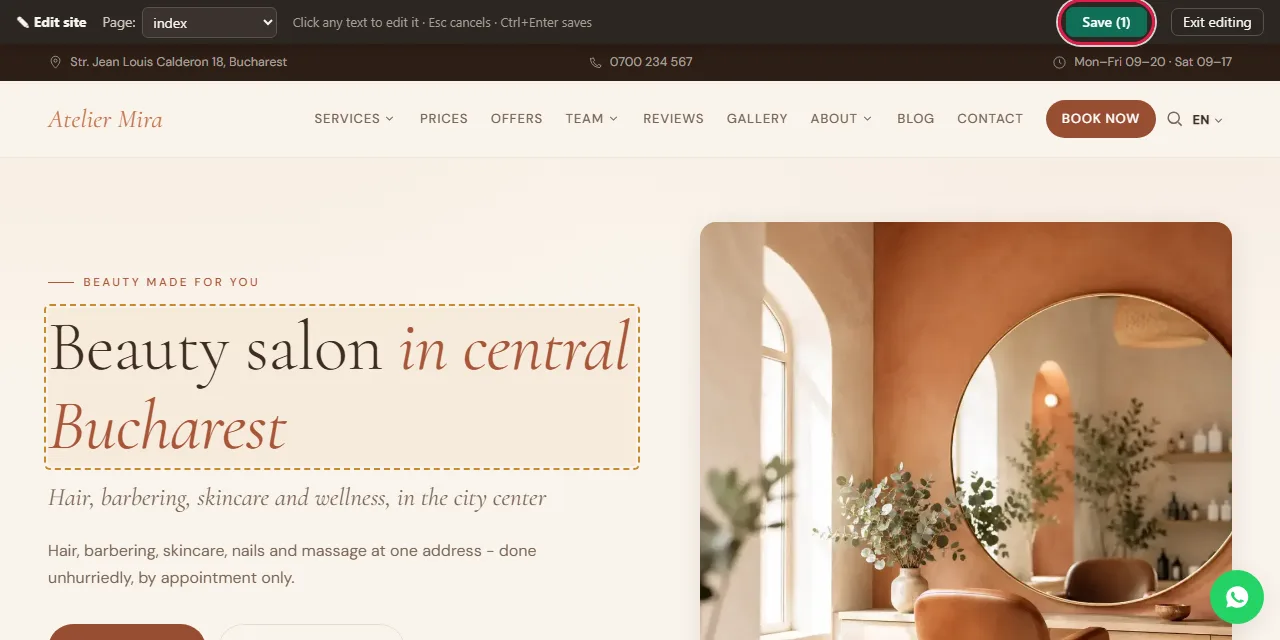
- Click Save in the top bar. The button shows how many changes you've kept, for example Save (1). From here you don't have Undo after saving: you fix a saved mistake from Advanced › History (How to undo a mistake on your website).
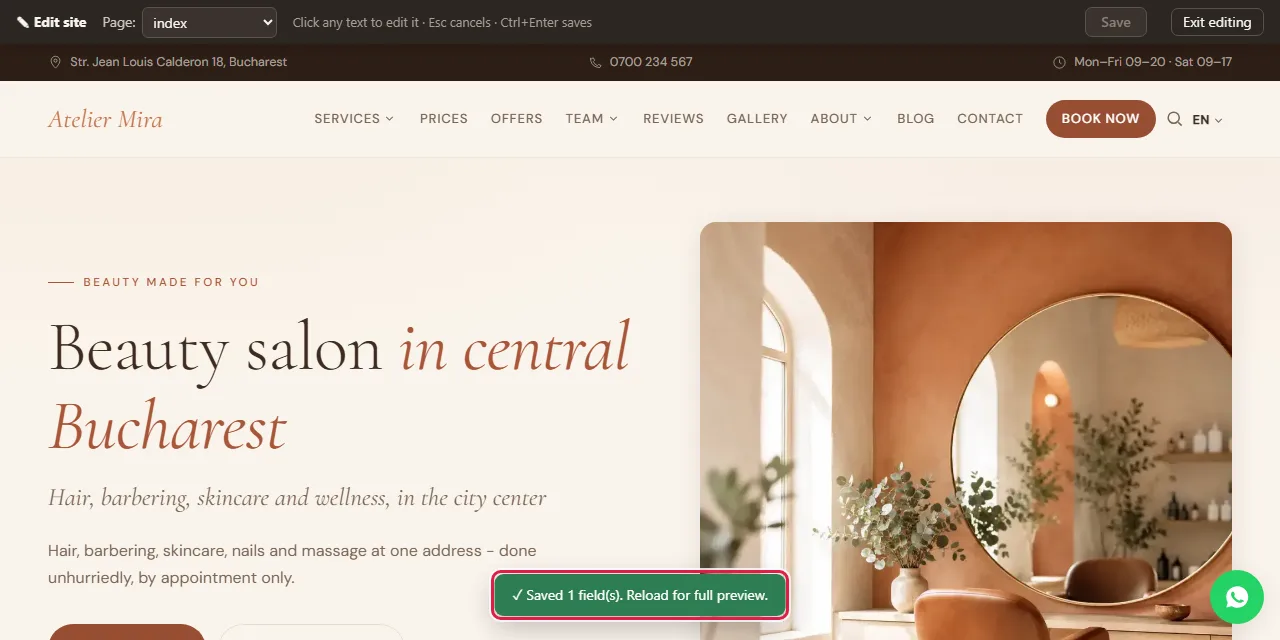
- The message "✓ Saved 1 field(s)" appears at the bottom.
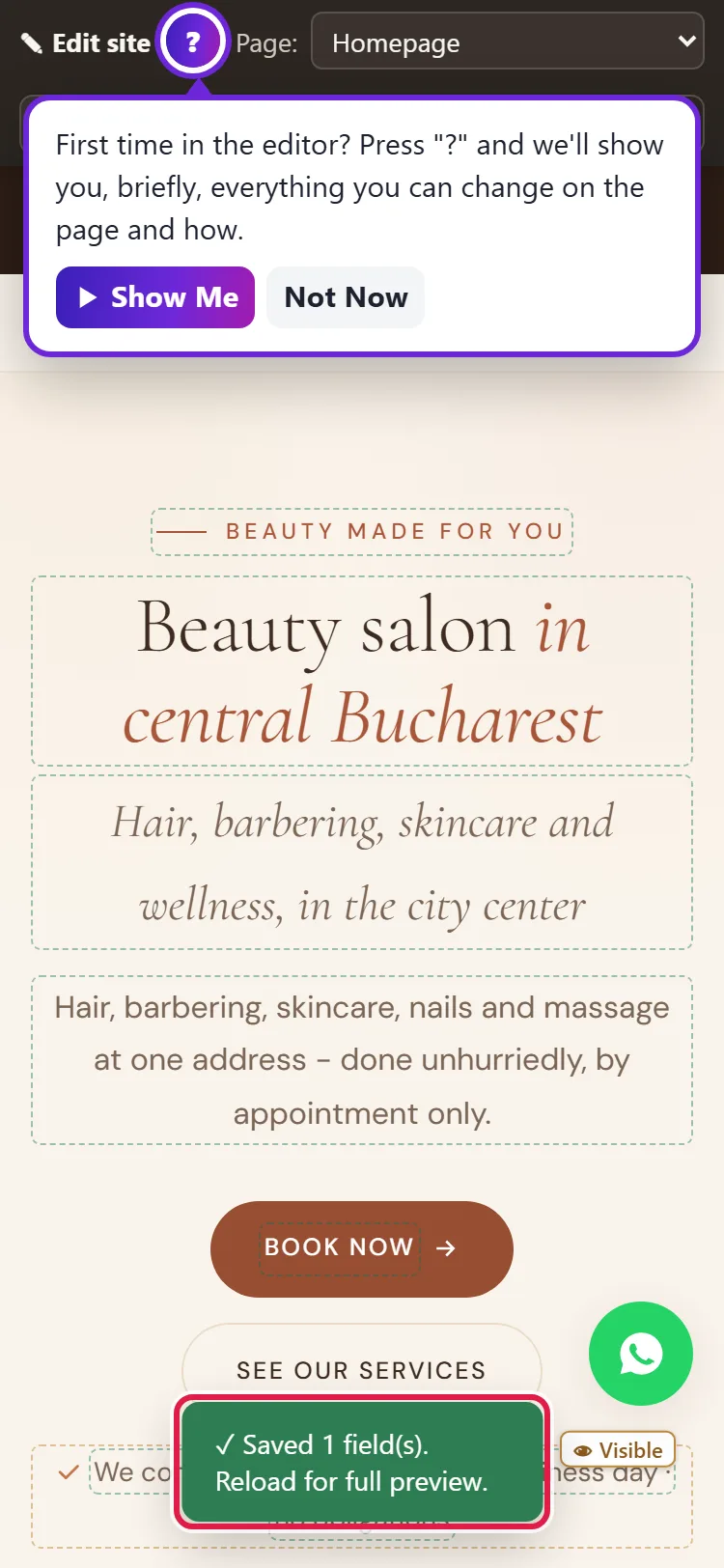
- When you're done, click Exit editing: you land on your website's page, the way your clients see it. If you have anything unsaved, we ask you before you leave.
What to do with a text that appears on every page
Some texts are on every page, for example the ones in the footer. When you finish typing in such a text, we ask you where you want the change:
- Click On all pages if you want the new text everywhere.
- Click Only on this page if you want it changed only here. If you change your mind, Cancel brings back the previous text.
- Then click Save in the top bar, as usual. The message tells you on how many pages the change appears.
How to change a button, a photo or a link
- In the on-page editor, click the button, the photo or the link. The "Edit element" window opens.
- Change what you need: Text, Link (URL) (the address it leads to), the photo with 📷 Change or Alt text (accessibility) (a few words about the photo, for people who can't see it).
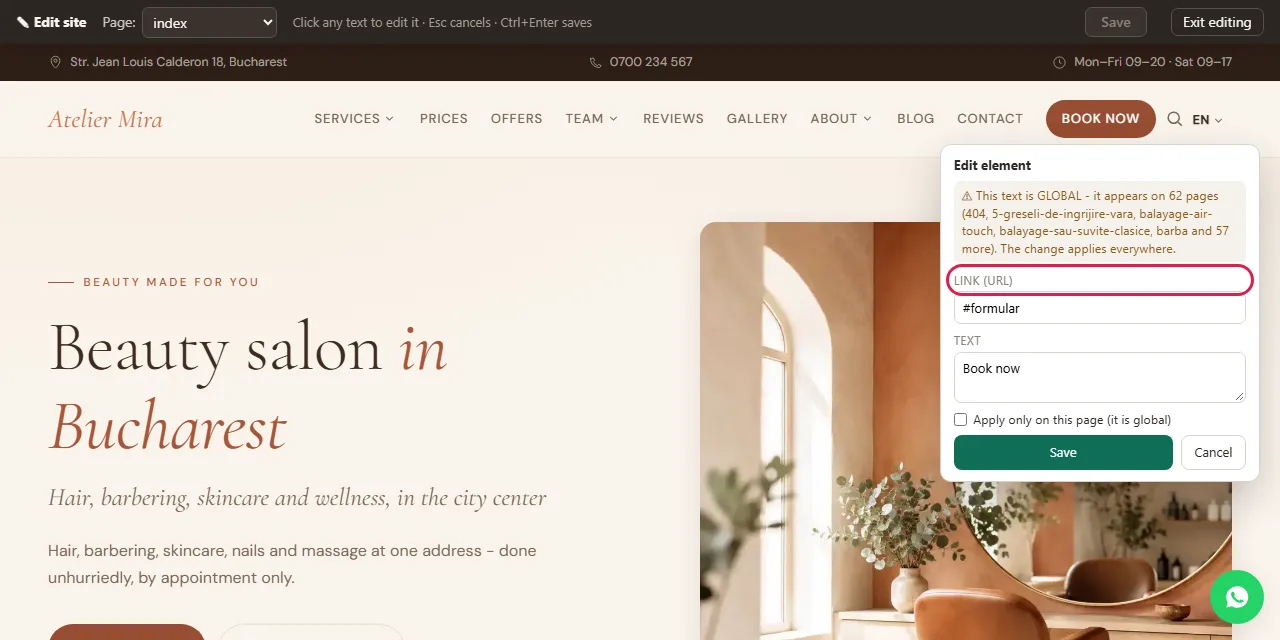
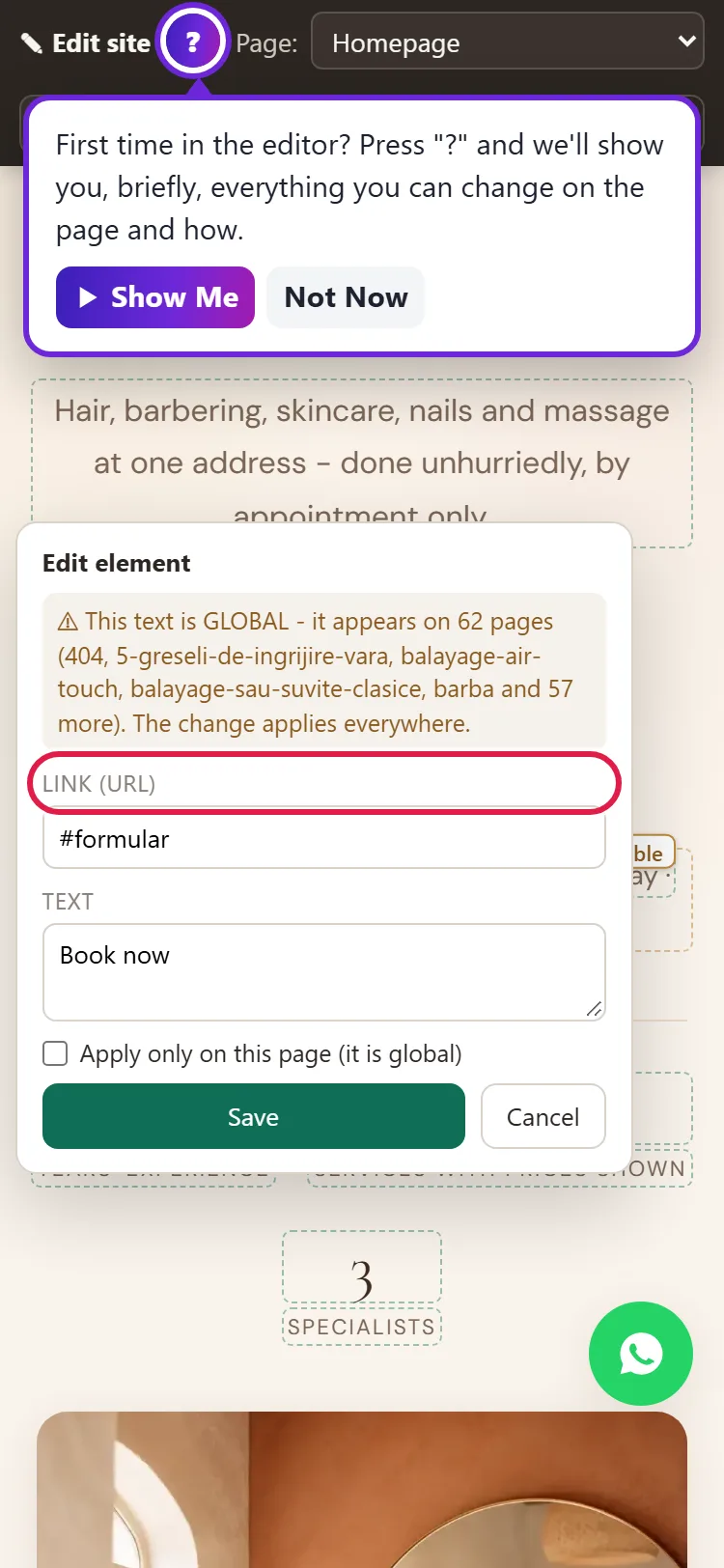
- If the element appears on every page and you want it changed only here, check Apply only on this page (it is global).
- Click Save in the window. The change is saved as a draft: it's not on your website yet.
- Click Save (N) in the top bar to put it on your website.
What to do when a message appears instead of the editor when you click
Services, the team, the menu, the FAQ and the opening hours come from lists you keep in the admin panel. When you click them in the editor, you see the message "This element comes from structured data (…). Edit it here:".
- Click the → Open link in the message.
- The admin panel screen where you change the list opens. A few short texts from the lists (for example a service's name) can still be changed right on the page.
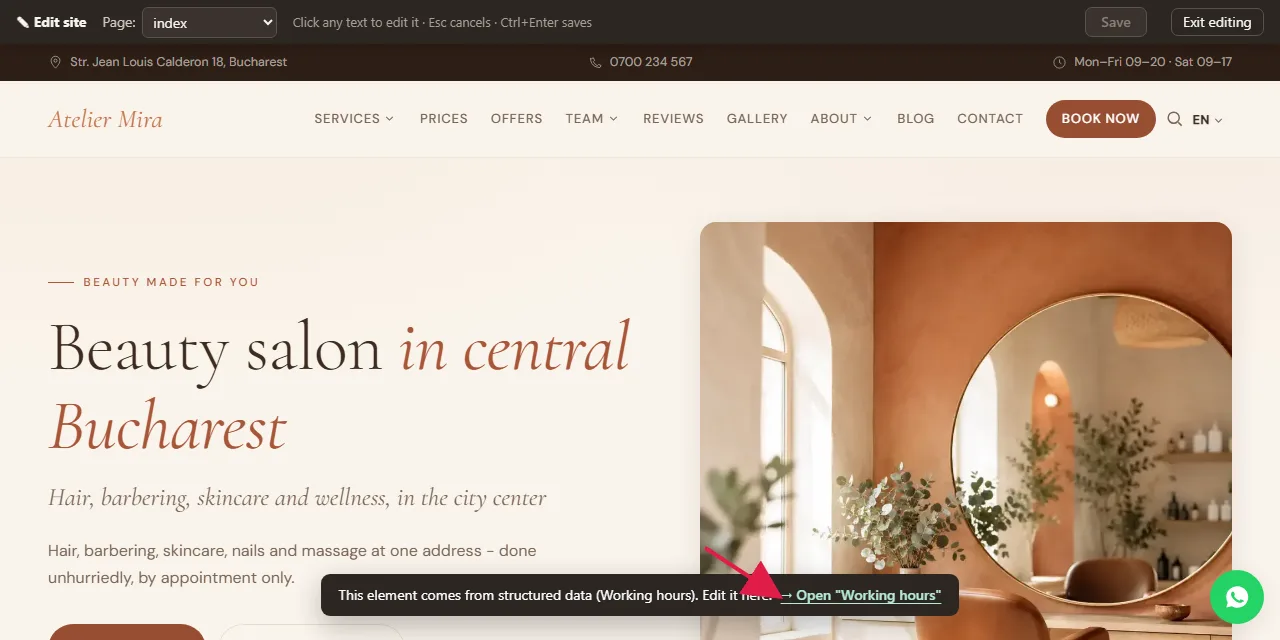
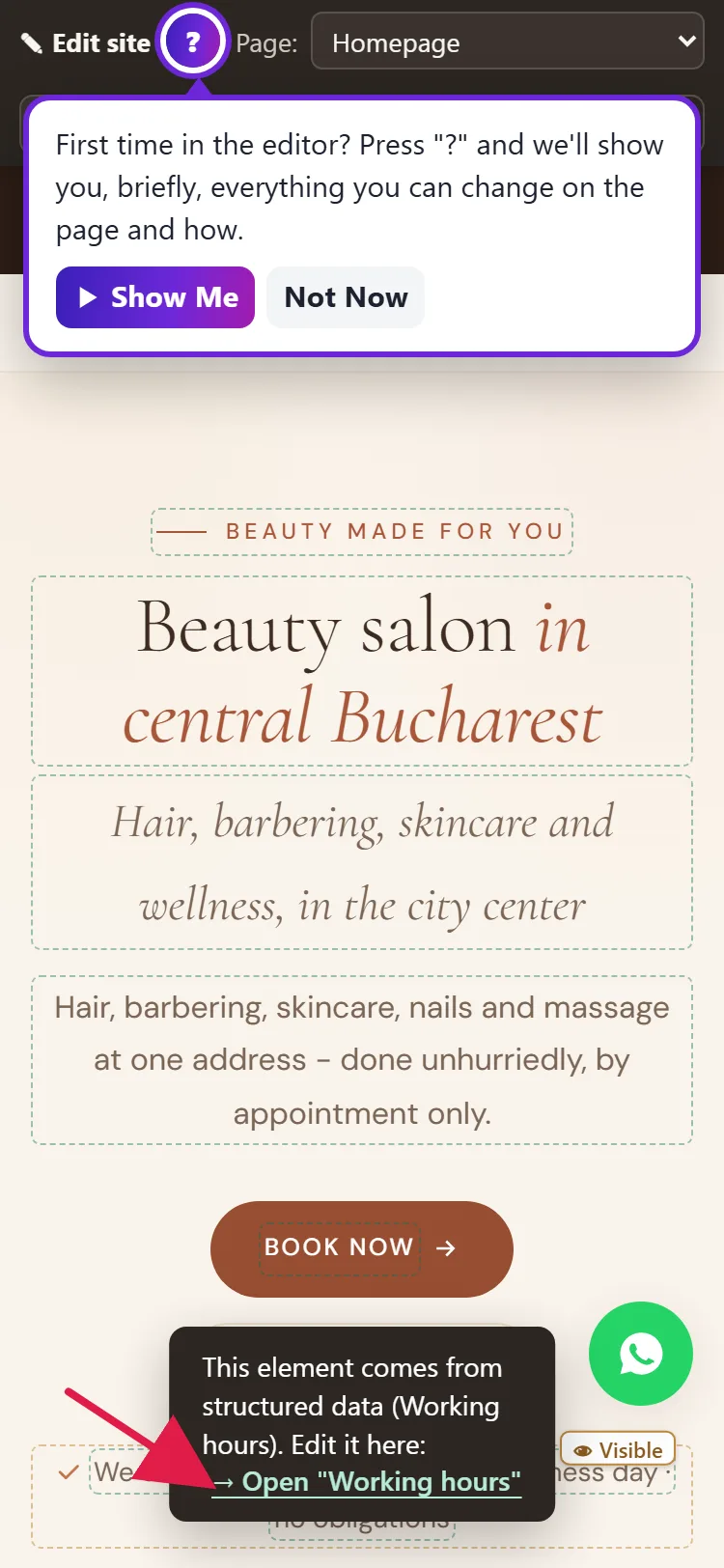
In the editor, the links on the page don't take you anywhere. To go to another page, pick it from the Page: list in the top bar.
How to change several texts at once, from the page's form
This way is better when you have a lot to change or when you want to see the page on a phone too before you save.
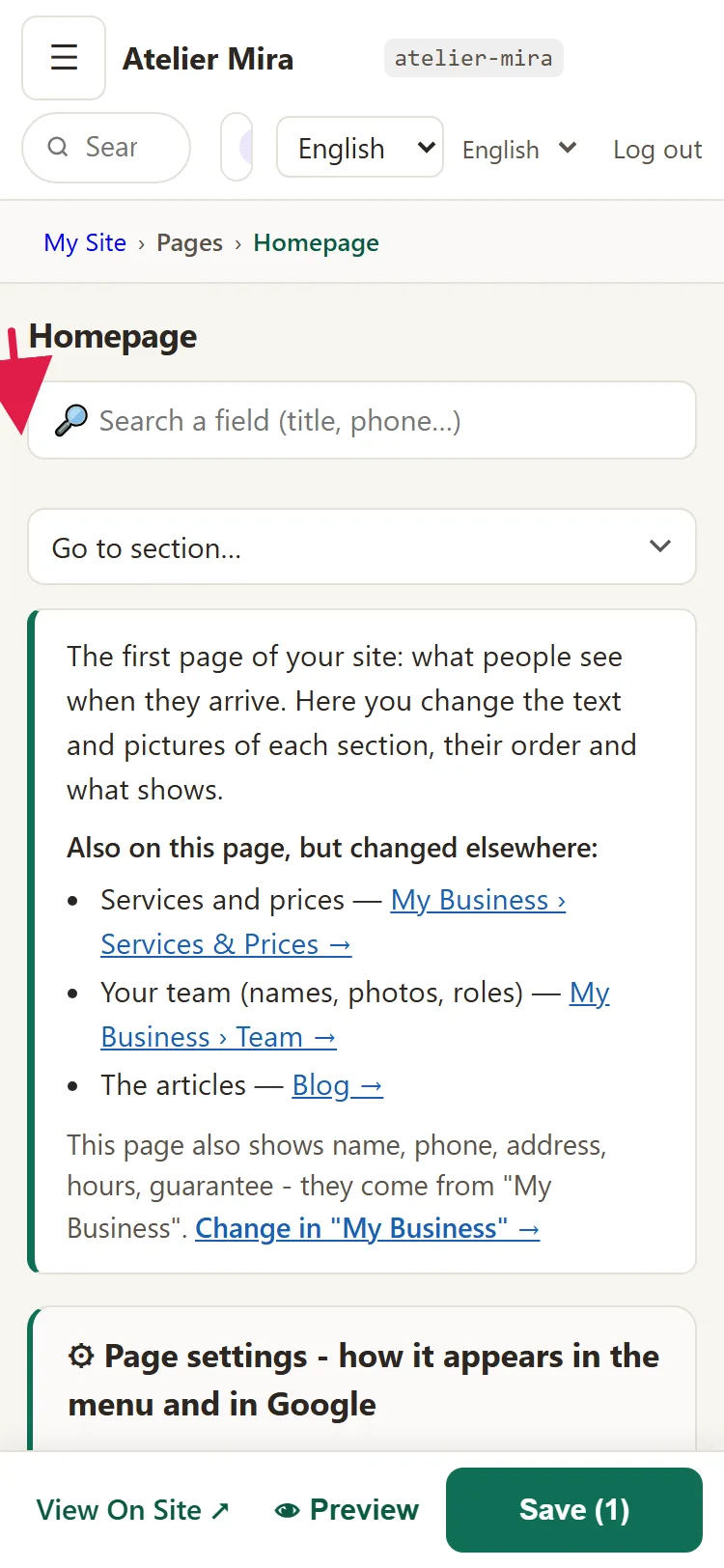
- Under My Site, click Pages and pick the page. You see all its texts, grouped by section, in the order they appear on your website.
- To find a text quickly, type a word from it in 🔎 Search a field (title, phone…) or pick the section from Go to section….
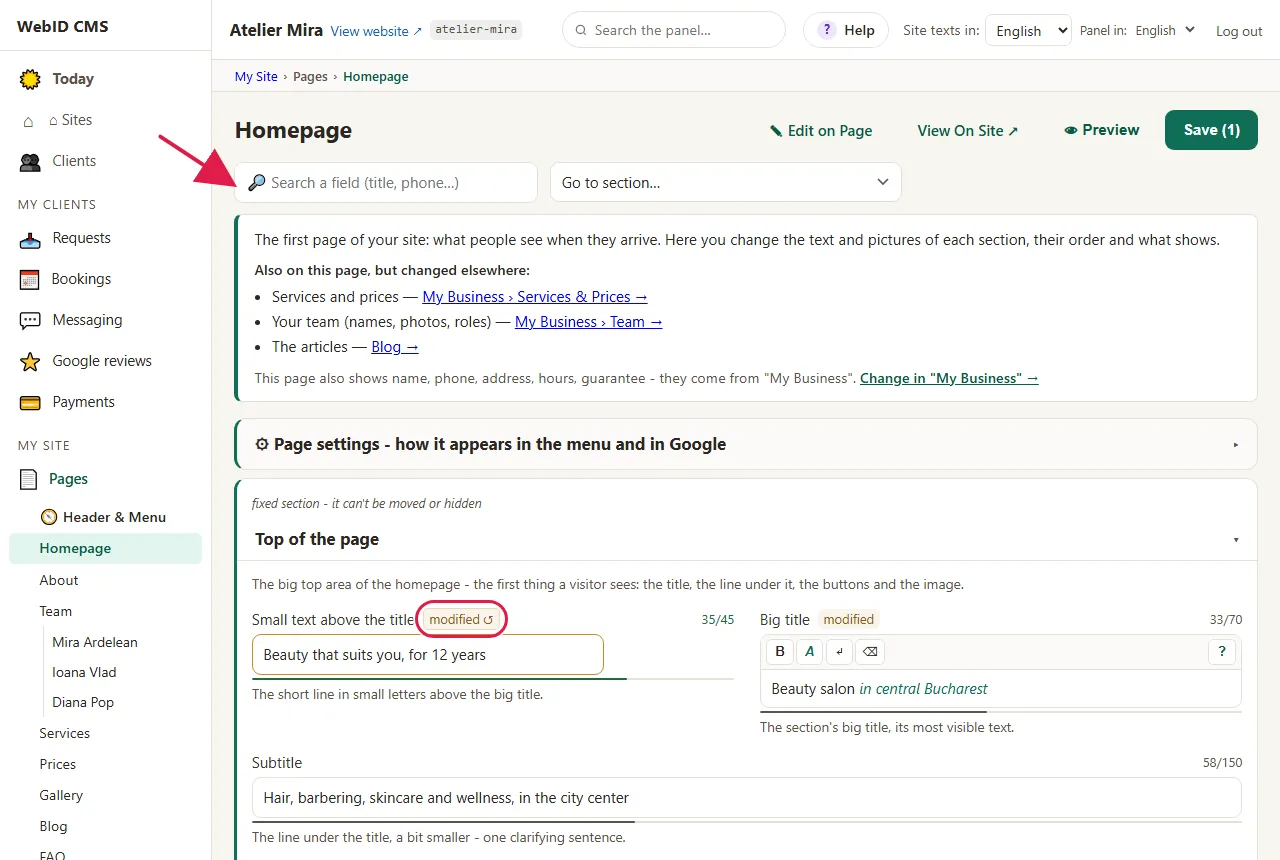
- Type in the field. Some fields have formatting buttons: B makes the text bold, A puts the word in your website's color, ↵ goes to the next line, ⌫ removes the formatting.
- The changed field gets the modified ↺ tag. If you want the original text back, click it.
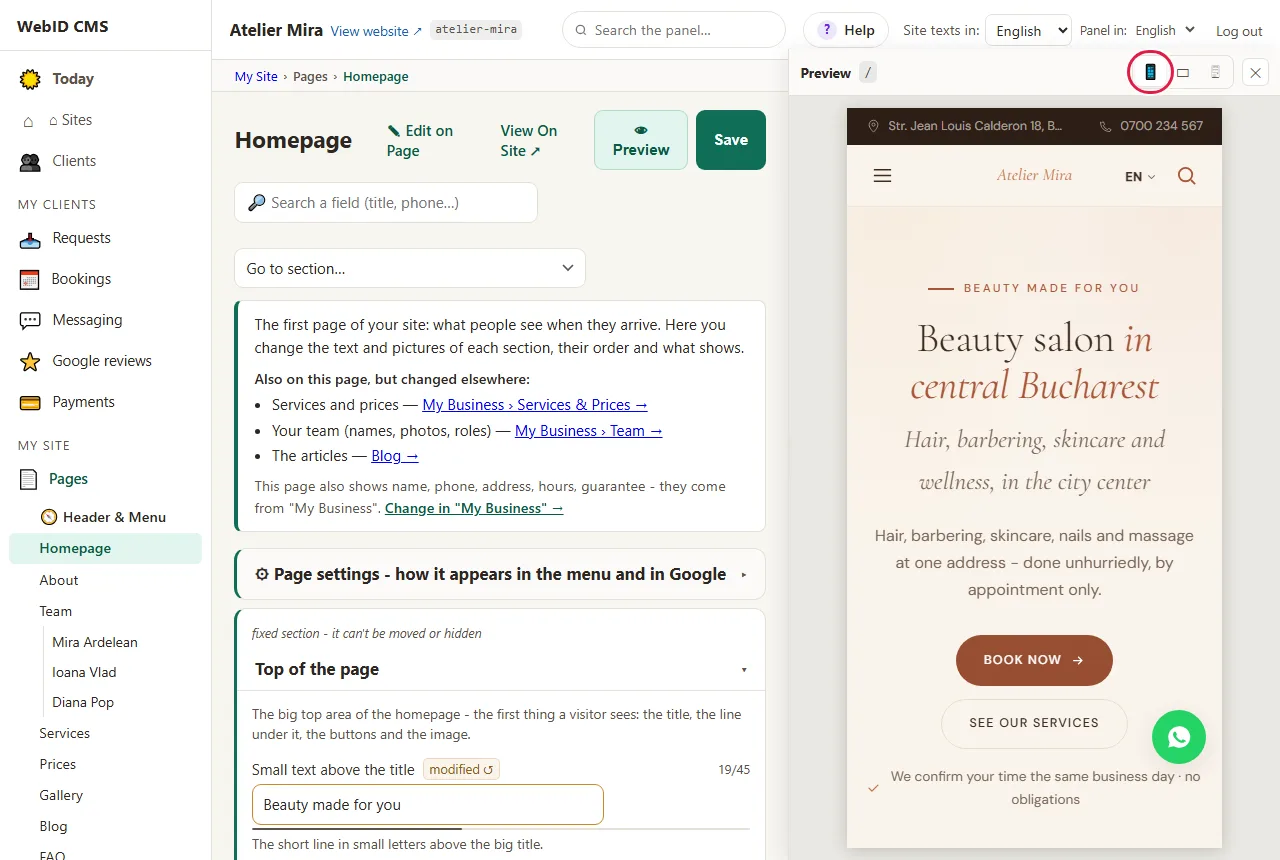
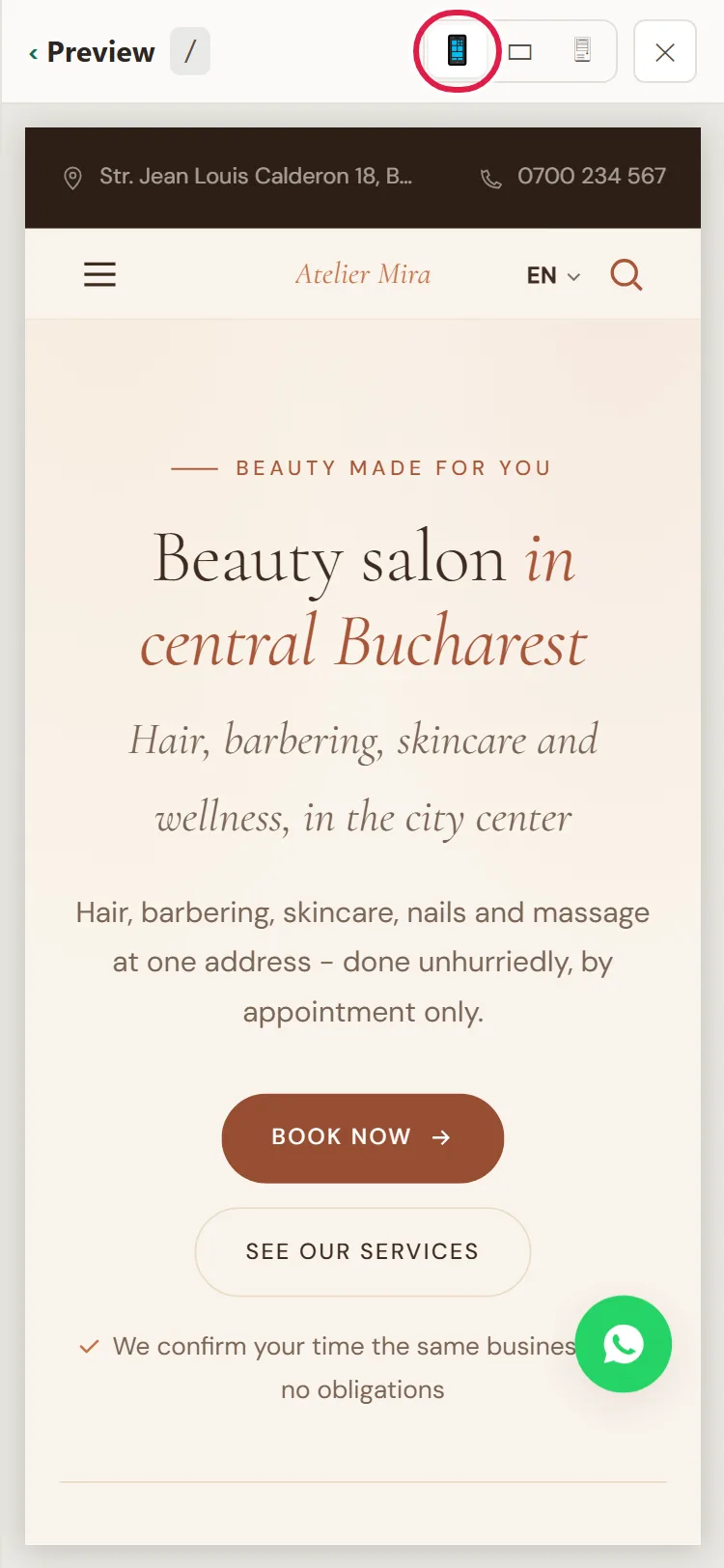
- If you want to see how it looks, click 👁 Preview and pick Phone (375px), Tablet (768px) or Full width. The preview doesn't save anything.
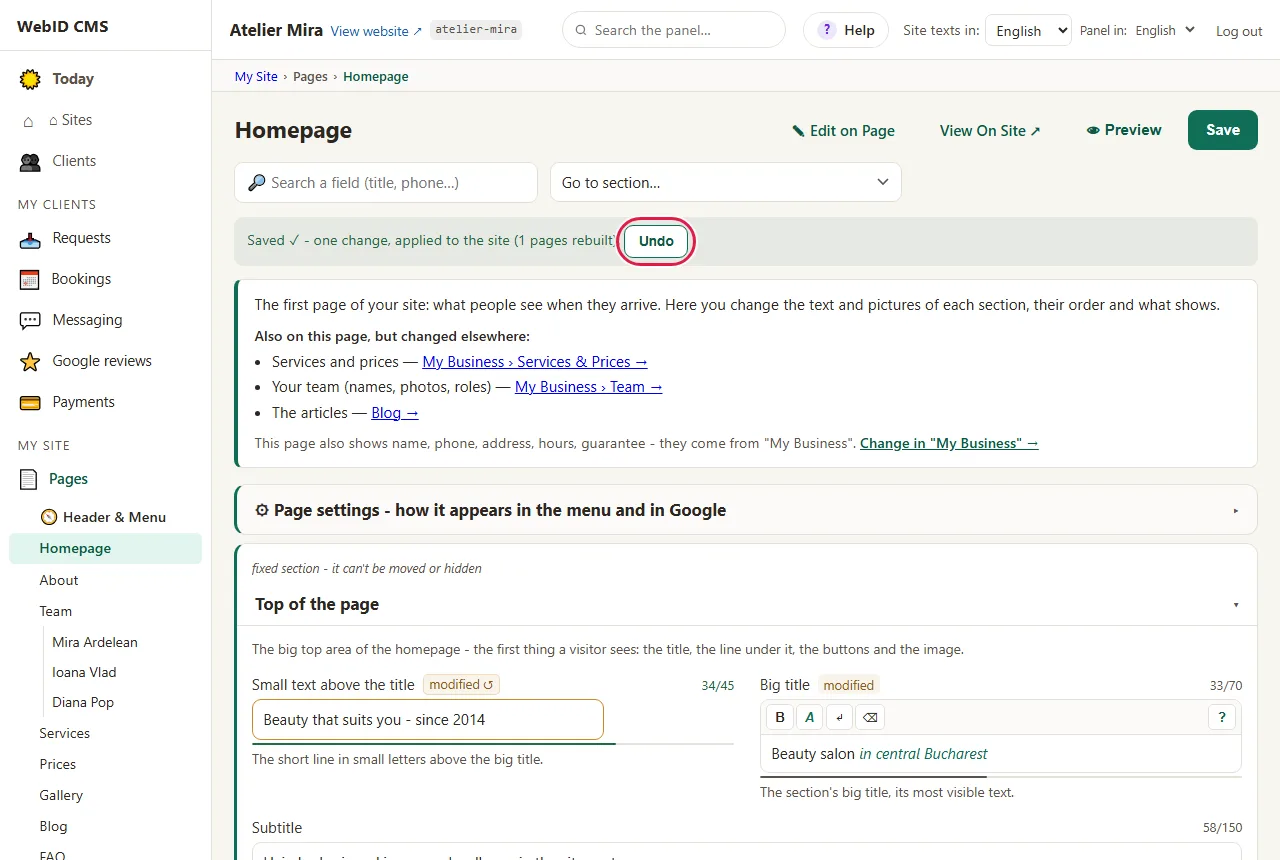
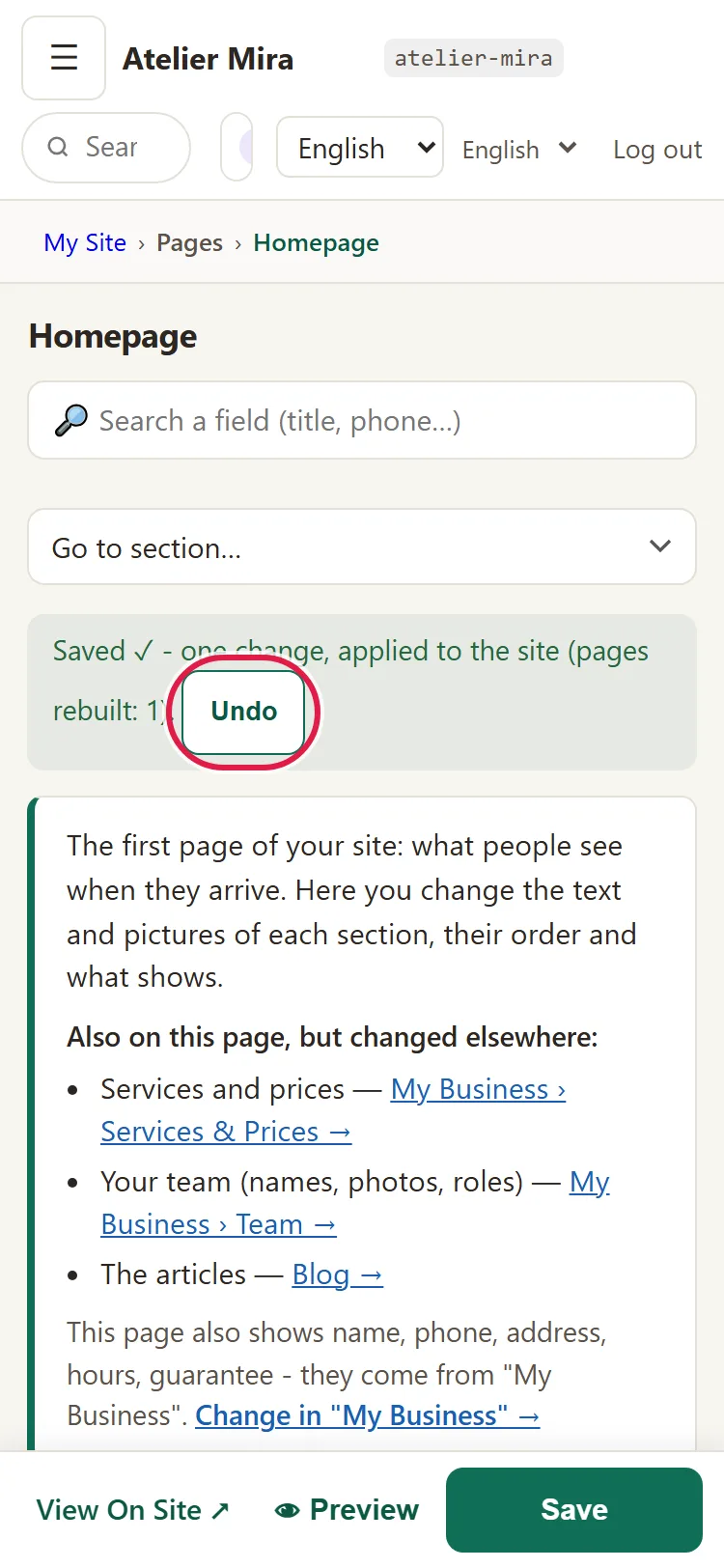
- Click Save, at the top right. The message "Saved ✓ - one change, applied to the site" tells you it's done.
- If you made a mistake, click Undo, next to the message: all the changes from that save are reversed. The button stays next to the message until the next save or until you close the screen; after that, you use Advanced › History.
Where to find texts that aren't on a single page
- The footer: in the list of pages, at the bottom, click ⬇️ Footer.
- Shared texts (the cookie notice, the sign-up, the buttons): in the list of pages, at the bottom, click 🔤 Shared Texts (cookies, sign-up, buttons).
- Small labels (buttons and small headings on article or service pages): in the page's form, at the bottom, open Standard texts (interface labels).
- Your phone number, address and business name aren't in "Pages". On the page you see the line "This page also shows … - they come from 'My Business'."; click Change in "My Business".
- A website in several languages: at the top, under Site texts in:, pick the language you're writing in. Each language is changed separately.
Common problems
- "I clicked a text and nothing happens, only a message appears." The text comes from a list in the admin panel (services, team, questions). Click the → Open link in the message and change it there.
- "I changed the text, but my website still shows the old one." Either you didn't click Save in the top bar (the number on the button shows what's saved as a draft), or your browser is showing you the old page. Click Save, then reload the page of your website.
- "I changed it in Romanian, but in English it's still the old one." Each language is changed separately. Pick the language under Site texts in: and change the text there too.
- "I can't find the phone number in Pages." Your phone number, address and business name are in "My Business", under Details & Contact.
- "The fields in How it looks in Google are gray." The title and description for Google can only be changed with SEO - setup. With it, you write them yourself, for Google's results (Google may sometimes replace them with other text from the page). Without it, Google uses the page's title and introduction.
- "I don't have Pages in the menu." Your account has the Article editor role, and that role doesn't see "Pages". Ask the website owner for the Editor role.
- "Something else isn't working." Write to us at contact@webid.ro, with the page and the text you want to change, and we'll take a look.
What it doesn't do
- It doesn't change the page layout, the colors or the fonts, and it doesn't move sections: there are separate guides for those, in the same category.
- It doesn't create new pages.
- The on-page editor has no Undo after saving. You fix a mistake saved from there in Advanced › History.
- The title and description in Google's results can only be changed with the SEO add-on.
- It doesn't translate: if you change a text in Romanian, the other languages keep the old one until you change it there too.
- In the on-page editor, the Page: list shows the page's short address (for example "index" for the home page), not its name. From there, too, pages open in your website's main language; you change texts in another language from the page's form.
- It doesn't check spelling.
What data it uses
This guide doesn't touch personal data. What you publish on your website is your content; if you add people's names or photos, you need their consent.