How to add a new page to your website
Want one more page on your website, for example "Seasonal offers", "Memberships" or "For businesses"? You create it yourself from the admin panel, and the admin panel also puts it in the menu. The page itself takes two minutes; the rest depends on how long it takes you to write the text.
How to create the page
- In the admin panel, open My Site, then Pages.
- In the list of pages, under the main pages, click + New page…. If you've made pages this way before, you'll also find them in the admin panel menu, under Content Pages, with the + New page button.
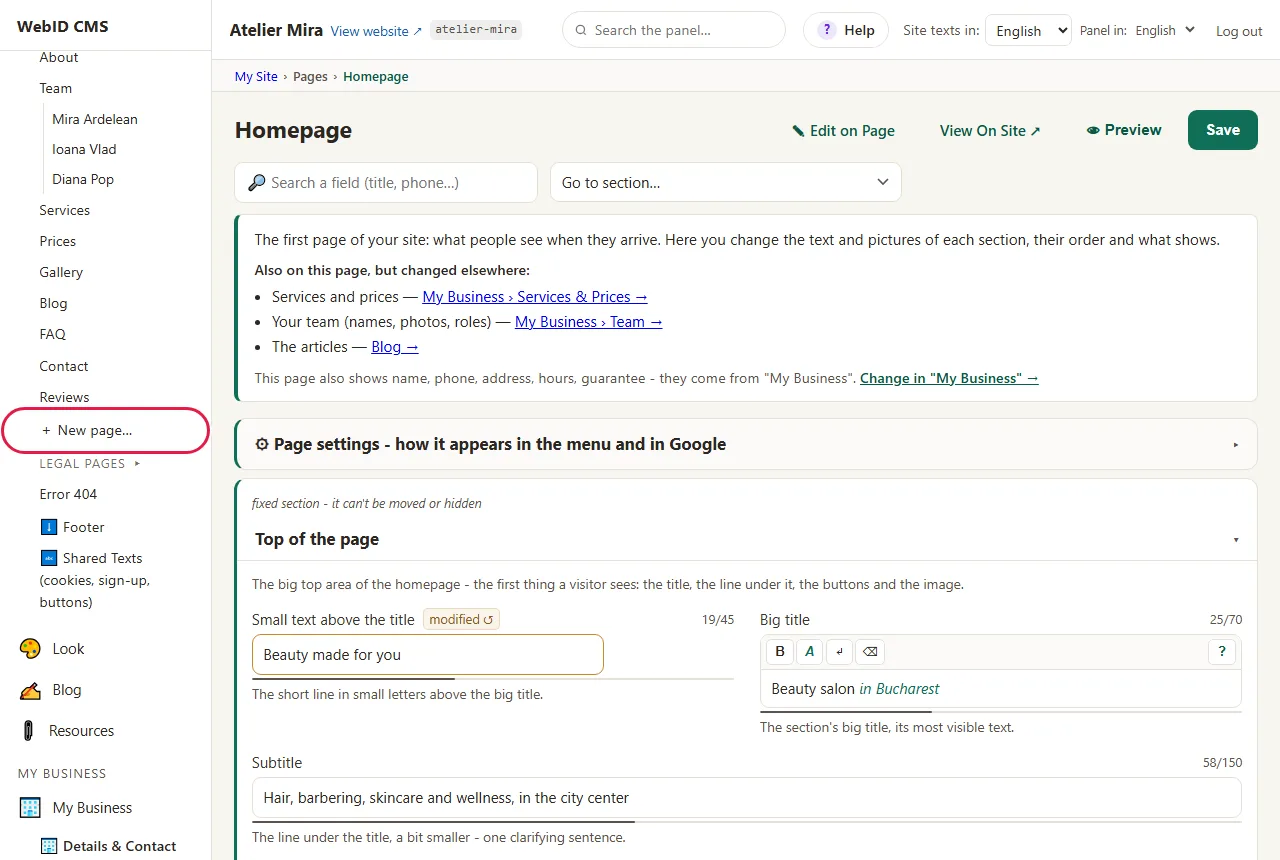
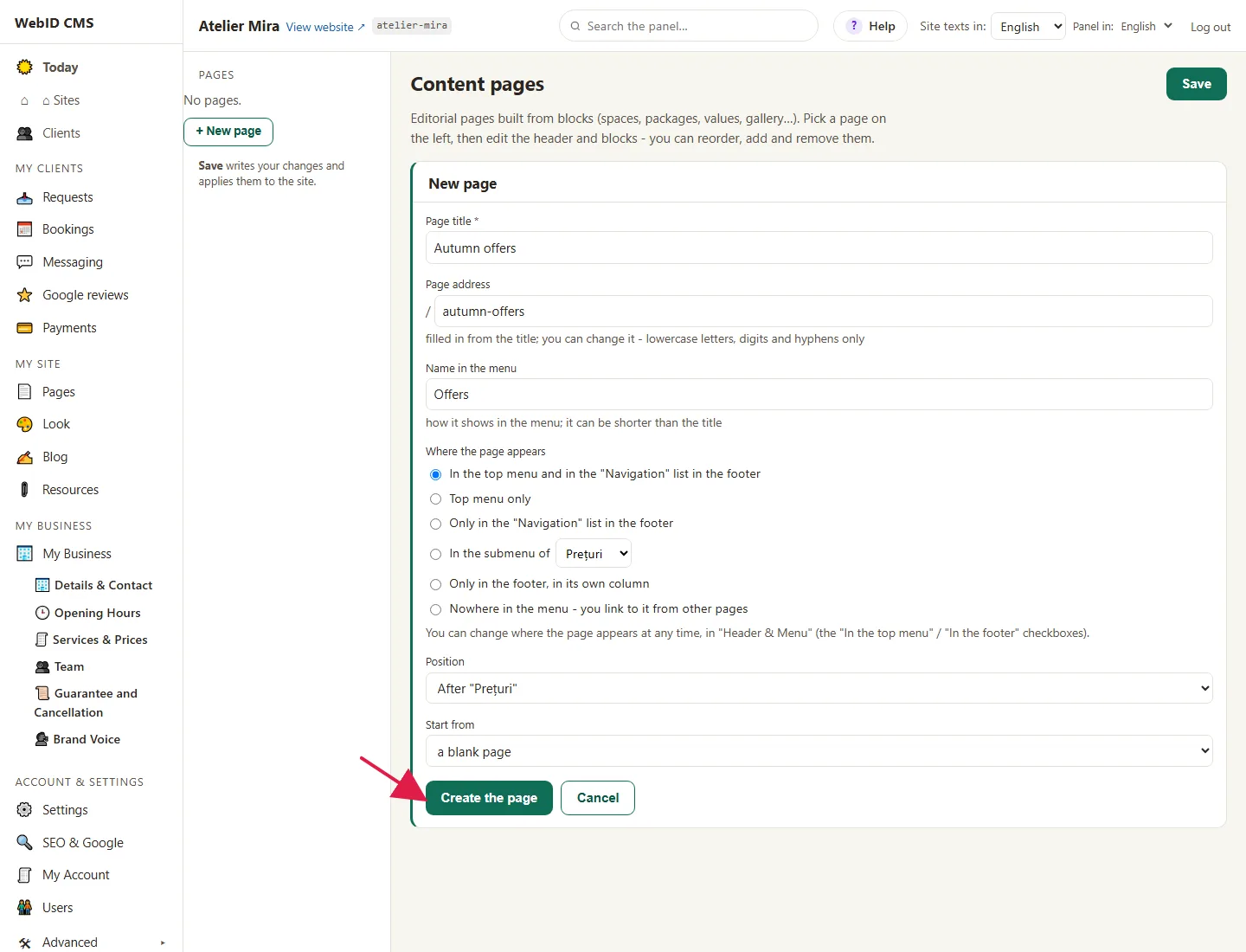
- Type the Page title. It's the only required field. The page address is made automatically from the title (you can only change it yourself if you have SEO - setup).
- Under Name in the menu, type how you want the page to appear in the menu. It can be shorter than the title: for "Fall offers", "Offers" is enough. If you leave it empty, the title appears in the menu.
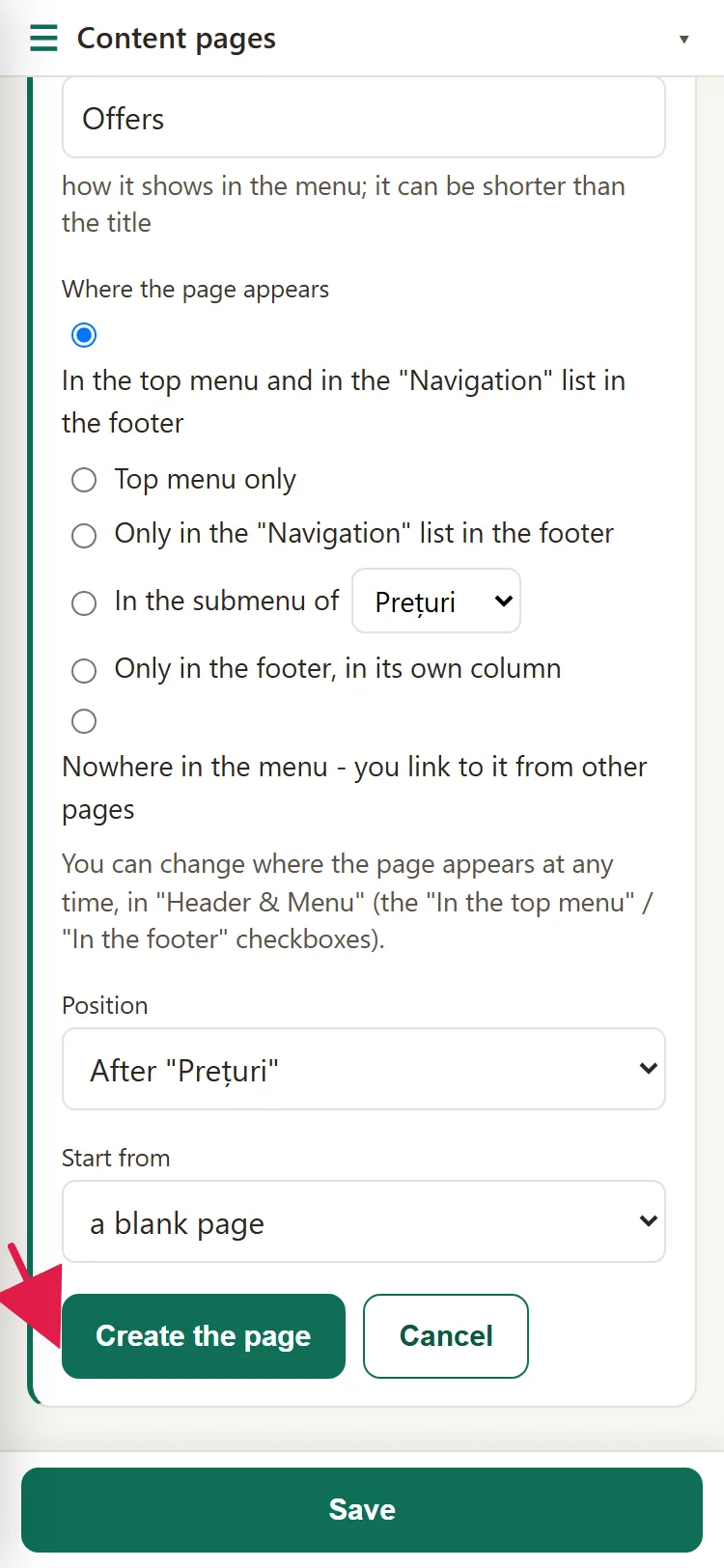
- Under Where the page appears, keep the first option if you want the page in the top menu and in the "Navigation" list in the footer. The other options put it only at the top, only in the footer or nowhere in the menu (then you add a link to it from other pages yourself). Even with no place in the menu, the page is public: anyone can open it with its address.
- Under Position, pick At the beginning or the menu page it should come after.
- Under Start from, pick a blank page or a copy of a page you also made with New page.
- Before you click: the page goes public from that moment, even if it's empty or a copy, so keep the text at hand. Then click Create the page.
- The message "The page is live at /..." appears and the page opens so you can fill it in.
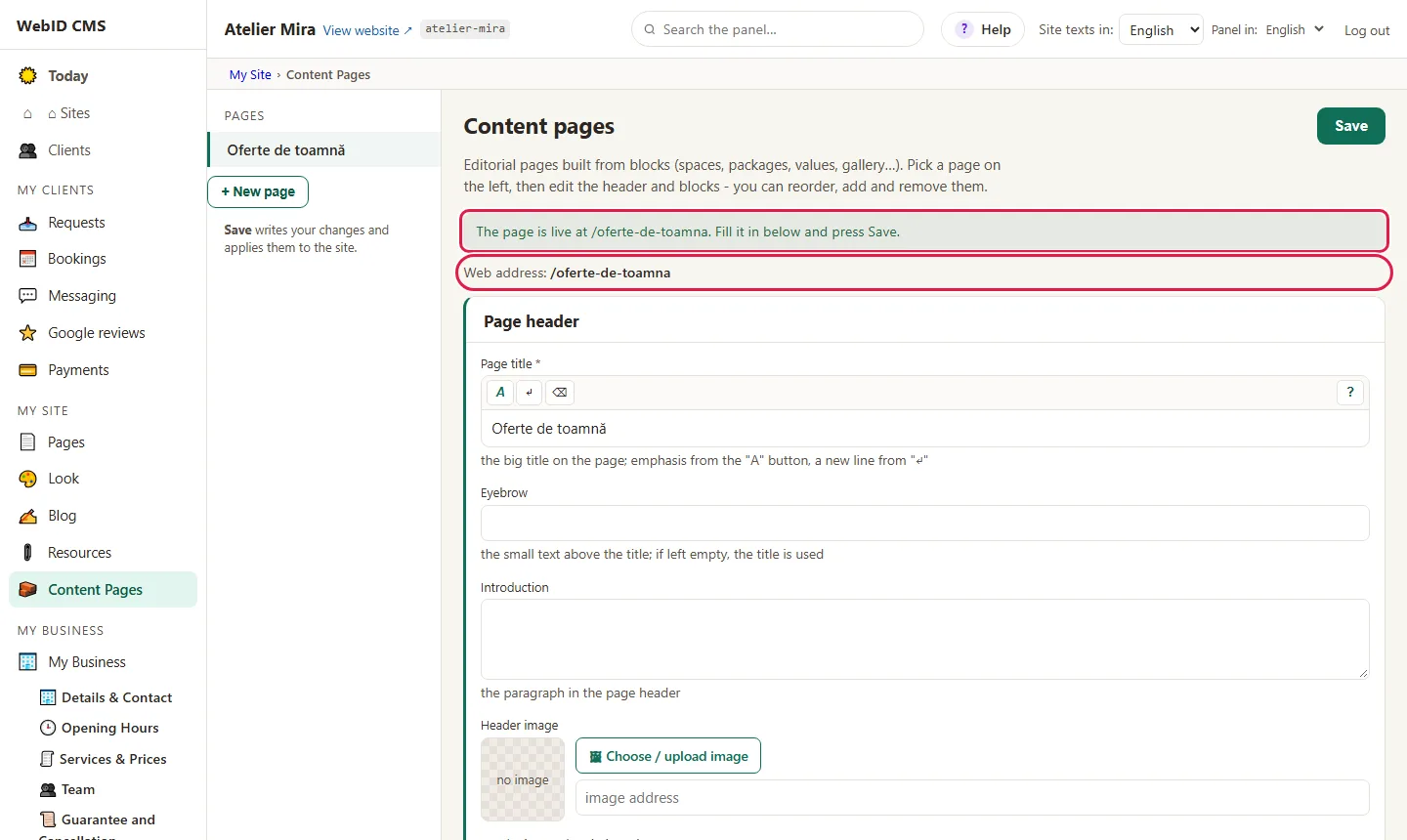
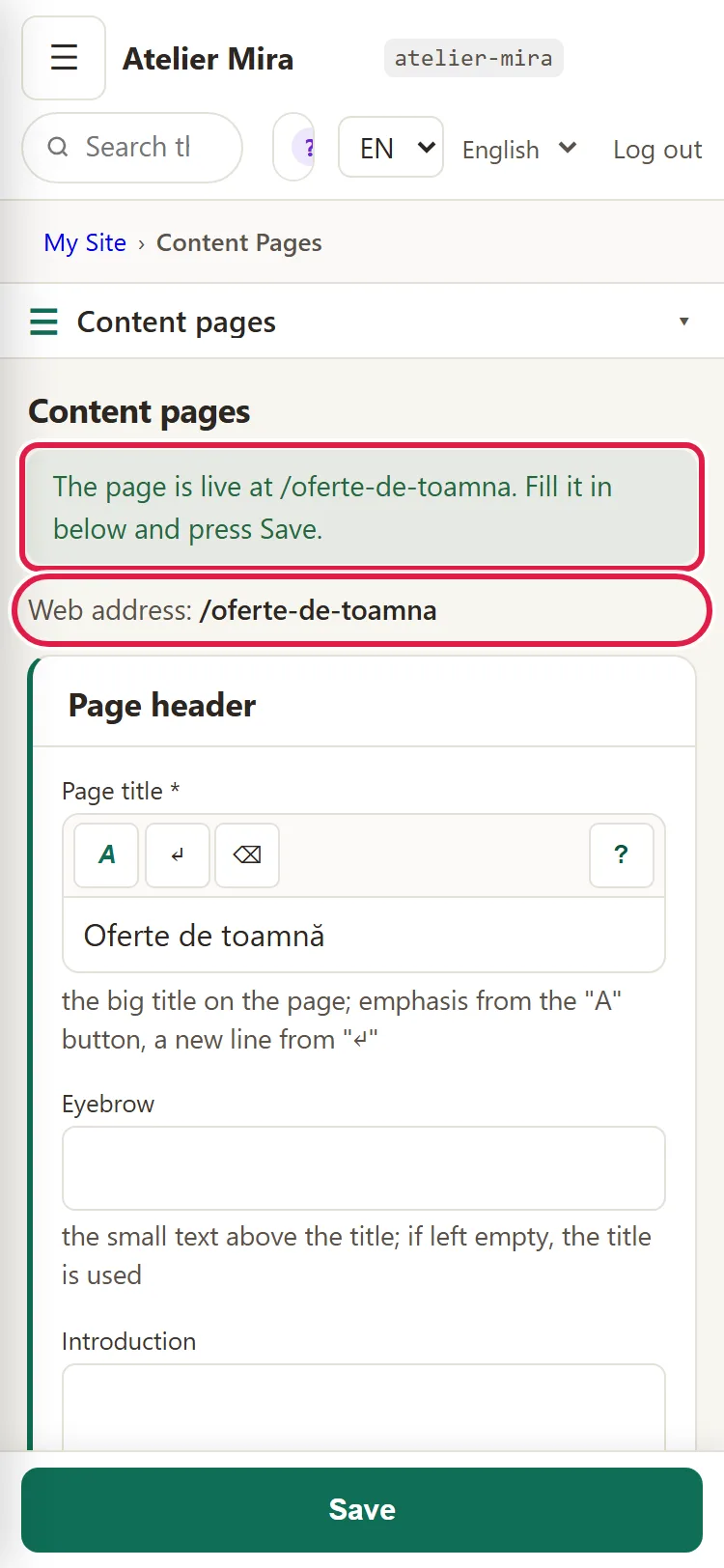
From this moment, the page is already on your website (and in the menu, if you gave it a place there). If you started from a blank page, it only has the title; if you started from a copy, it has everything the copied page had, with the new title. On a website in several languages, it appears the same in every language until you write the translation. Fill it in right away, as in the steps below.
How to fill in the page
- At the top you see the page address (Web address) and the Page header: the title, the overline, the introduction and the top photo.
- Further down, under Blocks (in page order), open the Choose block type… list and pick what you want to add: Free text, Packages / prices, Photo gallery, FAQ, Contact form and others.
- Click + Add block.
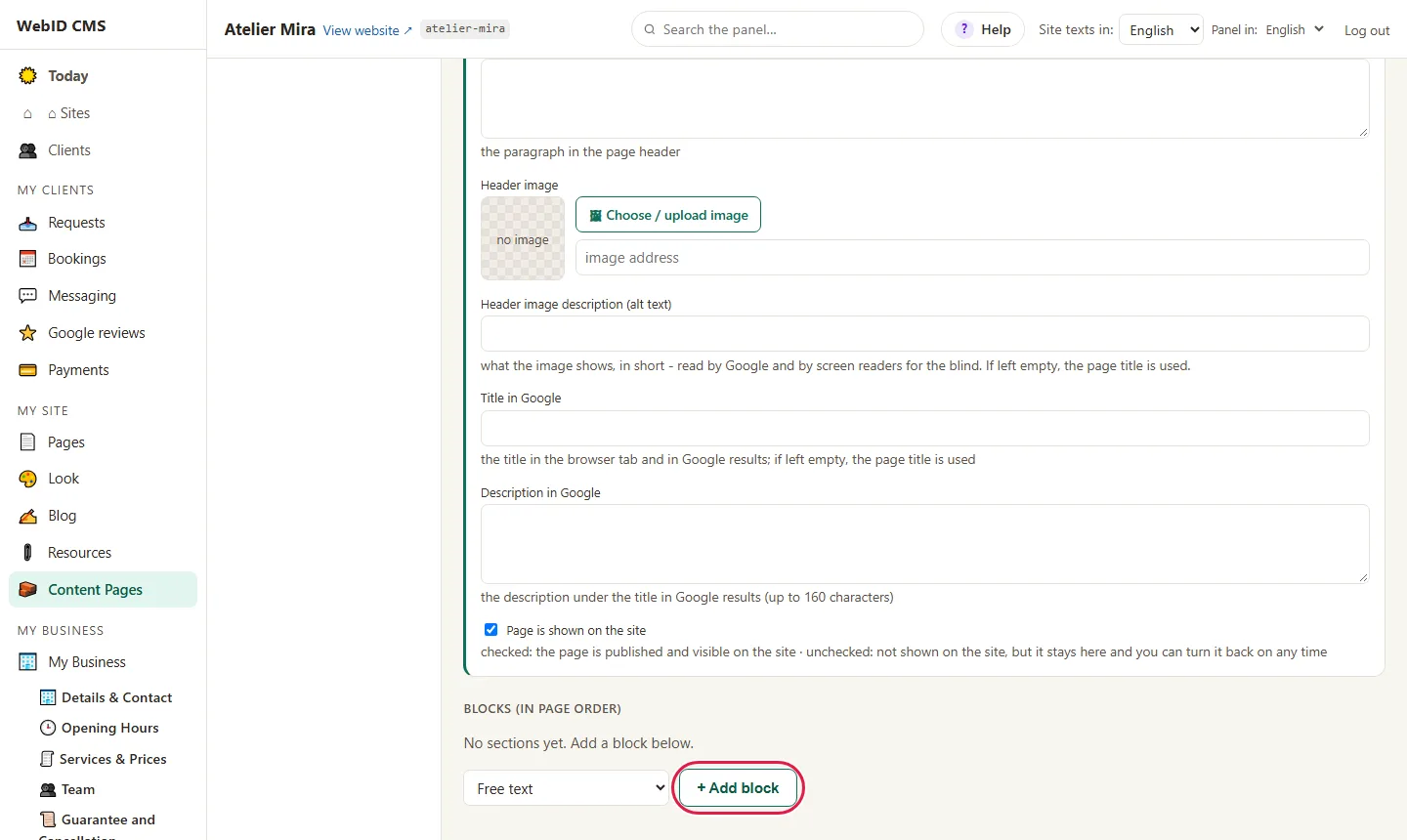
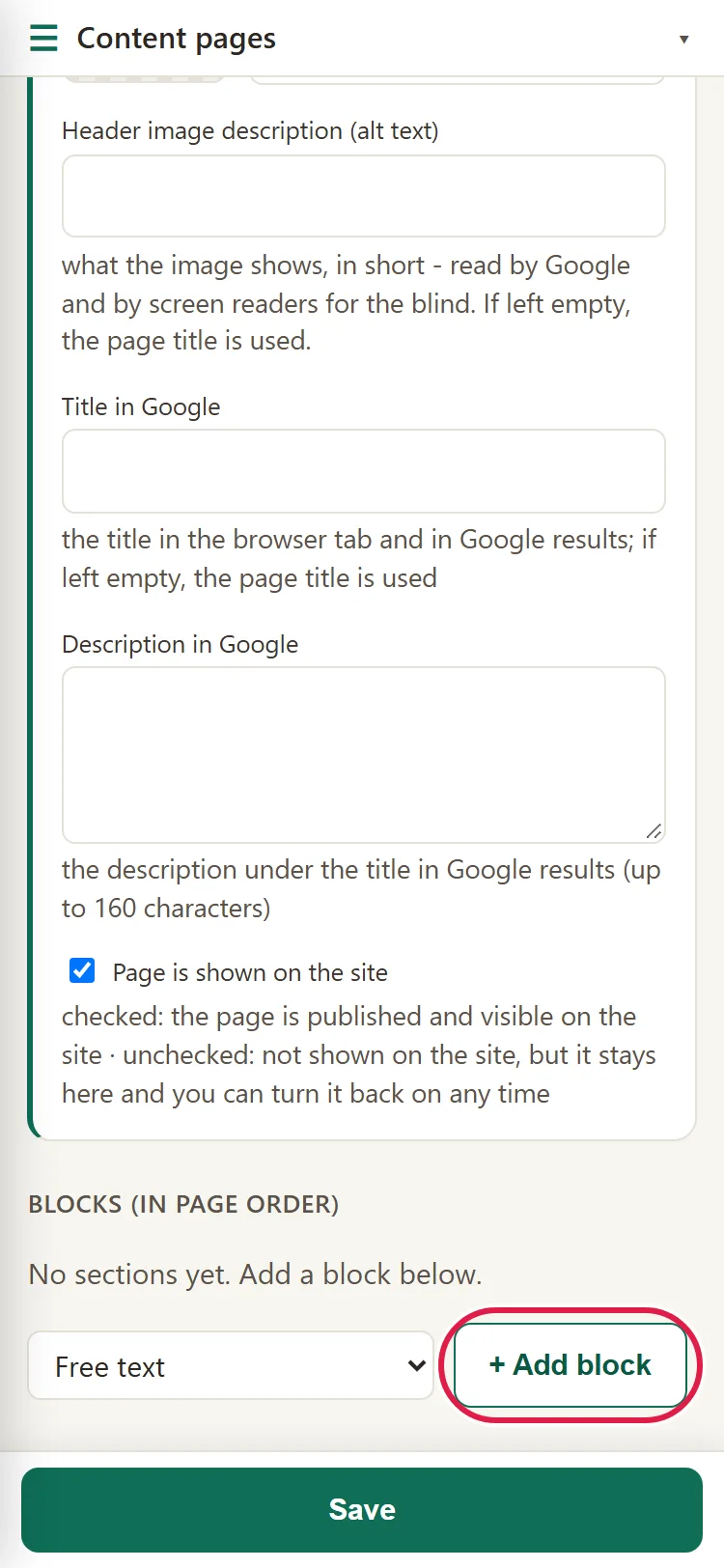
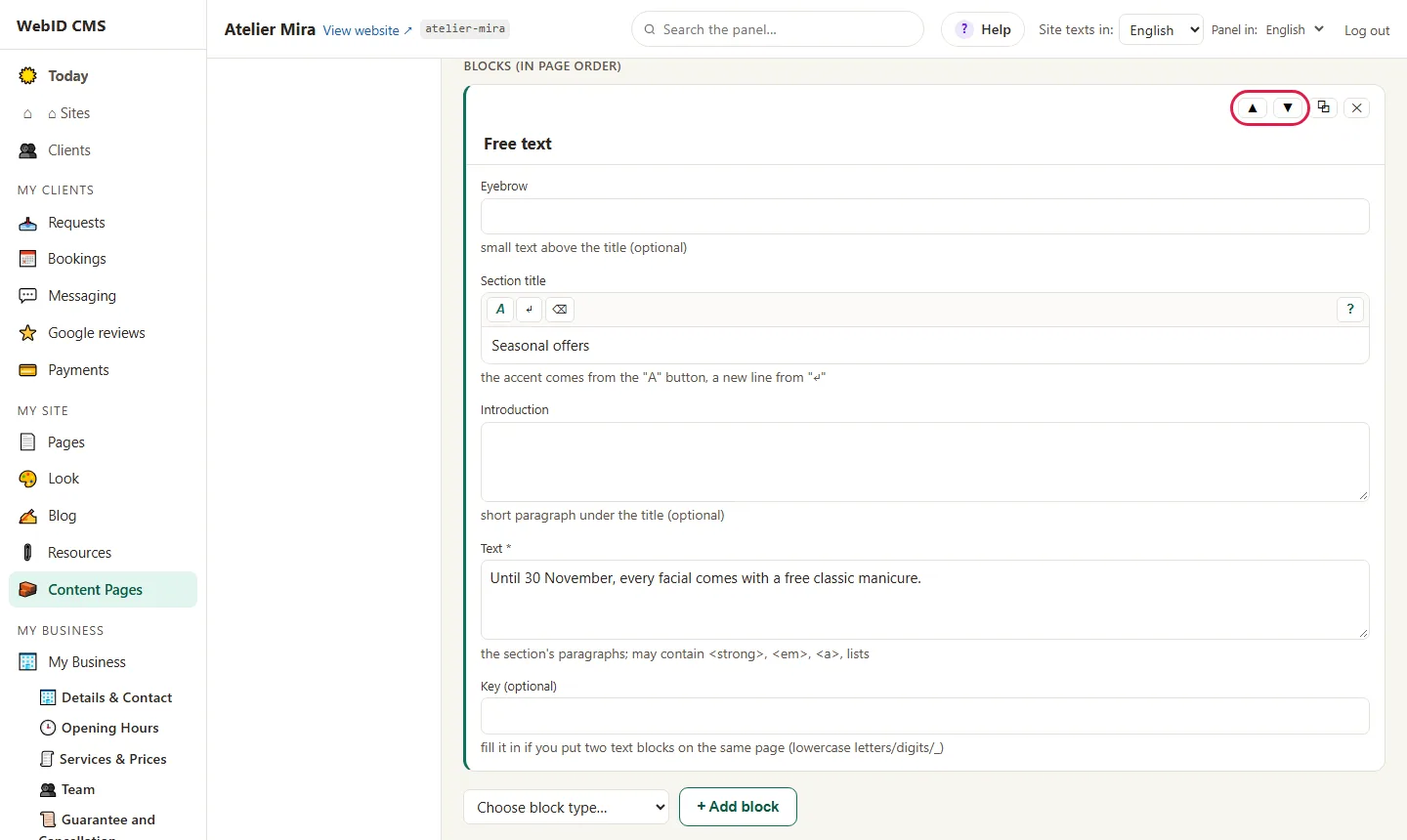
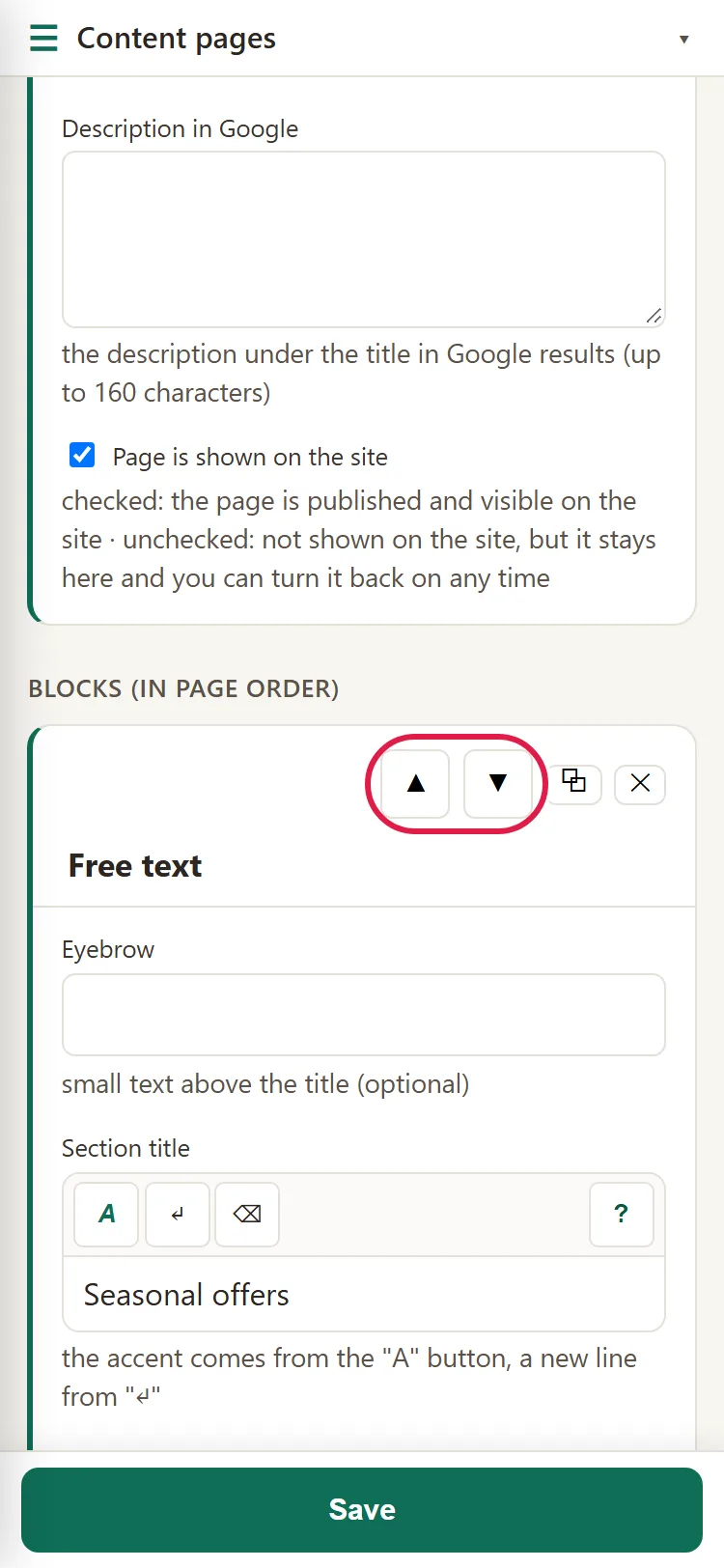
- Fill in the block. With ▲ ▼ you move it up or down, with ⧉ you duplicate it, with ✕ you delete it (we ask you first).
- Click Save. "Saved" appears, then, after a few seconds, "Applied to the site ✓".
- Open your website: the page is there, with your text (and in the menu, if you gave it a place).
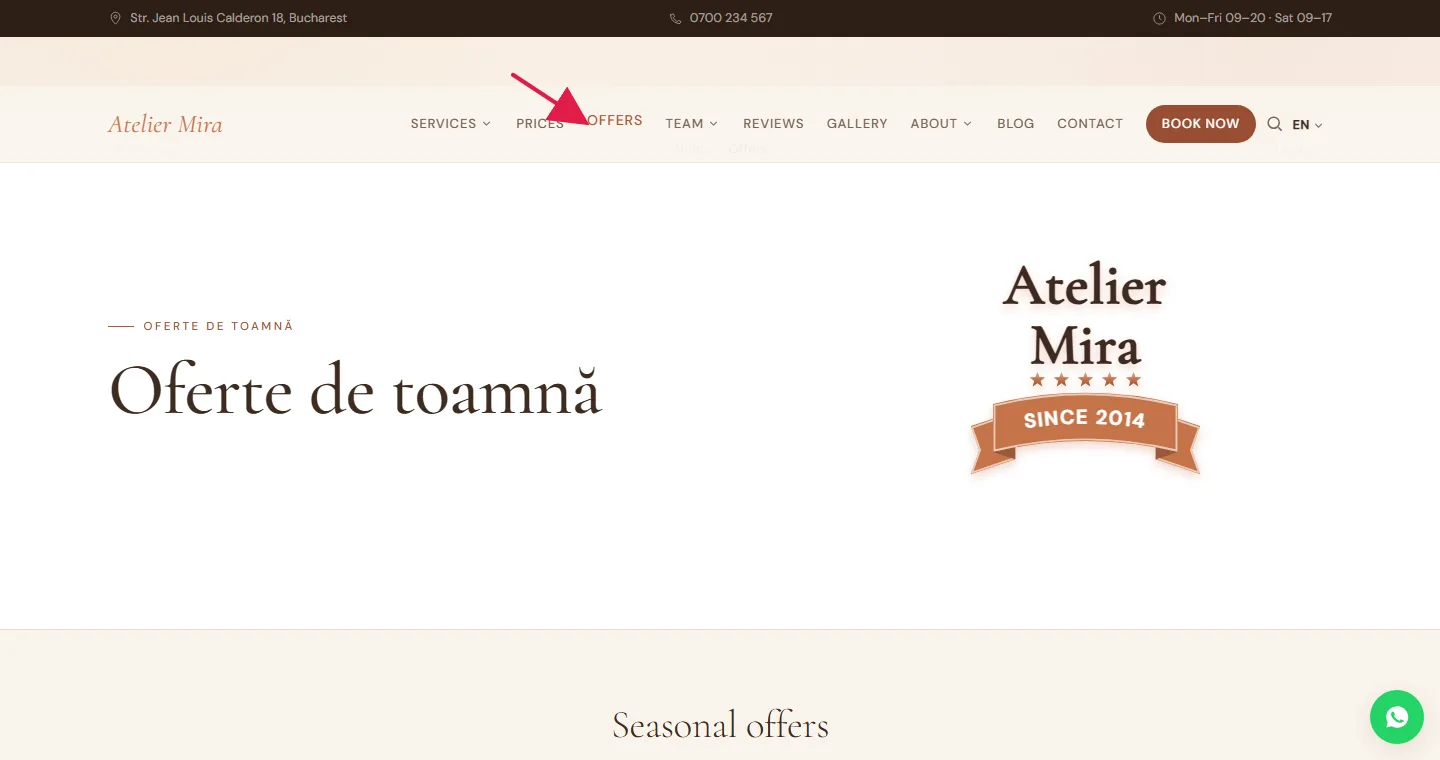
How to move or rename it in the menu later
- Open Pages, then 🧭 Header & Menu.
- Change the order or the name as in the guide How to change your website menu.
Common problems
- "It tells me a page with this address already exists." The address is made from the title, and your website already has one just like it. Pick another title.
- "The page is empty on my website." That's normal until you add blocks and click Save.
- "On the English version, the page has the title in Romanian." The page is created in every language of your website, with your text. Pick the language in Site texts in: and write the translation.
- "After saving, it says it couldn't be applied to the website without a rebuild." It sometimes happens after you add a Contact form. What you wrote is saved in the admin panel, but it doesn't show on your website until we rebuild the page. Write to us at contact@webid.ro with the page address and we'll do it.
- "Something else isn't working." Write to us at contact@webid.ro with what you see on the screen and we'll take a look.
What it doesn't do
- The page has the layout of the pages on your website: the header at the top, the blocks one under another. You can't choose a different layout.
- You can't delete it completely from the admin panel. You take it off your website by unchecking Page is shown on the site and you choose what happens to its address (see the guide What to do with a page you no longer want).
- On a website in several languages, the page appears in every language with the same text. You write the translation yourself, in each language.
- You can't put it under "Services" or under "Team": there the menu fills itself from lists.
- Some addresses already belong to your website (for example contact, blog, search, terms) and you can't use them for a new page.
- You only choose the page address and its title in Google if you have SEO - setup. Without it, the address is made automatically from the title.
What data it uses
This guide doesn't touch personal data. What you publish on your website is your content; if you add people's names or photos, you need their consent. If you add the "Contact form" block to the page, visitors' requests arrive in the admin panel like any other request - see DPA §3, the "Contact form" row.