What to do with a page you no longer want
When you remove a service, a colleague who left or an expired offer from the admin panel, their page doesn't disappear by itself: it stays on your website and in Google. That's why the admin panel asks you right away what you want to happen to it and where people who open it should end up. The choice takes a minute. If you only want to take the page out of the menu and keep it on your website, see How to change your website menu.
When the admin panel asks you
The window appears by itself, after you click Save, in two cases:
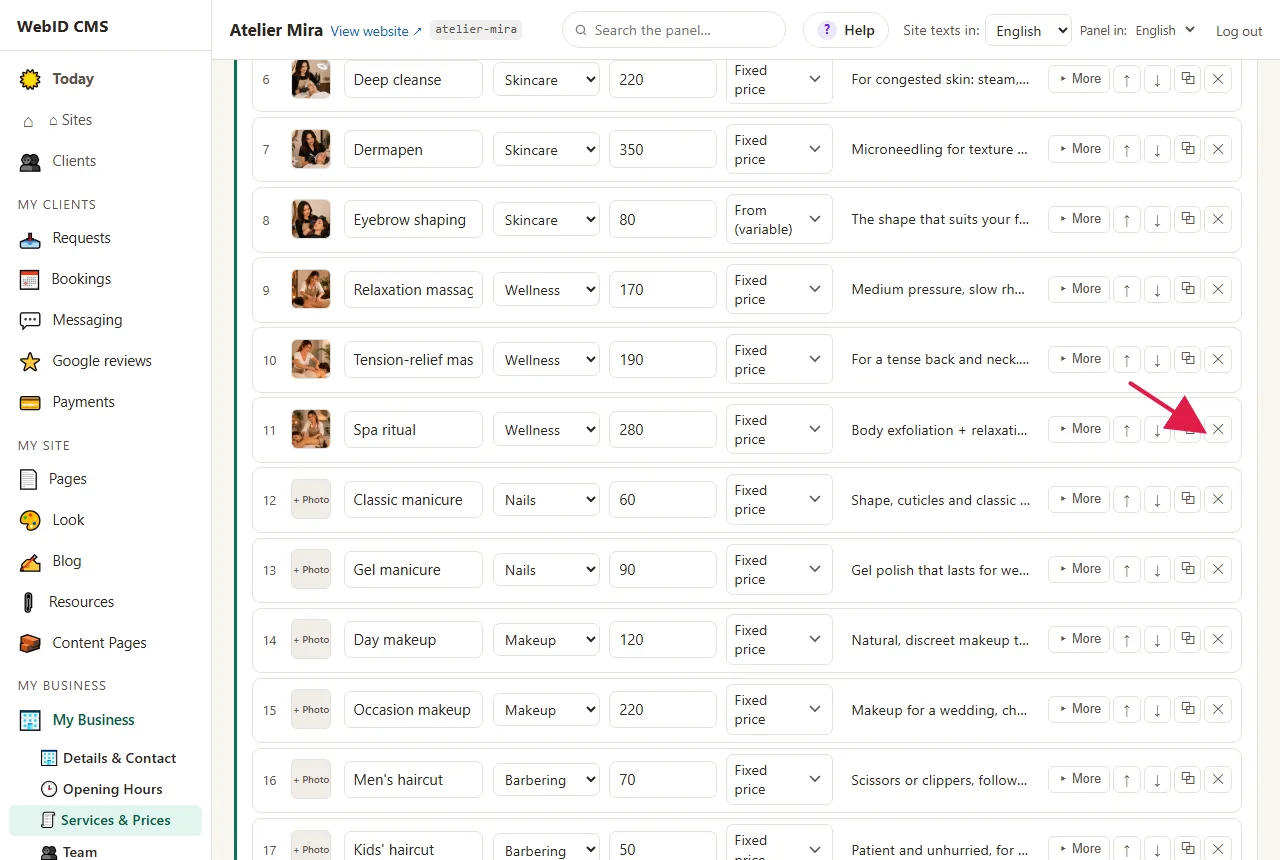
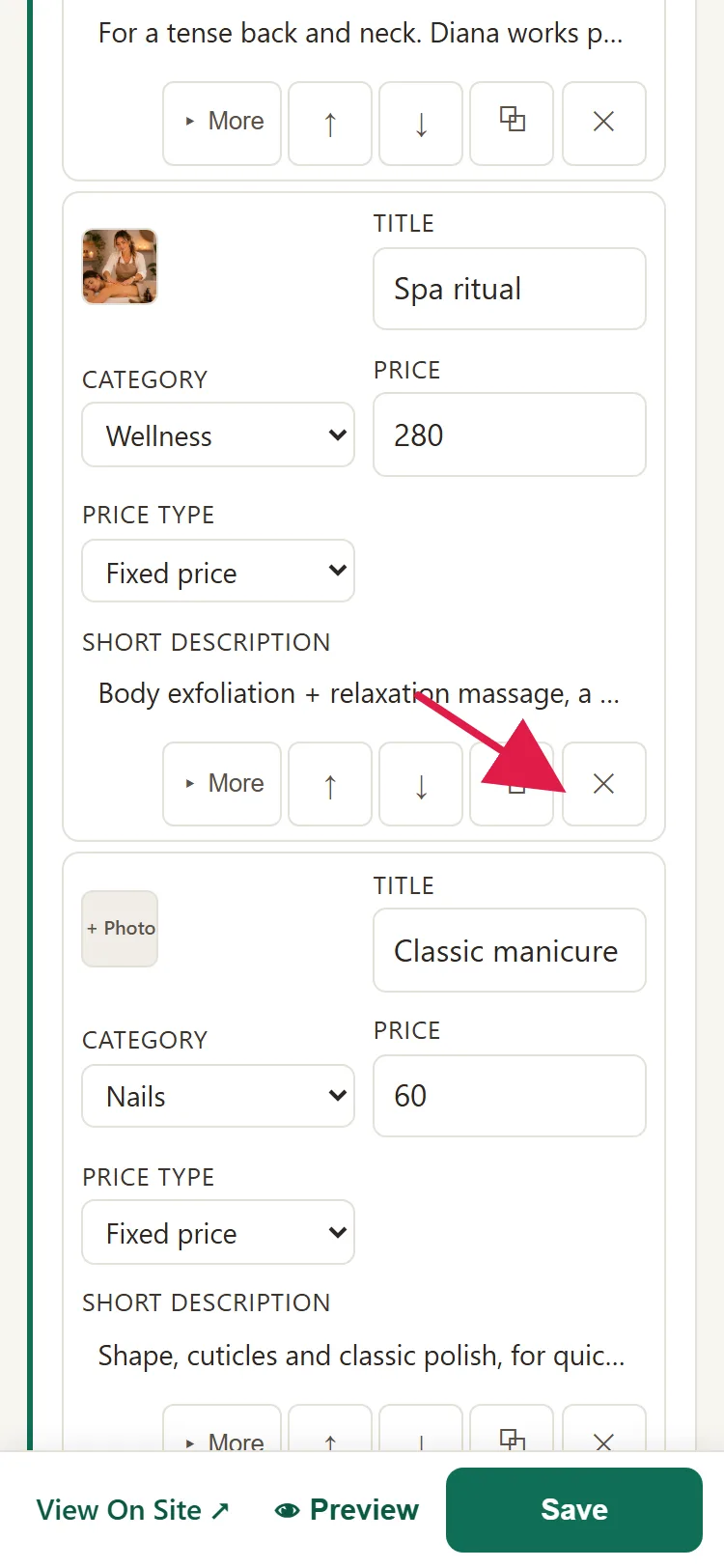
- you deleted a service, a service category or a team member with ✕ (in My Business, under Services & Prices or Team);
- you unchecked Page is shown on the site on a page you made with New page (the page also leaves the menu).
You can also open the window directly, without saving anything, from the retire link in the monthly report (if you have Visibility Medium or Large): the admin panel starts with the window for that page.
How to choose what happens to the page
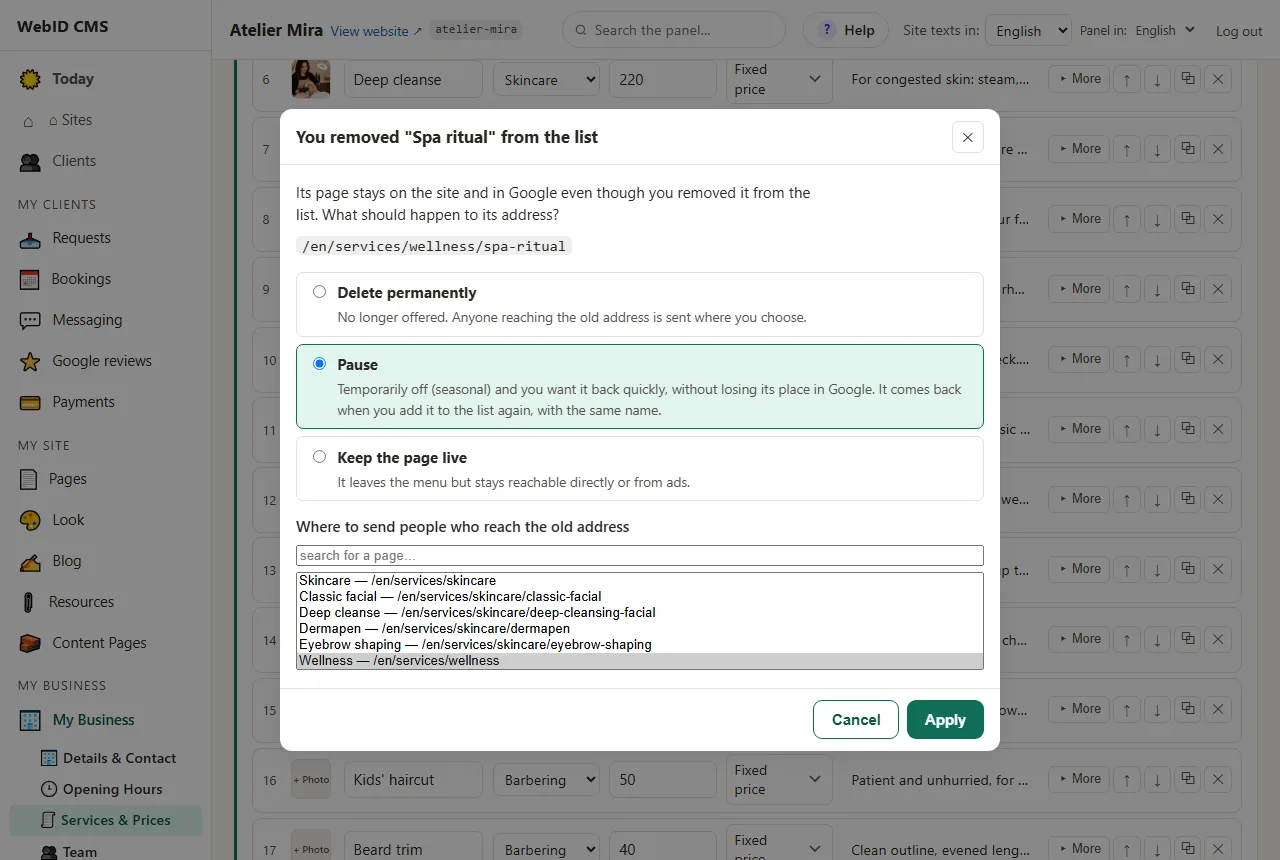
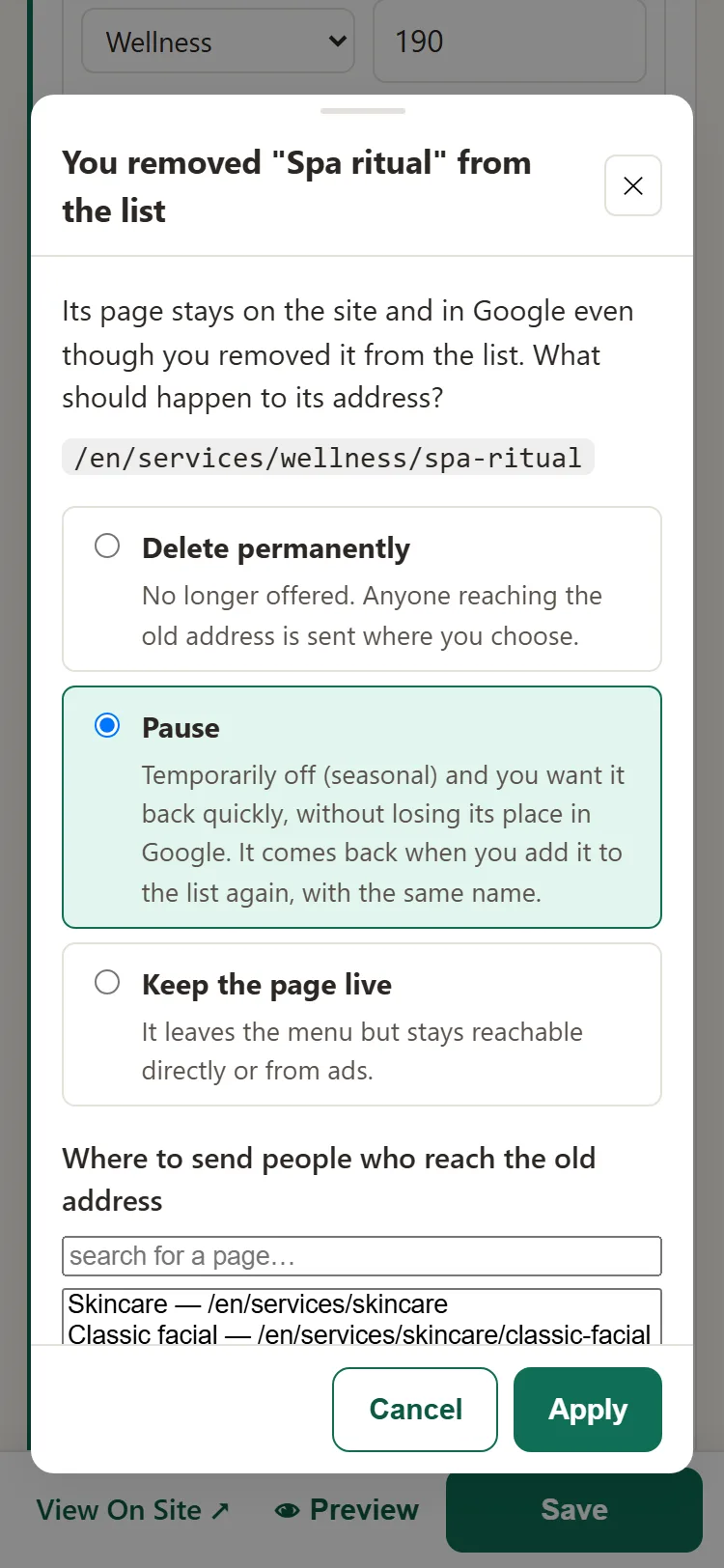
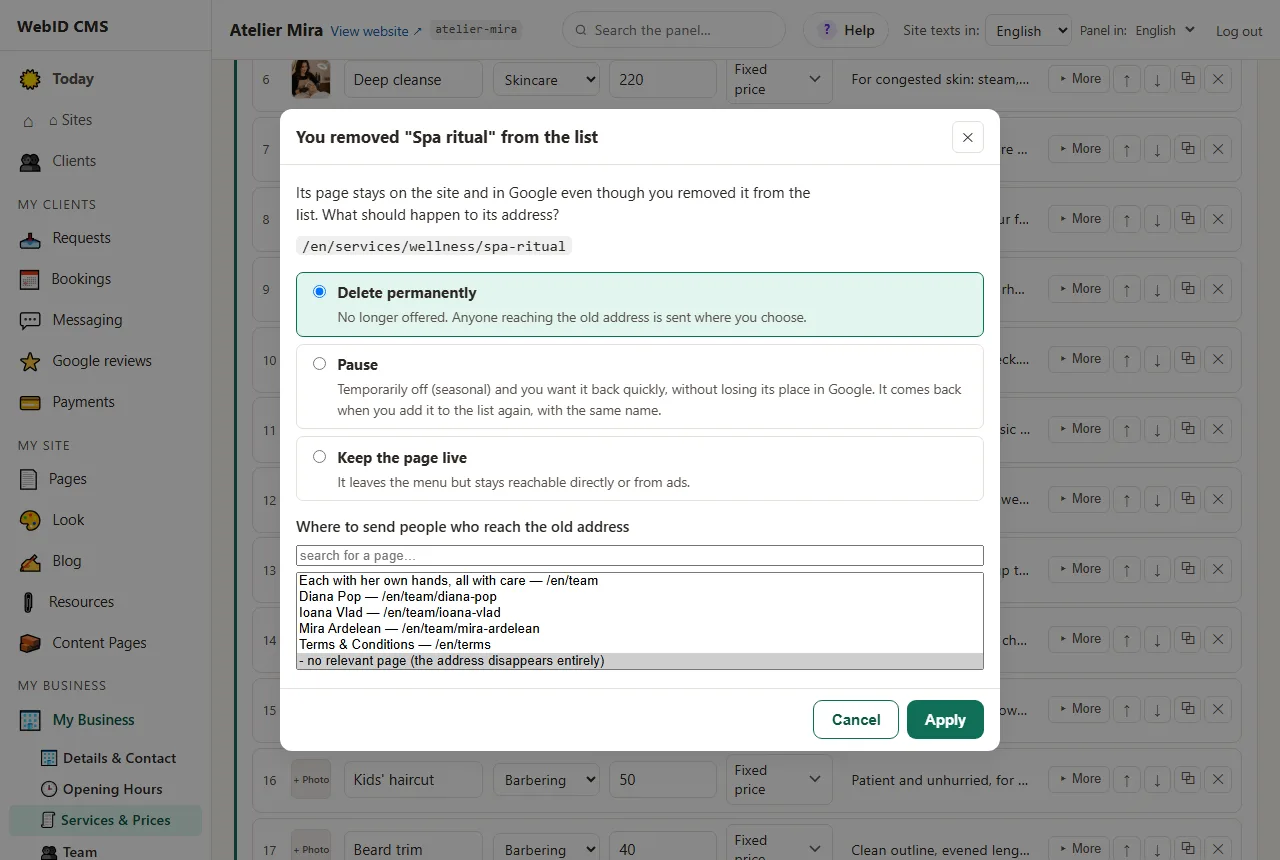
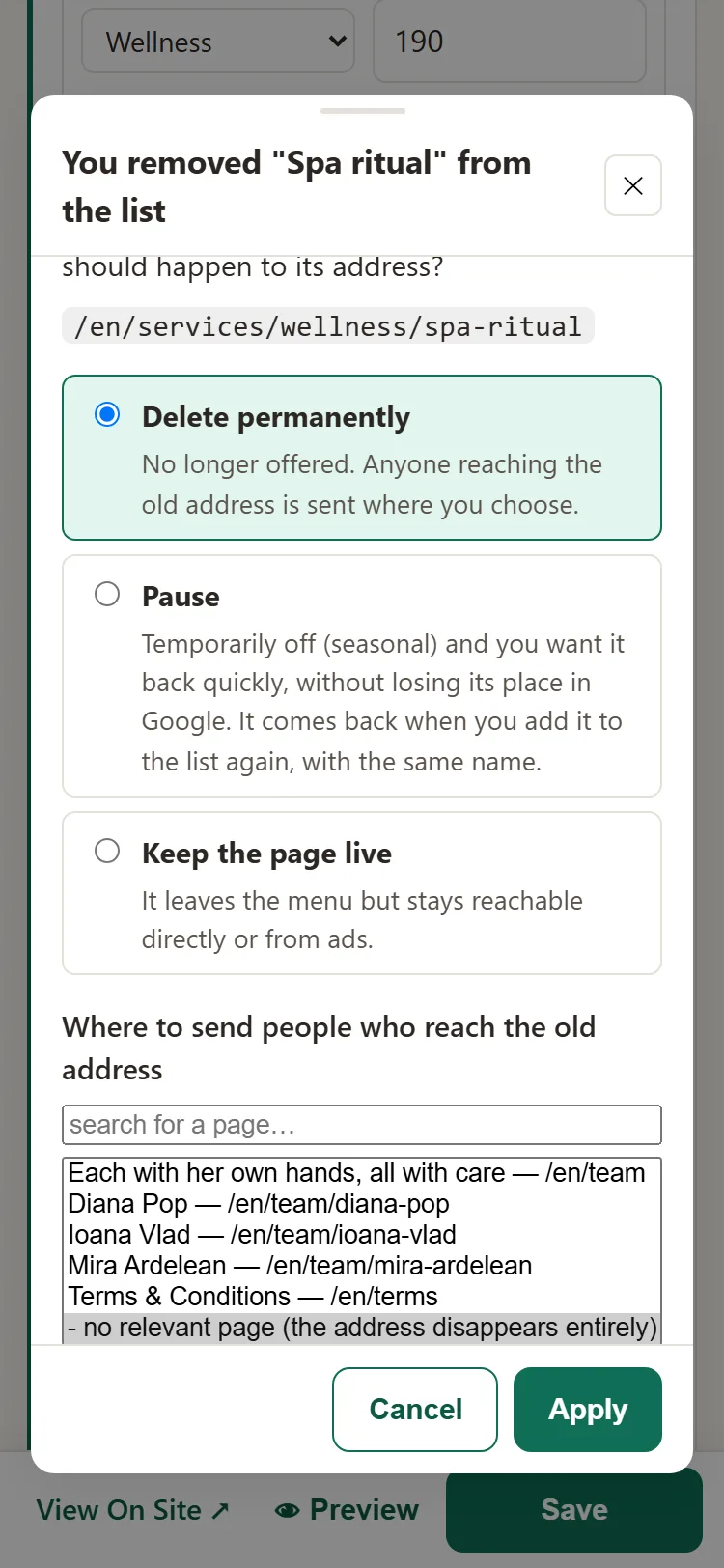
- The "You removed ... from the list" window opens, with the page address.
- Pick one of the three options:
- Delete permanently, if you no longer offer the service. The page leaves your website; anyone who reaches the old address is sent to the page you choose. This is the suggested option.
- Pause, if you're only removing it for a while, for example a seasonal service. A service, a category or a team member comes back when you add it to the list again, with the same name. Read the section below first.
- Keep the page live, if you only want to take it out of the menu. The page stays as it was, with the earlier text and price, and still opens from links or ads.
- For Delete permanently and Pause, pick the right page under "Where to send people who reach the old address". The admin panel suggests the page above it, for example the service's category ("Wellness" for a service in Wellness), and it's usually the right choice.
- If, for Delete permanently, there really is no page that replaces it, pick the last option in the list, "no relevant page": the address disappears entirely, and anyone who opens it gets an error page.
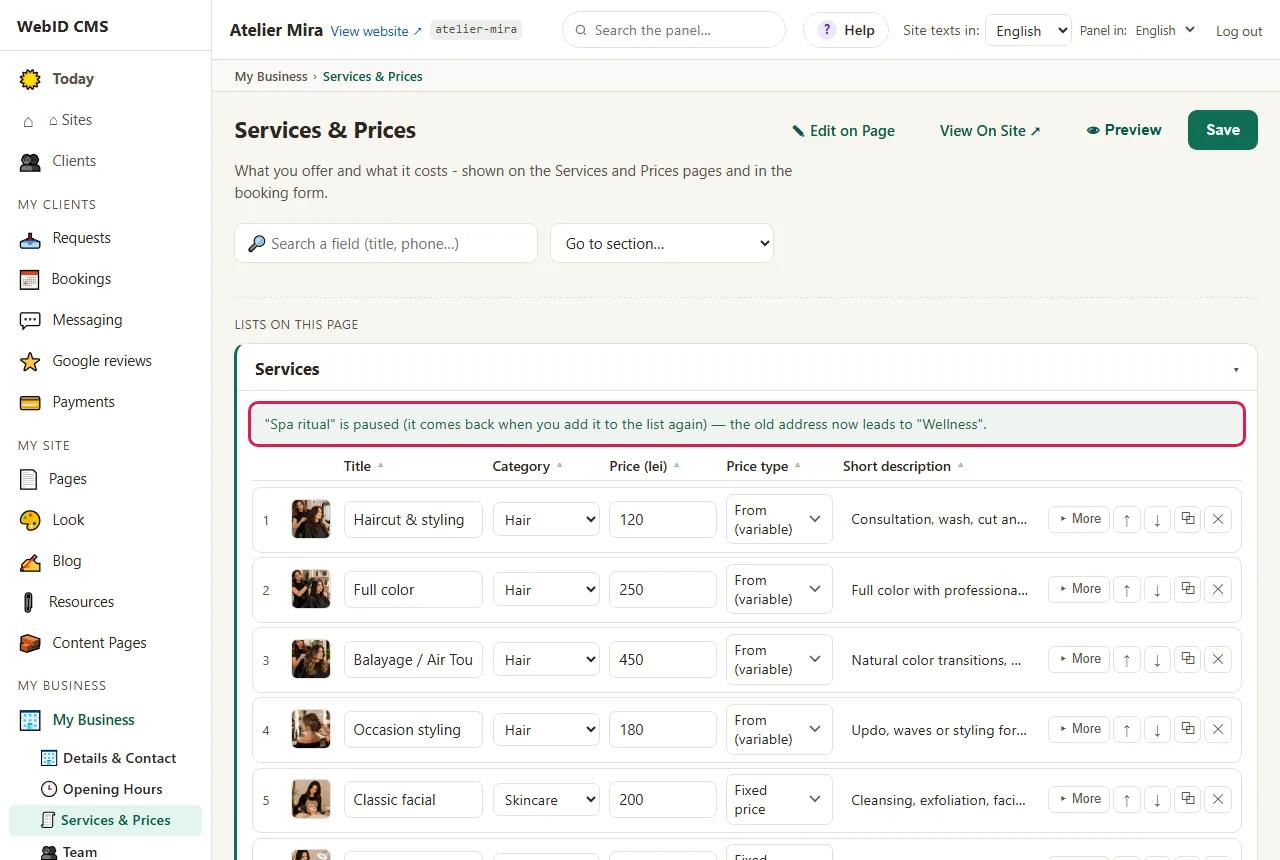
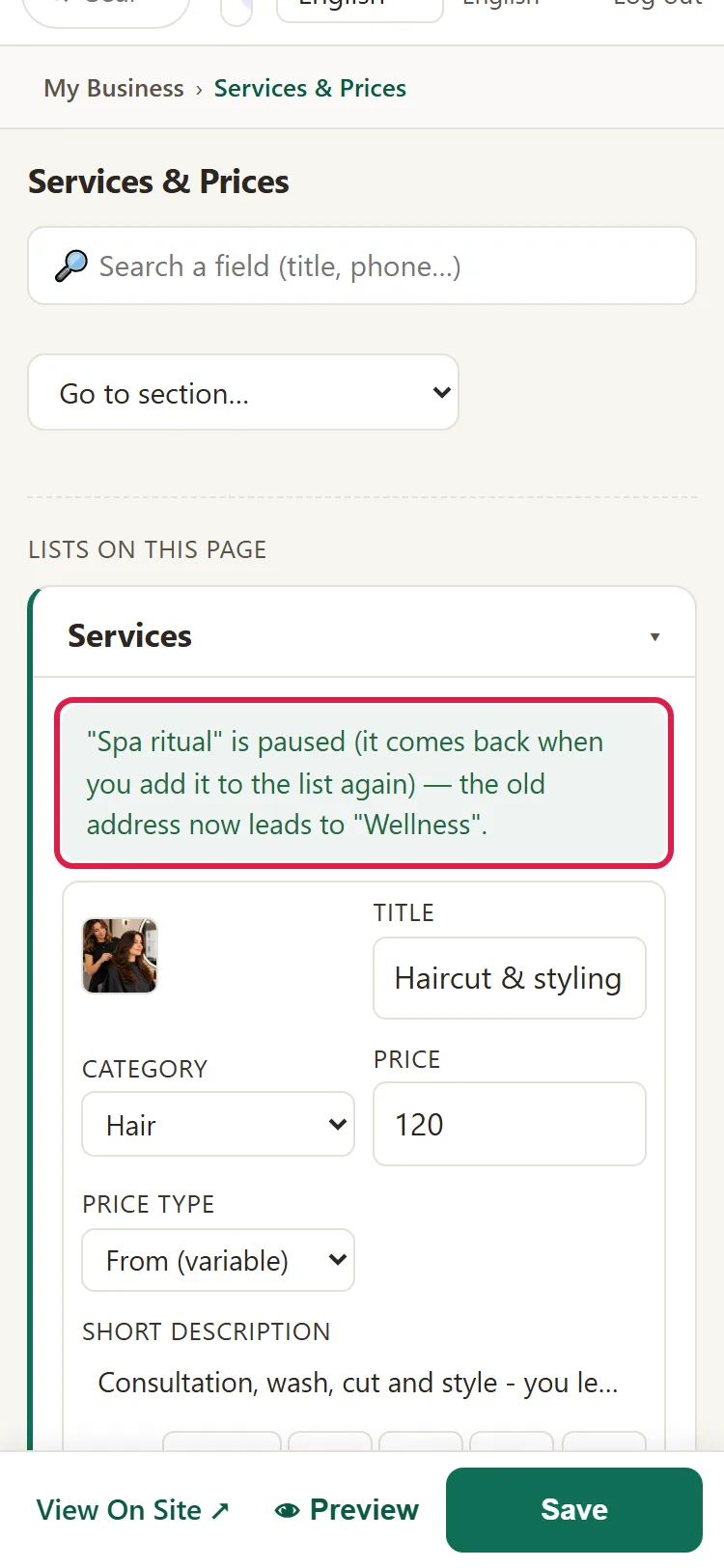
- Click Apply. The admin panel tells you in plain words what it did, for example that the old address now leads to "Wellness".
- If you removed several pages at once, the window appears in turn, for each page.
If you click Cancel, the list is saved (what you removed from it doesn't come back), but the page stays on your website, as before. The question comes back at the next save.
What to know before you choose "Pause"
- While the page is paused, anyone who opens its address ends up on the page chosen under "Where to send people who reach the old address".
- For a service, a category or a team member: when you want the page back, add it to the list again, with the same name as before, and click Save. The page comes back at its old address, which Google already knows, and the redirect to the other page is removed by itself. In the message after saving you see "Pages brought back to the website (they had been retired):" and the page address.
- The name matters, because the page address is made from the name. If you write it differently, a new page appears, at a different address, and the old one stays paused.
- For a page you made yourself with New page: you bring it back by checking Page is shown on the site again and clicking Save.
How to see where old addresses lead
You don't need to do anything here unless you have a specific reason. The screen is useful, for example, if you had another website and want its old addresses to lead to the new pages.
- In the admin panel menu, open 🛠 Advanced, then Old Addresses.
- In the table you see, on each row, the old address (From (old URL)) and the page it now leads to (To (new URL)). The rows the admin panel made when you retired pages have "auto" under Source.
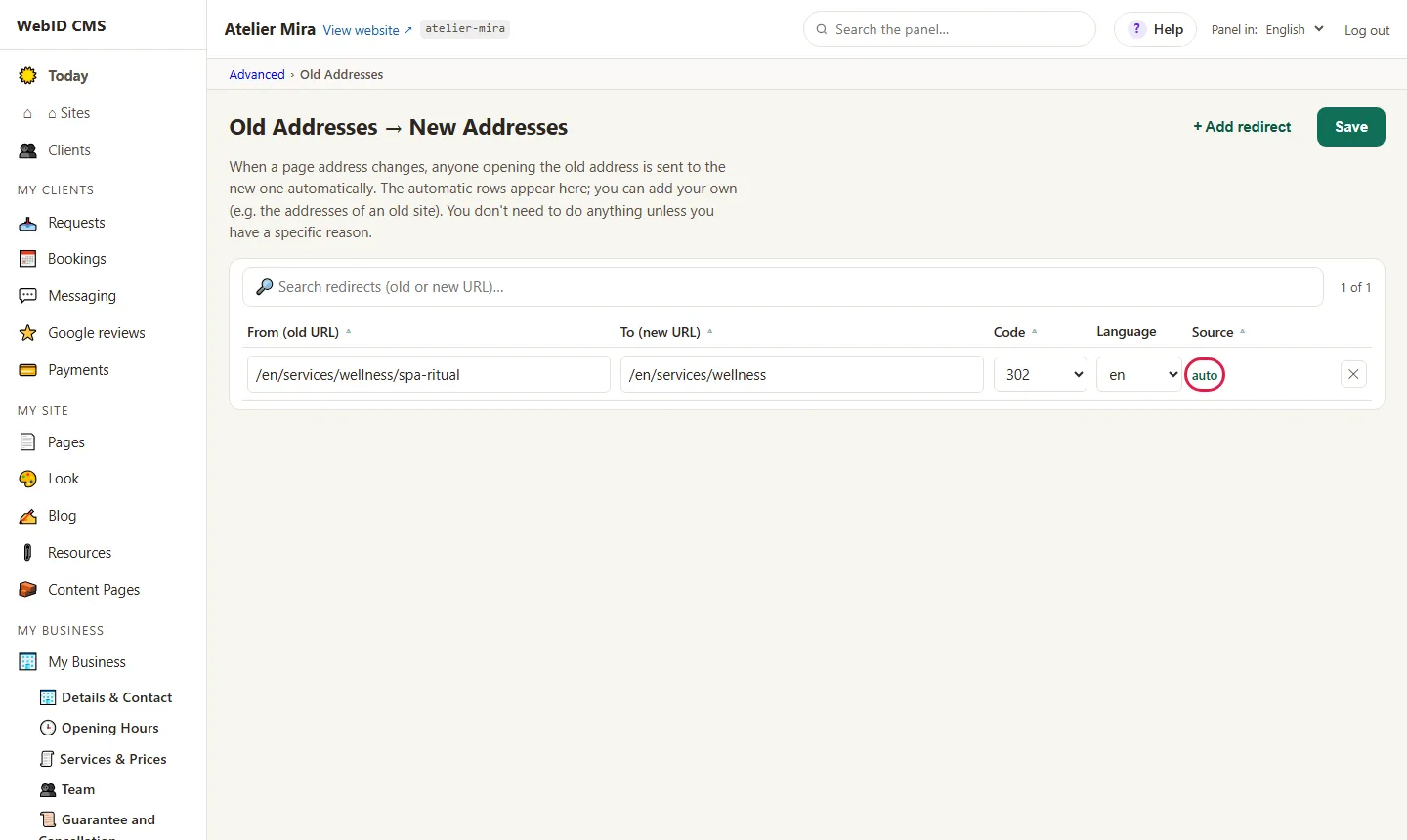
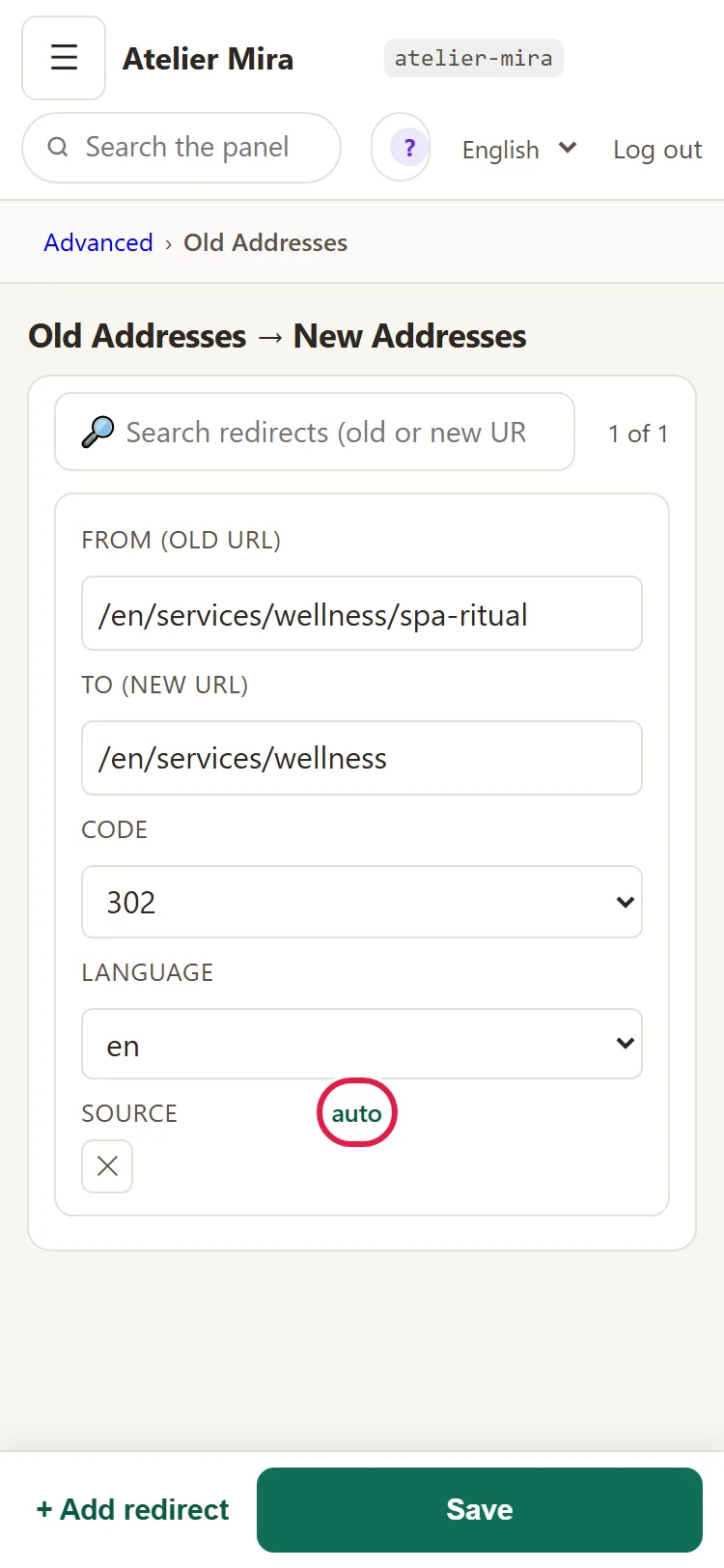
- To add an address, click + Add redirect, fill in the two addresses and click Save. Type only the part after the domain, for example /old-services, not the full address with https://. The old addresses must be on the same domain as your current website.
Don't delete the "auto" rows: if you delete them, the page doesn't come back on your website, and anyone who opens the old address ends up on "page not found".
Common problems
- "I removed the service, but its page still opens." You clicked Cancel in the window. Save the list again and choose what happens to the page.
- "I paused the service and now I want it back." Add it to the list again, with the same name as before, and click Save. Its page comes back at the old address.
- "I took the page out of the menu and it still shows up in Google." Taking it out of the menu doesn't take the page off your website. To remove it completely, use the window above.
- "I don't know where to send people." Pick the page where people find something close to what they were looking for; it's usually the one the admin panel suggests. Pick "no relevant page" only if there's nothing similar on your website.
- "Something else isn't working." Write to us at contact@webid.ro, with the page address, and we'll take a look.
What it doesn't do
- Your website's basic pages (for example "Gallery" or "About") don't have a retire button: you can only take them out of the menu, and they stay on your website. To remove them completely, write to us at contact@webid.ro.
- A page made with New page isn't deleted completely: it leaves your website, but its text stays in the admin panel.
- Google doesn't find out right away: the page disappears from searches after Google visits your website again, usually within a few days, sometimes a few weeks.
What data it uses
This guide doesn't touch personal data. What you publish on your website is your content; if you add people's names or photos, you need their consent. If you retire a colleague's page, their data isn't deleted from the admin panel or from "History".