How to change your phone, address and logo on your website
Changed your number, moved or got a new logo? You type your business details only once, in "My Business". Wherever the website takes them from there, they change by themselves: in the header, in the footer, on the contact page, in the legal pages and, if you have Bookings, in your appointments. A number typed by hand in a page's text doesn't change by itself. It takes a few minutes.
How to get to your business details
- In the left menu, under My Business, click Details & Contact.
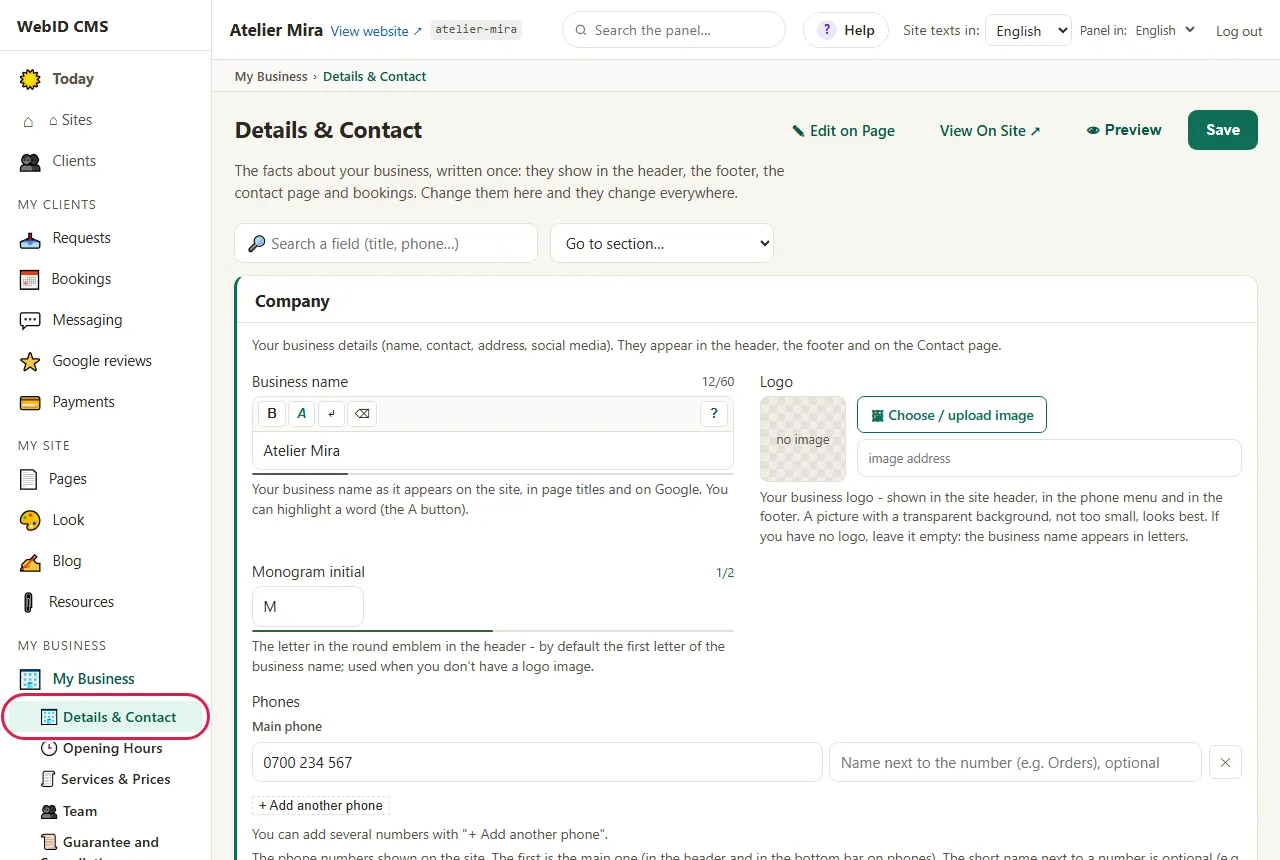
- You see all your business details on a single screen. Change what you need, then save once, at the end.
You can also get here from "Pages": on any page that shows the phone or the address, click Change in "My Business".
How to change the phone and email
- Under Phones, type the new number in the first row, Main phone. The number appears in the header and in the website's bottom bar, when it's opened on a phone.
- If you like, type a label next to the number (for example "Appointments").
- For another number, click + Add another phone. To remove a number, click ✕ on its row.
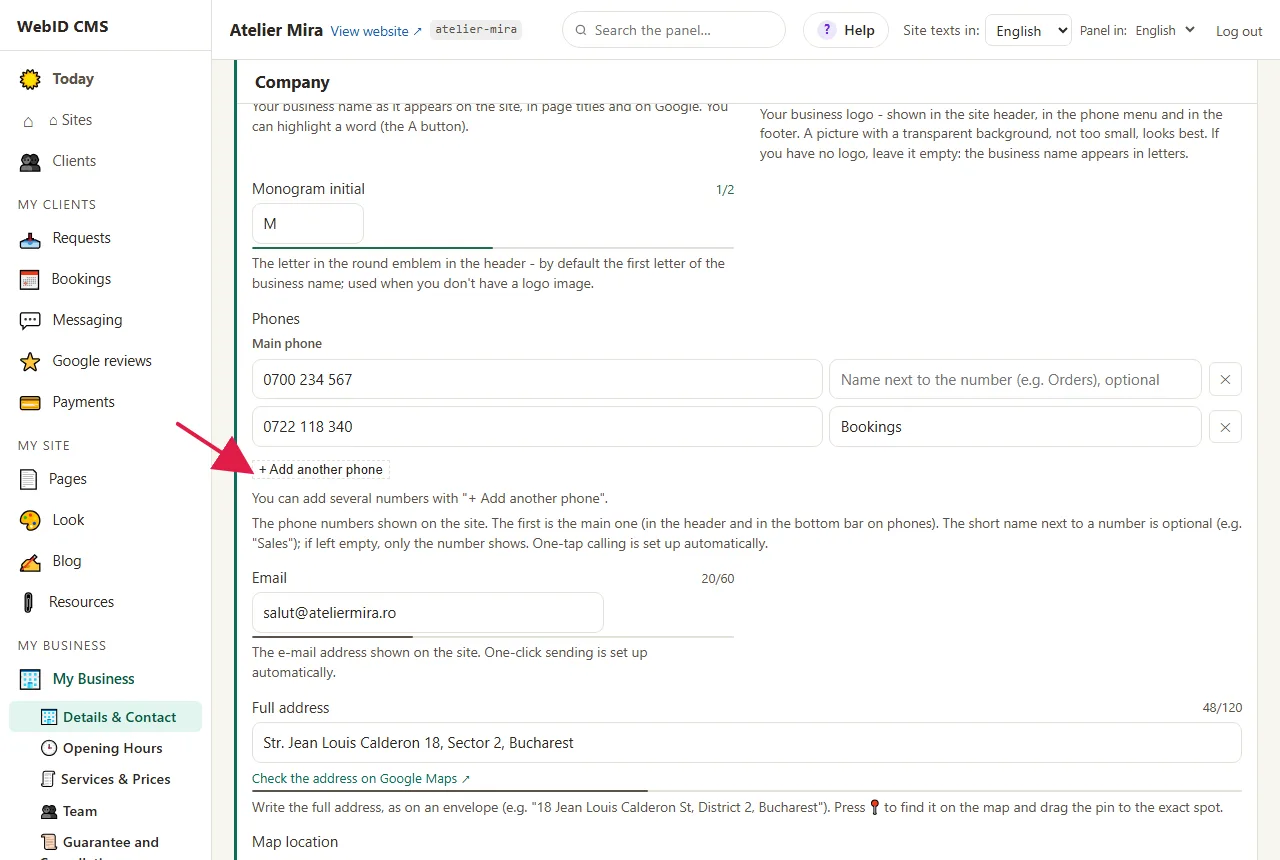
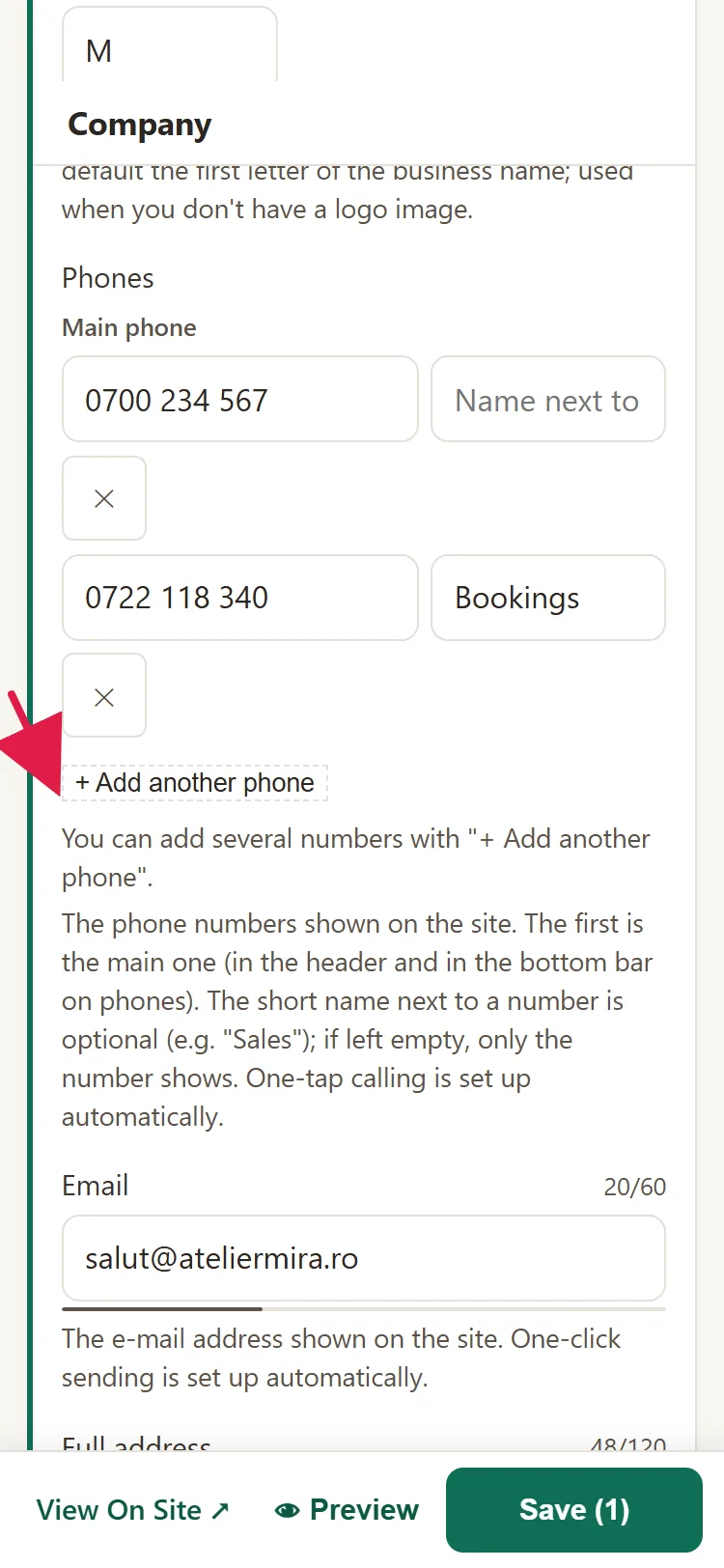
- Under Email, type the address in Main email. For another one, click + Add another address.
The buttons on the website that used the main phone (for example "Call") switch to the new number by themselves.
How to change the address and the spot on the map
- Under Full address, write the address as you would on an envelope.
- To see if it's written correctly, click Check the address on Google Maps: Google Maps opens with your address.
- Fill in District / area only if we didn't recognize it from the address.
- Under Location on the map, click Show on map, then 📍 Locate from address.
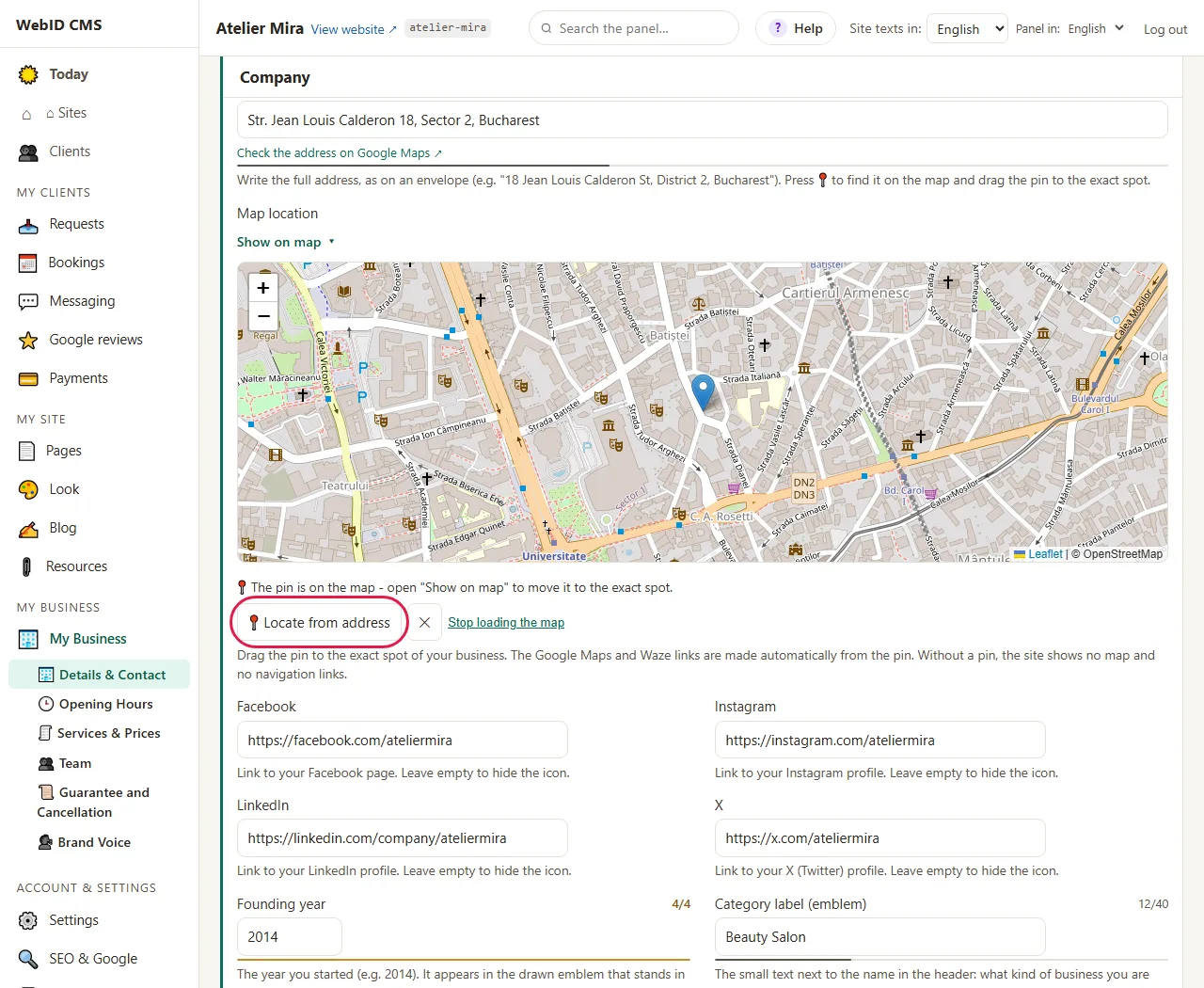
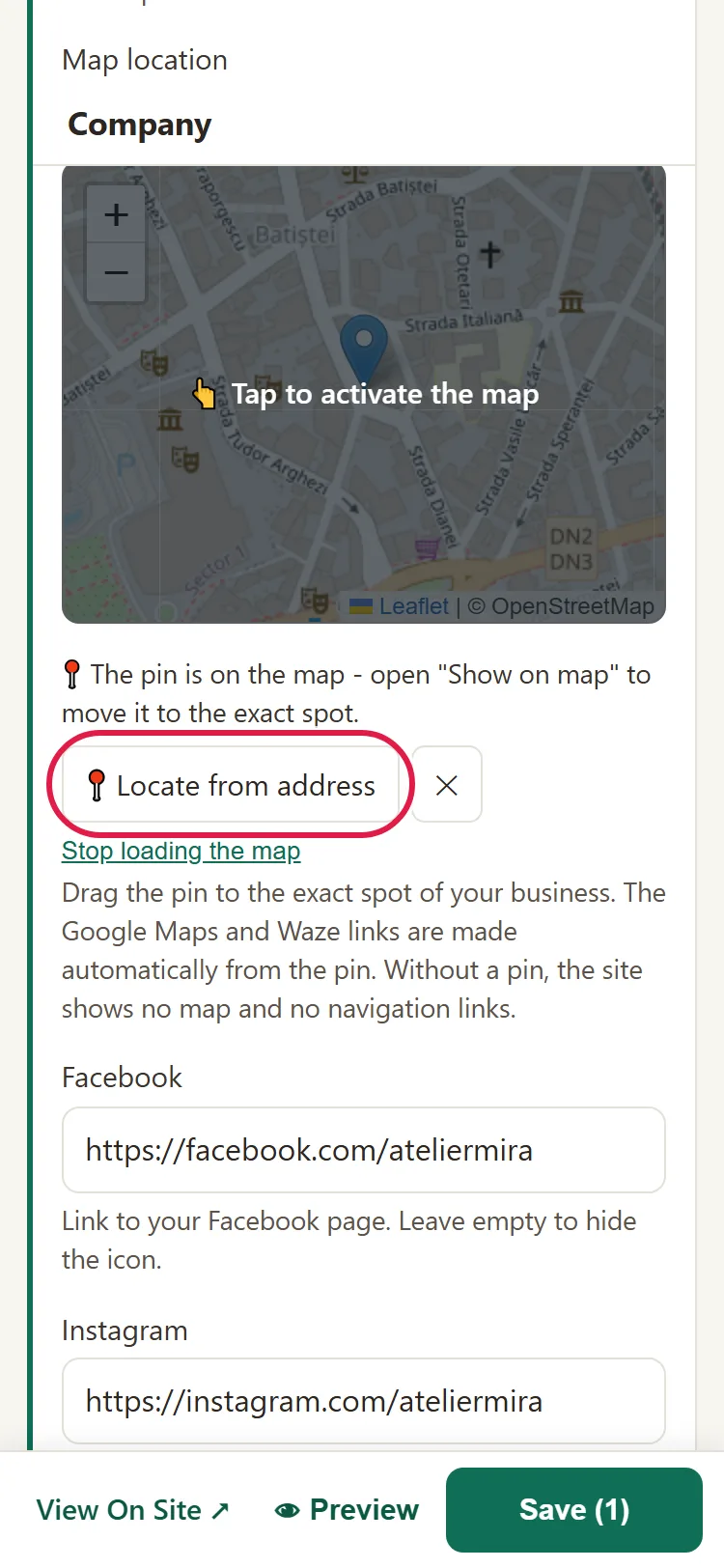
- Drag the pin to the exact spot.
- If "📍 Suggestion from map" appears after you move the pin, click Apply to put the suggested address in place of the one you typed. The suggestion replaces the whole field, so check the building, entrance or apartment afterwards. The pin stays where you put it, whatever you choose.
Without a pin, the map and the links to Google Maps and Waze don't appear on the website. If you don't want a map on the website, delete the pin with ✕.
How to change the logo and business name
- Under Logo, click 🖼 Choose / upload image and choose the logo picture. A picture with a transparent background looks best.
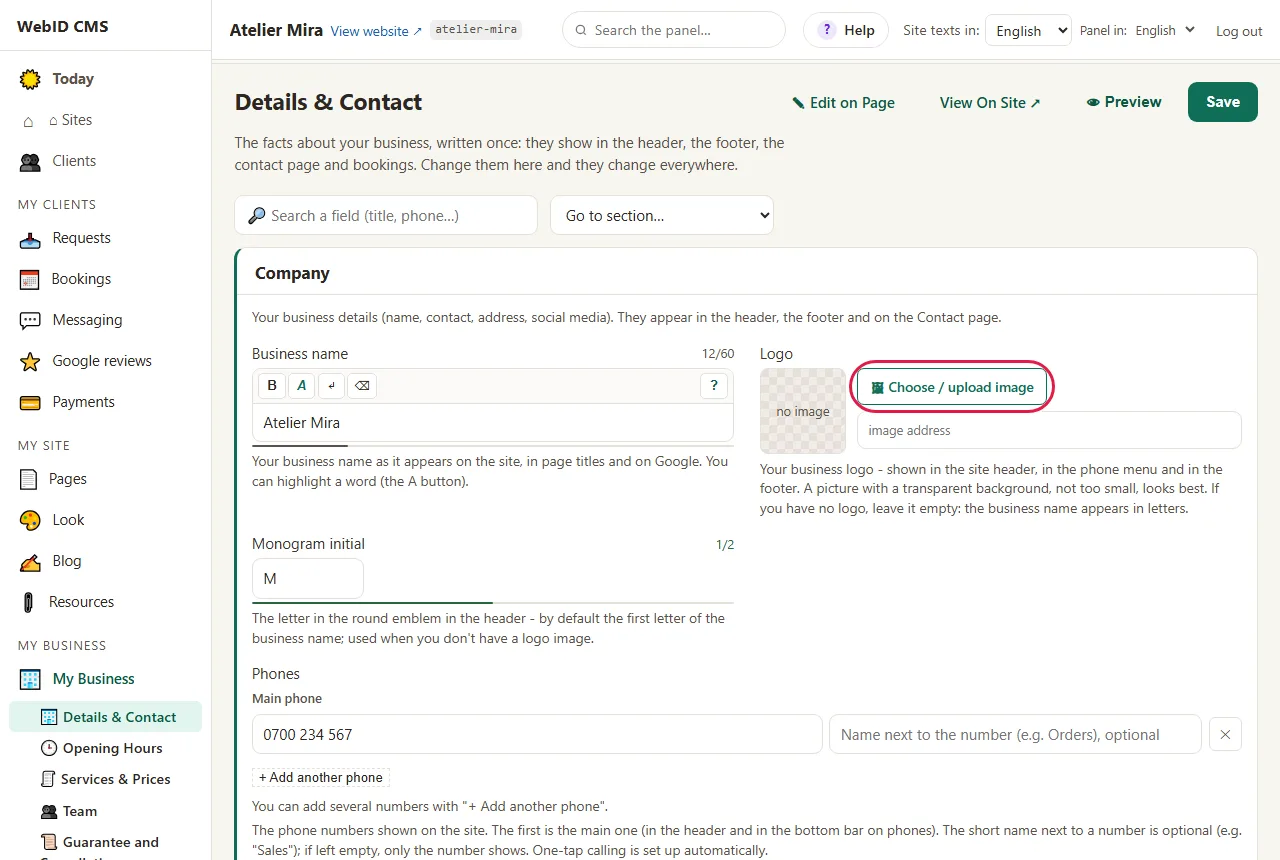
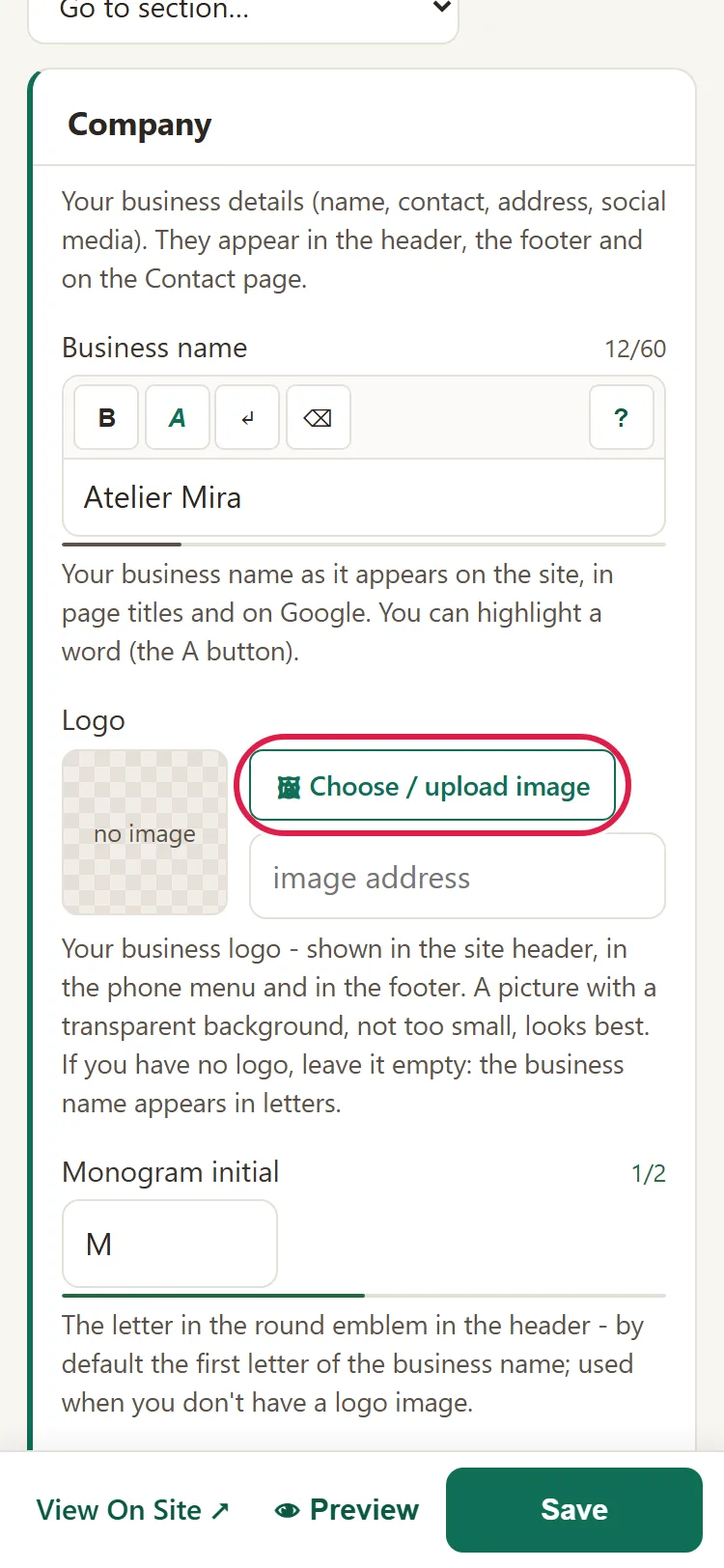
- If you leave the logo empty, the header shows your business name, written in letters, with its initial in a small circle next to it.
- Under Business name, type the name of your business. It appears on the website, in the page titles and, after Google rereads the website, in Google. To highlight a word, select it and click the A button: it appears in the website's color.
- Category label (emblem) is the small text next to the name, for example "Beauty salon".
- Monogram initial is the letter in that small circle. At first it's the first letter of your business name.
- Founding year appears on the emblem, for example "Since 2014".
How to add the links to Facebook and Instagram
- Under Facebook, Instagram, LinkedIn or X, paste the address of your page there.
- The network's icon appears on the website. If you leave the field empty, the icon doesn't appear.
How to save
- Click Save.
- You see the message "Saved ✓ - 3 changes, applied to the site (pages rebuilt: 12)." (your numbers may differ). Reload your website to see the new details.
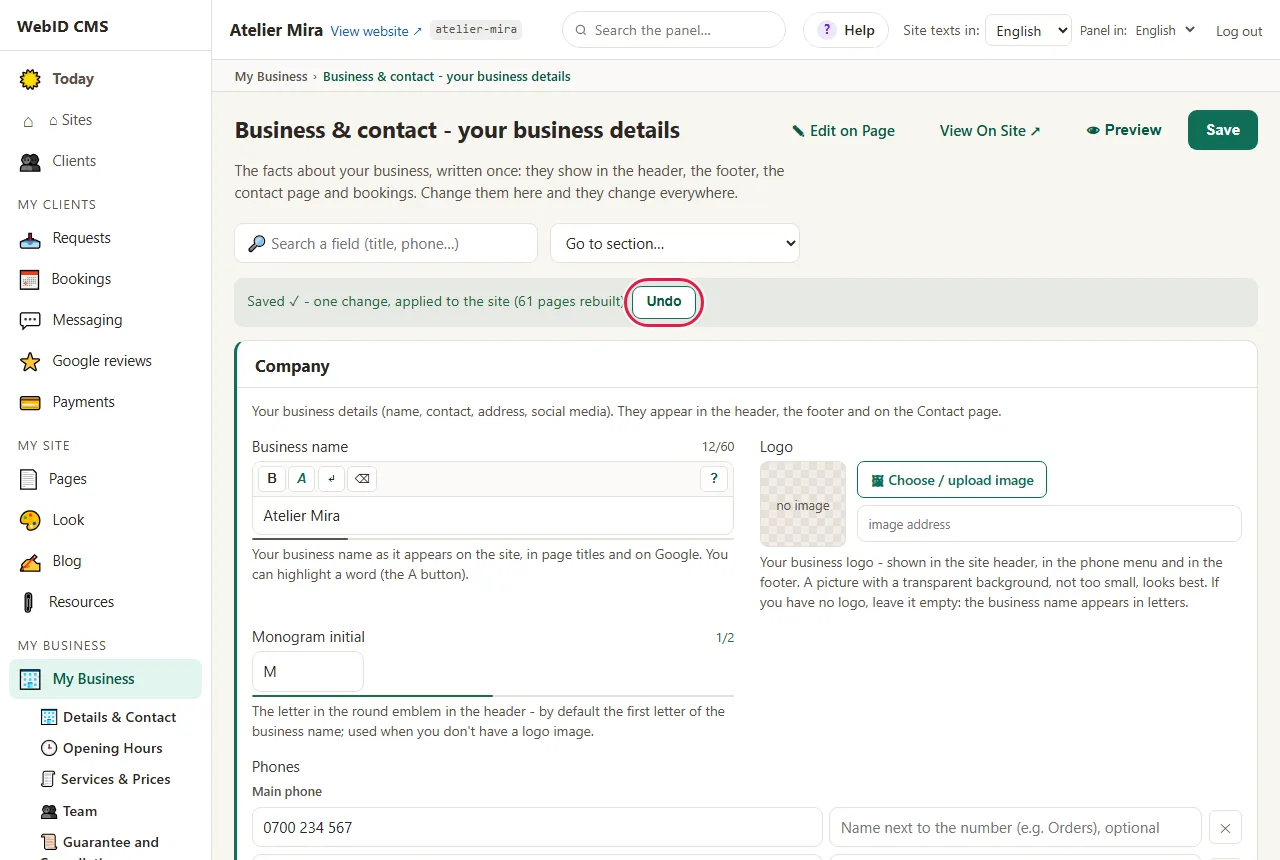
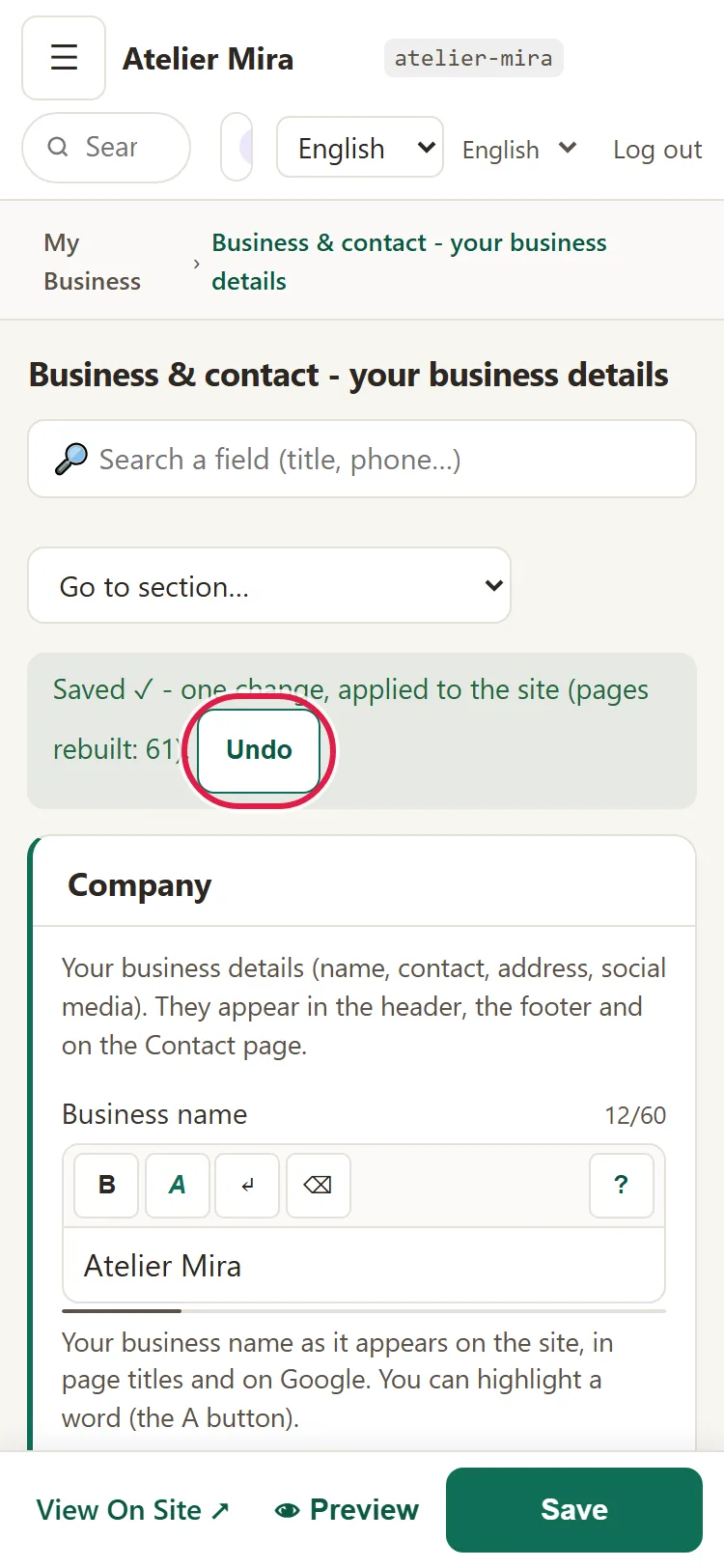
- If you made a mistake, click Undo, next to the message: everything goes back to how it was before you saved. The button stays there as long as the message is on the screen; after that, you go back to the earlier version from Advanced › History.
Common problems
- "The website still shows the old number." Either you didn't click Save, or your browser is showing you the old page. Save, then reload the website page.
- "The map doesn't appear on the website." You haven't placed the pin. Under Location on the map, click 📍 Locate from address and save.
- "It says: Address not found on the map." The map doesn't recognize the address as it's written. On the map, go to your area and click the exact spot: the pin appears there and you can drag it afterwards.
- "The logo looks small or has a white background." Upload a bigger picture with a transparent background (usually a PNG file; not every PNG has a transparent background).
- "The Instagram icon disappeared." The Instagram field is empty. Paste your profile address again and save.
- "Something else isn't working." Write to us at contact@webid.ro with what you changed and what you see on the website.
What it doesn't do
- It doesn't change your business details in your Google Business Profile: you change the phone and address there directly in Google. It doesn't change the ones on our invoices and documents either: for those, write to us at contact@webid.ro.
- It doesn't check by itself whether the number or address exists: you check the address yourself, on Google Maps.
- Your opening hours aren't here, but in "My Business", under Opening Hours.
What data it uses
The phone, email and address you type here are published on the website. If you're a sole trader (PFA) or you give your personal number, they're personal data you choose to make public - see DPA §3, the "Website + hosting" row. The map in the admin panel doesn't load until you turn it on, with the checkbox: then your IP address reaches the map services (unpkg.com and OpenStreetMap), and when you click "Locate from address" or move the pin, the business address also goes to OpenStreetMap, to find the spot on the map. You can turn it off at any time, from "Stop loading the map". The "Check the address on Google Maps" link opens Google Maps only if you click it.