How to set your opening hours, holidays and time off
You write the hours on your website yourself, in the admin panel, and the website shows them to visitors exactly that way: in the footer and on the contact page. The admin panel is also where you add the days you close, for Christmas or a public holiday, and time off. A change takes a few minutes.
How to change your opening hours
Also take online bookings? If you've ever saved Each specialist's schedule, change the hours there too (see below), otherwise specialists stay on the old hours. On a website in several languages, repeat the change in each language.
- In the admin panel, open My Business, then 🕒 Opening Hours.
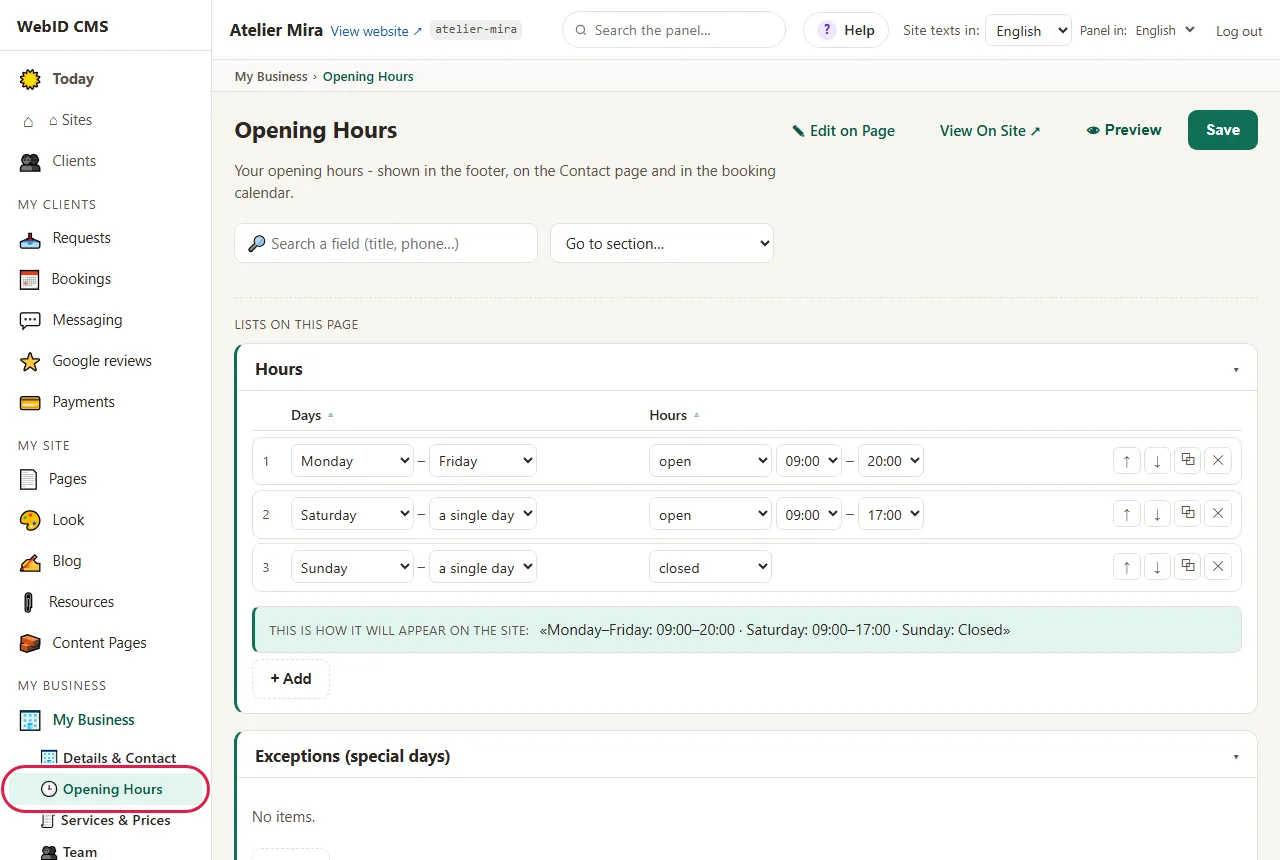
- In the Hours list, each row is a day or a range of days.
- Under Days, choose First day and, for a range, Last day (for a range). For something other than days, for example "Front Desk", choose ✎ other text….
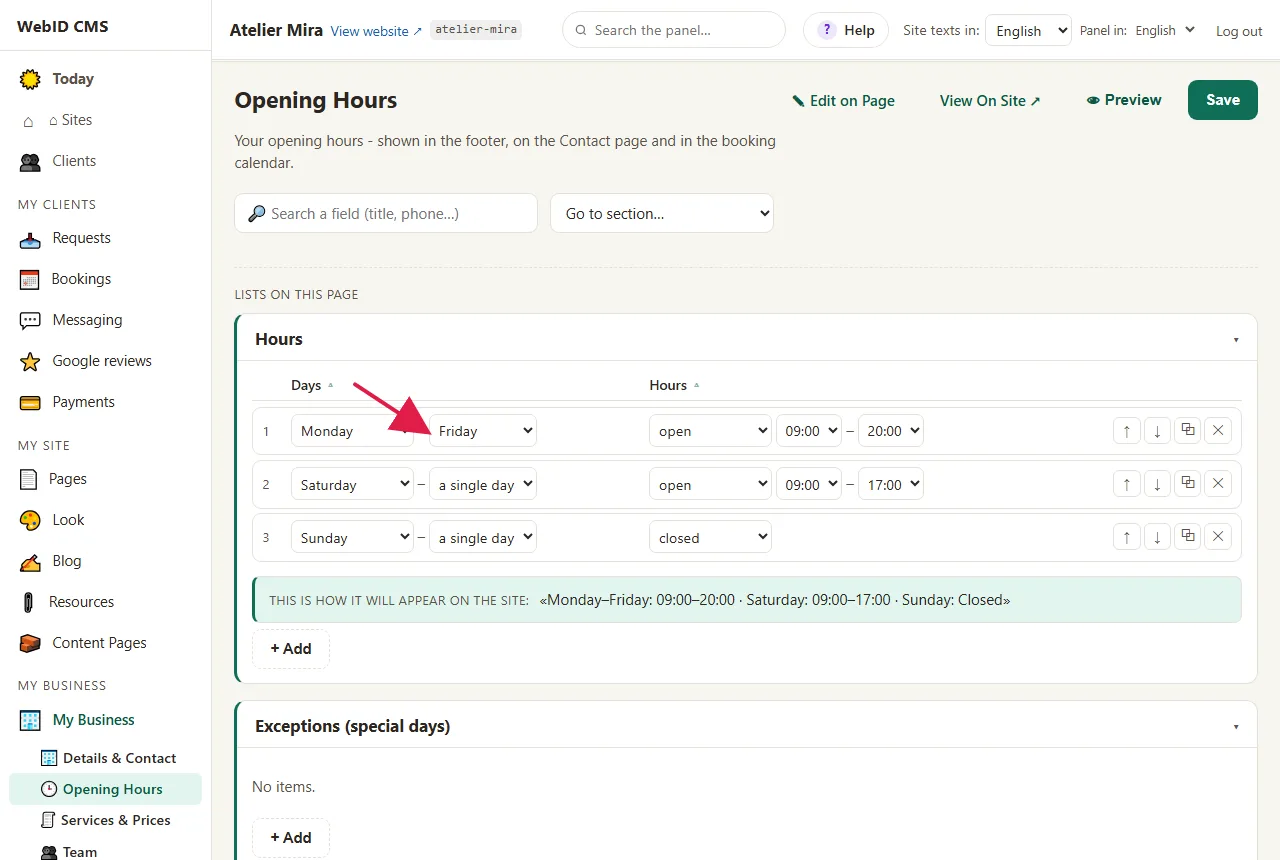
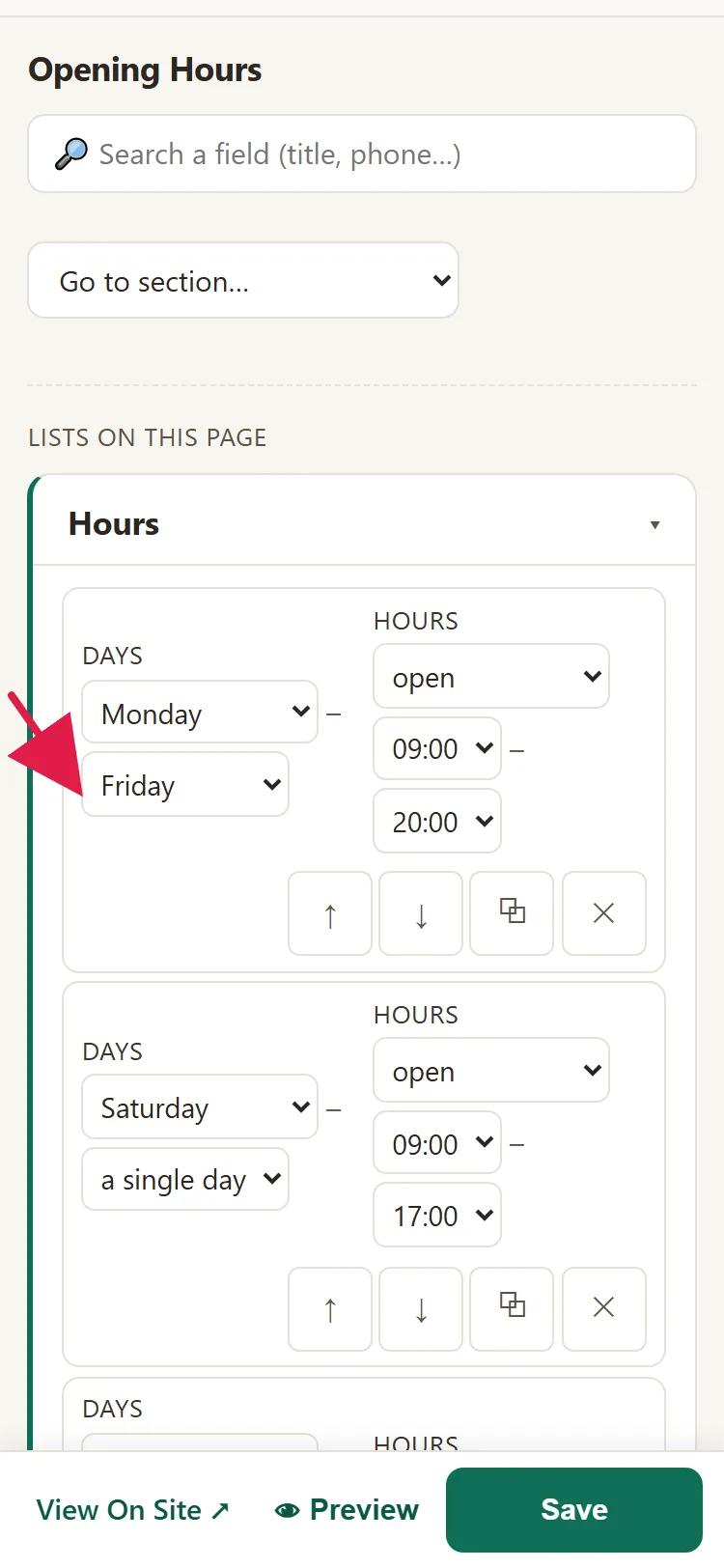
- Under Hours, choose open, then the times under From and Until; or choose closed. For your own text, for example "By appointment" or "24/7", choose ✎ other text….
- For a new row, click + Add. You change the order with ↑ ↓, and you delete a row with ✕.
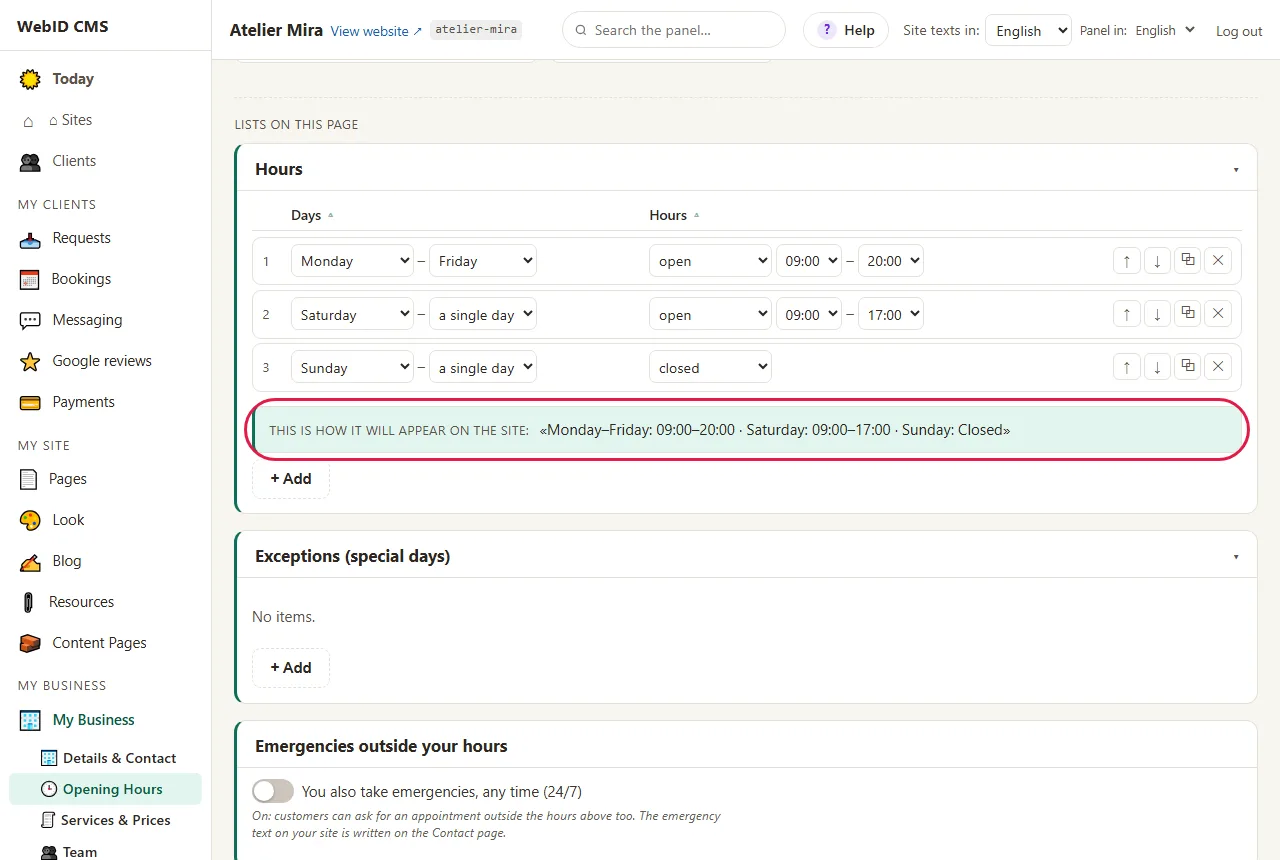
- Look at the line below the list, This is how it will appear on the site:. That's exactly how your hours appear in the website's footer.
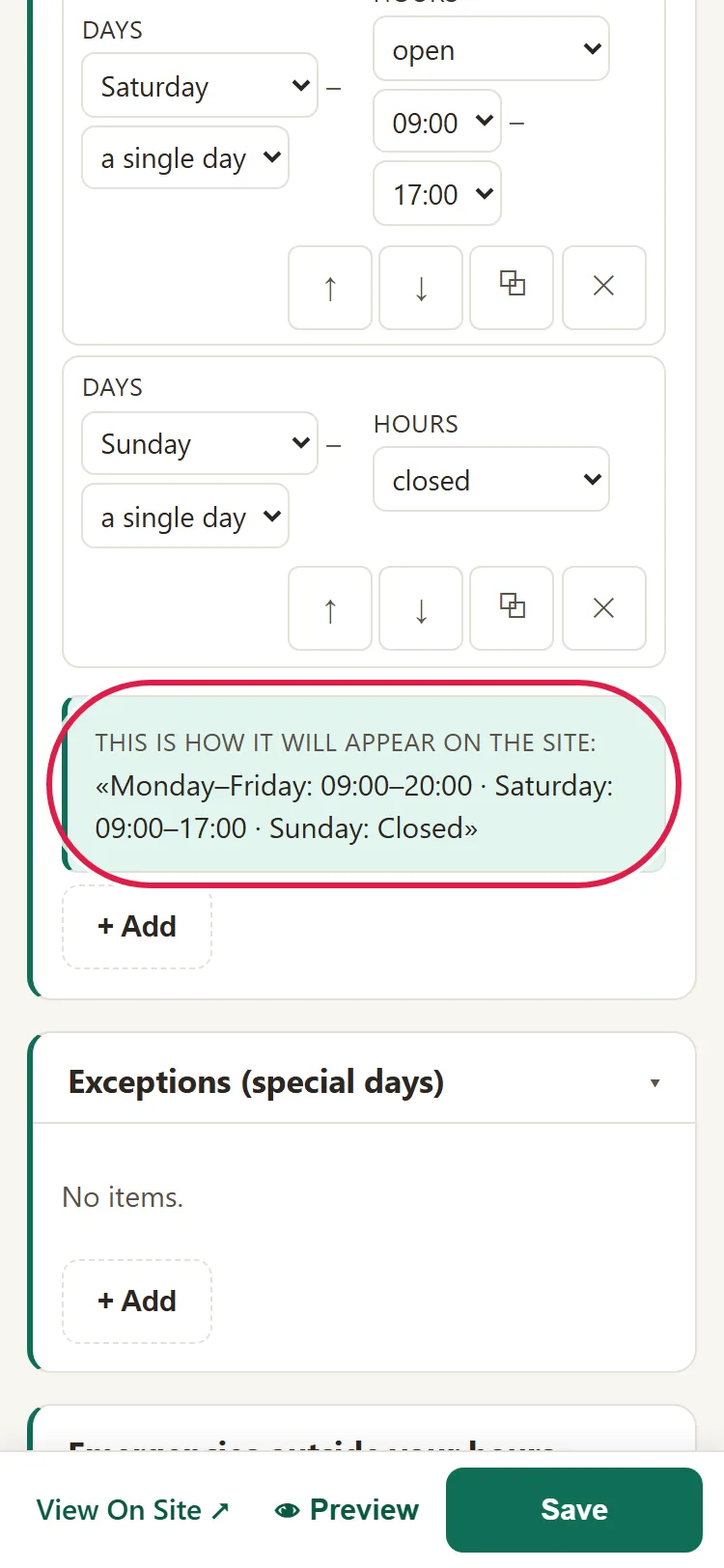
- Click Save, at the top. You see "Saved ✓", and the new hours appear on your website. Changed your mind? Click Undo, next to the message.
How to add a holiday or time off
Also take online bookings? Appointments already made stay, and clients keep getting the confirmations and reminders. If you close on a day with appointments, you move or cancel them yourself.
- On the same screen, go to the Exceptions (special days) list and click + Add.
- Under From (day), choose the first day. Under Until, choose the last day; if it's a single day, leave the field empty.
- Under Note, write what you want clients to read, for example "Closed - Christmas".
- Leave Fully closed on if you don't work at all on those days. Turn it off if it's only a note, for example when a colleague is on time off but you're working.
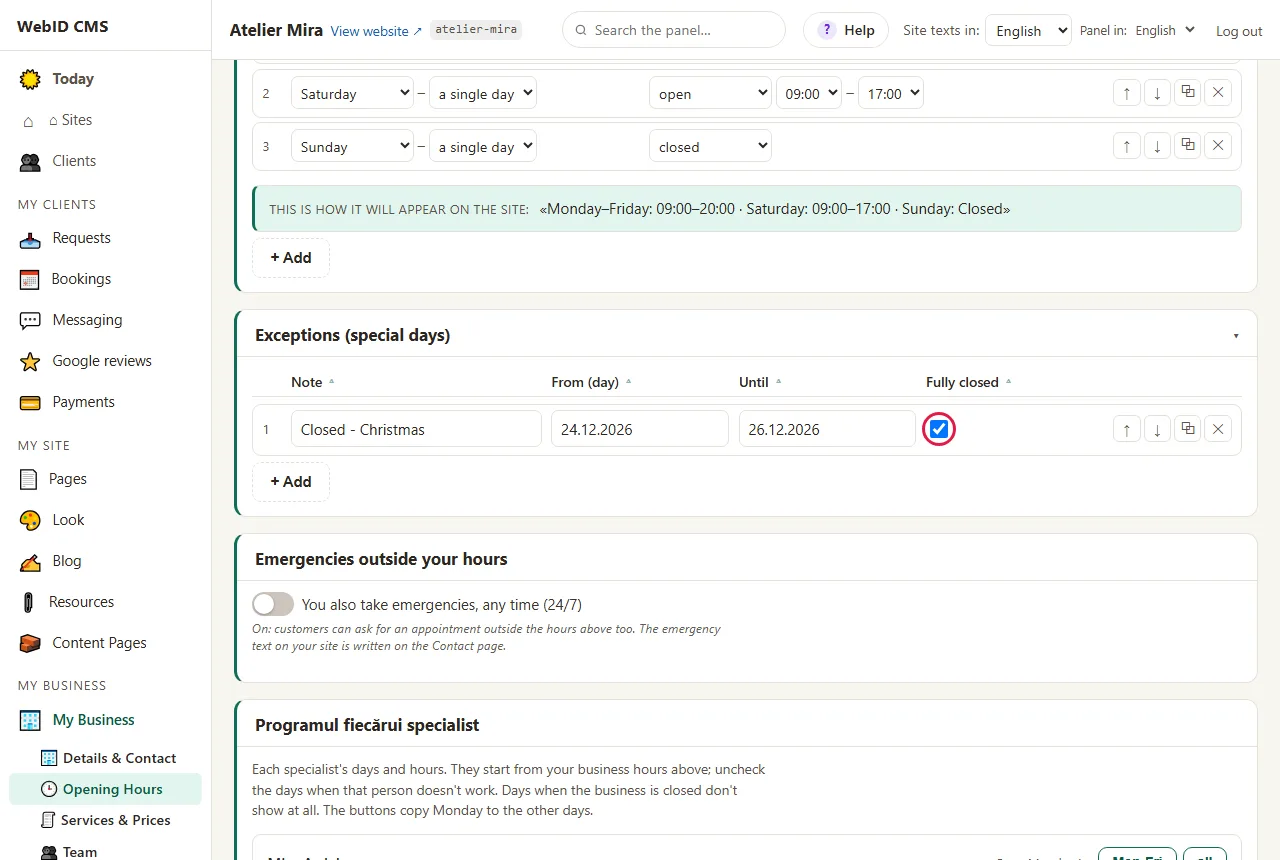
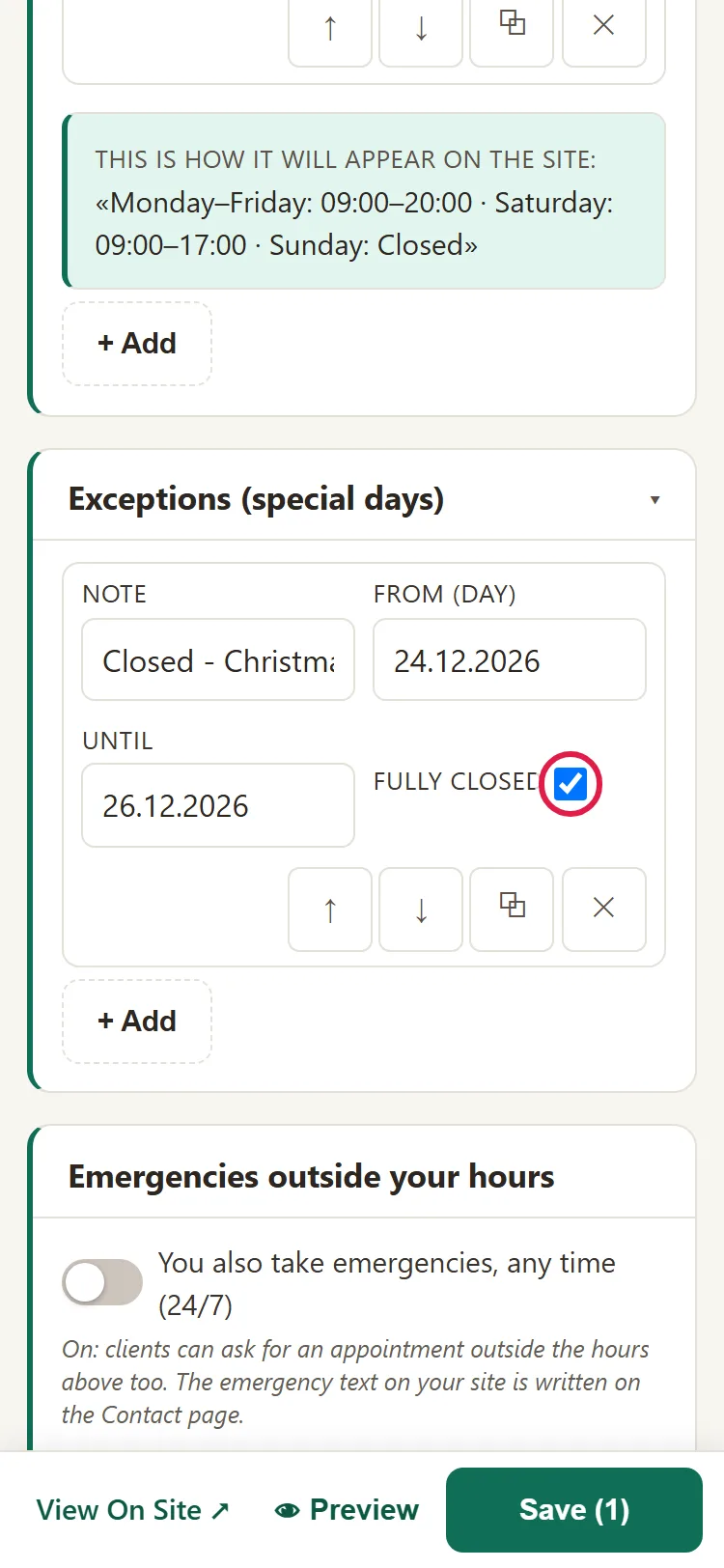
- Click Save. The exception appears on the website below your hours, in the Special schedule - coming period box: the date written briefly and your note. You see it on the contact page and wherever the website shows your hours next to your contact details.
- Once those days have passed, delete the exception from the list with ✕ and click Save, so it no longer appears on the website.
What else to do if you take online bookings
If you have the Bookings add-on, a few more things appear on the same screen:
- Emergencies outside your hours: turn it on if you take emergencies at any time. It saves when you click it.
- The Each specialist's schedule block: each colleague's days and hours. Uncheck the days when someone doesn't work. Copy Monday to: puts Monday's hours on the other days too.
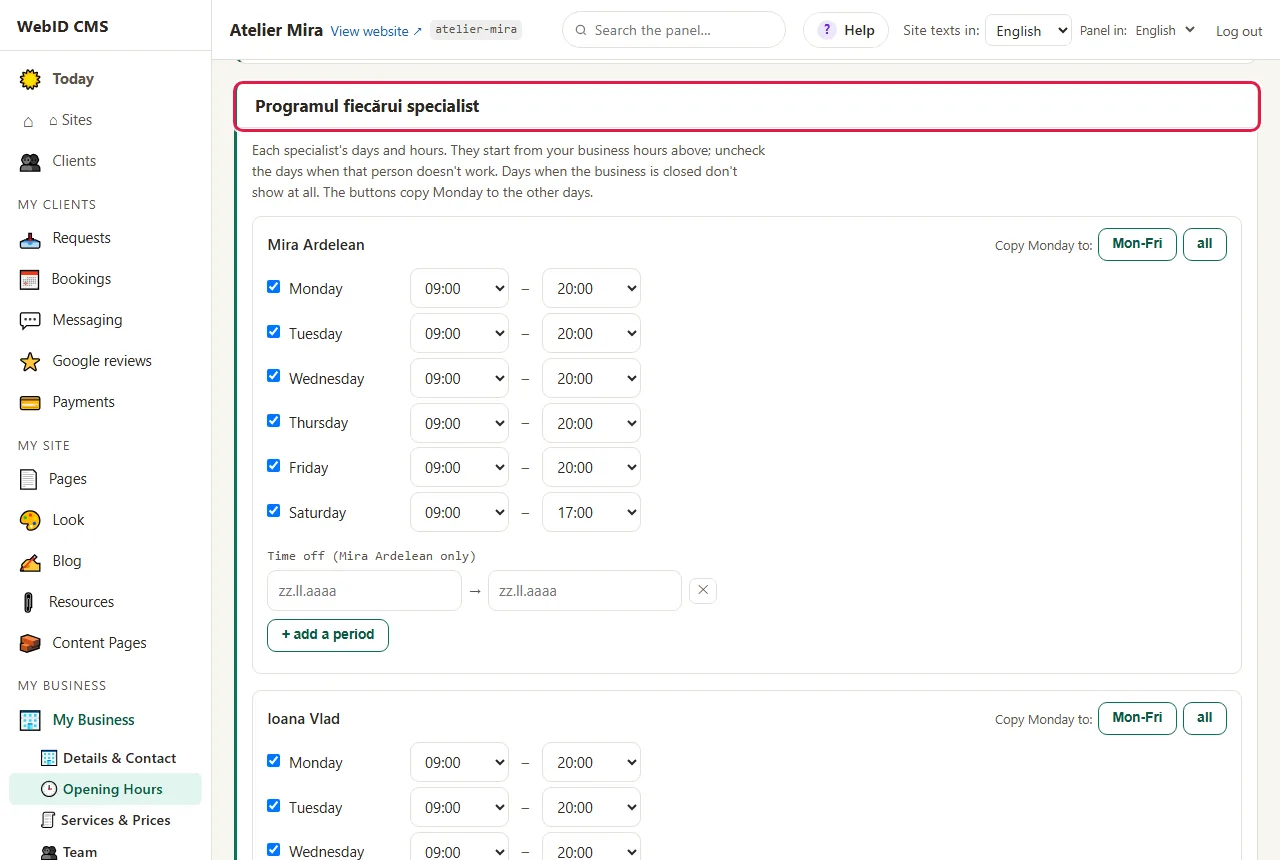
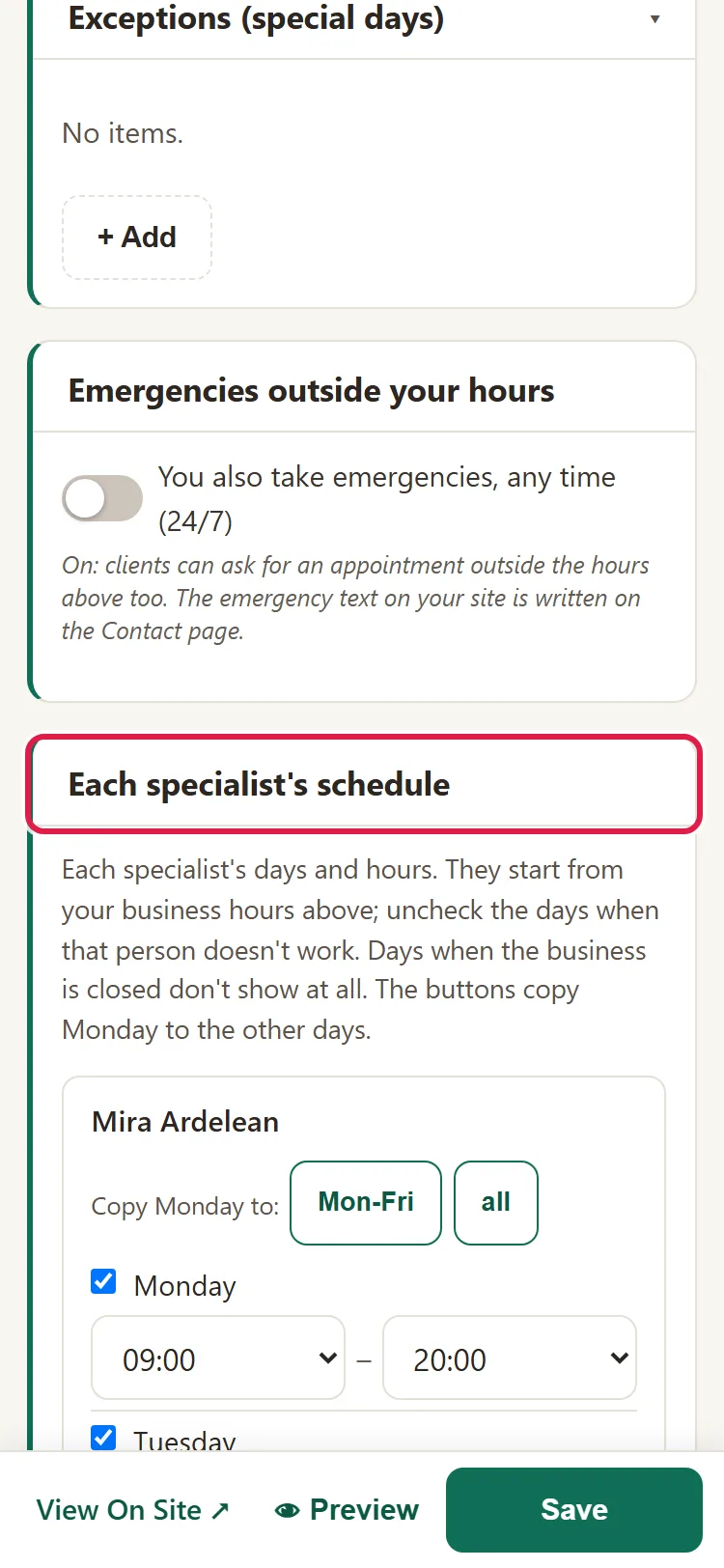
- When a colleague goes on time off, click add a period under Time off, next to their name. If you want, also add an exception on the website, with Fully closed off.
- After you click Save, the new hours reach the booking calendar too. There's one exception: if you've ever saved Each specialist's schedule, specialists stay on the hours from there, so change those as well.
- Only rows with times go into the calendar. A row with your own text, for example "24/7" or "By appointment", appears on the website but doesn't open any booking times: for those, set the times under Each specialist's schedule.
- If your website is in several languages, change the hours in the main language: the calendar takes them from there. The days you close, with Fully closed on, stop bookings whichever language you added them in.
Common problems
- "The website still shows the old hours." You didn't click Save, or you changed the hours in only one language. Each language of the website has its own hours.
- "Clients booked appointments on a holiday." Fully closed was off for that exception. Turn it on and save. You move or cancel the ones already made yourself.
- "I changed the hours, but the calendar still has the old ones." You changed them only in another language, or you have a schedule saved under Each specialist's schedule. Change them in the main language and, if needed, there too.
- "I want to write 24/7." Under Hours, choose ✎ other text… and write "24/7". For bookings, also set the times under Each specialist's schedule.
- "My colleague is on time off, but we're open." Add an exception with Fully closed off (just the note) and their time off under Each specialist's schedule.
- "Something else isn't working." Write to us at contact@webid.ro and we'll take a look.
What it doesn't do
- It doesn't add public holidays by itself: you add each day off.
- On a website in several languages, you write the hours and exceptions separately, in each language.
- It doesn't change the hours on your Google profile (on the map): you change those separately.
- You can't prepare a change in advance, for example "summer hours from June 1". You make it on the day.
What data it uses
Your hours are information about your business. A "Note" like "Ioana on time off", though, publicly names a person, and the time off in Bookings stays in the admin panel, with no reason given. For those, you're the controller and we process them on your behalf - see DPA §3. Don't write the reason for an absence (for example "sick leave"): that's health information.