Your website
How to hide or move a section on a page
Want the reviews higher on your homepage, or don't want the blog or the map on it anymore? You move and hide sections yourself, from the admin panel, one click at a time. It takes a minute, and a hidden section isn't lost: you can bring it back anytime.
How to move a section up or down
- In the menu (on a phone, open it with ☰), under My Site, click Pages.
- Choose the page, for example Homepage. The sections appear in the same order as on the website.
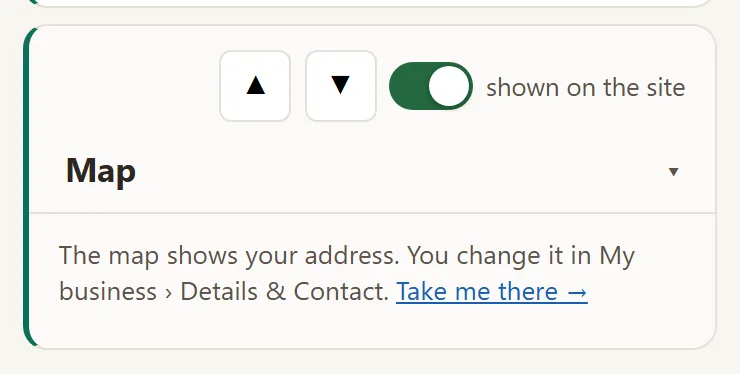
- Find the section you want to move. In its top corner you see the ▲ and ▼ arrows.
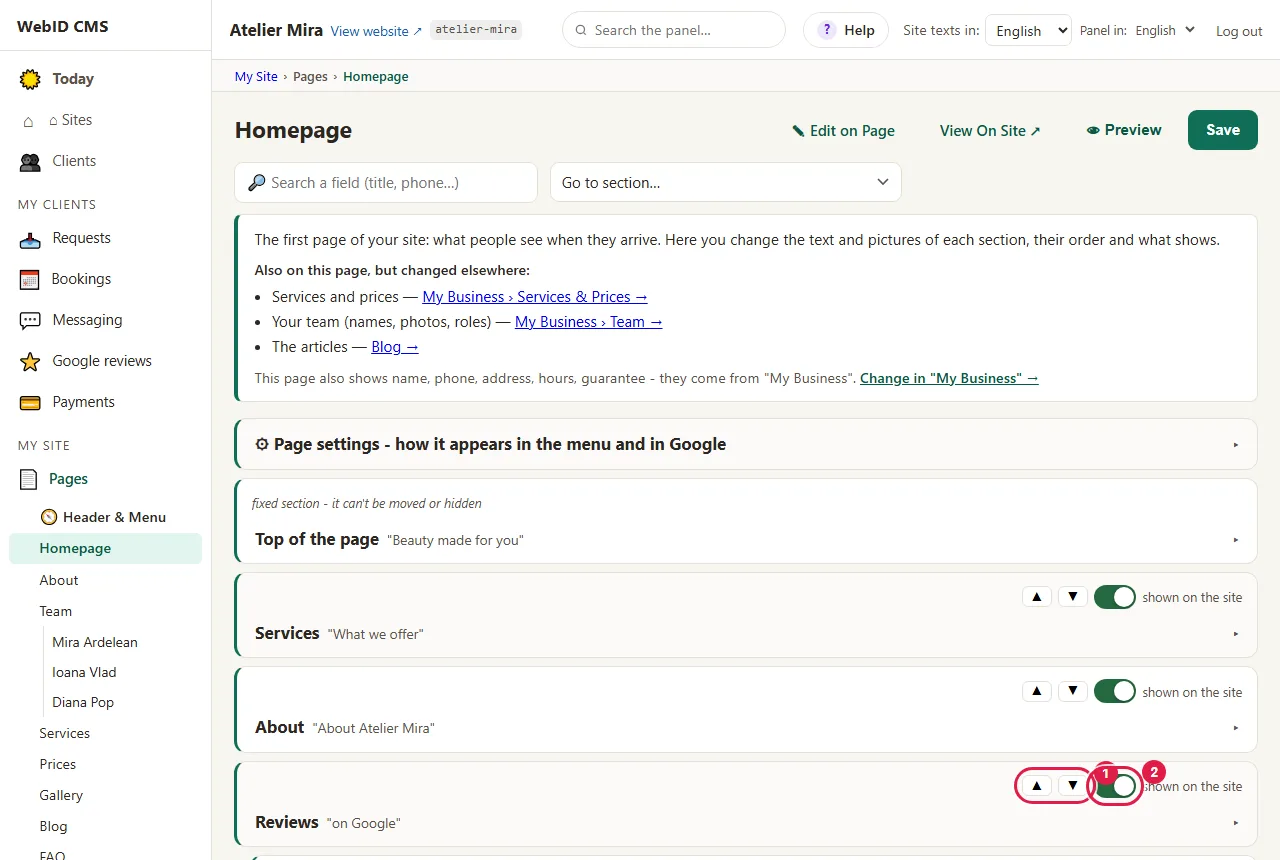
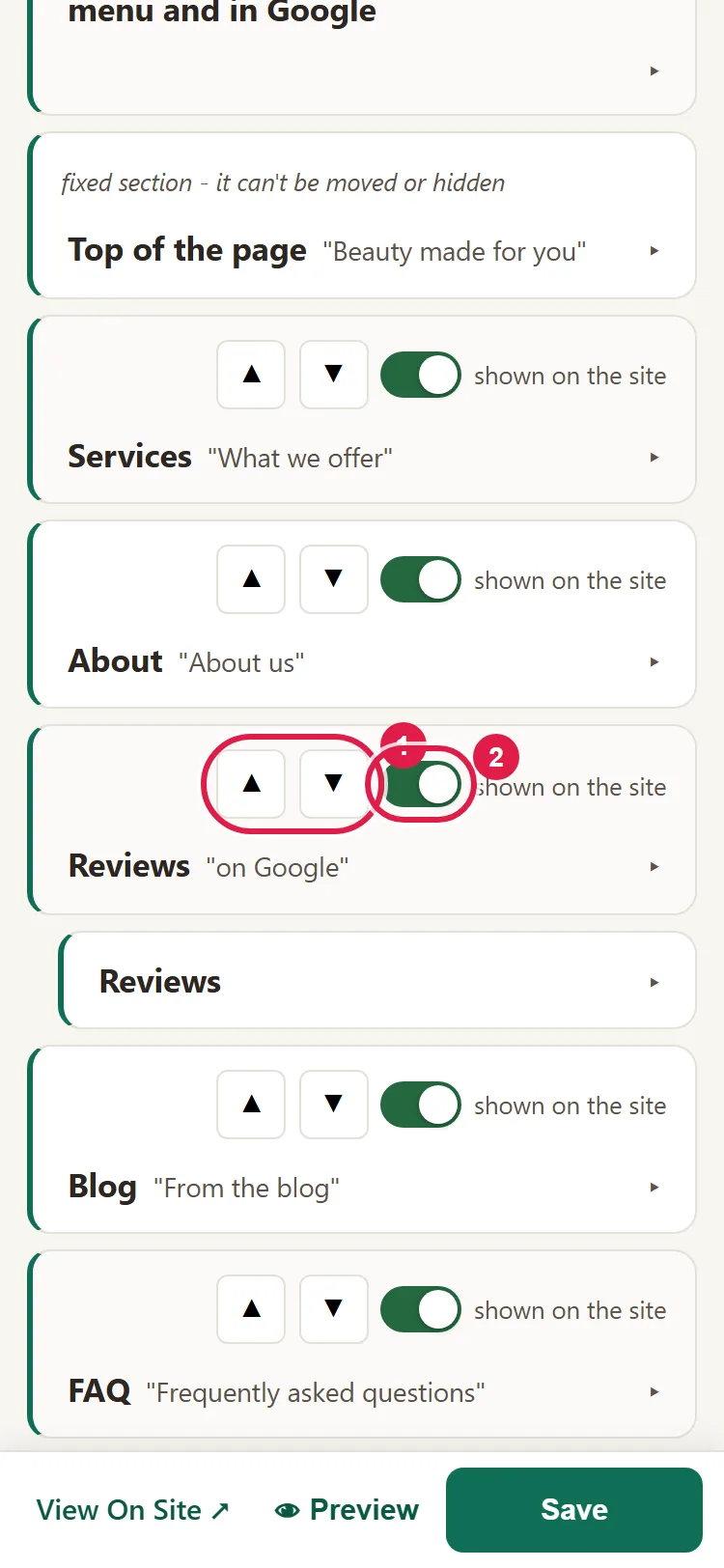
- Click ▲ to move it up or ▼ to move it down. Each click moves it one place, immediately, in the admin panel and on the website; if you have the website open in another tab, reload it.
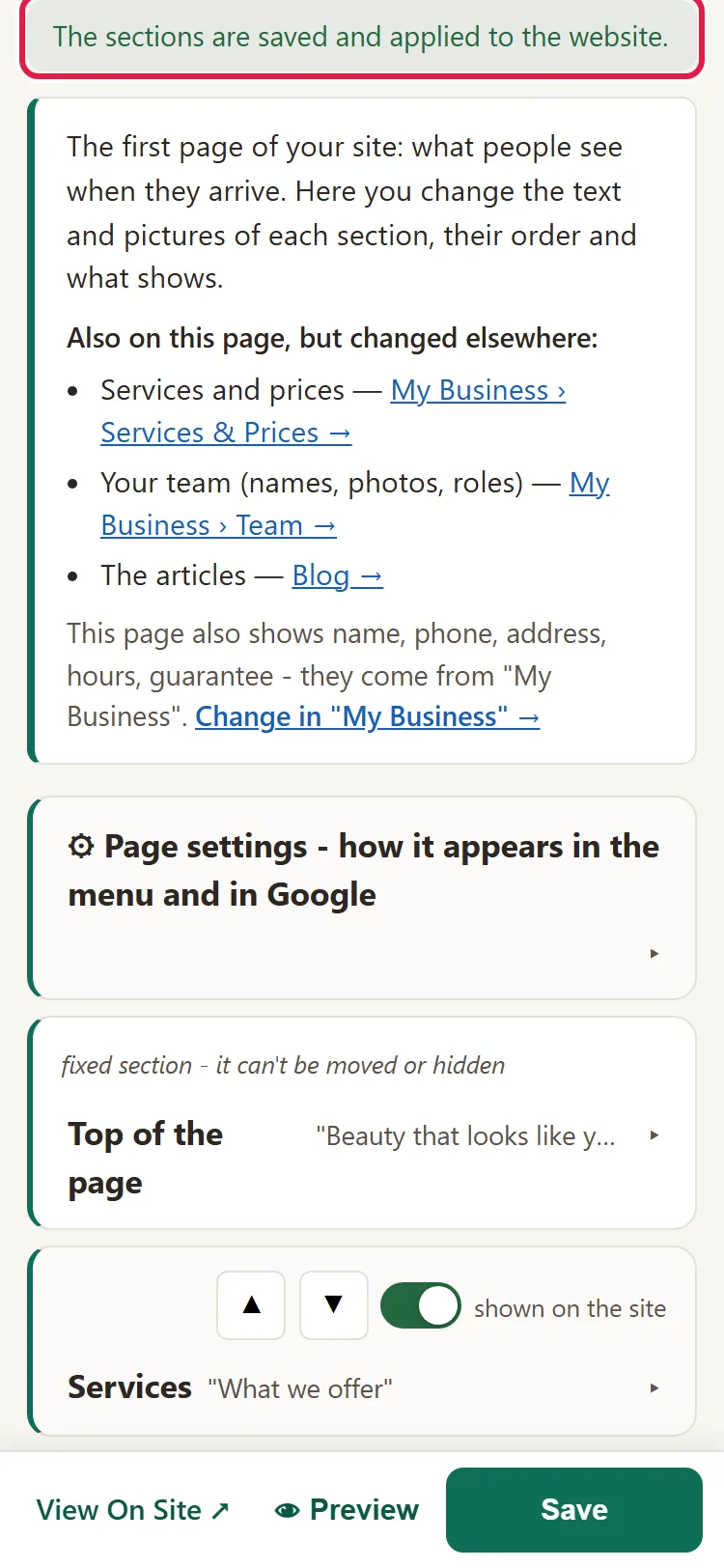
- The message "The sections are saved and applied to the website." appears at the top. You don't need to click Save.
How to hide a section
- Open the page from Pages, as above.
- In the section's corner, click the shown on the site switch.
- The label changes to hidden, the section fades in the admin panel and disappears from the website: only from the page you have open, but in all languages. The change saves by itself.
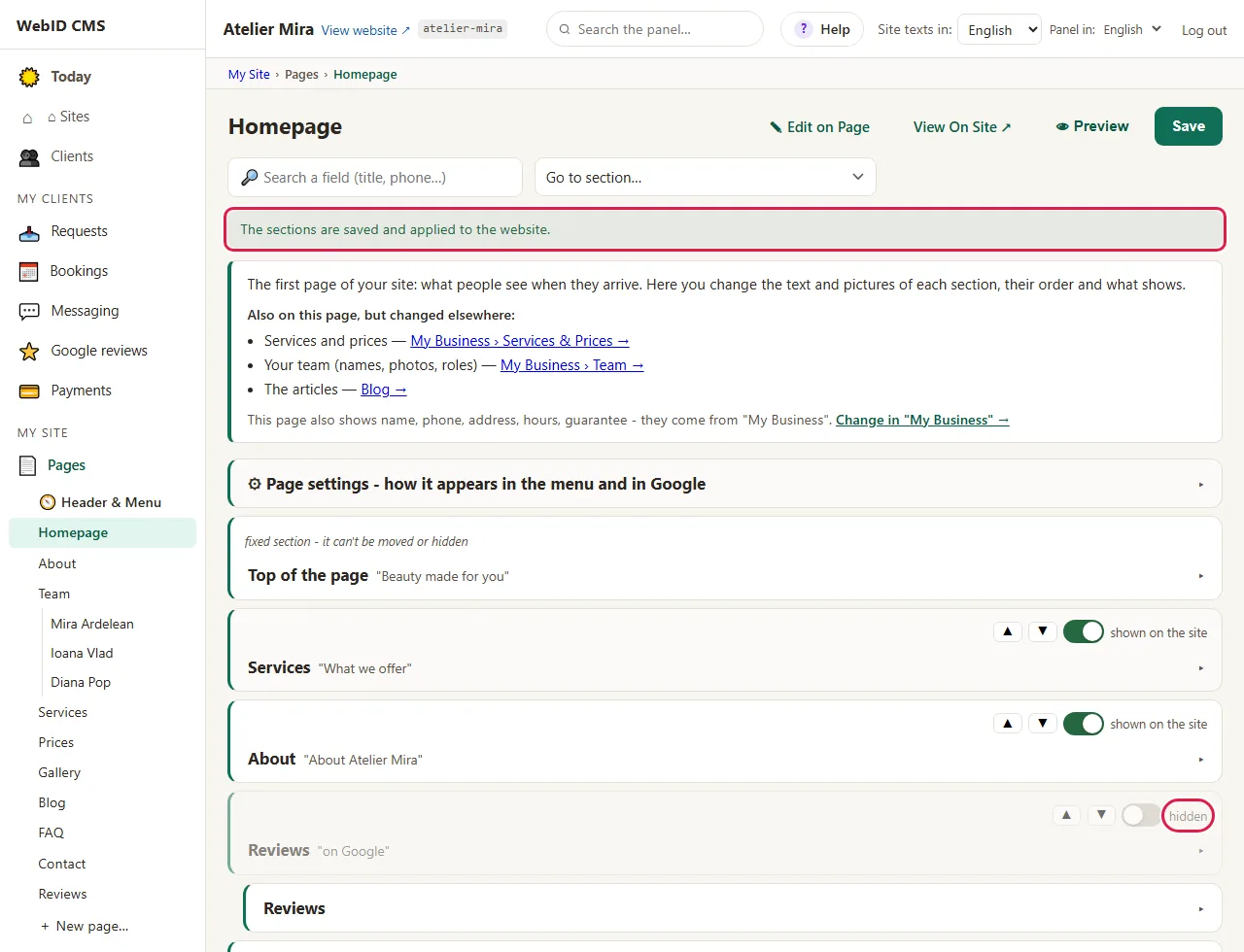
- To bring it back, click the switch again. Its texts are all still there.
What the small cards and fixed sections mean
- Some sections have no text to change, for example the map. They appear as a small card, with the message "This section has no text to change here - you can only hide or move it."

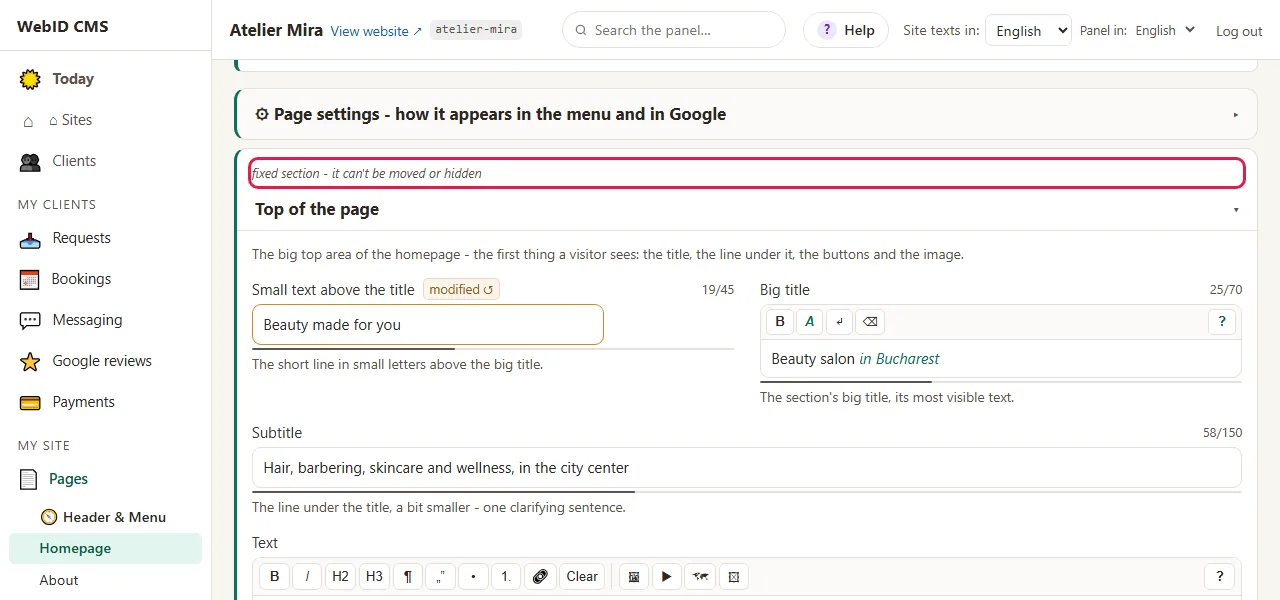
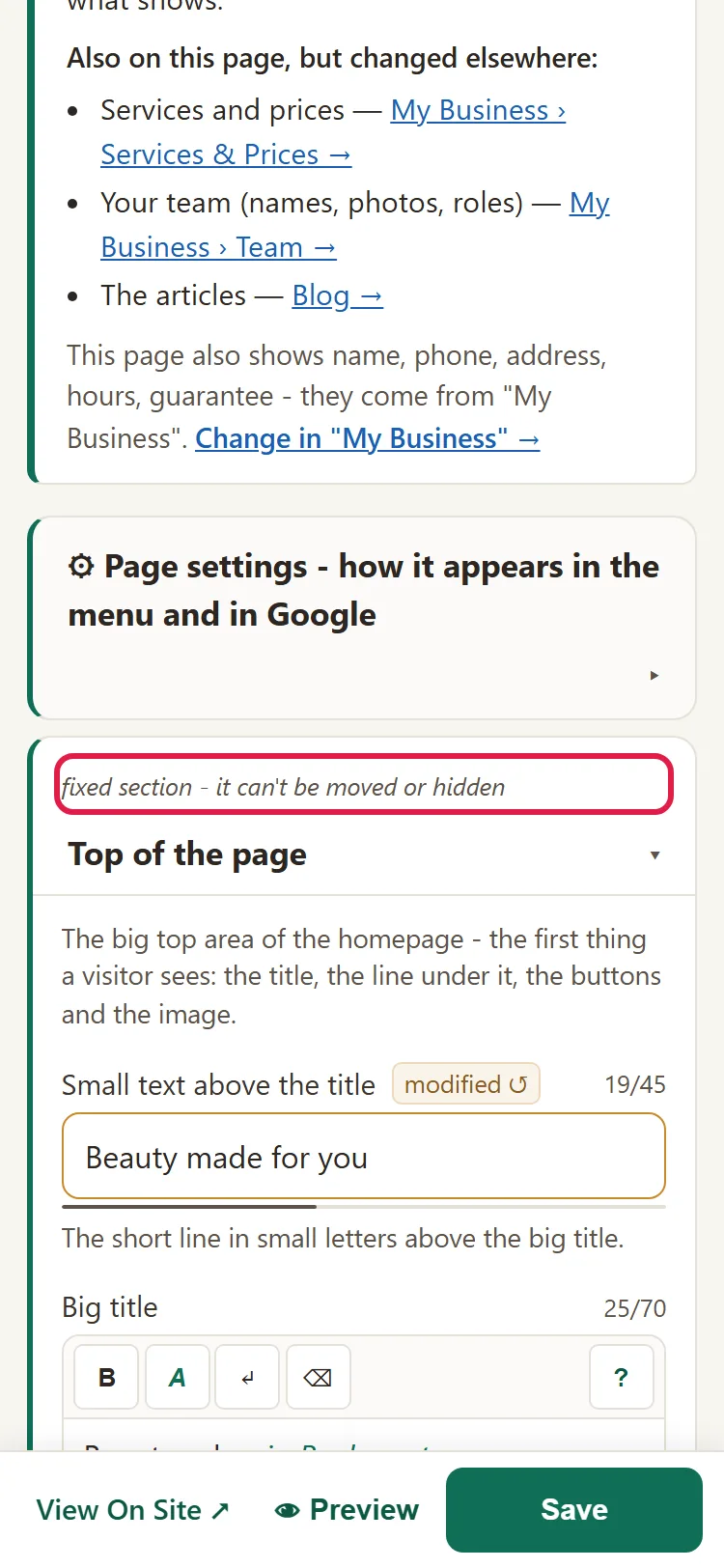
- Other sections, for example the top of the page, always stay in place. They carry the label "fixed section - it can't be moved or hidden".
Which sections you can move depends on your type of business. On the homepage they're usually the services, "About", the reviews, the blog, the FAQ, the contact section and the map.
How to hide a section directly from the page
- From Pages, open the page and click ✎ Edit on Page.
- Sections that can be hidden have the 👁 Visible button (or 🚫 Hidden, if they're already hidden). Click it.
- We ask you where: On all pages or Only on this page. If you change your mind, click Cancel: the section stays as it was.
- The change applies right away. The message tells you on how many pages.
Common problems
- "I hid the section, but I still see it on my phone." Your browser is showing you the old page. Reload the page.
- "I can't find the arrows on a section." It's a fixed section, or the page has no sections that can be moved.
- "I hid the section and lost the texts." You didn't lose them. Click the switch again, so the label shows shown on the site again.
- "I moved it to the wrong place." Moving has no Undo. Click the arrow in the opposite direction. Advanced › History brings the whole website back to the point you choose, not just the order of the sections: see How to undo a mistake on your website.
- "Something else isn't working." Write to us at contact@webid.ro with what you see on the screen and we'll take a look.
What it doesn't do
- It doesn't add new sections to a regular page. You can add new blocks only on pages made with "New page": see How to add a new page to your website.
- It doesn't move a section to another page.
- You can't have a different order in another language: the order and the hiding are the same in all of your website's languages.
- It doesn't delete the section: it hides it, and its texts stay in the admin panel.
What data it uses
This guide doesn't touch personal data. What you publish on the website is your content; if you add people's names or photos, you need their consent.