How to write the FAQ on your website
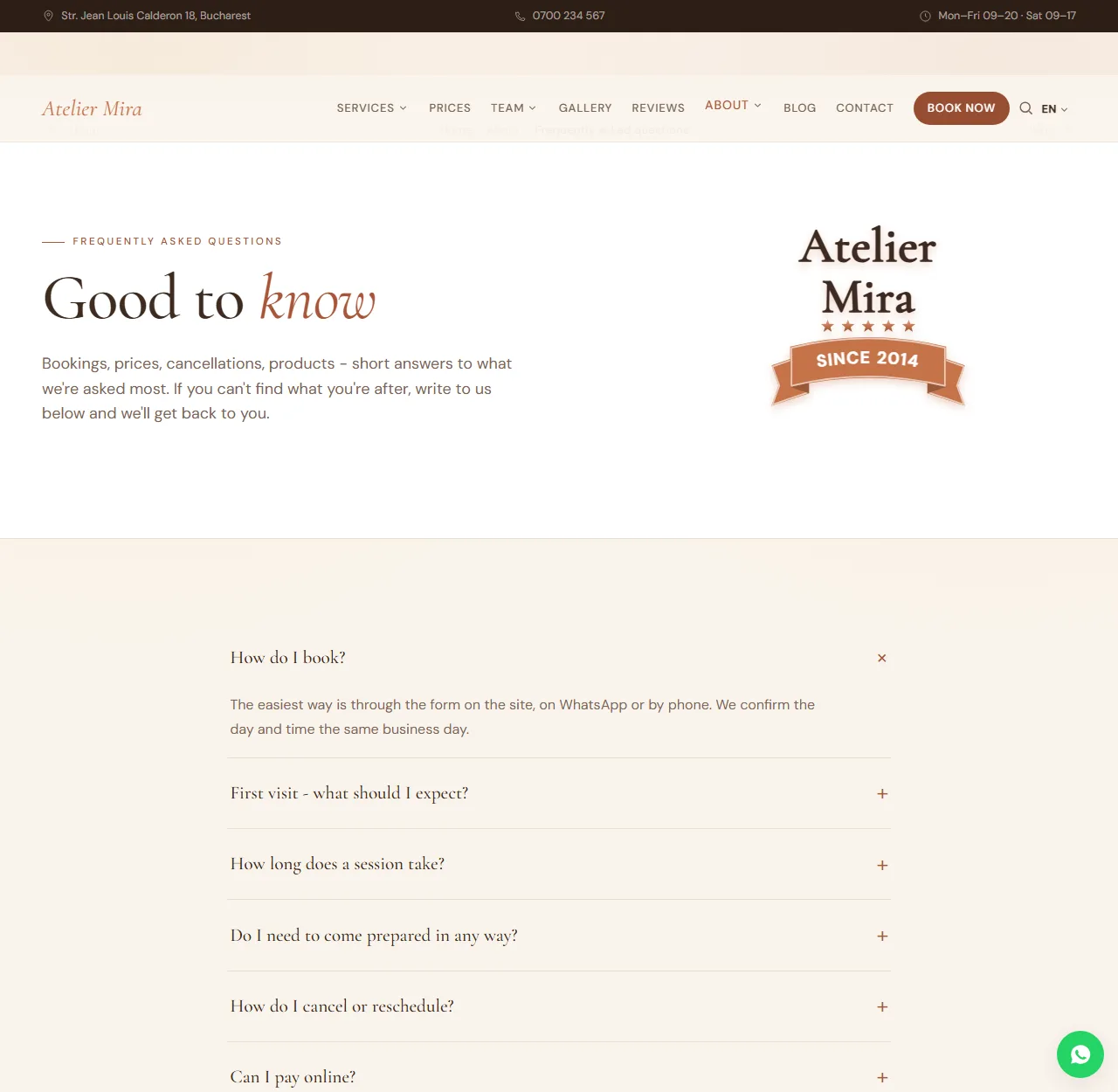
Do people keep calling you with the same questions: where to park, whether they can pay by card, how long it takes? Answer them once, on the "FAQ" page, and choose which ones also appear on the homepage. It takes a few minutes.
How to open the list of questions
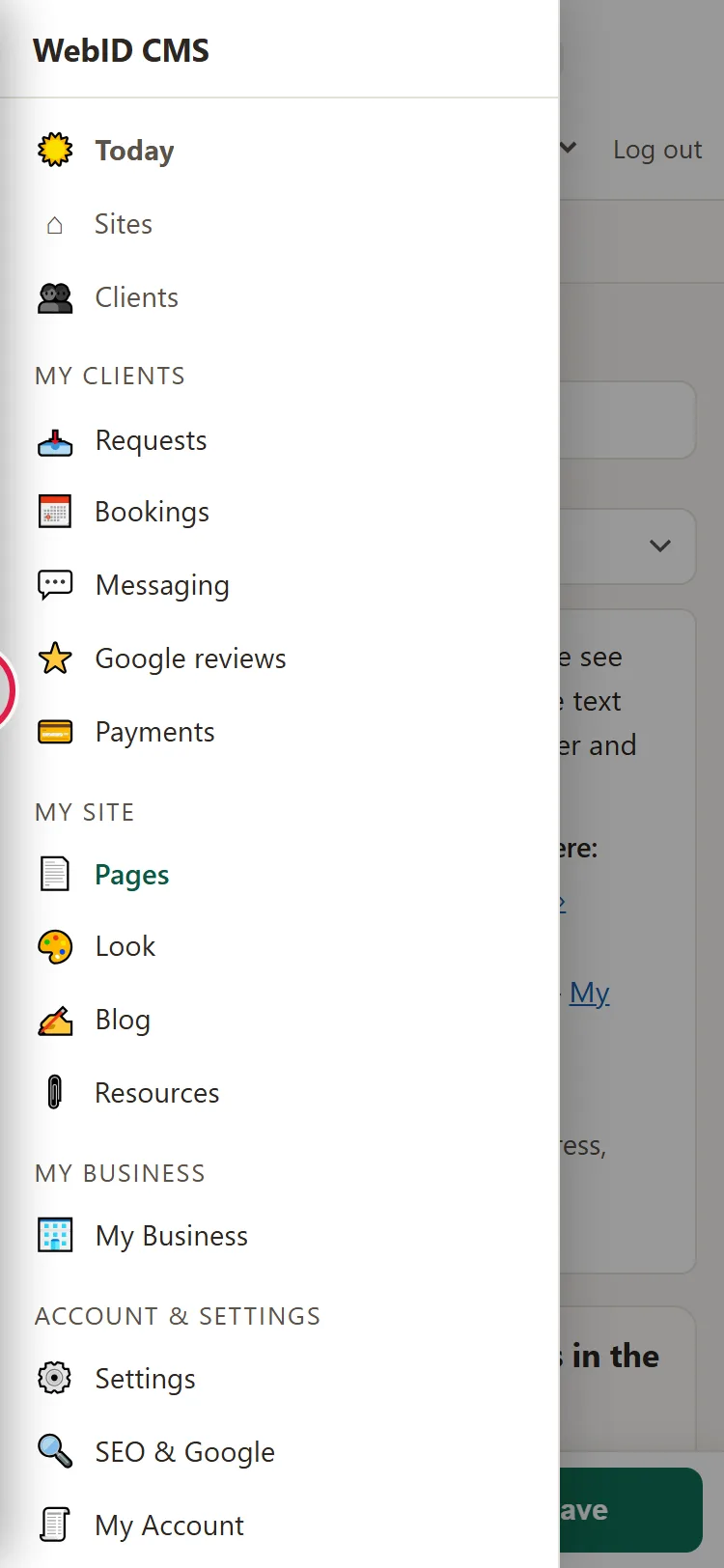
- In the left menu, under My Site, click Pages.
- Choose FAQ.
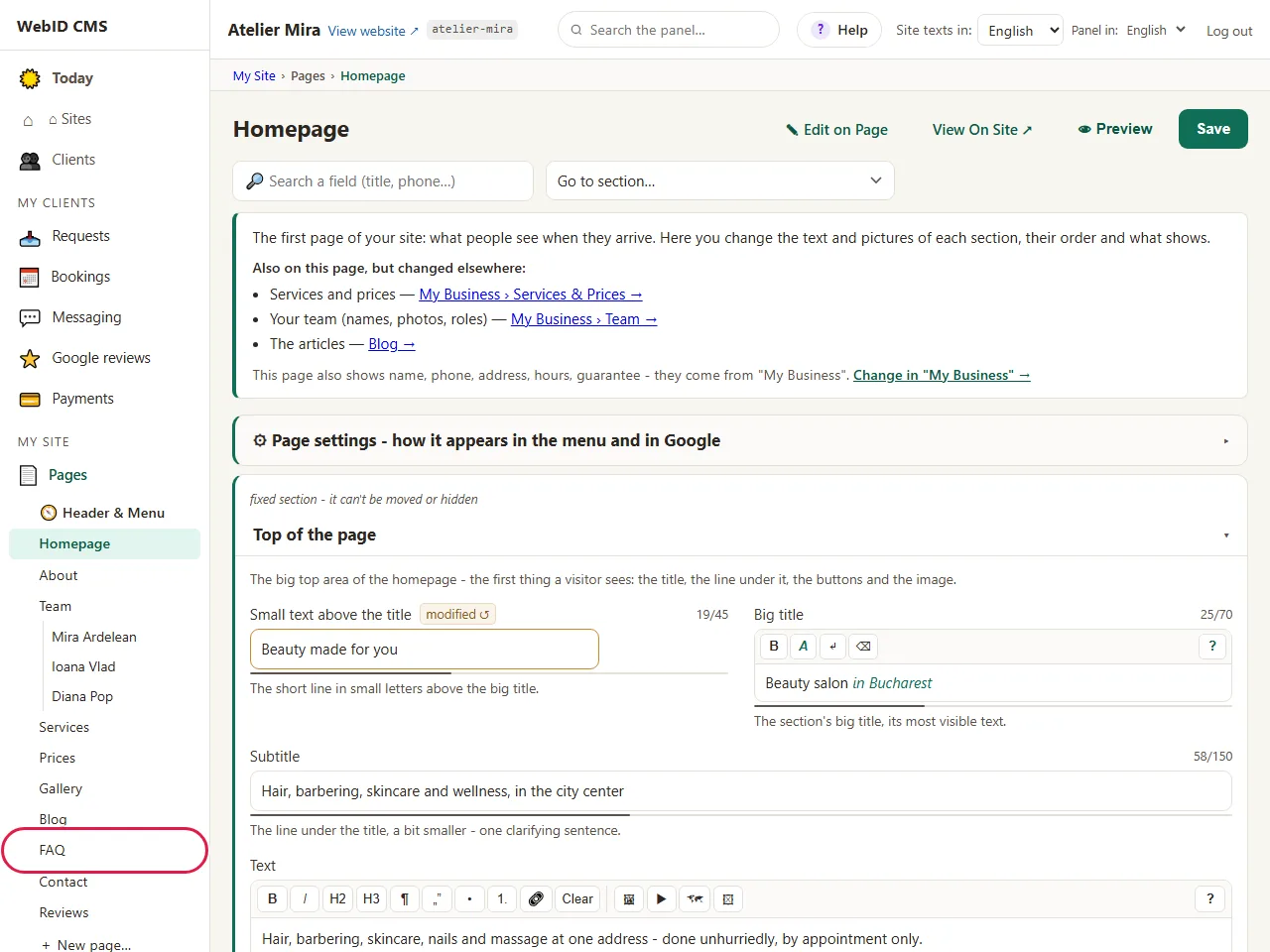
- At the top are the page's title and introduction. You change them like any other text.
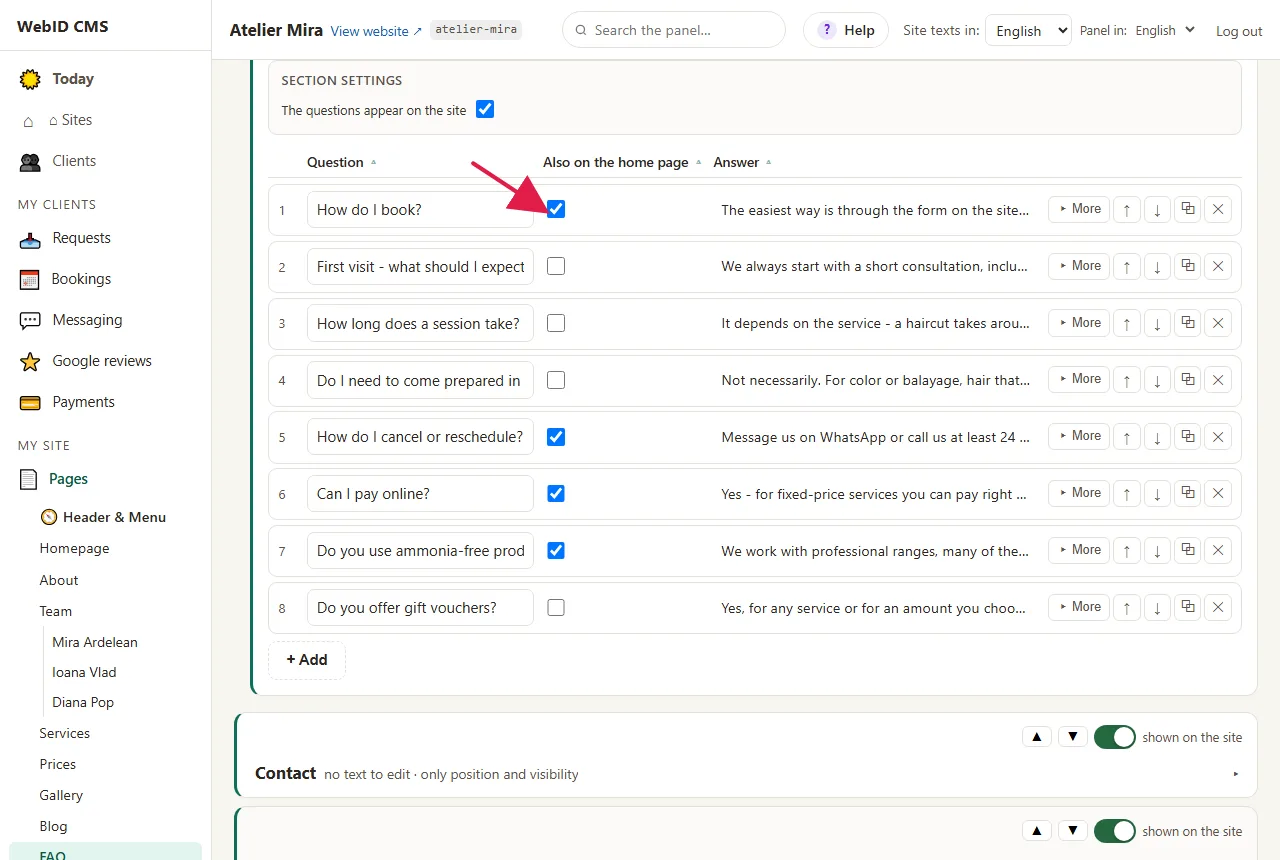
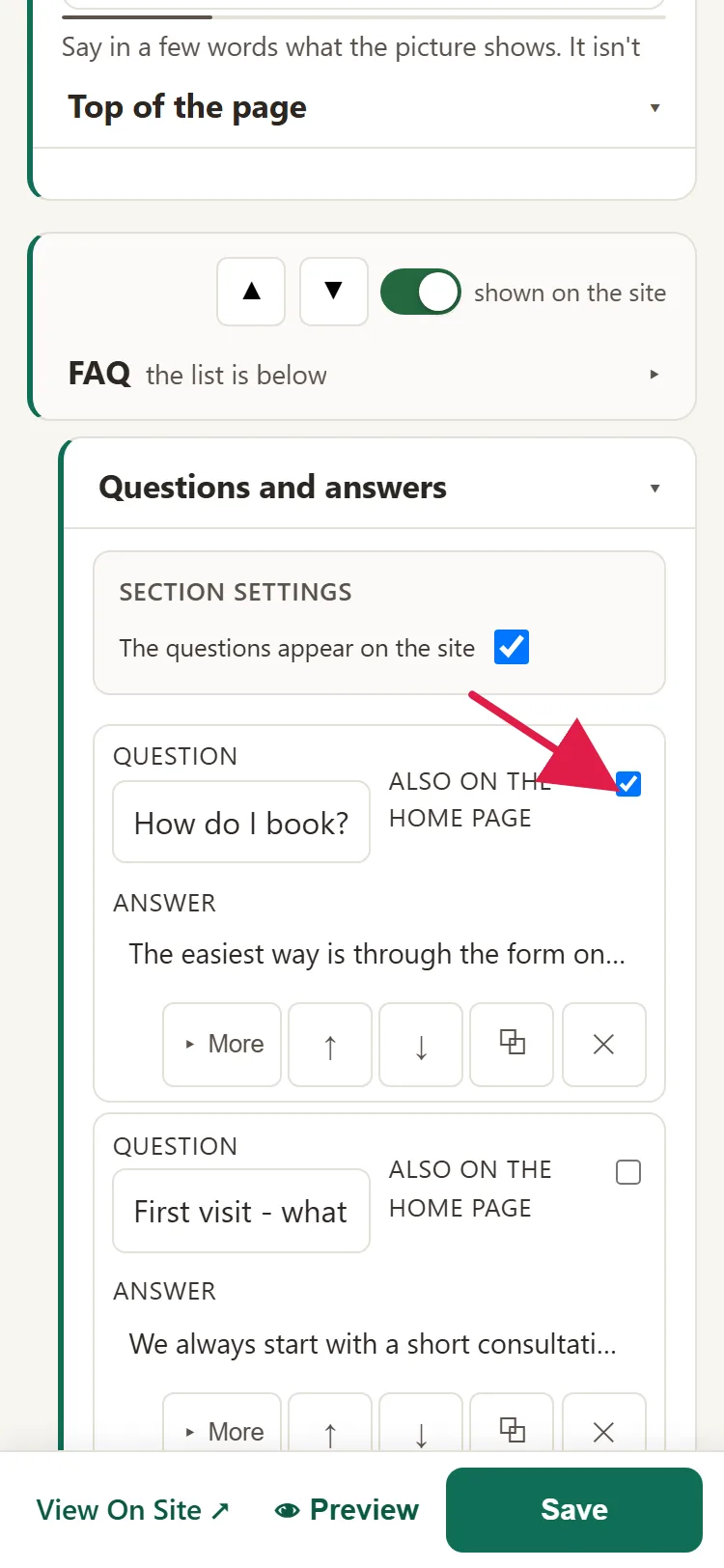
- Further down, under Lists on this page, you'll find Questions and answers. One row is one question, with the start of its answer.
How to add a new question
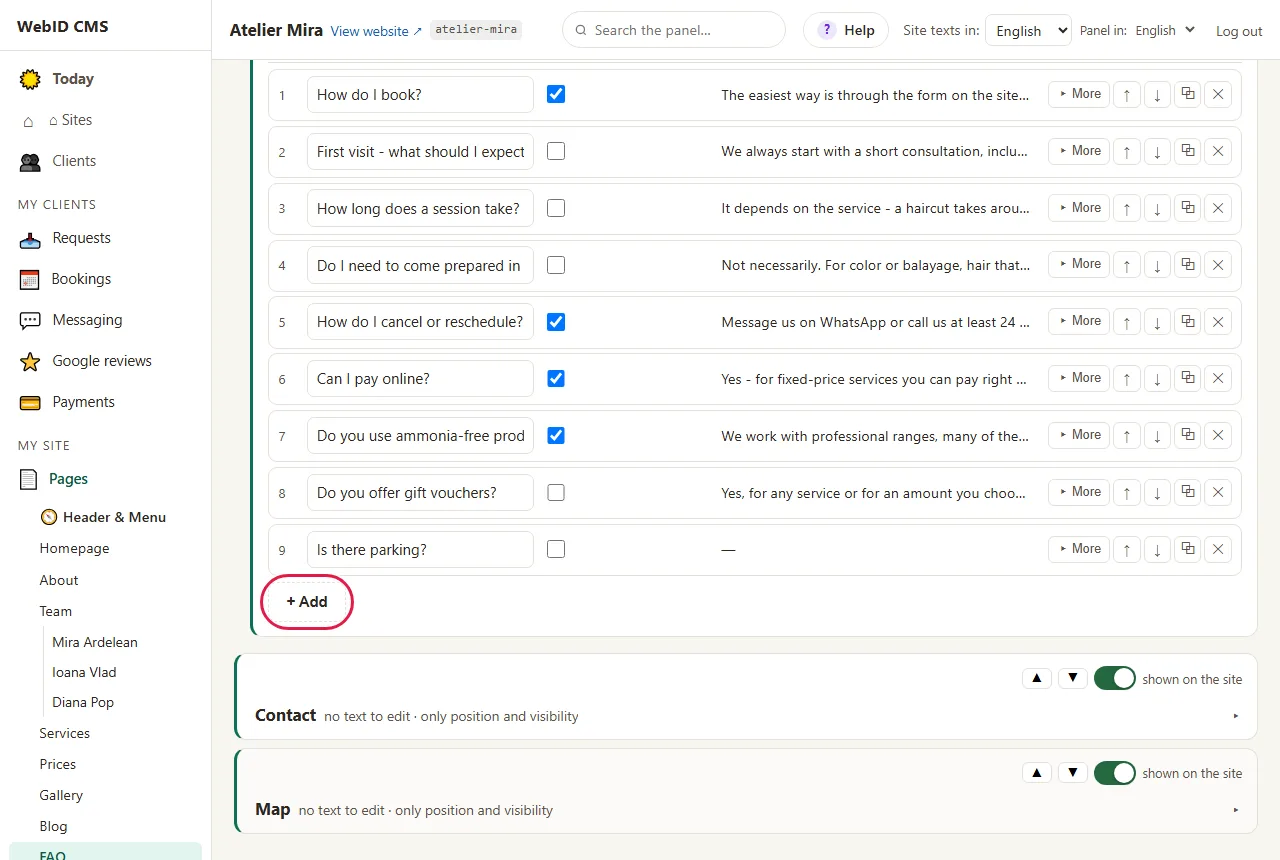
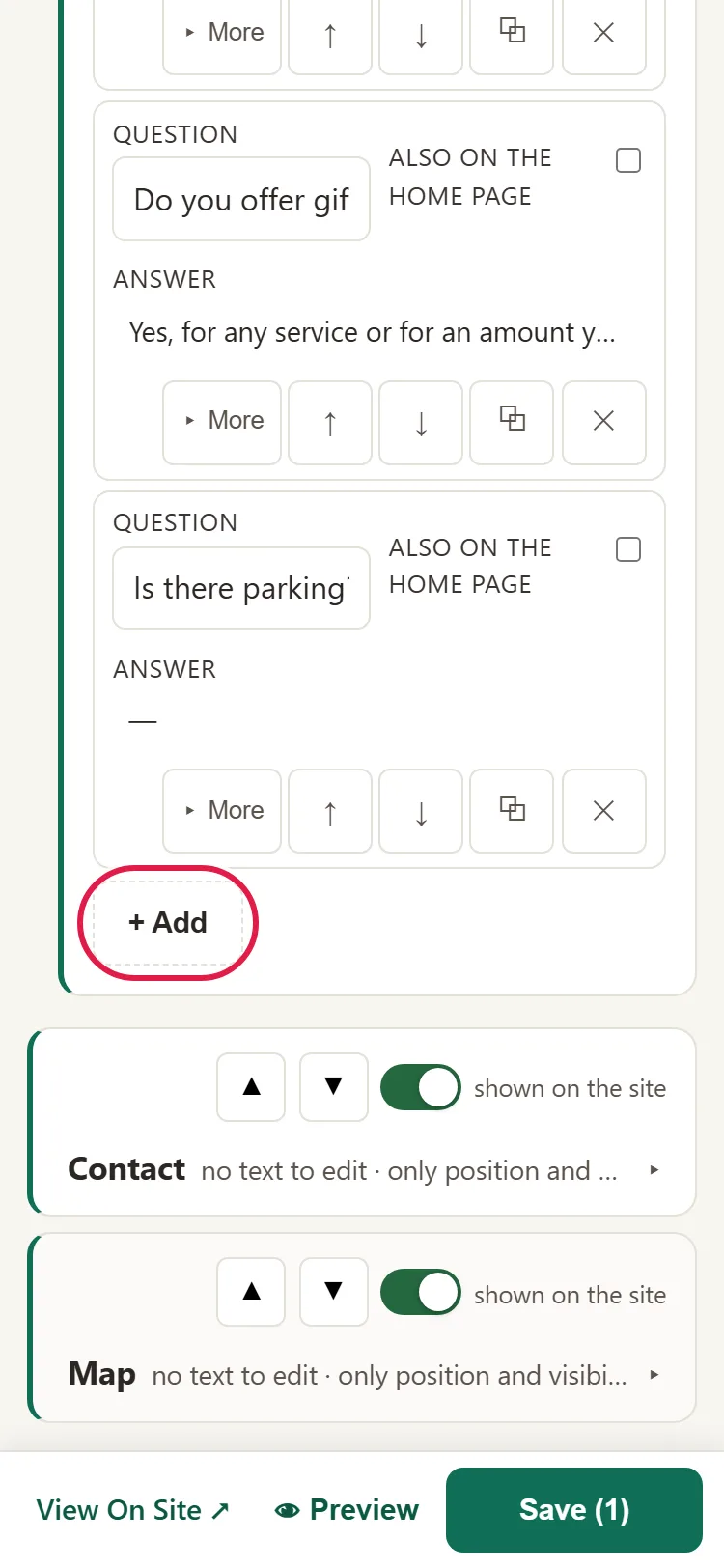
- Click + Add. A new row appears.
- Type the question in Question, the way a client would ask it (for example "Do you have parking?").
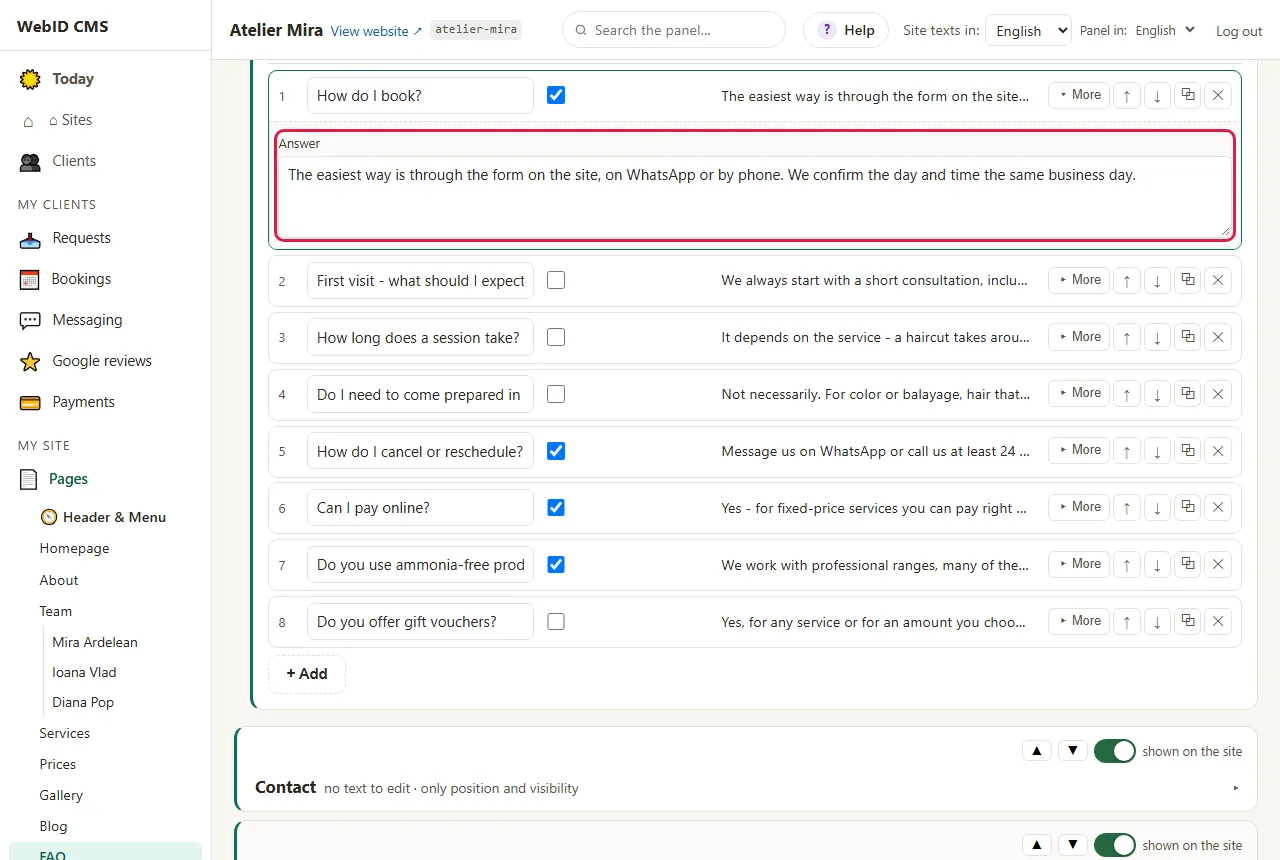
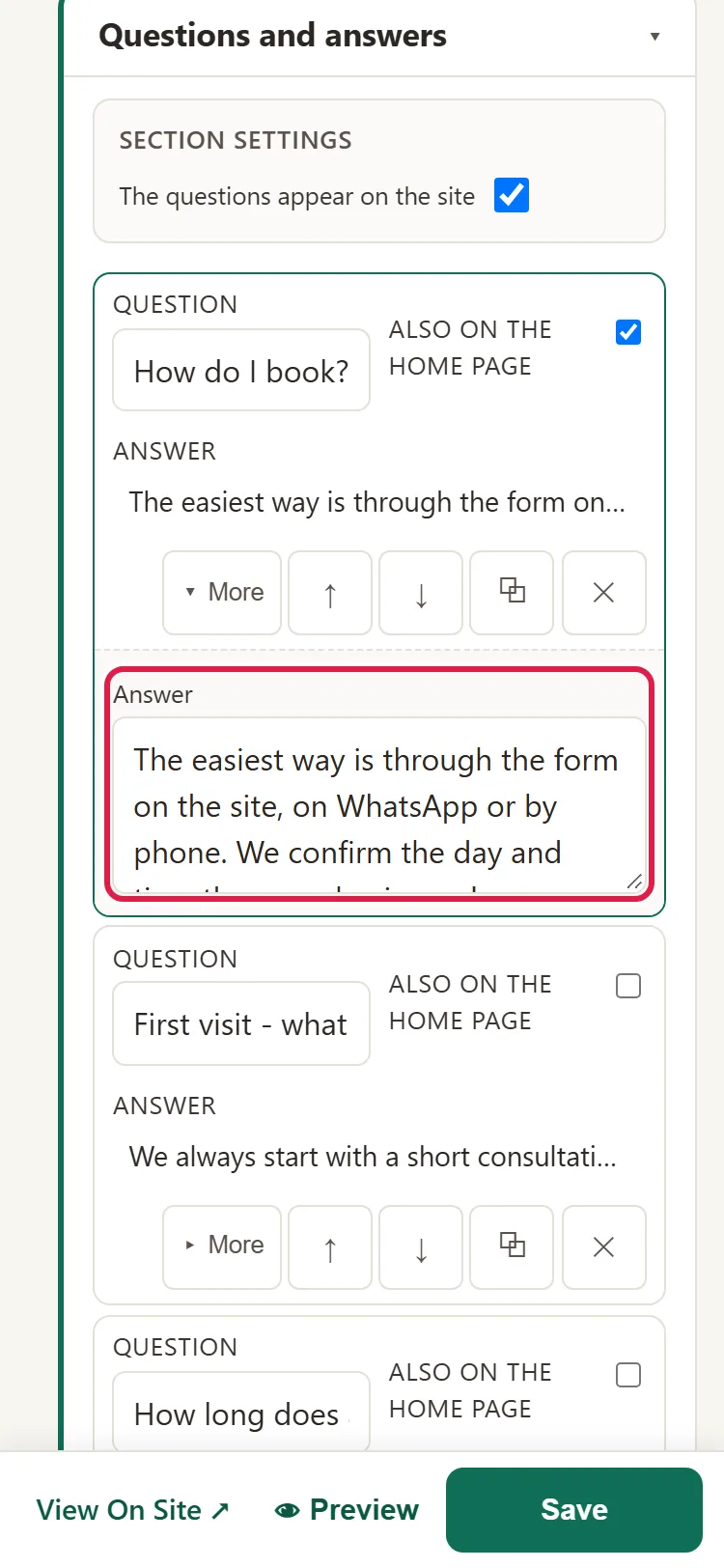
- Click ▸ More and type the whole answer in Answer.
Typing on a phone, without diacritics? With maintenance, the ăîș button next to the field adds them for you.
- If you want the question on the homepage too, check Also on the homepage.
- Click Save, at the top.
- You see "Saved ✓ - items: N.". If you made a mistake, click Undo, next to the message: everything goes back to how it was before you saved.
The questions appear on the website as soon as you save. All the questions appear on the "FAQ" page. On the homepage, only the checked ones appear.
How to change, order or delete questions
- To change an answer, click ▸ More on its row and type in Answer.
- To change the order, use the ↑ and ↓ arrows on the row.
- To make a question similar to an existing one, click ⧉: the row is copied and you change it only where needed.
- To delete a question, click ✕ on its row.
- Click Save, at the top.
How to hide all the questions from the website
- On the same page, open Section settings.
- Turn off Questions show on the site and click Save. The questions disappear from the website, but stay in the admin panel.
- To bring them back, turn the switch on again and save.
If you only want to move the questions section up or down on the homepage, or hide it only from there, read the guide about sections, in the list below.
Working directly on the page, with ✎ Edit on Page? When you click a question, you get a message with the → Open "FAQ" link, which brings you to the list here.
Common problems
- "The new question doesn't appear on the homepage." You didn't check it. Check Also on the homepage on its row and save. If it still doesn't appear, see whether the questions section is hidden on the homepage (the guide about sections, below).
- "All the questions disappeared from the website." The Questions show on the site switch in Section settings is off. Turn it on and save.
- "The new question doesn't appear in English." Each language has its own list. Choose the language in Site texts in: and add it there too.
- "Something else isn't working." Write to us at contact@webid.ro with what you see on the screen and on which page, and we'll take a look.
What it doesn't do
- It doesn't write the answers for you and doesn't translate them.
- Each language of the website has its own list: a question added in Romanian doesn't appear in English until you write it there too.
- You can't split the questions into categories.
What data it uses
This guide doesn't touch personal data. What you publish on the website is your content; if you add people's names or photos, you need their consent.