How to get your website's requests and appointments by email
Requests from the website stay in the admin panel anyway, under "My Clients › Requests". If you also want to get them by email, along with appointments, the website can send them from your business mailbox. The monthly report (with Visibility, from the Medium tier) comes separately, from rapoarte@webid.ro. That way they land in spam much less often, and when you click "Reply" on a request where the person left their email, your reply goes straight to them. All you need is the mailbox details, at hand.
What you need first
- A mailbox on the business domain (for example contact@your-business.ro).
- Its details from the hosting company: the mail server name, the port, the mailbox address and password. You'll find them in your account at the hosting company, in the mailbox settings, or you can ask their support. If you can't find them, write to us at contact@webid.ro.
- To be the website owner or to have the Administrator role in the admin panel.
Don't have a mailbox on your domain? See "The option without a business mailbox" below.
How to turn on email sending
- In the admin panel, open the Account & Settings menu, then Settings.
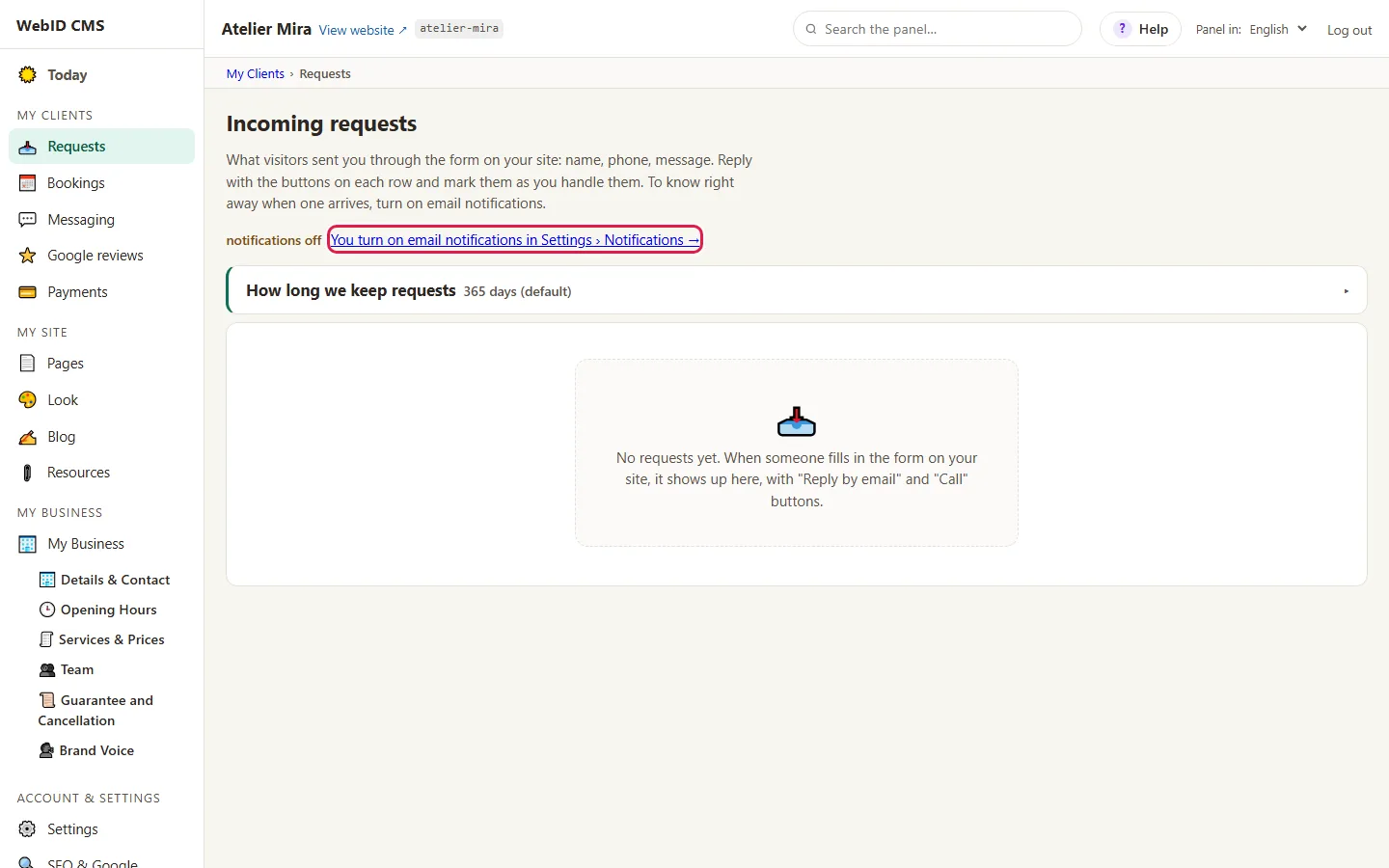
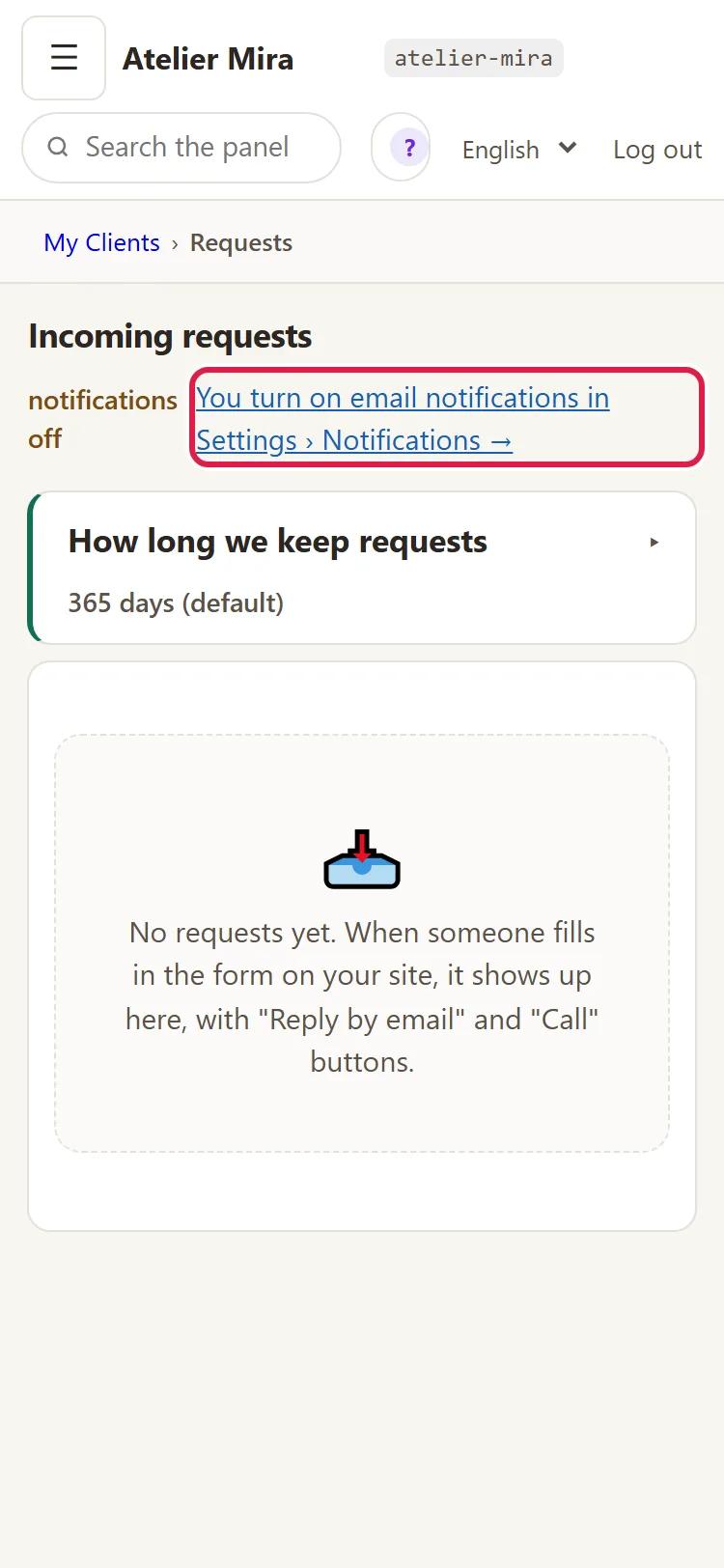
Or, from "My Clients › Requests", click the link You turn on email notifications in Settings › Notifications →.
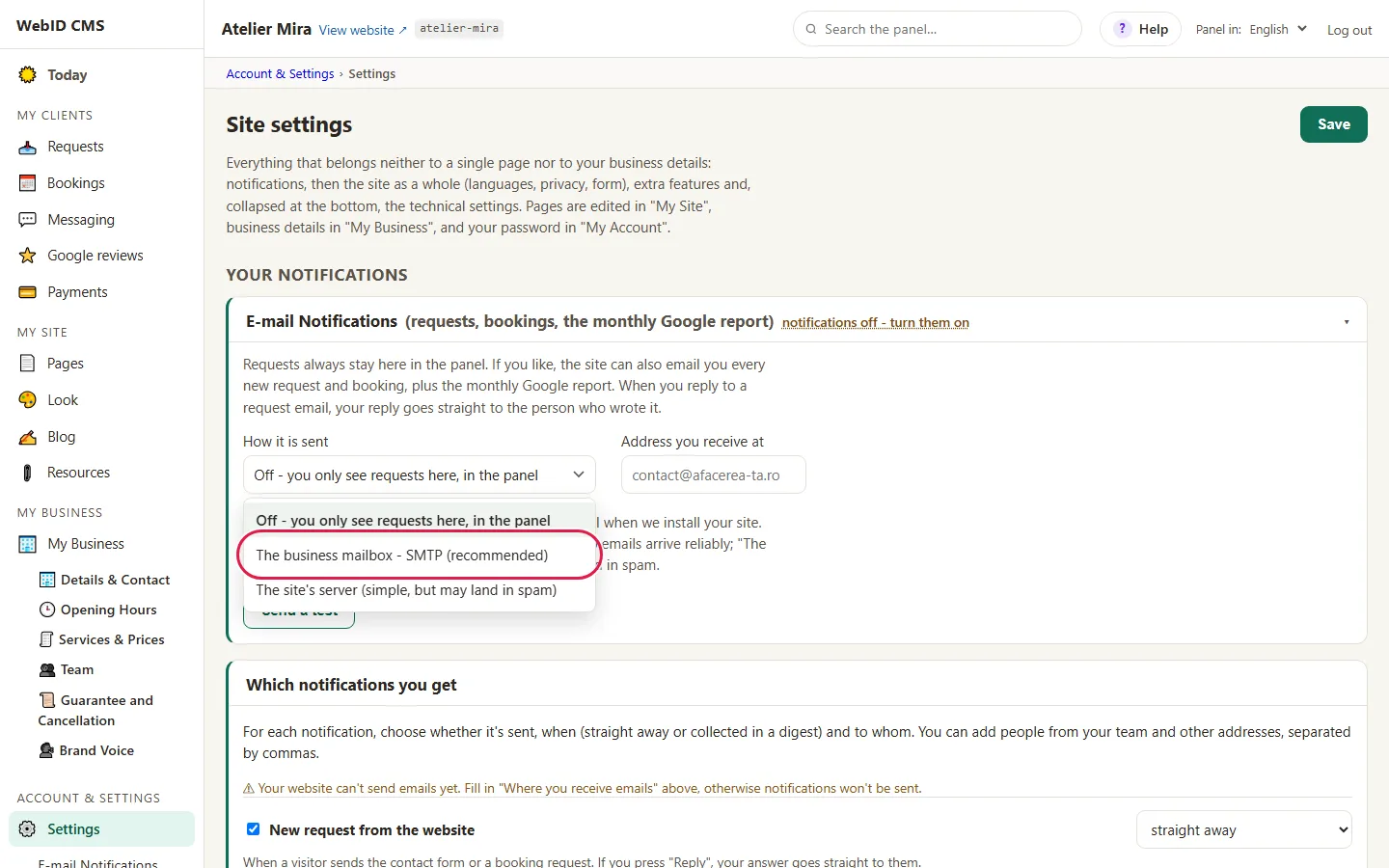
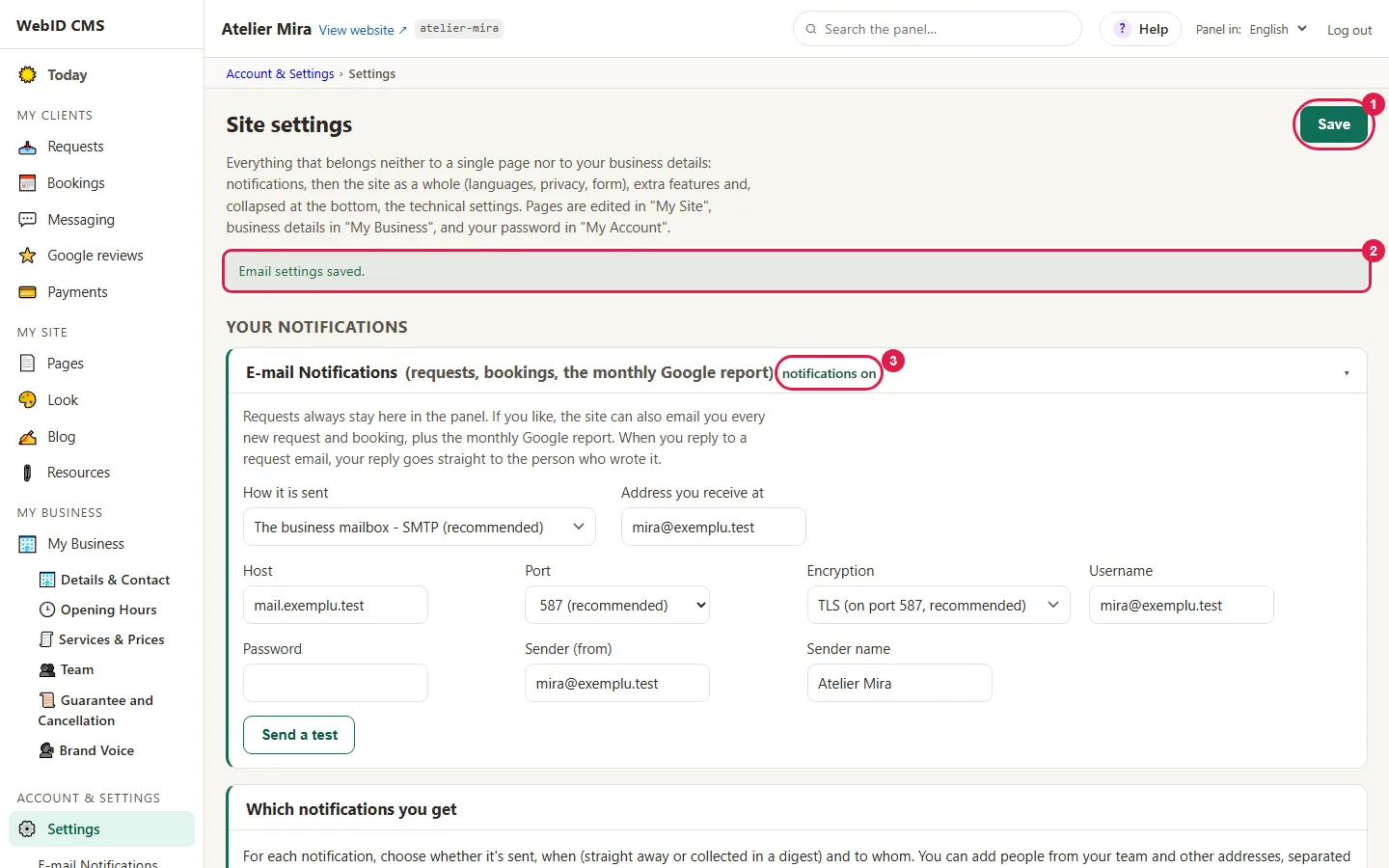
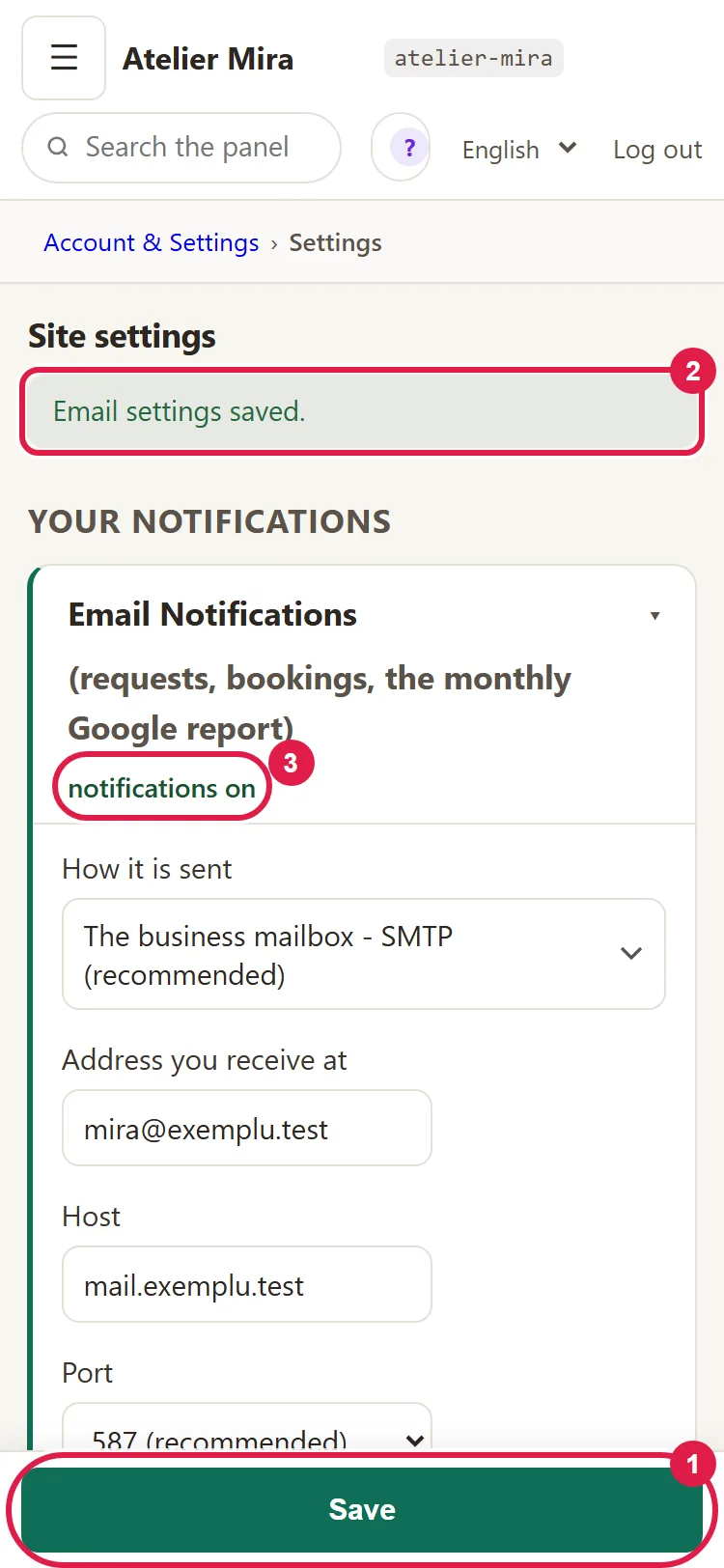
- Find the E-mail Notifications block, the first one under "Your notifications". Next to the title you see the status: notifications on or notifications off - turn them on.
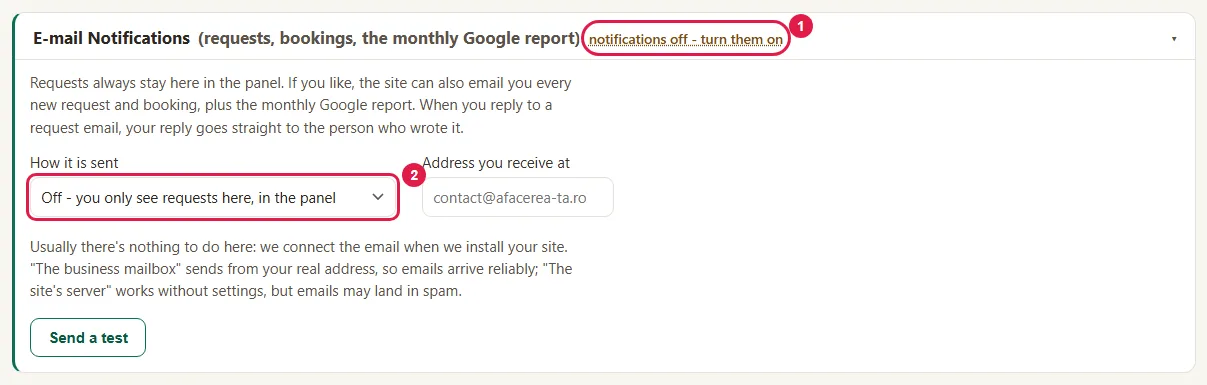
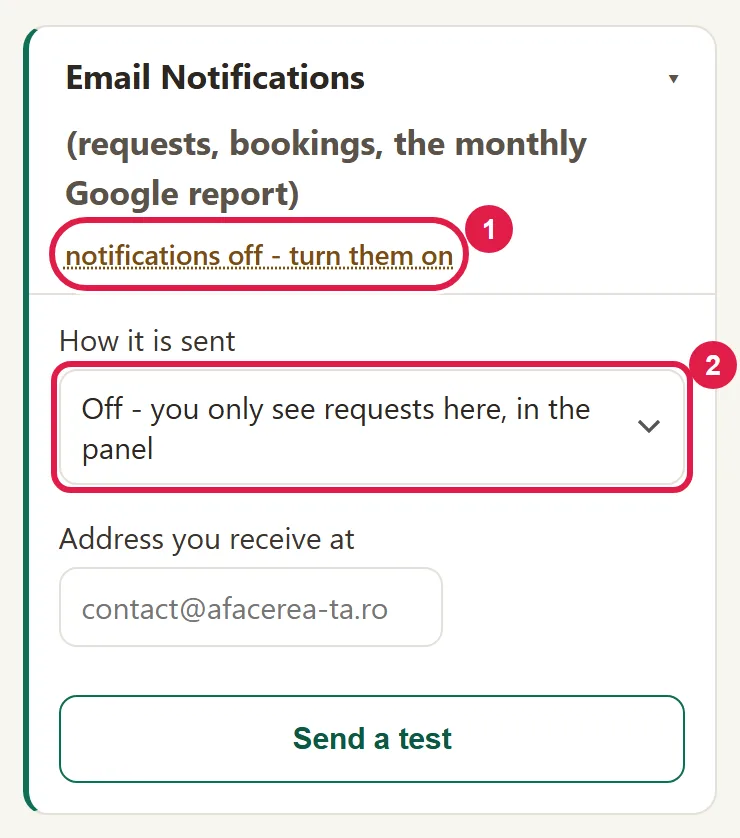
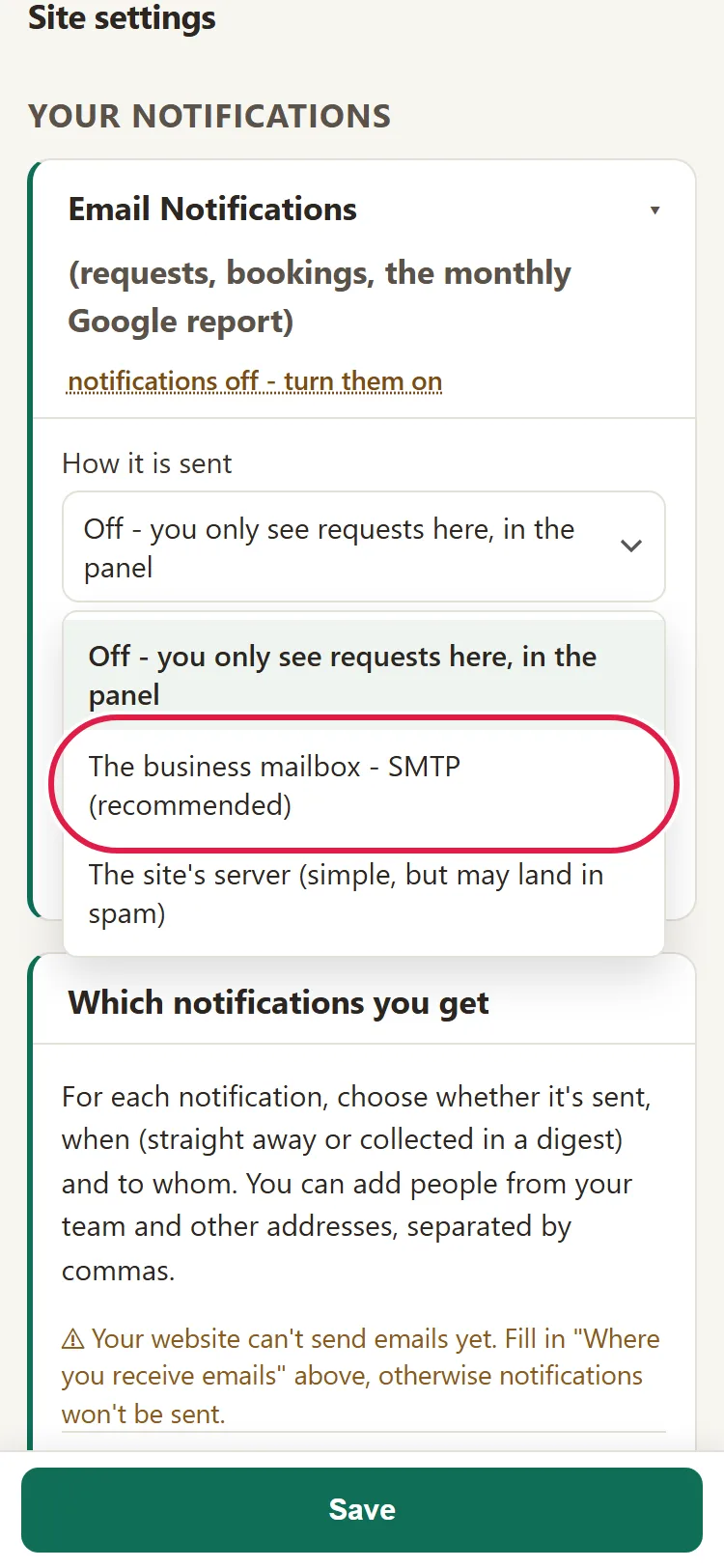
- Under How it is sent, choose The business mailbox - SMTP (recommended). The connection fields appear.
- Under Address you receive at, type the address where you want your notifications to come. The same address also gets the appointment notifications (for each notification, it's checked by default under "To:", as you).
- Under Host, type the mail server name, usually mail.your-business.ro. Don't type an email address here.
- Under Port, choose 587 (recommended) from the list. Under Encryption, choose TLS (on port 587, recommended). If the hosting company gives you port 465, choose 465 and SSL (on port 465).
- Under Username, type the mailbox's full email address, including the part after the @.
- Under Password, type the mailbox password, not the one for the hosting control panel.
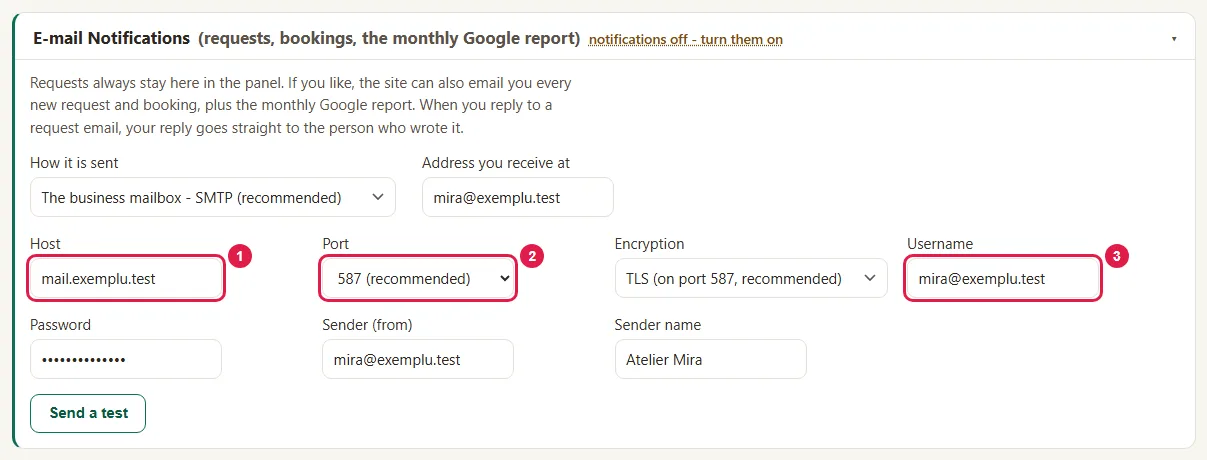
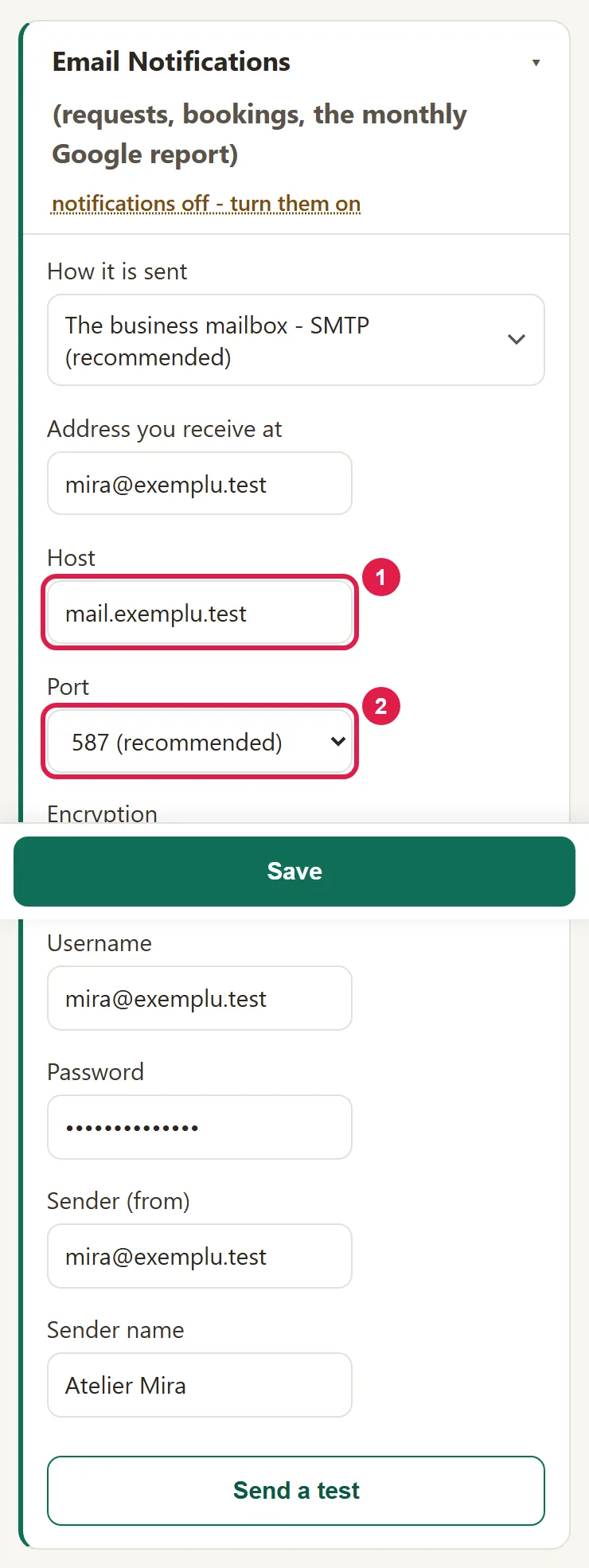
- Under Sender (from), type the address the emails go out from (safest is the same one as under Username), and under Sender name, the business name.
- Click Save, in the top bar of the screen. "Email settings saved." appears. The status becomes notifications on. Only the test below tells you whether sending really works.
How to check that sending works
- Click Send a test. If you changed something and didn't save, the test first saves what you see on the screen.
- If it works, "Test sent to" and your address appear. Check your inbox: you get a real email, with the subject "WebID - sending test".
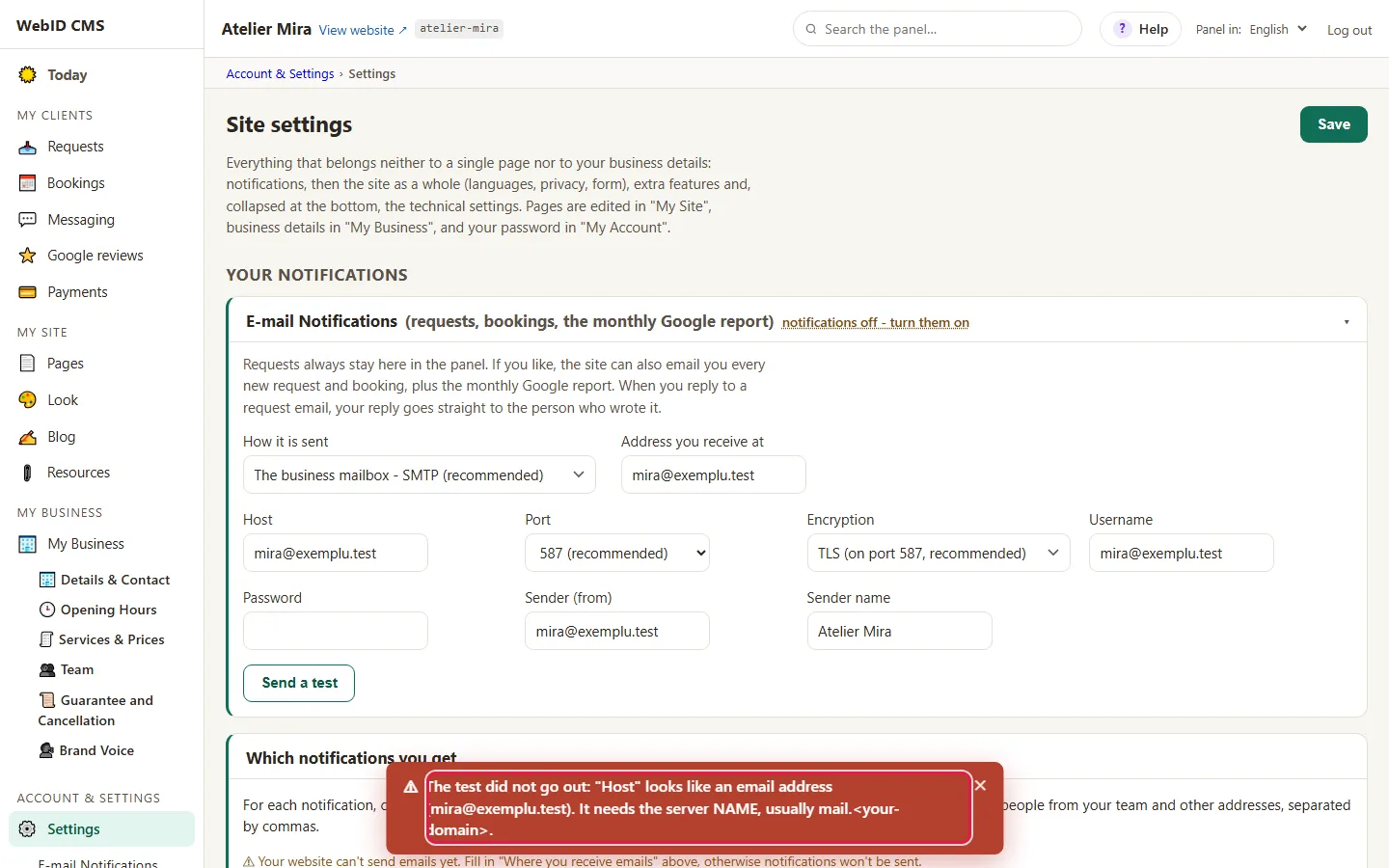
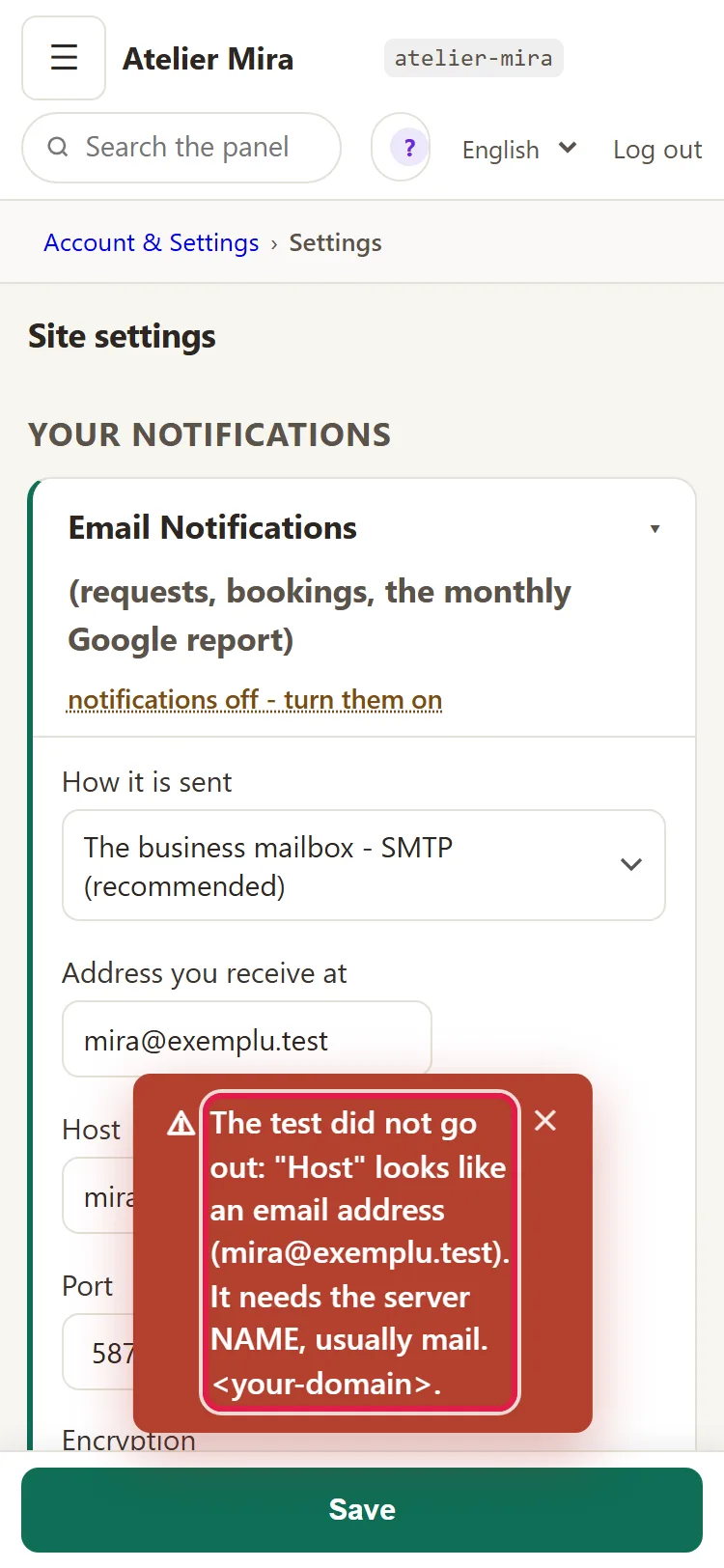
- If it doesn't work, "The test did not go out:" appears with the reason, in plain words. Look it up below, under "Common problems", fix the field and click Send a test again.
How to choose which notifications you get
- Below the E-mail Notifications block, under Which notifications you get, choose for each notification whether it goes out, when and to whom. Under "To:", you can uncheck you and add people from your team or Other addresses, separated by commas.
- If sending isn't turned on, you see a warning here that notifications don't go out. Go back to "How to turn on email sending".
What to do when you change the mailbox password
If you changed the mailbox password at the hosting company, notifications stop going out until you change it here too.
- In the E-mail Notifications block, type the new password under Password.
- Click Save, then Send a test.
When you're not changing the password, leave the field empty (it shows "leave empty to keep the saved password"): the old password stays.
The option without a business mailbox
Under How it is sent there's also The site's server (simple, but may land in spam). It asks only for Address you receive at and works with no other settings, but the emails may land in spam. If that happens, switch to the business mailbox option.
Common problems
- "The test says sending is off." How it is sent was left on Off. Choose the business mailbox option and save.
- "The test says the address is missing or not valid." The Address you receive at field is empty or wrong. Type the full address and save.
- "The test says the host looks like an email address." You typed the mailbox address instead of the server. Under Host, type the server name you got from the hosting company (usually mail.your-business.ro).
- "The test says it didn't reach the server." The server or the port is wrong. Check the details from the hosting company and try the other pair: 587 with TLS or 465 with SSL.
- "The test says the server rejected the username." You typed only the part before the @. Under Username type the full address.
- "The test says the username is accepted, but the password is rejected." The password isn't the mailbox's (for example, it's the one for the hosting control panel). Type the mailbox password, save and run the test again.
- "The test says there's no saved password." You forgot to save the password. Type it under Password, save, then run the test.
- "The test went out, but nothing reaches me." The email landed in spam or the receiving address is wrong. Look in spam and check Address you receive at.
- "Something else isn't working." Write to us at contact@webid.ro with the message you see on the screen and we'll take a look. Don't send us the mailbox password.
What it doesn't do
- It doesn't make you a mailbox: it uses one you already have, from your hosting company.
- It's not an email program: you don't read or reply to emails in the admin panel. You reply from your email program, and on a request with the visitor's email, "Reply" goes straight to them.
- It sends plain text only, with no images or formatting.
- It doesn't check by itself, from time to time, that sending still works. After a password change at the hosting company, redo the steps in "What to do when you change the mailbox password".
- "Off" doesn't mean you lose requests: they stay in the admin panel, they just don't go out by email.
- The email address shown on the website isn't changed here, but in "My Business".
What data it uses
Visitors' requests (name, phone, email, message) and appointment notifications go out from your mailbox to the address you choose. From the moment they arrive there, you are responsible for them, as the controller. The mailbox connection details are stored on the website's server, with the password encrypted, and we process the requests in the admin panel on your behalf - see DPA §3, the "Contact form" row.