How to quickly find anything in the admin panel
The admin panel has a menu on the left, split into areas, and a bar at the top. Here you'll find out what's in each one and how to get to a screen quickly when you don't know where it is. Read this guide with the admin panel open next to it: it takes a few minutes.
What you'll find in the menu on the left
On phones and small screens, the menu is hidden: you open it with the ☰ Menu button and close it by clicking outside it.

- Today: the first page. You see what's new (new requests, today's and tomorrow's appointments, articles to approve, the latest Google report), the Quick changes buttons and the Still to set up list. Each card takes you straight to its screen.
- My Clients: everything that comes from clients.
- Requests: the messages sent through the website's form. The number in parentheses shows how many are new.
- Bookings: the list of appointments. Without the Bookings add-on, the screen shows you an example and the offer.
- Messaging: appears only if you have Bookings or Visibility with Collect reviews. It takes you to the Bookings panel (app.webid.ro).
- Google reviews: appears only if you have Visibility. It takes you to the reviews in "SEO & Google".
- Payments: the money you've received. Card payments come free with Maintenance; without it, the screen shows you the Maintenance offer.
- My Site: what visitors see.
- Pages: the website's pages. When you're on this screen, the list of pages and Header & Menu open up underneath.
- Look: colors, the heading font, the emblem (only where your website can change them).
- Blog: the blog's articles; with Blogging Plus, this is also where you'll find the topic plan and the articles written with AI.
- Resources: useful documents for your clients (laws, rules, guides), which appear on the website's Resources page.
- Content Pages: pages built from blocks (for example packages or a gallery), which you can reorder, add and delete. Appears only if your website has such pages.
- My Business: the facts about your business, written once and used everywhere on the website (Details & Contact, Opening Hours, Services & Prices, Team, Guarantee and Cancellation, Brand Voice). Opening hours, services and team appear only if your website has them.

- Account & Settings:
- Settings: email notifications, the settings for the website as a whole (languages, privacy, form), the add-ons (the "Extra features" section) and, at the bottom, in a collapsed section, the technical part.
- SEO & Google: the connected Google account, the monthly report and your Google Business Profile.
- My Account: the password you sign in with and two-step verification. The owner and colleagues with the Administrator role also see here what's included in the subscription, invoices and the card, what else they can add and "Your credits" (money taken off a payment). Credits for articles, if you have Blogging Plus, are in Blog.
- Users: your colleagues in the admin panel. Only the owner and colleagues with the Administrator role see this screen.
- Advanced (🛠, collapsed): Other Lists on the Site, Old Addresses and History, where you'll find restore points and "Who did what". The area opens on its own when you're on one of its screens.
What you'll find in the top bar

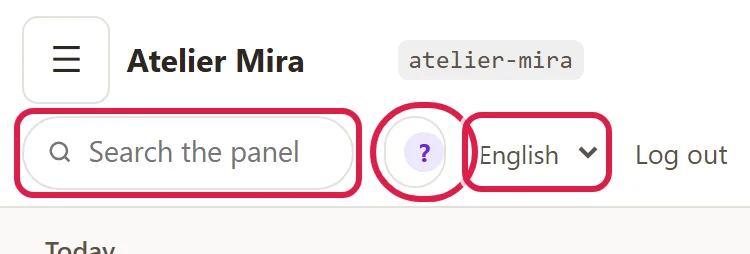
- Your business name and the View website ↗ link, which opens your website in a new tab (it doesn't appear on phones).
- The Search the panel… search box.
- The Help button (the question mark), next to search: it opens the "Panel help" window, where you start the tour or the help for the screen you're on. Only once help is turned on does ▶ appear next to the button. On phones you only see the question mark.
- Panel in:, the language of the menus and buttons.
- Log out.
- If your website has more than one language, screens with texts also show Site texts in:, the language you're writing in.
Below the bar you see where you are, for example "My Clients › Requests", and the ← Back to … link, to the previous screen.
How to find a screen by a word
- Click in the Search the panel… box in the top bar.
- Type a word, for example "price" or "hours".
- Choose the result from the list, with a click or with the arrow keys and Enter. Each result also shows where it is, for example "My Business › Services & Prices".
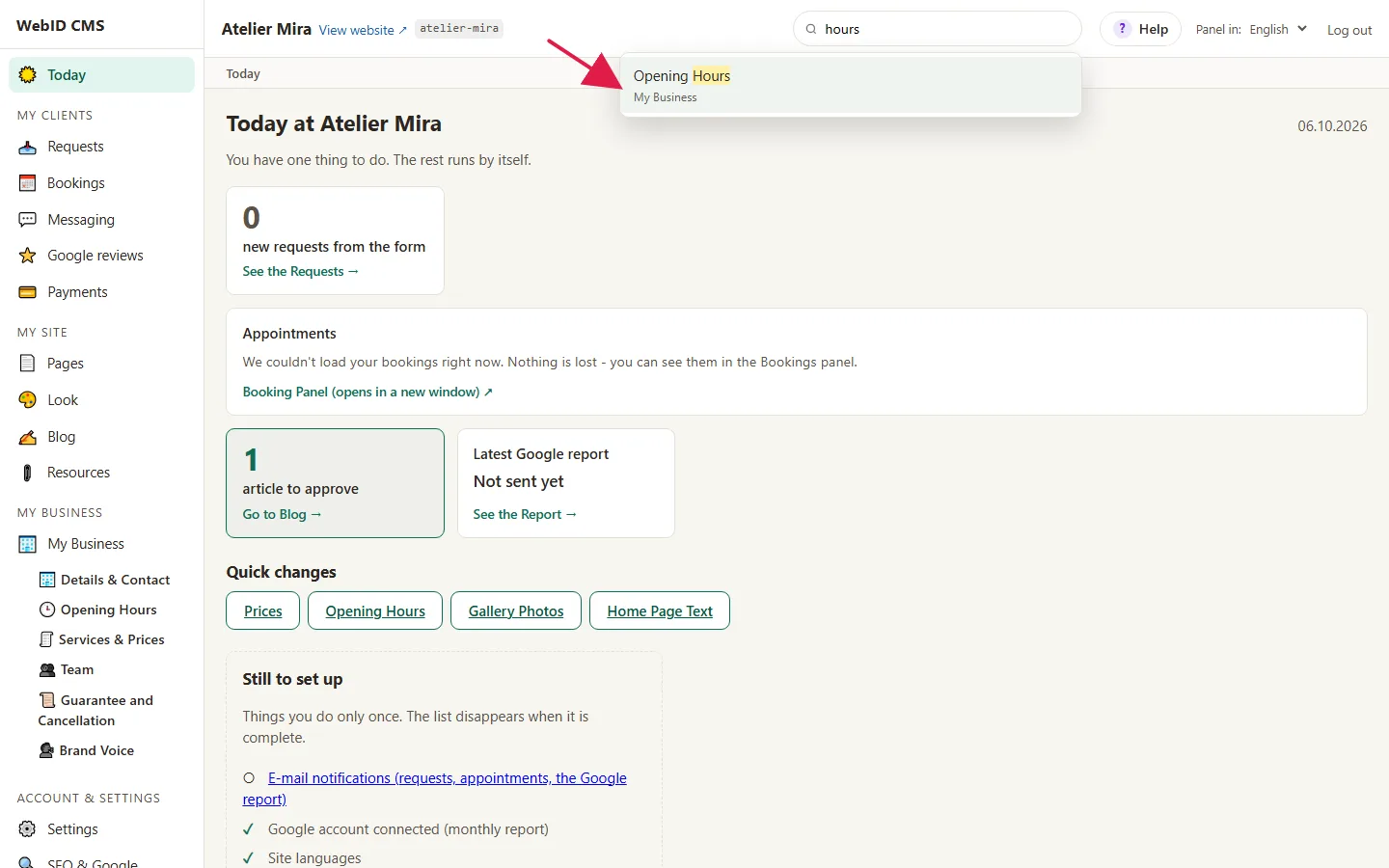
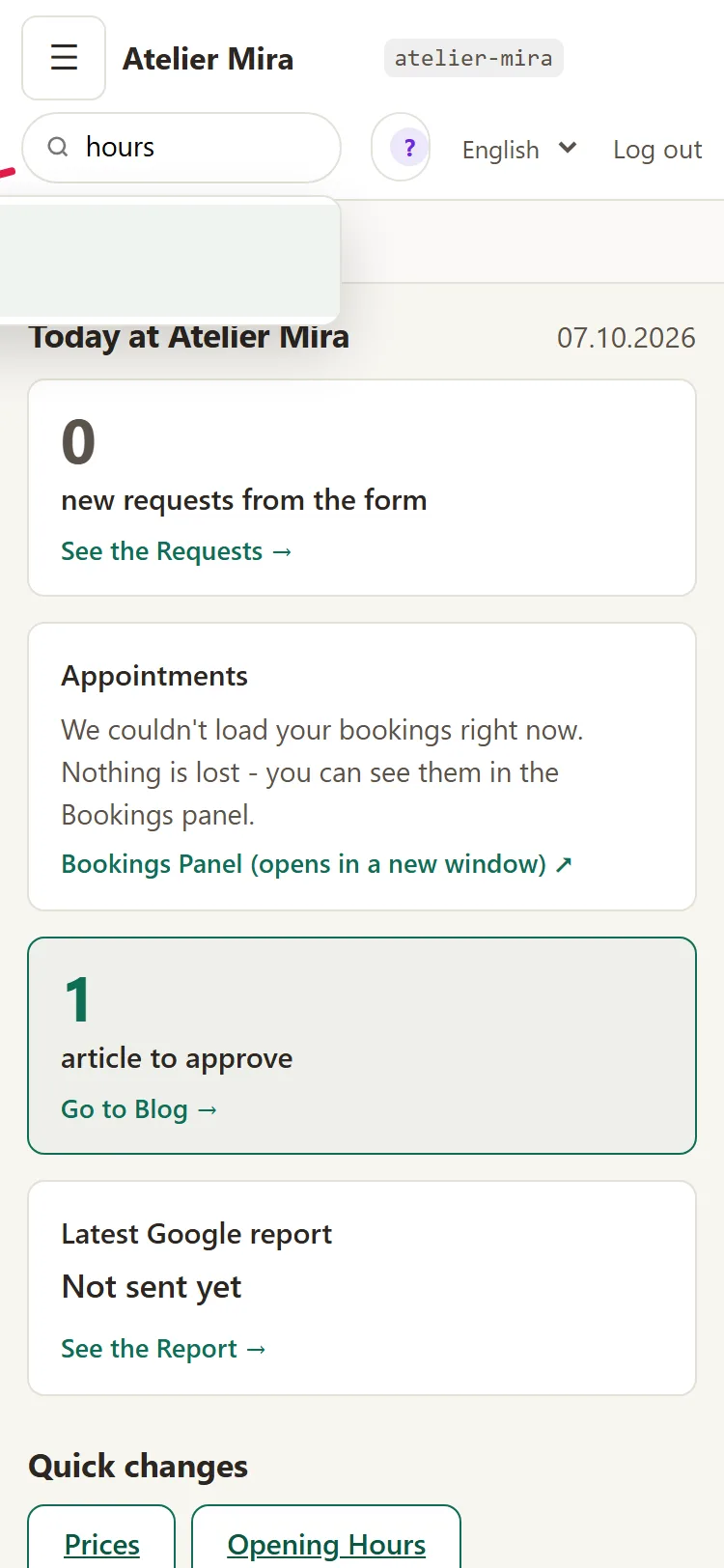
- The screen opens right at that spot, highlighted.
If you see "Nothing found. Try another word.", type a simpler word or look for the screen in the menu, using the map above.
How to start the guided tour
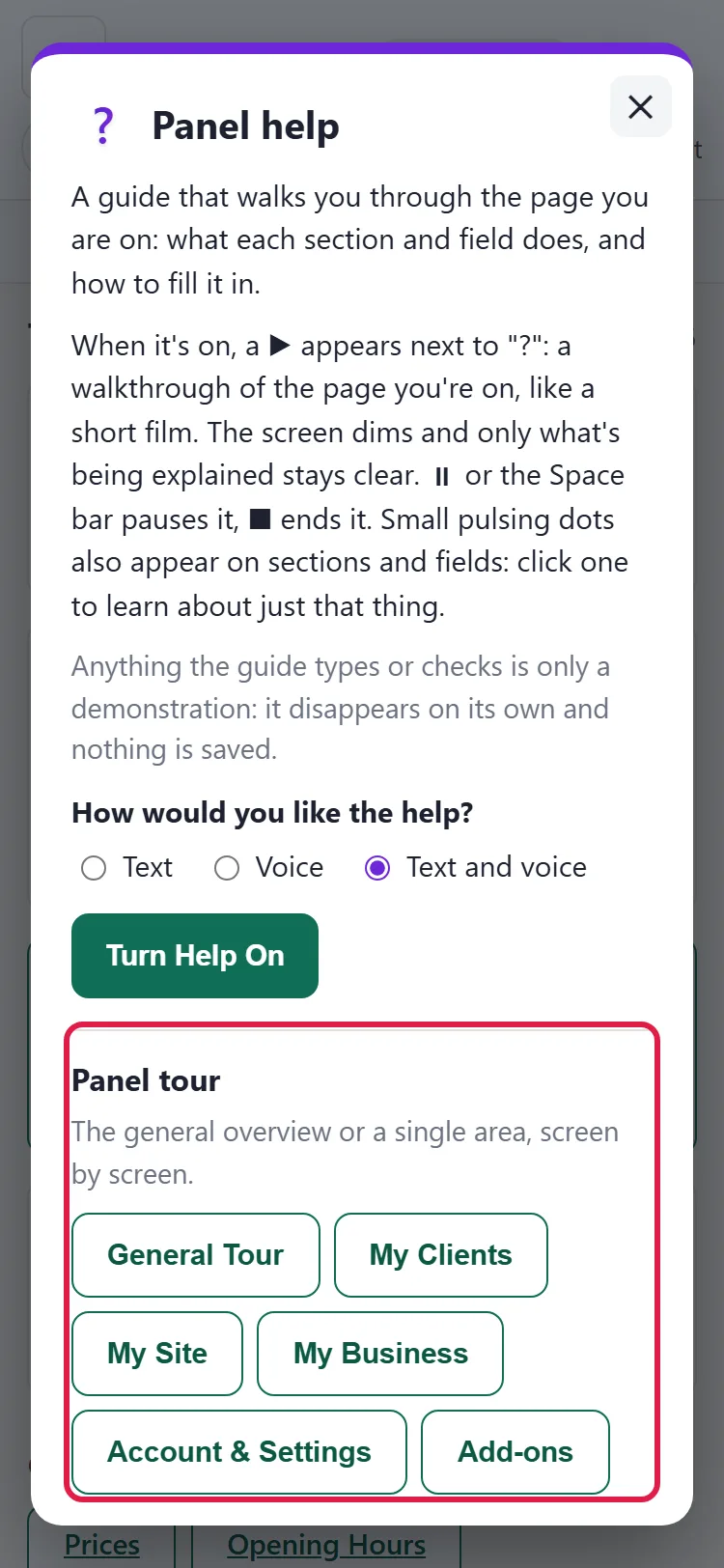
- Click Help (the question mark), at the top, next to search. The "Panel help" window opens.
- Under "Panel tour", click General Tour. If you only want one area, click My Clients, My Site, My Business or Account and Settings (and Extra Features, if you have add-ons).
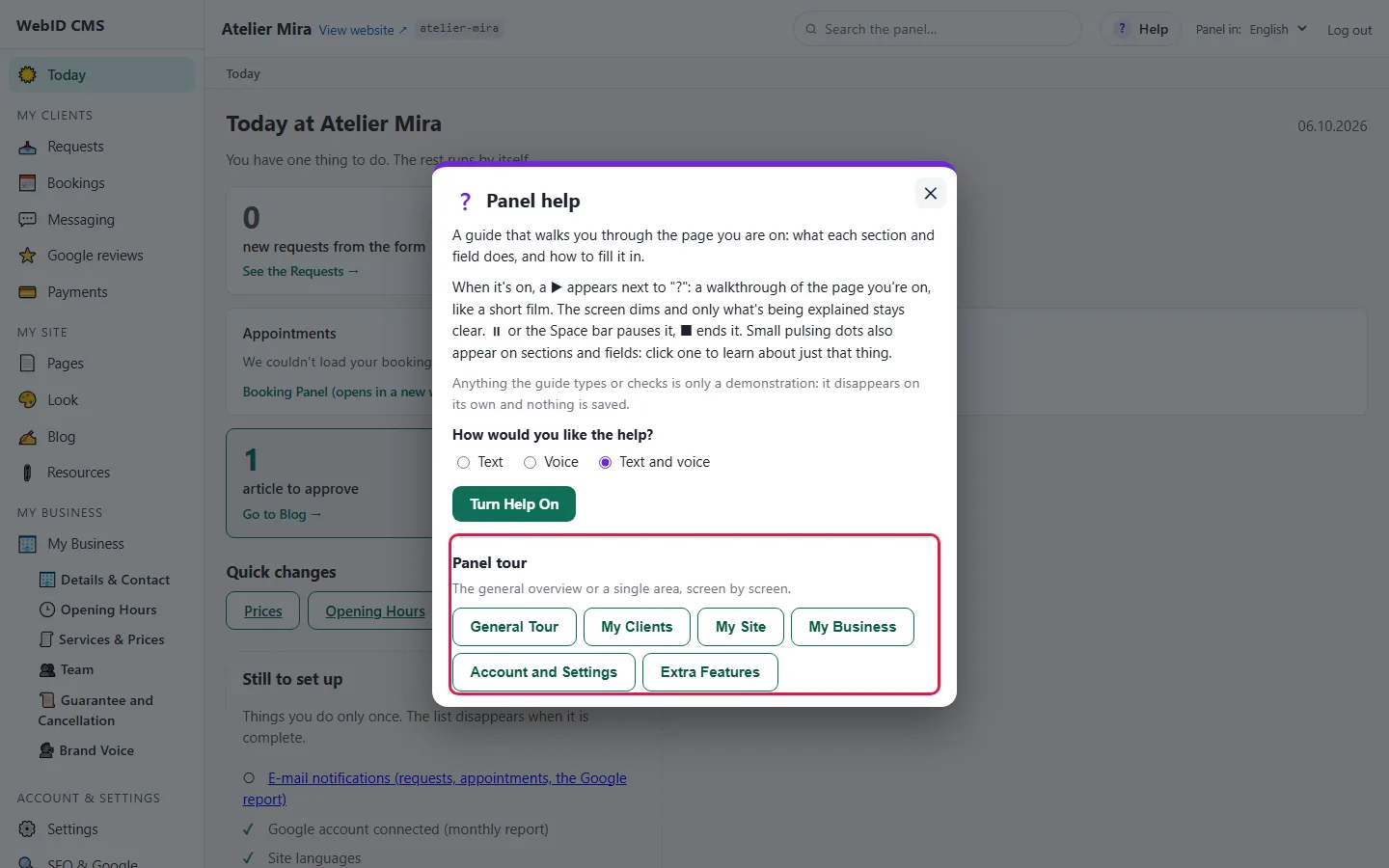
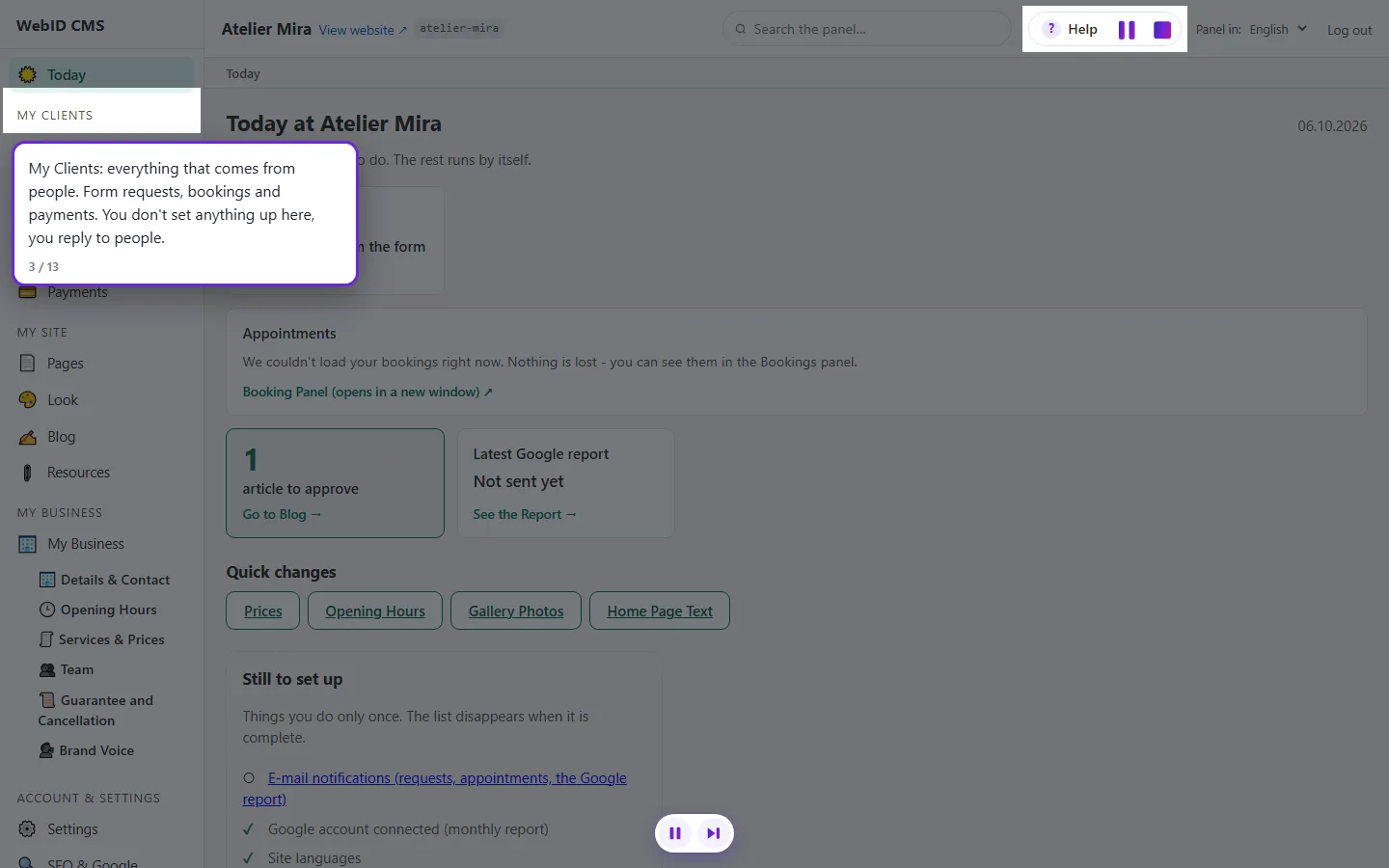
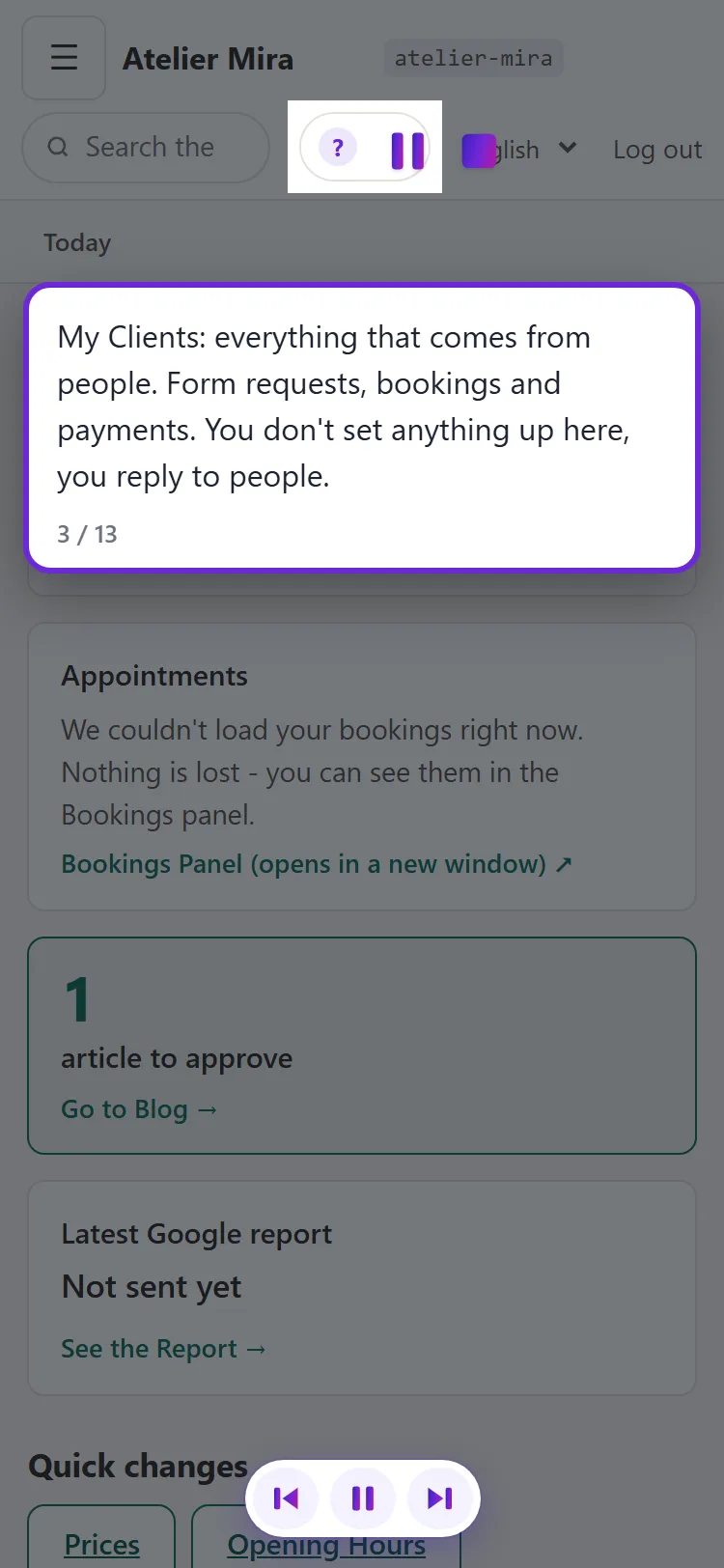
- Follow the tour. The screen dims and only what's being explained stays clear; the tour moves from one screen to the next on its own.
- At the end, in the "That's the map of your panel" window, choose another area, Switch On Help on Pages or Close the Tour.
How to get explanations on the screen you're on
- Click Help, then Turn Help On.
- Click ▶, which appears next to Help, to watch a walkthrough of the screen, like a video. ⏸ or the Space key pauses it (press again to resume), and ■ stops it.
- Click one of the small pulsing dots on sections and fields: each one explains only the section or field it sits on.
- To hide them, click Help, then Turn Help Off.
The examples the help writes appear over the fields, not in them: what you typed stays untouched, and they aren't saved.
Common problems
- "I can't find where to change my prices or opening hours." They're in "My Business", under Services & Prices and Opening Hours. You can also get there from "Today" › Quick changes or by typing "price" in the search.
- "I can't find the password." It's in Account & Settings › My Account › Panel password. In "Settings" you'll only find the Go to My Account → button.
- "The menu disappeared." The screen is too narrow and the menu has collapsed. Click ☰ Menu.
- "Some screens are missing from my menu." Some screens appear only with their add-on or if your website has them (see the map above). If you signed in with a colleague's account, you only see your role's screens; your name and role are shown next to Log out. The owner can change your role.
- "The tour stopped halfway." You left the tour on a screen. It picks up again on its own the next time you open the admin panel, if no more than half an hour has passed; otherwise you start it again from Help.
- "I can't find what I'm looking for, even with search." Write to us at contact@webid.ro with what you want to do and we'll tell you where to find it.
What it doesn't do
- You can't rearrange or hide the items in the menu.
- Booking settings (hours, who does what) open from a button on the "Bookings" screen, not from the menu. The day's calendar is in the Bookings panel (app.webid.ro).
- An invited colleague only sees their role's screens in the menu. The others are missing, not shown as locked.
- The welcome window and the tour start on their own only once per browser. On another device, or after you clear your browser data, the window appears again.
What data it uses
This guide doesn't touch any personal data. The admin panel only remembers, in your browser, that you've seen the tour and how you want the help (text or voice), and none of this is sent to us - see Cookie policy §3.