How to sign in to your website's admin panel for the first time
The admin panel is where you change your website yourself: texts, photos, prices, opening hours. You need two things: your website's address and the password you chose after paying. If you haven't chosen it yet, start with the steps under "If you haven't chosen your password yet". Signing in for the first time takes a few minutes.
Which admin panel to open
There are two places with similar names, and they're easy to mix up:
- Your website's admin panel is at your website's address followed by
/admin/(for examplehttps://afacerea-ta.ro/admin/). This is where you change your website. This guide is about the admin panel. The admin panel link is also in the "<Your business> is online" email we send you when your website is ready. - "Your panel" on webid.ro is where your order, subscriptions and invoices are. You get into it with a link we email you, with no password. It's explained in How to manage your subscription.
If you haven't chosen your password yet
You choose your first admin panel password before we deliver your website. You can change it later: see How to change your admin panel password and what to do if you forgot it.
- Open the "Payment received - here's what's next…" email and click the link in the "1. Choose your admin panel password" line.
- Type the password in the Password field. It must be at least 10 characters long, with no space at the beginning or end. It's the key to your admin panel - so it's worth choosing a good one that you don't use anywhere else.
- Type it once more in Confirm password.
- Click Save the password. You see the message "Your password is saved".
The link in the email works for one hour. If you see "This link no longer works", type the email address you paid with right on that page and click Send me the link: you get a new one.
How to sign in to the admin panel
- In your browser, open your website's address followed by
/admin/. You see the "Sign in" screen. Bookmark the address in your browser, so you have it handy next time. - Type your password in the Password field.
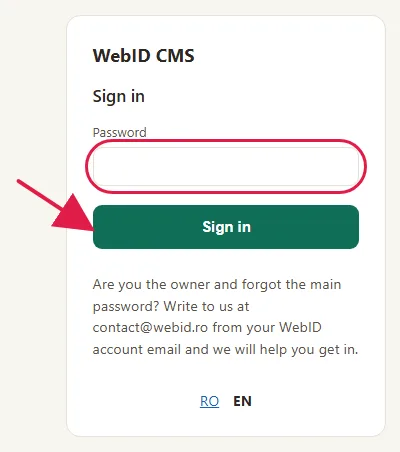
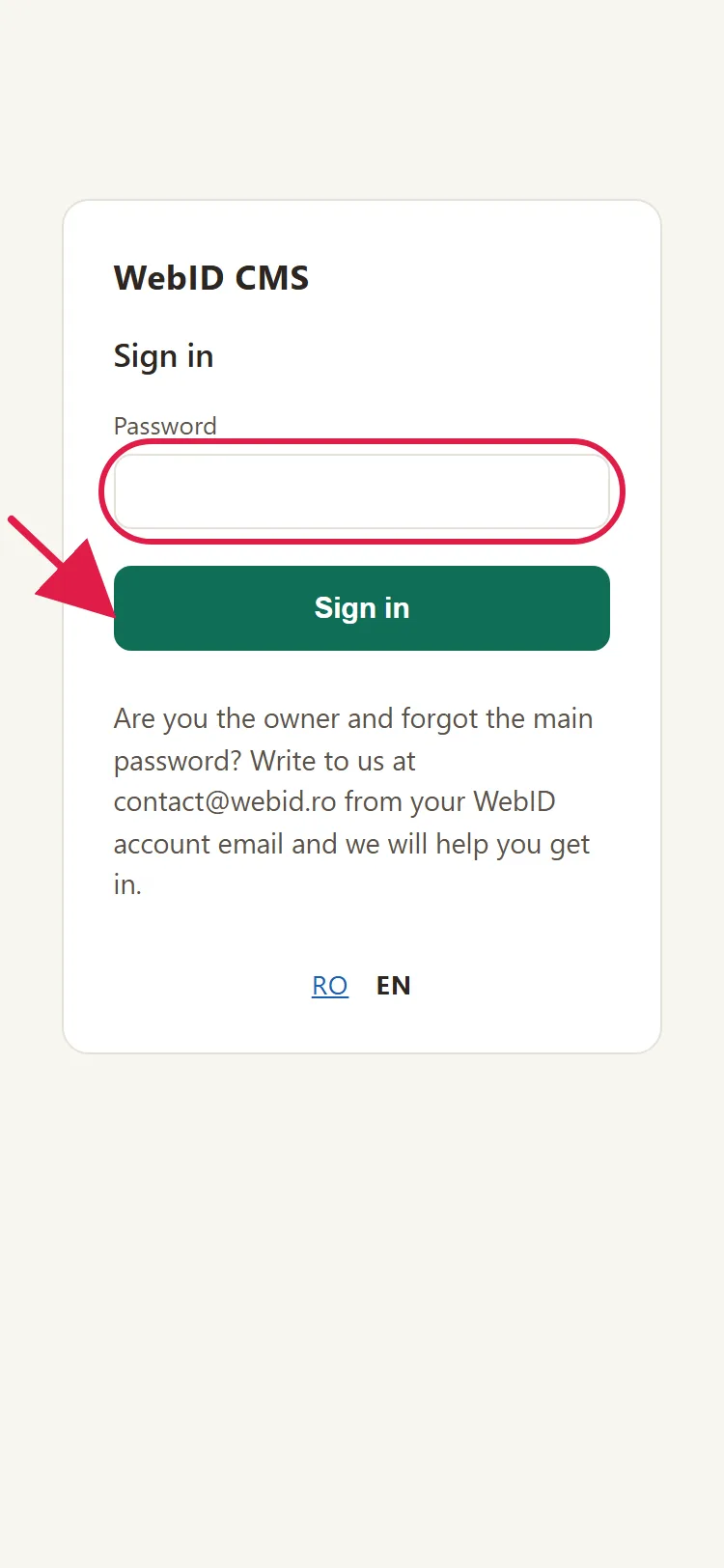
- If you also see the Email address field above it, leave it empty. It's for the colleagues you've invited to the admin panel; you sign in with the password only.
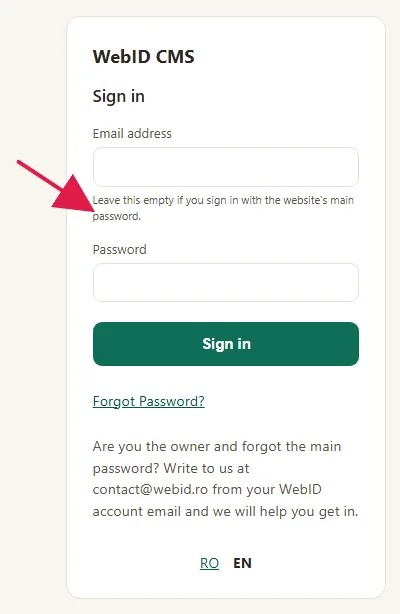
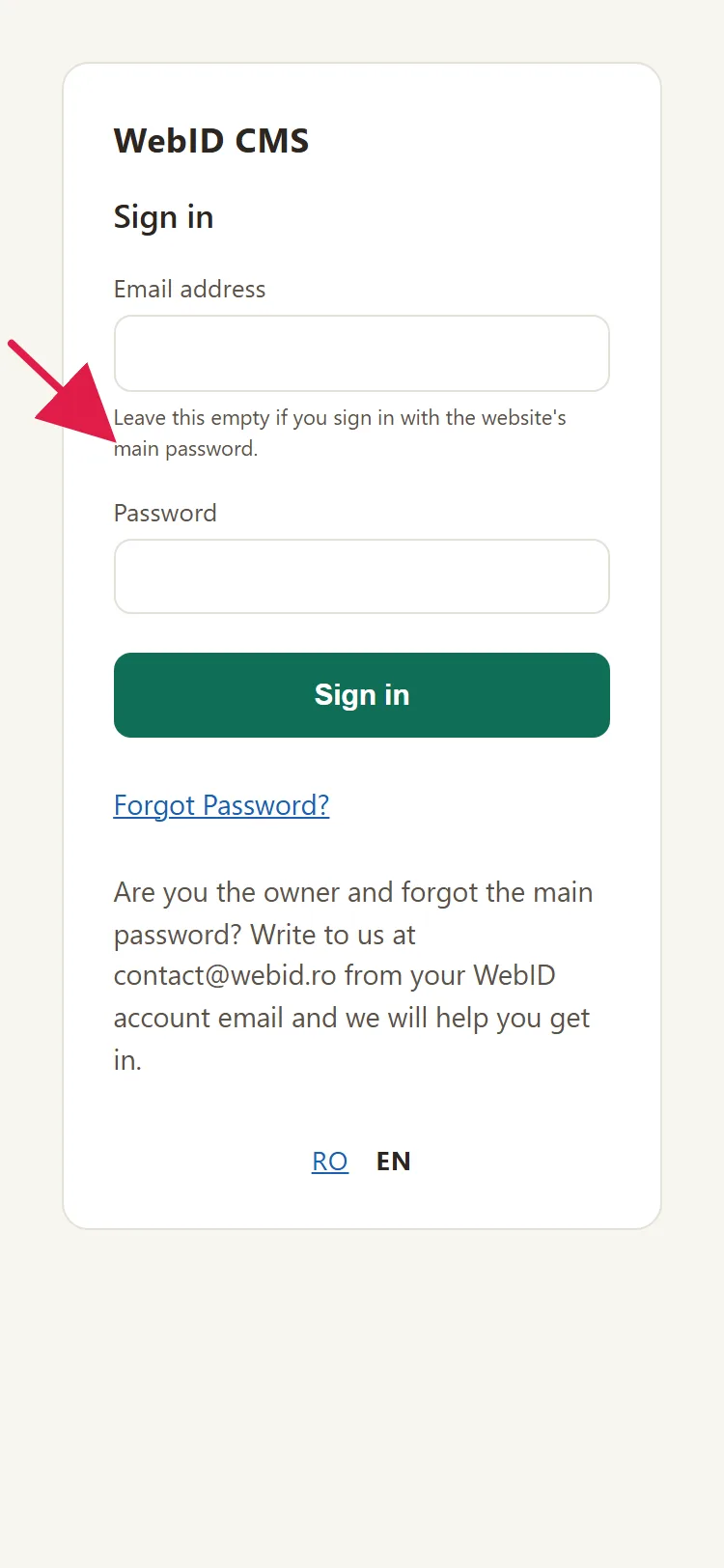
- Click Sign in.
- If you've turned on two-step verification, type the 6 digits from the app on your phone in the Code field and click Sign in again.
- You land on "Today", the first page of the admin panel. At the top it says "Today at" followed by your business name and today's date.
What to do on your first visit
- The "Welcome to your panel" window opens. Under "How would you like the help?", choose Text, Voice or Text and voice.
- Click Start the Tour to see, one by one, what's in each part of the admin panel. If you'd rather look around on your own, click Not Now.
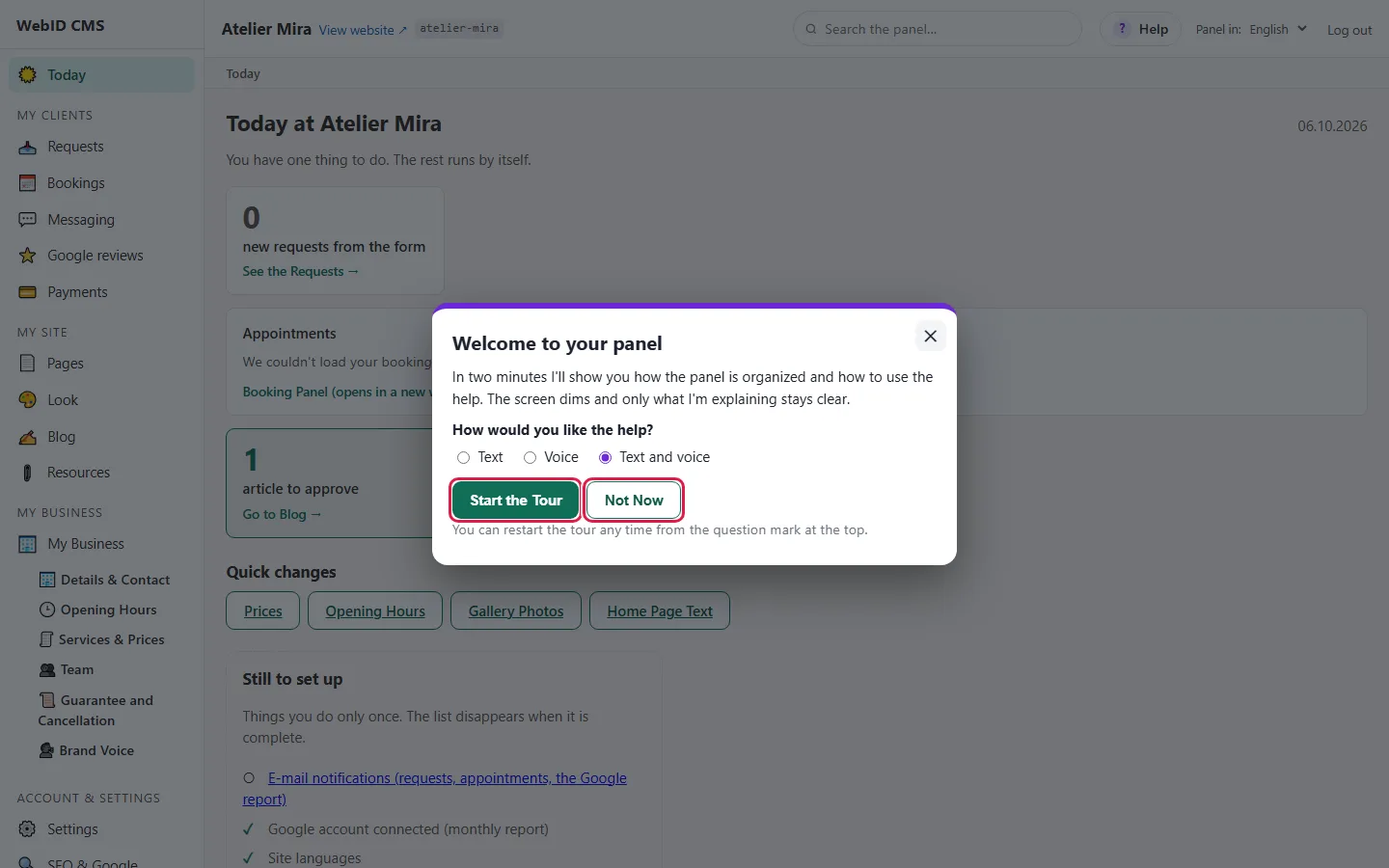
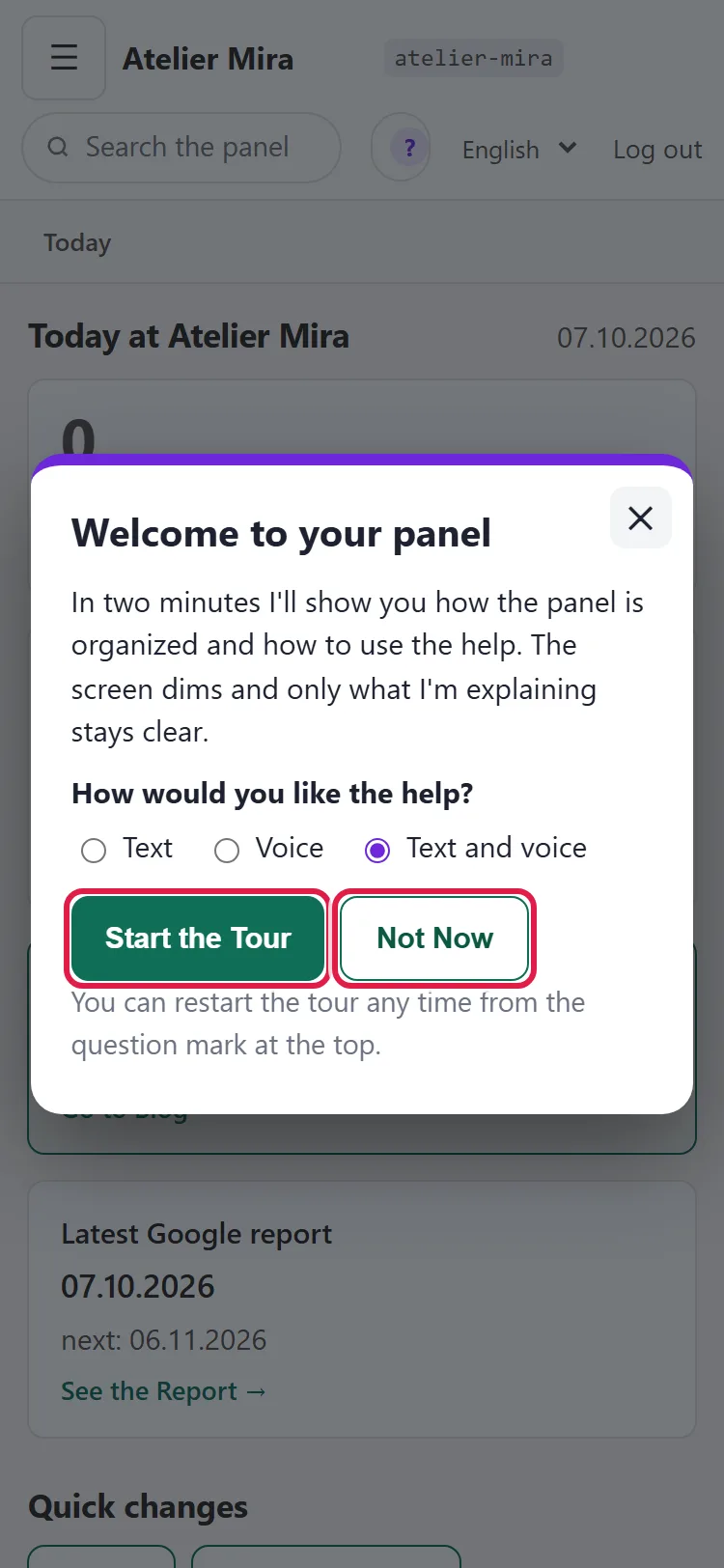
The window appears only once per browser. You can take the tour again anytime: click Help (the question mark), at the top, next to search, then General Tour.
How to change the admin panel's language
- On the sign-in screen, at the bottom, choose RO or EN. The current language is in bold.
- Once you're in, you can change it anytime from the top bar: under Panel in:, choose Română or English.

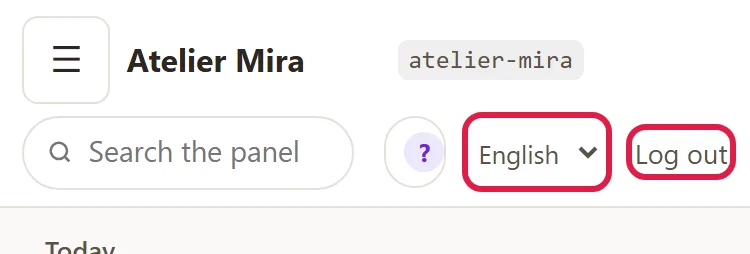
Only the admin panel's menus and buttons change, not your website's language. Your browser remembers the choice for a year.
How to log out of the admin panel
- At the top right, click Log out. You're taken back to the sign-in screen.
What to do if the admin panel asks you to sign in again
If you leave the admin panel open for a long time without working in it, the next time you save, a bar appears at the top telling you to sign in again. What you tried to save at that moment wasn't saved: if it's a longer text, copy it before you click the bar.
- Click Sign in → in the bar.
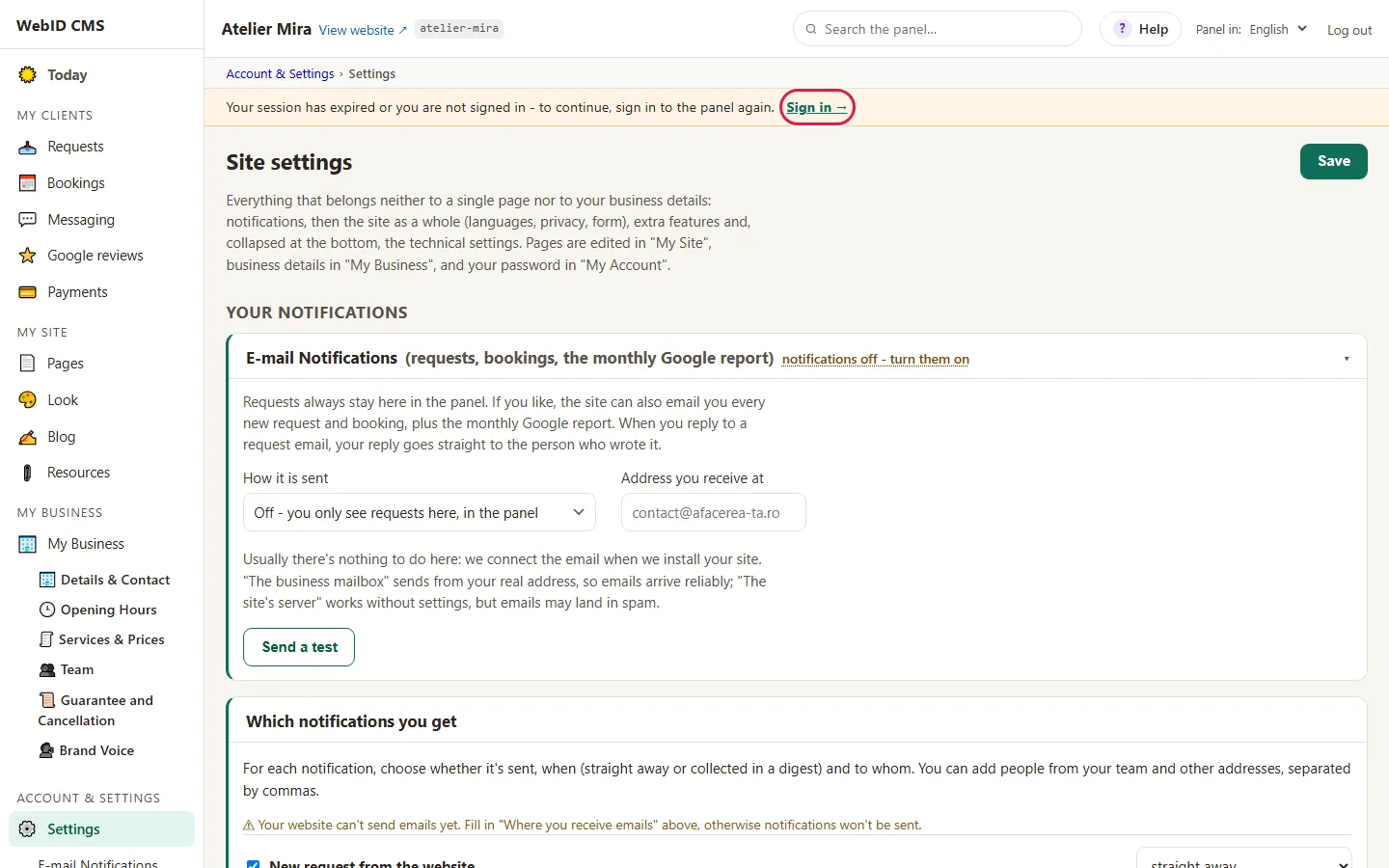
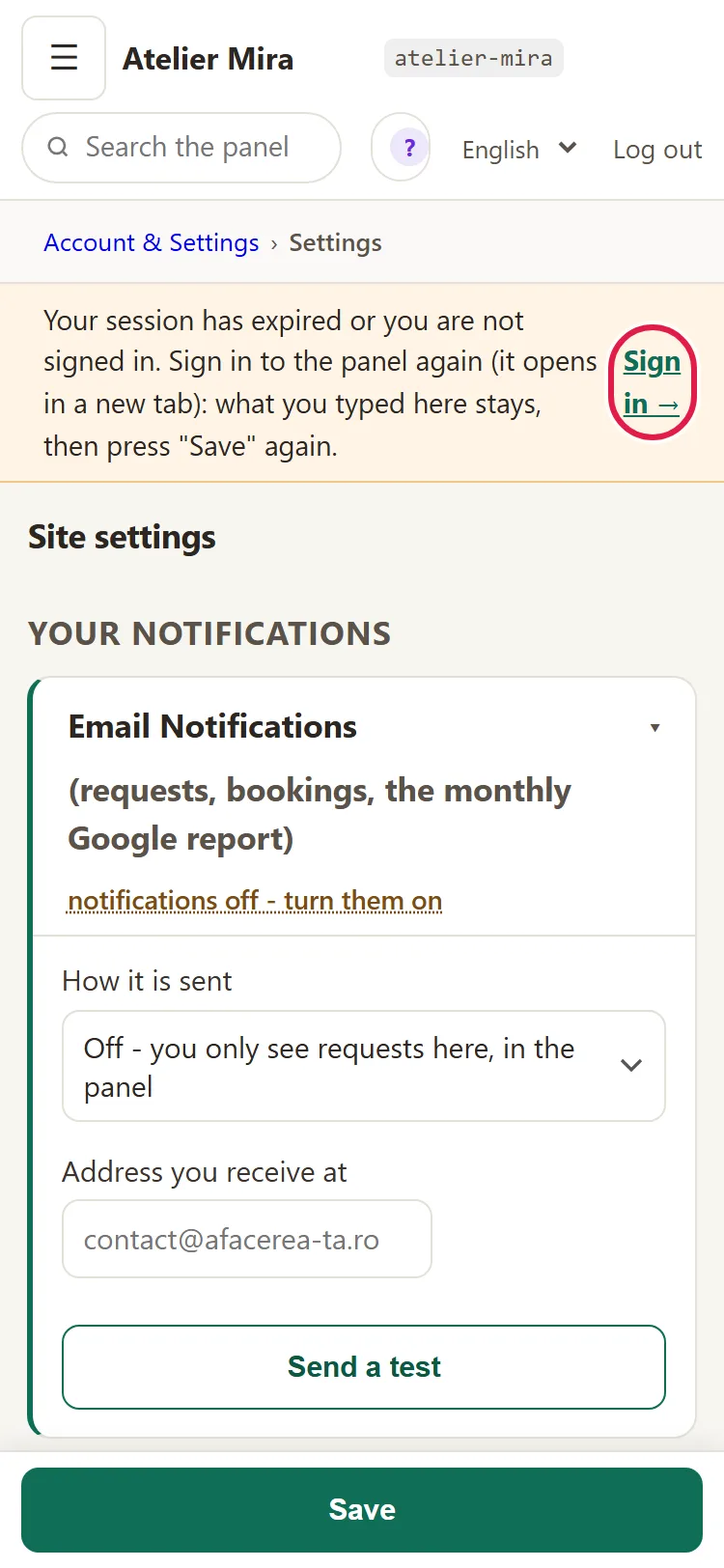
- Type your password (and the code, if you have two-step verification on). We take you back to the screen you were working on.
- Check whether your last change was saved. If not, make it again and click Save.
Common problems
- "I don't know what address to sign in at." The admin panel's address is your website's address followed by
/admin/. Bookmark it in your browser, so you don't have to look for it again. - "I see: Wrong password or 2FA code." "2FA" is two-step verification. For the password, check the Caps Lock key. If you've turned on two-step verification, type the code currently showing in the app. Then try again, carefully.
- "I see: Too many wrong attempts." After 10 wrong attempts within 15 minutes from the same network, signing in is blocked for 15 minutes, even with the right password. Wait 15 minutes and try just once, carefully.
- "I see: This panel has no password yet." The website was installed without a password. Write to us at contact@webid.ro and we'll sort it out together.
- "I forgot my password." If you're the website owner, do what the line on the sign-in screen tells you: write to us at contact@webid.ro from your WebID account's address and we'll help you get in. If you're an invited colleague, click Forgot Password? on the sign-in screen (the link only appears on websites with invited colleagues); the steps are in How to change your admin panel password and what to do if you forgot it.
- "I don't have the phone with the code anymore." Follow I lost access to my admin panel.
- "The admin panel is in a different language than I want." Choose RO or EN at the bottom of the sign-in screen. Once you're in, change the language from Panel in:, in the top bar.
- "Something else isn't working." Write to us at contact@webid.ro with what you see on the screen and we'll take a look.
What it doesn't do
- The owner can't create a new password on their own from the sign-in screen. You write to us and we change it together.
- There's no "Remember me" checkbox, and no signing in with Google or Facebook.
- There's no separate setup wizard: the "Still to set up" list on "Today" takes its place. See What to set up in the admin panel in your first week.
What data it uses
The admin panel only places in your browser the cookies it can't work without: the session, the sign that you're signed in (30 days) and the admin panel's language, plus a few technical details (the installation key, the display mode, the sign that your own visits to the website aren't counted in the statistics) - the full list is in the Cookie policy §3. Your password is stored only in hashed (scrambled) form, and wrong sign-in attempts are counted for 15 minutes, using a hash of your IP address.