How to change your admin panel password and what to do if you forgot it
You change the password you use to sign in to the admin panel yourself, from "My Account", whether you're the website owner or an invited colleague. It takes a minute. If you forgot it, the way depends on who you are: colleagues set a new password themselves, the owner writes to us (or, if the website isn't online yet, picks a new one themselves).
How to change your password
The steps are the same for the owner and for any colleague. Each person changes the password of their own account.
- In the menu, go to Account & Settings › My Account.
- Click the title of the Panel password section to open it.
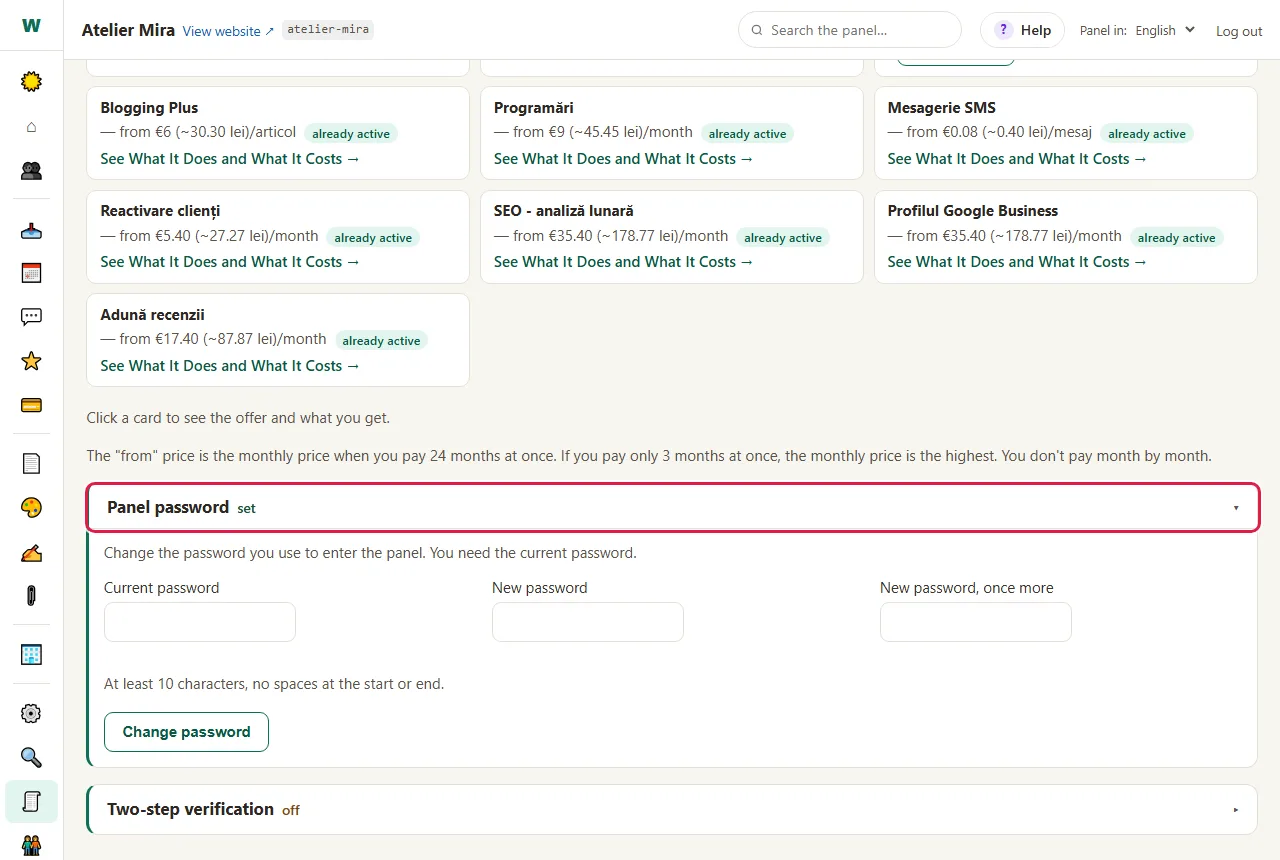
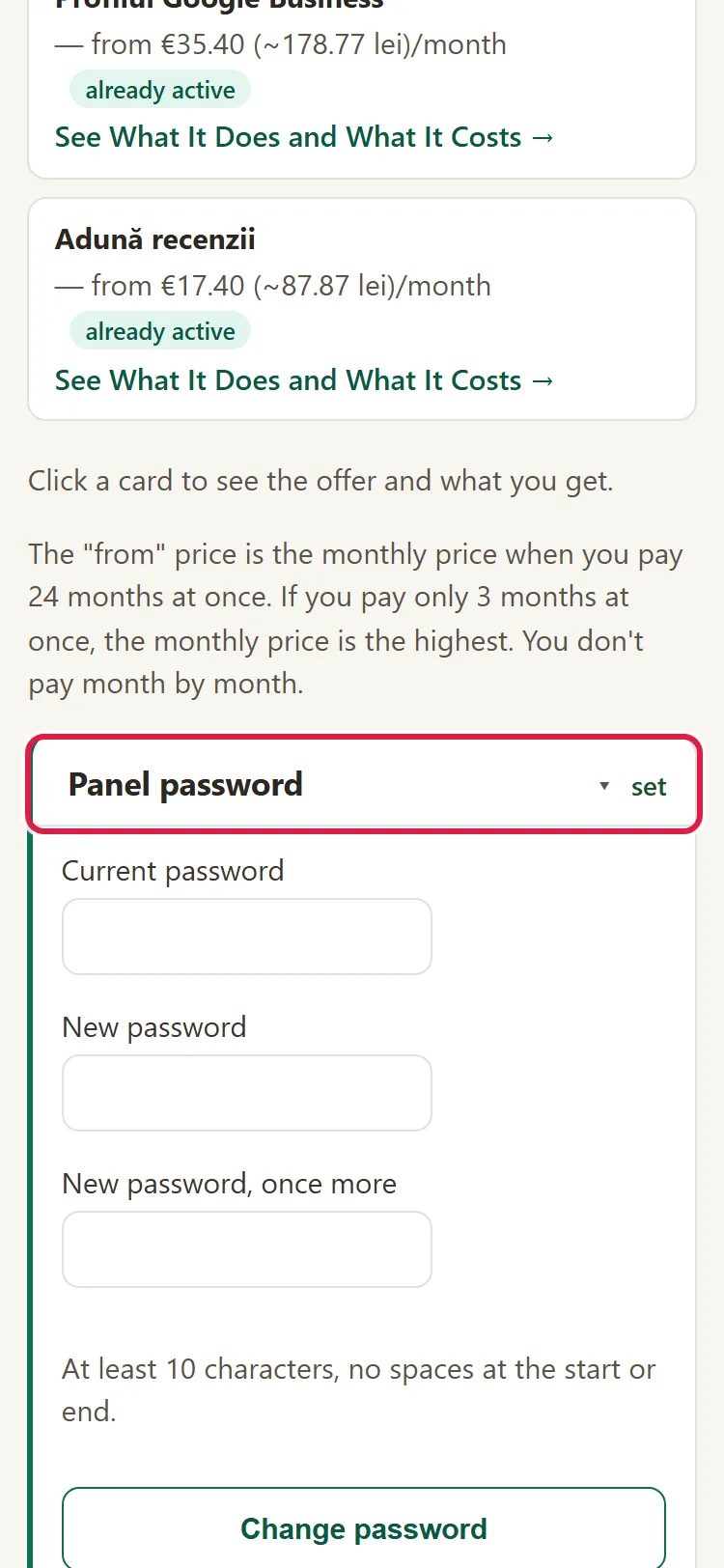
- Type your current password in Current password.
- Type the new password in New password. It must have at least 10 characters, with no spaces at the start or end. Pick one you don't use anywhere else: the only key left is your admin password - that's why it's worth a good one.
- Type it once more in New password, once more.
- Click Change password. You see the message "Password changed ✓ - from now on you sign in with the new one."
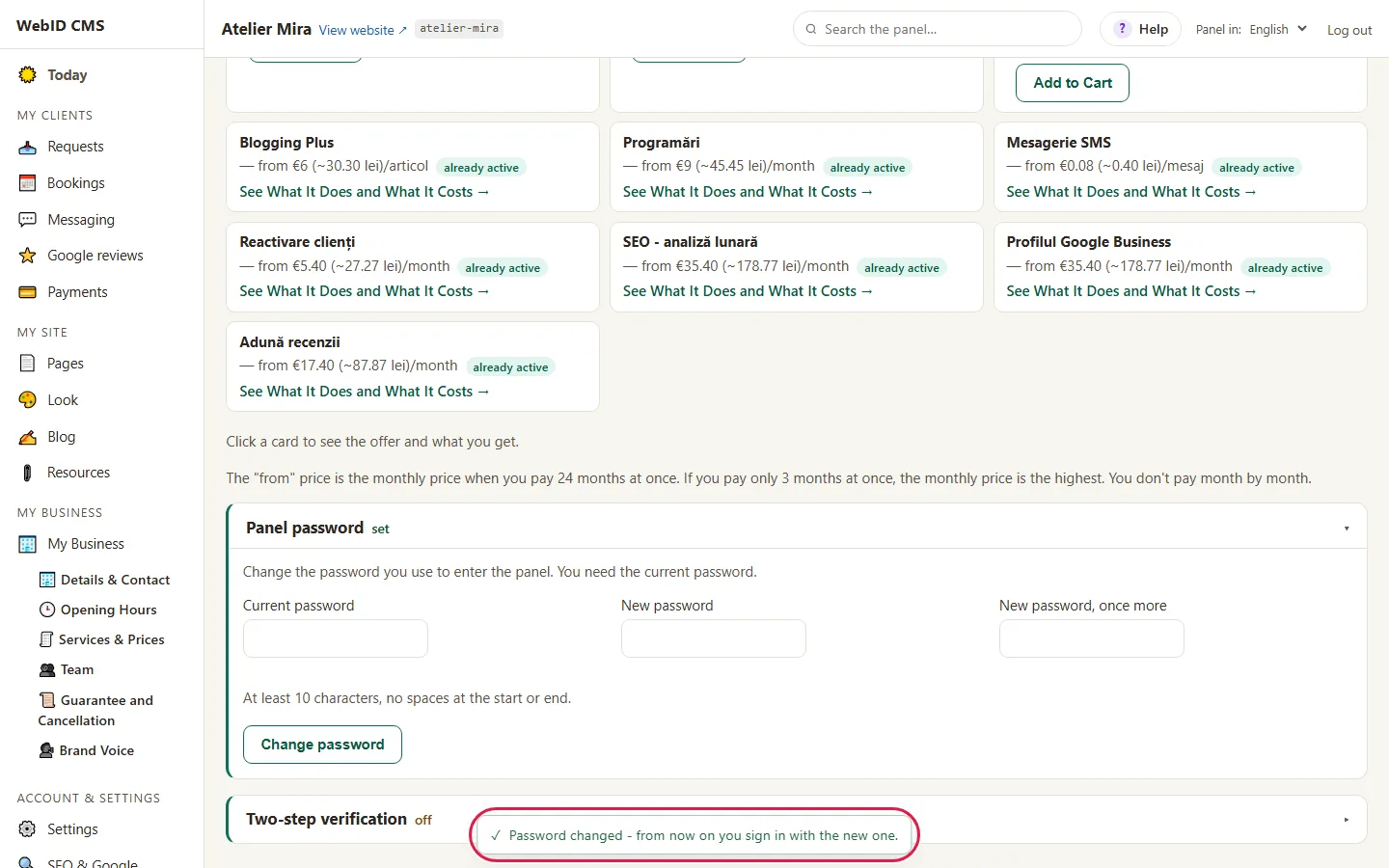
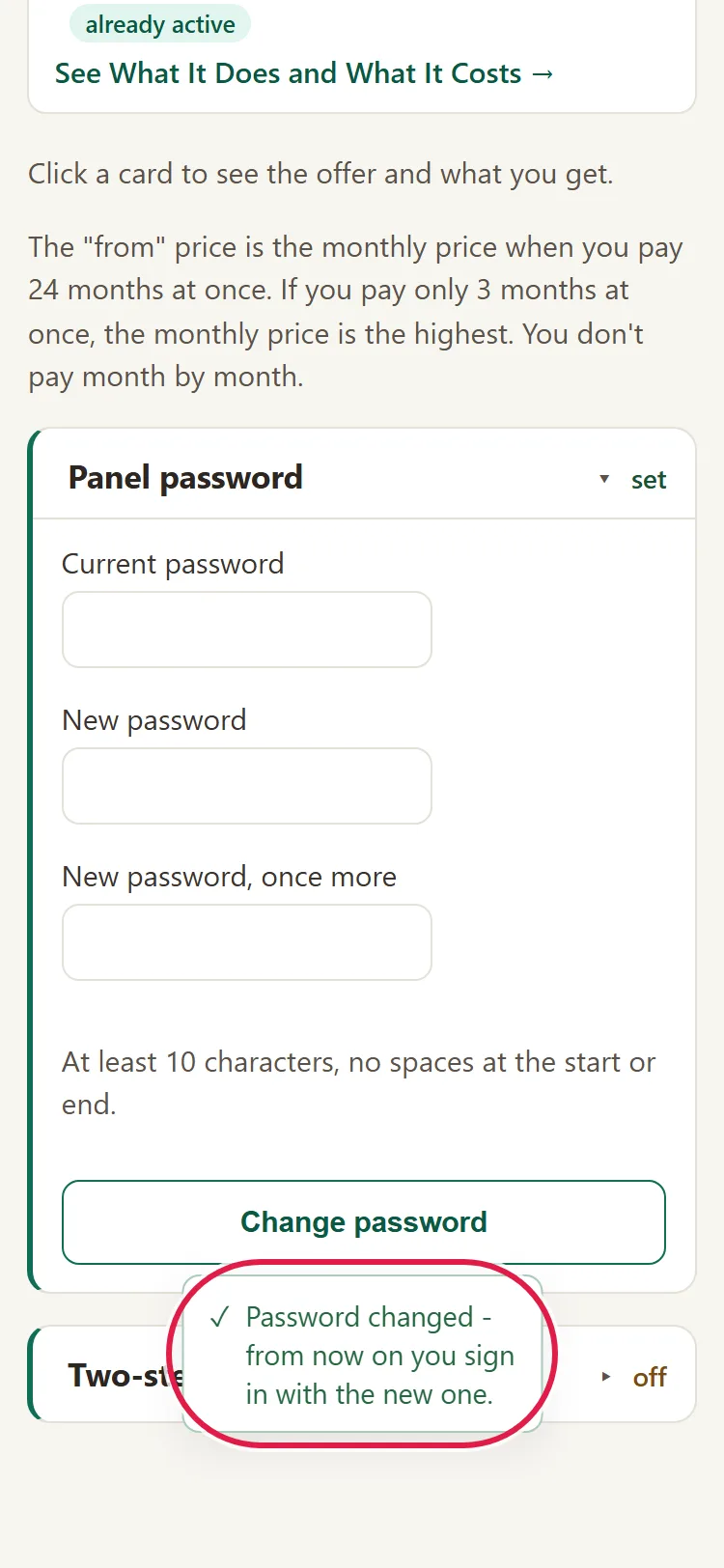
You stay in the admin panel on the device where you changed the password. On the other devices where you had signed in with the old password, the admin panel asks you to sign in again. So if you changed it because someone else found it out, that person is no longer in the admin panel. Two-step verification stays as it was.
You also get here from "Settings": in the Panel password section, click Go to My Account →.

What to do if you're an invited colleague and forgot your password
- On the sign-in screen, click Forgot Password?.
- In Your email address, type the address you use to sign in to the admin panel.
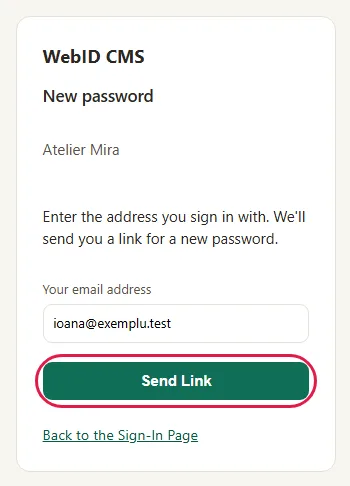
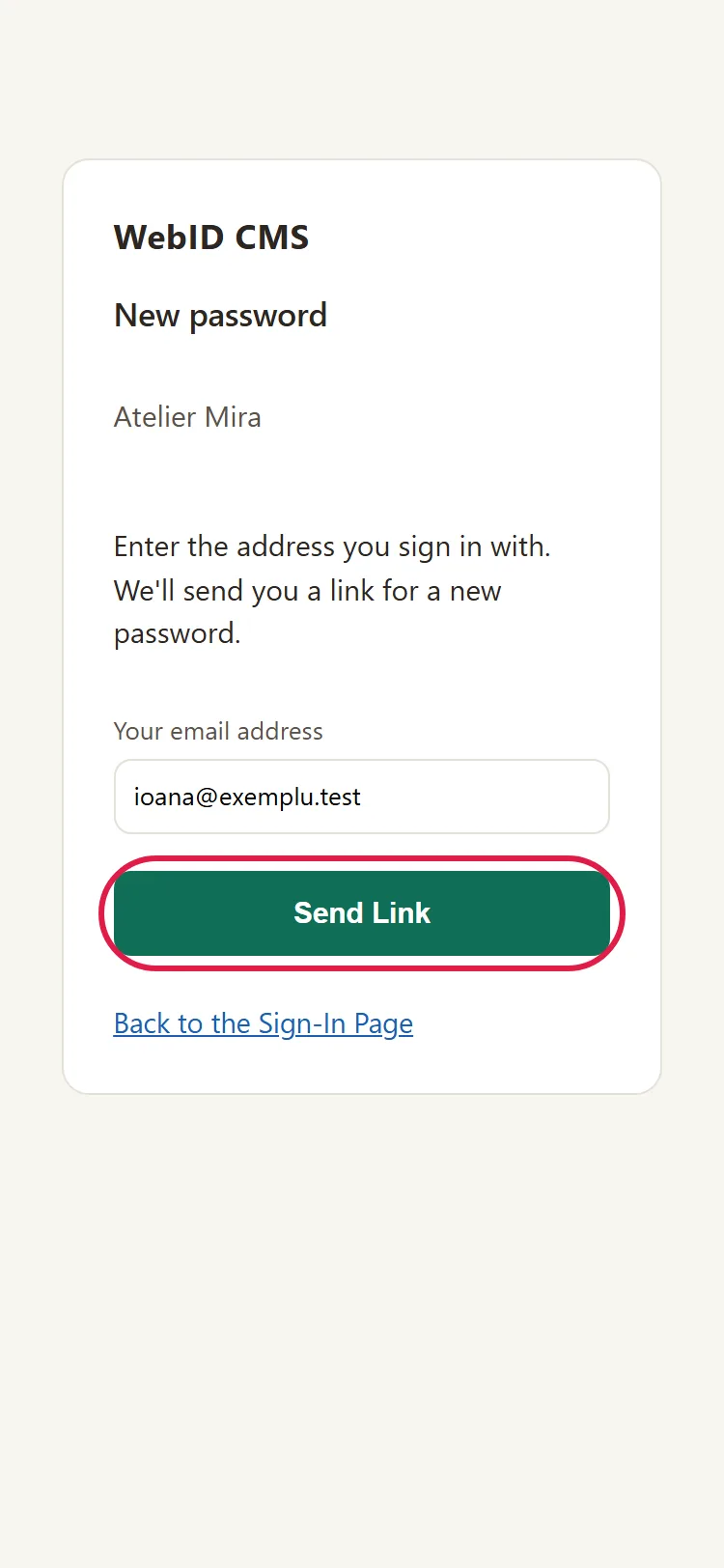
- Click Send Link. You see the message "If this address has an account in this panel, we've sent it a link for a new password. Please check your Spam folder too." The message is the same for any address, so no one can find out who has an account.
- Open the email "New password for the ... website's admin panel" and click the link. It's good for one hour and works only once.
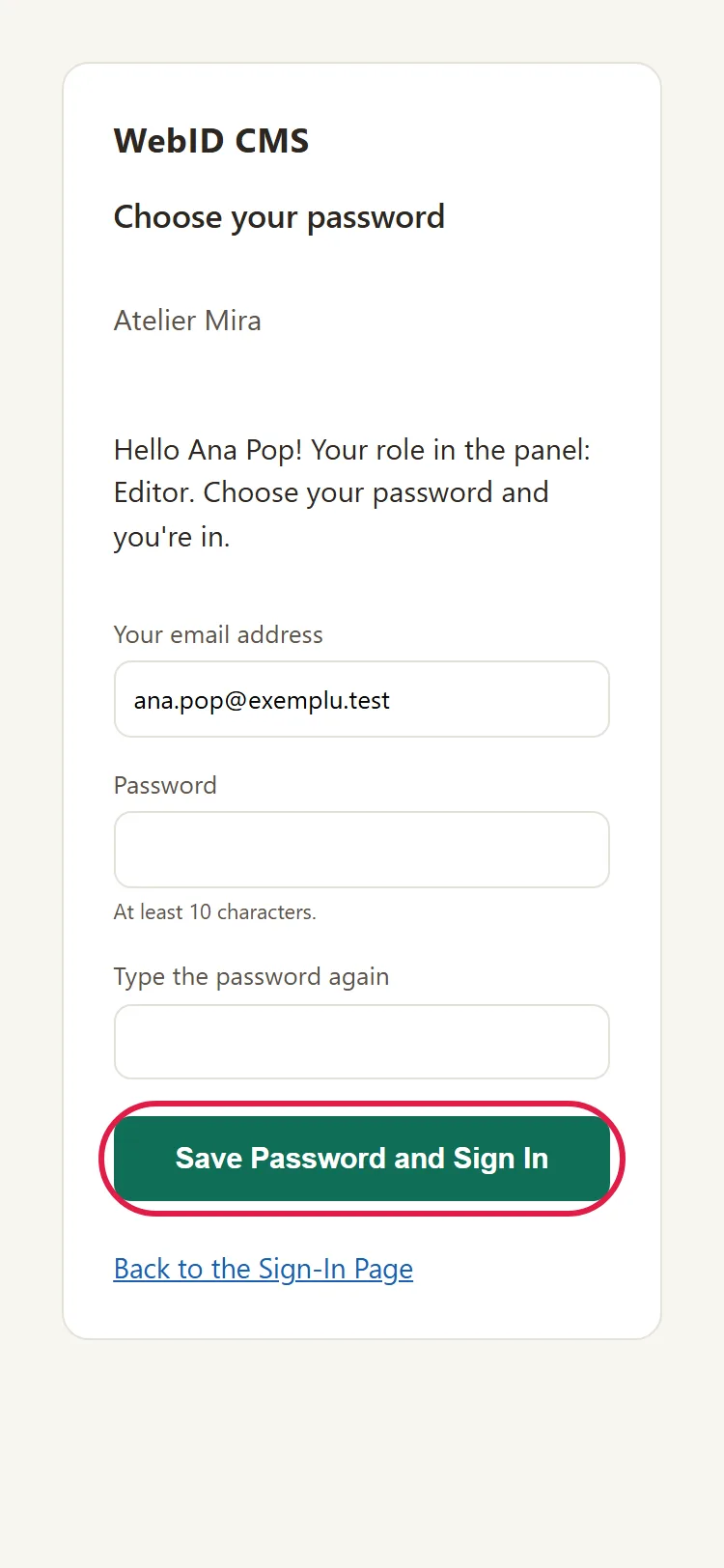
- On the "Choose your password" page, type the new password in Password and once more in Type the password again.
- Click Save Password and Sign In.
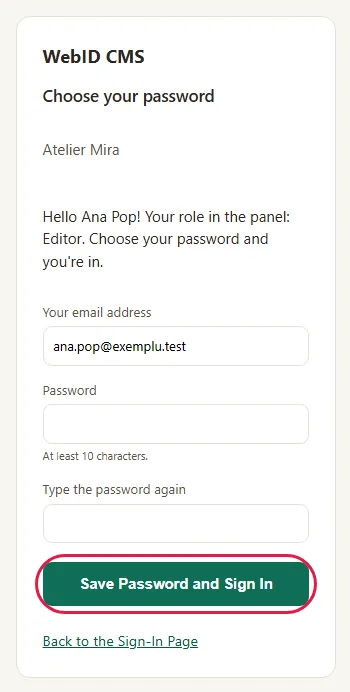
- You go straight into the admin panel. If you turned on two-step verification, you first land on the sign-in screen: type your address, the new password and the code from your phone.
Here too, the new password signs you out of the admin panel on the other devices.
What to do if you're the owner and forgot your password
Without the old password, the main password can't be changed from the admin panel. The line on the sign-in screen, "Are you the owner and forgot the main password?", tells you what to do. Write to us at contact@webid.ro from your WebID account email (the one you paid for the website with) or call us at 0770 618 344, and we'll change the password together.
If your website isn't online yet, you pick another password yourself:
- Open webid.ro/api/parola.php. On the "Request a new link" page, type the address you paid with.
- Click Send me the link.
- Open the link in the email and choose the new password. It replaces the old one.
Common problems
- "I see: The current password is not correct." You got your current password wrong. Try again, minding the Caps Lock key.
- "I see: The two new passwords are not the same." You typed the new password differently in the two fields. Type it again in both.
- "I see: The new password is too short." Type at least 10 characters.
- "I see: The new password is identical to the old one." Pick a password you haven't used here before.
- "I see: The new password cannot start or end with a space." Delete the space at the start or end.
- "I don't get the email with the new password." Check your Spam folder. If the website can't send emails, the link doesn't go out, even though the message on the screen is the same. Ask the owner to turn on sending by email (How to get your website's requests and appointments by email) or to remove your account and invite you again, with the role you had. If the invitation can't go out by email, the admin panel gives the link to them, so they can send it to you. What you did until then stays in the history.
- "I see: This link no longer works." An hour has passed or you already used it. Ask for another one with Forgot Password?. If you're the owner and the website isn't online yet, ask for it again from webid.ro/api/parola.php.
- "I lost the phone with the code." Follow I lost access to my admin panel.
- "Something else isn't working." Write to us at contact@webid.ro with what you see on the screen and we'll take a look.
What it doesn't do
- The owner can't set a new password by themselves, either from the sign-in screen or from webid.ro after the website is online. They write to us and we change it together.
- It doesn't show you how strong the password is. The only rules are the length (10–200 characters) and no spaces at the ends.
- If the website can't send emails, a colleague's new password link doesn't go out, and the screen doesn't tell you so.
- A colleague's email address can't be changed. The owner removes their account and invites them again, with the new address.
What data it uses
Your password and your colleagues' passwords are kept only in hashed (scrambled) form, on the website's server, so not even we can read them. Wrong attempts are counted for 15 minutes, by a hash of the IP address, and every password change goes into the "Who did what" log, kept for 12 months - see DPA §6.