How to turn on two-step verification, so a password alone is no longer enough
With two-step verification on, when you sign in to the admin panel we ask you, on top of your password, for a 6-digit code from your phone. Someone who finds out your password can no longer get in with it alone. Turning it on takes a few minutes and anyone with an account in the admin panel can do it: the owner and each colleague, for their own account.
What you need first
- A phone with an authenticator app: Google Authenticator, Microsoft Authenticator or Authy. They're all free.
- The admin panel password.
- An email address where you can get the way-back-in link, if you lose your phone.
- Email sending turned on for the website ("Settings" › "E-mail Notifications"). Otherwise, the way-back-in link doesn't go out. Only the owner and Administrators see the "Settings" screen: if you're an Editor, ask them.
- A safe place for 10 backup codes: a sheet of paper or a password manager.
How to turn on verification
- Go to Account & Settings › My Account.
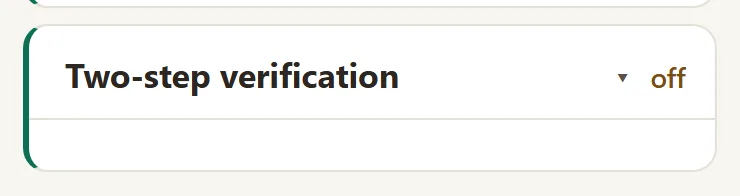
- Open the Two-step verification section. Next to the title it says "off".
- Click Turn On Verification.

- On your phone, open the authenticator app and add a new account (usually with +).
- Scan the QR code on the screen with your phone. The account "WebID CMS" shows up in the app, with your website's address. If you opened the panel on this same phone or can't scan, copy into the app the key under "Can't scan? Type the key by hand:".
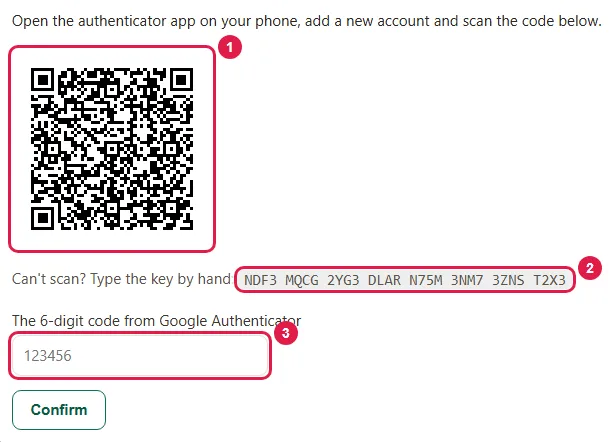
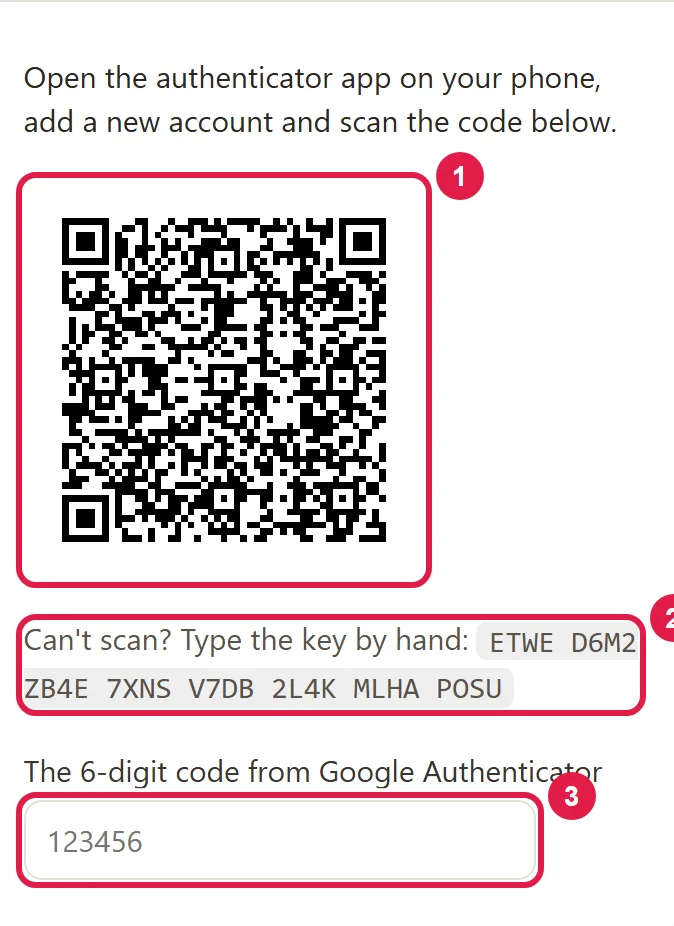
- In the field The 6-digit code from Google Authenticator, type the code you see right now in the app (it works the same from Microsoft Authenticator or Authy).
- Click Confirm. You see the message "Two-step verification is on ✓".
You have 15 minutes from Turn On Verification to Confirm. If they pass, start over.
How to keep your backup codes
Right after confirming you see 10 backup codes. You see them only now. If you lose your phone, you sign in with one of them instead of the code from the app; each one works only once and only together with the password.
- Click Download the Codes or write them down on a sheet of paper.
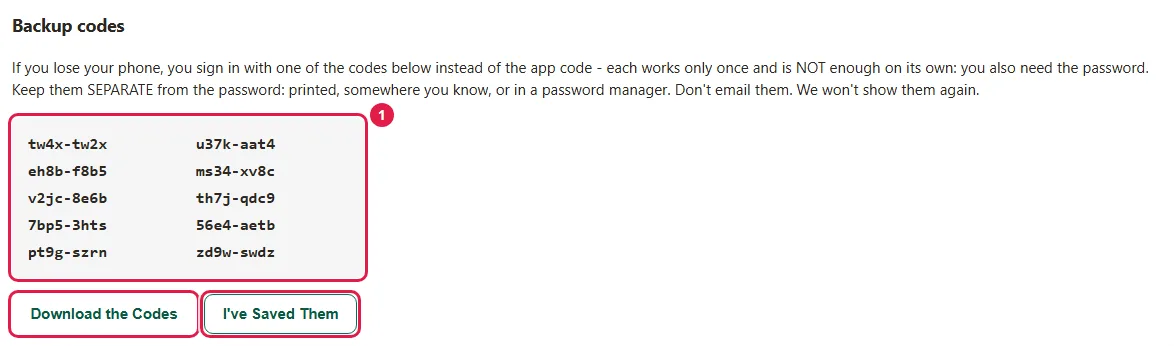
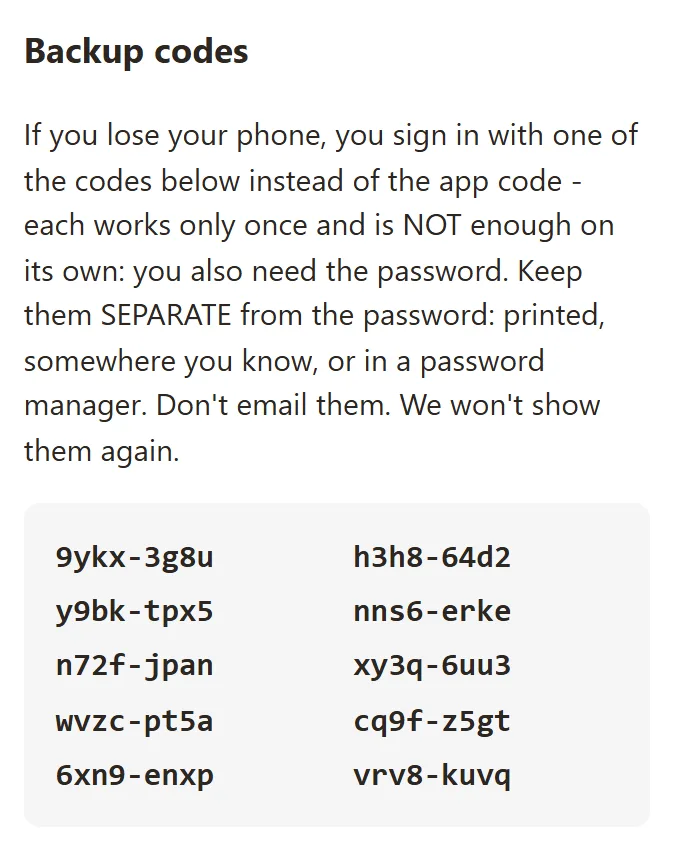
- Keep them in a place separate from your password and not only on the phone with the app: if you lose it, you lose them too.
- Click I've Saved Them.
How to choose your security question
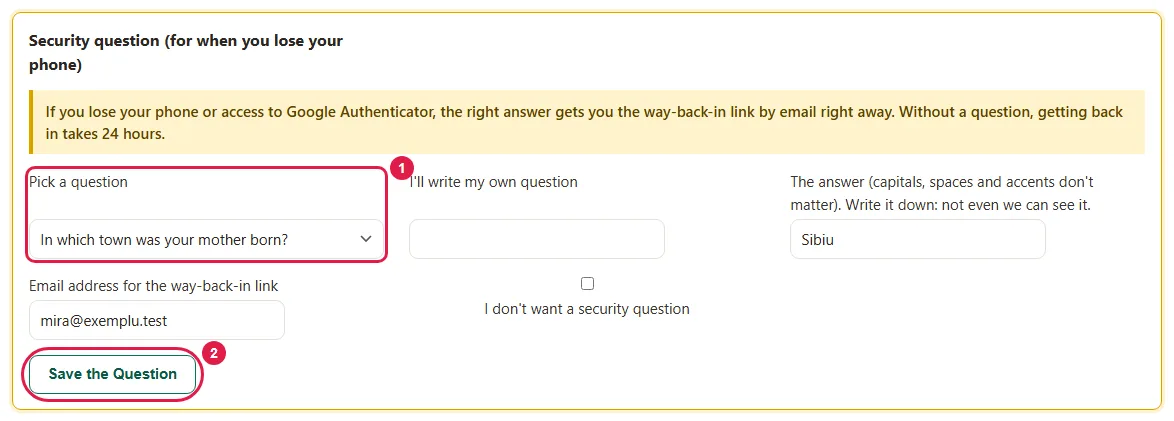
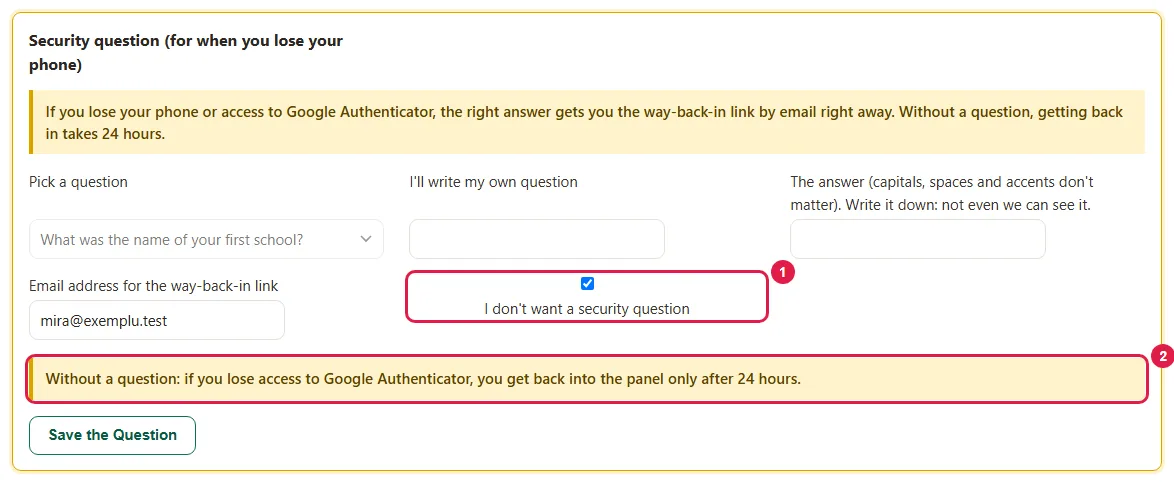
Without a question, if you lose your phone and don't have the backup codes either, you get back into the admin panel only after 24 hours. With the question and the right answer, the way-back-in link goes out by email right away, without the 24-hour wait.
- In the Security question (for when you lose your phone) box, open the Pick a question list.
- Pick one of the questions or I'll write my own question (at most 160 characters). What matters is that no one else can find out the answer, for example from your public profiles.
- Type the answer. Capital letters, spaces and diacritics don't matter.
- Write down the answer in a safe place: not even we can see it.
- If you're the website owner, type the address in Email address for the way-back-in link. If you're a colleague, the link comes to your account's address.
- Click Save the Question. You see the message "Security question saved."
If you don't want a question, check I don't want a security question and click Save the Question. The owner still has to type the address for the way-back-in link.
How you sign in to the admin panel from now on
- On the sign-in screen, type your password (and your address, if you're a colleague) and click Sign in.
- Open the app on your phone and type the 6 digits you see in the Code field.
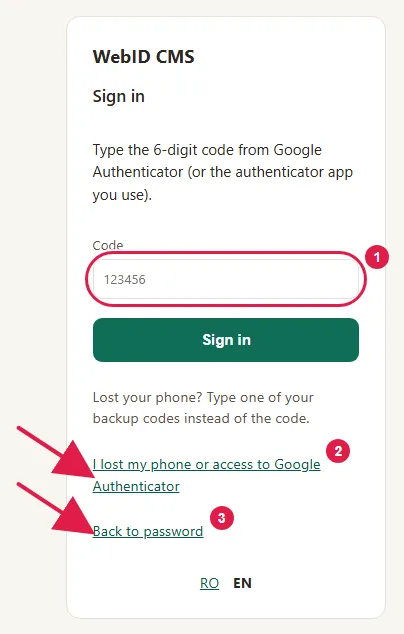
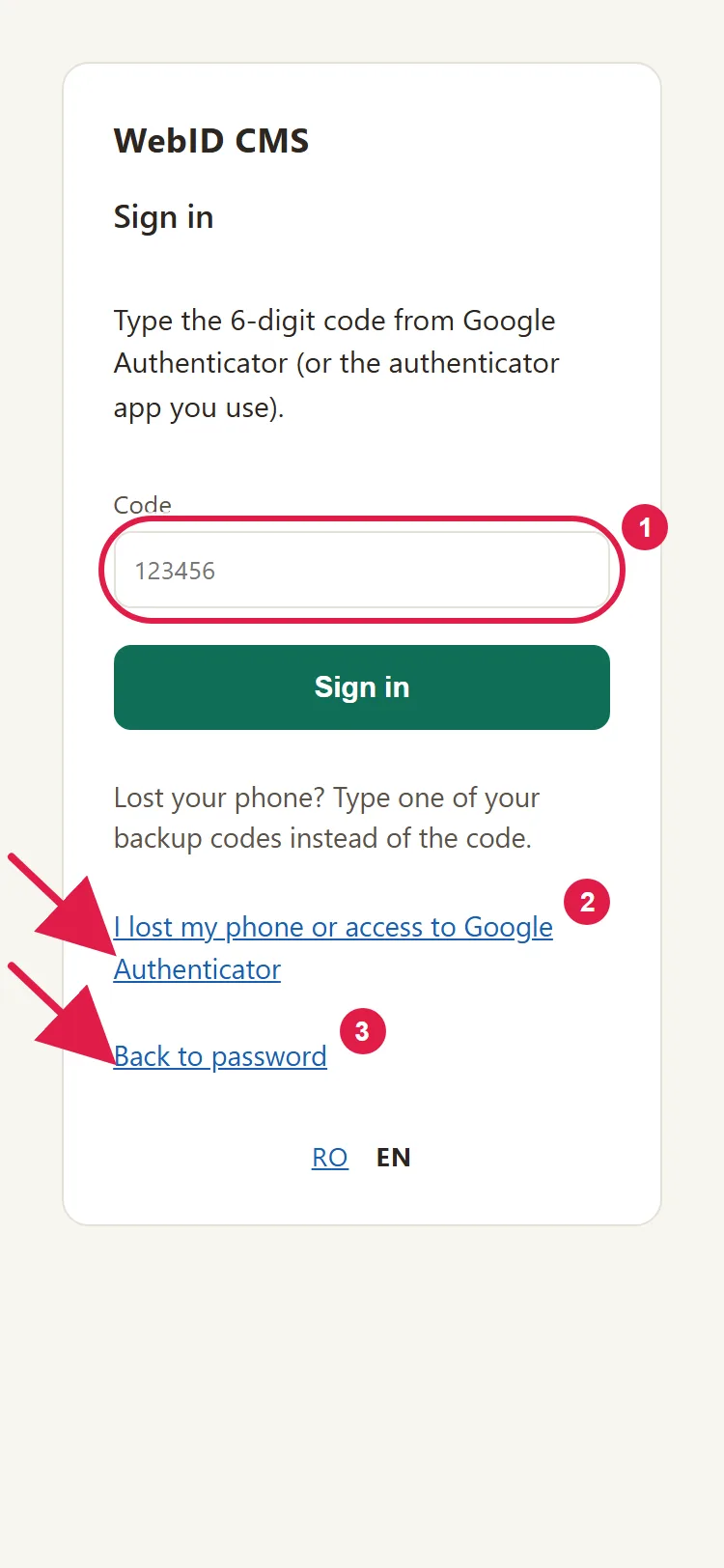
- Click Sign in.
You have 5 minutes between the password and the code. If you don't have your phone with you, type one of the backup codes instead of the code. On the same screen you'll find I lost my phone or access to Google Authenticator and Back to password.
How to make new backup codes
When you've used a few codes or no longer know where you put them, generate new codes while you still have your phone.
- Go to My Account › Two-step verification, to the New Backup Codes box.
- Type the code from the app (or a backup code).
- Click New Backup Codes. 10 new codes appear; the old ones no longer work.
- Keep them, like the first ones, and click I've Saved Them.
How to turn off verification
- Go to My Account › Two-step verification, to the Turn Off Verification box.
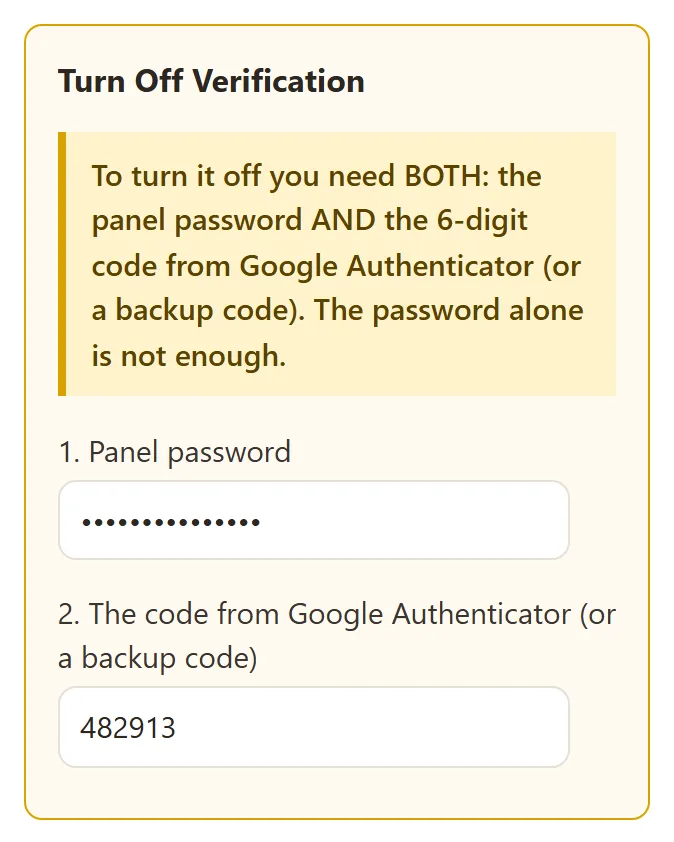
- Type your password in 1. Panel password.
- Type the code from the app (or a backup code) in 2. The code from Google Authenticator (or a backup code).
- Click Turn Off Verification. The button lights up only when you've typed both.
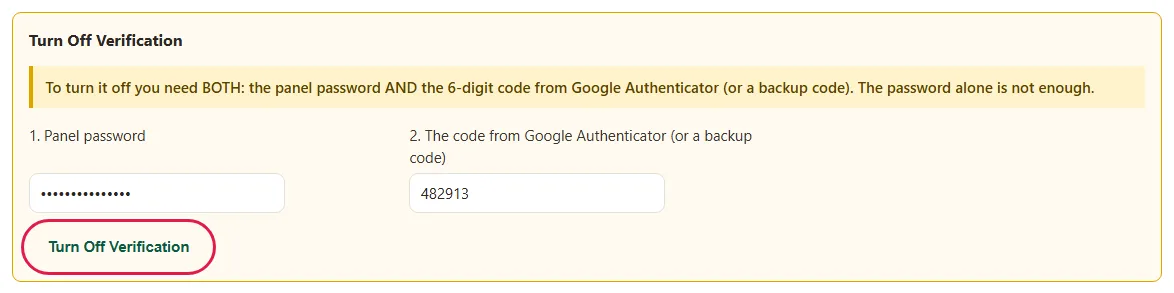
- You see the message "Two-step verification is off." and you get an email announcing it was turned off.
Turning it off also deletes the security question and the backup codes.
What to do when you change phones
- The old phone still works: turn off verification with a code from it, then turn it on again, with the new phone. You get new backup codes (the old ones no longer work) and you choose the security question again.
- You lost your phone: follow I lost access to my admin panel.
- A colleague lost their phone: the owner can turn off their verification from "Users"; see How to bring your colleagues into the admin panel, each with what they're allowed to do.
Common problems
- "I see: That code doesn't work." The cause can be your phone's clock being off (the code depends on the time), a code already used or the code of another account in the app: yours is "WebID CMS", with the website's address. Check the account first, then set the time to automatic on your phone and type the next code.
- "I see: Too many attempts - try again in 15 minutes." There were 10 wrong codes in 15 minutes from the same network. Wait 15 minutes.
- "I see: More than 5 minutes have passed since the password." Type the password again, then the code.
- "I just signed in and want to turn off verification, but it won't accept my code." The same code doesn't work twice. Wait for the next code in the app.
- "The Turn Off Verification button is gray." The password or the code is missing. Type both.
- "I ran out of backup codes." Make new codes while you still have your phone.
- "I got an email that verification is being turned off, but I didn't ask for it." This email comes when someone asks to get back in without the phone, not when you turn off verification yourself from My Account. Click the cancel link in the email, then Cancel Turning It Off. After that, change your admin panel password.
- "Something else isn't working." Write to us at contact@webid.ro with the message you see and at which step, and we'll take a look. Don't send us your password, the codes or the answer to the question.
What it doesn't do
- It's not mandatory: the admin panel doesn't ask you for it and it doesn't show up in the "Still to set up" list.
- It doesn't send the code via SMS or email. The code comes only from the app on your phone; otherwise, you use a backup code.
- Backup codes can't be seen again after you've saved them. You can only generate new codes.
- If the website can't send emails (or, for the owner, if the way-back-in address is missing), the way-back-in link doesn't go out.
- The screens mention only Google Authenticator, but codes from Microsoft Authenticator or Authy work the same.
What data it uses
If you turn on two-step verification, we keep on the website's server: the authenticator app key, the backup codes, the answer to the security question, the address for the way-back-in link and, for 24 hours, wrong recovery attempts. The codes and the answer are kept only in hashed (scrambled) form, which not even we can read. We use them only to let you in and delete them when you turn off verification - see DPA §3 and §6.