How to choose which email notifications you get and who else gets them
Requests from your website stay in the admin panel anyway, under "Requests". So you hear about them without keeping the admin panel open, the website can email them to you, one at a time or grouped into a digest. You choose just once which notifications you get and who else on your team gets them; it takes a few minutes.
Where to find notifications
The owner and colleagues with the Administrator role see this screen. The settings belong to the website, not to each colleague: what an administrator changes here applies to everyone.
- Go to Account & Settings › Settings.
- Under Your notifications, open the E-mail Notifications section. Next to the title it says "notifications on" or "notifications off - turn them on".
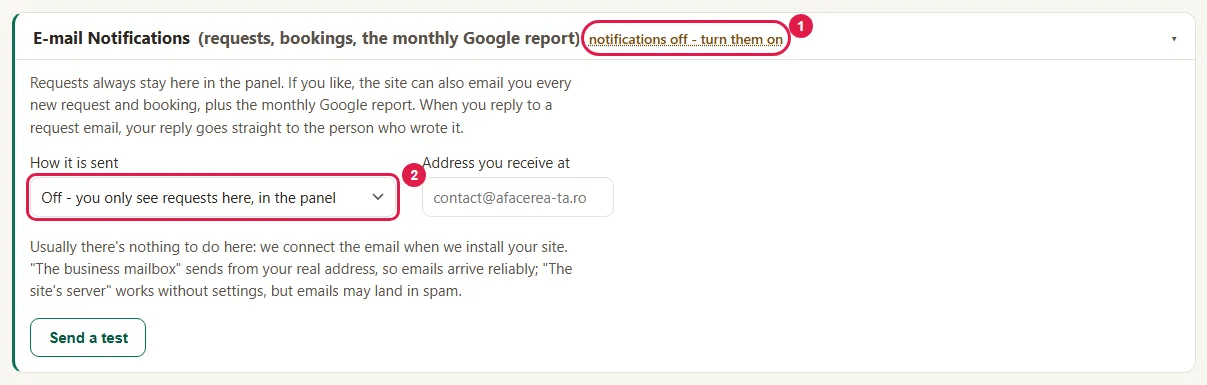
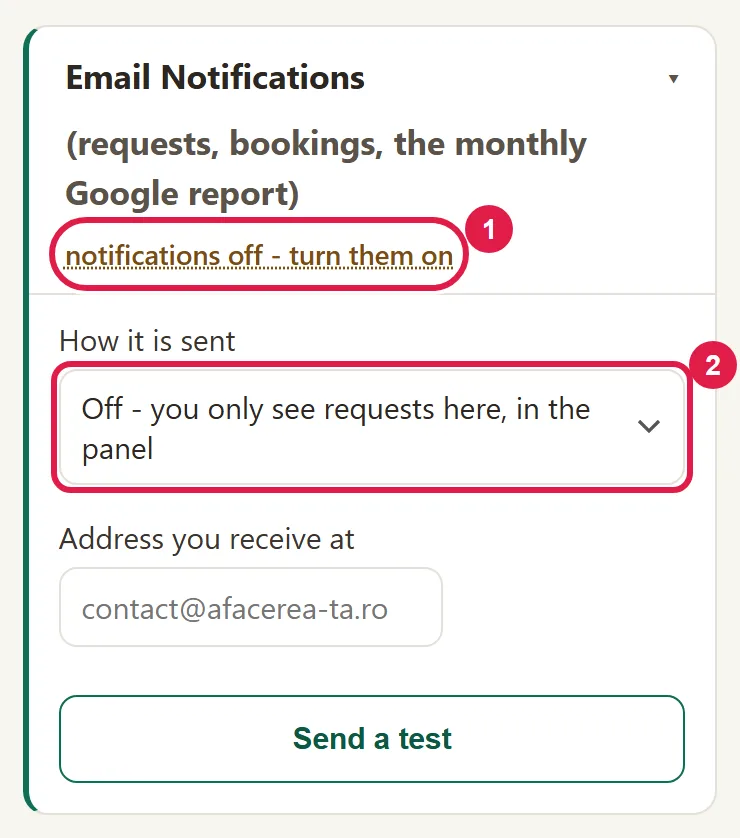
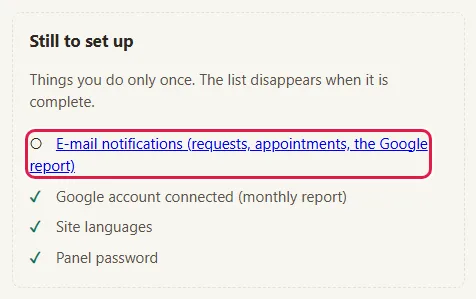
You can also get here from "Today", from the E-mail notifications… row of the "Still to set up" list.
How to check that the website can send emails
We usually connect your email when we install your website, so most of the time there's nothing to change here: you just check that it works.
- Under How it is sent, look at what's selected:
- Off - you only see requests here, in the panel: no email goes out from the website, not even the notifications that can't be turned off. Booking notifications are then sent directly by the Bookings panel (app.webid.ro).
- The business mailbox (the recommended option): emails go out from your business's mailbox.
- The site's server (simple, but may land in spam).
- Check the address in Address you receive at (for example contact@afacerea-ta.ro).
- Click Send a test. Before the test, the admin panel saves How it is sent and the address; the checkboxes below are only saved when you click Save.
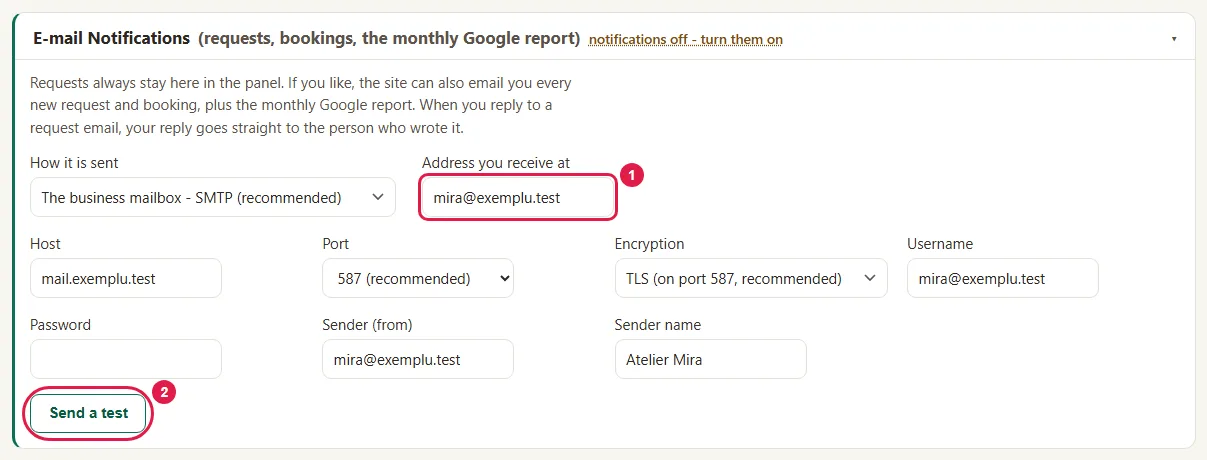
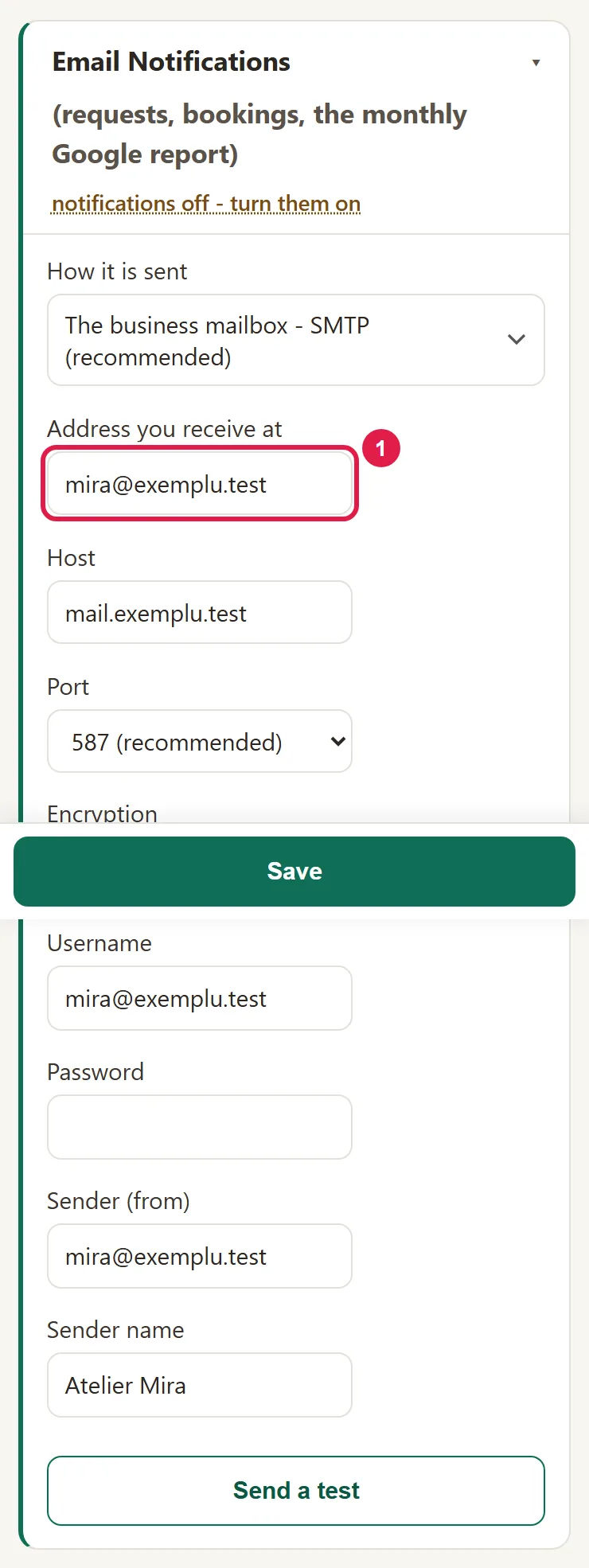
- When you see "Test sent to…", look for the test email in your inbox.
If Off is selected or the test doesn't go out, write to us at contact@webid.ro: we'll add the details from your hosting company.
How to choose which notifications you get
- Further down, under Which notifications you get, each notification is a row. Check the ones you want and uncheck the others.

- For each notification, choose straight away, daily digest or weekly digest from the list.
- Under To:, check who gets it: you (the address above) and the active colleagues in "Users".
- If you want someone else to get it too, type their address under Other addresses. Separate several addresses with commas.
- Click Save, at the top. A single Save keeps the whole screen. You see the message "Notifications saved."
Which notifications you can get
You only see the notifications that fit your website.
- Always: New request from the website.
- With Bookings: New appointment · Appointment to confirm (straight away only, can't be turned off) · A client canceled · This month's SMS messages are running out (straight away only).
- With Collect reviews: A client wants a call back (straight away, can't be turned off; you and all colleagues with the Administrator role always get it) · A client wasn't satisfied (straight away, can't be turned off) · New feedback from a client.
- With Blogging Plus: New topics in your blog plan · You have an article to approve: an article written with AI is waiting for you to read it; it doesn't appear on the website until you approve it. While automatic writing is on, this notification can't be turned off, but you can move it to the digest.
- With Visibility, from Medium: Monthly SEO report (straight away only; it's already a one-month summary).
For notifications that can't be turned off, the checkbox is gray and the reason is written under it.

What notifications look like
- Straight away: one email per notification, sent by the website, the way you chose under How it is sent. For a request, if you click "Reply" in your email program, you write directly to the person who sent it.
- Daily digest: a single email, "Notification digest", with everything that has built up. It goes out after 8:00 a.m., on the first visit to the website or the first time you open "Today", not at exactly 8:00 a.m.
- Weekly digest: the same, on Mondays, after 8:00 a.m.
What you always get from us
Below the list you also see three notifications that always come from WebID and can't be turned off: invoices and payments, the alert that your website is down and that it's back up, and the links for your admin panel password. They go to the address you gave us when you ordered.
Common problems
- "I'm not getting anything." Next to the title it says "notifications off", the address in Address you receive at is missing or wrong, or the notification is unchecked. Check How it is sent, the address and the checkboxes in turn, then your Spam folder.
- "I see: The test did not go out." Most often, the mailbox details don't match the ones from your hosting company. Write to us at contact@webid.ro with what appears after "The test did not go out:" and we'll add the correct details.
- "Notifications land in Spam." This often happens when The site's server is selected. Write to us at contact@webid.ro and we'll switch sending to your business mailbox.
- "I chose daily digest and it didn't come in the morning." The digest goes out on the first visit to the website or the first time "Today" is opened after 8:00 a.m. On a day with no visits, it arrives later.
- "I can't uncheck Appointment to confirm." It's locked on purpose: your client is waiting for confirmation. The reason is written under the row.
- "I see: These addresses don't look right." An address under Other addresses is mistyped. Fix it and separate the addresses with commas; until then, nothing is saved.
- "Something else isn't working." Write to us at contact@webid.ro with what you see on the screen and we'll take a look.
What it doesn't do
- It only sends email: no SMS messages, no WhatsApp. On your phone, you read notifications in your email app.
- If the website can't send emails, no notification goes out from the website (booking notifications are sent directly by the Bookings panel). Requests still stay in "Requests".
- You can't choose the time of the digest (after 8:00 a.m.) or the day of the weekly one (Monday). On a day with no visits to the website, the digest may be late.
- You can't change the text of the notifications.
- Colleagues only get notifications if you check them. The exception: "A client wants a call back" always goes to all administrators. A colleague who hasn't accepted the invitation yet doesn't appear in the list.
- Notifications that come from WebID (invoices, website down, password) aren't set here.
- Bookings have their own notification settings too, in the Bookings panel (app.webid.ro).
What data it uses
Notifications go out from your website's mailbox (the monthly SEO report, from rapoarte@webid.ro), only to the addresses you choose: yours, those of the colleagues you check and the ones under "Other addresses". They may contain data from visitors' requests, which we process on your behalf - see DPA §3, the "Contact form" row. Invoices, website alerts and password links come from us or from Stripe, to the address on your order - see Privacy notice §3.c.