How to show your website in another language too, so foreign clients can find you
If you have tourists, expats or clients from another country, they search on Google in their own language and leave a website they don't understand. With the Multilingual website add-on, your website exists page by page in their language too (usually English), with its own addresses that Google can find. Each language comes translated by us, with AI, or without translation, if you add the texts yourself (see below).
What you get is on the offer page. Multilingual website is paid once, it isn't a subscription; you see the price on its card in "My Account › What else you can add".
What you get
- Your whole website in each language, with real pages, at their own addresses (for example
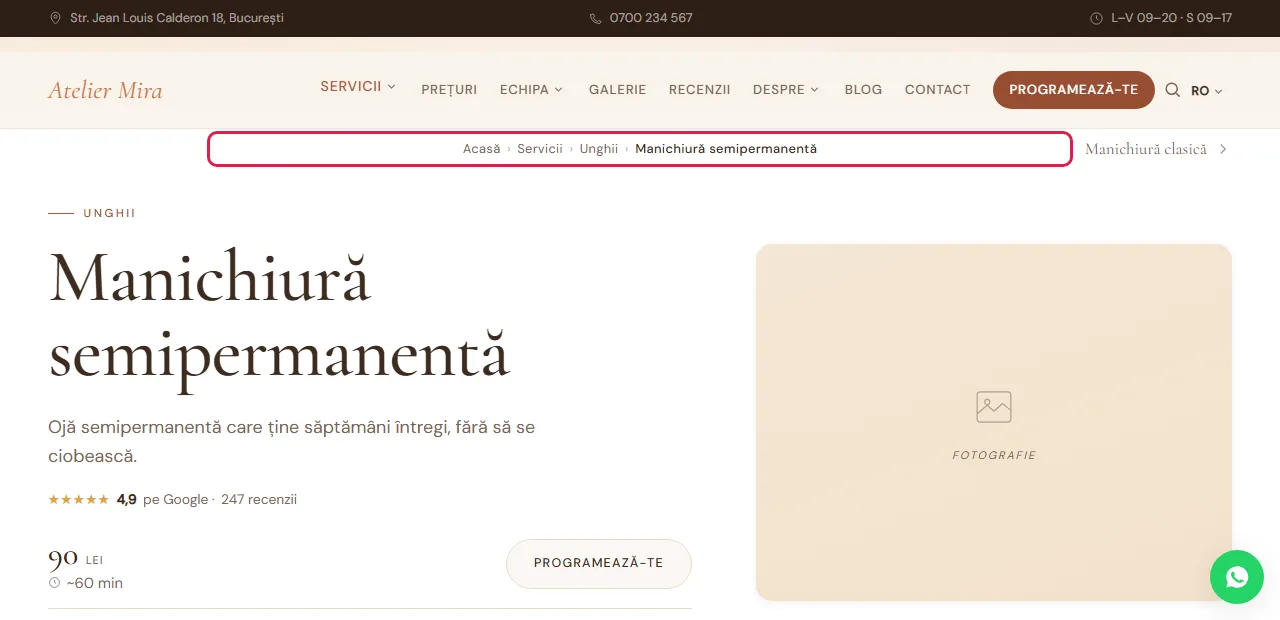
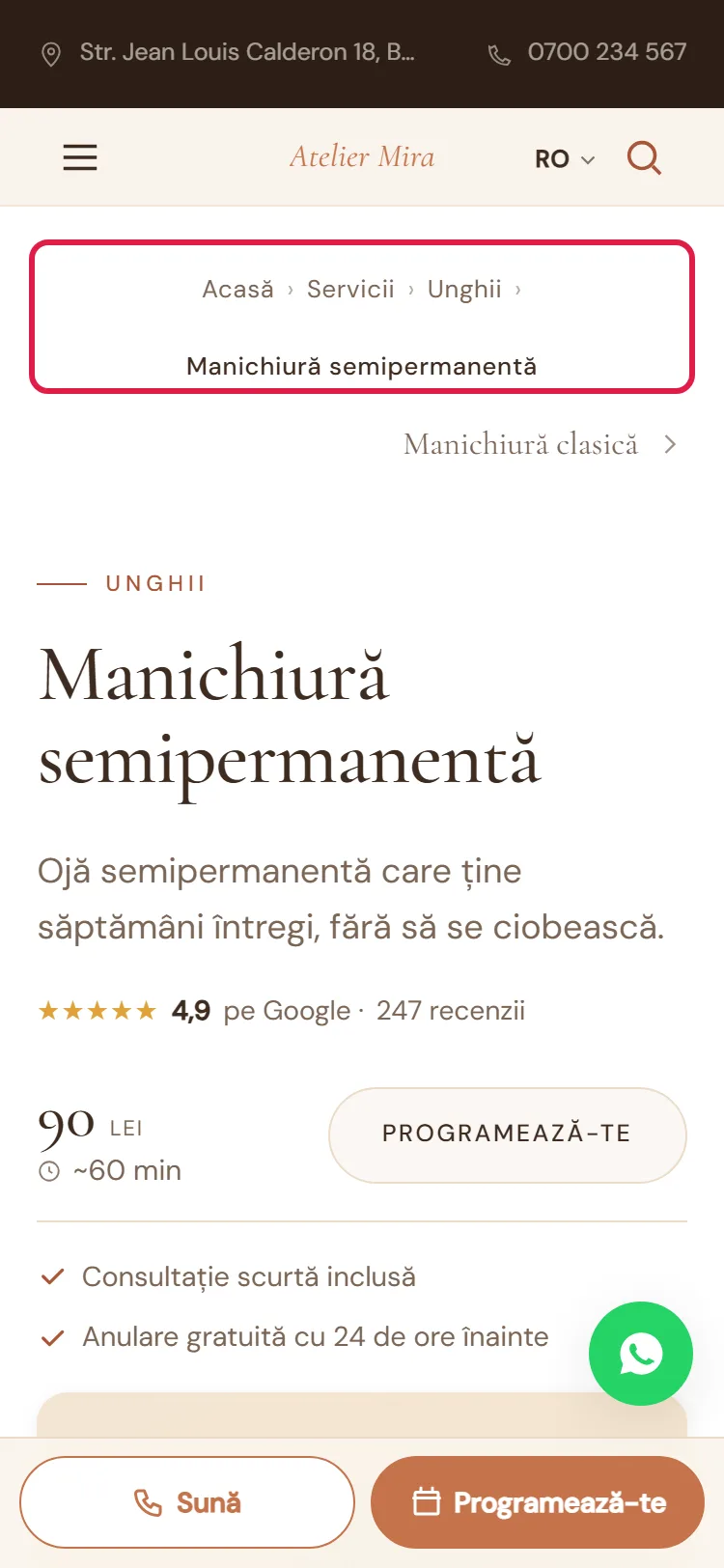
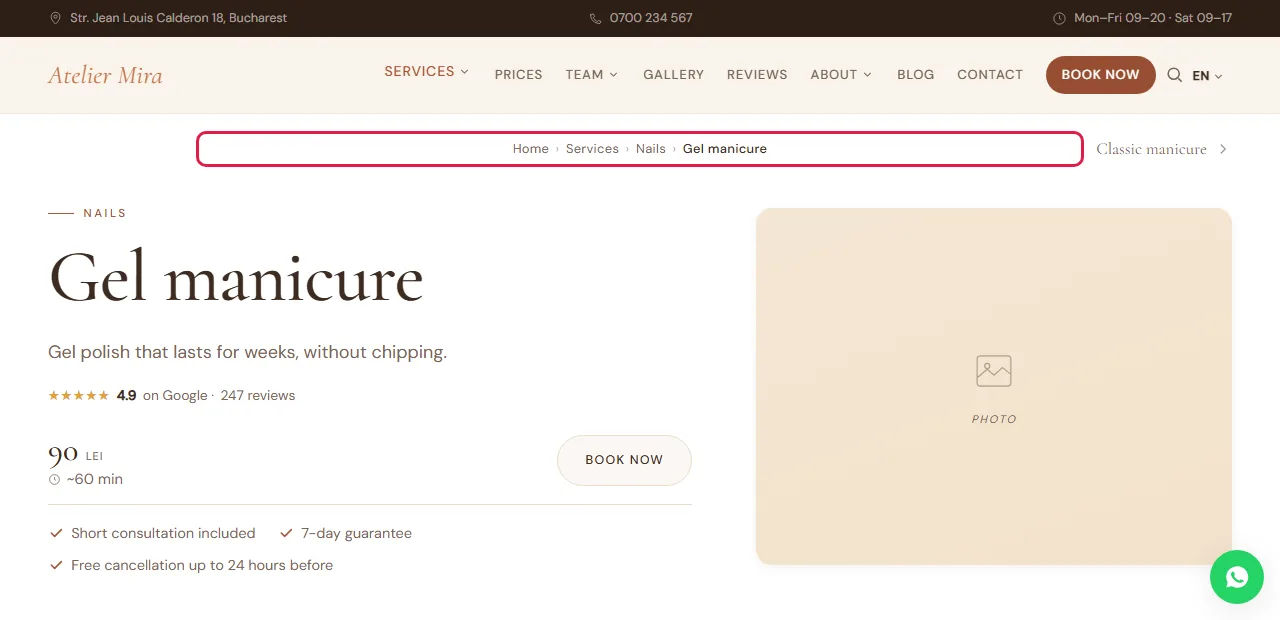
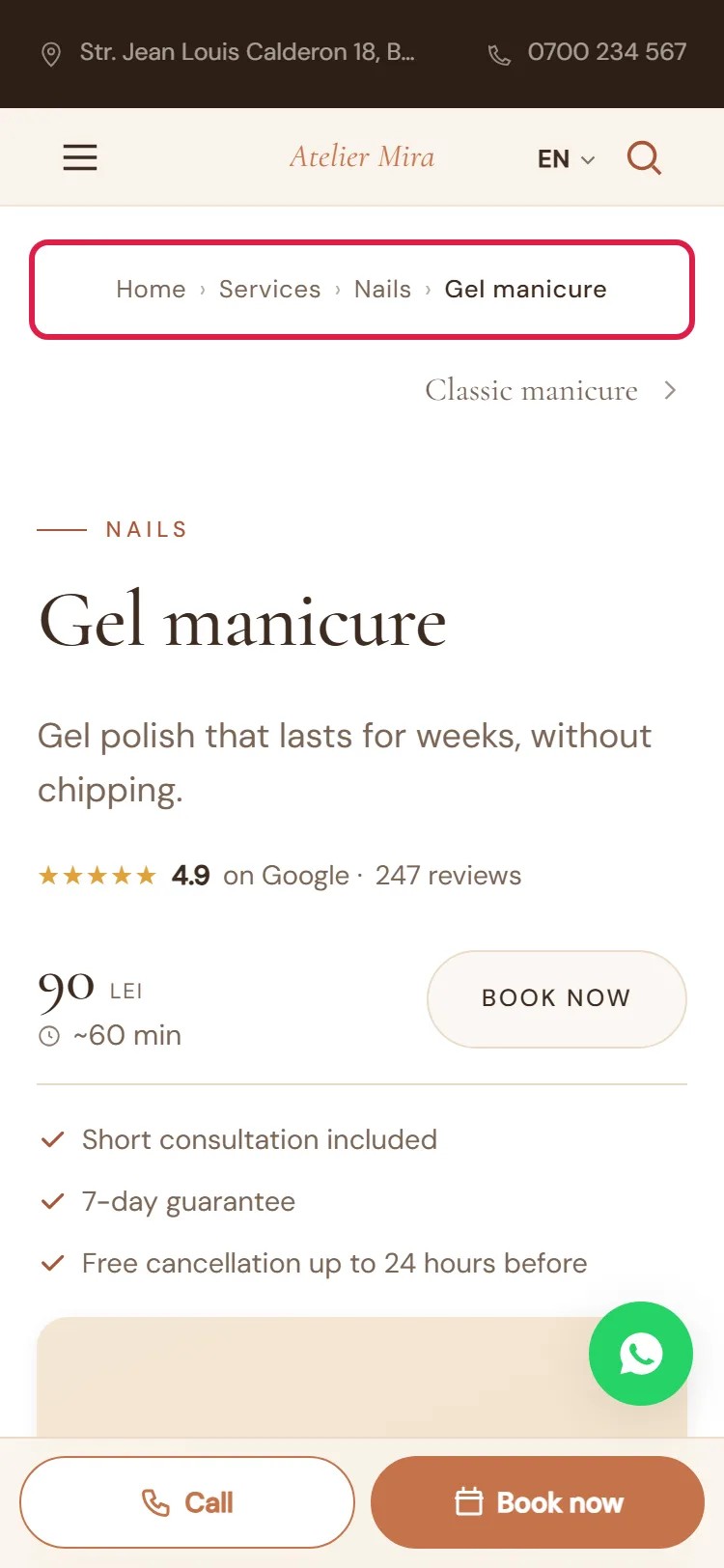
/en/for English). It isn't a translation done by the browser. - A language switcher in your website's header, where visitors choose their language.
- Google learns which pages are the same page in another language and can show each person the right version.
- Addresses translated into English:
/servicii/becomes/services/,/despre/becomes/about/. When you translate a page's address, the old one in that language leads to the new one by itself; the page in Romanian stays where it was. - The "Languages" panel, in Settings, which shows you how much you've translated in each language.
How to get started
- In the admin panel, open "My Account › What else you can add" and click Add to Cart on the Multilingual website card (the steps are in How to add a new add-on to your website). Then write to us at contact@webid.ro which language you want.
- We build the pages in the language you chose and upload them to your website. You don't have anything to click for that.
- In the admin panel, open Account & Settings, then Settings.
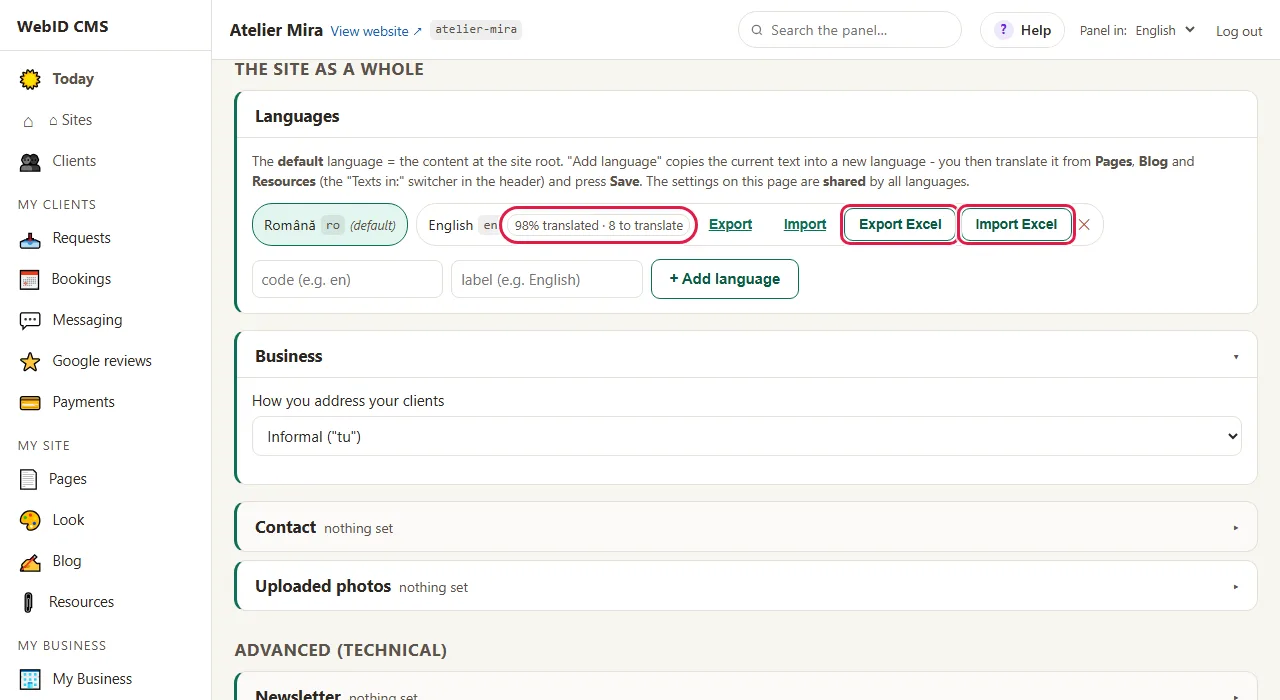
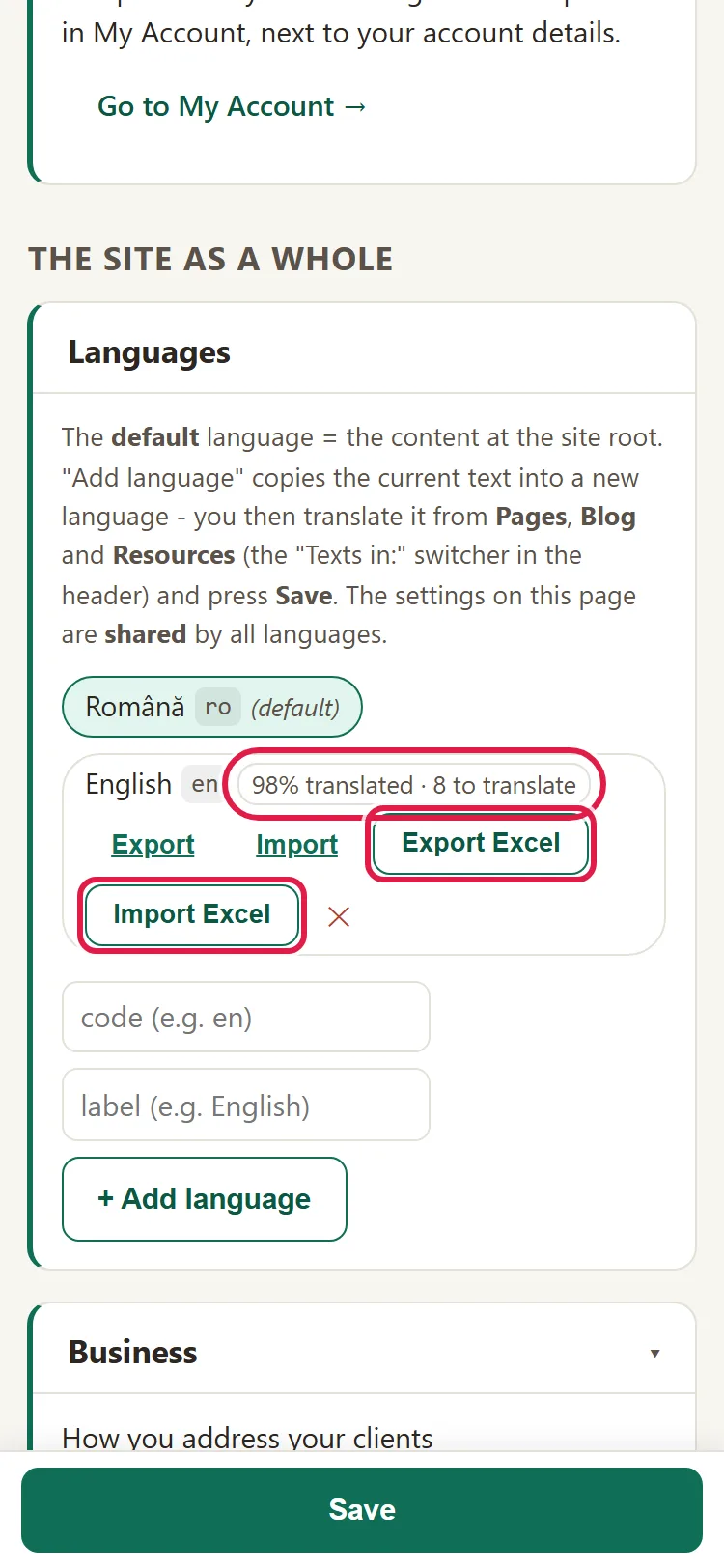
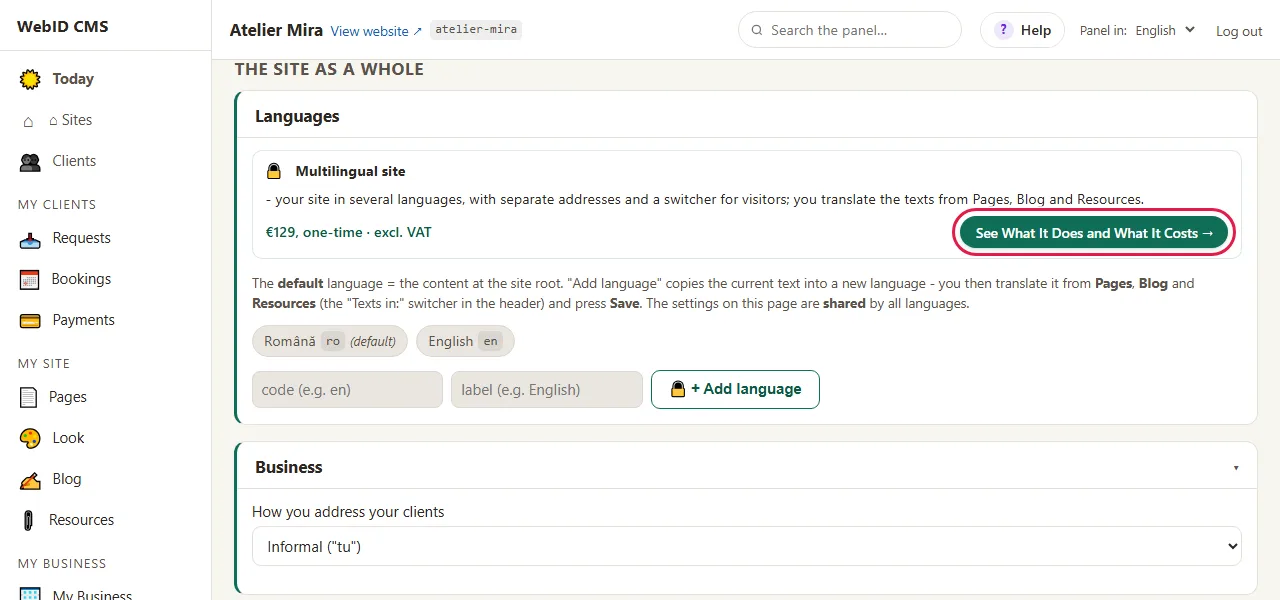
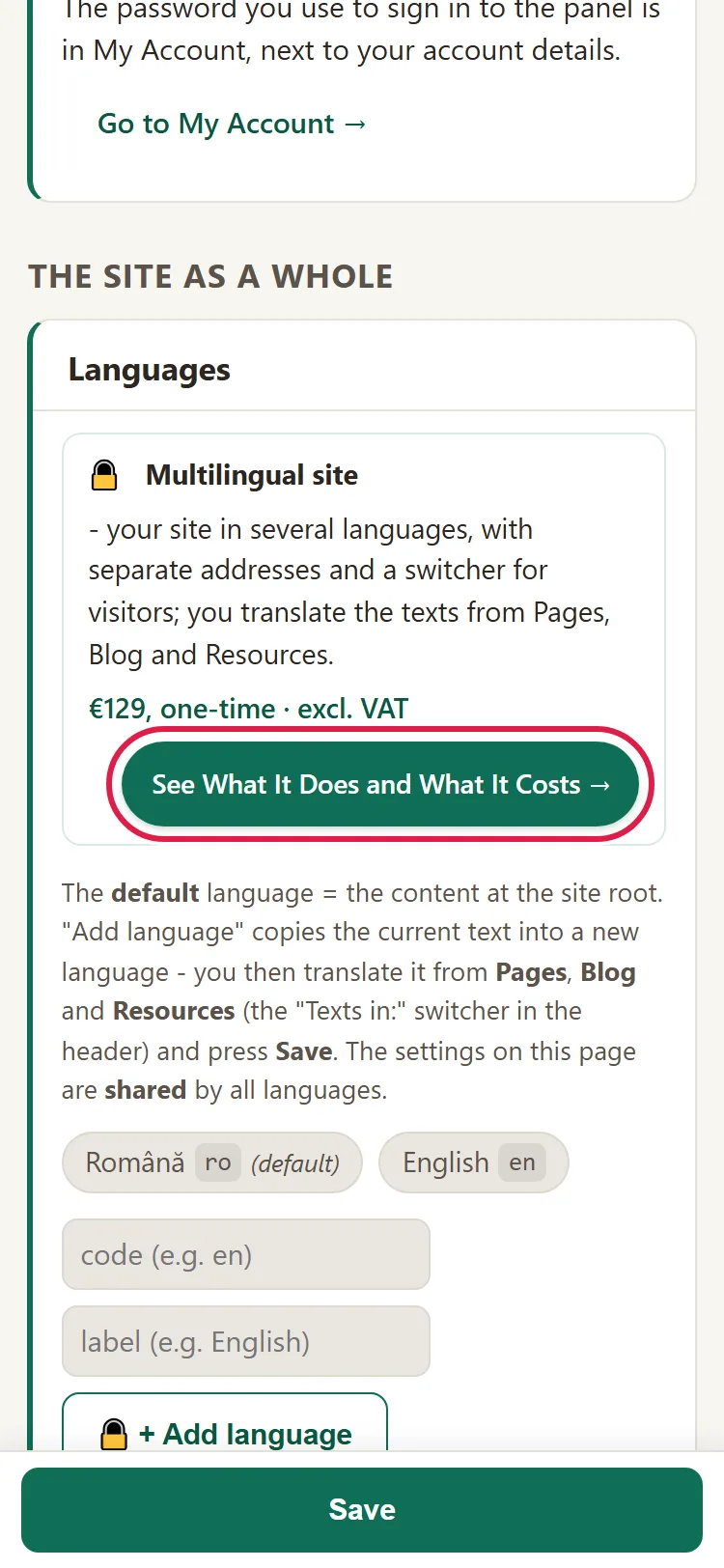
- Go to the "The site as a whole" level, the "Languages" panel. You see your website's languages, for example "Română ro (default)" and "English en", each with how much of it you've translated.
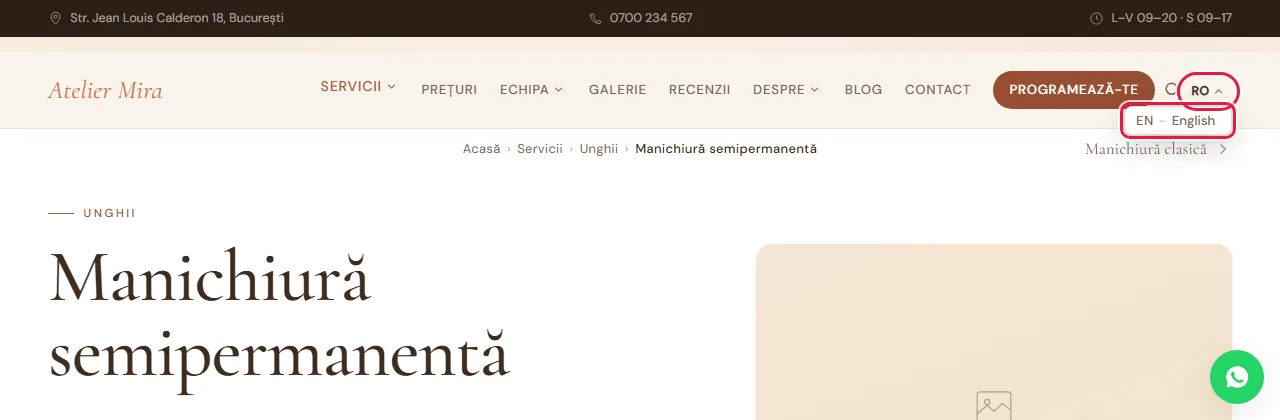
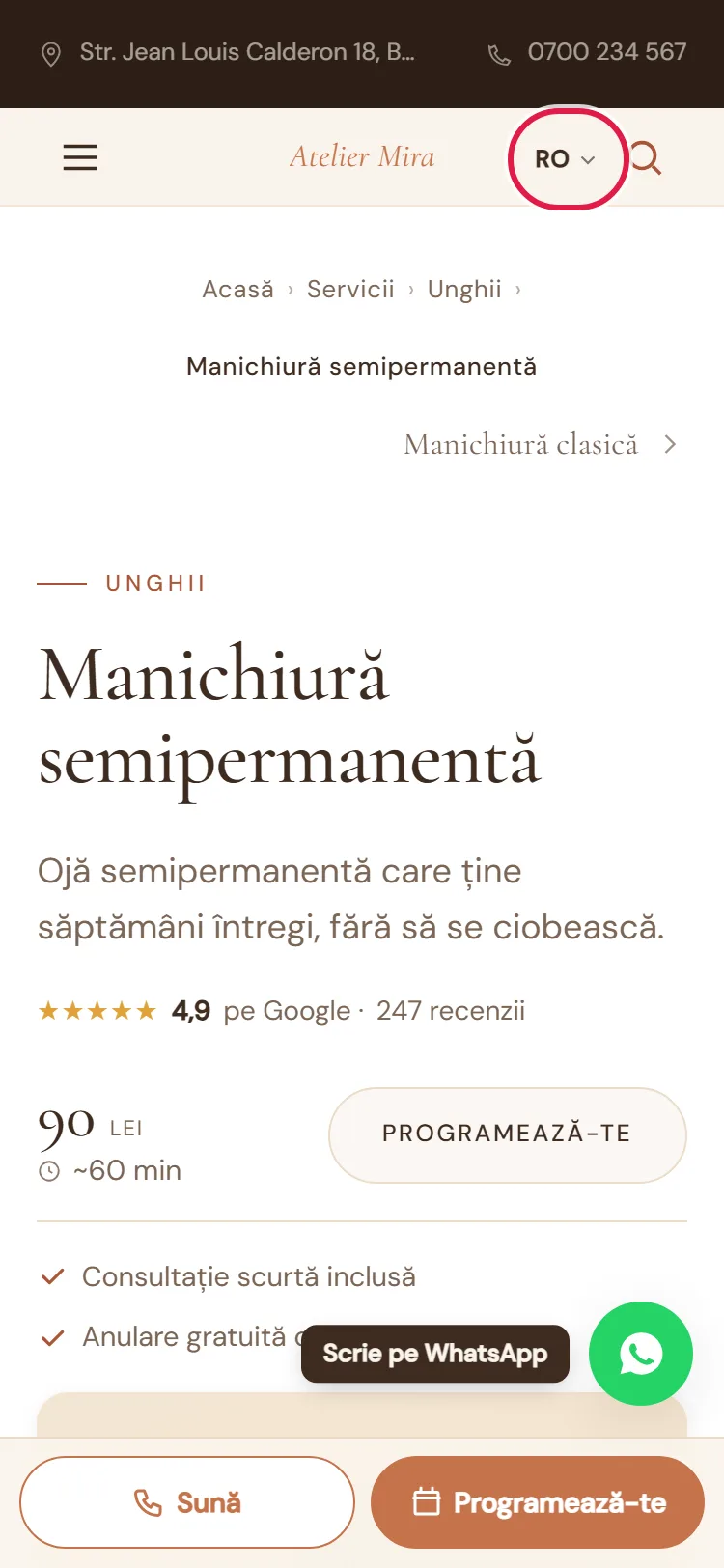
- Open your website, choose the new language from the switcher in the header and go through the pages.
With the option without translation, the new language starts with a copy of the texts in Romanian, so you don't have empty pages. The language translated by us, with AI, costs depending on the size of your website (€59, €99 or €149, paid once); without translation, it's €29, and you add the texts yourself, in the admin panel or in an Excel file. Order the translation after your texts are on the website, so you don't pay for it twice. The steps are in How to translate your website's texts.
If you don't have the add-on yet, the "Languages" panel is grayed out, with a padlock and See the offer →.
What you do day to day
How to change a text in another language
- In the admin panel, open My Site, then Pages.
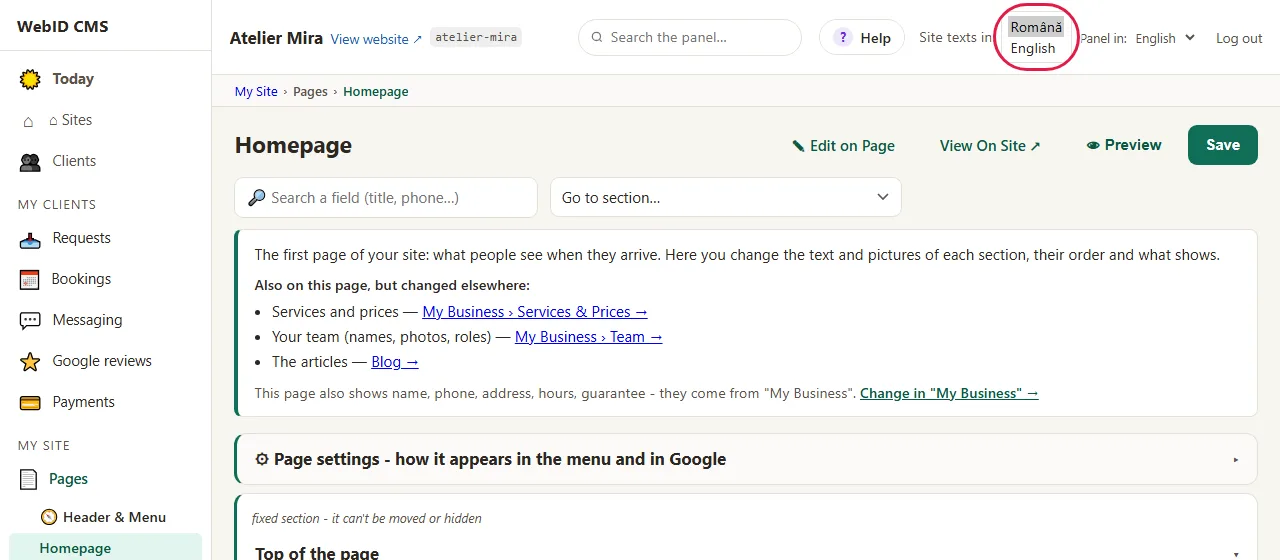
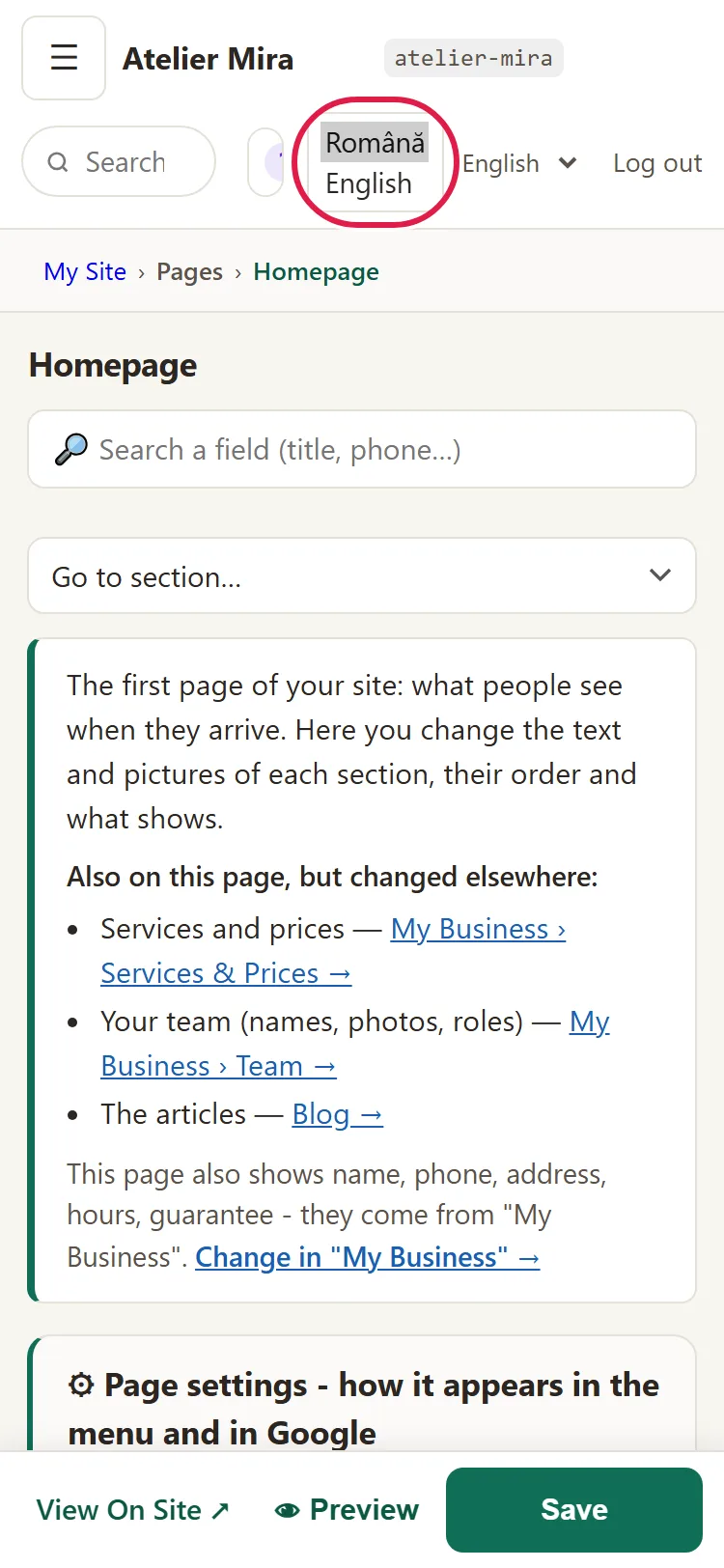
- In the admin panel's header, under Site texts in:, choose the language (for example English). The page reloads in the language you chose.
- Change the text, just as in Romanian.
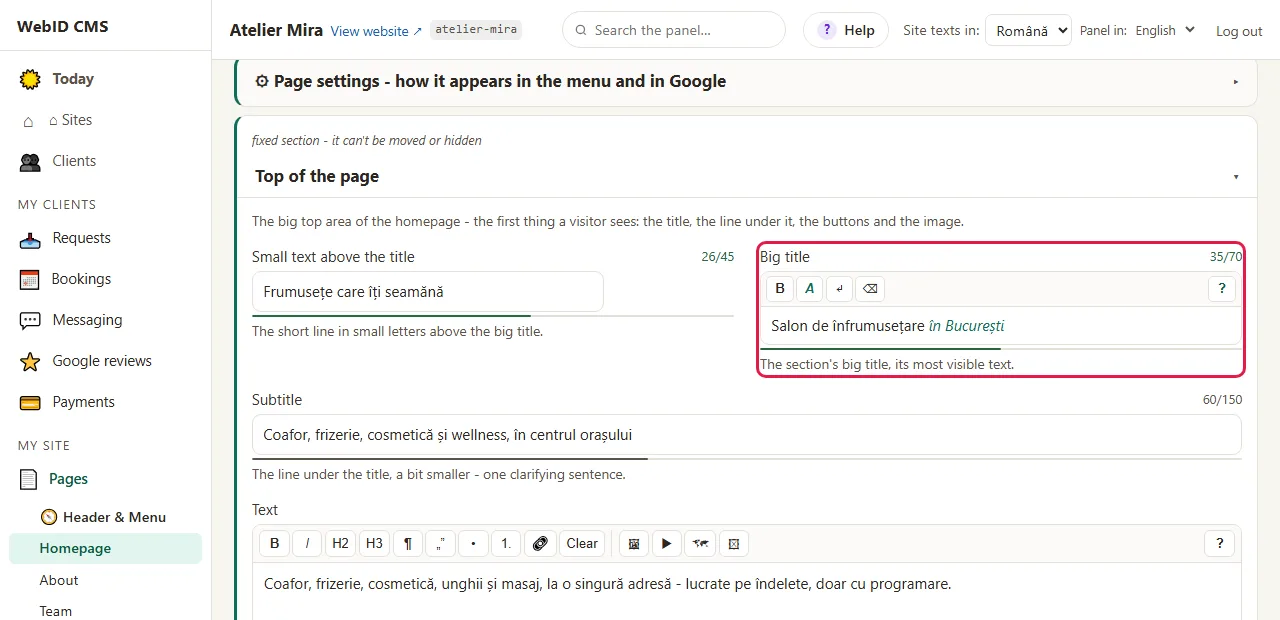
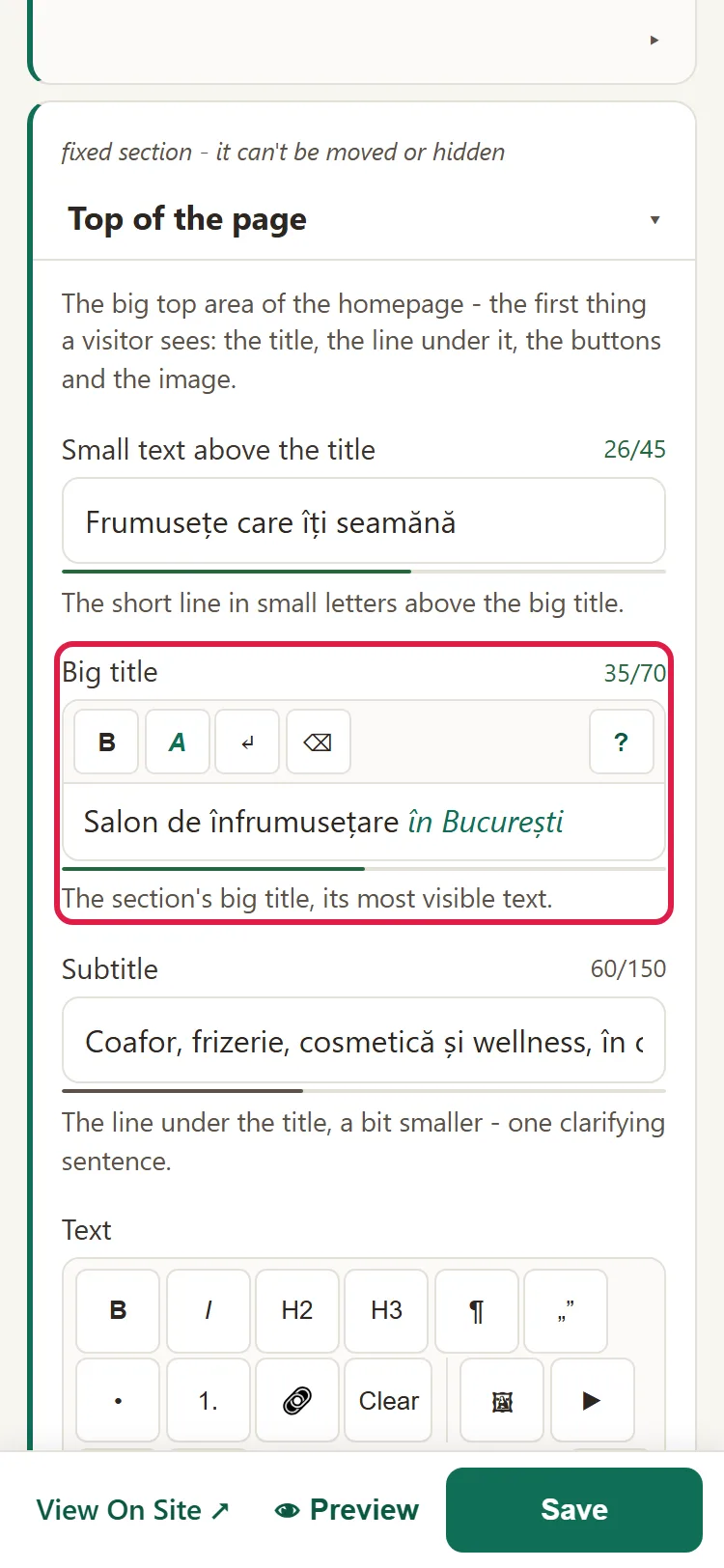
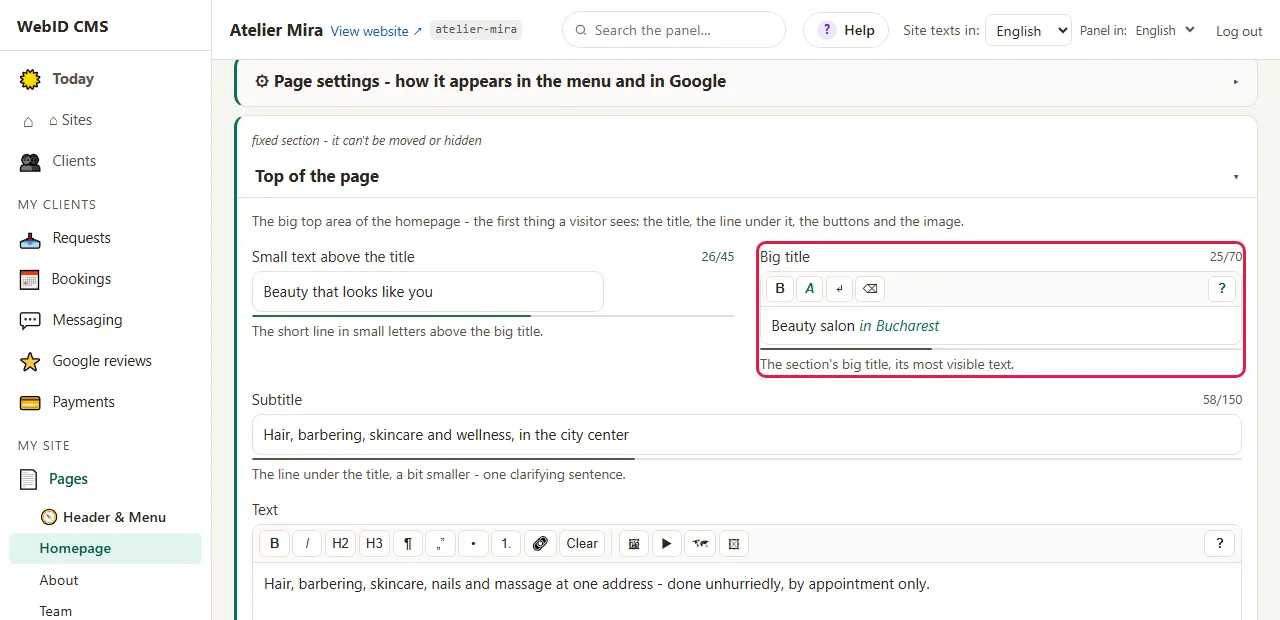
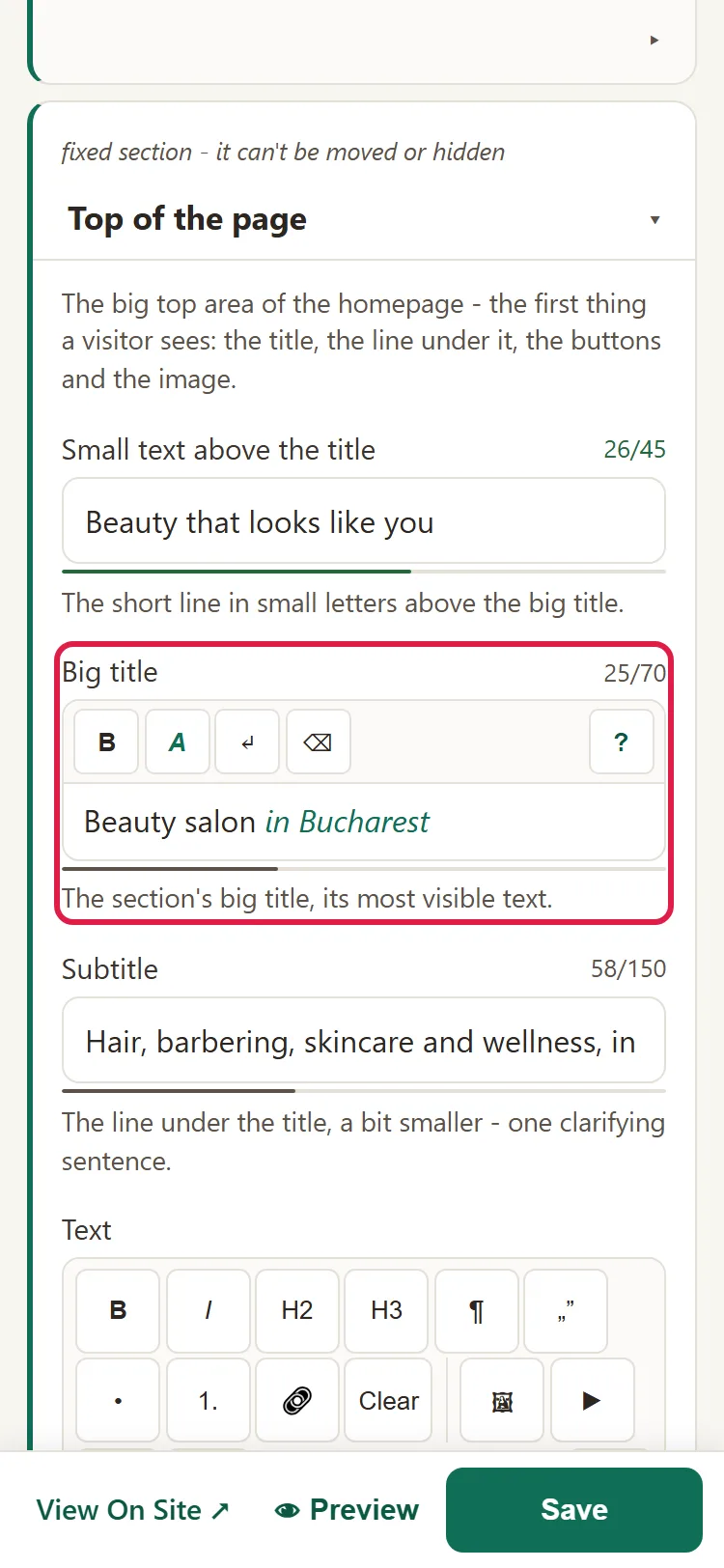
- Click Save.
For the blog and resources: first choose the language in Pages, then go to Blog or Resources from the menu on the left. The admin panel stays on the language you chose.
What you change once, for all languages
Settings, photos, colors and prices are the same in all languages. You change them once and they show everywhere. The admin panel reminds you: "The settings on this page are shared across all languages."
How to see how much you have left to translate
In Settings, the "Languages" panel shows, for each language, how much is translated and how many texts you have left, or "100% ✓" when it's done. Hover over the percentage to see how many texts out of the total are translated. The percentage only counts the texts that are filled in: if you later change a text in Romanian, its old translation still counts as done.
How to check your website in the new language
Open your website, choose the language from the switcher in the header and go through the pages. The page addresses show the language too.
Common problems
- "I don't see 'Site texts in:'." The list only appears when your website has at least two languages, and only on the screens with texts. Open Pages.
- "I chose the language in Blog and nothing changes." Choose the language in Pages, then go to Blog from the menu.
- "The page in English shows the text in Romanian." The text hasn't been translated yet: the new language starts with a copy of the texts in Romanian. Translate it; in "Languages" you see how many are left.
- "I can't add or delete a language." Only the website owner can do that. An invited administrator can translate, but can't change the languages.
- "Something else isn't working." Write to us at contact@webid.ro.
What it doesn't do
- The texts don't translate themselves. You change them, in the admin panel or in Excel; the initial translation is done by us, if you take the translated language.
- The + Add language button in "Languages" doesn't make the language's pages on your website by itself. We build the pages of an added language.
- Apart from English, the fixed parts of the addresses stay in Romanian (
/servicii/,/despre/). - Your website's fixed texts (the buttons, the cookie banner, the form messages) come already translated into English. For another language, this part is done separately: we tell you, before you pay, what's included and what isn't.
- The translated percentage doesn't notice when you change the text in Romanian after you've translated it: the old translation still counts as done. When you change a text in Romanian, change it in the other languages too.
- From the admin panel, you can't keep a language hidden from visitors until it's translated.
- It doesn't change the admin panel's language. That's a different setting: How to use the admin panel in another language.
What data it uses
Your website's texts in each language are stored on the website's server, just like the ones in Romanian. The add-on doesn't add personal data and doesn't send anything to other providers. Details in the DPA, under "Website + hosting".