How to translate your website's texts: yourself, in Excel or done by us
The new language on your website starts with a copy of the texts in Romanian, and you replace them with the translation. The admin panel doesn't translate by itself. You have three options: write the translation directly in the admin panel (good for a few texts), work in an Excel file (good for many texts or for a translator) or leave it to us.
The first two work anytime; the third, translating the whole website, is done by us, with AI, when you add the translated language. You need the language already set up on your website (the guide How to show your website in another language too) and the owner or administrator role in the admin panel.
How to translate directly in the admin panel
It works well for corrections and for a few texts.
- Open My Site, then Pages.
- In the admin panel header, under Site texts in:, choose the language (for example English). The page reloads, with the website's texts in the language you chose (the admin panel's menus stay in their own language).
- Change the texts, just as in Romanian.
- Click Save. What you save shows on the website right away.
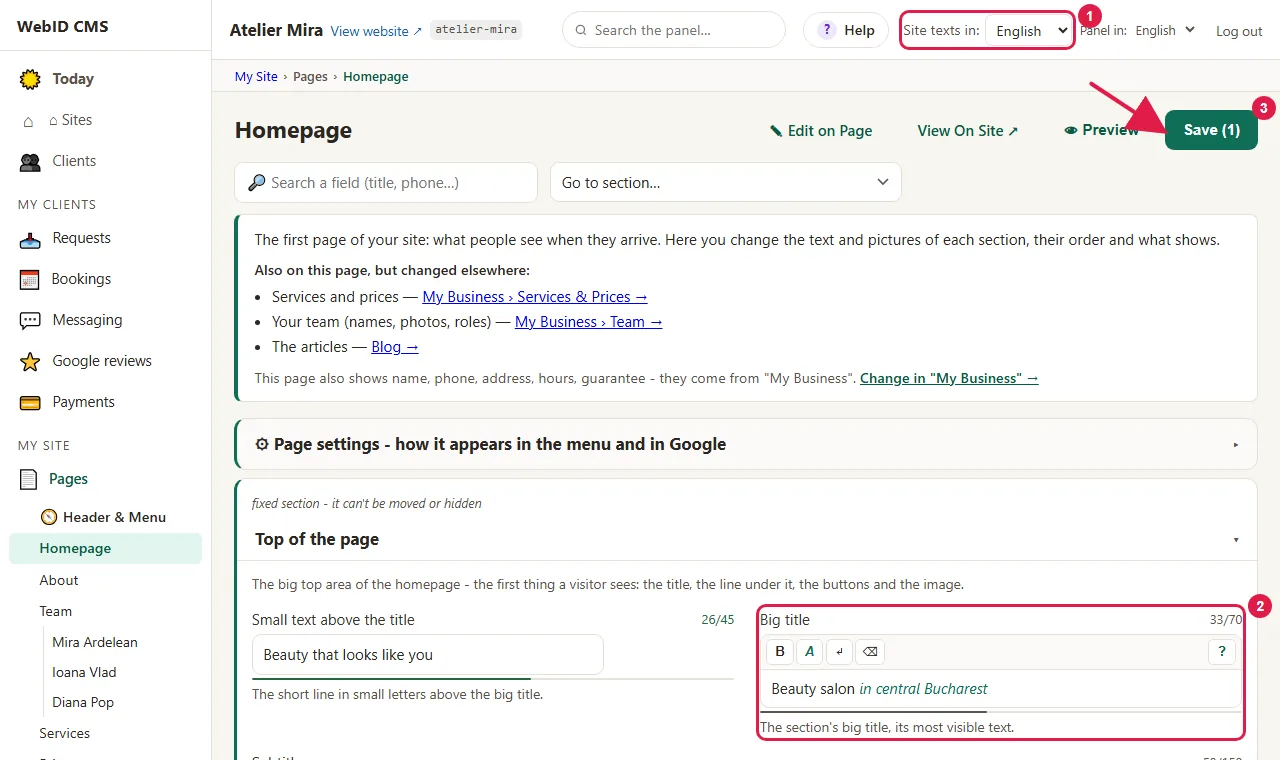
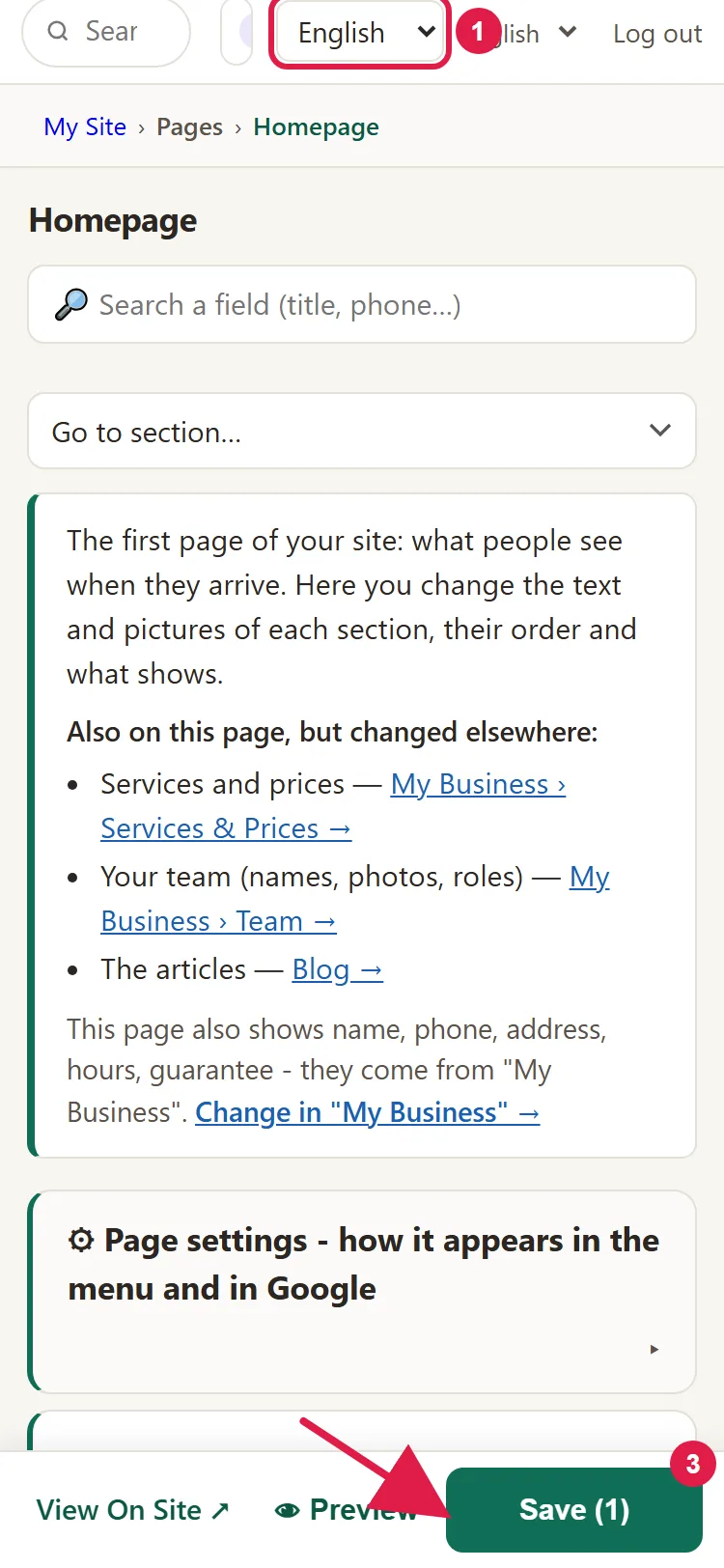
- For Blog and Resources, go in from the menu on the left after choosing the language in Pages. The admin panel stays on the language you chose.
- The services, team and questions in My Business also follow the language chosen in Pages.
How to translate in Excel
It works well for many texts at once or when you work with a translator.
Download the file
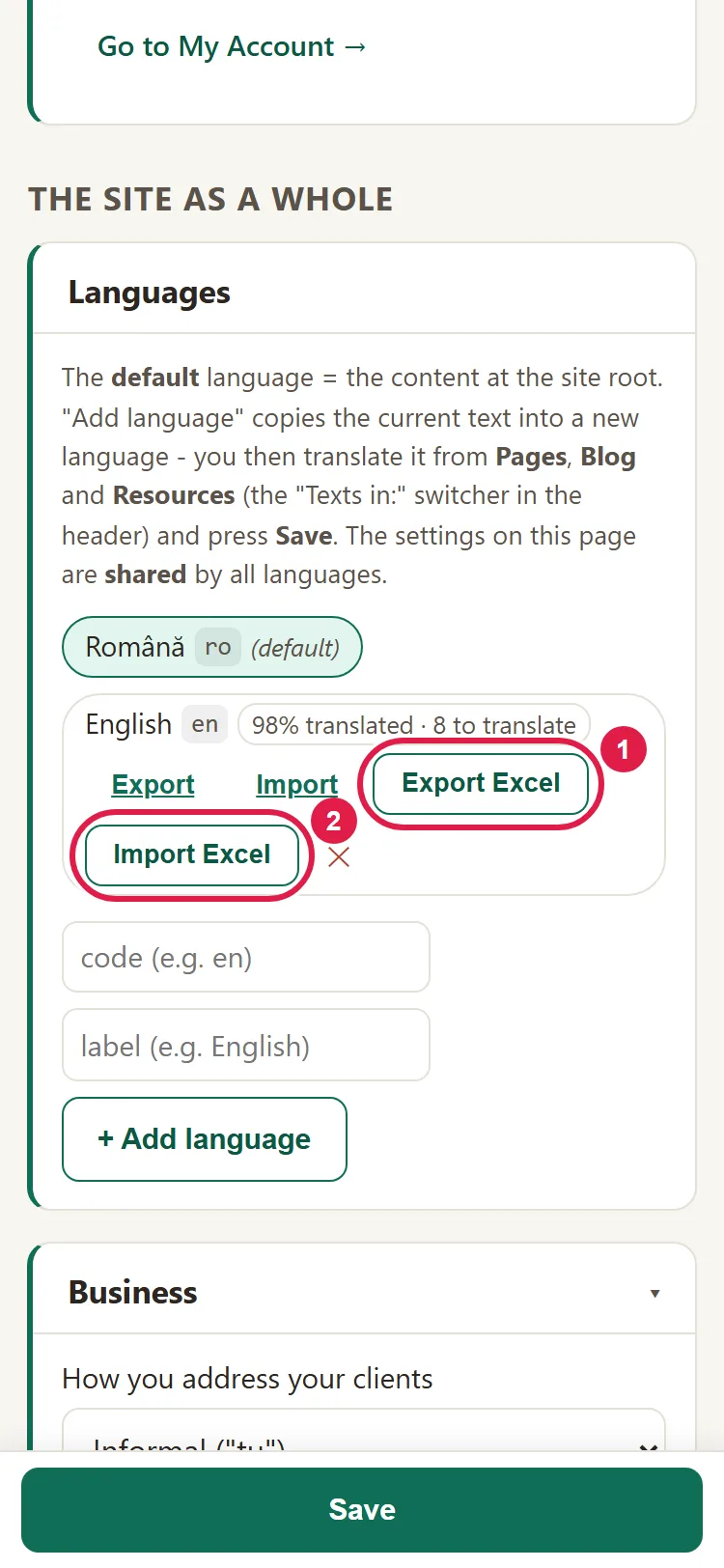
- Open Account & Settings, then Settings, the "The site as a whole" level, the "Languages" panel.
- Next to the language you're translating, click Export Excel. An Excel file with all the texts to translate is downloaded.
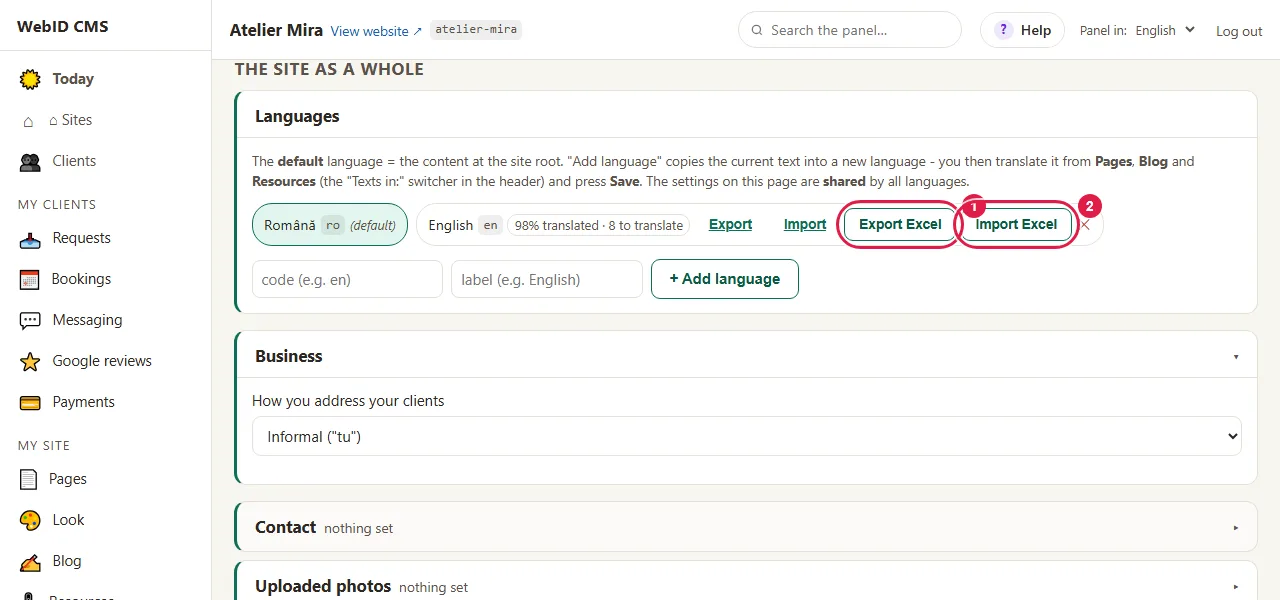
Export a new file every time you start a translation. If you corrected texts in the admin panel after downloading a file, don't import the old file anymore: it would overwrite your corrections.
Fill in the translation
In the file, the "translate" sheet has several columns. You (or the translator) write in only one of them.
- Write the translation in the target column, the yellow one, on each row.
- Don't change the id and source columns (the text in Romanian). Without them, we no longer know where each translation goes.
- Rows that have "slug" in the flags column are the page addresses. Translate them briefly, in lowercase letters and with hyphens between words (for example "manichiura-clasica" becomes "classic-manicure").
A row left empty doesn't delete anything: we skip it.
Upload the translated file
- In "Languages", click Import Excel and choose the file.
- The admin panel checks the file and shows you, in a question, how many changes it makes and in how many places. Click OK to apply the translation.
- Wait for the message "Translation imported ✓".
If you also translated the page addresses, the old address automatically leads to the new one.
If you work with translation software, you also have the Export / Import option, with a JSON file instead of Excel. This option keeps the texts you corrected in the admin panel after exporting.
How to let us translate
It's the right option if you don't have time or don't have a translator: your website's texts are translated by our AI, then go through an automatic proofreader, and you check them at the end. The buttons and the cookie banner aren't included here: in English they're already translated; for another language, we translate them, once, together with the language. The translated language costs €59, €99 or €149, paid once, depending on the size of your website (Multilingual website). Order the translation after your texts are on the website, so you don't pay for it twice.
- In the admin panel, open "My Account › What else you can add" and click Add to Cart on the Extra website language card (the steps are in How to add a new add-on to your website). You don't choose the size: the cart works it out from the number of pages on your website, articles included, and you see it before you pay. Over 200 pages, we translate the first 200, and you translate the rest with Page translation. Each language has its own price.
- We translate your website's texts. Whatever you've corrected in the meantime in the admin panel, we don't overwrite.
- You check the result in the admin panel, as with the direct translation above, and correct whatever you want.
A blog article or a resource is translated with Translate into followed by the language, from its editor. It uses one page translation (Page translation: 10 pages = €29), not Blogging Plus credits, and the translated article arrives as a draft in that language's list and you approve it. It only works with Multilingual website active.
How to see how much is left to translate
In "Languages", each language shows how much is translated and how many texts are left, or a percentage with ✓ when it's done. Hover over it to see how many texts out of the total are translated.
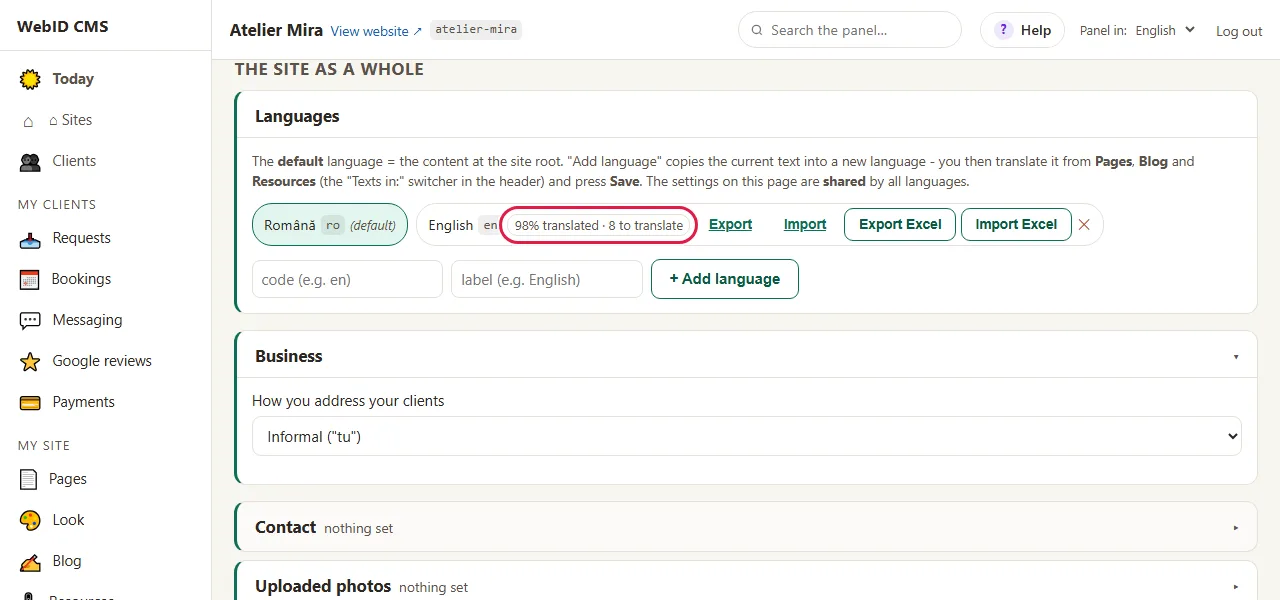
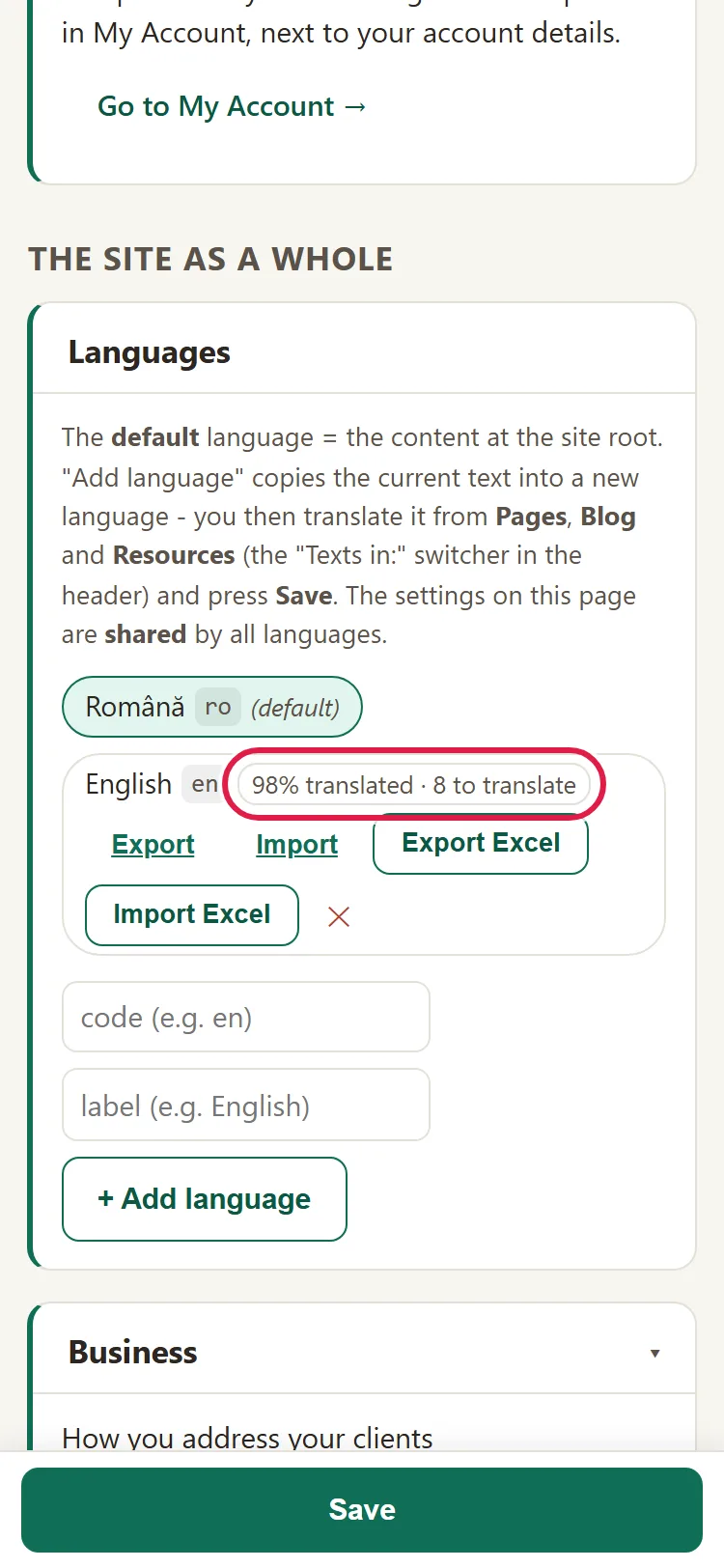
A text left the same as in Romanian counts as untranslated. The percentage shows how much is filled in, not how good the translation is.
Common problems
- "I get: Invalid or unreadable XLSX file." The file isn't the one exported from the admin panel or you deleted its id or target columns. Export again and write only in target.
- "I get: XLSX support did not load - reload the page." Reload the "Settings" page and try again.
- "I get: Invalid JSON file." The JSON file got broken while editing. Export again.
- "I get the message Bundle invalid: fișier nepermis… (file not allowed)" You changed the file or id column. Export again and write only in target.
- "I imported and the website still shows the old text." Write to us at contact@webid.ro and we'll take a look.
- "I chose 'English' in Blog and nothing changes." Choose the language in Pages, then go into Blog from the menu.
- "Something else isn't working." Write to us at contact@webid.ro with what you see on the screen and we'll take a look.
What it doesn't do
- The admin panel option and the Excel option don't translate by themselves: the text is written by you or your translator.
- The translated percentage doesn't notice when you change the Romanian text after translating it: the old translation still counts as done. When you change a text in Romanian, change it in the other languages too.
- Prices and other values that don't get translated don't appear in the file and can't be changed through import.
- The website's fixed texts (the buttons, the cookie banner) aren't in the file. In English they're already translated; for another language, this part is done separately and, before you pay, we tell you what's included.
- The import doesn't touch the texts in Romanian: it only writes in the language you chose.
- The messages after an import appear in Romanian even when the admin panel is in English.
What data it uses
When you translate yourself, in the admin panel or in Excel, the texts stay with you: the exported file only ends up on your desktop and with whoever you send it to, and each import leaves a line in the website's log (the date and the number of changes). With the language translated by us, the website's public texts (including the team's names, if they appear) are translated with AI, through Anthropic, and run through an automatic proofreader. The providers are listed in the DPA.